
NEX 3D Video Player turns your Meta Quest into a private movie theater, with beautiful viewing environments and real-time AI 3D conversion that lets you watch regular 2D videos in 3D.
In this complete guide, I’ll show you how to play videos stored on your Quest or USB drives, connect to PCs and network storage using SMB, WebDAV, and DLNA, and use NEX Link for PC streaming and higher-quality 3D conversion. I’ll also cover the built-in browser for watching YouTube, Disney+, and other streaming websites, along with playback controls and virtual theater settings.
I’ll also compare real-time AI 3D with PC-based NEX Link 3D, including my actual conversion times, the differences between Fast and High Quality modes, and my hands-on impressions of the 3D effects. With step-by-step screenshots and practical tips, this guide covers everything you need to get started with NEX 3D Video Player.
Introduction to NEX 3D Video Player
When you watch videos on a Meta Quest VR headset, you’re not just looking at a screen. It feels like having an entire movie theater all to yourself! No couples chatting next to you, and no one in the row ahead sneaking a look at their phone to distract you.

There are several VR video players available on the Meta Horizon Store, each with its own strengths. For example, Moon VR Player delivers the best picture quality, 4XVR Video Player offers the best audio quality, and Skybox VR Player is packed with features.
MOON VR Player
The Player with the Best Image Quality
Price: 🌟🌟🌟
NEXt-Gen Video Player
Apple-style design at the lowest price
Price: 🌟🌟🌟
4XVR Video Player Premium
The best sound quality and smoothest controls
Price: 🌟🌟
SKYBOX VR Player
The most features, but also the most bugs
Price: 🌟🌟
HereSphere
A real hassle to set up, with a pretty clunky interface
Price: 🌟
NEX 3D Video Player is a new VR video player released in 2026, with three standout features:
- Real-time 2D-to-3D video conversion
- A built-in browser for watching YouTube, Disney+, Prime Video, and other streaming services
- Unique and beautifully designed virtual theater environments
It also supports SMB, WebDAV, USB playback, and NEX Link, a companion app for connecting to your PC.
The Meta Store offers a free trial, but it’s limited to just five minutes. The full version costs $14.99. If you’ve never downloaded the app before, you can get it for just $7.50 (50% off) through the VRPUPU creator discount, making it one of the cheapest VR video players on the entire Meta Store.
If you’ve already tried NEX 3D Video Player and aren’t eligible for the creator discount, you can still use the promo code BFVRPUPU-DA6859 to get it for $8.99 (40% off).
Now, let’s take a look at how to use this video player.
Main Screen and Viewing Environments
When you open NEX 3D Video Player, the main interface is very clean and easy to understand. It’s divided into video sources on the left and a function bar at the bottom.
The four icons on the left, from top to bottom, are:
- On Device: Play videos stored directly on your Meta Quest.
- NEX Link: Connect to your PC and stream videos to your headset.
- Media Servers: Play videos from your PC or network storage using SMB, WebDAV, DLNA, and similar connection methods.
- USB Drive: Access videos stored on an external USB storage device.
The bottom bar includes Library, Environments, Browser, and Settings.

One of the best things about NEX 3D Video Player is its beautiful viewing environments. Select Environments from the bottom menu to switch between six different environments: Coldpeak, Emberwood (Indoor and Outdoor), Mono Lux, Max Cinema, Voidline, and Passthrough. Each one has its own unique style.

My personal favorite is Max Cinema. It feels so luxurious! Here’s a look at each viewing environment.
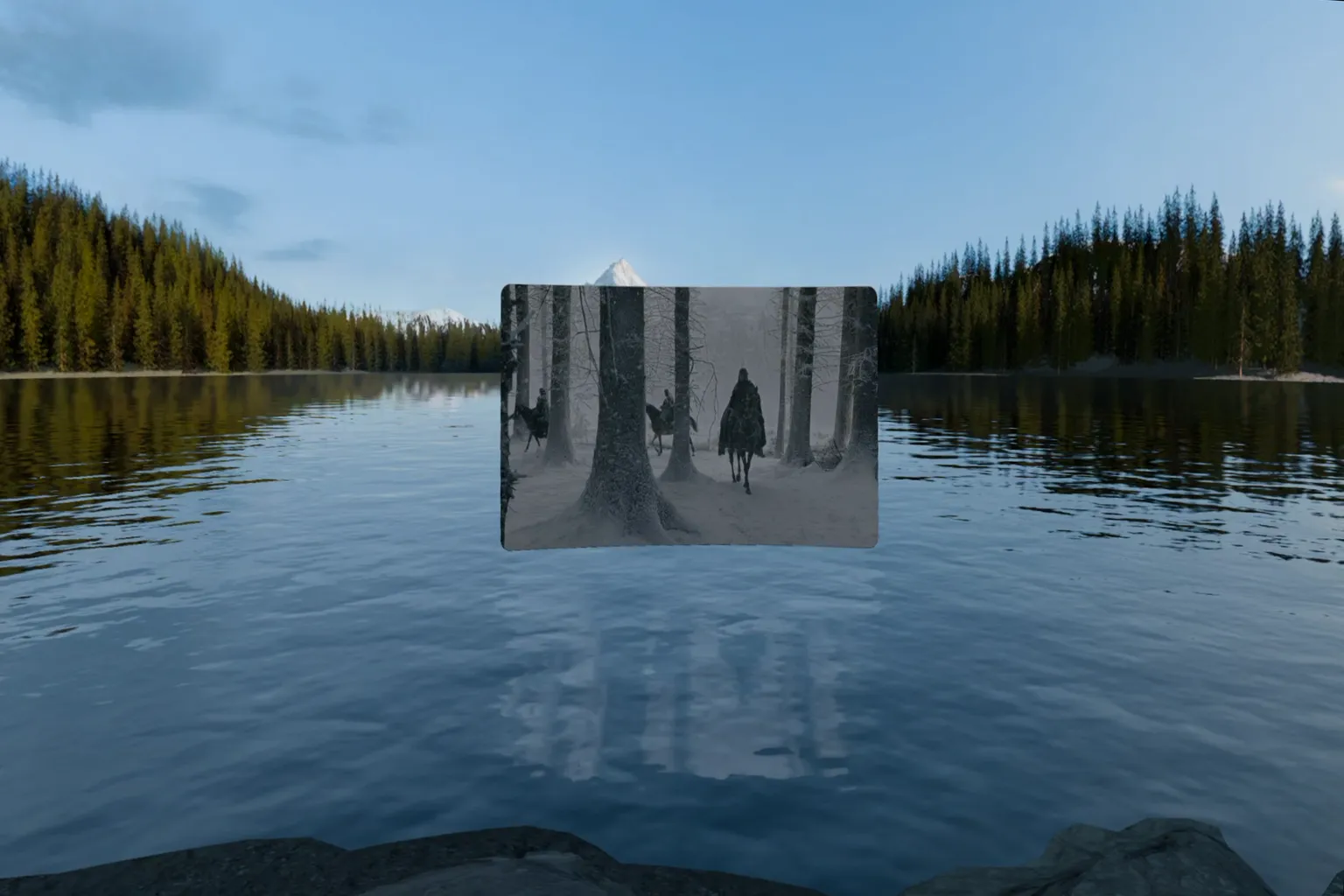
Snow-covered mountains and a beautiful lake reflecting the movie screen make this a stunning place to watch videos.
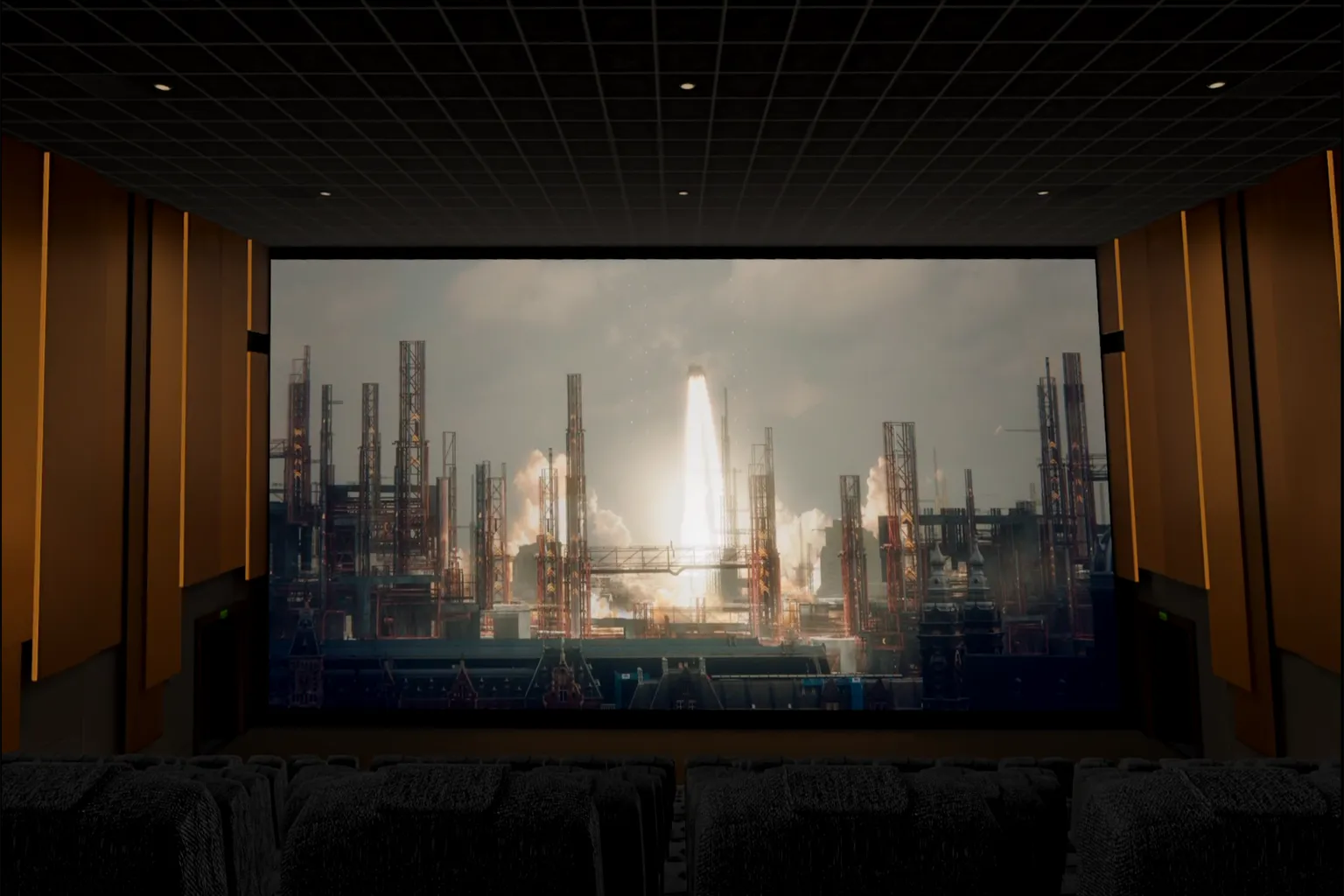
The entire movie theater is yours! Enjoy the feeling of having an IMAX theater all to yourself!
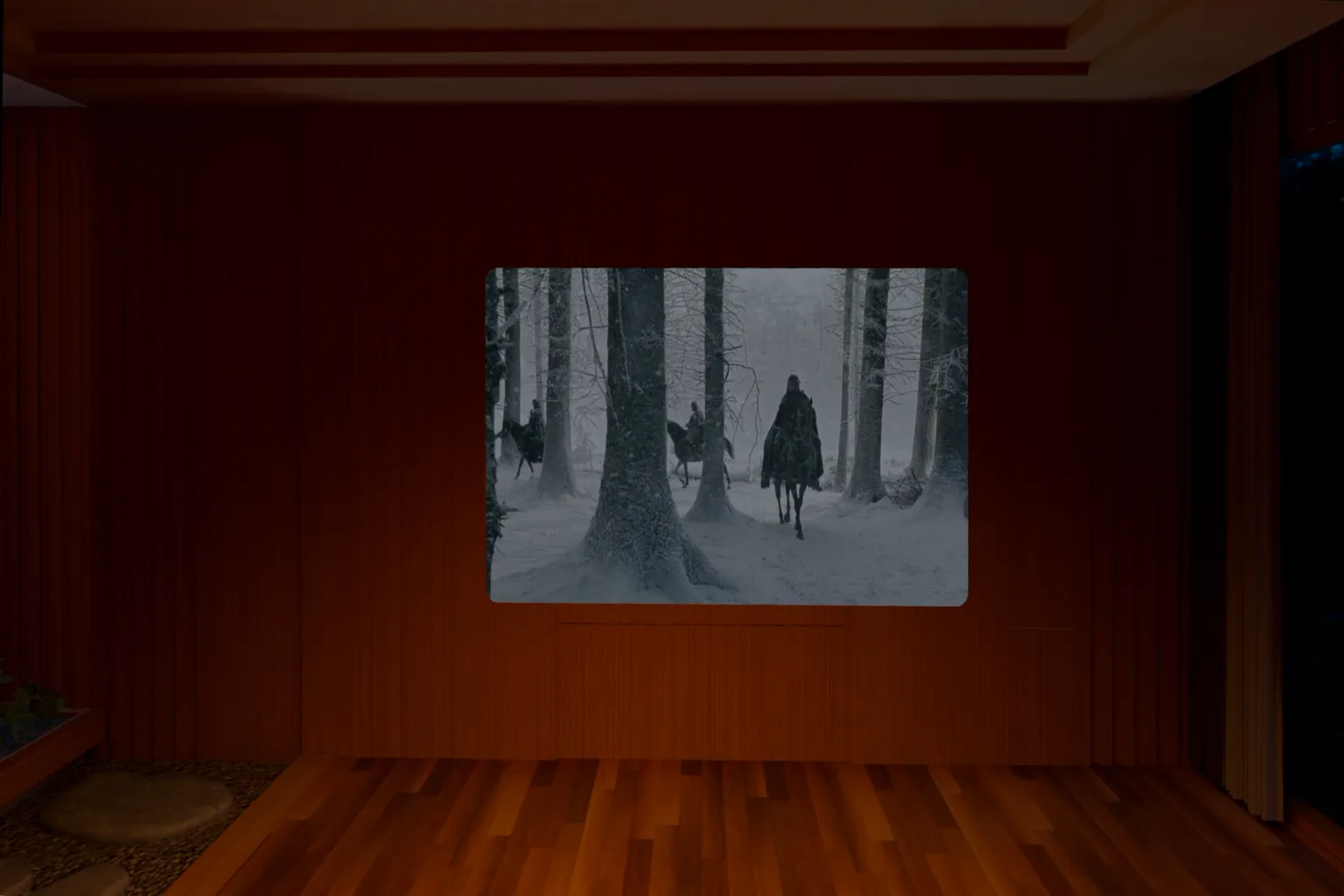
A warm, cozy cabin that makes you feel like you’re enjoying a relaxing mountain getaway.

Enjoy a night of camping under a sky full of stars, with a warm campfire right beside you.

An empty exhibition hall where you can unwind and have a little fun after work.
The available settings vary depending on the viewing environment. For example, Max Cinema doesn’t support curved screens, which is a bit disappointing. Outdoor environments usually include ambient sounds like chirping birds and insects. If you find them distracting while watching videos, you can turn them off here.
| Viewing Environment | Curved Screen | Seat Height | Seat Position | Ambient Sound | Lighting |
|---|---|---|---|---|---|
| Coldpeak | ✓ | ✓ | ✗ | ✓ | ✗ |
| Max Cinema | ✗ | ✗ | ✓ | ✗ | ✓ |
| Emberwood (Indoor) | ✗ | ✓ | ✗ | ✓ | ✓ |
| Emberwood (Outdoor) | ✗ | ✓ | ✗ | ✓ | ✓ |
| Voidline | ✓ | ✗ | ✗ | ✗ | ✓ |
| Mono Lux | ✗ | ✓ | ✓ | ✗ | ✗ |
| Passthrough | ✓ | ✗ | ✗ | ✗ | ✗ |
✓ = Available and adjustable; ✗ = Not available or adjustable.
Video Playback
NEX 3D Video Player supports multiple video sources, including files stored on your Meta Quest, SMB network shares on your PC, WebDAV cloud streaming, and USB flash drives.
Local Videos
If your videos are already stored on your Meta Quest, select On Device from the left side of the main screen. You’ll see the videos and folders on your headset. Simply select a video to start watching.
NEX 3D Video Player displays a list of your videos. I tested placing files in the Movie, Oculus, and Download folders, and the player was able to find them all. You can also switch to folder browsing mode, which makes it easier to organize and find videos if you have a large collection.

Media Servers
The Media Servers menu supports three video playback methods: DLNA, SMB, and WebDAV. For DLNA, simply enable media streaming on your PC and share the media library you want to access. You can then play those videos directly on your headset. SMB and WebDAV, on the other hand, require some setup on the headset.
Select Add in the upper-right corner, then choose SMB or WebDAV.

When adding an SMB server, you’ll need to enter your PC’s IP address, a server name, username, and password.

When adding a WebDAV server, you’ll need to enter the server URL (or IP address), a server name, username, and password.

Once setup is complete, you’ll see the SMB or WebDAV server you added in the Media Servers list.

Open the folder, then select a video to start playing.

USB Drive
This method lets you play files directly from a USB flash drive. It’s simple and straightforward. Before getting started, you’ll need the following:
- A USB flash drive or external hard drive with a USB-C connector or adapter.
- The drive must be formatted as FAT32, exFAT, or NTFS.
- Video files stored on the USB flash drive or external hard drive.
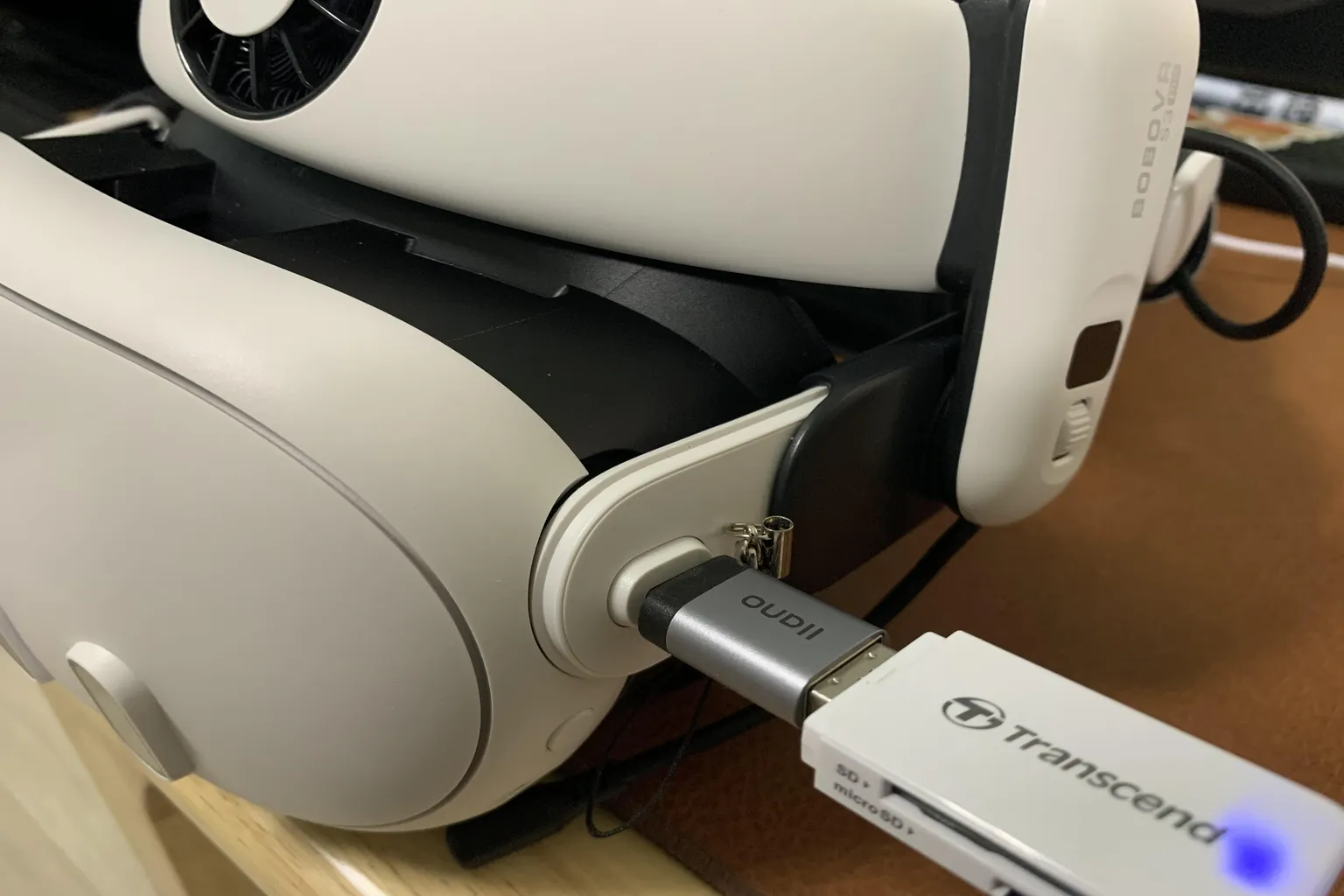
Step 1: Plug the USB Drive into Your Quest’s Charging Port
The USB-C port is fairly fragile, so be careful not to put pressure on the USB drive while it’s connected. Otherwise, you could easily damage the port.
Step 2: Play Videos
Open the USB Drive menu to see the videos stored on your USB drive. However, some external hard drives and SSDs may not be recognized.
For example, in my testing, a Transcend card reader with a microSD card and the Logitec LMD-SPE050UAC both worked without any issues. However, the Kingston XS1000 1TB/2TB portable SSDs and the IO-DATA SSPS-US1GR 1TB portable SSD weren’t detected.
If you plan to watch videos from an external storage device, I recommend testing its compatibility first.

NEX Link
NEX Link is a companion app installed on your computer that lets your Meta Quest access and play videos stored on your PC. Besides video playback, it can also convert regular 2D videos into 3D and even stream your entire PC desktop to your VR headset.
Here’s how to use it:
Step 1: Download and Install NEX Link
First, visit the official NEX website and download NEX Link. It’s available for Windows, macOS, Ubuntu, iPhone, and iPad.
I’ll use a Windows PC to demonstrate the setup process.

During installation, you’ll be asked whether you want to install NEX 3D Engine, which allows your computer to convert 2D videos into 3D.

VB-Cable is used to send audio from your computer to your VR headset when streaming your PC screen.

Step 2: Share Files and Folders
Once installation is complete, click Add in the upper-right corner of the main screen to add the videos you want to play to NEX Link.

You can add individual files or entire folders.

Your computer and Meta Quest must be connected to the same local network. Then, select NEX Link on your headset, find your computer, and connect to it. You’ll see the videos and folders you just added.

Additional Feature: PC Screen Streaming
Select Live Stream in NEX Link to stream your computer’s screen and audio to your headset. Both the picture and sound quality are excellent.
However, while you can see your computer’s screen, the mouse cursor isn’t visible. If you want to click a link on a website or control video playback on your PC, you have to take off your headset and use your computer screen. I don’t find this feature very practical.

Step 3: Convert 2D Videos to 3D
NEX Link on your PC can convert regular 2D videos into 3D videos with a sense of depth, similar to watching a movie like Avatar in 3D. There are two conversion modes: Fast and High Quality. Converted videos can only be played in NEX 3D Video Player and cannot be exported for use in other video players.
Before converting a video, go to Tasks and select either Fast or High Quality mode.

Next, go to Videos, right-click the video you want to convert, and select Convert to 3D.

NEX Link doesn’t support resuming interrupted conversions. While converting a video, your computer must stay powered on and cannot enter sleep mode. The entire conversion has to be completed in one session.
Conversion speed depends on your GPU’s performance. On my PC, converting a one-hour 4K video takes 29 minutes in Fast mode, while High Quality mode takes 6.5 hours.
My PC specifications are:
CPU: Intel Core i7-13700K
GPU: NVIDIA RTX 3090
RAM: 32GB
Storage: 2TB PCIe Gen4 SSD

NEX Link uses different icons to show whether a video is still being converted or has finished converting.

Once a video has been converted, playing it on your headset will activate NEX Link 3D mode.

High Quality mode takes more than ten times as long as Fast mode, but the difference in results is surprisingly small. I recommend sticking with Fast mode.
Also, after the video conversion was complete, my GPU was still running at 100% utilization. It didn’t return to idle until I manually closed NEX Link. I recommend checking your GPU usage after a conversion finishes, or simply closing NEX Link.

Browser
NEX 3D Video Player has a built-in web browser with shortcuts to popular streaming platforms. Simply select a shortcut to open the website and watch content from YouTube, Disney+, Prime Video, and more.
The built-in shortcuts currently include:
- Movies & TV Shows: Prime Video, Disney+, Max, Hulu, Paramount+, Apple TV+, Tubi
- Videos & Live Streams: YouTube, Twitch, Red Bull TV, IMAX
- Personal Media Library: Plex

- Chinese Streaming Platforms: Bilibili, iQIYI, Tencent Video, Youku
- Music Streaming: Spotify, YouTube Music

In addition to the built-in shortcuts, you can enter a URL or keyword in the search bar at the top to browse other websites. For example, you can visit TikTok to watch all kinds of short videos. You can even use the AI 3D feature to convert these streaming videos into 3D in real time.
However, Netflix still won’t play here because of its DRM protection.
When you start playing a video, two screens will appear, one in front of the other. Use the cursor to select the screen in the back, and the front screen will disappear.

Watching YouTube or TikTok on a screen this big is so much more enjoyable.
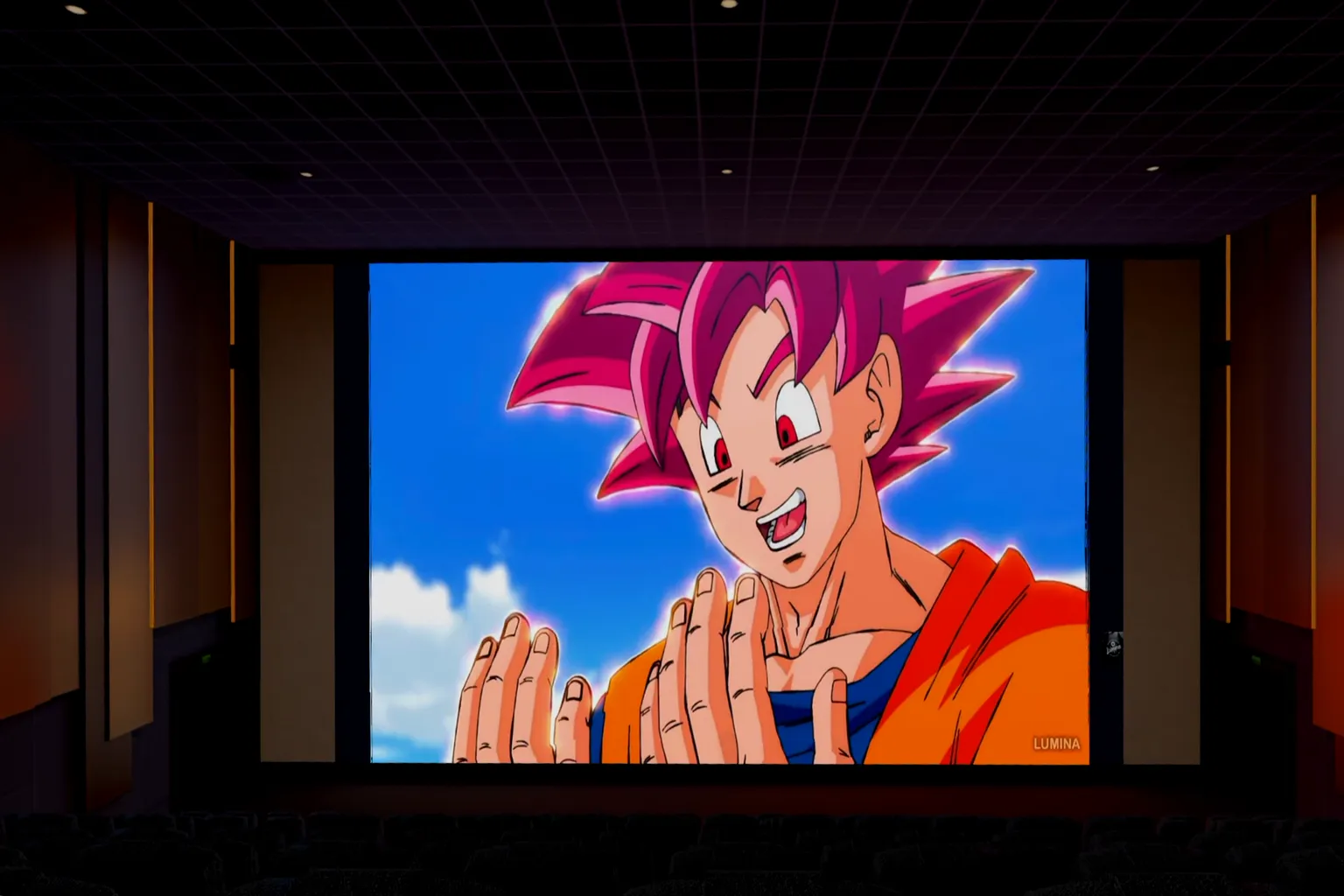
Playback Settings and Real-Time AI 3D
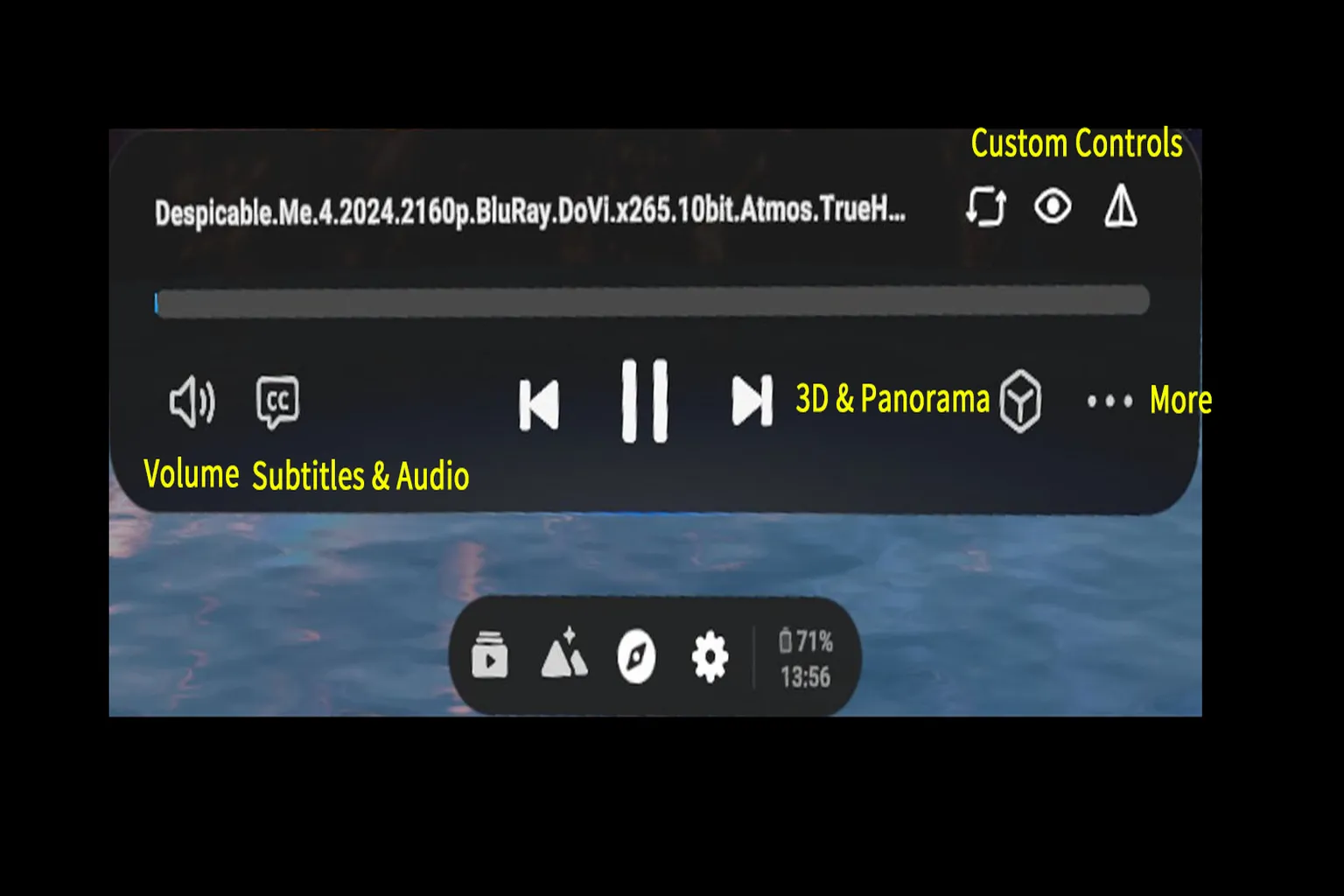
NEX 3D Video Player has a clean, straightforward playback interface. You can adjust subtitles, audio, 3D display modes, and other settings, but its standout feature is the ability to convert regular 2D videos into 3D in real time.
Subtitles and Audio
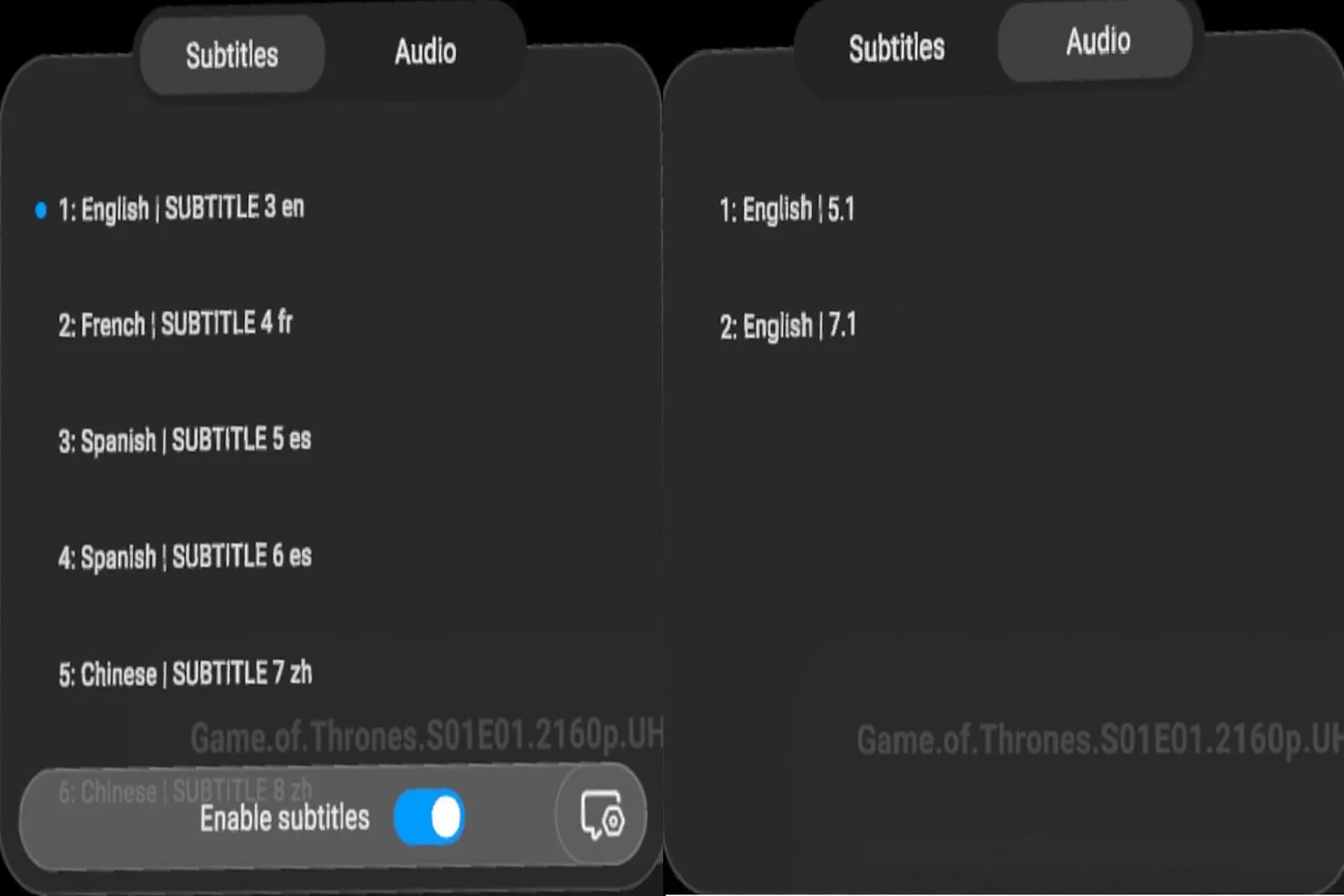
Select the CC icon in the playback controls to choose from the video’s available subtitle tracks and audio tracks. You can also adjust the subtitle font size in the lower-right corner of the subtitles menu.
3D & Panorama
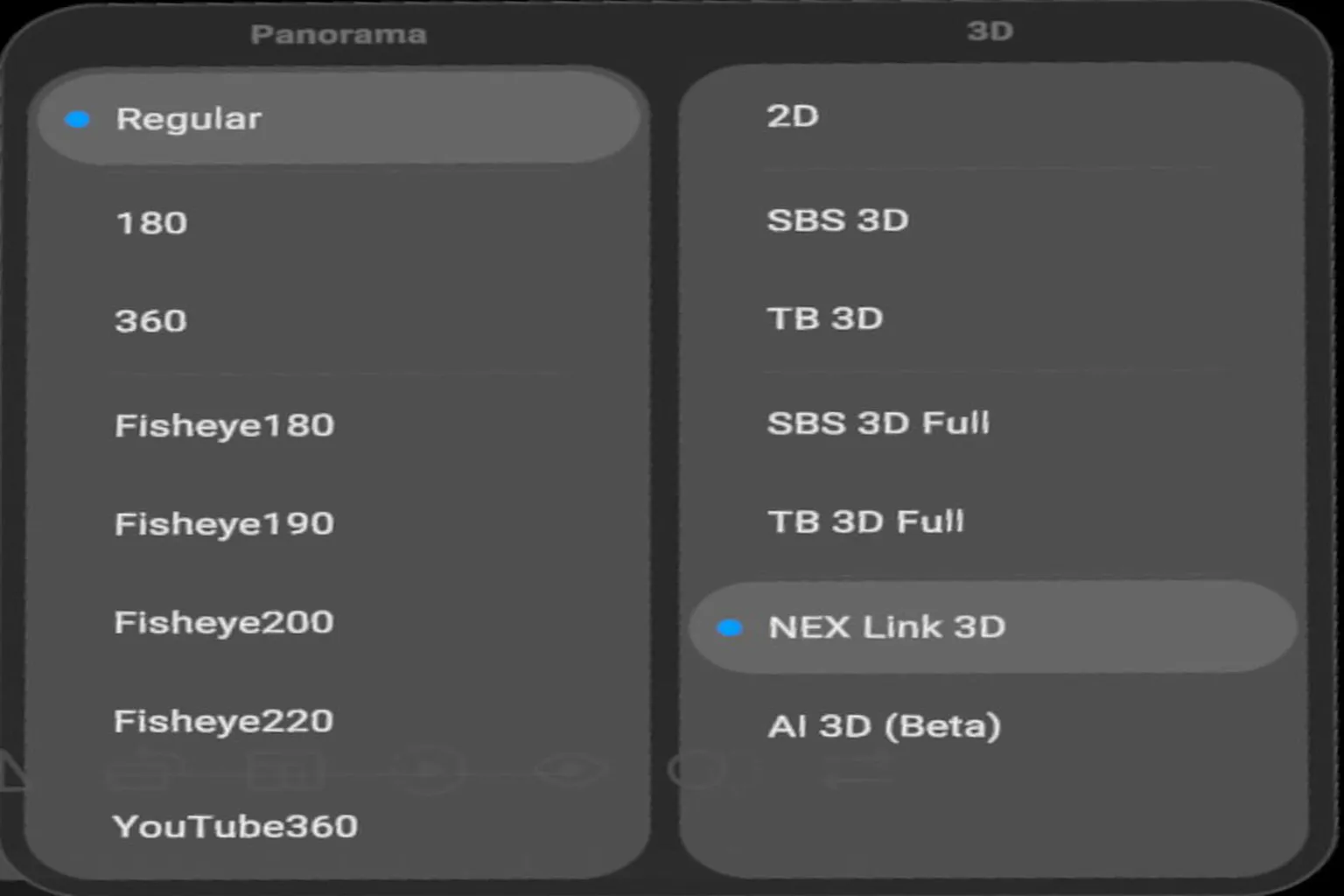
The hexagonal cube icon on the right side of the playback controls lets you choose the video display format. The left side shows the available viewing modes, including Normal, 180, 360, Fisheye, and YouTube. The right side displays the options available for each mode.
In YouTube mode, the video wraps around you like the inside of a cube, with images surrounding you on all sides. It’s great for watching videos of galaxies, underwater scenes, and similar content, creating a strong sense of immersion. However, it’s not very comfortable for watching regular videos.
NEX 3D Video Player doesn’t automatically detect VR video formats. When playing VR videos, you’ll need to manually switch to 180 or 360 mode, then select either Side-by-Side (SBS) 3D or Top-and-Bottom (TB) 3D to match the video format.
The AI 3D feature in Normal mode can convert regular 2D videos into 3D in real time. If professionally produced 3D movies score a 10 out of 10, and the built-in 2D-to-3D conversion on those popular 3D TVs around 2010 scores a 3, I’d give NEX’s real-time AI 3D conversion about a 5 out of 10. The PC-based NEX Link 3D conversion delivers better results, earning around a 6 or 7 out of 10.
Custom Controls
Select the ••• icon at the far right of the playback control bar, next to the 3D & Panorama icon, to customize the playback controls, including options such as aspect ratio and playback speed.

Select the features you use most often to add them to the playback controls, making them easy to access and adjust whenever you need them.

System Settings
There aren’t many options to adjust under Settings. Most of them are related to UI Sound Effects, Controller Vibration, and other basic interface settings.

Under Playback Controls, you can configure Shortcut Settings or enable Hand Gesture Control (Beta).

Conclusion and Recommendations
NEX 3D Video Player offers a very complete set of features. What I like most is its beautiful virtual theater environments, especially Max Cinema, which really feels like having an entire movie theater all to yourself.
While its 2D-to-3D conversion can’t match professionally produced 3D movies, it still delivers a pretty good sense of depth. Combined with the built-in browser, PC streaming through NEX Link, and other features, it’s a very practical VR video player.
At $14.99, NEX 3D Video Player is already competitively priced. But if you can get it for just $7.50 through the creator discount, I think it’s an excellent deal.
If you’ve already tried NEX 3D Video Player and aren’t eligible for the creator discount, you can still use the promo code BFVRPUPU-DA6859 to get it for $8.99 (40% off).
FAQ
Can NEX 3D Video Player Convert Regular 2D Movies to 3D?
Yes. NEX 3D Video Player offers real-time AI 3D conversion, allowing you to watch regular 2D videos in 3D directly on your Meta Quest. You can also use NEX Link on your PC to convert videos in advance for a better 3D effect.
Can NEX 3D Video Player Play Videos Directly from My PC?
Yes. NEX supports SMB, DLNA, and WebDAV. You can also install NEX Link on your computer to stream videos directly to your Meta Quest without copying the files to your headset first.
How Long Does NEX Link Take to Convert 2D Videos to 3D?
Conversion time depends on your GPU and the length of the video. In my testing with an NVIDIA RTX 3090, converting a one-hour 4K video took about 29 minutes in Fast mode and 6.5 hours in High Quality mode. The difference in 3D quality was fairly small, so I recommend using Fast mode.
Can NEX 3D Video Player Stream YouTube, Netflix, and Other Videos?
NEX has a built-in web browser that lets you watch YouTube and provides shortcuts to streaming services such as Disney+, Prime Video, Max, and Bilibili. You can also use real-time AI 3D conversion with streaming videos. However, Netflix cannot be played directly in the NEX browser because of DRM protection.
Is NEX 3D Video Player Free? Are There Any Discounts?
NEX 3D Video Player offers a five-minute free trial, while the full version costs $14.99. If you’ve never downloaded the app before, you can use the VRPUPU creator discount to get it for just $7.50 (50% off).
If you’ve already tried the app, you can still use the promo code BFVRPUPU-DA6859 to get it for $8.99 (40% off).