Did you know you can unlock hidden rewards on the official Meta Store using a creator promo code? By applying the code VRPUPU at checkout, you can score an extra $30 in Quest Cash when buying a new Meta Quest 3 or 3S, and even get 10% off full-priced VR games. In this complete guide, we will show you exactly how to verify your cart to ensure the discount is applied. We will also reveal a proven workaround to stack this creator benefit with a standard friend referral, letting you walk away with up to $60 in free Quest Cash. Do not leave free money on the table—read on to maximize your VR savings today!
Creator $30 Benefit
This creator benefit isn’t very well known the US, but Meta Quest actually has an official Creator Support Program.
In simple terms, when a user buys a Meta Quest headset or software, they can receive extra discounts or bonuses, and the creator who introduced that purchase also earns a reward. That’s how the system works.
This isn’t limited to the US. It can be used in Meta Stores worldwide, including Europe, Australia, Asia, the Middle East, and more. Just enter the discount code VRPUPU at checkout, and it works the same way.
The process is very simple, even if you’ve never used anything like this before.
There are only two ways to use it.
- Enter “VRPUPU” manually on the checkout page
- Access the Meta official site through a creator link
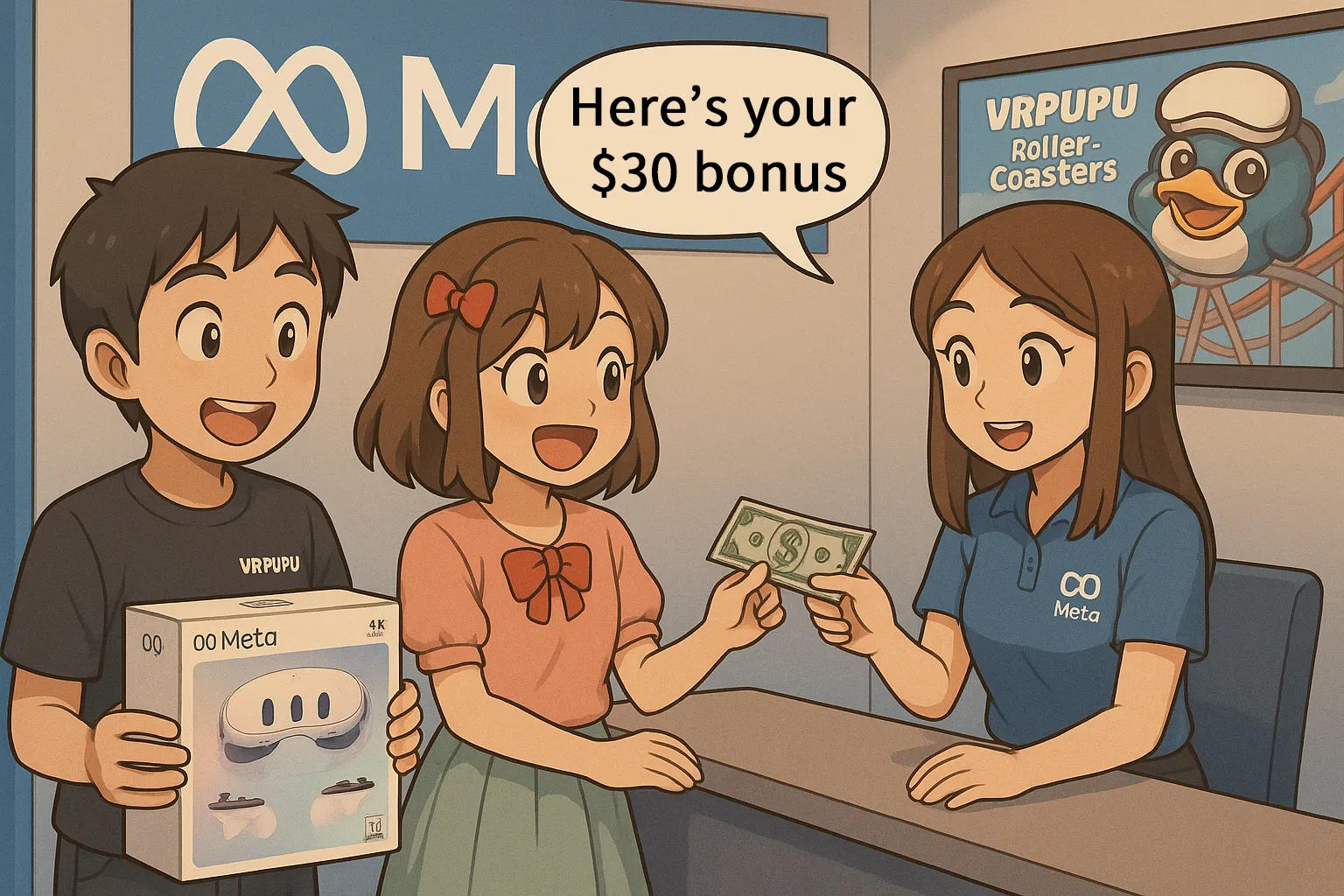
If you use either of these and buy a Quest 3 or Quest 3S from the Meta official store, you can receive an extra $30 in Quest Cash.
That’s it. No complicated setup at all.
Here’s the important part to watch out for.
You must access the site through an official creator link for the bonus to apply.
If you just browse around the Meta site normally, the system won’t treat it as a creator-supported purchase, and you won’t get any bonus at all.
There’s one more key point.
This is not a referral code, so it can be combined with the friend referral bonus. The referral bonus is also $30.
That means you can get:
Creator benefit: $30
Referral bonus: $30
Actual rewards are always subject to Meta’s system decision.
Bonus breakdown by purchase method
| Purchase Method | Bonus You Get |
| Creator benefit only | $30 |
| Referral code only | $30 |
| Both conditions met | Up to $60 (steps required) |
Honestly, this combination is huge.
If you don’t know about it, you’re basically guaranteed to miss out.
That said, the final decision on what actually gets applied always comes down to Meta’s system. Even if you meet multiple bonus conditions, it doesn’t necessarily mean everything will be granted at the same time. In some cases, the system chooses and applies whichever benefit it considers more favorable.
On top of that, these rules are often adjusted without clear announcements. Because of that, this article will be updated as needed based on real, confirmed behavior and the latest results.
So don’t set your expectations too high.
Think of this as reference info to help you choose the safest way to buy, without stepping on any hidden landmines.
How to Use the Official Creator Benefit
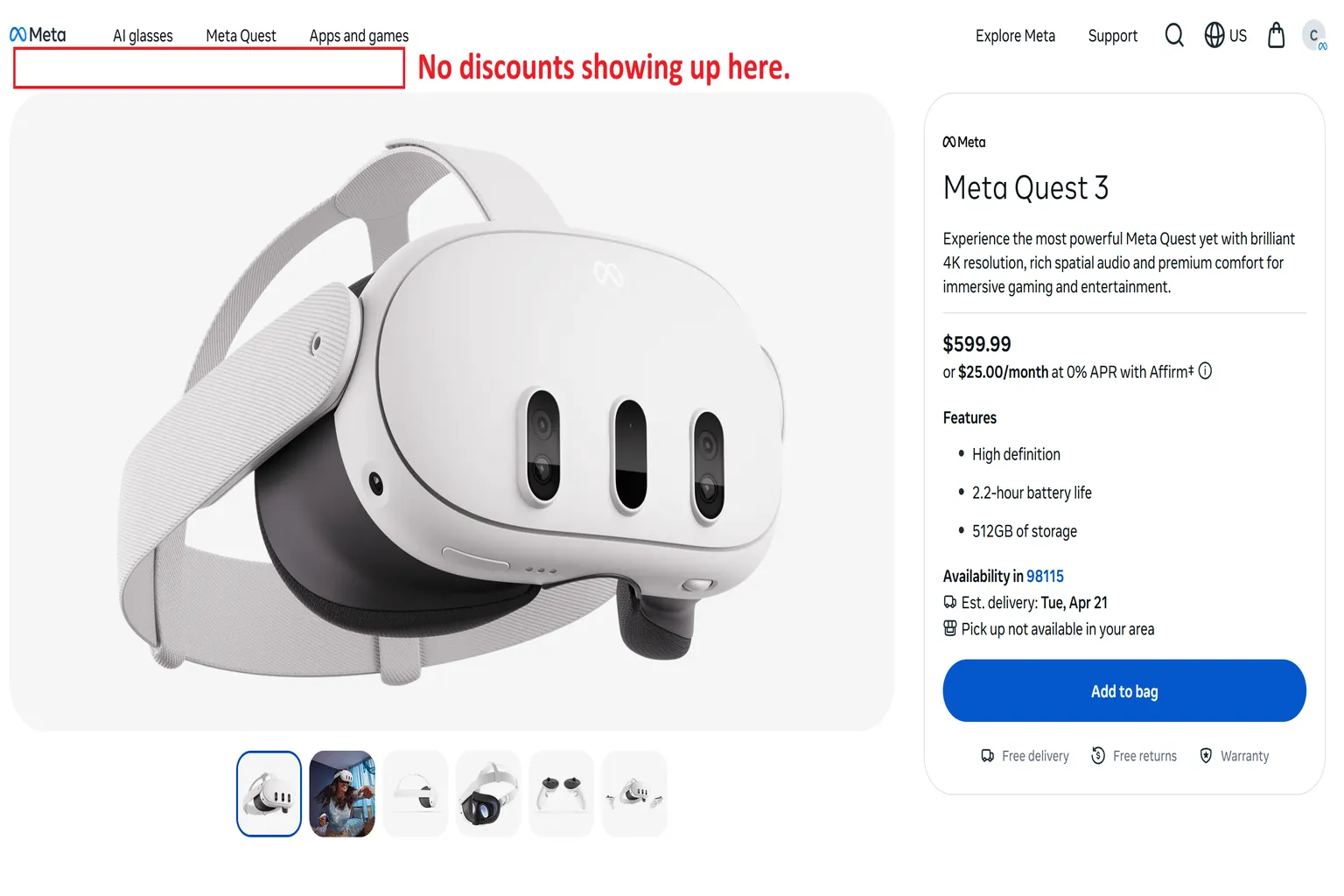
If you just browse the Meta official site normally, this creator benefit doesn’t show up at all.
On a standard product page like the one below, there’s no sign of any discount or bonus. At a glance, it looks like there are no special offers available.
That’s exactly why it’s important to go through a proper “VRPUPU” creator path.
Step 1: Choose the headset you want
First, decide whether you’re getting a Quest 3 or a Quest 3S. After that, access the Meta official site using the link below.
If you don’t do this, the message saying “Get $30 in Quest Cash” won’t appear.
Simply opening the official site on your own won’t show this benefit, so be careful.
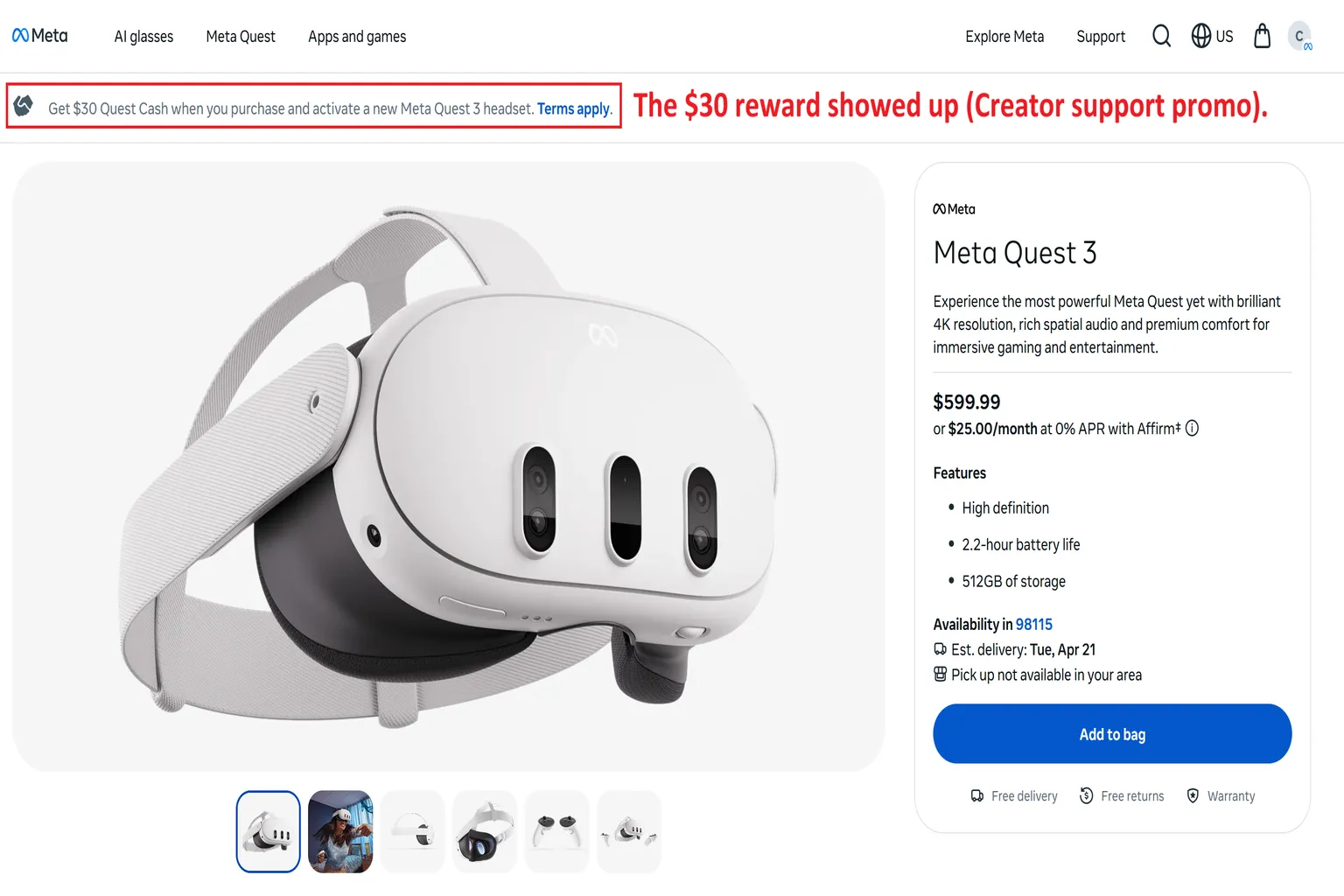
Once you enter the page correctly, you should see a message like this:
“Purchase and activate a new Meta Quest 3 headset to receive $30 in Quest Cash.”
If you see this message, that means the VRPUPU creator benefit is properly active.
Here’s the link: Quest 3 512G
Here’s the link: Quest 3S 128G, Quest 3S 256G
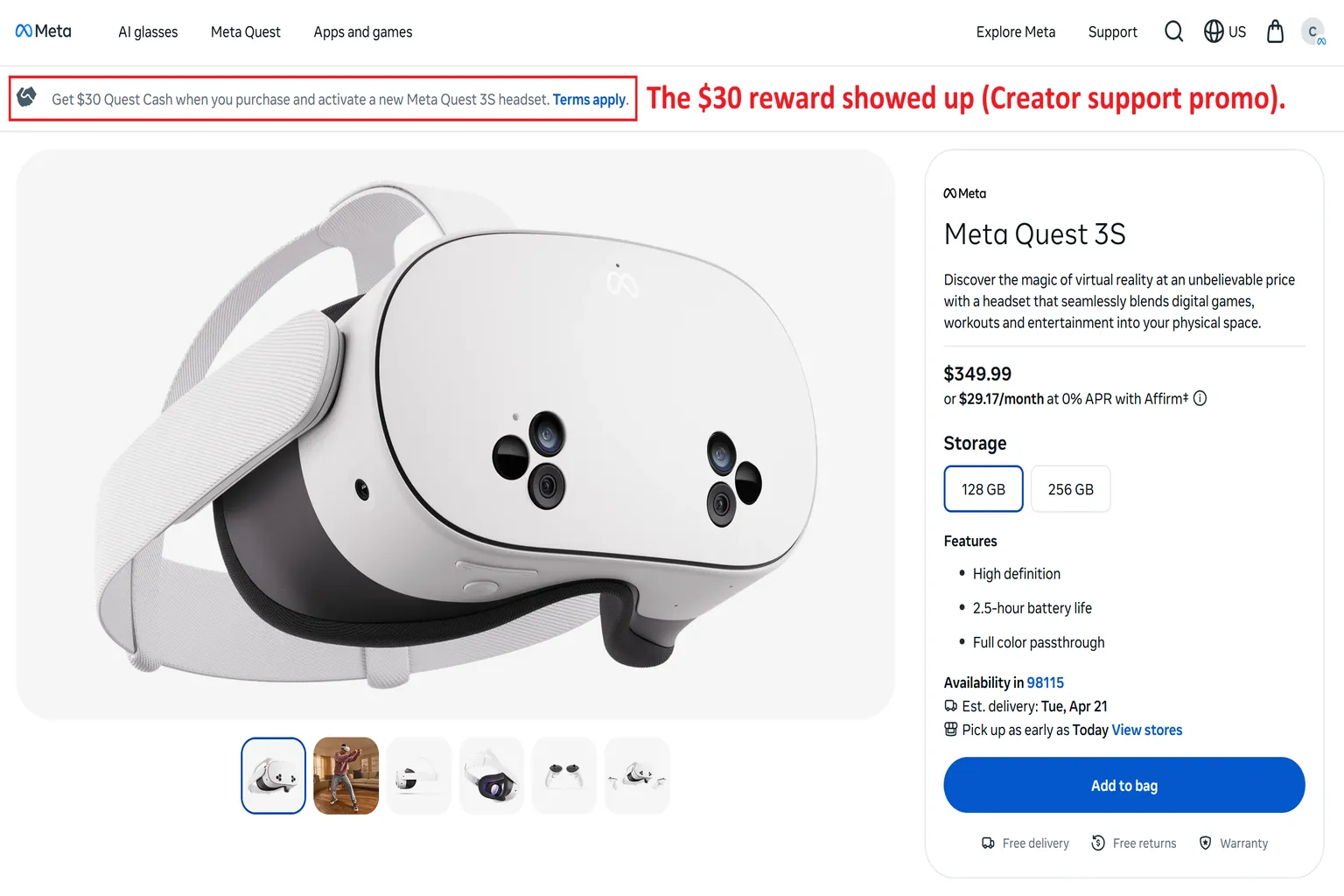
Step 2: Check what’s in your cart
After adding a Quest 3 or Quest 3S to your cart, don’t rush to checkout just yet.
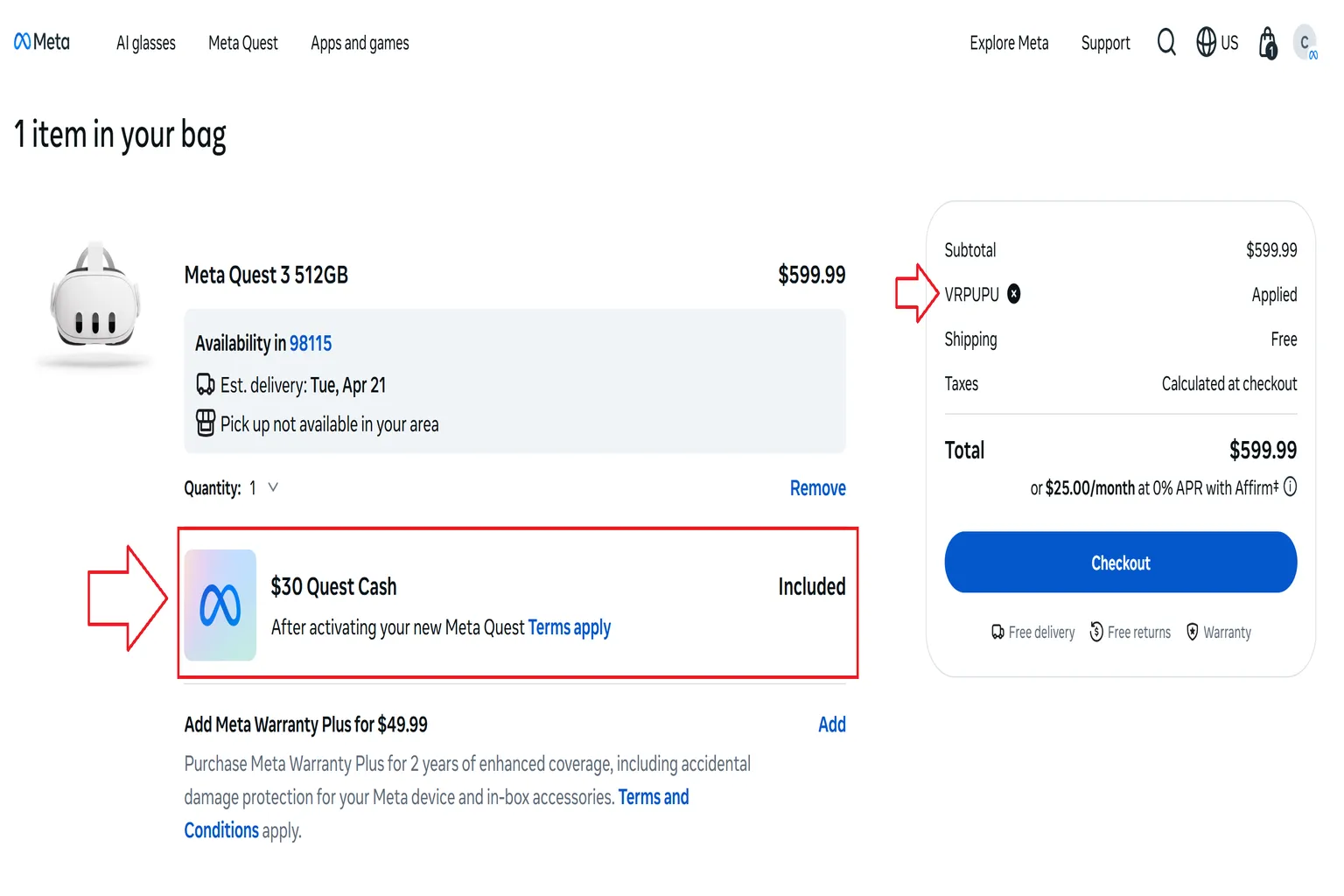
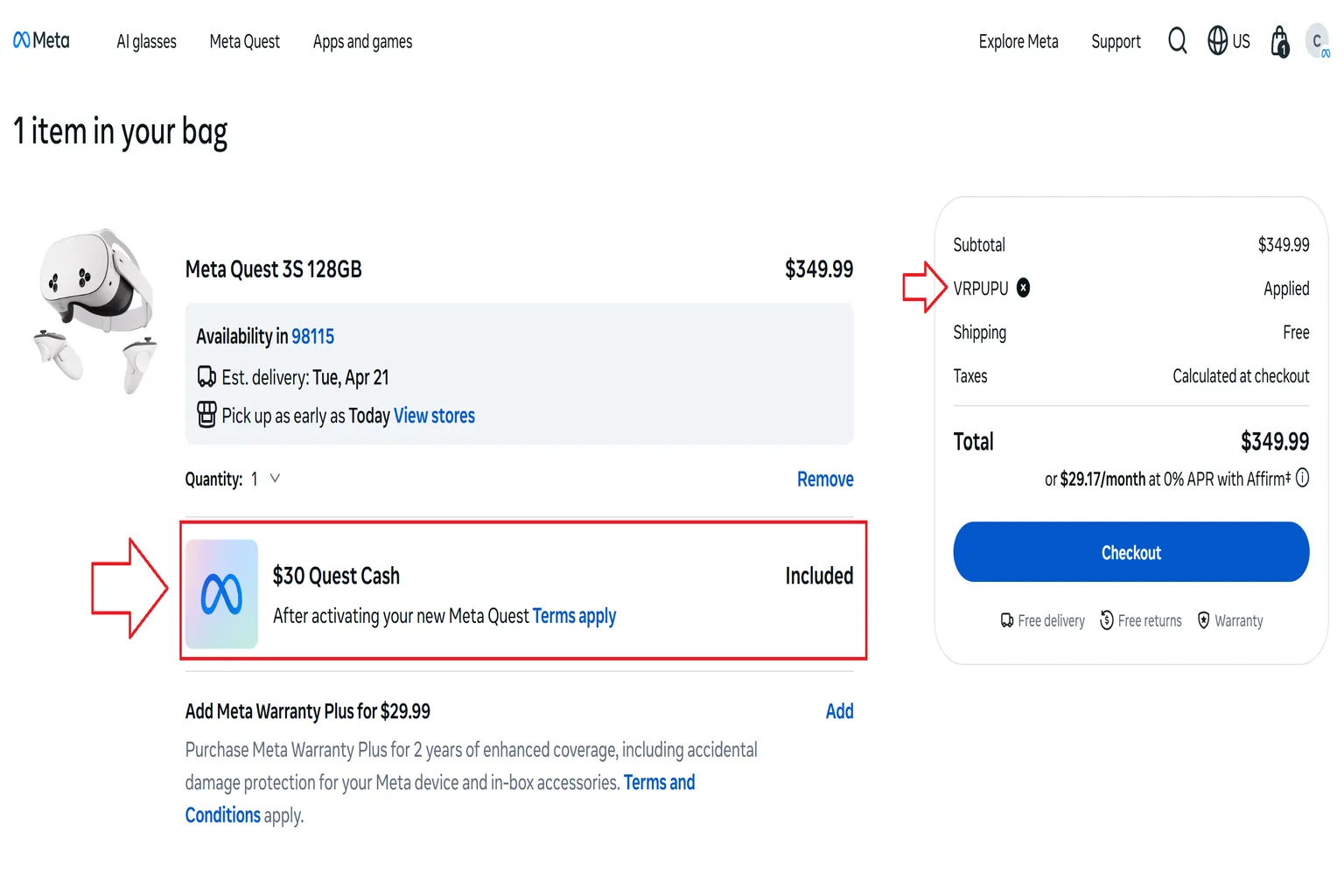
Before proceeding to payment, make sure these two things are clearly shown.
- VRPUPU is applied
→ You’ll see it in the subtotal section on the right. - $30 Quest Cash
→ This usually appears under the product details.
If both of these are displayed, the benefits are applied correctly, so you can move on with confidence.
Now, let’s look at a clear example.
This is what the screen looks like when buying a Quest 3.
This is what the screen looks like when buying a Quest 3S.
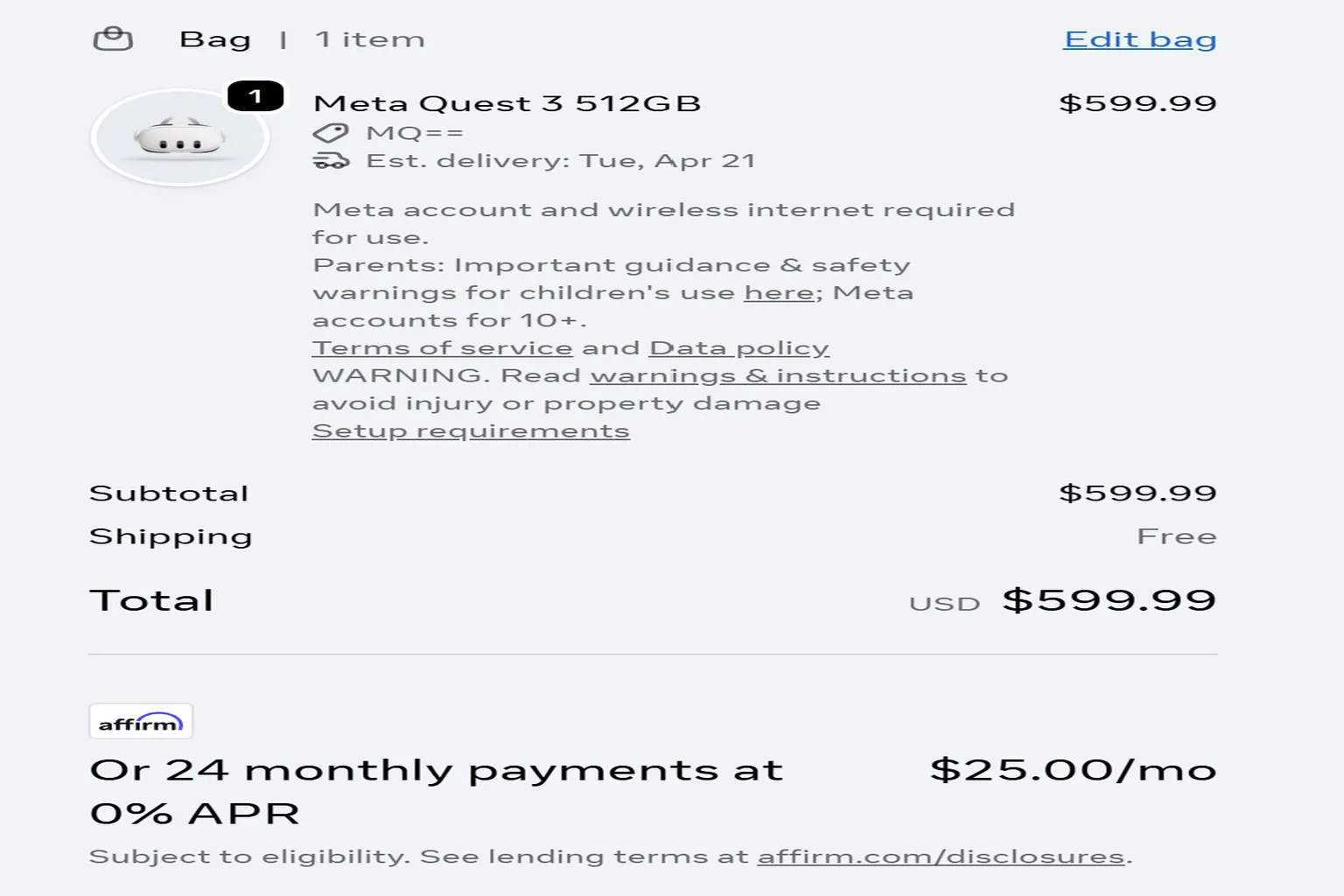
If your screen looks like the image below—where neither “VRPUPU” nor “$30 Quest Cash” is shown at all—it means the discount code hasn’t been applied correctly yet.
Don’t worry. This happens pretty often. In that case, just enter it manually.
Click Add promo code on the right side.
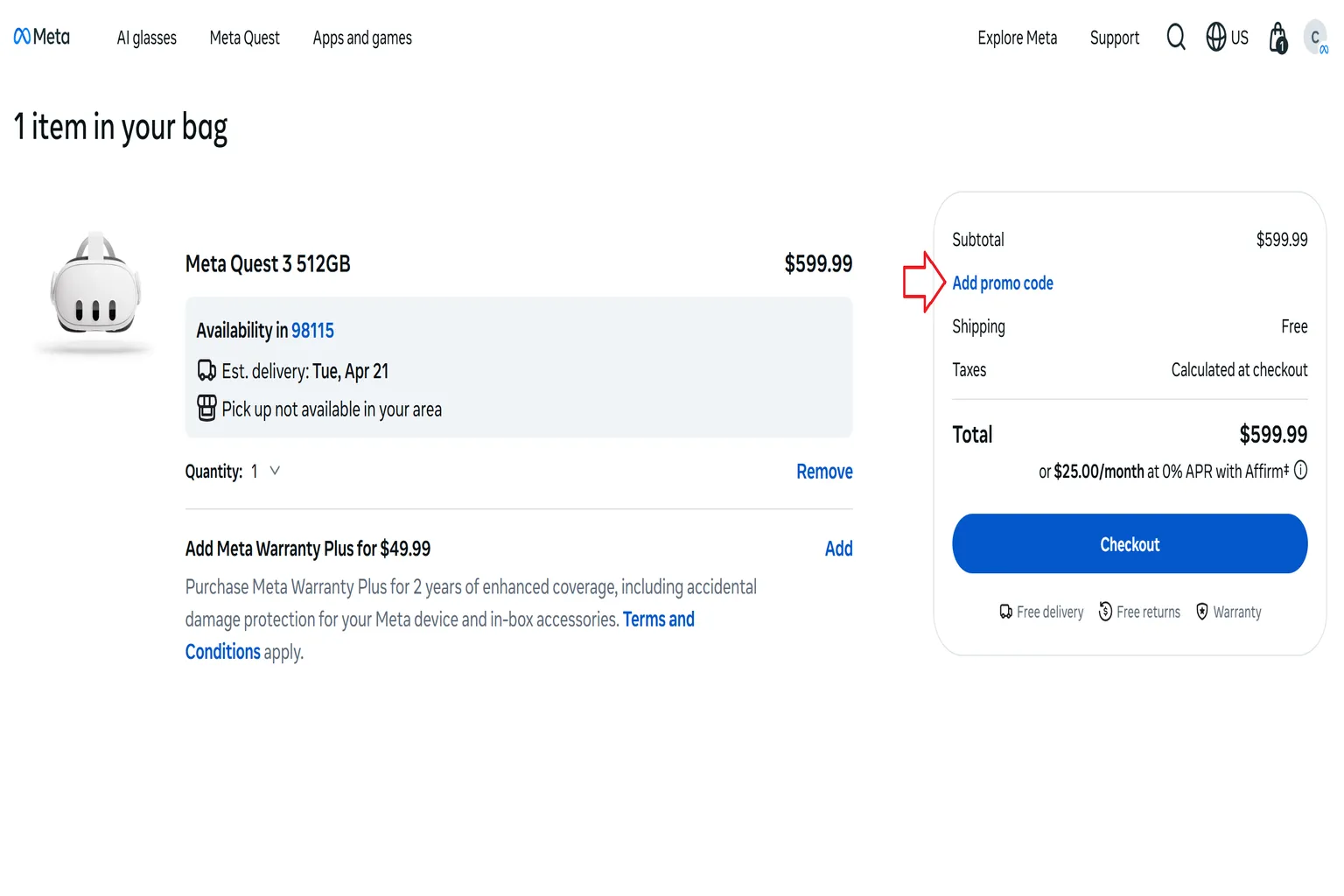
In the input field, type “VRPUPU” and then click Apply.
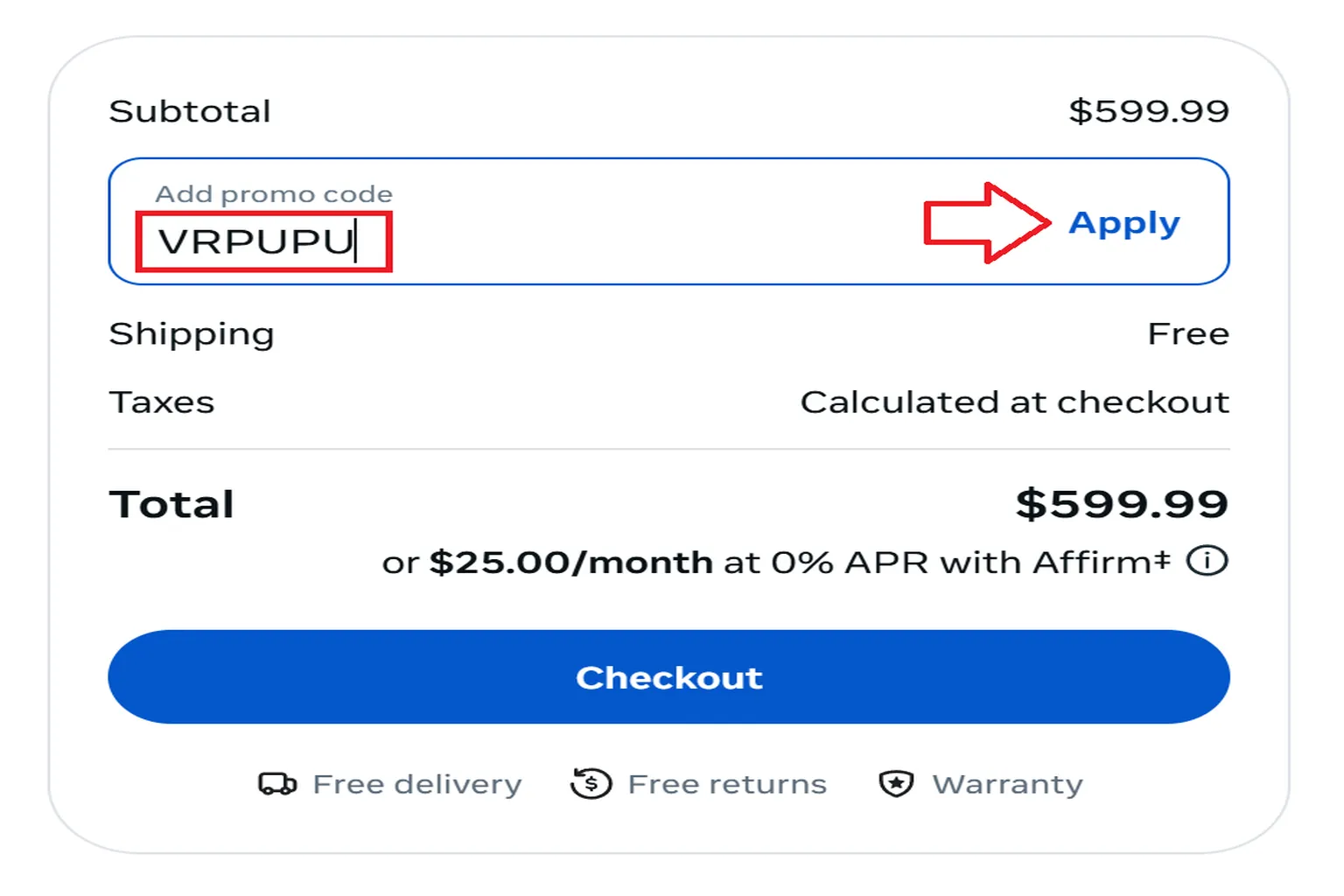
That should apply the discount properly.
After that, just click Checkout and proceed to the payment screen.
Step 3: Checkout
Before proceeding to payment, take one final look at the screen.
Make sure this line is displayed:
“$30 Quest Cash – Included in headset”
If you see this, the benefit is properly applied. You can safely click Pay and complete the purchase.
Keep in mind that after the purchase is complete, this $30 Quest Cash bonus will not appear on the order confirmation screen or in your order history. Because of that, it’s strongly recommended to save a screenshot of this screen before you finalize the purchase.
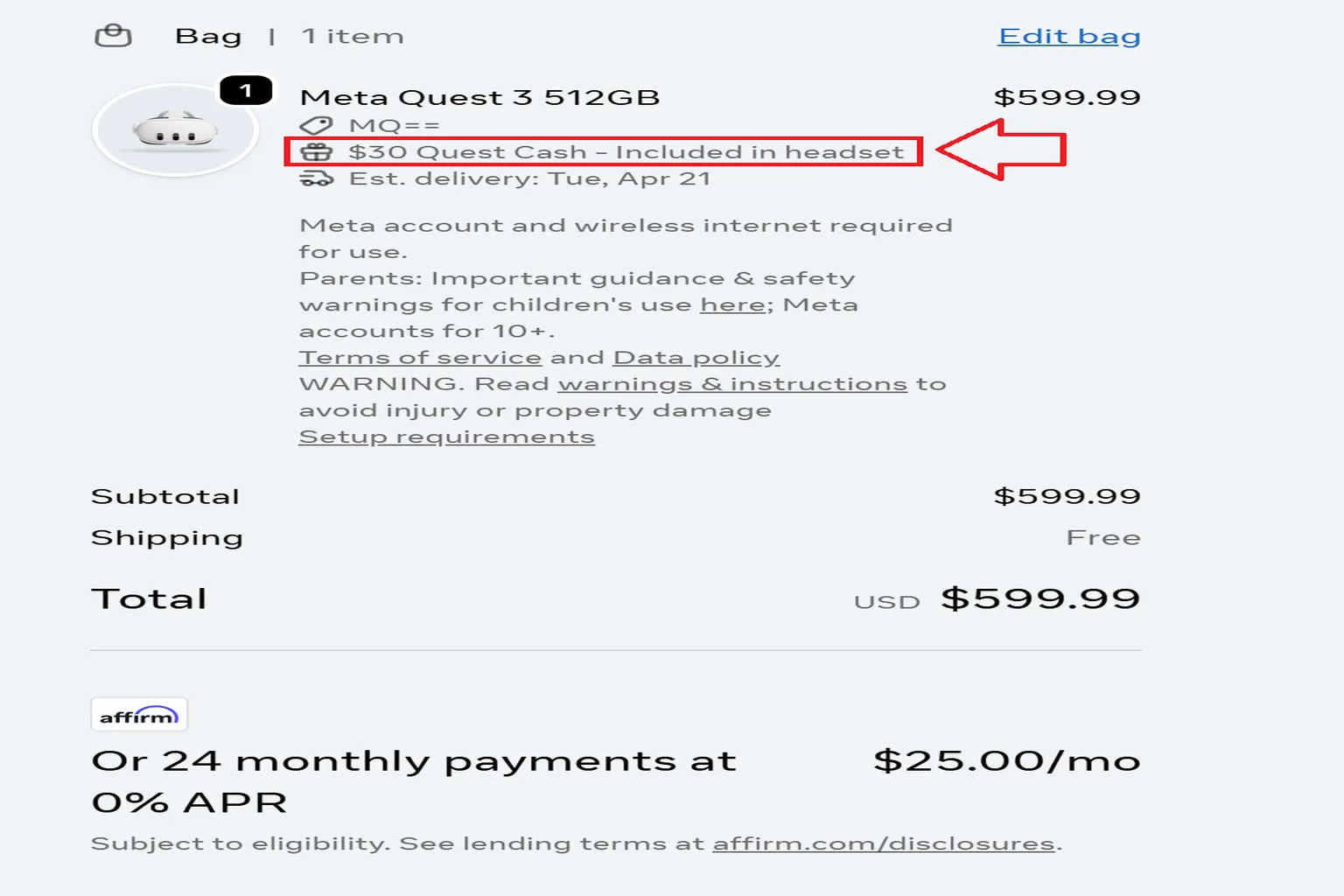
If the checkout screen does not show
“$30 Quest Cash – Included in headset”,
then the benefit hasn’t been applied yet.
In that case, go back to Step 2 and check everything again before continuing.
Step 4: Receiving the Bonus and First Launch
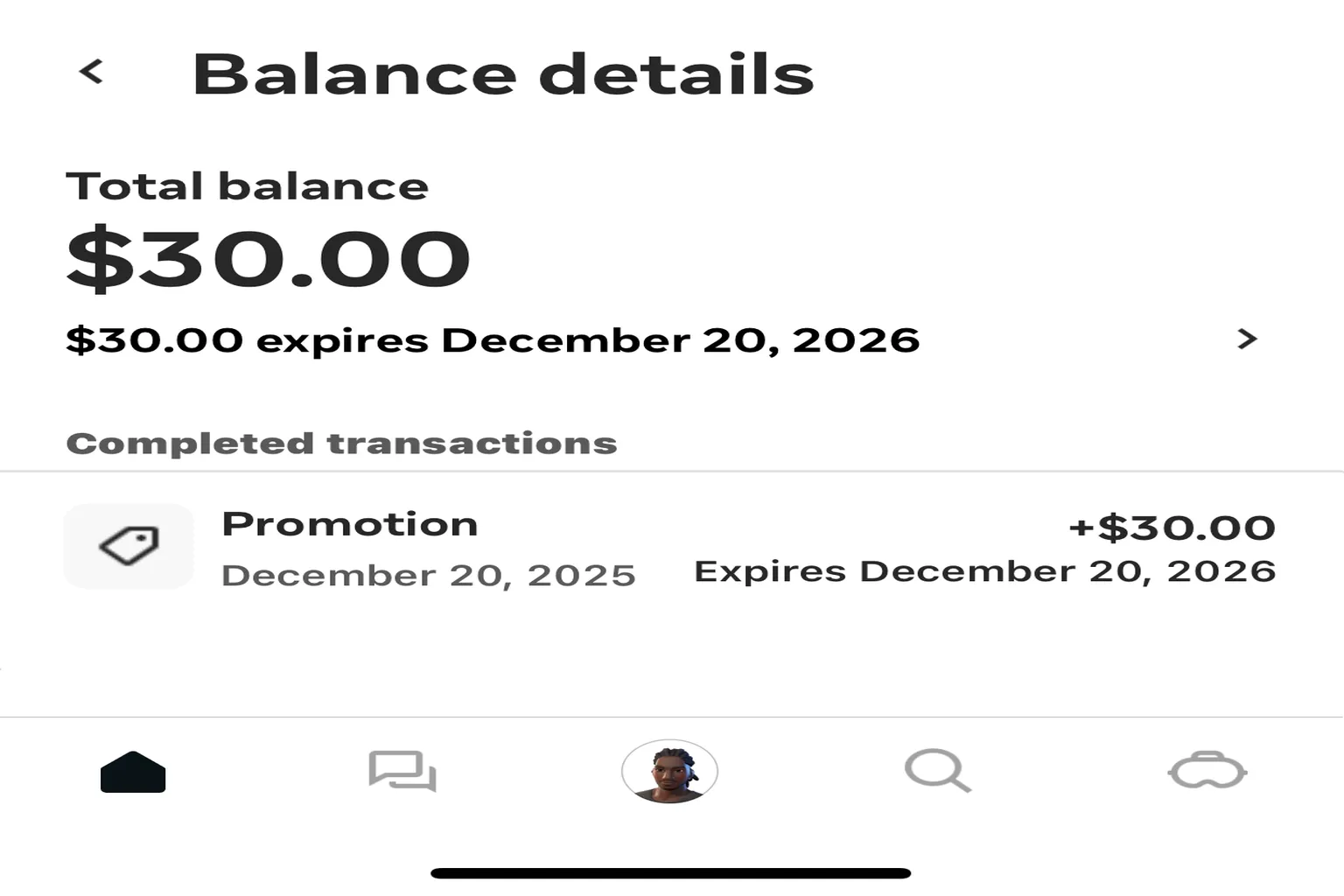
This creator benefit is tied to the headset itself, so once your order arrives and you power on the headset for the first time, the $30 bonus is automatically granted.
After that, you can check the reward inside your Meta Horizon digital wallet.
Just keep in mind that this bonus is valid for one year, so don’t forget to use it before it expires.
If $30 from the creator benefit alone feels a bit light, you can stack it with a friend referral code. That gets you another $30.
That brings the total up to $60.
Actual rewards are always subject to Meta’s system decision.
With that amount, you can easily pick up several VR games that are comfortable, fun, and instantly exciting to play, and jump straight into the VR world feeling good about your purchase.
Meta Quest 3 & 3S Referral Guide
How to Claim Your $30 Bonus
5 Best Meta Quest Games
Without Motion Sickness for Beginners
How to use discounts when buying games on the Meta Store
Once you’ve finished buying the headset, you can take your time browsing the Meta Store and pick the games you want to play. There’s just one important thing you really need to remember.
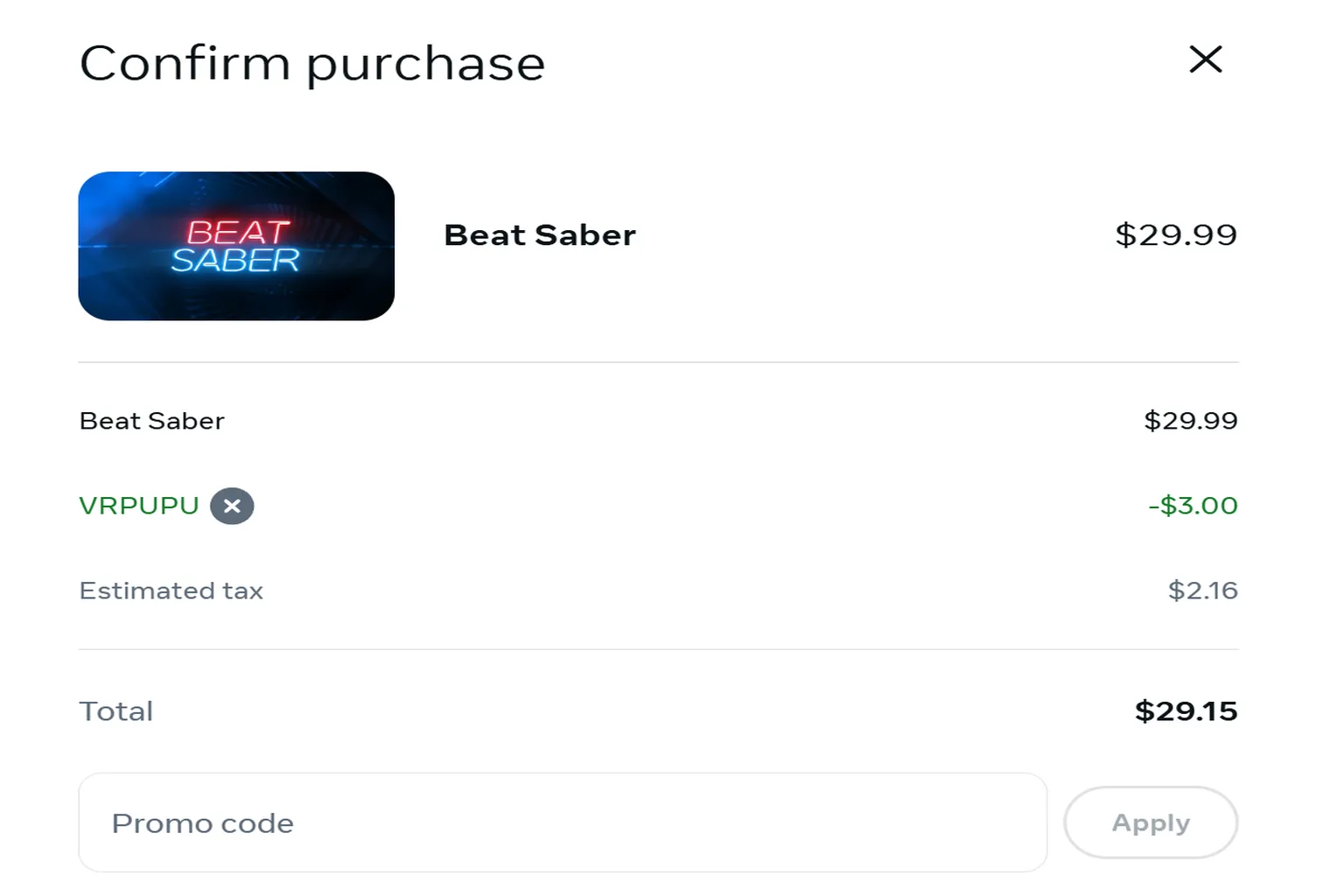
For games on the Meta Store that are not currently on sale, entering “VRPUPU” before checkout can apply a 10% discount.
And this doesn’t apply only to full games. In some cases, the same discount also works on certain DLCs and bundles.
With the money you save from this discount, it’s often possible to pick up one or even two extra games, which makes it honestly a great deal.
For example, a $29.99 game like Beat Saber can drop to $26.99 if you enter the discount code.
The process is simple, but knowing about it makes a real difference, so this is one point you definitely don’t want to forget.
How can you receive both the $30 referral bonus and the $30 creator bonus?
A lot of people run into this situation. They enter the creator code “VRPUPU” when buying the headset, but after the first launch, they only see the $30 referral bonus. Then they start wondering, “Wait, where did the $30 creator bonus go?”
This isn’t a mistake on your end.
The reason lies in how Meta handles rewards.
When both the referral bonus and the creator bonus conditions are met at the same time, Meta’s system only grants one of them. In most cases, it prioritizes the higher-value reward.
So what actually happens is this:
You receive the $30 referral bonus as expected, but the $30 creator bonus gets silently filtered out by the system.
So what should you do instead?
The solution is actually simple, and there’s just one key idea.
Receive the creator bonus and the referral bonus separately.
Just follow the steps below in order.
Step 1: Create a new Meta account
First, prepare a brand-new Meta account that has never clicked a referral link or used a referral code before. Then log in to the Meta Horizon app with this new account.
Step 2: Complete the first-time pairing
Using this new account, pair the Meta Horizon app with the headset for the first time.
Once the pairing is complete, you’ll receive the $30 creator bonus first.
Step 3: Reset the headset and accept the referral
After resetting the headset to factory settings, accept the referral link again.
For this step, you can keep using the same account you created in Step 1. There’s no need to create a new account.
For the exact steps on how to reset the headset and apply the referral, refer to the guide linked below.
Once you reset the headset, accept the referral, and complete the setup again, the referral bonus will also be added to your wallet.
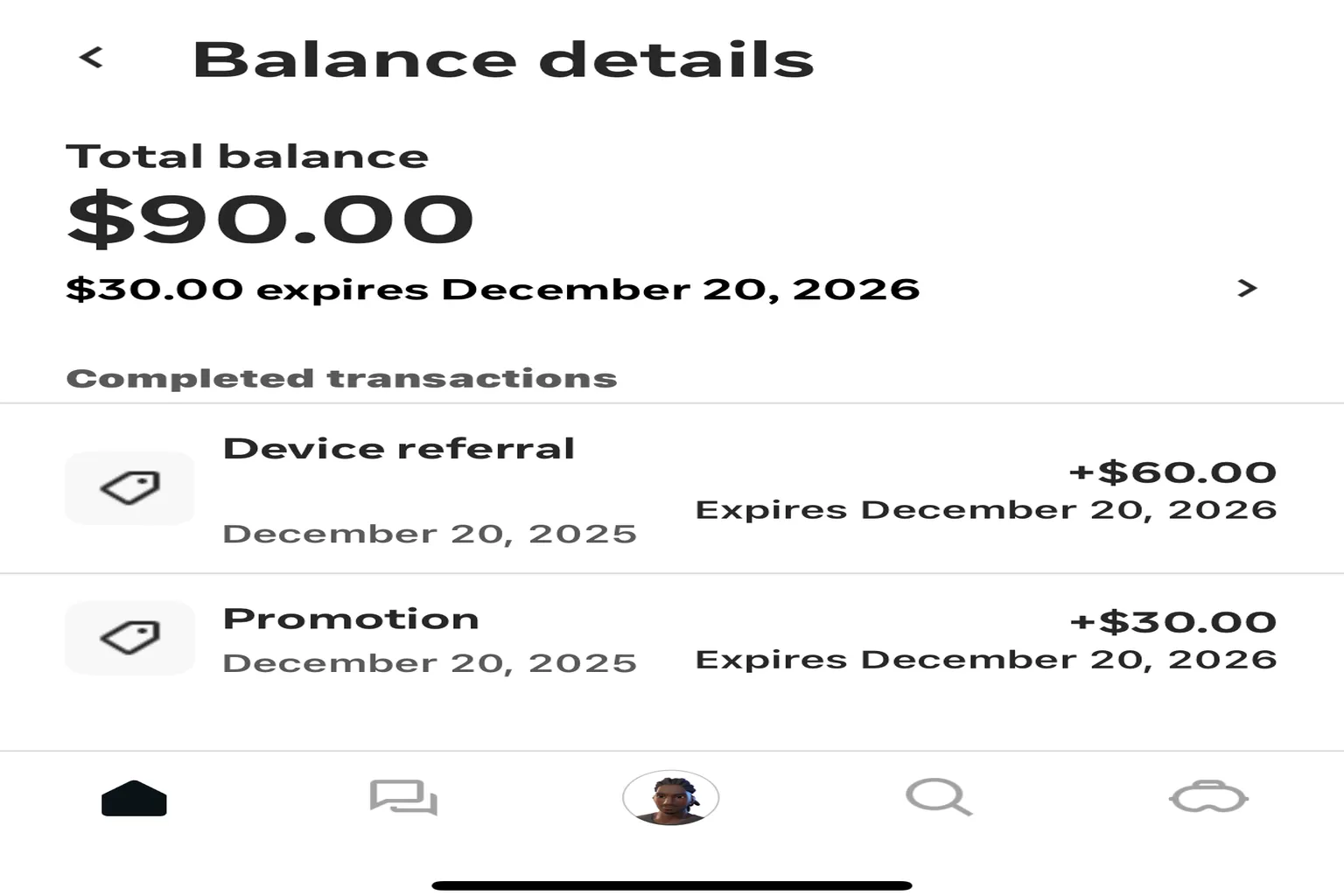
What if you don’t receive the creator benefit after first launch?
The creator bonus ($30) is a benefit tied to the headset itself, and in principle, it’s granted when you power on a new headset for the first time.
However—
if you try to receive both the friend referral bonus and the creator bonus at the same time during the initial activation, Meta’s system will only grant one of them.
In this situation, the higher-value referral bonus is prioritized. As a result, the $30 creator bonus is not granted, and only the referral bonus is applied.
If you contact support about this, Meta support typically responds with something like the following.
Reply from Meta Support
Regarding the issue where the $30 creator campaign was used at the time of purchase, but the benefit was not granted after account activation:
Our records show that your account has previously activated another device, and that you have also received a device referral (friend referral) benefit.
For creator referral benefits and friend device referral benefits, once one benefit has been received, the other cannot be applied.
We appreciate your understanding.
In other words, if you have already received a friend referral benefit, the creator benefit will not be granted.
However, this does not fully match what was shown at the time of purchase.
Because of that, you’ll need to contact support and request compensation.
Step1: Contact Support
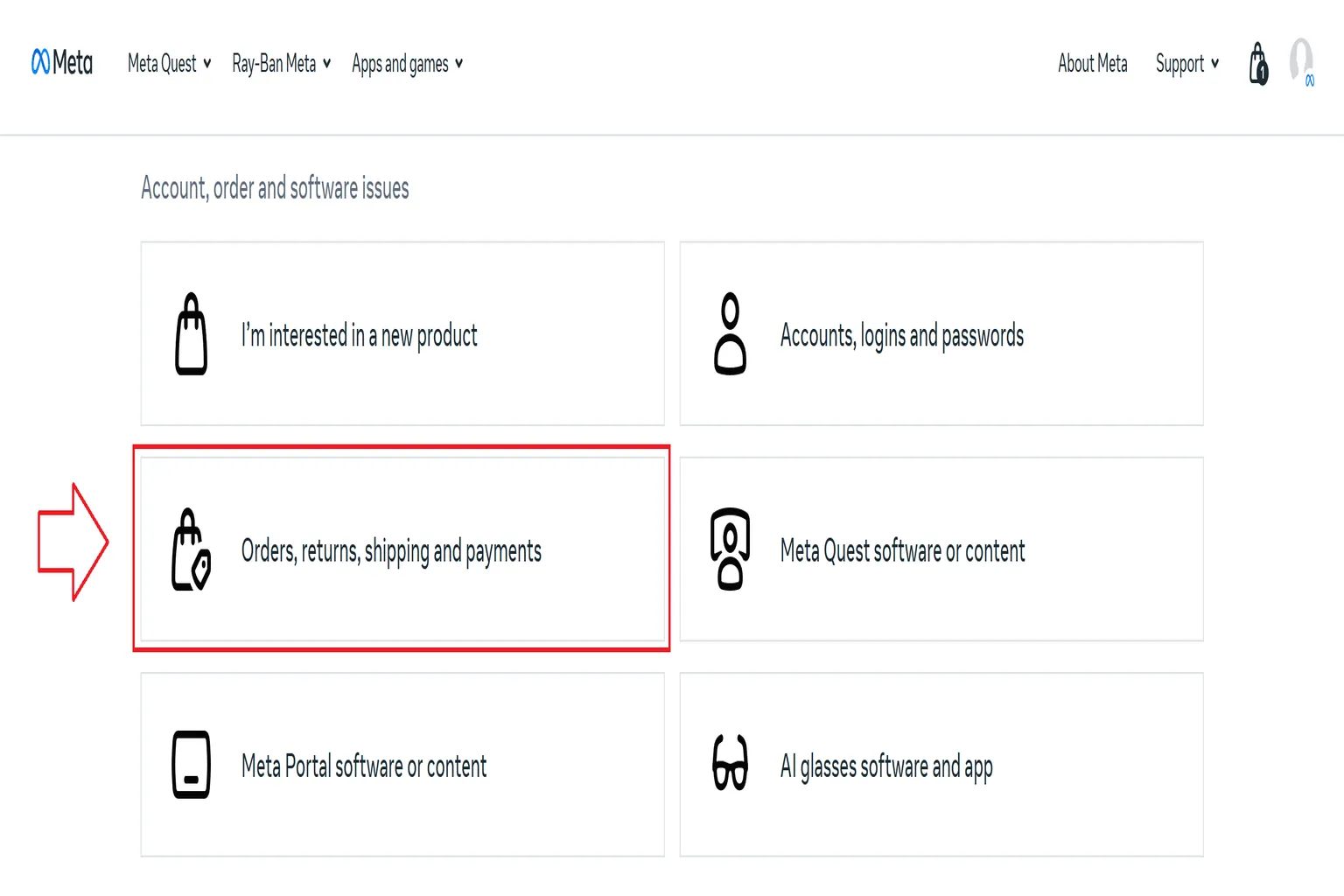
Go to the Meta official support page and choose Orders, returns, shipping and payments as the issue category.
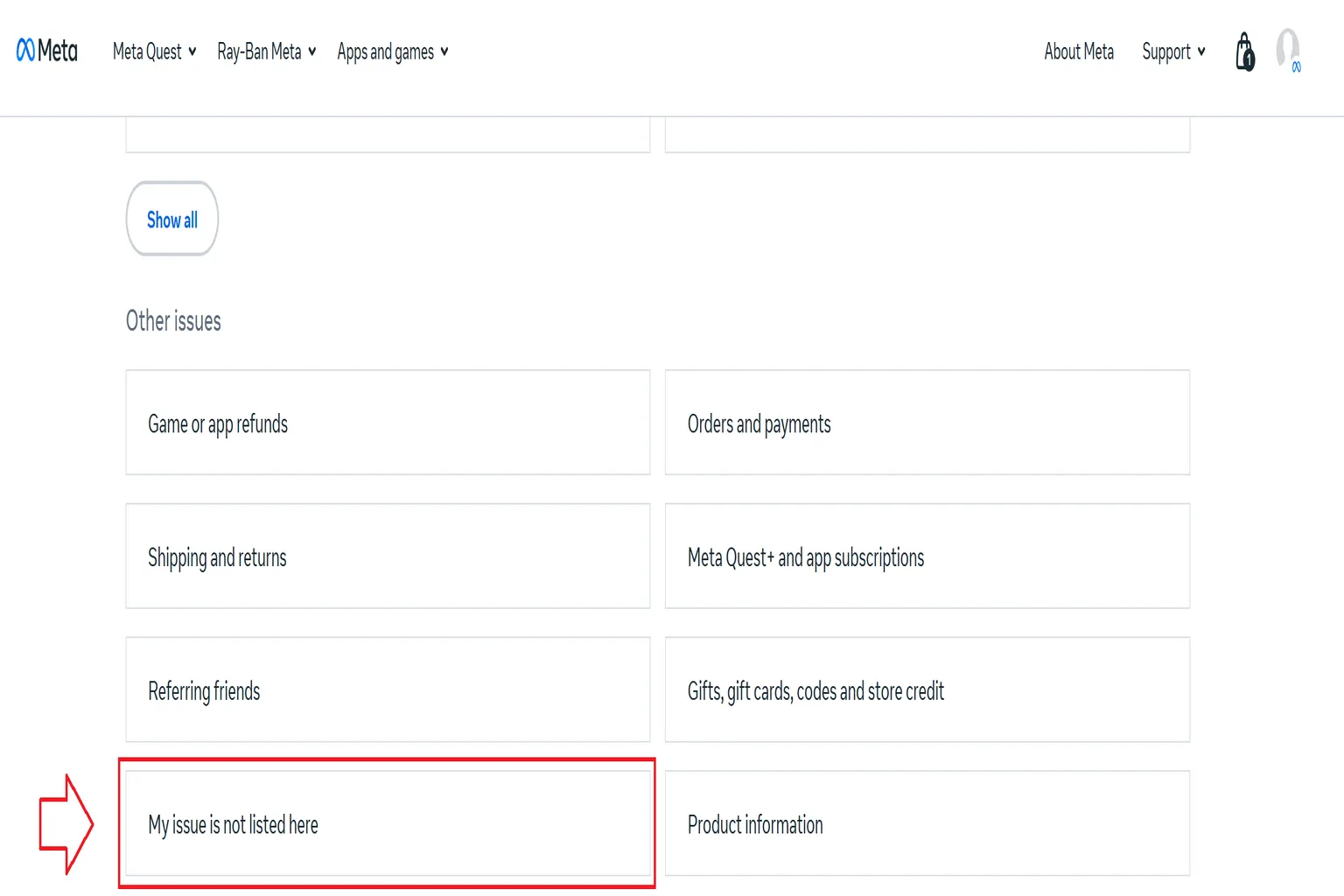
Next, select My issue is not listed here.
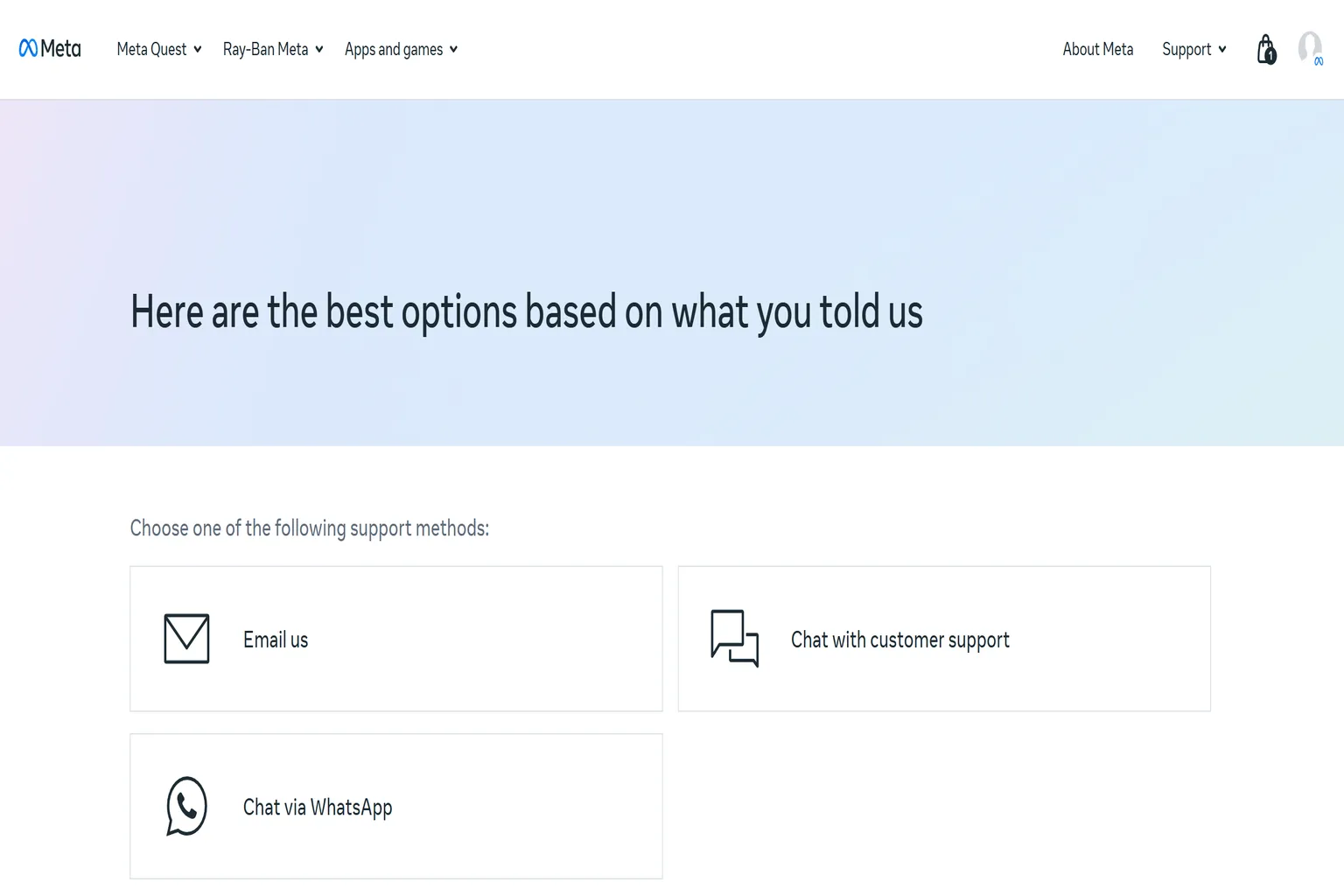
Step2: Choose a support method
You can contact support using one of the following options:
- Email us: Support by email. You’ll usually get a reply within a few hours or by the next day.
- Chat with customer support: Live chat with a support agent in real time.
- Chat via WhatsApp: Live support through WhatsApp.
Pick whichever option works best for your schedule and situation.
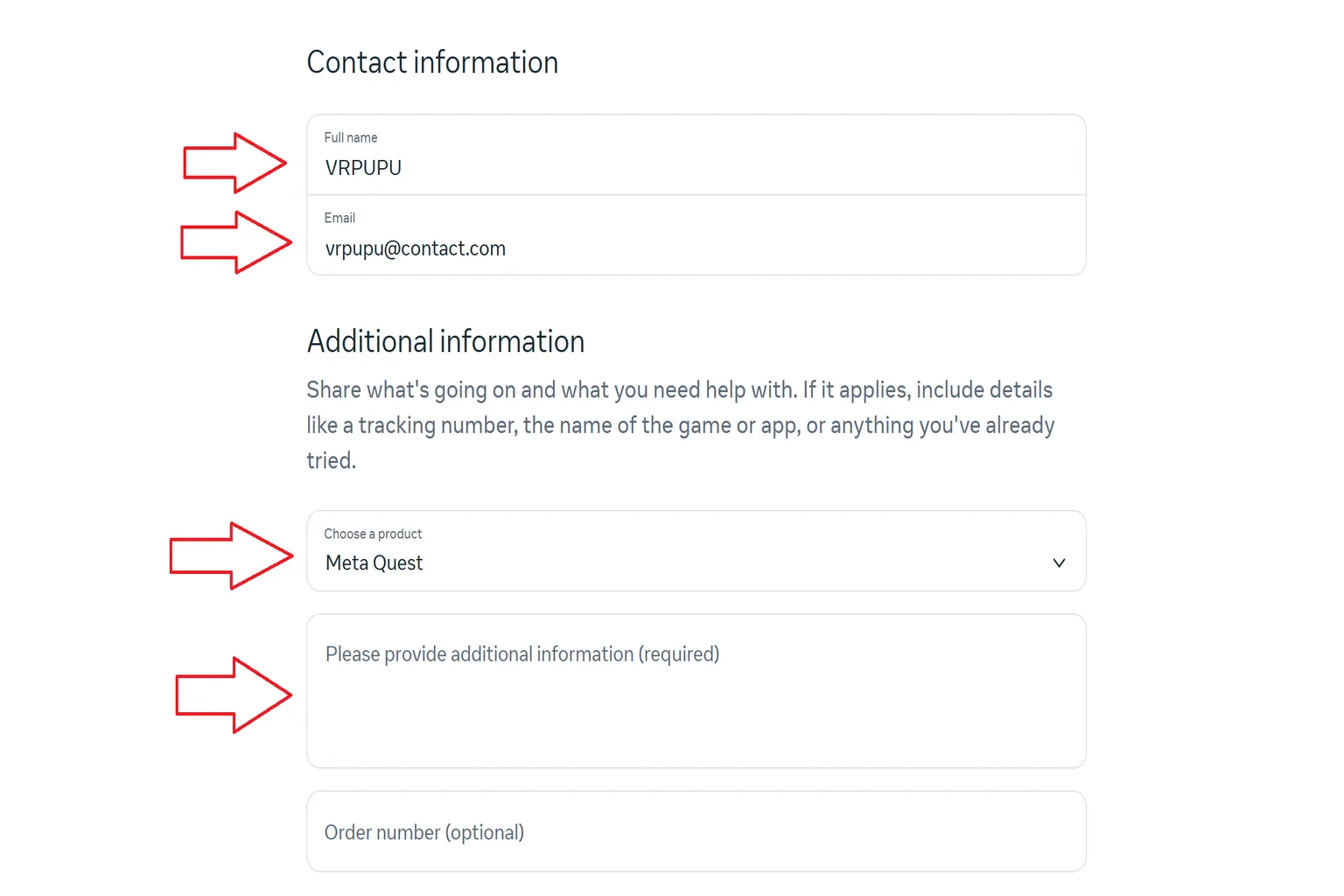
Enter the following information.
The next four items are required.
- Full name: Your full name
- Email: Your email address
- Choose a product: Select Meta Quest
- Please provide additional information: Enter the details of your inquiry
Please copy and paste the text below directly to customer support, and replace the bolded parts with your own information.
Hello,
I recently purchased a Meta Quest 3 / 3S.
At the time of checkout, the purchase screen clearly showed a $30 Quest Cash bonus, and I confirmed that this reward was included before completing the payment.
However, even after powering on the device and completing the setup, the Quest Cash has not been credited to my account. According to your terms, this benefit is not a friend referral reward, but an official promotional reward that I am entitled to receive.
I would like to kindly request compensation for the Quest Cash that was not granted.
My purchase details are as follows:
Purchase date: 2025/12/10
Order number: A123456789
Headset serial number: A987654321
Meta ID: @VR
Meta display name: VRXXX
Email address: [email protected]
Thank you for your assistance.
When you reply, make sure to attach a screenshot from the time of purchase.
If you didn’t take one back then, you can just open the links below:
From there, go back to the product page and take a new screenshot of the cover image. As long as the creator reward is visible like this, you’re good.
When Meta support reviews this kind of case, they’ll usually reissue the $30 reward.
That said, there are a lot of support agents, and their responses aren’t standardized. It can feel a bit like luck of the draw. Even if you submit the exact same information, the reply can vary depending on who you get.
If the agent starts asking for things like the referrer’s name or email, they’ve probably misunderstood the situation. They’re mixing up the $30 creator reward with the standard $30 referral bonus.
At that point, it’s better to close the ticket and submit a new one instead of continuing the conversation. With Meta support, if the initial understanding is off, the discussion often goes nowhere no matter how many times you explain it.
As long as your documentation is correct, based on user reports, the chances of getting the reward reissued are actually pretty decent. In most cases, it gets resolved after one or two email exchanges.
Sometimes, if the back-and-forth takes longer, they’ll even add a small extra amount as compensation.
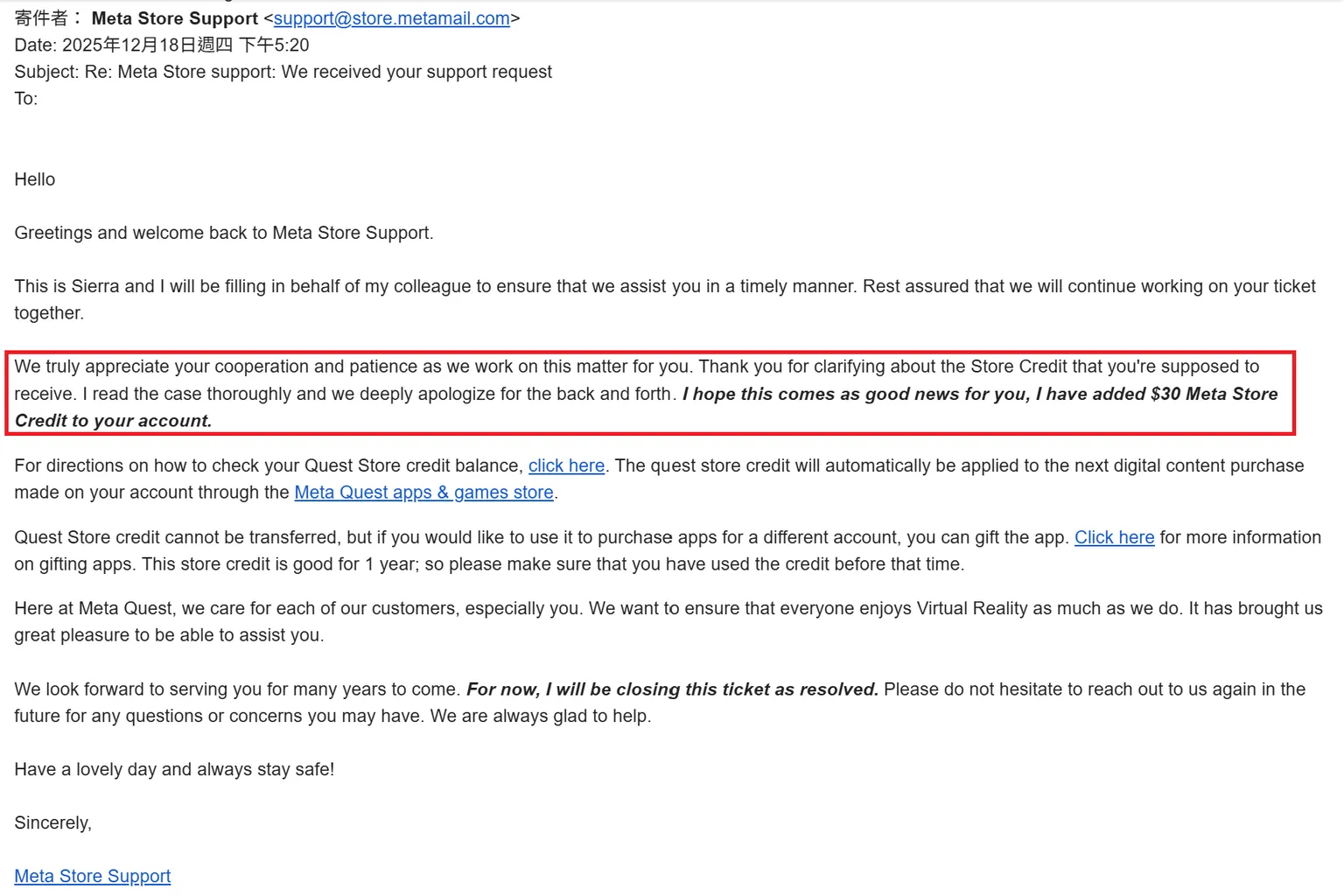
Below is an example of a successful reissue email.
Also, if you purchased your headset using the “VRPUPU” creator code and run into any issues with setup or usage, feel free to reach out via the fan page or by email.
FAQ – Common Questions
Which account receives the Quest Cash reward?
The bonus is tied to the headset. It’s credited to the account of the person who powers it on for the first time.
I don’t see “VRPUPU” or “$30 Quest Cash” on the official site. Why?
Most of the time, it’s just your browser cookies. Try switching browsers or opening the site in Incognito/Private mode, and it usually shows up.
If it still doesn’t appear, you can manually enter “VRPUPU” on the cart page, and the benefit should apply the same way.
What if I realize after buying that the bonus wasn’t applied?
This bonus is locked in at the moment of purchase, so adding it afterward takes extra effort.
The cleanest solution is to request a refund and buy it again.
Meta allows unconditional returns and refunds, so it’s faster to redo the purchase before you miss out.
Can I get this creator benefit if I buy from Amazon or Bestbuy?
No. Only headsets purchased directly from the official Meta website are eligible.
After activation, I only received the referral bonus and not the $30 creator bonus. What should I do?
This happens because Meta’s system prioritizes and grants the better of the two rewards. If you’ve already received the referral bonus, your only option is to contact Meta’s English-language support. Depending on the situation, compensation may be possible.