Can’t find your favorite songs in Beat Saber? The player community has already created over 120,000 custom maps!
In this guide, I’ll show you how to use ModsBeforeFriday (MBF) to install mods on your Meta Quest, search for and download custom songs, and even use beatmapai to automatically generate your own Beat Saber maps with AI across five difficulty levels, from Easy to Expert+.
You don’t need to learn how to create beatmaps manually. I’ve tested the entire process, so just follow along and create your own!
Beat Saber Custom Songs and Maps
Beat Saber is one of Meta Quest’s most iconic games, with a huge selection of songs available to purchase. Most of them are great, but the songs I actually want to play just aren’t there. For example, I’d love to play Despacito by Luis Fonsi or Cha-La Head-Cha-La from Dragon Ball Z, but neither song is available in the official library. It’s been eight years since Beat Saber first came out, and at this point, I doubt they’ll ever add those songs.
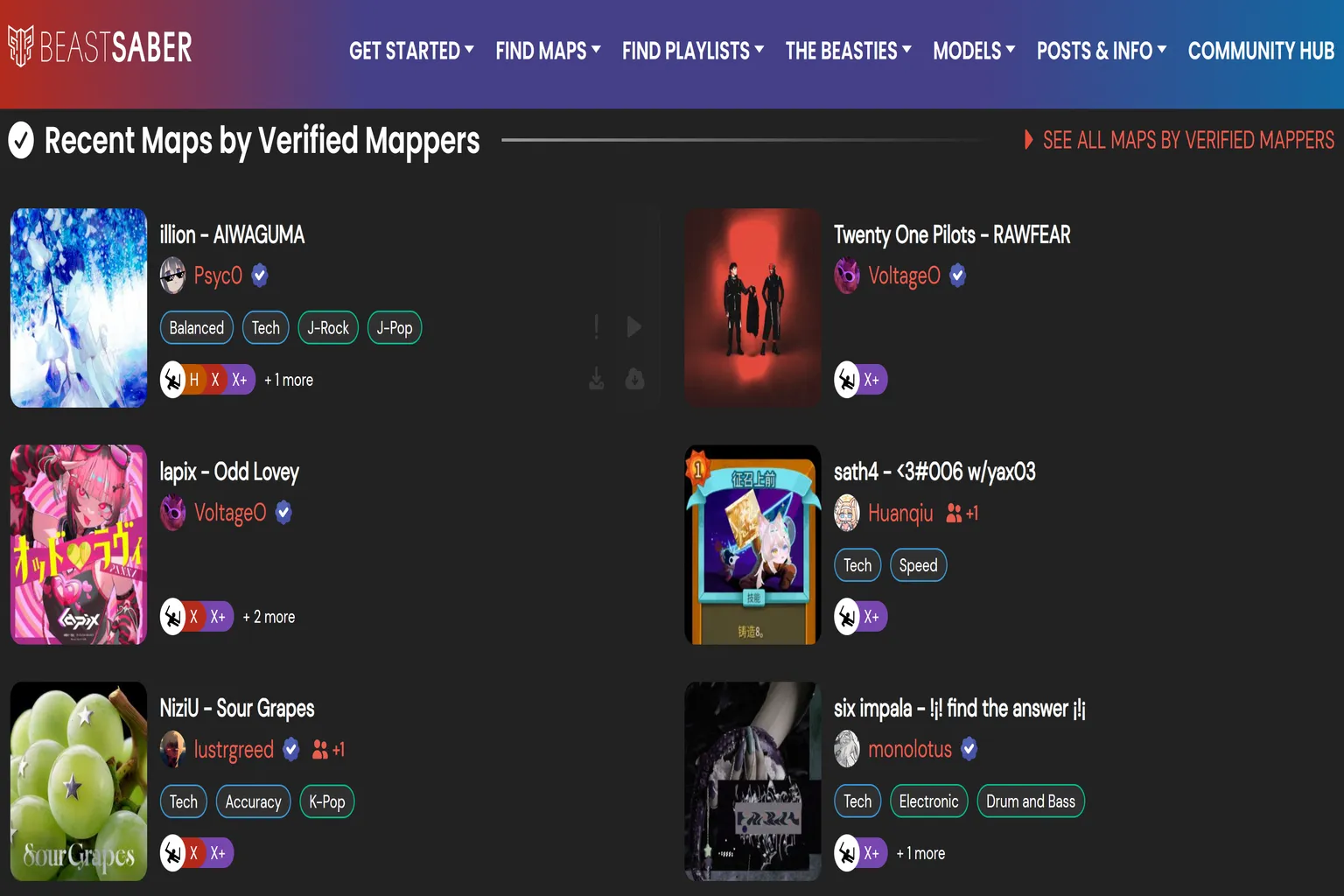
Fortunately, plenty of players have been creating custom Beat Saber maps. Communities like the Beat Saber Modding Group (BSMG), BeatSaver, and BeastSaber are full of player-made maps, mods, and song recommendations. Whether you’re looking for Japanese anime songs, pop music, electronic dance music, or classic video game soundtracks, there’s a massive library of custom maps to explore.
At the time of writing, BetterSongSearch showed over 120,000 custom maps in its database, far more than the number of songs available in Beat Saber’s official library.
There’s an even more interesting way to play now: just give AI a song, and it can automatically create a Beat Saber map for you. You don’t need to learn how to use a beatmap editor. Just choose whether to include walls and bombs, and AI will create a fun map based on the rhythm of the music.
Next, I’ll show you how to install custom song support on your Meta Quest, then walk you through using AI to create your own custom maps.
How to Install Beat Saber Mods and Download Custom Songs
Installing custom songs in Beat Saber used to be a real hassle. You had to use a specific version of Beat Saber, install mods like BMBF, and even uploading files was complicated. Now, with ModsBeforeFriday (MBF), adding custom songs to the standalone Meta Quest version of Beat Saber is incredibly simple. It practically takes just a click or two.
However, the installation process is different for the standalone Quest and PC versions. I’ll focus on the standalone Quest version here. Before getting started, you’ll need the following:
- Meta Quest 2 / 3 / 3S / Pro
- Beat Saber is already installed on your headset.
- A Windows PC or Mac
- A USB-C cable that supports data transfer
- A Quest headset with Developer Mode enabled
Step 1: Enable Developer Mode
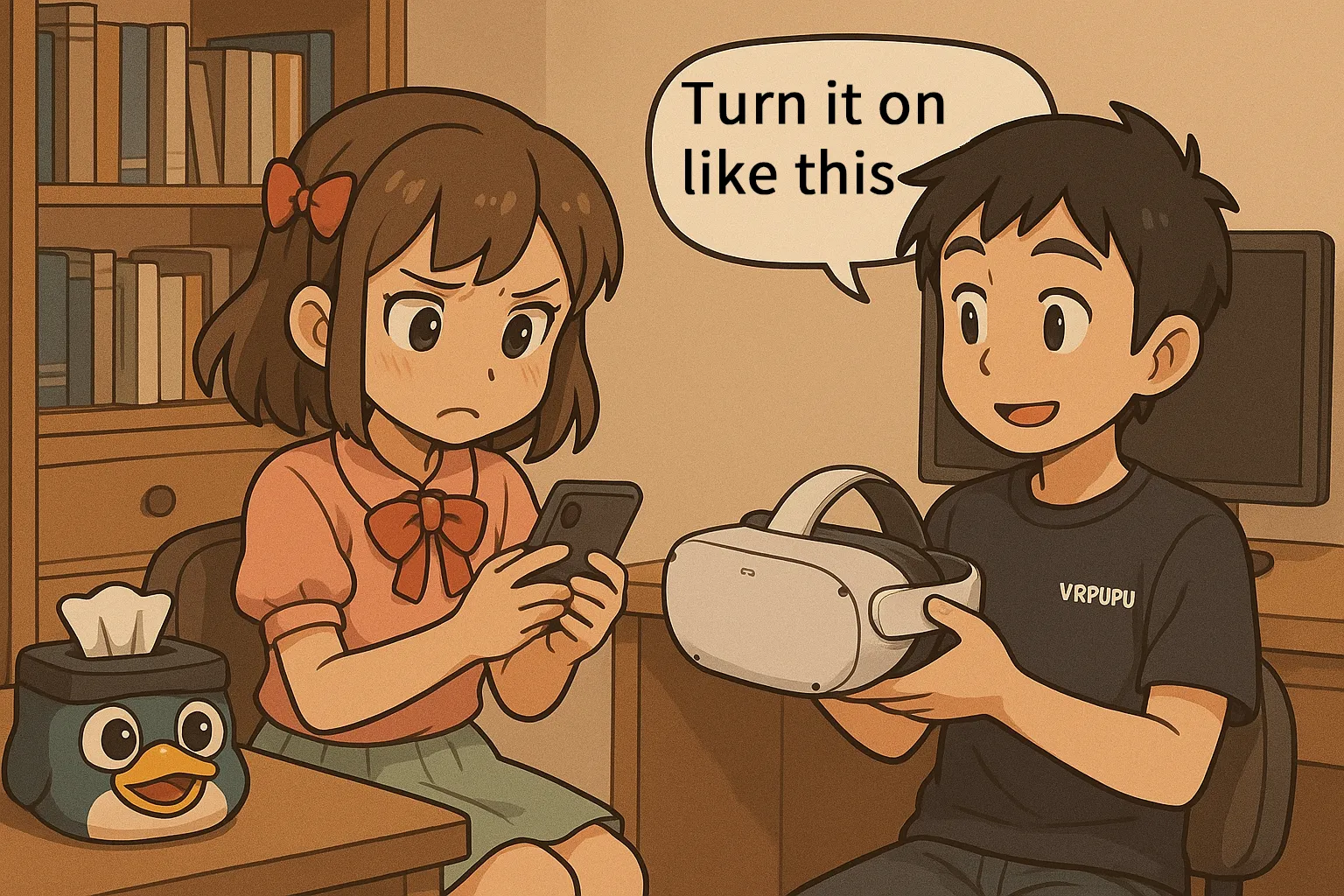
You’ll need to enable Developer Mode on your Quest so MBF can connect to the headset over USB. If you haven’t enabled it yet, follow this Developer Mode setup guide.
Step 2: Connect Your Meta Quest Using MBF
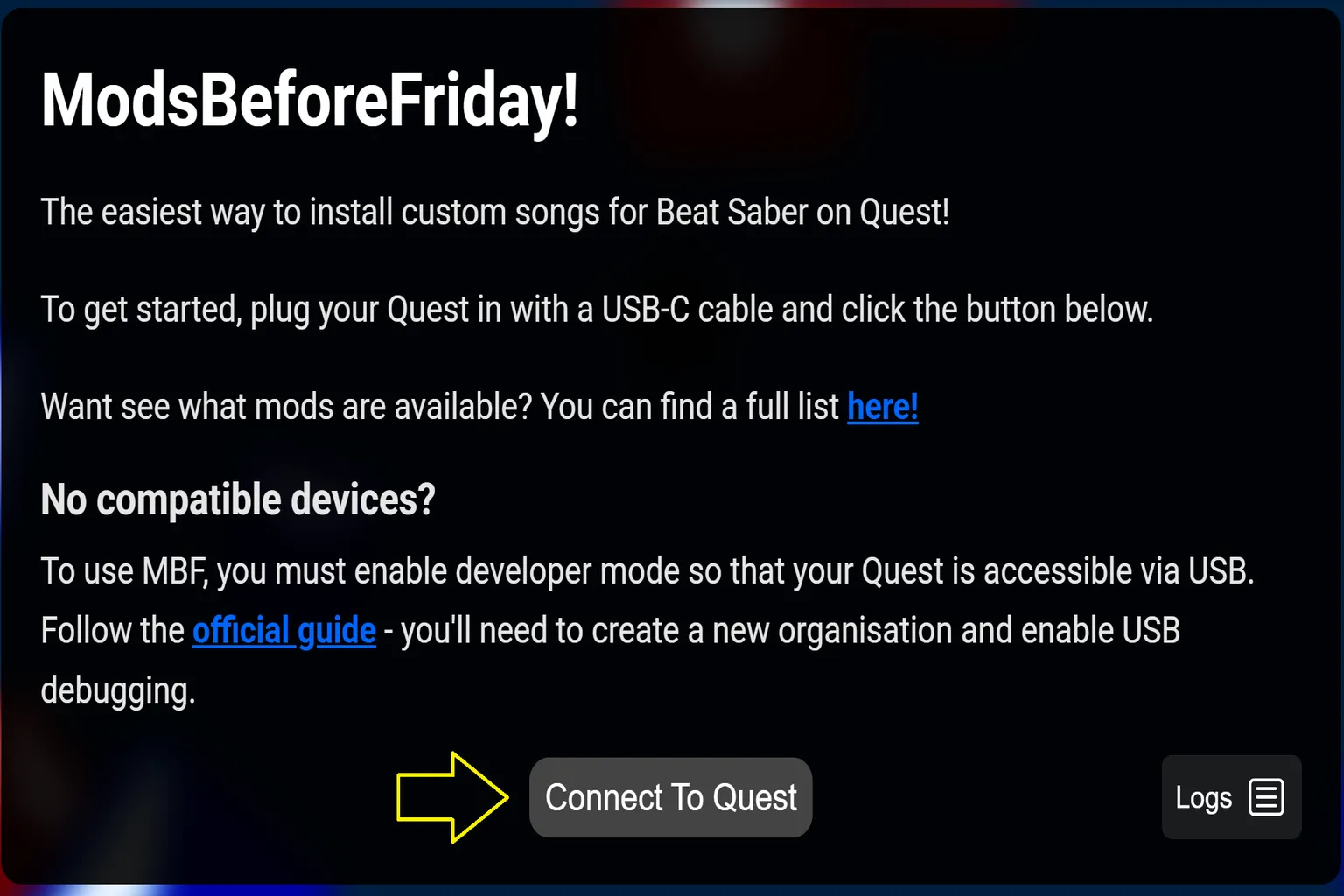
On your computer, open the ModsBeforeFriday website, connect your Quest to your computer using a USB-C cable, then click Connect To Quest.
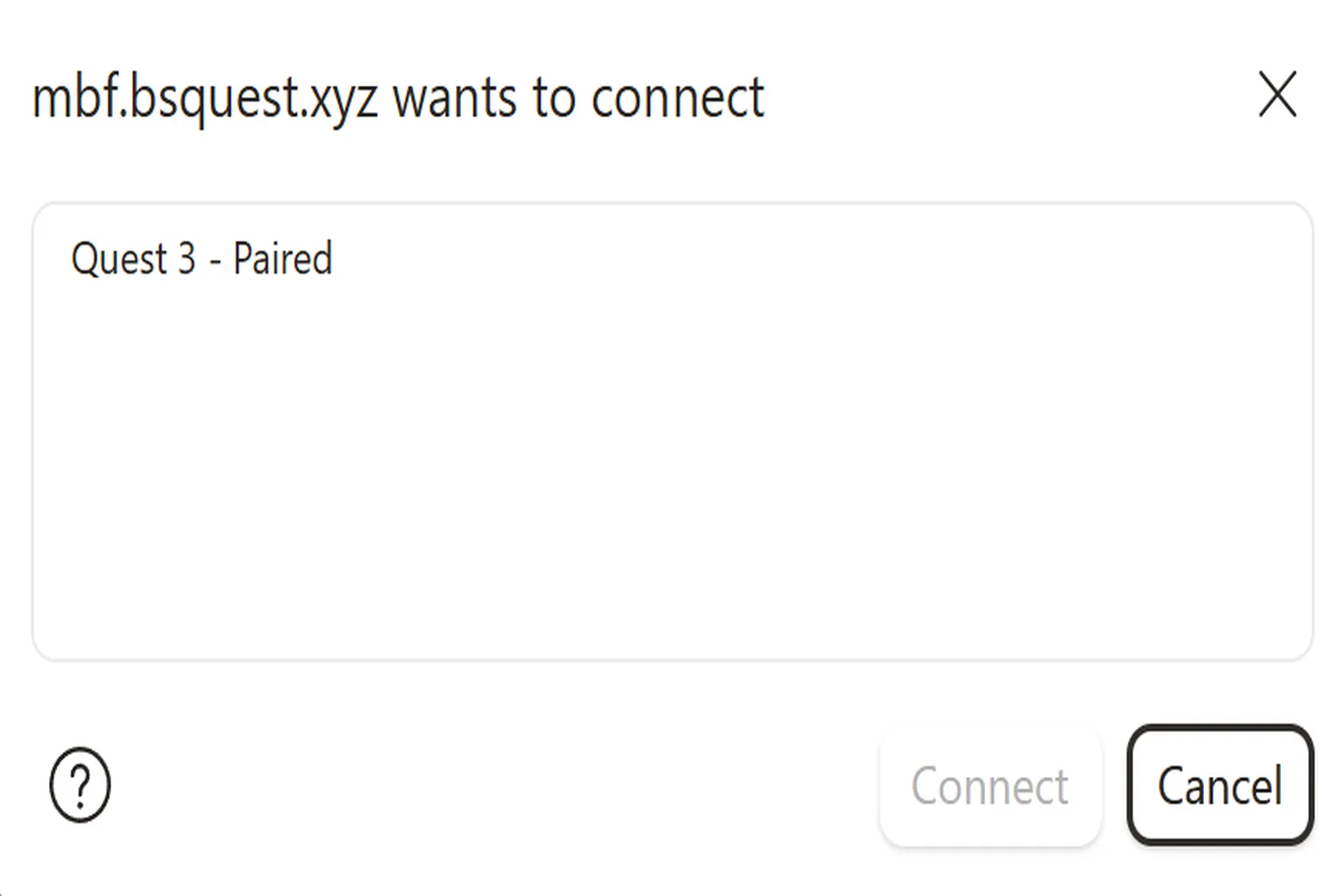
A browser pop-up will appear saying “mbf.bsquest.xyz wants to connect.” Select your Quest headset, then click Connect.
Put on your headset and allow USB debugging. I recommend checking Always allow from this computer so you won’t have to authorize the connection every time.

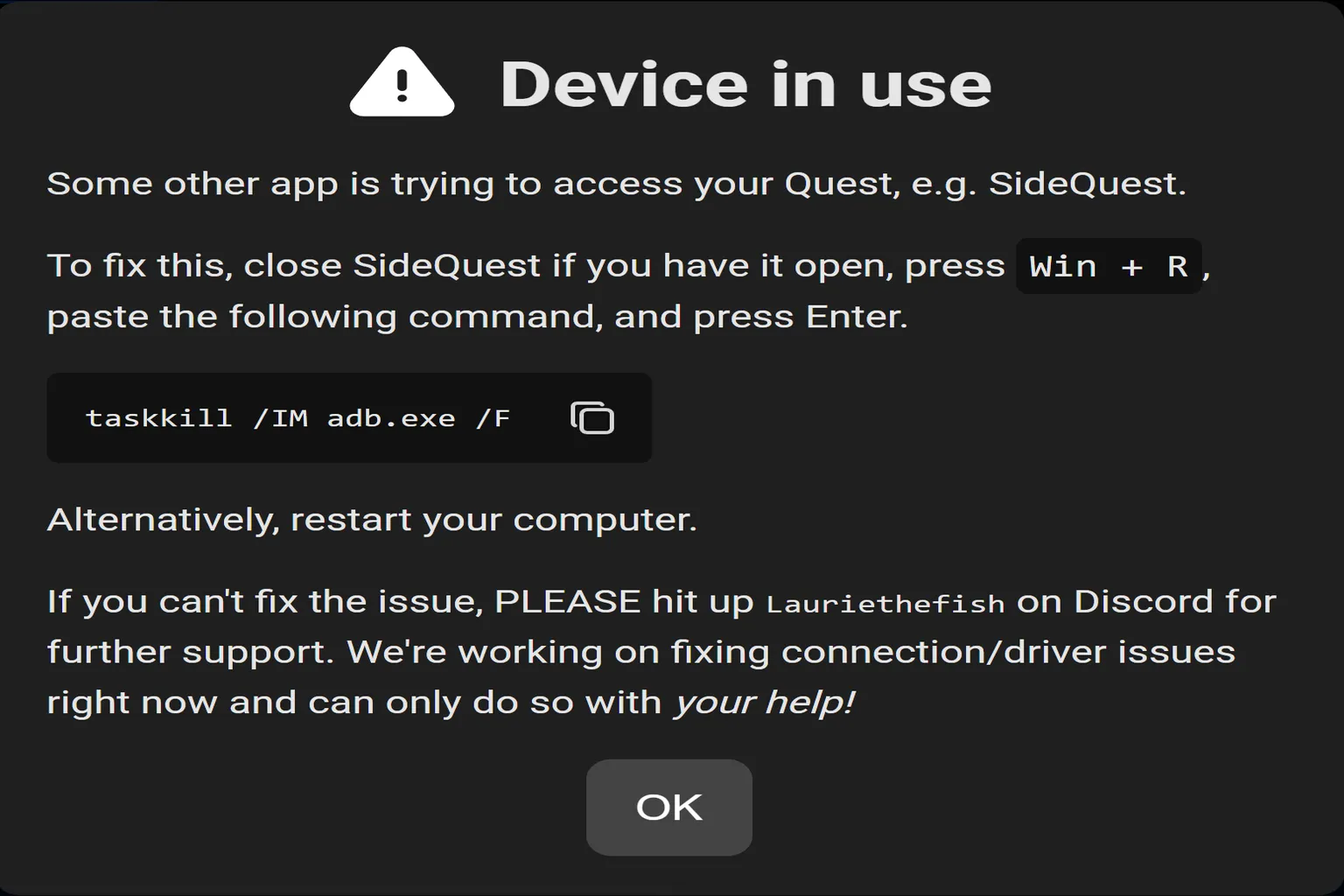
If another application on your PC is using ADB, such as SideQuest, it may prevent MBF from connecting to your Quest. To fix this, press Win + R, enter taskkill /IM adb.exe /F in the Run dialog, and run the command to force-close the ADB process.
I simply restarted my PC, which also resolved the issue of ADB being used by another application.
Step 3: Install Beat Saber Mods
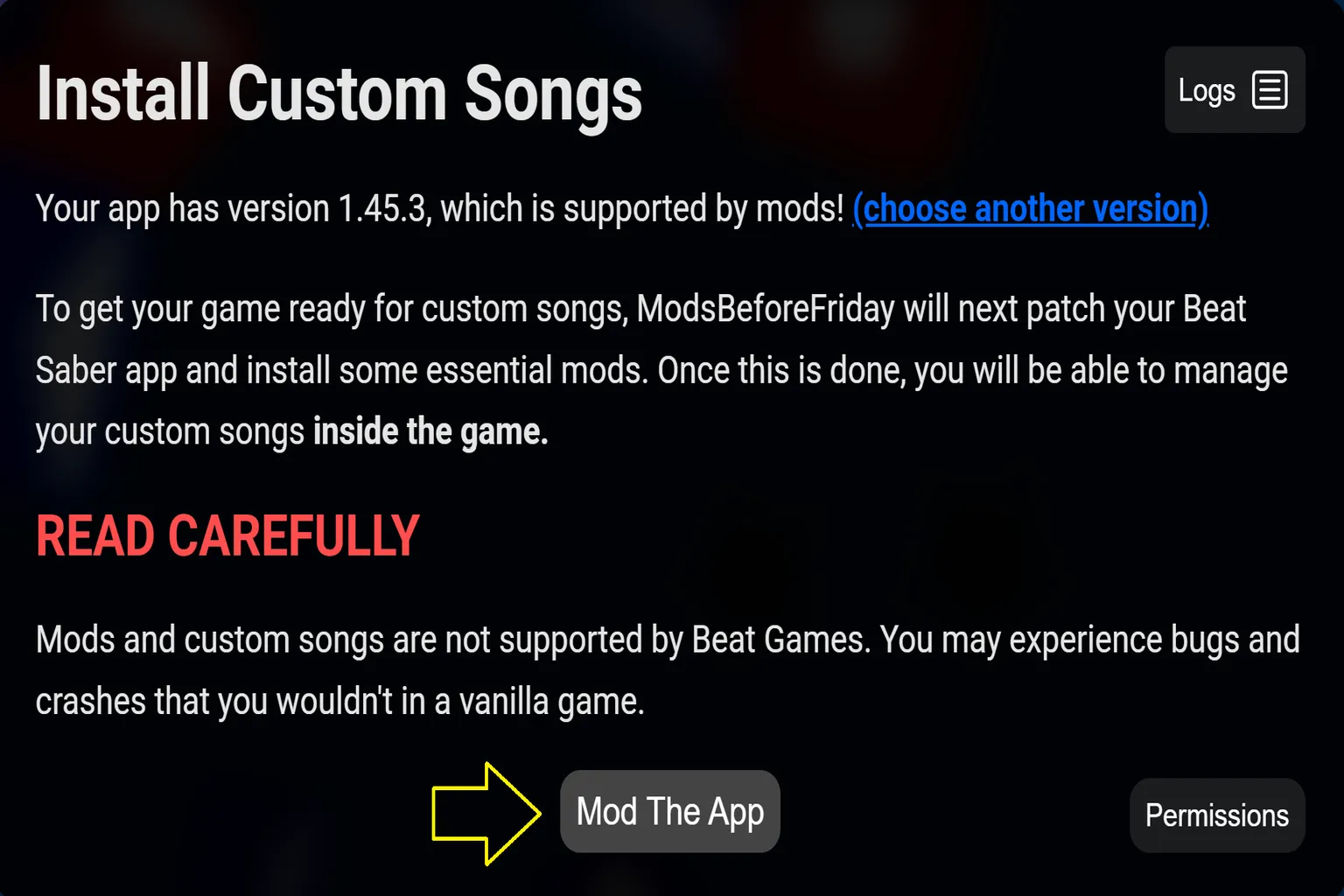
Once connected, MBF will automatically check your Beat Saber version. After confirming the version, click Mod The App to start installing the mods. I tested this with Beat Saber 1.45.3, and MBF confirmed that I could install the mods directly without manually downgrading the game.
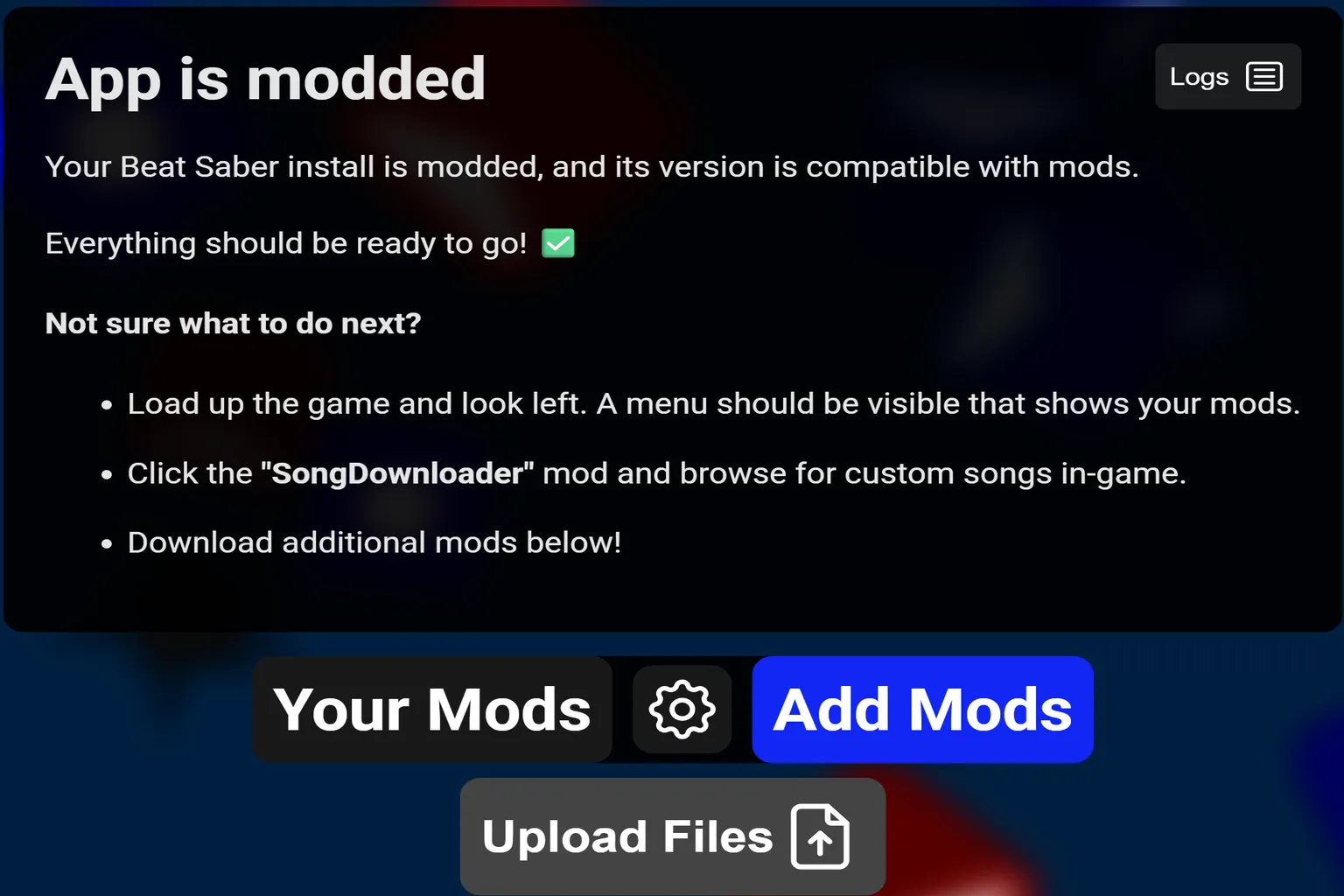
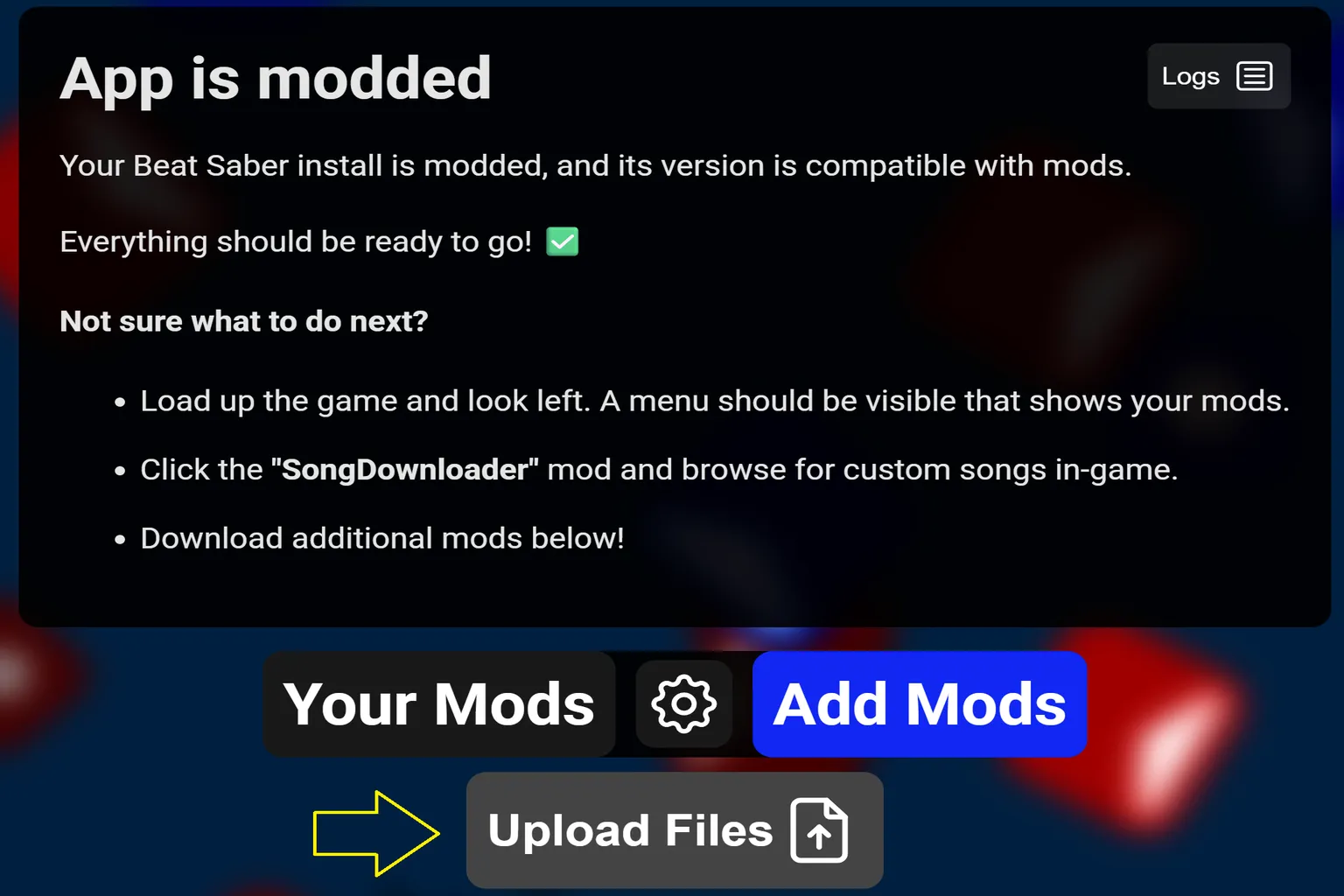
MBF will automatically patch Beat Saber and install the core mods needed for custom songs. Once you see App is modded, the installation is complete. You can now search for songs and play them directly on your headset.
There are three buttons below:
- Your Mods: View your installed mods.
- Add Mods: Browse and install additional mods.
- Upload Files: Upload custom song maps to your headset.
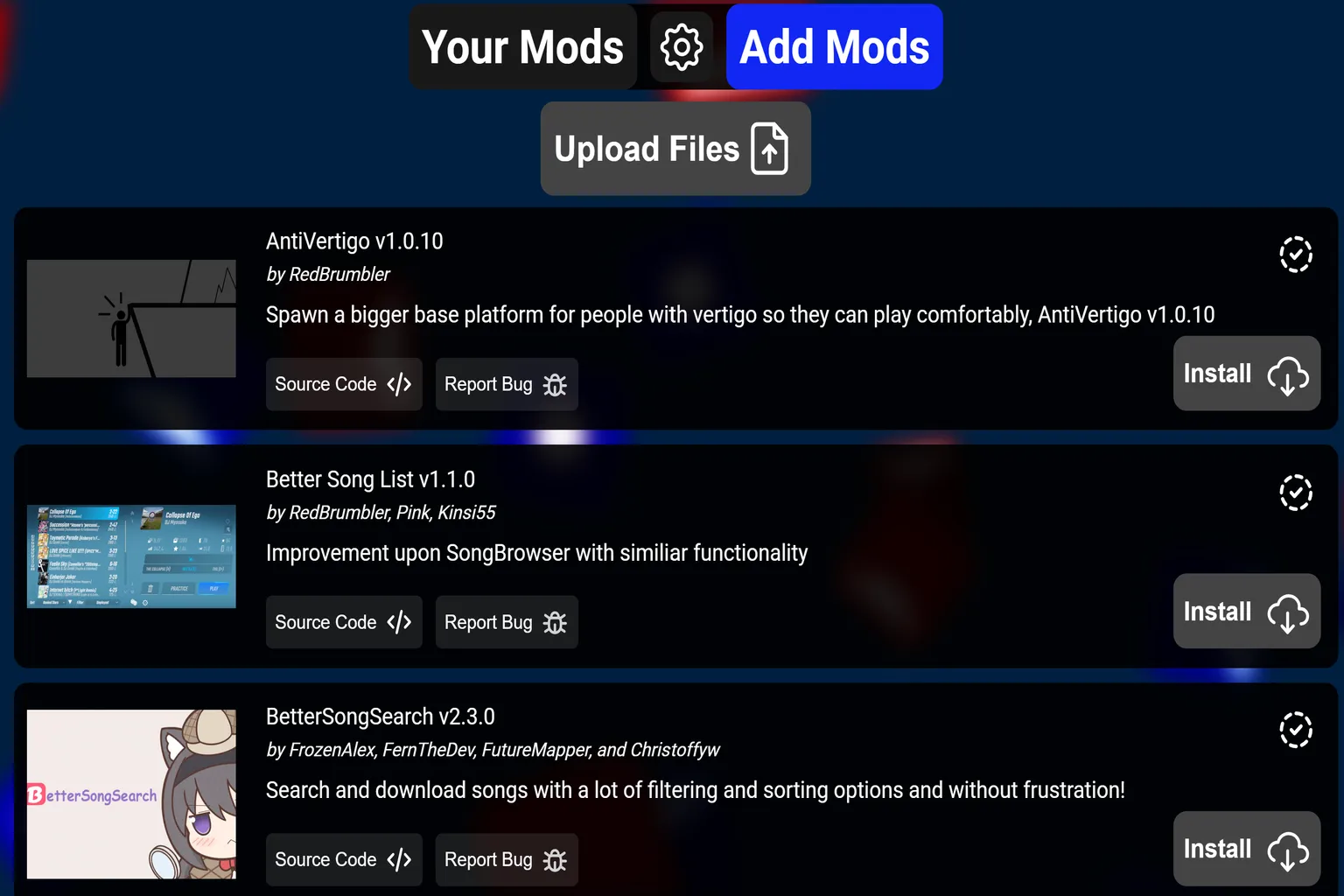
If you want to add more features, click Add Mods to browse the available options. These are all optional, so you don’t need to install them. I installed BetterSongSearch, but I usually stick with the built-in SongDownloader to find songs.
Here’s what each mod in Add Mods does:
- AntiVertigo: Creates a larger platform beneath your feet, providing a better visual reference for the ground and reducing the sensation of height and motion sickness.
- Better Song List: Improves the in-game song list with additional filtering and sorting options, making it easier to manage large collections of custom songs.
- BetterSongSearch: Enhances online song searching with multiple filters, sorting options, song previews, and downloads.
- BTS Yeeter: Removes the animated cartoon characters that appear in BTS song maps.
- DlcSorter: Sorts official DLC song packs alphabetically, making them easier to find.
- Faster Scroll: Increases the scrolling speed of the song list so you can find songs more quickly.
- GraphicsTweaks: Unlocks some PC graphics settings that aren’t normally available on Quest, such as the Bloom lighting effect.
- ModList: Displays a list of installed mods in the game and shows warnings when a mod fails to load.
- NoPromo: Hides promotional banners on the game’s main menu for a cleaner interface.
- Nya: Fetches anime-themed images from an online API and displays them in the game.
- SkillIssueCrasher: Intentionally crashes the game when you miss a note, make a poor cut, or hit a bomb. It’s basically a joke mod.
- Smoothed Controller: Smooths out controller pointer movement in menus, reducing cursor jitter and making navigation more stable.
Step 4: Search for and Download Songs in Beat Saber
Disconnect the USB-C cable, put on your Quest headset, and launch Beat Saber. Once you’re in the game, look to your left and you’ll see a new Mods menu. From there, you can use SongDownloader to connect directly to BeatSaver, where you can search for and download custom song maps created by other players.
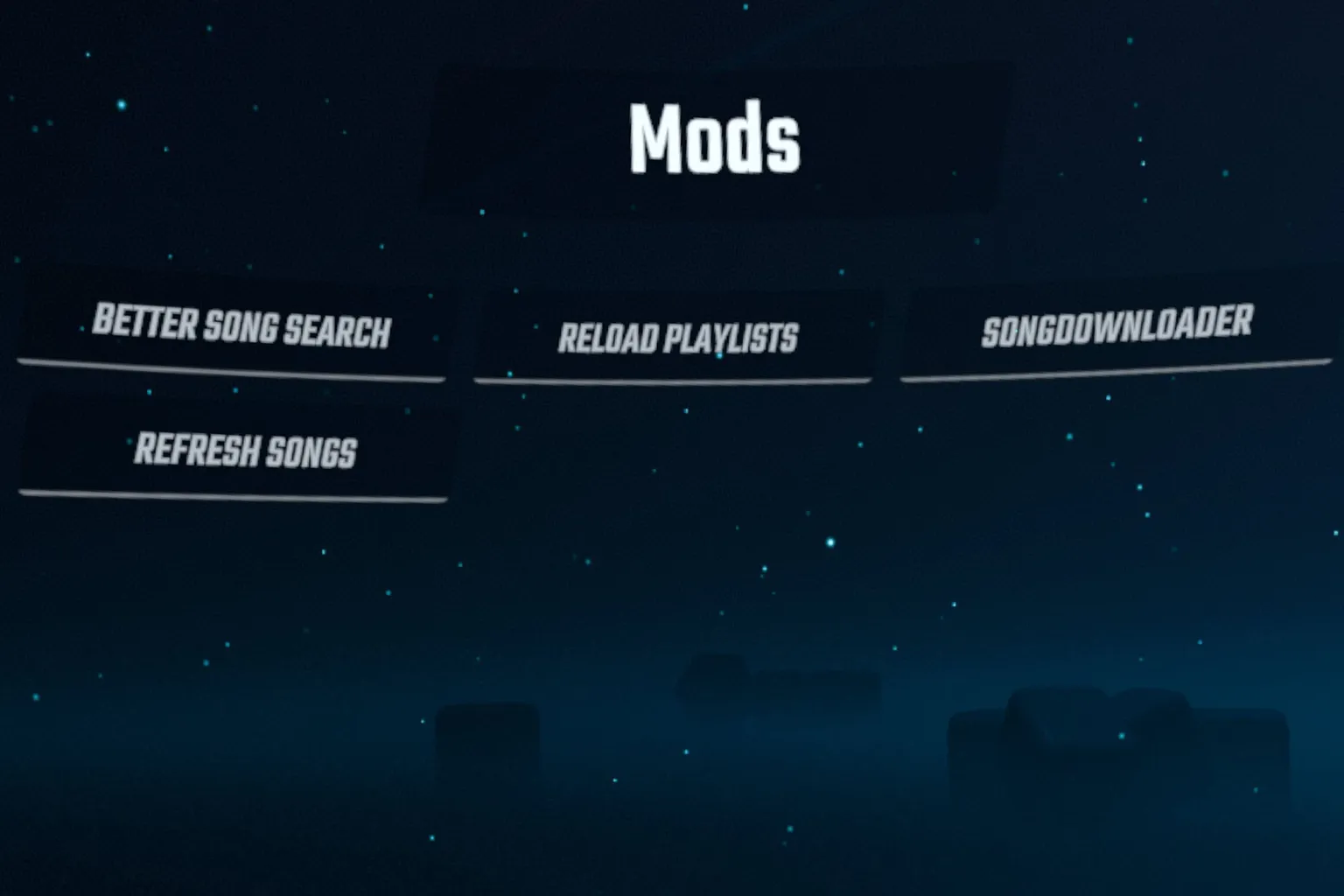
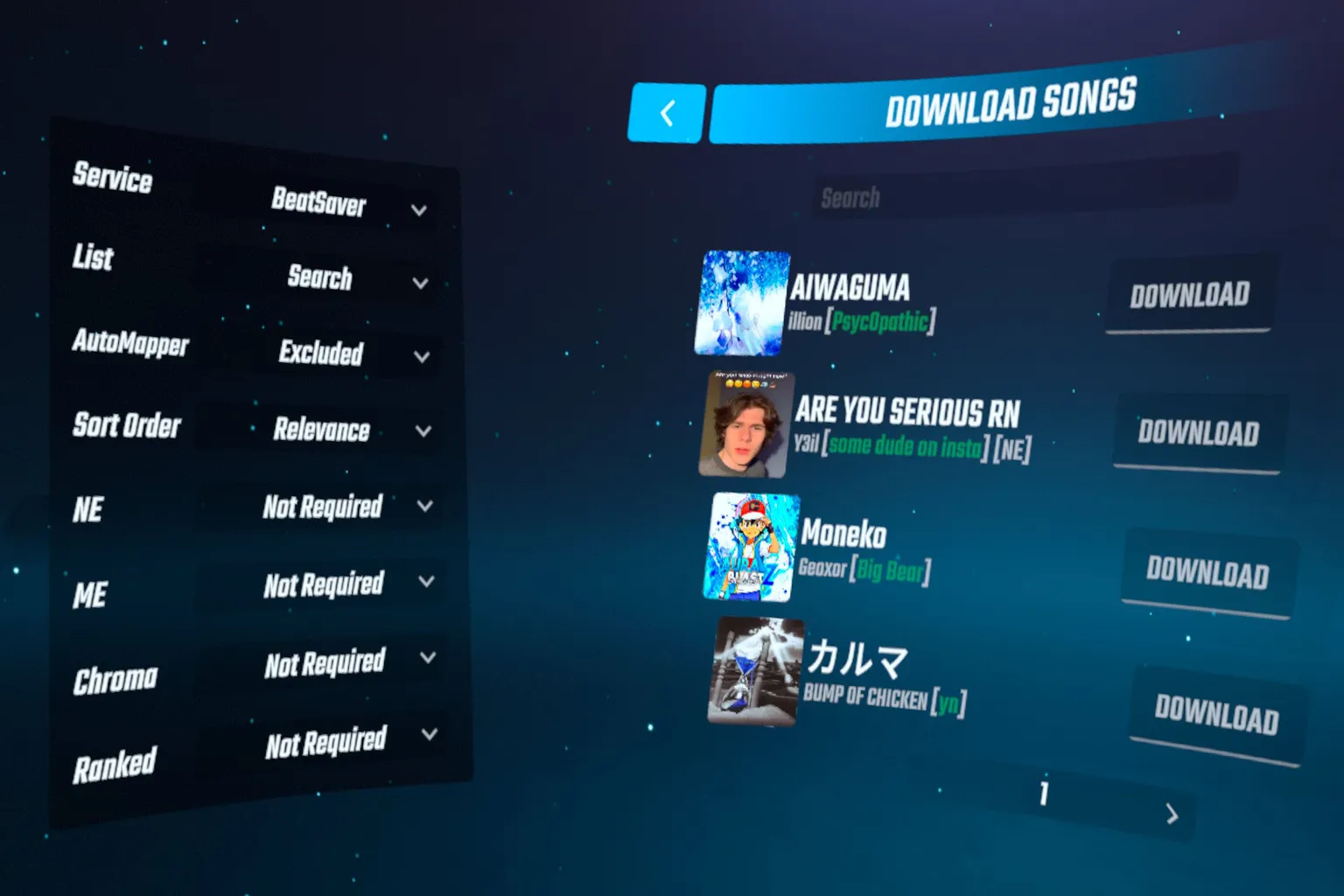
Once you’re in SongDownloader, enter a song title in the search bar to find the map you want to play, then click Download.
The following search filters are available on the left:
- Service: Choose where to search for songs, such as the BeatSaver library or ScoreSaber’s competitive map database.
- List: Choose the search mode, including Key (a map’s unique ID), Search (song title), and User (map creator). I recommend leaving this set to the default, Search.
- AutoMapper: Filter automatically generated maps. Excluded hides maps created by AI or other automated tools, while Required shows only automatically generated maps.
- Sort Order: Choose how search results are sorted. Relevance sorts maps by how closely they match your search.
- NE (Noodle Extensions): Filter maps that use special note movements, animations, and visual effects.
- ME (Mapping Extensions): Filter maps that use expanded note and obstacle placement features.
- Chroma: Filter maps that use advanced lighting, colors, and environmental visual effects.
- Ranked: Filter maps approved for competitive leaderboards, such as Ranked maps on ScoreSaber or BeatLeader.
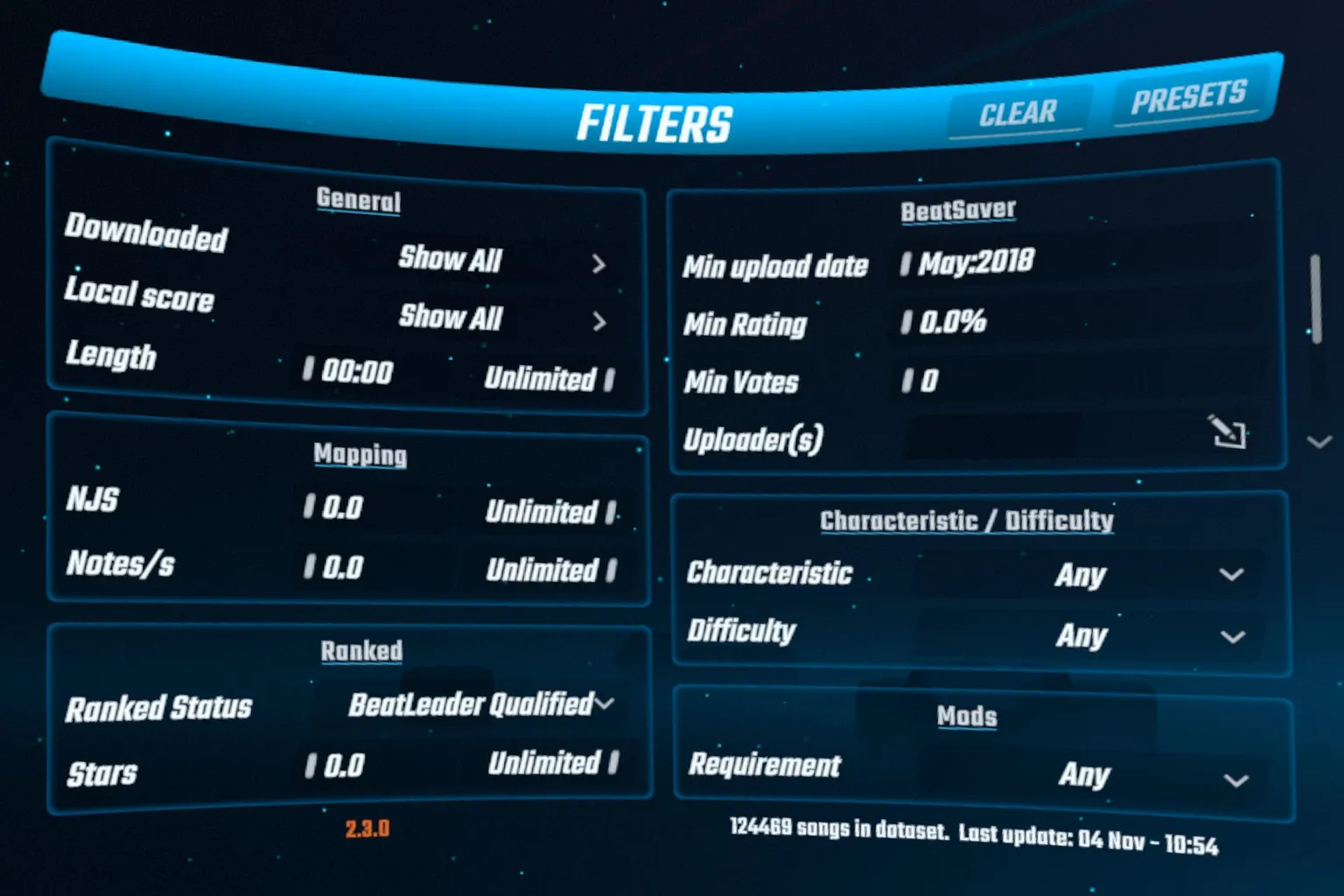
If you’ve installed BetterSongSearch, you can narrow down the results even further by song length, difficulty, ratings, rankings, and other filters.
Step 5: Start Playing
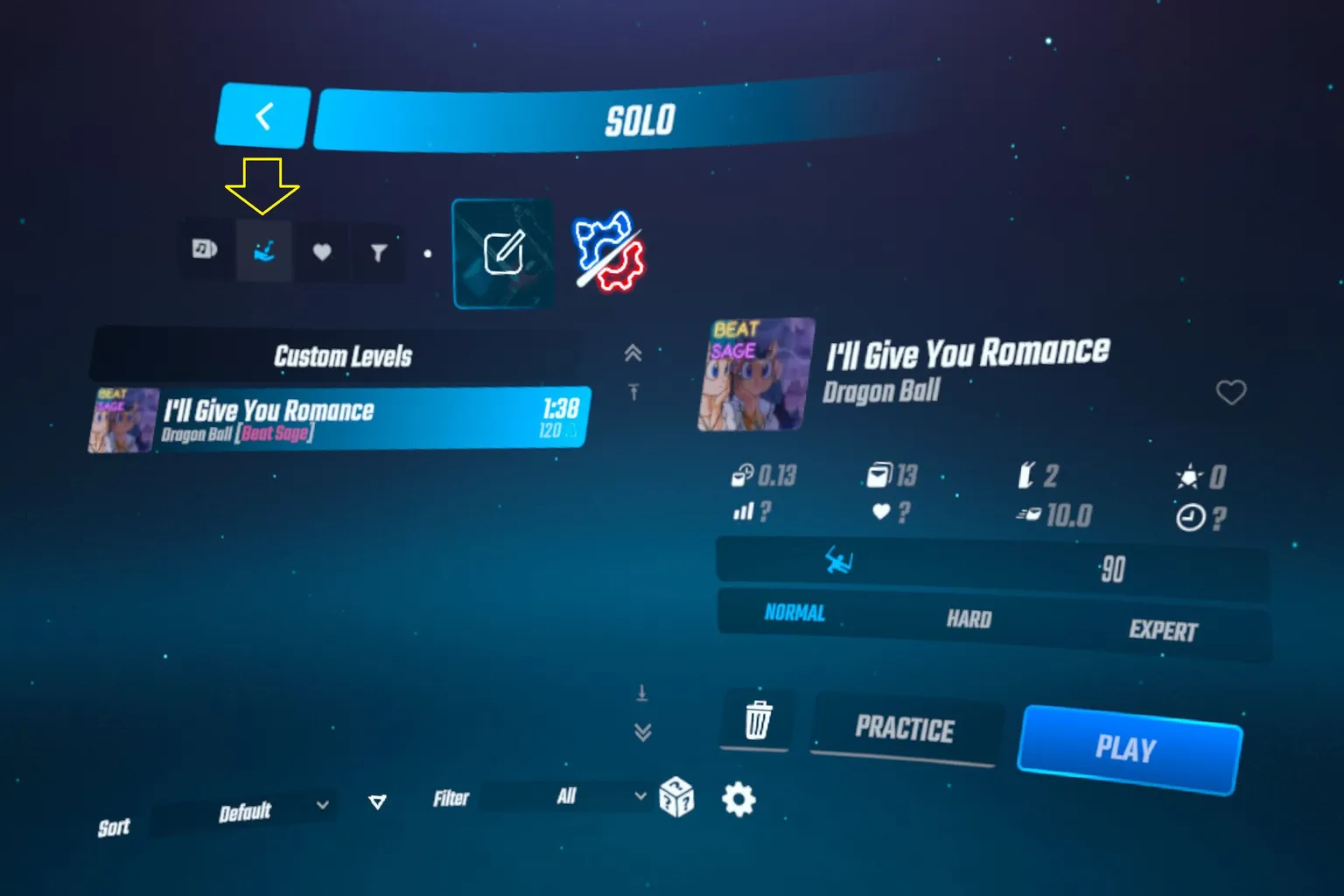
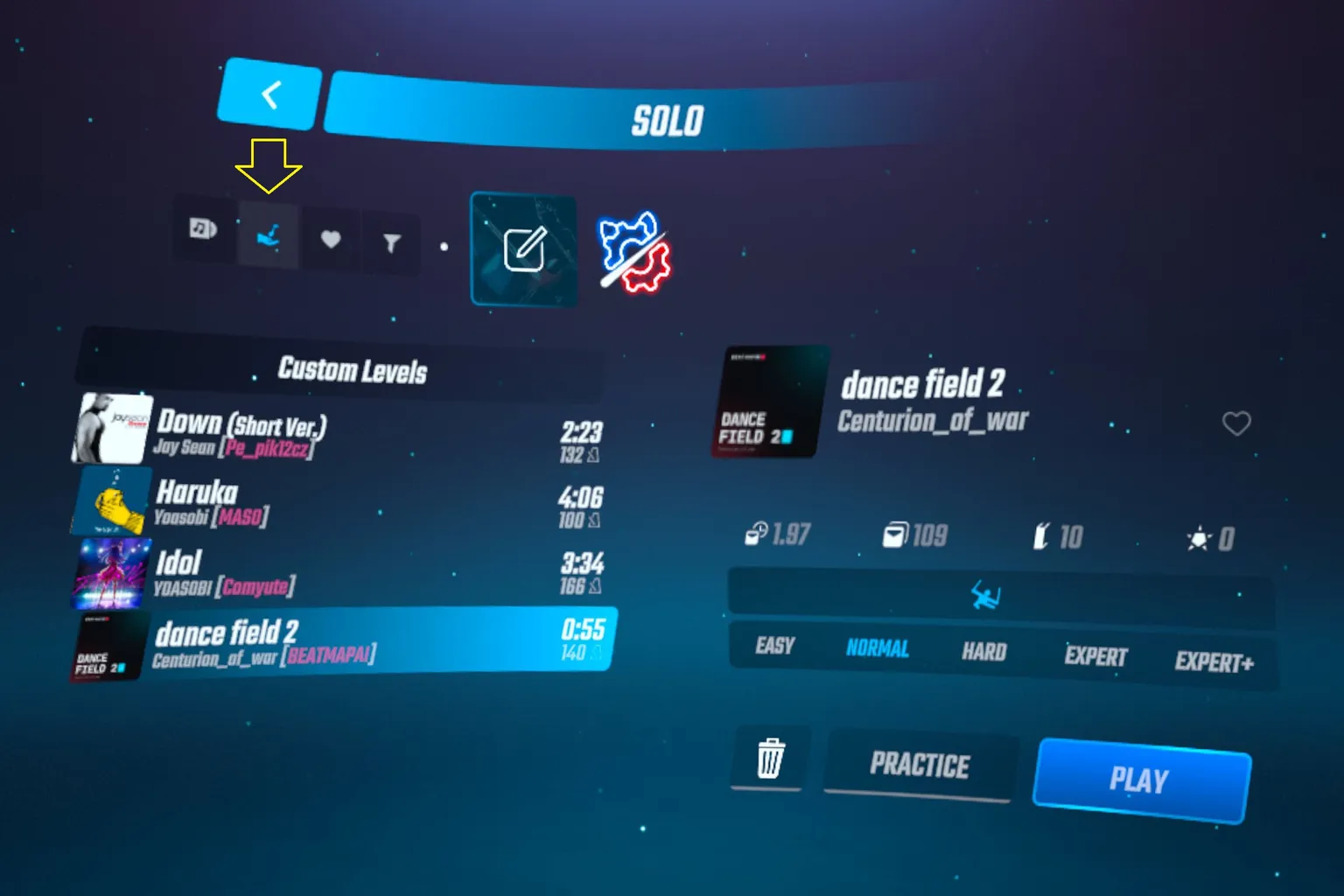
Once the download is complete, return to Solo mode in Beat Saber and select Custom Levels. You’ll see the songs you just downloaded. Choose the map you want to play, then select Play to start playing.
You Can Also Play Custom Songs on the PC Version of Beat Saber
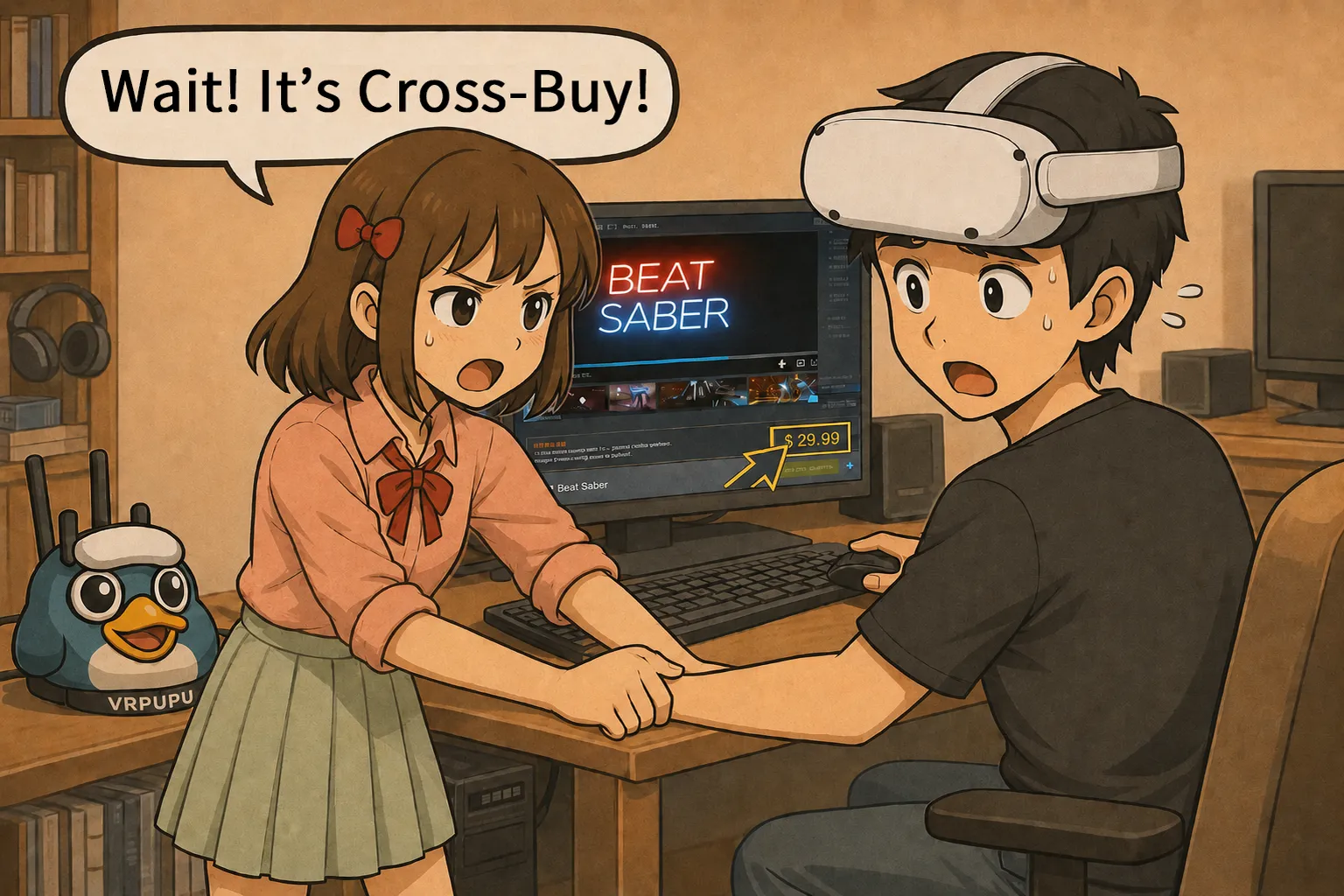
Beat Saber supports Cross-Buy, so when you purchase the standalone Quest version, Meta also gives you the PCVR version at no extra cost. Don’t go buying the game again on Steam!
If you haven’t claimed your PC version of Beat Saber yet, check out this guide to claim your copy first.
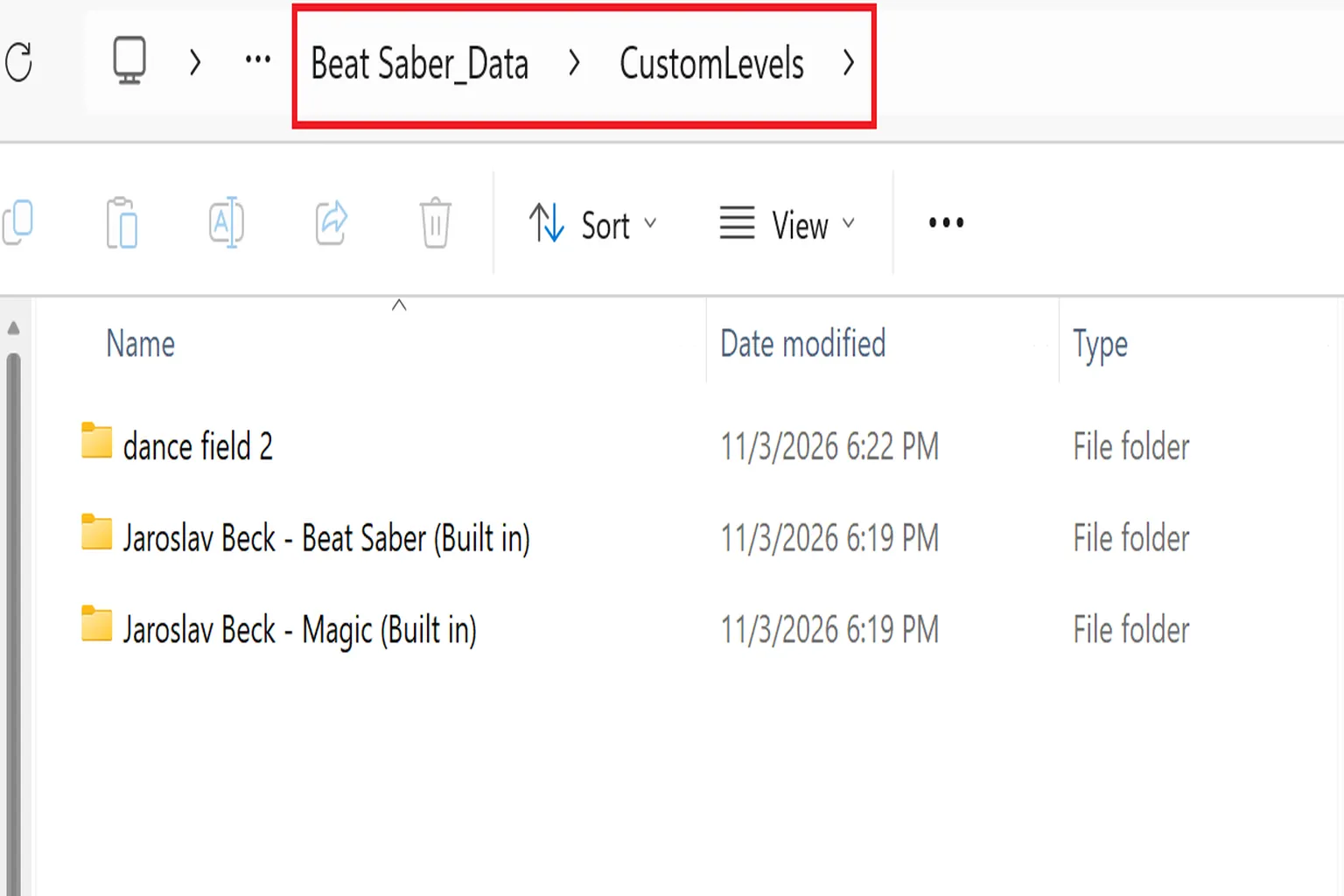
The PC version of Beat Saber natively supports custom songs, so you don’t need to install MBF. The process is even simpler. Just extract the downloaded custom map and place it in the following folder inside your Beat Saber installation directory:
Beat Saber_Data\CustomLevels
Default Meta Horizon installation path:
C:\Program Files\Meta Horizon\Software\Software\hyperbolic-magnetism-beat-saber
Default Steam installation path:
C:\Program Files (x86)\Steam\steamapps\common\Beat Saber
Restart Beat Saber, and you’ll find your newly added songs under Custom Levels.
How to Create Your Own Beat Saber Maps
Even though the Beat Saber community has created over 120,000 custom maps, many great songs are only available on Hard, Expert, or Expert+ difficulty. And just how difficult are they?
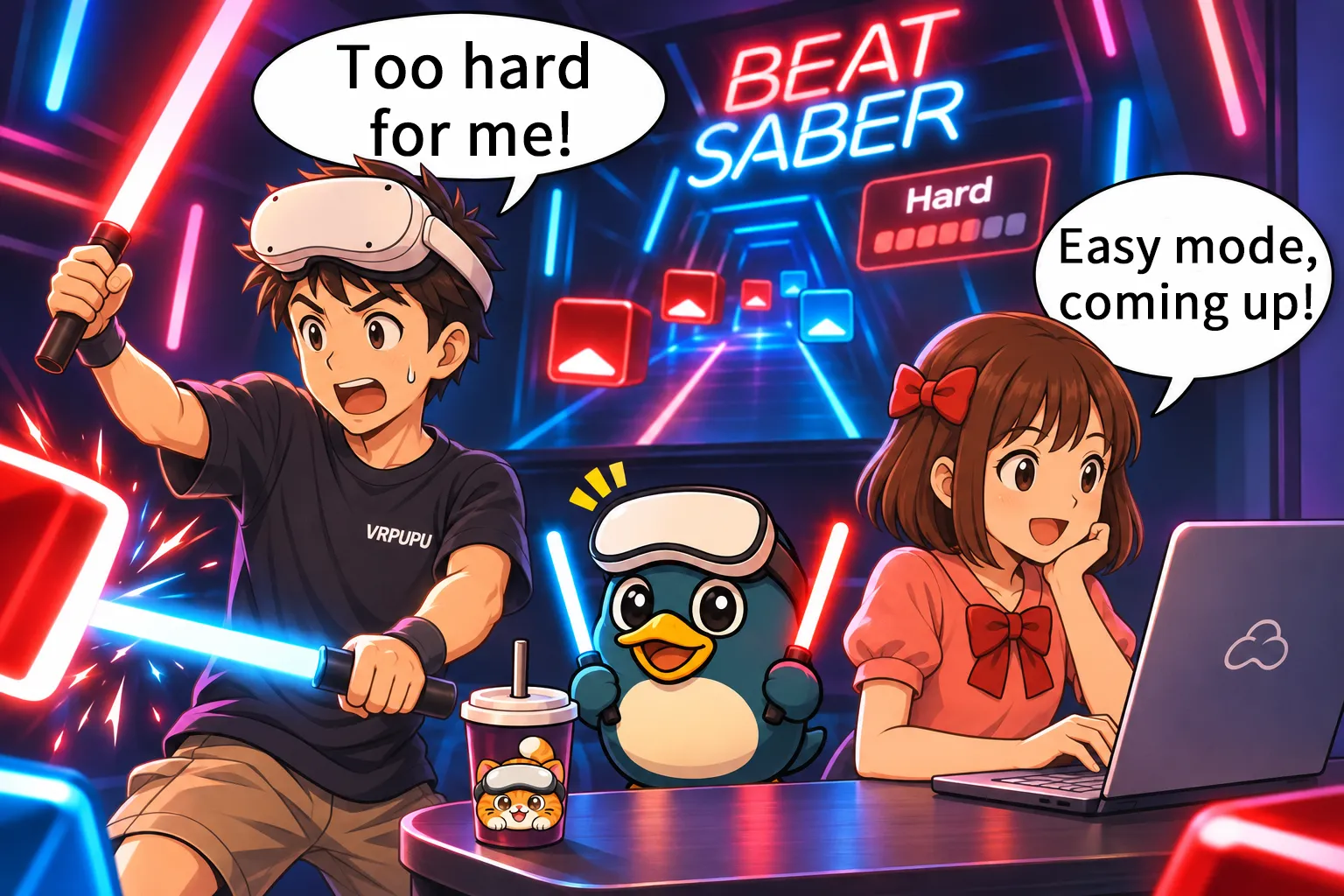
On Hard difficulty, I can barely make it to the fifth line of Luis Fonsi’s Despacito, “Diridiri, dirididi Daddy.” On Expert, the game is already over before the third line even finishes. I need Easy and Normal modes!
Traditionally, creating a Beat Saber map requires a dedicated beatmap editor, where you have to manually place every note, set the saber swing directions, and arrange obstacles. It’s pretty time-consuming. But now there’s a new AI tool called beatmapai that can automatically generate a complete Beat Saber map just by uploading a song. The whole process is surprisingly simple.
Step 1: Create a beatmapai Account
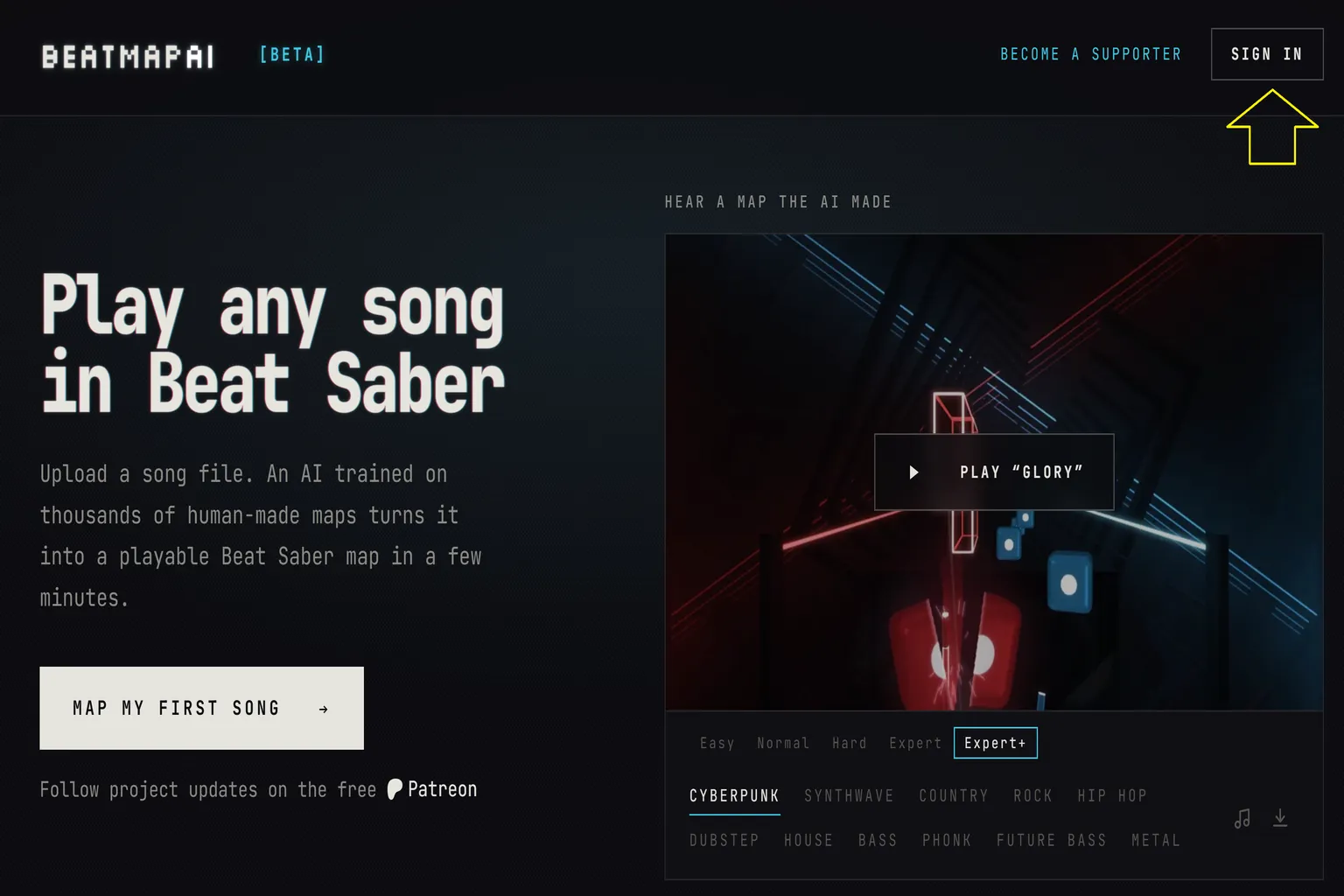
Go to the beatmapai website, click Sign In in the upper-right corner, and sign in with your Google account.
Step 2: Create a Custom Beat Saber Map
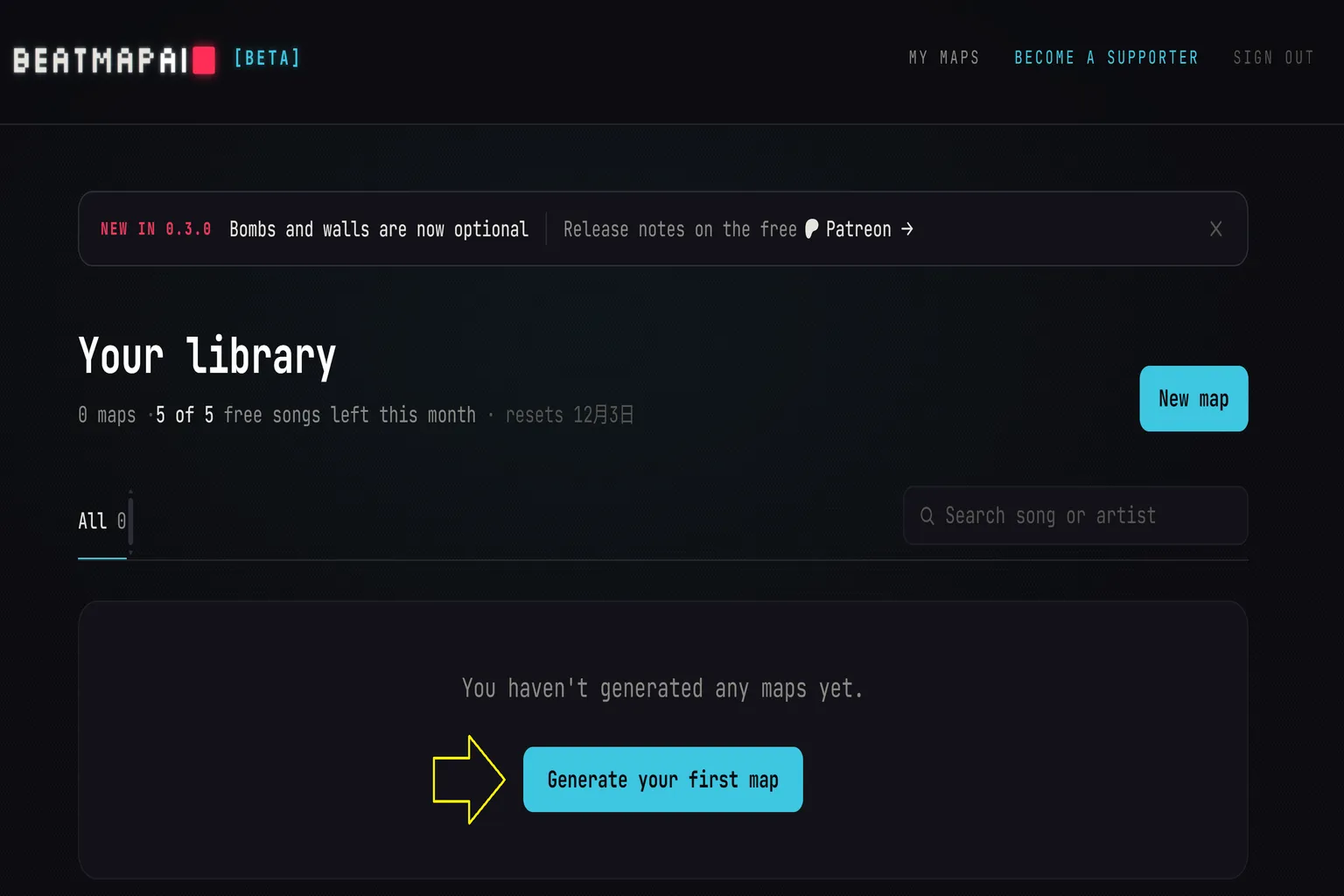
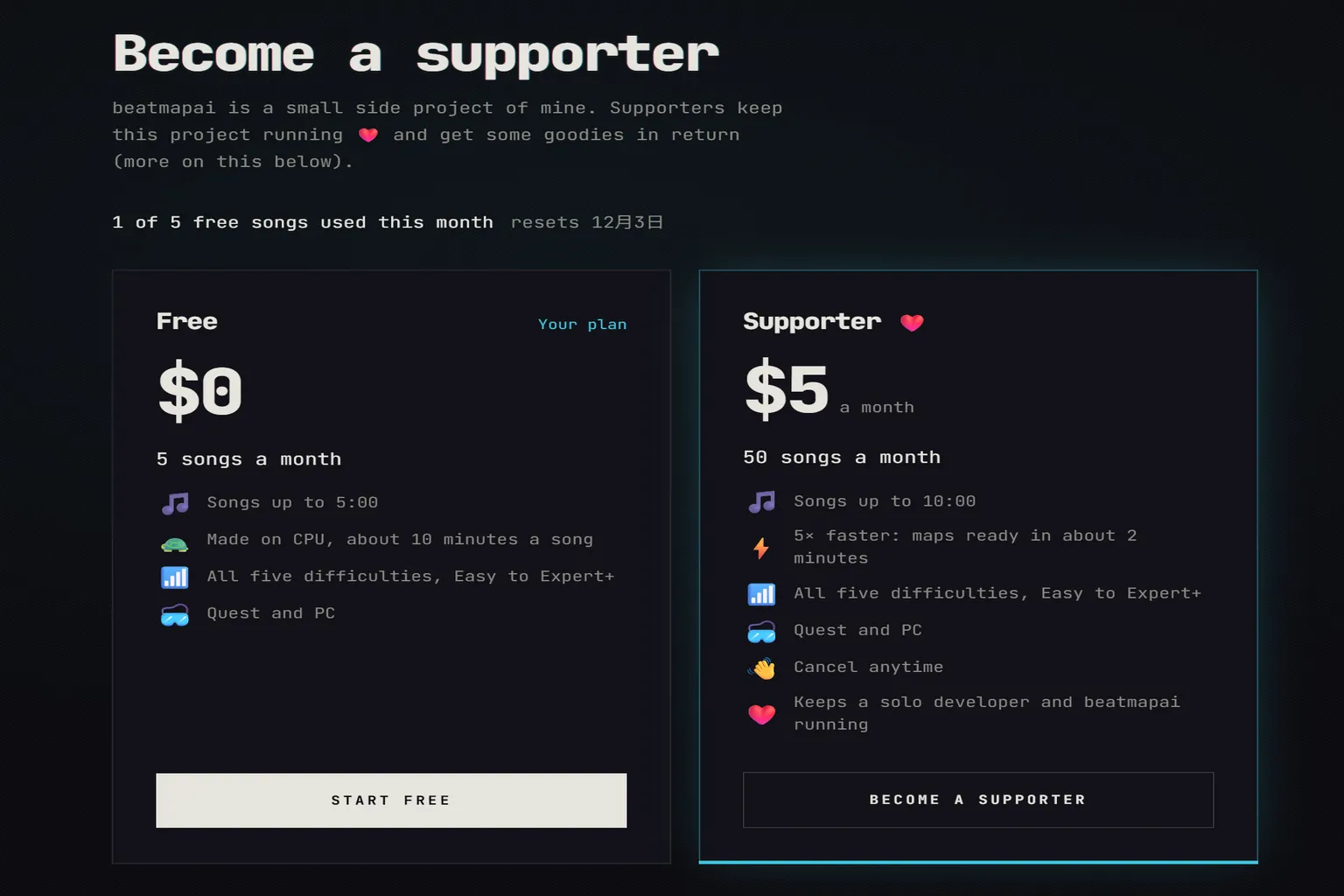
Go to MY MAPS and click Generate your first map at the bottom to start creating your map. The free plan lets you generate up to five custom maps per month, with a maximum length of five minutes per song.
If you want to create more maps or use longer songs, you can consider upgrading to a paid plan. For just $5 per month, you can generate up to 50 custom maps, with songs up to 10 minutes long. AI map generation is also faster.
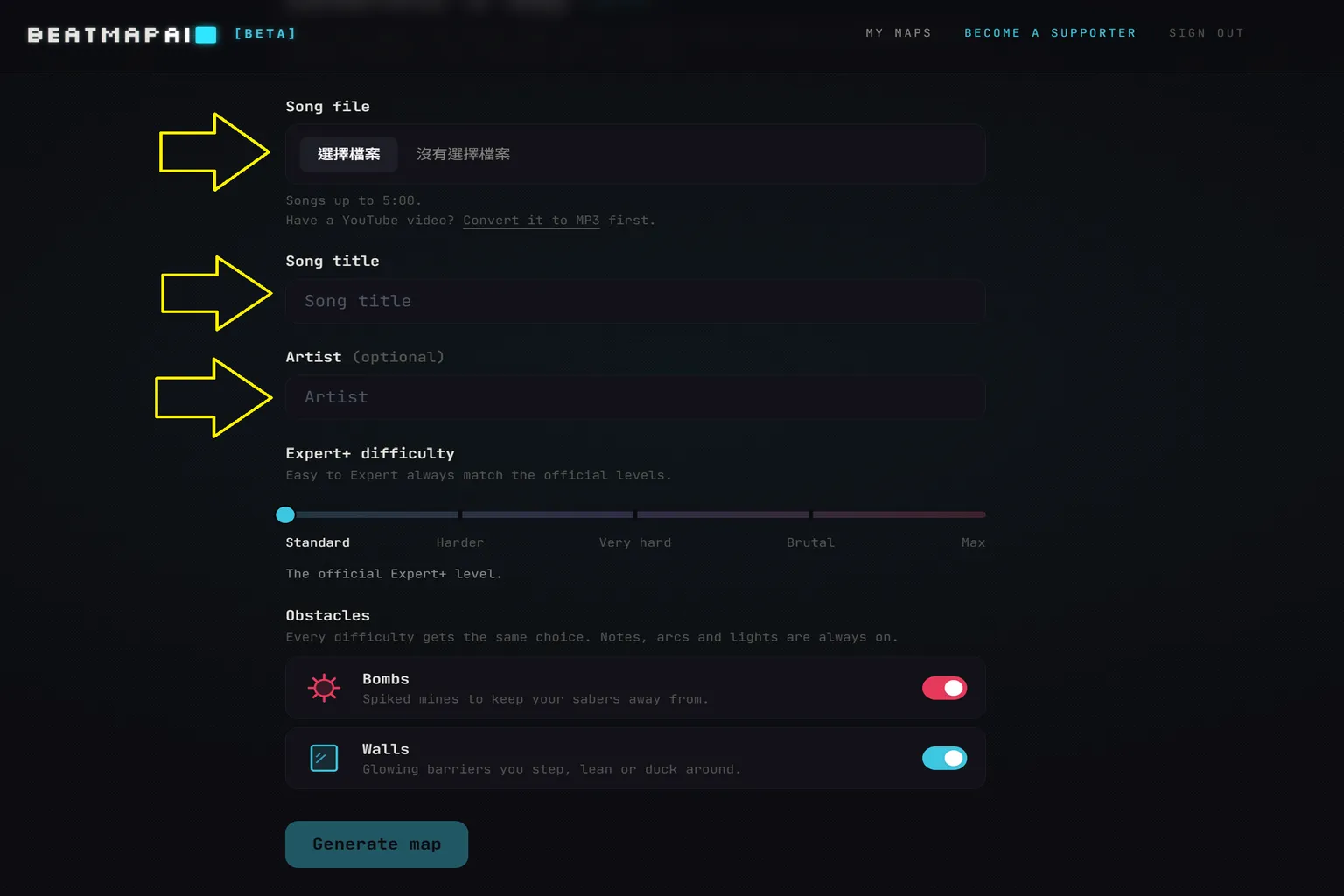
On the map generation screen, you’ll need to configure the following options:
- Song file: Select the audio file you want to use. Supported formats include MP3, WAV, OGG, and FLAC.
- Song title: Enter the song title.
- Artist: Enter the artist’s name. This field is optional.
- Expert+ difficulty: Adjust the difficulty of Expert+ maps. The higher the value, the more challenging the map becomes.
- Bombs: Choose whether to include bombs.
- Walls: Choose whether to include obstacle walls.
Once you’ve configured everything, click Generate map to start generating your custom map.
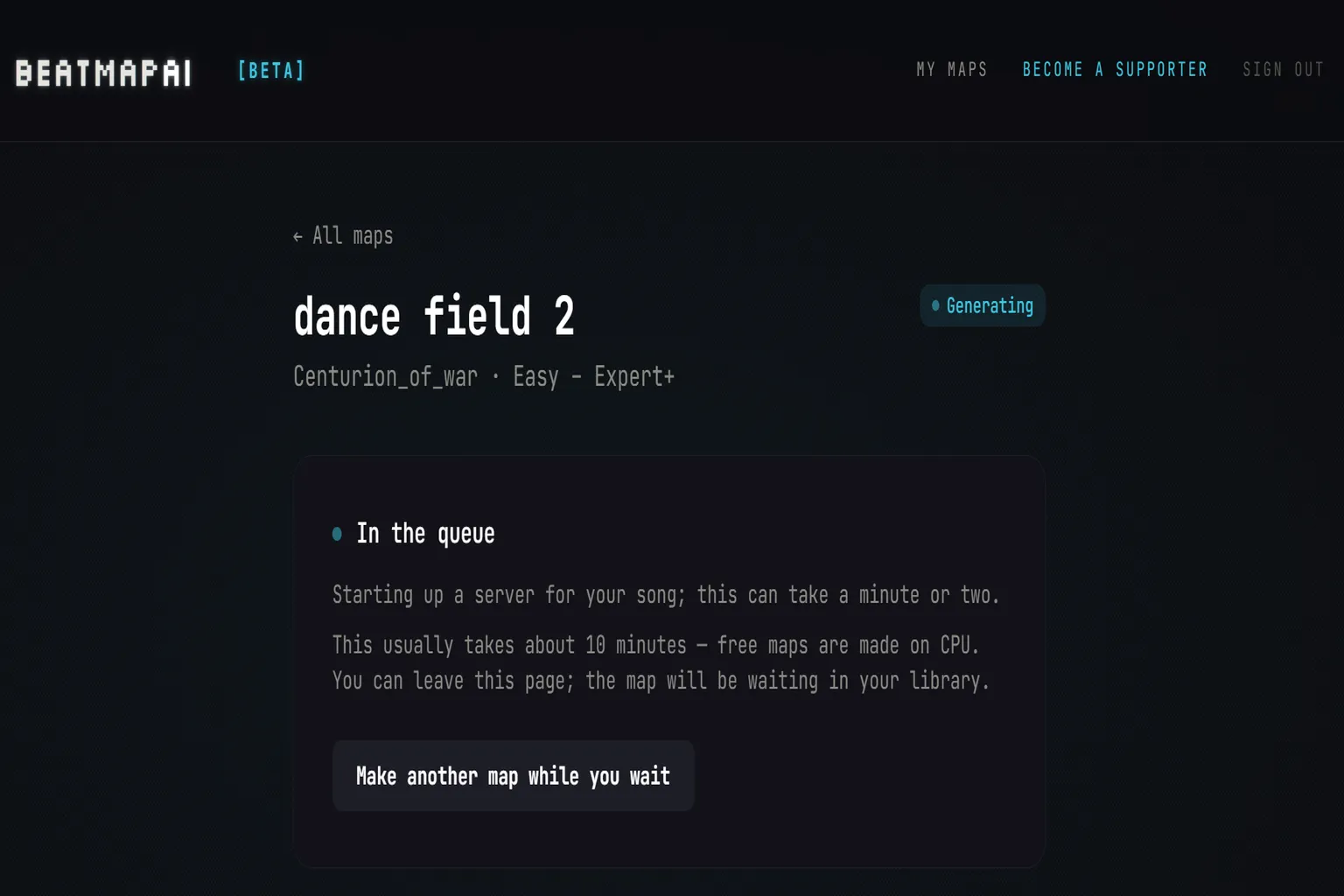
The website estimates that map generation takes about 10 minutes. For my test, I used a 54-second song, and the map was ready in about two minutes.
Step 3: Download the Custom Map and Upload It to Your Headset
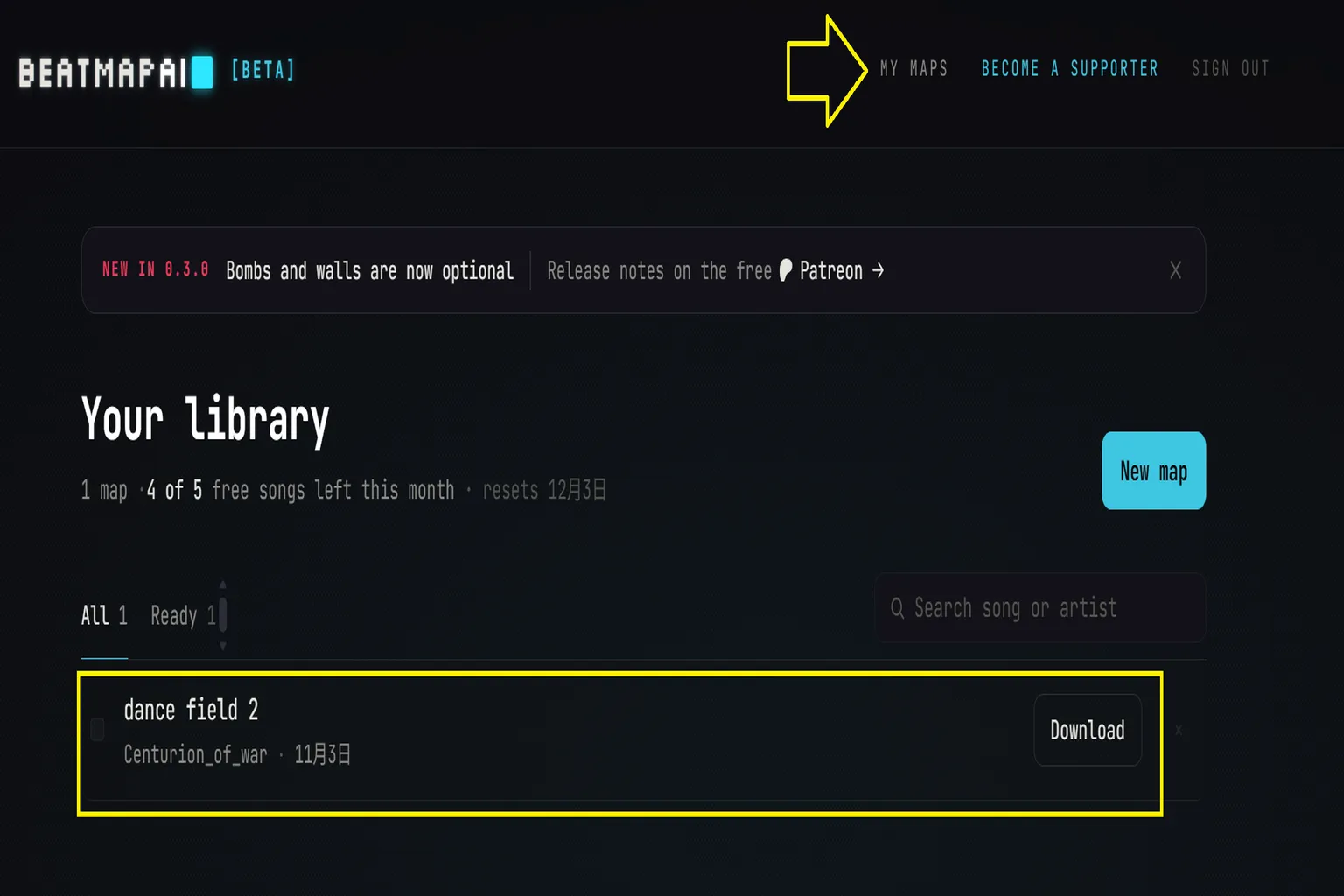
Once the map is ready, click My Maps at the top of the website to find the song you just created.
Click Download to save the map to your computer. It will be downloaded as a ZIP file.
Go to the ModsBeforeFriday website, connect your Quest to your computer using a USB-C cable, and click Connect To Quest. Once connected, you’ll see the familiar App is modded screen.
Click Upload Files at the bottom, then upload the ZIP file you just downloaded to your headset.
Step 4: Start Playing
Put on your Quest headset, launch Beat Saber, go to Solo mode, and switch to Custom Levels. You’ll find the dance field 2 map you just created.
AI automatically generated five difficulty levels in one go: Easy, Normal, Hard, Expert, and Expert+. Choose the difficulty you want to try, then click Play to jump right in.
I was so happy to see an Easy difficulty option! I can finally make it through an entire song!
FAQ
Can I Install Custom Beat Saber Songs on Meta Quest 3 or 3S?
Yes. You can use ModsBeforeFriday (MBF) to enable custom songs in Beat Saber on Quest 2, Quest 3, Quest 3S, and Quest Pro. Once installed, you can use the in-game SongDownloader to search for, download, and play custom maps created by other players.
Do I Need to Downgrade Beat Saber to Install Custom Songs?
Not necessarily. I tested Beat Saber 1.45.3 and was able to install mods directly through MBF without manually downgrading the game. If you’re using a different version, MBF will check compatibility and guide you through the process.
Where Can I Download Custom Songs for Beat Saber?
You can use the in-game SongDownloader to search for and download custom maps from BeatSaver. If you want more advanced filtering options, you can also install BetterSongSearch to find maps by song length, difficulty, ratings, and rankings.
Can I Use AI to Turn My Own Songs into Beat Saber Maps?
Yes. With beatmapai, you can upload an MP3, WAV, OGG, or FLAC audio file, and AI will automatically generate maps across five difficulty levels: Easy, Normal, Hard, Expert, and Expert+. The free plan lets you create five song maps per month. Once your map is ready, download the ZIP file and import it to your Quest using MBF.
Can I Use Custom Songs in the Meta Horizon PC Version of Beat Saber?
Yes, and you don’t need MBF. Beat Saber supports Cross-Buy between the Meta Quest and PCVR versions, so purchasing the standalone version also gives you access to the corresponding PC version. Simply extract the custom map into the Beat Saber_Data\CustomLevels folder and restart the game.