VRChat is the ultimate VR social experience, but getting started can feel overwhelming. This straightforward guide walks you through installation, ditching the default robot avatar, and jumping straight into the best worlds—from lively Japanese izakayas to casual game rooms—in under 30 minutes.
VRChat Overview
Over the past few years, Meta has been seriously pushing the idea of the “metaverse.” It’s not just about putting on a headset to watch movies or play games anymore. The goal is closer to what you see in Ready Player One: you wake up, log into a VR world, meet up with friends, go on adventures, form parties, and basically spend time living there.
On Meta Quest, there are already a few apps that give you that kind of vibe:
VRChat
Create your own characters and worlds, then jump into the same VR spaces as players from around the world.
Rec Room
It feels more like an amusement park or arcade, with a lot of mini-games you can play together. However, Rec Room has officially announced that the service will end on June 1, 2026.
Horizon Worlds
This is Meta’s main metaverse platform. The way you play is a little similar to VRChat, and it also connects with Facebook’s system. That said, Meta has already shifted the focus of Worlds toward the mobile version, and individual Worlds are no longer pushed as heavily in the Quest store.
VRChat is free to download and register from the Meta Store. If you really want to build your own worlds or avatars, expect to spend dozens of hours easily. But that’s not what we’re doing here.
For now, let’s just play. The goal is simple: within 30 minutes, use portals to jump through different worlds and see what’s out there. It’s called “VR Chat” for a reason, so try talking with someone in a VR world.
In real life, you almost never walk up to strangers and start a conversation. Doing that with someone from another country feels even harder. Inside VRChat, though, there’s zero pressure. You can just casually say hi, and sometimes a girl will go, “Wait, what!? You’re not Japanese!?” and sound genuinely surprised.
For example, today I got home exhausted after work, grabbed a beer from the convenience store, and put on my headset. Before I knew it, I was chatting with a girl in VRChat, and it honestly felt like I’d slipped into a Tokyo izakaya — basically a Japanese-style neighborhood pub — for a moment.
You should give it a try at least once. You never know—there might be a surprisingly sweet encounter waiting for you.
Registration and Installation
There are two main ways to play VRChat. One option is to use the VRChat app directly on your Meta Quest headset. The other is to connect your headset to a PC and play through SteamVR.
That said, using Quest on its own does come with performance limits. Some heavier worlds won’t load properly, or you may not be able to enter them at all.
Each setup has its own pros and cons, which I’ll break down below.
| How to Play | Pros | Cons |
| Meta Quest (Headset Only) (Headset-only worlds) | Easy: just put on the headset and jump right in Affordable: no PC connection needed | Limited performance, so visuals and resolution aren’t great You can only access worlds made specifically for headsets |
| PC-Connected Play (Access to all worlds) | Much better visuals and resolution, depending on your PC specs You can enter every world available | Requires a PC, which means extra cost |
You can play VRChat either way, so just pick what fits your setup and personal preference. If you’re brand new, starting with the headset-only version is the easiest move. If you end up really getting into VRChat, you can always step up to the PC version later.
Your account and friend list are shared across both, so switching midway isn’t a problem at all.
Next, I’ll walk through account creation and registration, using the headset version as the example.
One more thing: for VRChat-related DLC on the Meta Store, you can get 10% off just by entering “VRPUPU” at checkout.
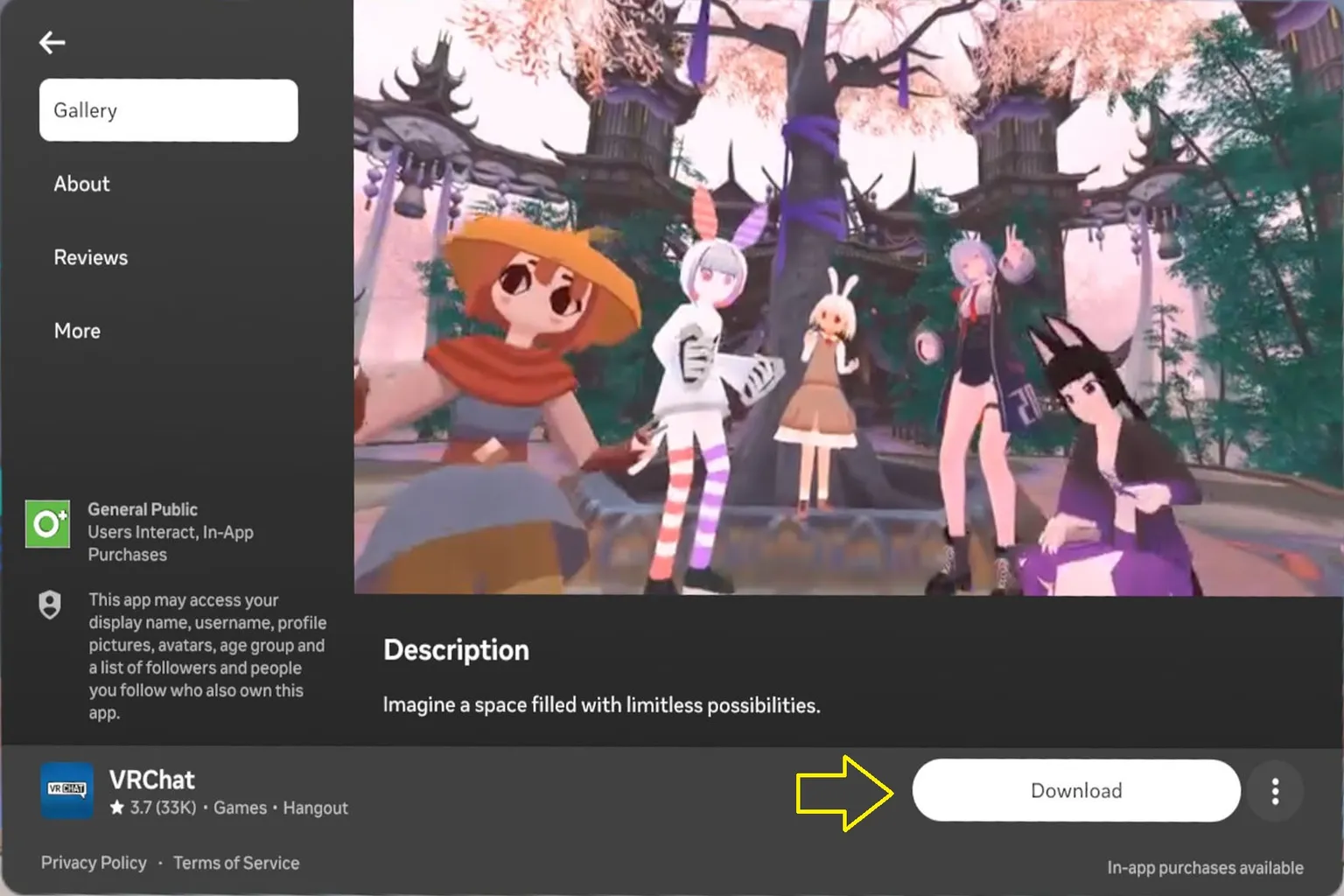
Step 1: Search for VRChat and Install It
How to do it in the Meta Horizon Store:
Search for “VRChat” in the store, select the app when it appears, and install it.
Note: If new users download VRChat through this link, Meta will give them a 50% off coupon.
Later, when you buy in-game points for the first time, you can use that coupon to get 50% off.

Tap Get and the download will begin. It usually finishes downloading to your headset in about two minutes.
How to install from the Steam Store:
If you’re playing through Steam, make sure you’ve already connected your PC and headset by following a SteamVR setup guide first.
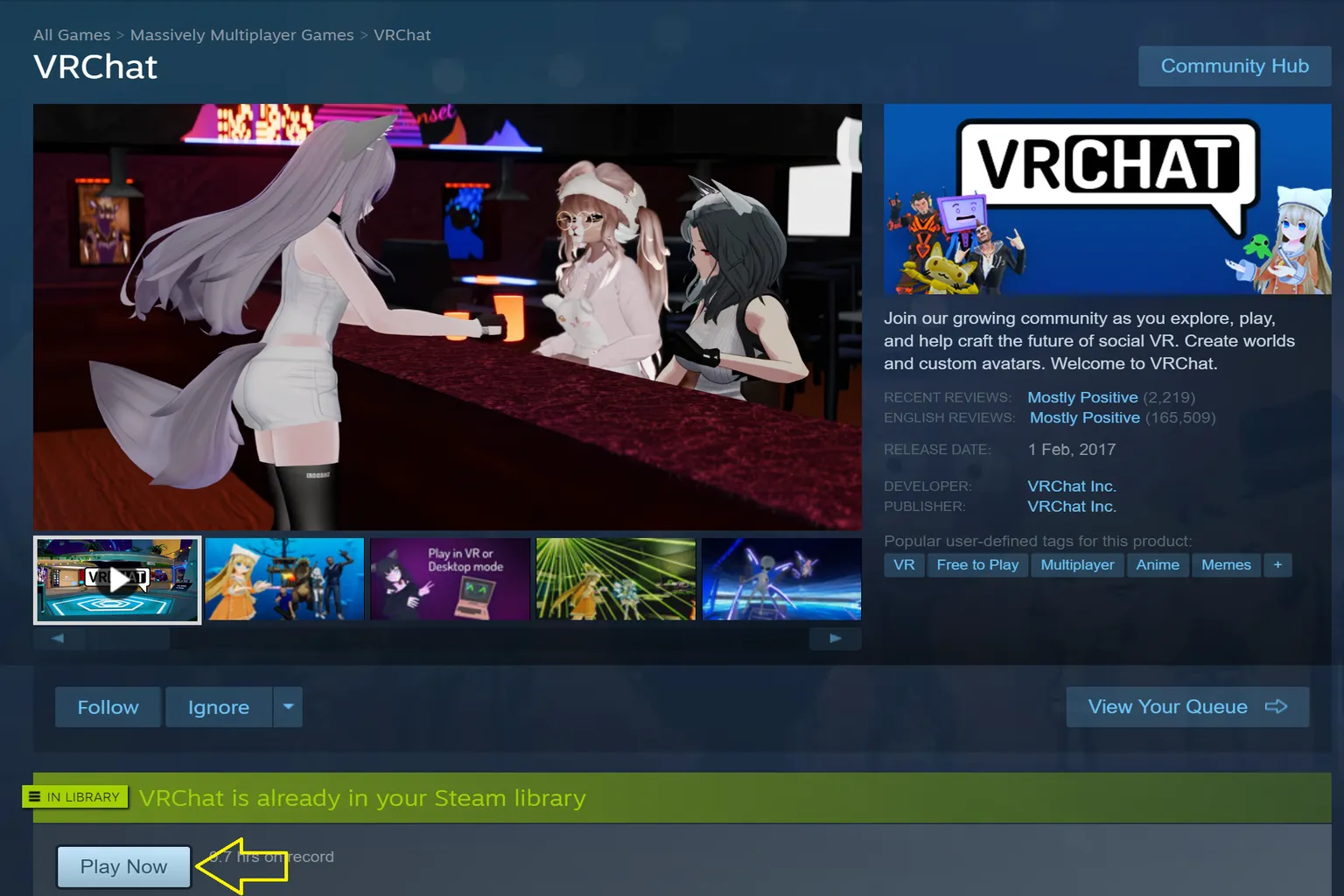
Once that’s done, search for “VRChat” in the Steam Store and you’ll see the VRChat app listed there.

VRChat is also free on Steam. Just click “Play” and then “Install,” and you’re good to go.
Step 2: Grant Permissions
When you launch VRChat, it will ask for permission to access voice data and your microphone. Make sure you choose “Allow” here.

Step 3: Create an Account
On the VRChat welcome screen, you can switch the language from the bottom-right corner. Both the headset version and the PC version support Chinese, Japanese, and more.
The login options are a bit different depending on the platform. On the headset version, you can sign in with a VRChat account, a Meta account, or a Discord account.

On the PC version, you can sign in with a VRChat account or a Steam account.

I recommend creating a VRChat account. That way, you can use the same account on both your headset and Steam, which is a lot more convenient.
Tap “Create Account” at the bottom of the screen to open the VRChat registration system.
Step 4: Fill Out the VRChat Account Registration Form
Once you’re on the VRChat sign-up page, fill in the following fields:
- Display Name: the name that will be shown to other players in VRChat
- Email: the email address you want to register with
- Password: your account password
- Date of Birth: your birthday
At the bottom, you’ll see these checkboxes:
“I have read and agree to the Privacy Policy, Community Guidelines and Terms of Service.” This one is required, so make sure it’s checked.
“I agree to receive updates from VRChat about its products, services and promotions.”
This one is optional. You can leave it unchecked if you want.
When you’re done, check “I’m not a robot” and complete the quick verification to finish the process.

Step 5: Email Verification
Next comes email verification. A confirmation email will be sent to the address you registered, so take off the headset for a moment and check your inbox.
Click “Click here to confirm your e-mail address” in the email to complete the verification.

The link will open the official site, and you’ll see your VRChat username displayed in the center of the screen. Once you reach this point, your account setup is complete.

Put the headset back on and you should see the screen paused at “Email Verification.” Tap “Okay, I’ve verified my Email!” to return to the main screen.

Step 6: First Login
Once you’re back on the main screen, select “VRChat” and log in.

Enter the email address you used during registration.

Then enter the password you just set.

On your first login, you’ll need to verify your email again. Take off the headset, check your email, and look for the code that was sent to you.

The email will contain a one-time passcode. Enter that code, and you’re all set.

After that, you’ll finally be able to enter the world of VRChat.

Lobby Overview
When you enter VRChat, you’ll spawn in the lobby first. Think of it as your first “home” inside VR. This is where you naturally get used to the basics and learn how the system works as you move around.
In the Hub, you’ll find a few different spots worth checking out.

Audio Area
On the left side of the lobby, you’ll see a set of speakers. This is where you can switch between different music albums. You can play ballads, soul, instrumental tracks, and a few other genres.
The default track has a vibe that honestly feels a bit like stepping into the world of Minecraft.

Trial Room (Avatar Preview)
This area lets you check out the latest avatar promotions. From the square character images on the right, you can enter the Avatar Market, where you can buy cool avatars or pick up free ones.

On the right side of the trial room, there’s a mirror. From a distance, it just looks like a wooden wall decoration.

Once you get closer, it shows your current avatar. By default, you’ll appear as a robot, which is the standard avatar for VRChat beginners. It looks a little goofy, but that actually makes the “new player” vibe very obvious.
When you’re more experienced and see a robot avatar walking up to you, you can usually tell right away, “Yep, that’s a genuine beginner.”

If the robot look feels too plain, you can grab a free avatar from the Avatar Market. They’re still fairly simple and kind of spaced-out looking, but they’re definitely an upgrade from the robot.

If the official avatars feel a bit boring or overpriced, you can follow this guide to pick up some free avatars instead.
Worlds
Straight ahead in the lobby, you’ll see several portals that take you to other worlds. These are officially featured worlds that VRChat is currently highlighting.
The area is split into two main sections. On the right-hand side, you’ll see portals labeled “VR Comfort Intense.” That means these worlds are more likely to cause motion sickness, so it’s a good idea to be a bit careful before jumping in.

If you move further inside, you’ll find a row of portals leading to worlds that are generally easier on motion sickness. When it’s your first time, it’s best to pick one from this section and give it a try.

Other Features
Creator Ads
This is an official VRChat sign promoting tools for creators. It basically says, “If you want to become a creator, use Creator Companion to make avatars and worlds.”
In other words, VRChat isn’t just saying “come play.” They’re also encouraging players who want to build their own characters or worlds to download Creator Companion and start creating.

Movement Tutorial
As soon as you enter the lobby, there’s a sign on the right-hand side that explains movement options. Touching this sign lets you switch between different movement styles.

There are two movement types available.
First-Person Movement
This lets you move around in an FPS-style view, similar to CS:GO. This is the default setting. It’s easy to control and very practical, but the VR sickness level is 🌀🌀🌀 (medium). Personally, this is the one I prefer.
Teleport Movement (Holoport)
You point at a spot, and your character moves there automatically. The VR sickness level is 🌀🌀 (low). Watching your character move this way is kind of cute, but honestly, it’s not really my thing.

Game Controls and the Quick Menu
Once you get used to the Hub, you’ll realize it’s basically just a lobby—a relaxed place to hang out before jumping into the real content. Every world you visit is accessed through the quick menu, so it’s worth understanding how that works first.
Basic Controls
The controls are mostly the same whether you’re using a Meta headset or playing through SteamVR:
- Analog Stick: Move around and adjust your view
- Grip Button: Grab objects
- Trigger: Use or interact
- A Button: Jump
- X Button: Turn your mic on or off
- Y / B Buttons: Open the quick menu
The controFor example, if you see a marker or pen in a world, hold the grip button to pick it up, then press and hold the trigger to start drawing.


Start Panel
Press the Y or B button and the start panel will pop up in front of you. This is the main control screen where you move between worlds, look for friends, and switch avatars.
The first time you open it, you might wonder, “Okay… what do I actually do now?” That’s normal. For now, just pick one of the worlds shown on the screen and jump in. That’s the easiest way to get started.

Worlds
This is where you browse VRChat worlds. On the left side of the screen, you’ll see quick categories. In the center, you’ll see portals leading to different worlds.
Each portal shows the world’s name along with how many people are currently inside.
You can also tap the “🔍” icon at the top and search by keyword.

Quick Category Overview
Current World
Shows the name of the world you’re currently in.
World Search
Lets you search for worlds using preset keywords, making it easier to find something that matches what you’re looking for.

You can also type in your own keywords to search for worlds. Just keep in mind that on the headset version, you can only enter English.
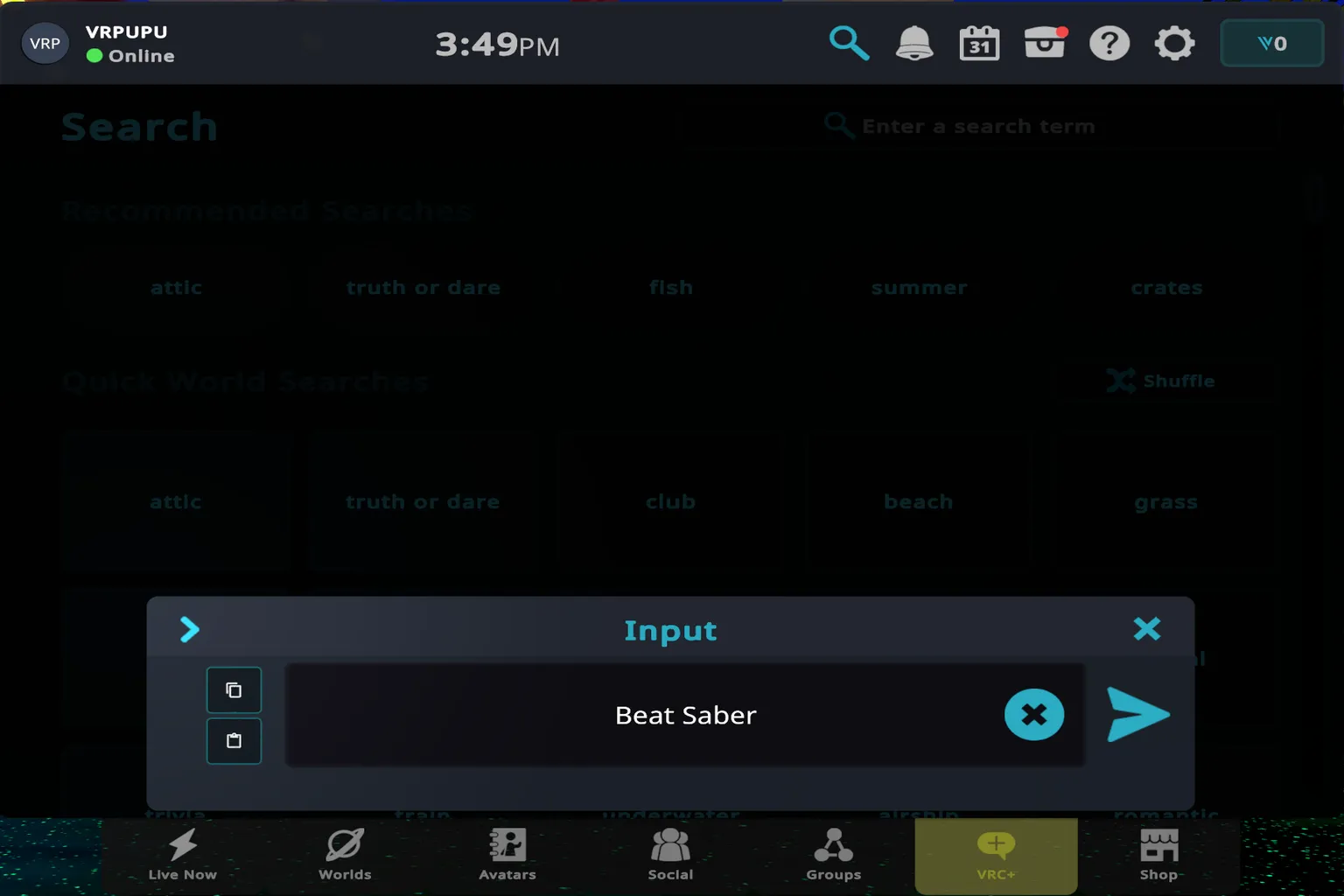
Using these categories makes it easy to quickly find the kind of world you want to visit.

On the Steam version, Japanese, Chinese, and more language input are supported.

Using this method, you can find worlds in different languages.

Popular
Worlds with a high number of players online at the same time. These are usually the most active and lively.
New & Noteworthy
Newly released worlds, along with unique worlds officially recommended by VRChat.
Avatar Worlds
Worlds dedicated to changing avatars. Many of them offer a wide selection of avatar models.

Games
Worlds designed around different ways to play. You’ll find shooting games, hide-and-seek, puzzles, and even Beat Saber–style rhythm games.

Spotlight Cross Platform
Specially recommended cross-play worlds where Quest and PC players can join together.
New
Worlds that have just been released.
Updated Recently
If a world you’ve favorited or visited before gets updated, it will appear here.
Community Labs
Worlds that are still in the testing phase. Some may be unstable or unfinished.
For your first stop, it’s a good idea to check out an avatar world. Some of them offer solid free avatars, letting you move on from the beginner robot look pretty quickly.
For how to play game worlds, refer to the game introduction linked here.
Live Now
In Current Events, you can see which worlds are hosting events right now. You can also check worlds with upcoming events.

Avatar Market
The third option in the bottom menu is the Avatar Market. This is where you can buy appealing avatars uploaded by creators. Prices usually start at around 600 credits or higher.
There are several categories available, so you can choose based on your personal taste.

Popular with Credits: avatars that are selling well
New: newly created avatars
Under 1,200 Credits: an area for avatars priced at 1,200 credits or less
Anime: anime-style avatars. A lot of them look like Japanese manga characters.

Furry: avatars with animal-like features, such as cat ears or fox-style characters
Human: avatars that look close to realistic humans. This category is not for animals, robots, or fantasy-style avatars
Marketplace A-Z: a marketplace list sorted by name. Use this when you want to search by avatar name
Sci-Fi: sci-fi-style avatars, like robots or androids

Cartoony: colorful cartoon-style avatars. A lot of them have a more American-style look.
Public: free avatars that are publicly available.
Fantasy: fantasy creature avatars, like succubi or vampires.
Animals: realistic animal avatars, like ones that turn you into a giant red shrimp.

Public avatars are free, but there are still quite a few good-looking ones in there.
If you find one you like, just open it and install it. Then you can use it right away.

Social
In this area, you can see the usernames of people in each world instance, as well as where your friends are currently hanging out. This makes it easy to jump in and meet up with them.

Groups
This is VRChat’s built-in community feature, where you can gather people who share the same interests. Each group has its own name, logo, and description, and you can set admin and member permissions.
You can also search by name—type something like “US” and you will find groups that match what you are looking for.

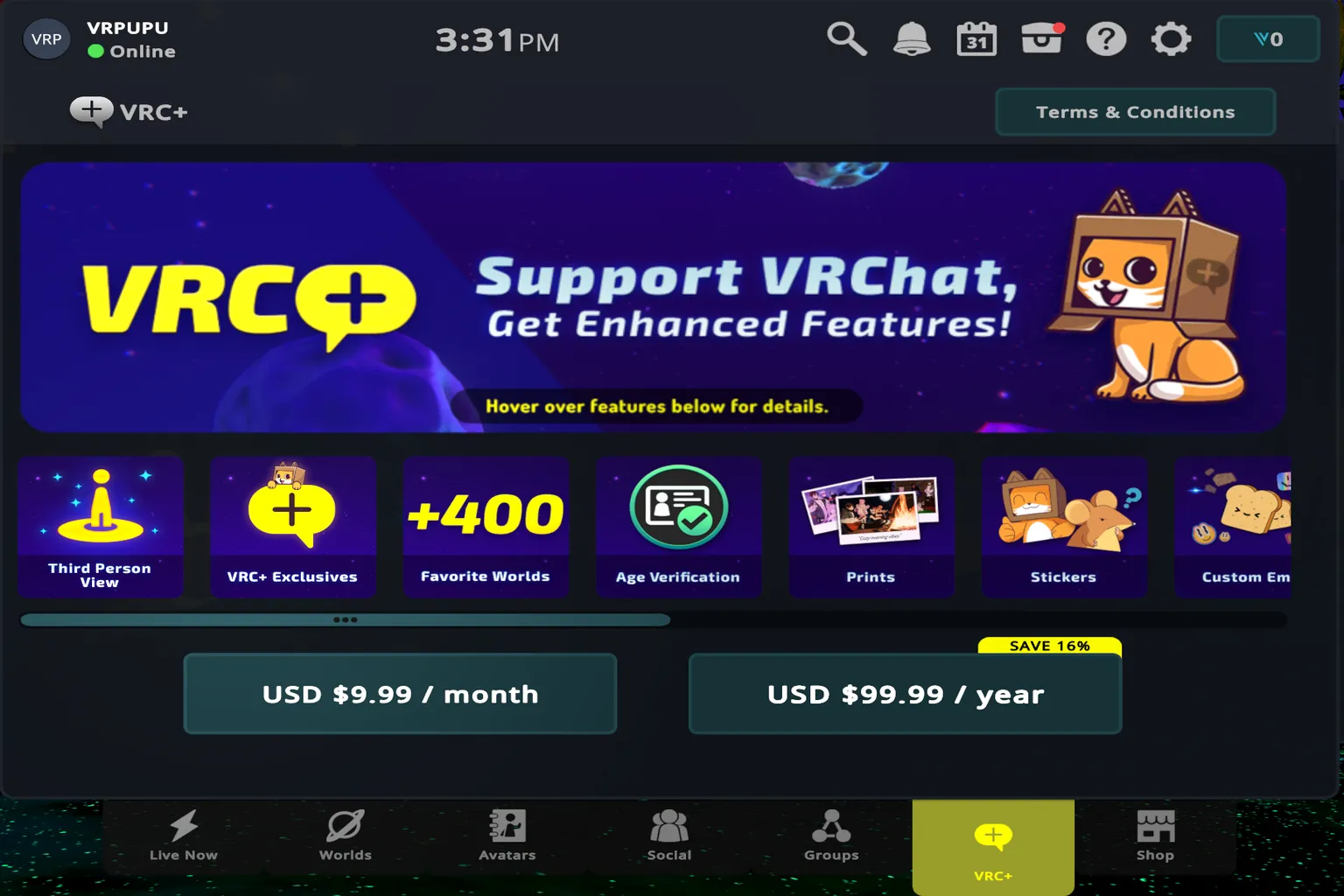
VRC+
VRChat is free to play, but subscribing to VRC+ unlocks extra features. Pricing is $9.99 per month or $99.99 per year.
With a subscription, you get the following perks:
- Increased avatar favorites: Free accounts can save up to 50 favorite avatars, while VRC+ lets you save up to 300.
- New camera modes
- Drone camera mode (aerial shots)
- Badges
- Custom emojis
- Custom stickers
- Send messages with photos to friends
- Customize the appearance of the start panel
If you plan to spend a lot of time in VRChat, these features can be pretty useful.
Marketplace
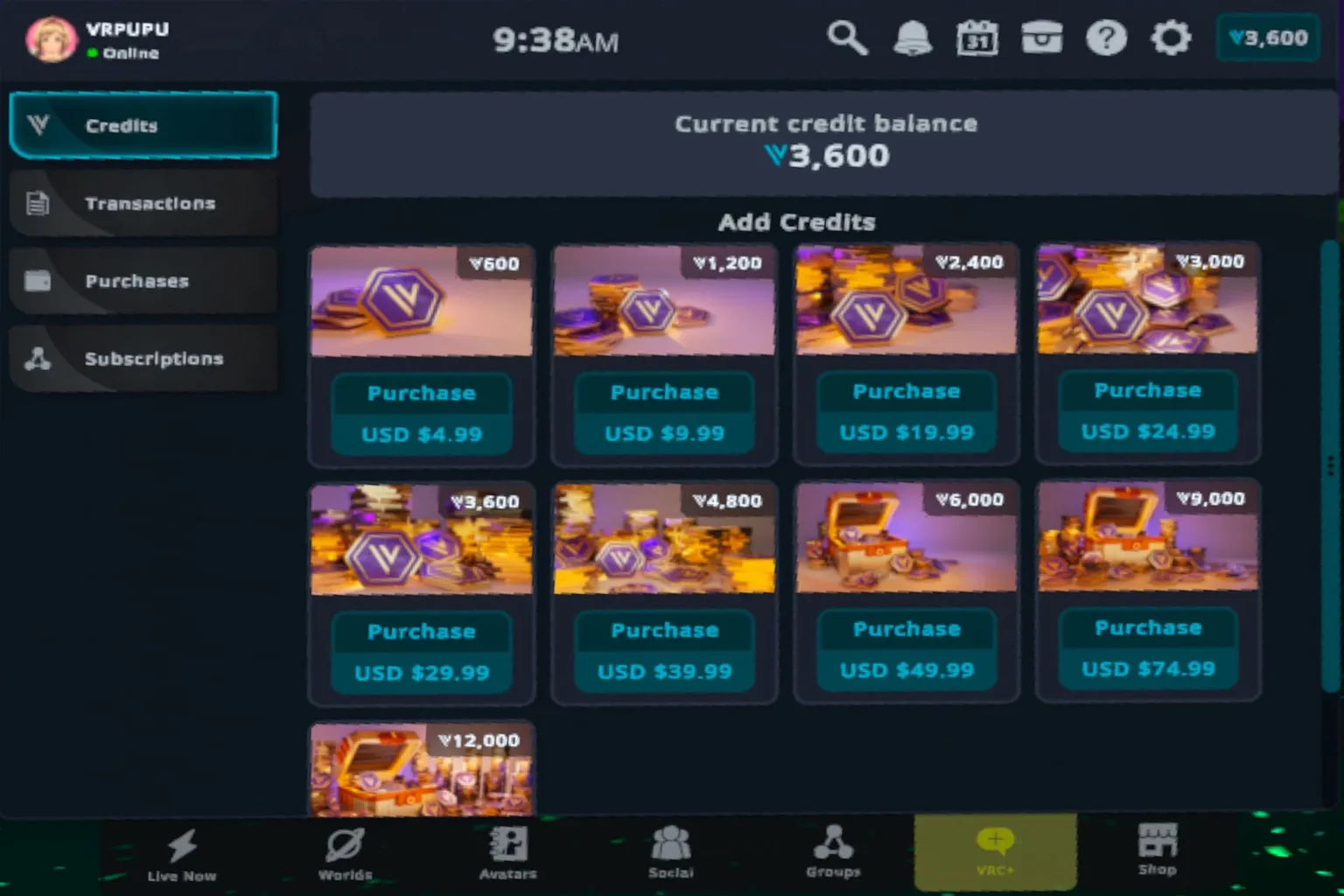
This is where you can buy credits. For $9.99, you get 1,200 credits. These credits can be used to purchase avatars or items inside different worlds.
If you’re using a VRChat account on Meta Quest, enter “VRPUPU” when buying Credits to get 10% off.
Check out this guide as well and give the 50% off method a try.
Open a Portal and Start Exploring
Up to this point, everything has been basic setup and explanations. For now, put detailed avatar customization and world creation aside, and just jump into a few worlds. VRChat is something you really understand by experiencing it yourself.
Japanese-Style Worlds
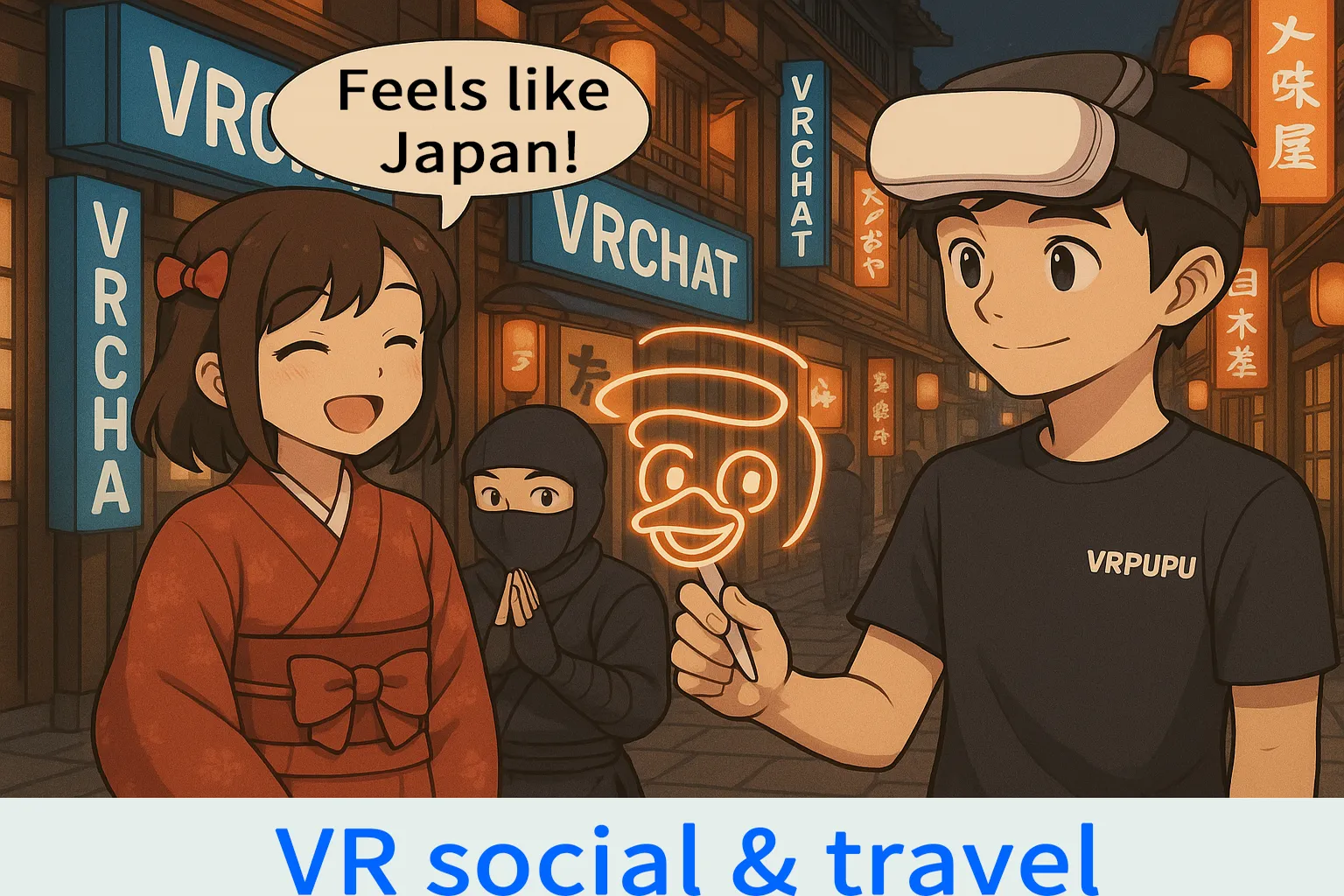
VRChat has a very large Japanese user base. People there genuinely love casual conversation, and the atmosphere of these worlds instantly feels “Japanese” the moment you step in.
If you type “Japan” into the search bar, you’ll find plenty of Japanese-style worlds. One example is “Poppy Yokocho,” a classic back-alley style world with shops and izakayas lining both sides.

As you move further in, you’ll see groups of players gathered together, just chatting. A simple wave or a quick hello is usually enough to slip right into the conversation.
In Japanese-style worlds especially, the male-to-female ratio tends to be fairly balanced. Sometimes you’ll even see a group of girls surrounding one guy, laughing and talking nonstop.

In one world I visited, a frog avatar and an angel avatar were standing close together, whispering to each other. I ended up standing nearby like an awkward bystander for about a minute, half eavesdropping. I couldn’t really understand what they were saying, but you could tell they were having a great time just from the vibe alone.

This cat-eared Japanese girl was standing off by herself, so I waved and tried talking to her in a bit of Japanese. She gently asked, “Wait… you’re not Japanese?” and her voice was insanely cute—exactly like a 15-year-old heroine straight out of a Japanese anime.

Chinese-Language Worlds
There are a lot of worlds that use simplified Chinese. Visually, many of them are flashy and very well made. But once you step inside, you’ll often see something like twenty guys surrounding a single girl, chatting away—kind of like the gender ratio you’d see in old-school dating chat rooms.
If you want to casually chat in Chinese, it’s better to search using the keyword “Taiwan.” You’re more likely to meet players from Taiwan, and the male-to-female ratio is usually much less extreme.

Game Worlds
VRC Boxing Gym is a game-style world you can enter directly from the lobby portal. Most of the time, there’s a short tutorial waiting for you when you first arrive.

There usually aren’t a ton of people in this world, but most of the players tend to be from the US or Europe. The overall design is solid, and the quality is pretty high.

Since it’s a boxing game, you can fight players from all over the world. Once inside, you’ll see all kinds of wild avatars mixed together, playing side by side.

I tried boxing as a guy with a fish head avatar, but honestly, it wasn’t that fun. The punches didn’t feel powerful at all, and the fish-head guy kept complaining, saying things like, “Hey, stop hitting me so much!”

That wraps up the overview of VRChat.
At first, it takes a bit of getting used to, and to be honest, a lot of the games inside worlds aren’t that impressive. Compared to full-fledged games sold on the Meta Store, most of them feel pretty basic.
But VRChat’s real appeal is its social side. The moment you put on the headset and hear girls laughing all around you, that alone is enough to lift your mood and make the experience feel special.
FAQ – Common Questions
Does VRChat cost money?
Downloading and playing VRChat is free. You only need to pay if you want VRC+ or certain paid avatars.
What’s the difference between the Meta Quest version and the Steam version?
The Quest version is easy to jump into, but you may not be able to enter worlds that require higher performance. The Steam version lets you access all worlds, but you’ll need a capable PC.
Which account should I use to log in?
Creating a VRChat account directly is recommended. That way, you can use the same account on both Meta and Steam, and your friend list will stay synced.
Is motion sickness really an issue?
If you’re new, it’s best to start with teleport movement (Holoport). It’s easier on motion sickness. Once you get used to VR, you can switch to smooth first-person movement.
Is VRC+ worth it?
If you play often, it’s worth considering. You get more friend slots, more avatar storage, and options to customize your nameplate, which makes things more convenient overall.