VRChat Credits and VRC+ can often cost less through Meta Quest than through Steam. This guide explains how Meta’s 50% off creator offer works, how to use Quest App Sharing with an additional Meta account, and how payments stay tied to your VRChat account. It also covers VRC+ Gift Bundles, Trust Rank, account linking, and how gifting works for avatars, accessories, Credits, and VRC+.
How VRChat Accounts and Payments Work
There are two main ways to play VRChat on Meta Quest.
The first is to connect the headset to a PC and play the Steam version of VRChat in PCVR. The second is to launch VRChat directly on the headset and play the standalone Quest version without using a PC.
Both methods let you access VRChat, but the platform that handles your payment depends on which version you’re using.
| How You Play | Where You Get VRChat | VRChat Login Options | Payment Platform |
|---|---|---|---|
| Steam PCVR | Steam Store | VRChat, Steam, Google, Discord | Steam |
| Standalone Quest | Meta Quest Store | VRChat, Meta, Google, Discord | Meta |
If you’re using the Steam version of VRChat, payments go through Steam no matter which login method you use.
If you’re using the standalone Quest version, payments go through Meta.
The available sign-in options also differ.
The Steam version does not support signing in with a Meta account, while the standalone Quest version does not support signing in with a Steam account.

Why Is It Cheaper to Buy Through Meta?
VRChat rarely goes on sale through Steam.
Over the past two Black Friday seasons, the only promotion I’ve seen was an offer that added three extra months when you purchased a one-year VRC+ subscription. I haven’t seen any discounts on Credits.
Meta, on the other hand, offers creator discounts. You can get 10% off by entering a creator promo code, and in some cases, you can get 50% off through a creator link.
Because of that, subscribing to VRC+ or buying Credits is often cheaper through Meta.
| Purchase Method | Discount | When It Applies |
|---|---|---|
| Buy through Steam | Rarely discounted; usually full price | Purchase through the Steam version of VRChat |
| Buy through Meta | 10% off | Enter the promo code “VRPUPU” when purchasing Credits or a VRC+ Gift Bundle |
| Buy through Meta using the first in-app purchase offer | 50% off | Purchase Credits or a VRC+ Gift Bundle through a creator link |
VRC+ membership benefits and purchased Credits are tied to your VRChat account, so you don’t need to buy them again if you switch platforms.
That means even if you normally play through Steam, you can log in to the standalone Quest version with the same VRChat account and purchase Credits or VRC+ through Meta.
Do You Need a Subscription or Credits to Use VRChat?
VRChat itself is free to download.
If you just want to visit different worlds, talk with friends, and use free avatars, you don’t need a VRC+ subscription.
The main paid options covered in this article are Credits and VRC+.
Credits are the in-game currency. You can use them to buy avatars and accessories, or to support creators inside VRChat.
Some of the better-looking avatars and accessories in the store also require Credits.

VRC+ is a paid membership service that gives you more Favorites slots and access to more useful camera features.
Platform Accounts, VRChat Accounts, and Trust Rank
VRChat accounts use a trust system called Trust Rank.
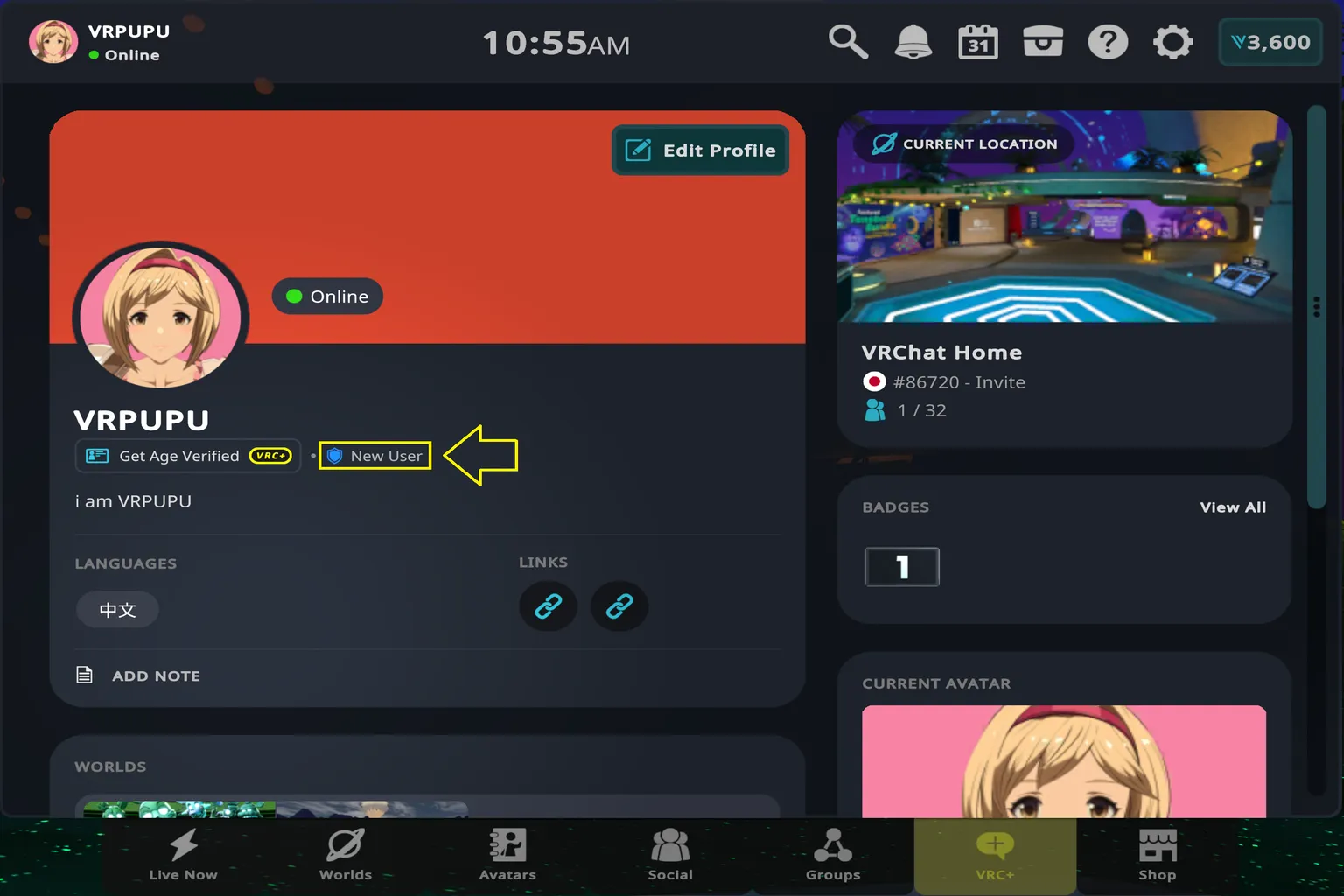
Open the menu and select your profile icon in the upper-left corner to check your current Trust Rank.
For example, this account is currently at the New User rank.
To check another player’s rank, open the menu and select that player’s avatar.
For example, this player has a purple shield icon, which means they are a Trusted User, the highest Trust Rank.
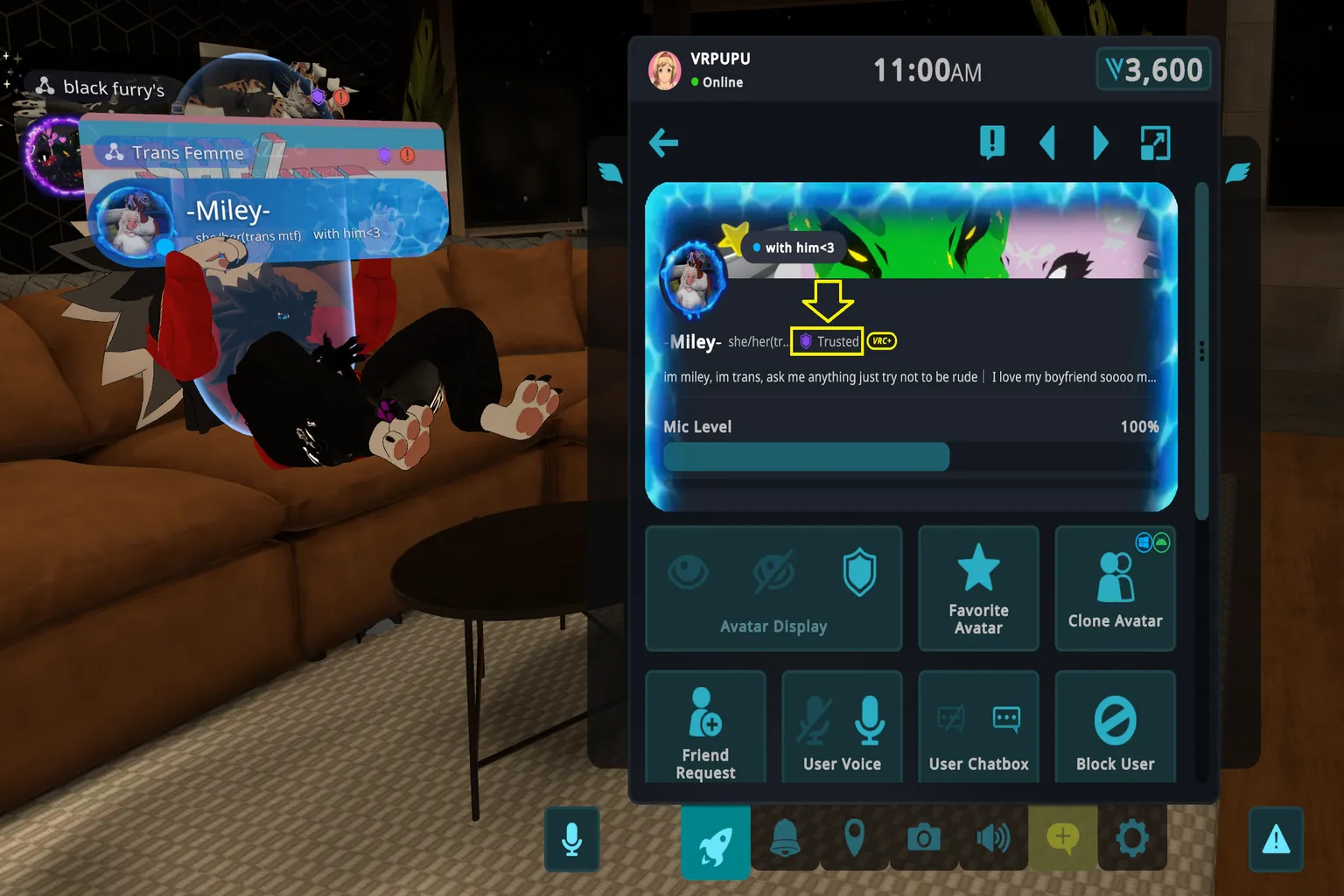
The Trust Ranks you’ll normally see are divided into five main levels.
| Rank | Color | Main Difference |
|---|---|---|
| Visitor | Gray | Starting rank |
| New User | Blue | Can upload avatars and private worlds |
| User | Green | Can gift avatars and accessories, and submit worlds to Community Labs |
| Known User | Orange | A higher Trust Rank |
| Trusted User | Purple | Highest Trust Rank |
When you first launch VRChat, you can sign in directly with a Meta or Steam account. However, this creates what VRChat calls a platform account.
A platform account stays at Visitor, the lowest Trust Rank in VRChat, no matter how long you play.
Spending hundreds or even thousands of hours in VRChat and still being stuck at the lowest Visitor rank isn’t exactly ideal.
If you create a VRChat account using VRChat, Google, or Discord, you can use that account to sign in on both the Meta and Steam versions.
Your Trust Rank can also increase over time as you play and interact with other users.
So if you’re creating an account for the first time, I recommend creating a VRChat account from the start.
If you’ve already been playing for a while and are still using a platform account, it’s a good idea to upgrade to a VRChat account sooner rather than later.
How to Upgrade a Platform Account to a VRChat Account
If you’re still using a platform account, you can upgrade it and keep your existing friends, Favorites, and account information.
Step 1: Sign In With Your Existing Platform Account
Start by signing in to VRChat the same way you normally do.
If you usually sign in with Meta, choose Meta. If you normally use Steam, choose Steam.
Step 2: Open Account Linking
Open the main VRChat menu and go to Settings.
Select Link Account, located just below Exit VRChat.
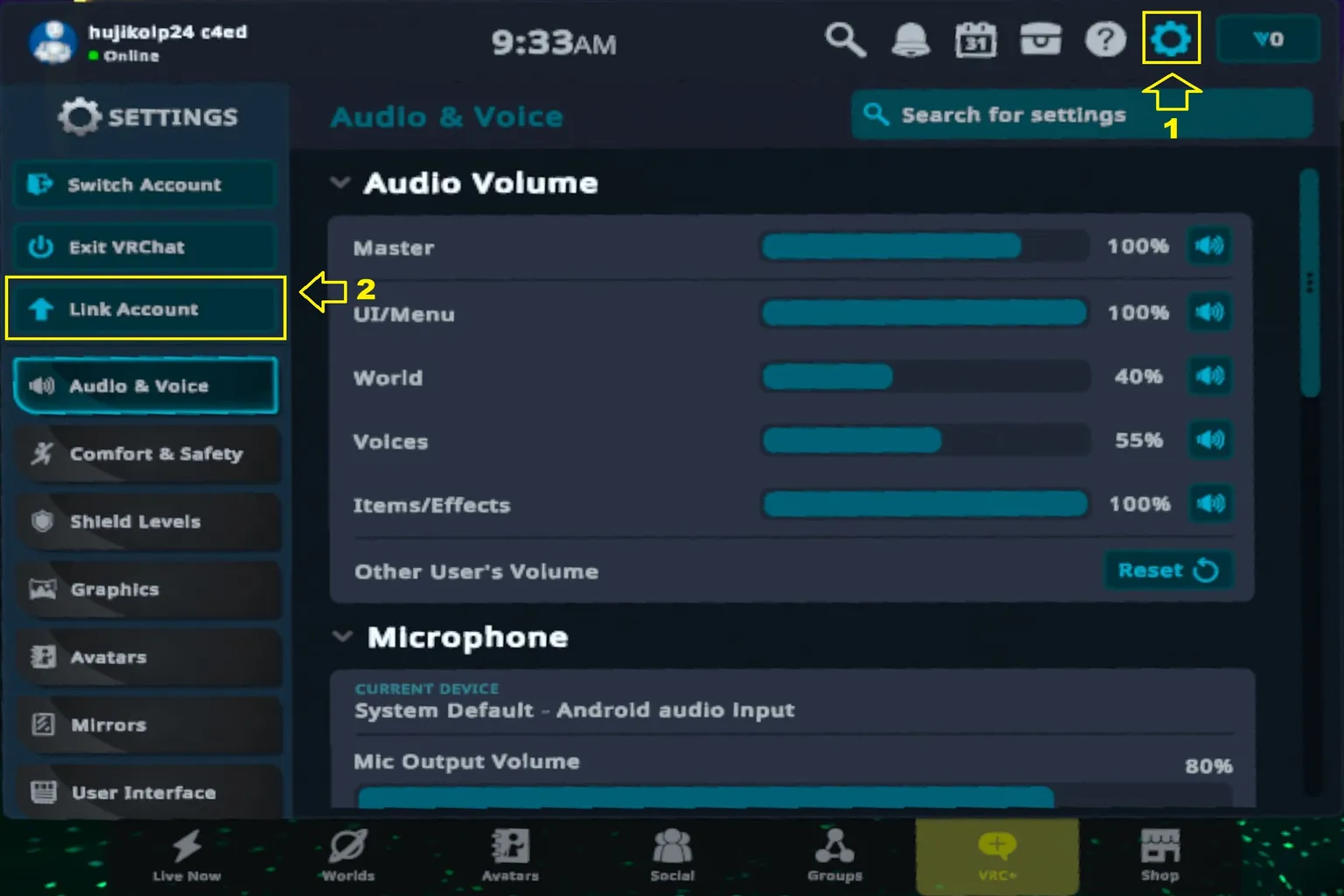
Step 3: Upgrade Your Current Account
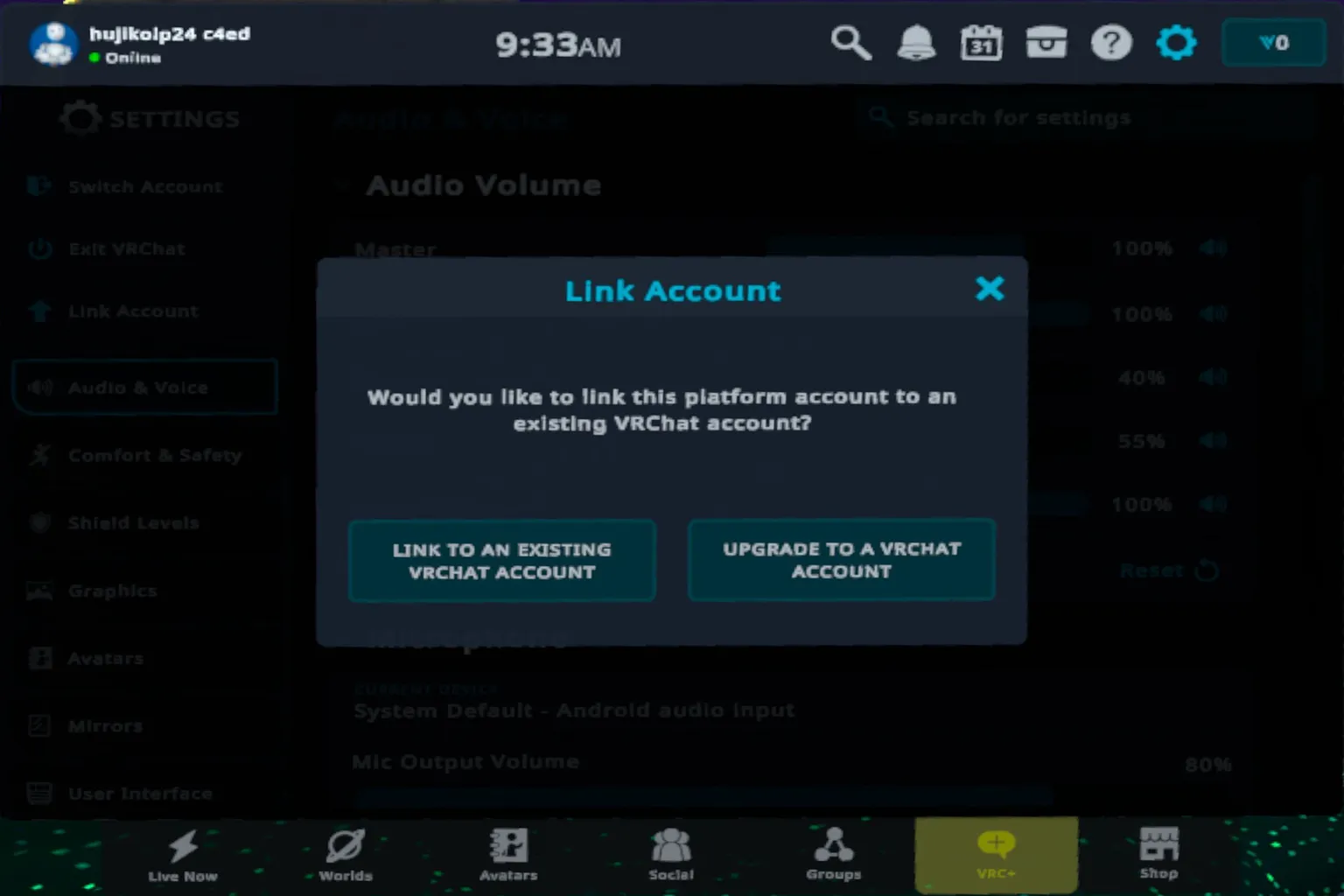
When you open Link Account, you can choose either to upgrade your current account or link it to an existing VRChat account.
- Upgrade to a VRChat Account: Upgrades your current platform account to a VRChat account while keeping your existing account information
- Link to an Existing VRChat Account: Links the data from your current platform account to another VRChat account you already have
If you want to keep using your current platform account and simply upgrade it, choose Upgrade to a VRChat Account.
Then follow the on-screen instructions, enter the required account information, set a password for signing in, and complete the required verification. Once that’s done, your account will be upgraded to a VRChat account.
How to Get 50% Off VRChat Credits and VRC+
Meta’s 50% off first in-app purchase offer is designed for new players. The idea is that a new user claims the 50% off coupon through a creator link, then gets the game and uses the coupon on their first purchase.
So if you’re a new player and haven’t added VRChat to your Meta account yet, you can claim the 50% off coupon first.
However, once you’ve already added VRChat to your Meta account, you can’t claim the first in-app purchase offer again.
If you already have VRChat on Meta, you won’t be eligible for the 50% off coupon. In that case, you can enter the promo code “VRPUPU” to get 10% off instead.
New users get a big discount, while existing users don’t really get anything special.
It’s a bit like the promotions you see with cell phone plans or home internet service, where the best deals are usually reserved for new customers.
How to Get 50% Off Using an Additional Account
On Meta, whether you can claim the 50% off coupon depends on whether that account has already added VRChat to its library.
Quest supports App Sharing, so an additional account on the same headset can use VRChat even if only the main account added the app.
The additional account does not need to add VRChat from the Meta Store. With App Sharing enabled, it can launch the copy of VRChat already installed by the main account.
That means you can claim the 50% off coupon with the additional Meta account, then sign in to VRChat with the VRChat account you normally use. The discount can then be used for purchases tied to that VRChat account.
To keep things clear, here are the three accounts used in the steps below.
| Account | Purpose |
|---|---|
| Main Meta account | The administrator account for the Quest headset. It adds VRChat and enables App Sharing |
| Additional Meta account | Added to the same Quest headset and used to claim the 50% off offer and make the payment |
| Your regular VRChat account | The in-game account you normally use. This account receives the purchased Credits or VRC+ benefits |
How to Use the In-App Purchase Discount
Before you start, make sure you have the following:
- Meta Quest headset: Quest 2, 3S, 3, or Pro. You’ll use it to switch accounts and purchase Credits or VRC+
- Phone or PC: Used to sign in to the additional Meta account and claim the creator offer
- Additional Meta account: Used to claim the 50% off offer and make the payment. This must be a Meta account that has never added VRChat to its own library.
Note: The additional account must be a Meta account that has never added VRChat itself.
If VRChat has already been added to that account, simply uninstalling VRChat from the headset will not return the account to an “unclaimed” state.
Step 1: Add VRChat With the Main Account and Enable App Sharing
First, use your main Meta account to add and install the standalone Quest version of VRChat from the store.
Then add the additional Meta account from the headset’s account settings and enable App Sharing from the main account.
For instructions on adding another account and turning on App Sharing, see this guide.
Step 2: Claim the 50% Off Coupon With the Additional Account
Sign in to the additional Meta account using the Meta Horizon app on your phone or a web browser on your PC, then open the VRChat creator offer link.
If you see a message saying that supporting the creator gives you 50% off your first purchase in VRChat, select Claim Discount.
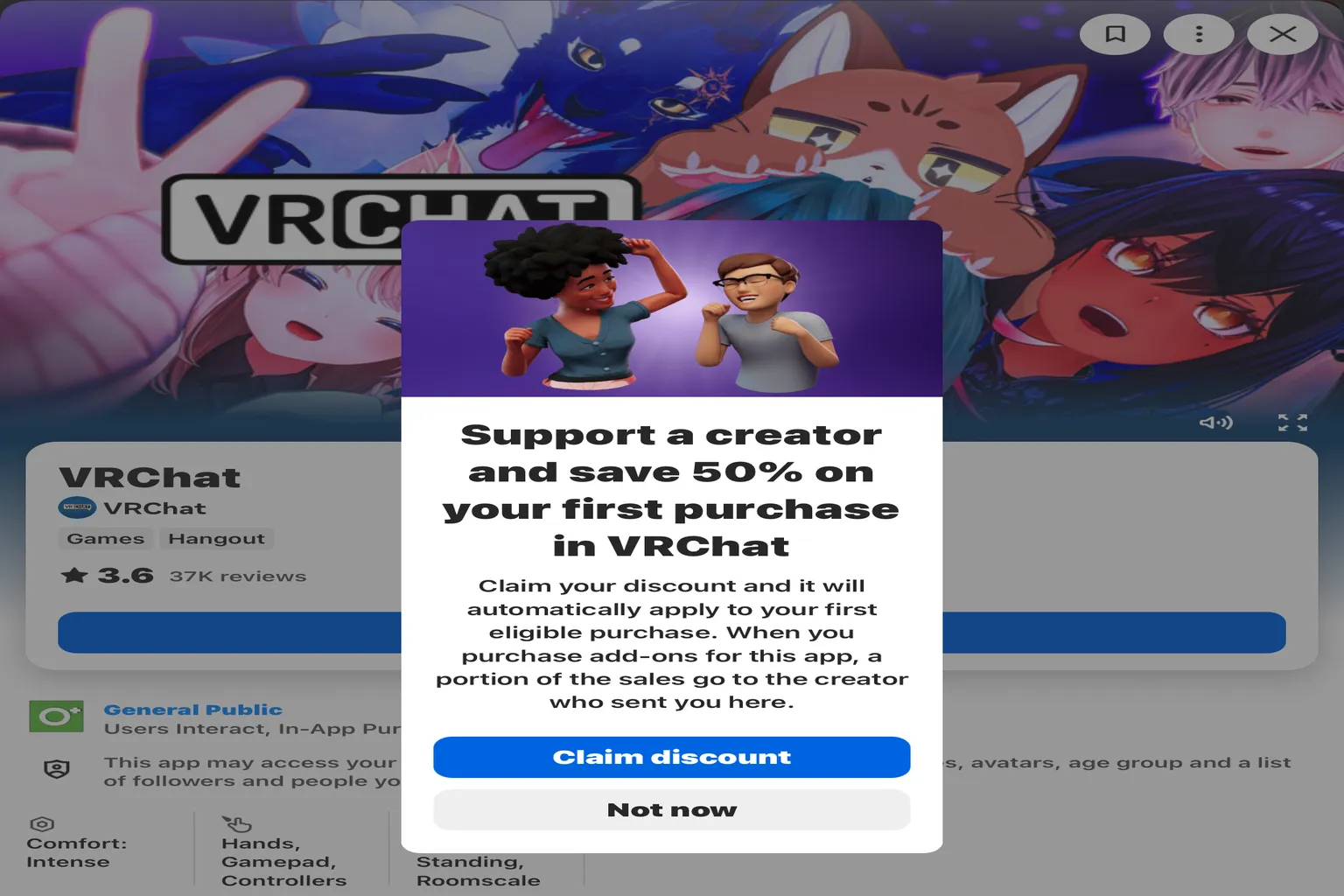
Once you claim it, the 50% off coupon is automatically saved to the additional Meta account.
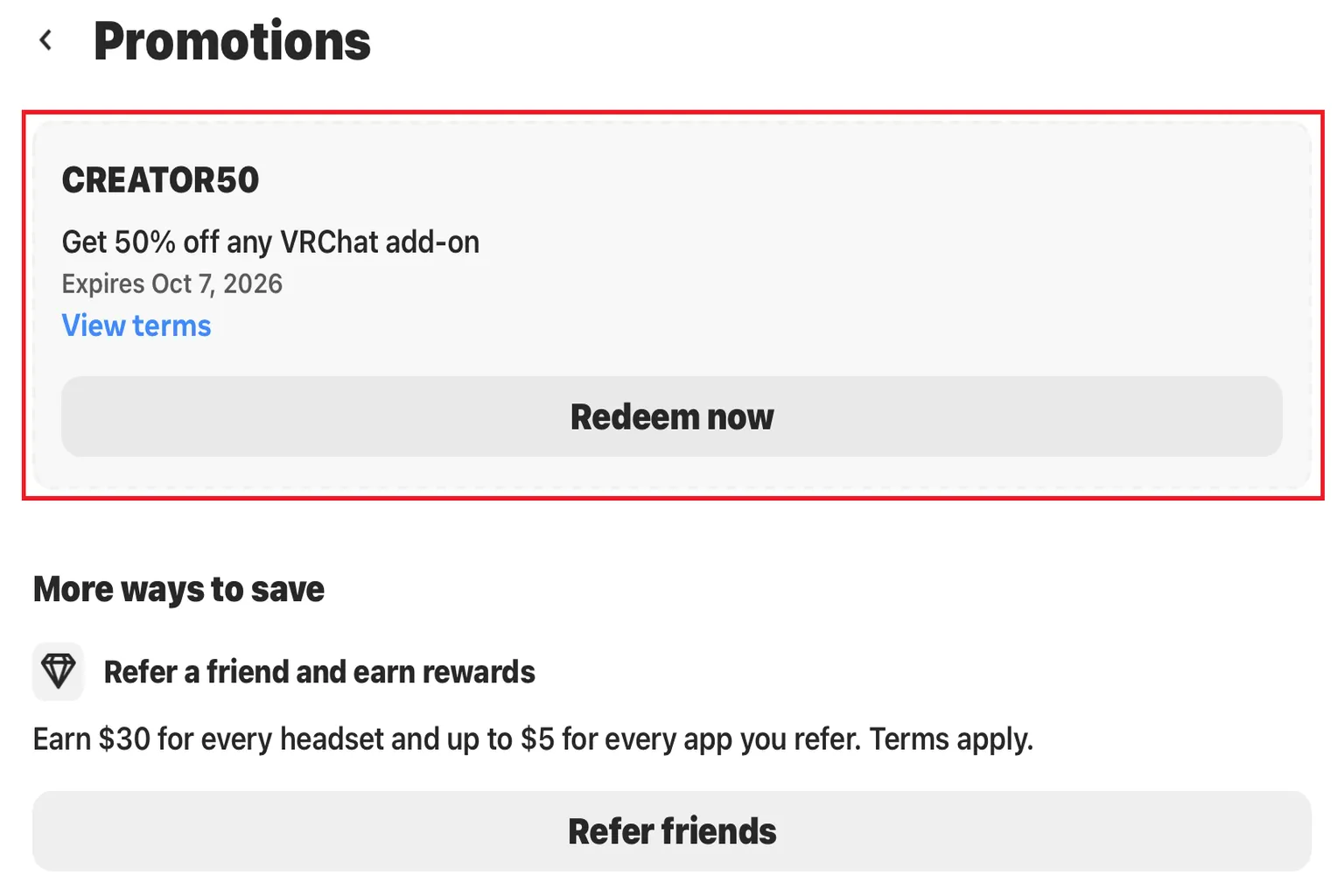
Note: After claiming the coupon, do not click Get on the store page.
Step 3: Install VRChat With the Additional Meta Account
Switch the Quest headset to the additional account, then find VRChat in your Library and install it.
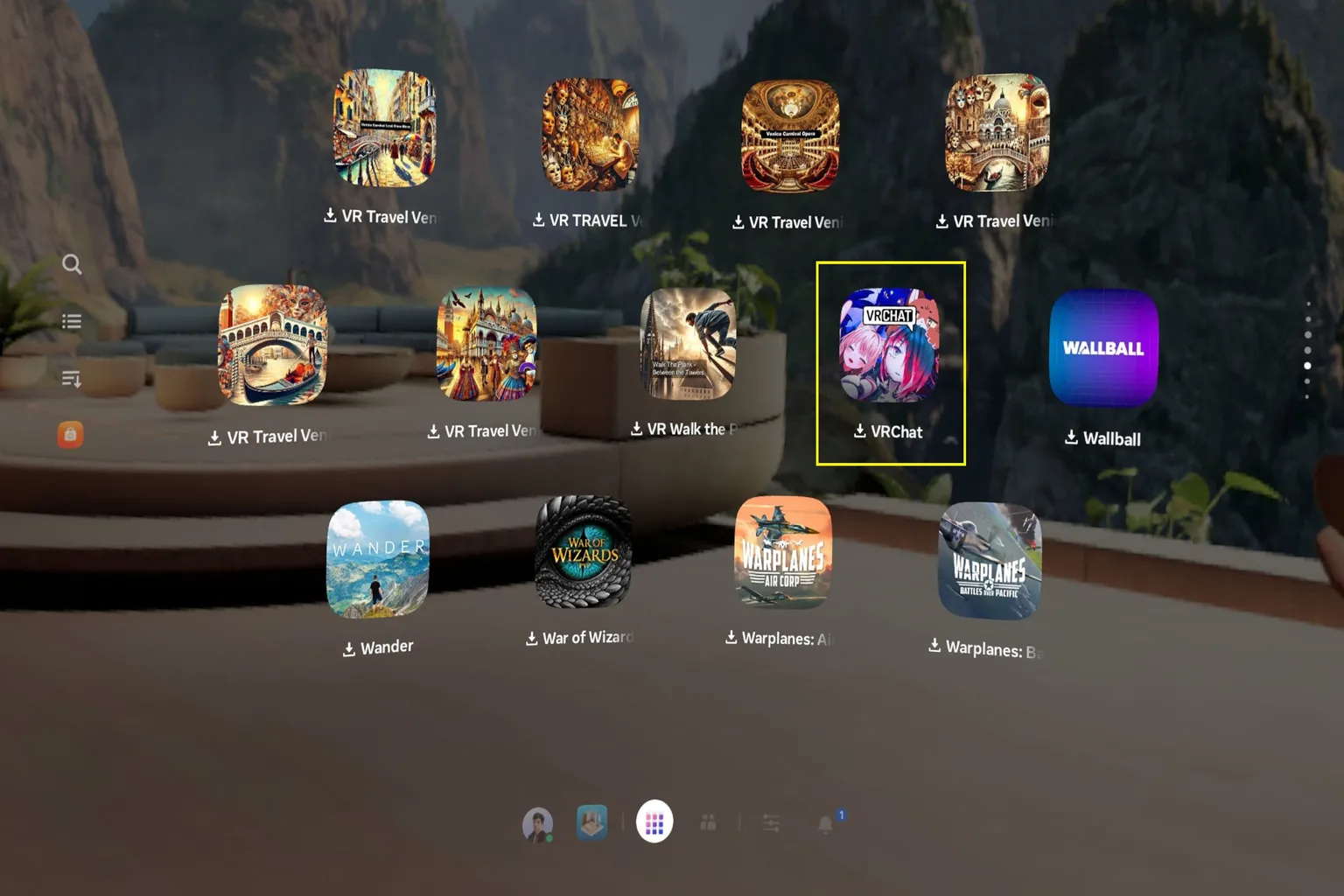
On the VRChat login screen, choose VRChat, Google, or Discord, then sign in to the VRChat account you normally use.

Step 4: Buy Credits or VRC+
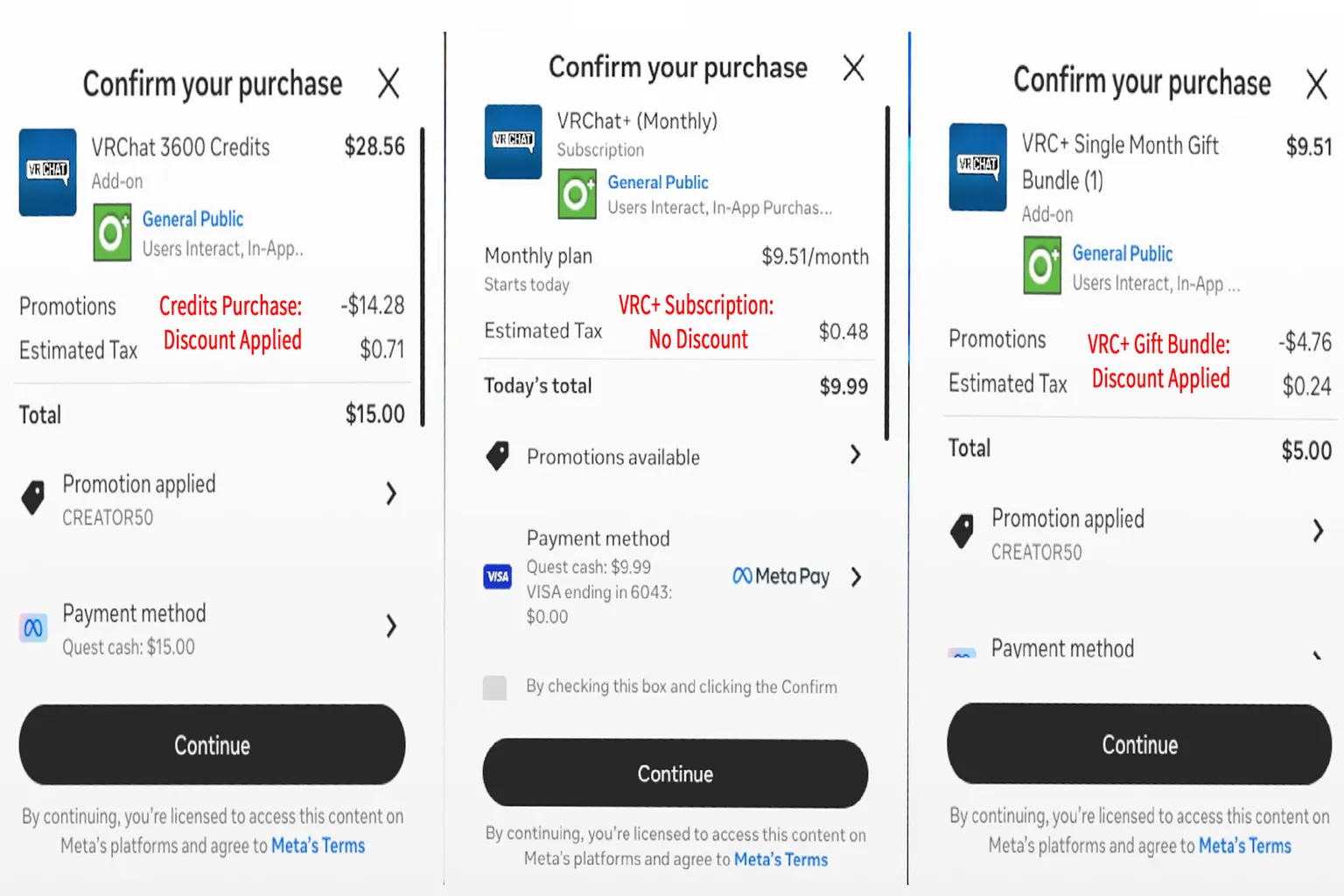
If you want to buy Credits, open the Wallet from the VRChat menu and choose the Credit pack you want.
If you want to subscribe to VRC+, open the VRC+ page and choose the plan you want.
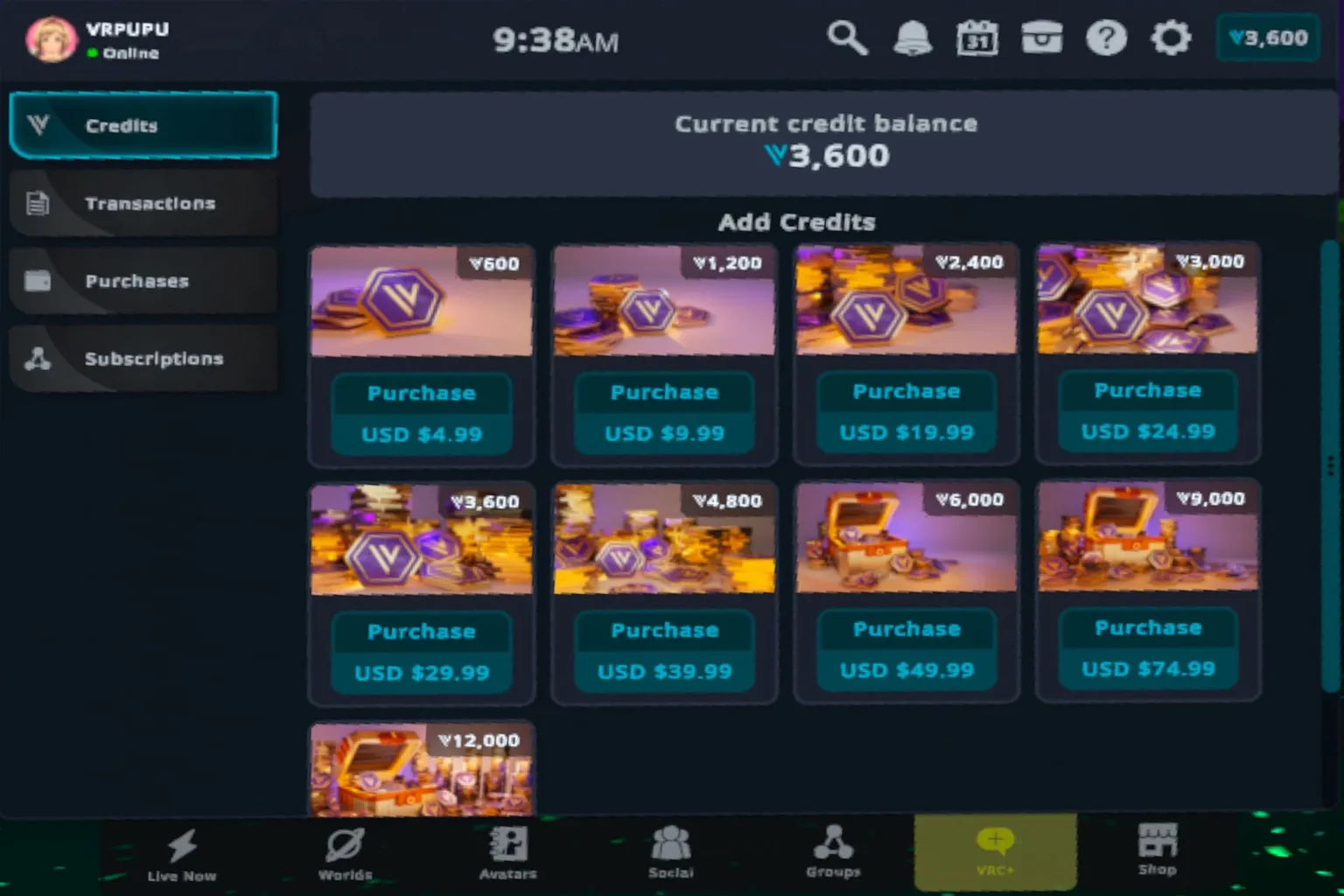
After that, the Meta payment screen will appear.
Check that the 50% discount has been applied and the total has been reduced by half, then complete the purchase.
Note: This 50% off coupon cannot be used when subscribing to VRC+ for yourself.
The 50% discount only applies when purchasing a VRC+ Gift Bundle to send to a friend.
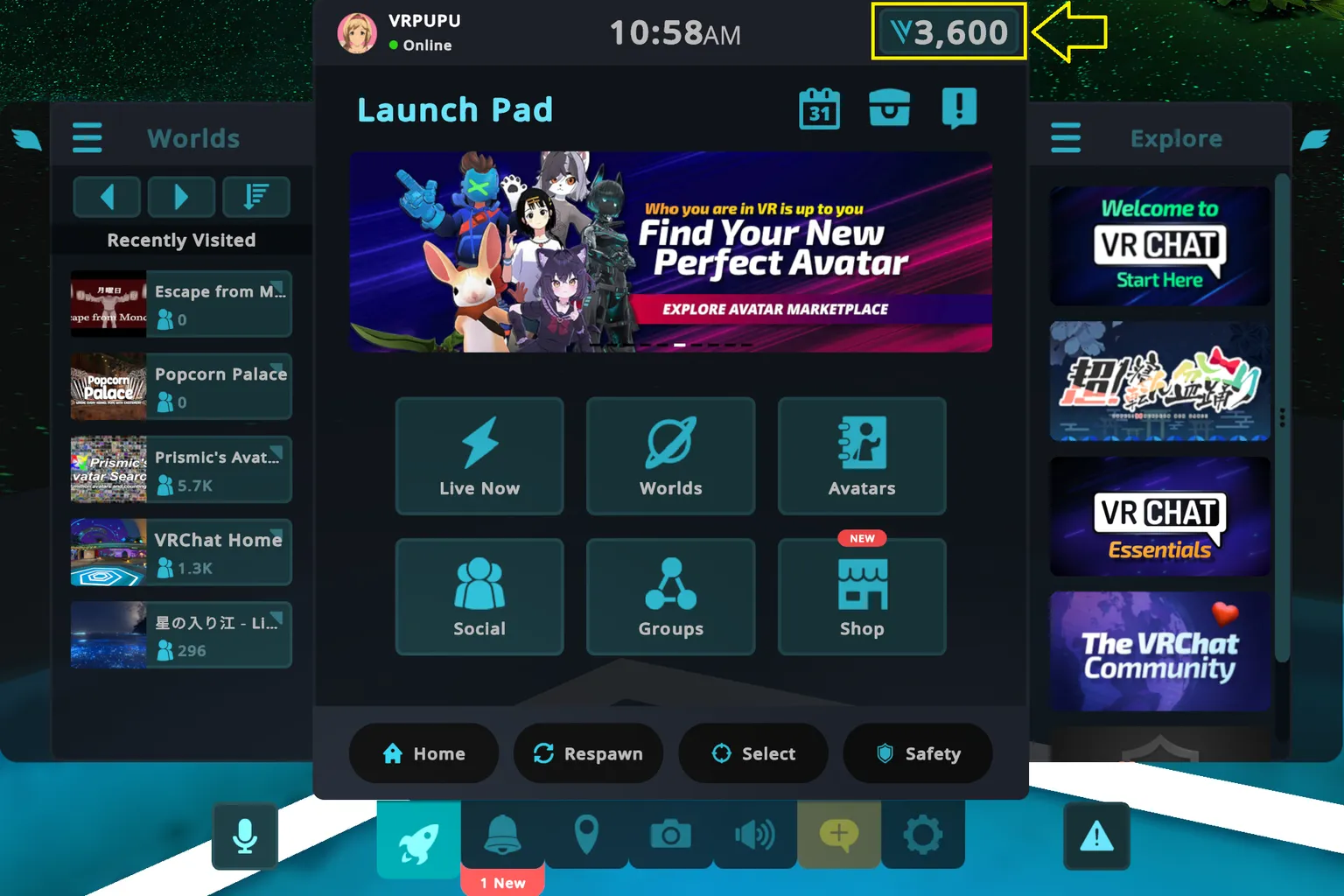
Once the purchase is complete, return to VRChat and check your Credit balance or VRC+ status.
The purchase will be added directly to whichever VRChat account is signed in at the time.
Step 5: Open the Creator Link Again and Reclaim the Coupon
After using the discount, open the same VRChat creator link again on your phone or PC while signed in to the same additional Meta account, then claim the 50% off coupon again.
Once you’ve reclaimed it, return to the headset and continue with your next purchase.
Before every payment, make sure the 50% discount has been applied correctly.
In my testing, as long as the additional Meta account had never added VRChat to its own library, I was able to claim the coupon again and make another purchase at 50% off.
That means you don’t need to create a new Meta account for every purchase, and you don’t need to create a new VRChat account either.
You can keep using the same VRChat account you normally play with.
Can You Send Purchased Credits to a Friend?
Once Credits are added to your VRChat Wallet, you cannot send those Credits directly to a friend.
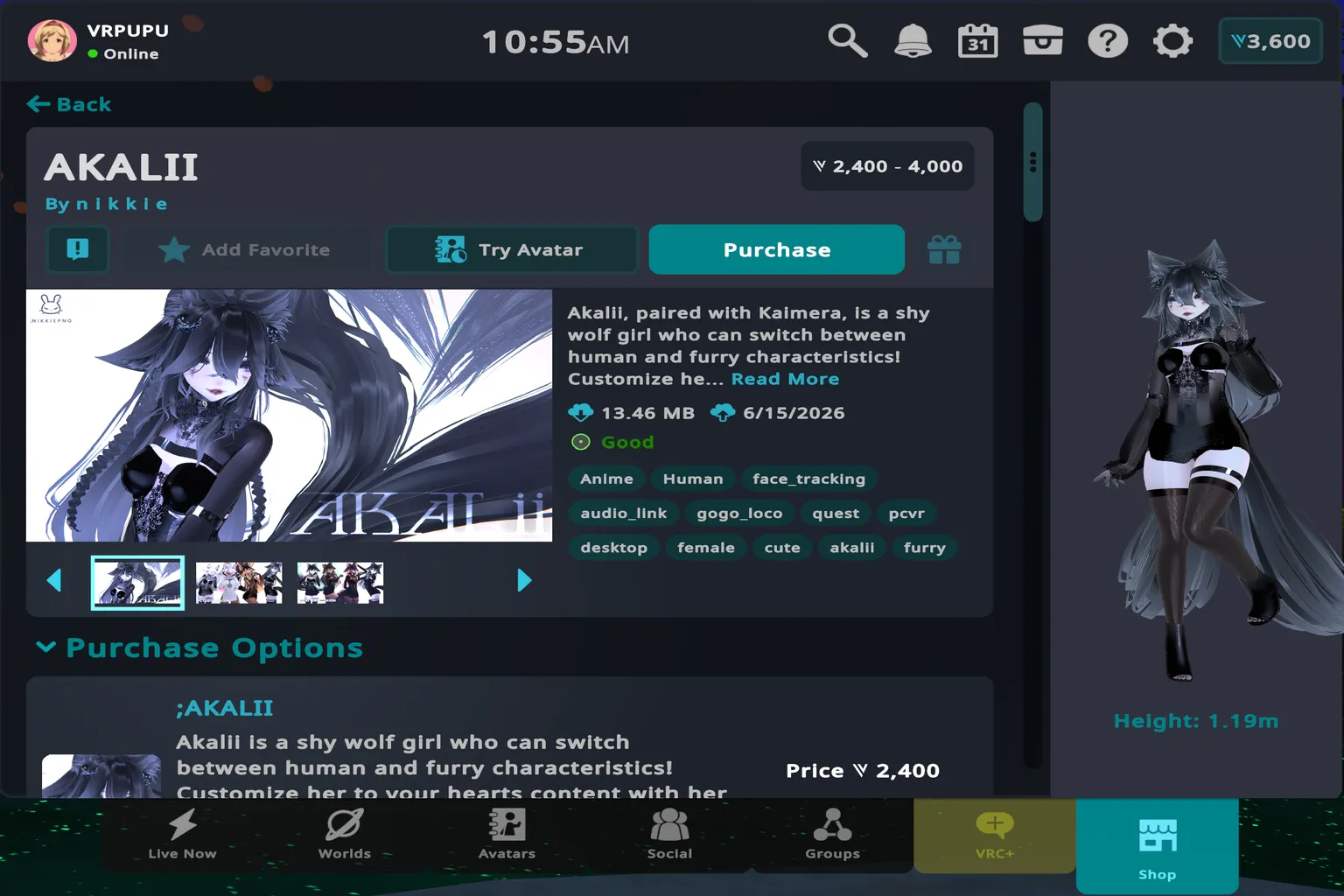
However, if your account has a Trust Rank of User or higher, you can use your Credits to buy giftable avatars or accessories and send those items to someone else.
Here’s how it works:
- First, buy Credits at 50% off and make sure they appear in your VRChat Wallet.
- Open the VRChat Store and find the avatar or accessory you want to send.
- Click the gift button on the product page.
- Choose the recipient, then confirm the recipient, item, and number of Credits required.
- Confirm the gift.
In this case, you use the Credits you purchased earlier, while your friend receives the item.
So even if you’re not buying something for yourself, you can still use VRChat’s gifting system to send certain content to friends.
However, the gifting rules are different for VRC+, Credits, and store items.
| Item | Can You Gift It? | Method / Restrictions |
|---|---|---|
| VRC+ Gift | Yes | Purchase it as a gift using the Gift VRC+ feature |
| VRChat Credits | Not directly | You cannot transfer Credits from your Wallet directly to another user’s account |
| Giftable Avatars | Yes | The sender must have a Trust Rank of User or higher |
| Giftable Accessories | Yes | The sender must have a Trust Rank of User or higher |
If the gift button is grayed out, your account’s Trust Rank is not high enough yet.
If you want to raise your Trust Rank, the first step is to upgrade your platform account to a VRChat account. After that, you need to keep playing normally—visit different worlds, spend time with friends, and interact with other players.
VRChat does not publicly disclose exactly how long it takes to move up to the next rank.
However, simply staying logged in and doing nothing is unlikely to help much. VRChat indicates that actively playing and interacting with other users is what matters.
From what players in the community say, if you log in regularly, talk with others, and play games together, it usually doesn’t take too long to reach the next rank.
FAQ – Common Questions
Is VRChat Free to Play?
Yes. VRChat itself is free to download, and you can visit worlds, talk with friends, and use free avatars without paying anything.
Credits are mainly used to buy things like avatars and accessories, while VRC+ is an optional paid membership.
Can You Buy VRChat Credits at 50% Off on Meta Quest?
Yes.
If your Meta account is eligible for the first in-app purchase offer, you can claim a 50% off coupon through a VRChat creator offer link and use it to buy Credits in the standalone Quest version of VRChat.
Can You Still Get the 50% Off Offer If You Already Have VRChat?
If VRChat has already been added to your Meta account, that account cannot directly claim the 50% off first in-app purchase offer.
However, you can still claim the discount by using Quest App Sharing with an additional Meta account that has never added VRChat itself.
Can You Use the VRChat 50% Off Offer More Than Once?
In my testing, as long as the additional Meta account remained in a state where it had never added VRChat itself, I was able to reopen the creator link after using the discount and claim another 50% off coupon.
Can You Buy VRC+ at 50% Off?
You cannot use this 50% off coupon to subscribe to VRC+ for yourself.
However, the discount does apply when purchasing a VRC+ Gift Bundle to send to a friend.
Can Steam Users Buy VRChat Credits Through Meta?
Yes.
VRC+ benefits and Credits are tied to your VRChat account, so even if you normally play through Steam PCVR, you can sign in to the standalone Quest version with the same VRChat account and make the purchase through Meta.
Can You Send VRChat Credits Directly to a Friend?
No.
You cannot transfer VRChat Credits directly from your Wallet to another user’s account.
However, if your Trust Rank is User or higher, you can use your Credits to buy giftable avatars or accessories and send those items to a friend.