

Want to take your family on a global vacation without the stress of lost luggage or tired kids? The Wander VR app on Meta Quest turns your headset into the ultimate teleportation device. Powered by Google Street View, this app lets you instantly travel the globe using simple voice commands. In this complete guide, we will show you how to navigate its incredible features, from hosting multiplayer tours with friends to using the Timeline feature for actual time travel. Read on to master your next virtual getaway, and grab an exclusive VRPUPU promo code for a 10% discount.
See the world—inside VR.
Next month is the kids’ summer break. So where should we take them this year?
You scroll through travel photos on your phone and everything looks amazing.
But then you get there and think, “Wait… this looks nothing like the pictures.”
These days, tourist spots feel like they’ve all got a beauty filter slapped on.
Family trips are supposed to be your moment as a dad—to look reliable, in control.
But the hardest part of traveling overseas is the instant you get lost.
Your wife starts complaining. The kids say, “I can’t walk anymore,” and start crying.
And just like that, your pride takes a direct hit.
Sure, you can check places ahead of time on Google Street View—but those are just photos.
They don’t tell you what the place actually feels like. The air, the scale, the atmosphere.
That’s where the Meta Quest app Wander comes in.
With it, you can instantly “teleport” to anywhere in the world—without ever leaving home.
When you’re in the mood for something epic
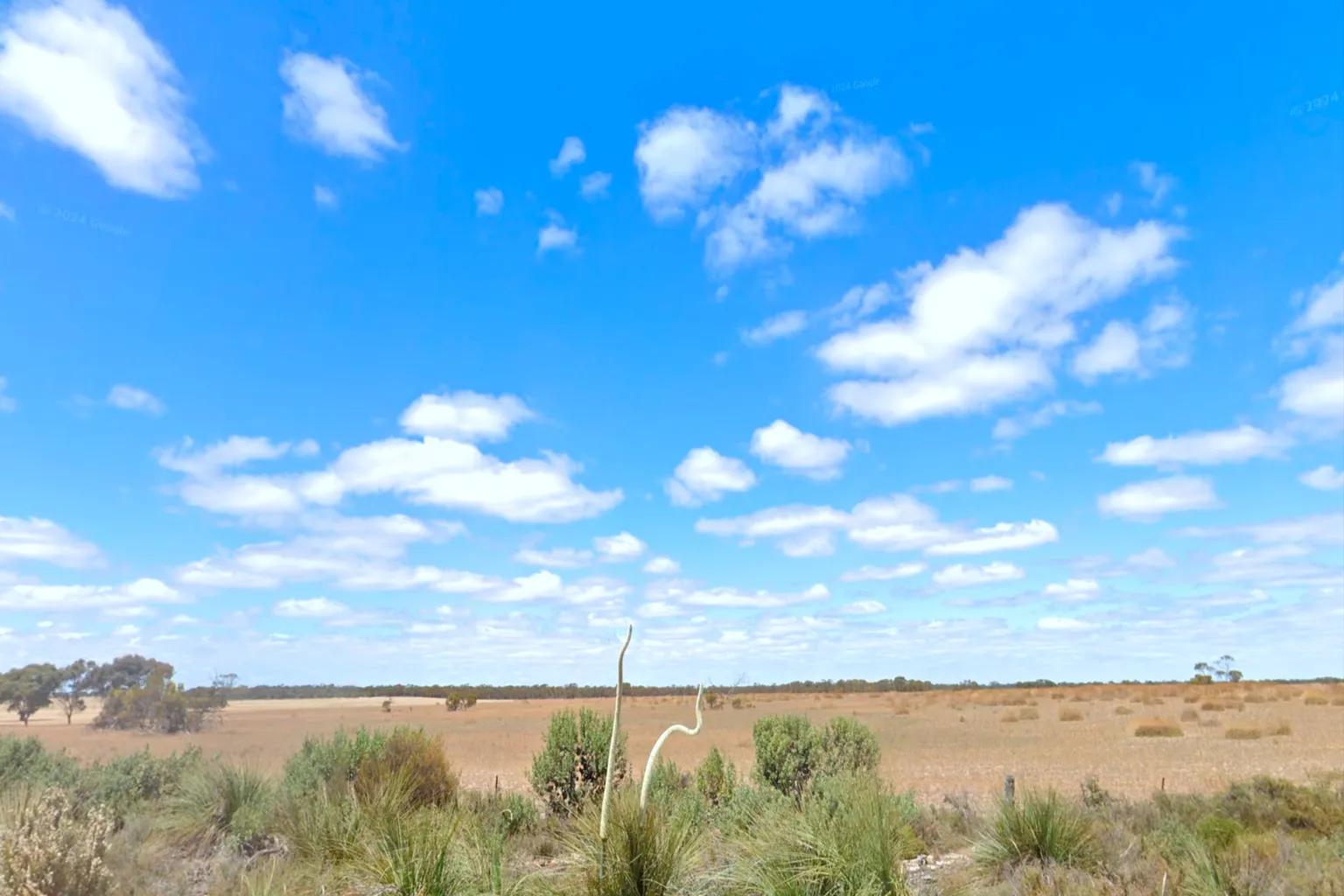
just say “Australia,” nice and easy, and suddenly endless grasslands stretch out in front of you.
Dry earth reaching all the way to the horizon.
A sky so deep blue it almost doesn’t feel real.
And those two skinny plants sticking straight up in the middle—those are grass trees, a plant unique to Australia.
If I actually brought my whole family here in real life…
yeah, we’d probably all melt from the heat within minutes.
Then how about “Greenland”?
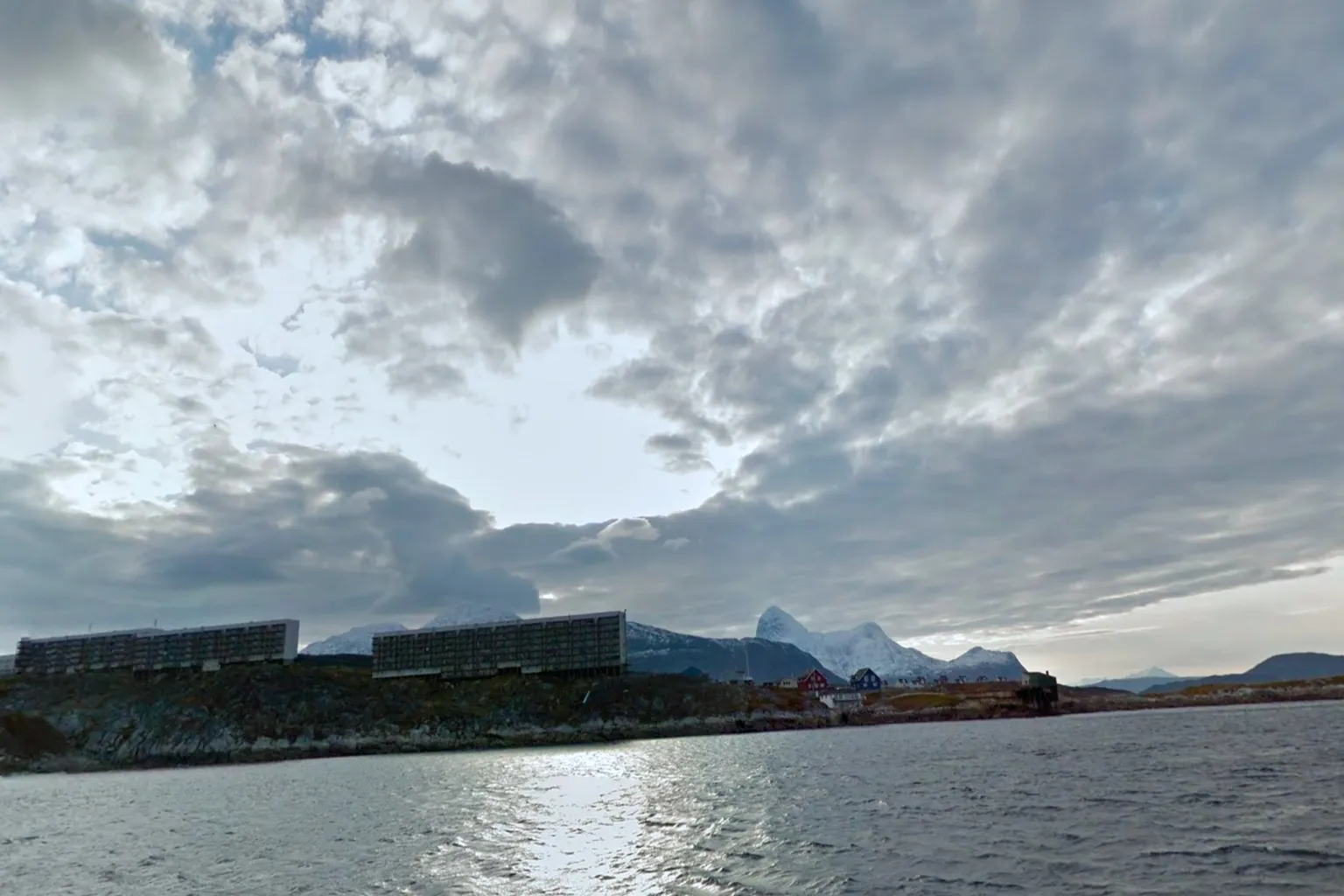
Before you know it, you’re standing on a small boat, gently rocking near the shore.
Thick clouds hang overhead, the sky a heavy shade of gray.
In the distance, massive icebergs drift in silence,
and closer to the coast, red and blue wooden houses dot the shoreline.
It feels like you’ve wandered straight into a tiny harbor town from a picture book.
When you feel like seeing a cityscape
For a lot of people in the West, Japan is kind of a dream destination.
But the flight alone takes over ten hours, getting a long vacation is hard,
and for many, it only ever happens once — on a honeymoon.
Japan really is beautiful.
I just said “Kaminarimon,” and in an instant, I was standing right in front of the famous gate at Sensō-ji in Asakusa.
The statues of the Wind and Thunder gods stood on each side,
and that huge red lantern in the center was so massive you’d need three people just to wrap their arms around it.
Past the gate, a long shopping street stretches out ahead.
Colorful stores line both sides, and women in kimono walk by, one after another.
It feels like stepping straight into an anime scene.
If I ever get to Japan for real,
I think I’d be happy just watching my wife in a kimono,
walking down this street all day.

There’s a small secret here.
Right under the giant red lantern at Kaminarimon, there’s a dragon carved into the base.
It kind of looks like Shenron from Dragon Ball.
So this is what dragons look like in the East, huh.
In real life though, this spot is always packed.
You can’t just crouch down and take your time looking at it.
If you did, everyone around you would be staring right back.

Since I’m already in Japan, might as well say it.
“Tokyo Tower.”
The view flips, and suddenly I’m way up high above the city.
Tokyo at night spreads out below,
car lights flowing like a quiet river, stretching on and on.
For a second, there’s this strange feeling of release,
hard to explain, but it hits you.
Inside Tokyo Tower, there are “No Smoking” signs everywhere.
Which kind of makes you wonder…
does anyone actually try to light up here?

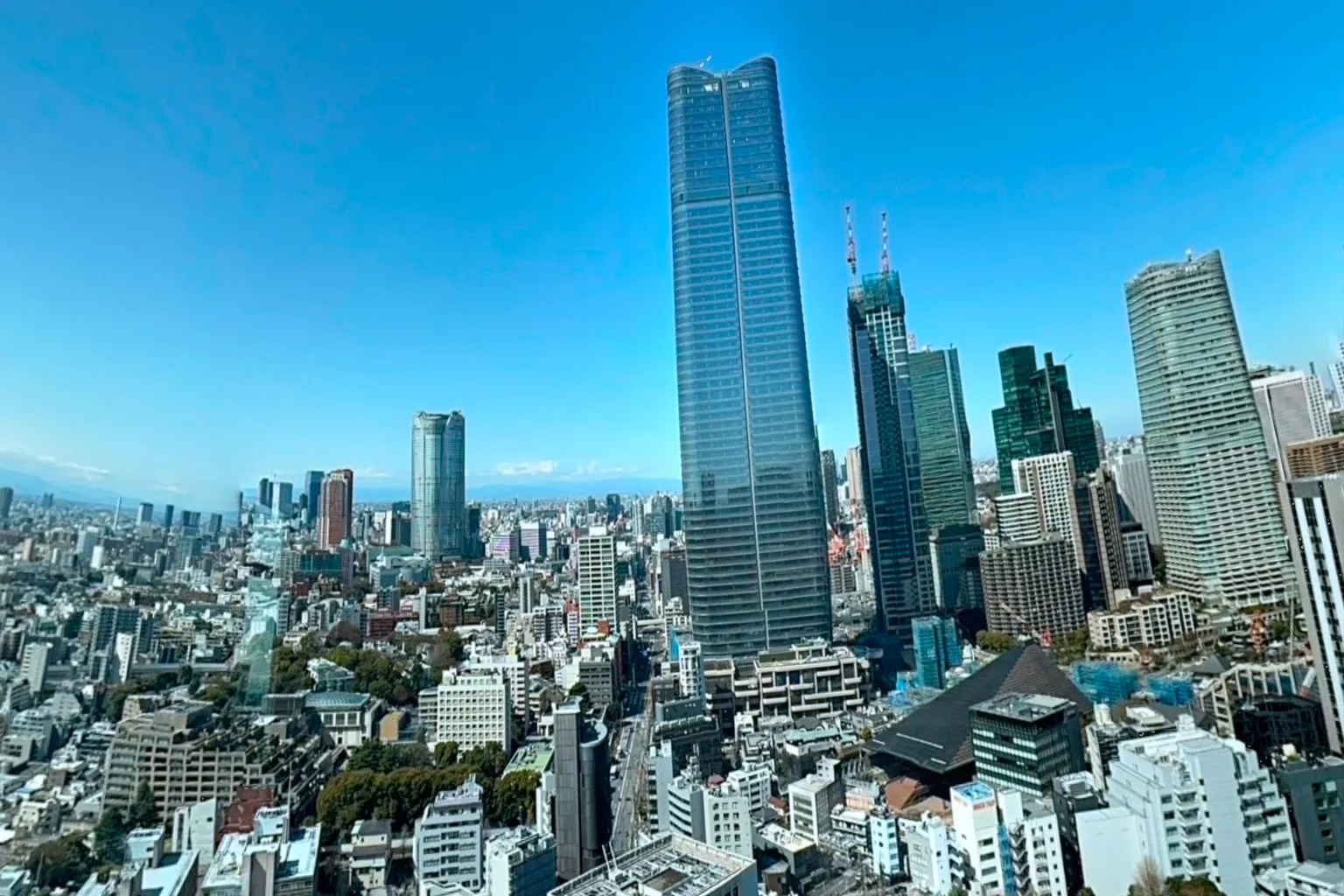
I looked even higher,
to a view most tourists never get.
All of Tokyo spread out below me.
Not as neat as Paris,
but packed with energy, effort, and people actually living their lives.
The last stop, I said, “Kinkaku-ji.”
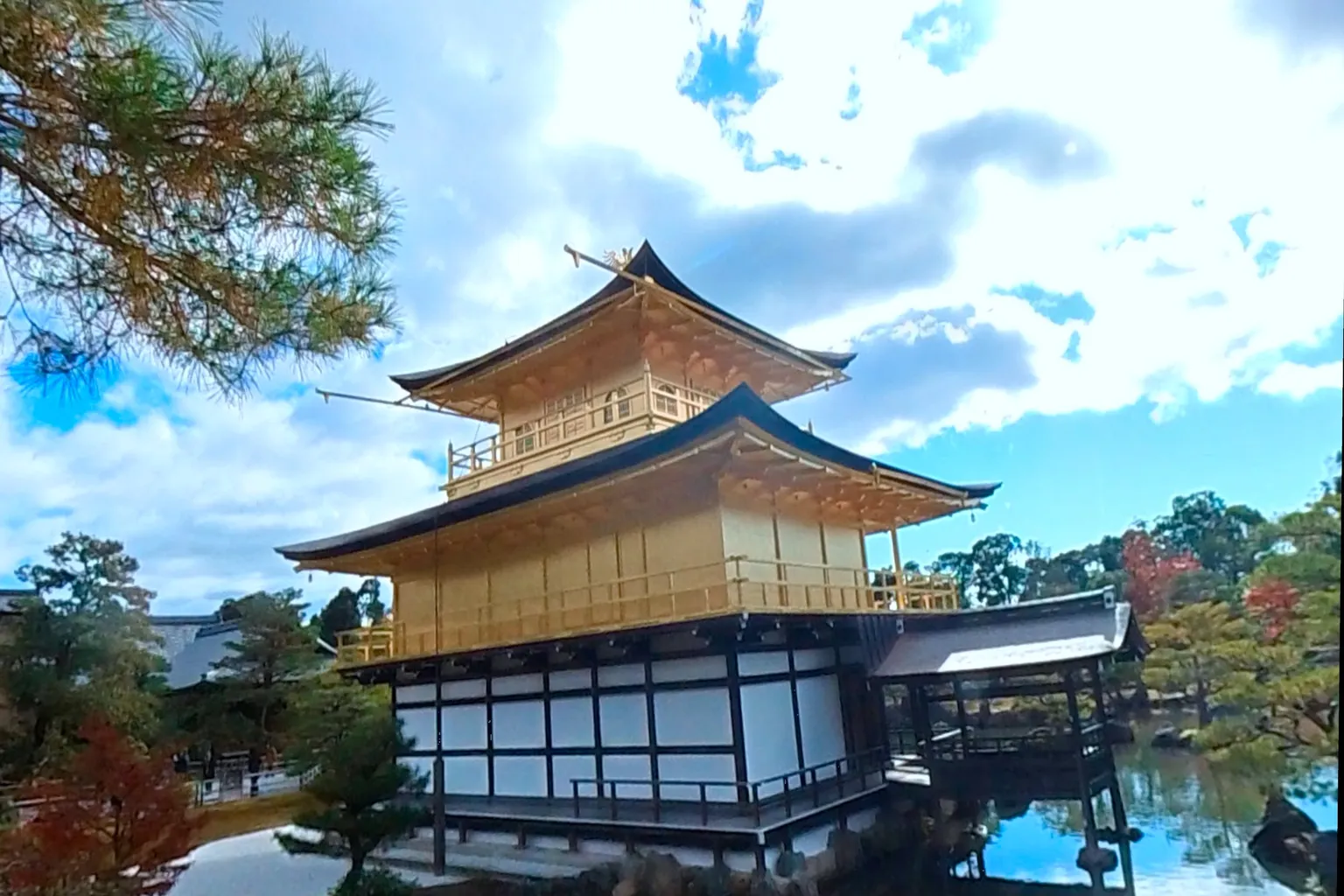
The Golden Pavilion isn’t huge, but the vibe is just right.
Wrapped in gold leaf, it almost looks like a house built from solid gold blocks.
The trees, the pond, everything around it is perfectly kept.
You can feel that very Japanese kind of precision the moment you’re there.
I walked around once.
Honestly, it’s a small place.
Take it slow, and you can see the whole thing in about an hour.
After leaving Japan, there’s this sudden urge to switch the mood.
To visit a building you’ve known by name since childhood,
even though you’ve never actually seen it in real life.
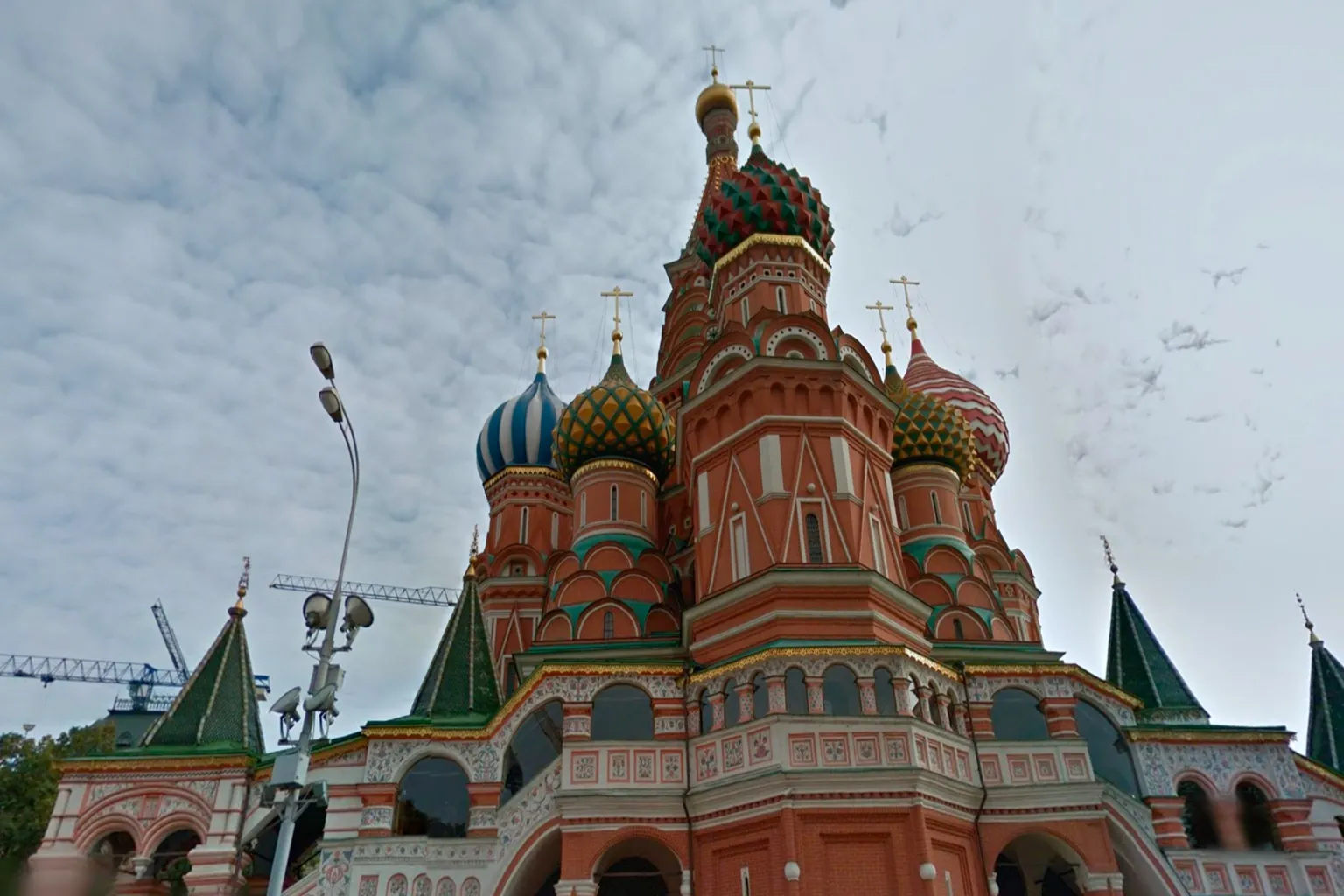
So I said, “Saint Basil’s Cathedral.”
The world spun for a second, and there it was.
That building with the onion-shaped roofs.
Yeah, you remembered it right away, didn’t you?
You don’t need to know Russian geography or history.
Everyone’s played Tetris at least once.
I swear you could almost hear that music start playing in your head.
And just like that, memories came back.
Playing secretly under the blanket as a kid,
trying not to get caught, completely absorbed in that tiny screen.
When you feel like getting closer to history and culture
Once you’re done checking out city streets, I step into ruins and exhibitions in VR too.
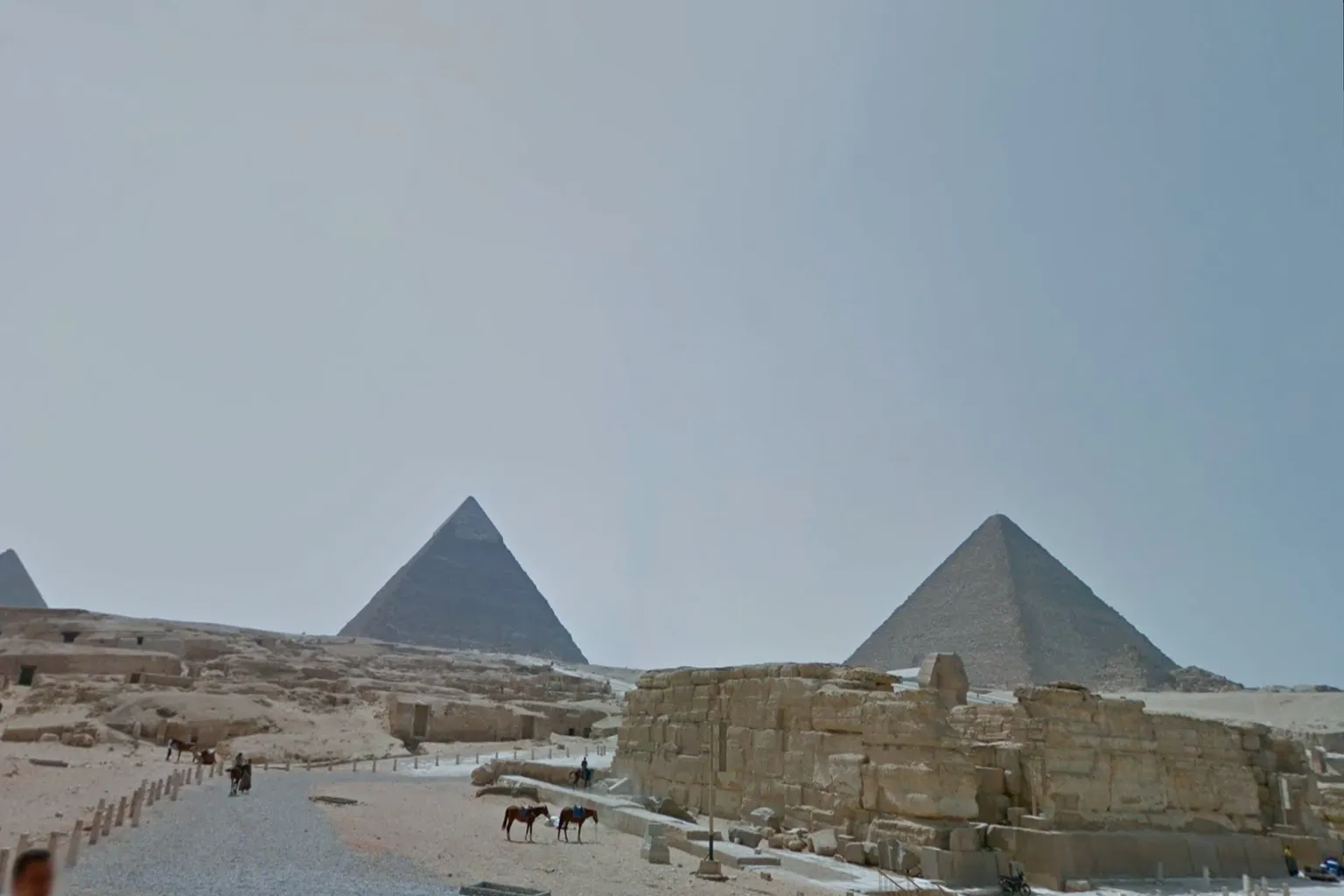
That thought hits me, so I say, “Pyramids.”
In an instant, the air of ancient Egypt spreads around me,
and right in front of my eyes, pyramids line up one after another.
So that’s it—there isn’t just one pyramid. There are actually a lot of them.
On my phone, they were just photos with names attached.
But standing there in VR, it almost feels like I can sense the wind and the sand,
like the weight of an ancient civilization pressing in from all sides.
I walk all the way around, but there’s no sign of souvenir shops anywhere.
If I were really coming here with my family,
yeah… I’d better bring plenty of water.
After finishing with the pyramids, I decide to take a look at Egyptian artifacts too.
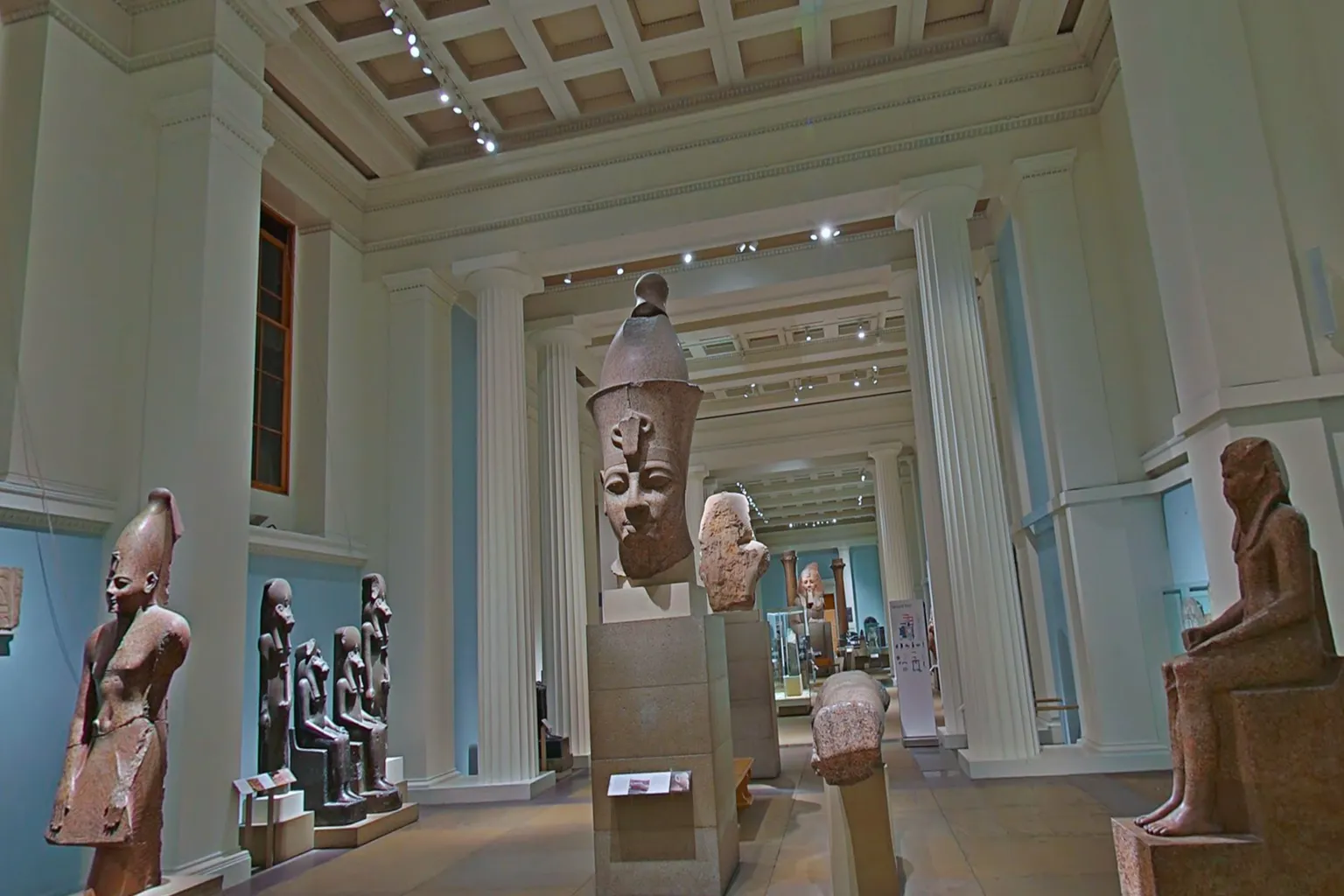
So I say, “The British Museum.”
I want to see for myself just how beautiful that ancient civilization really was.
Inside, stone statues said to have come from Egyptian temples are lined up one after another.
Every single one of them is a real artifact,
survivors that have crossed thousands of years to end up right here.
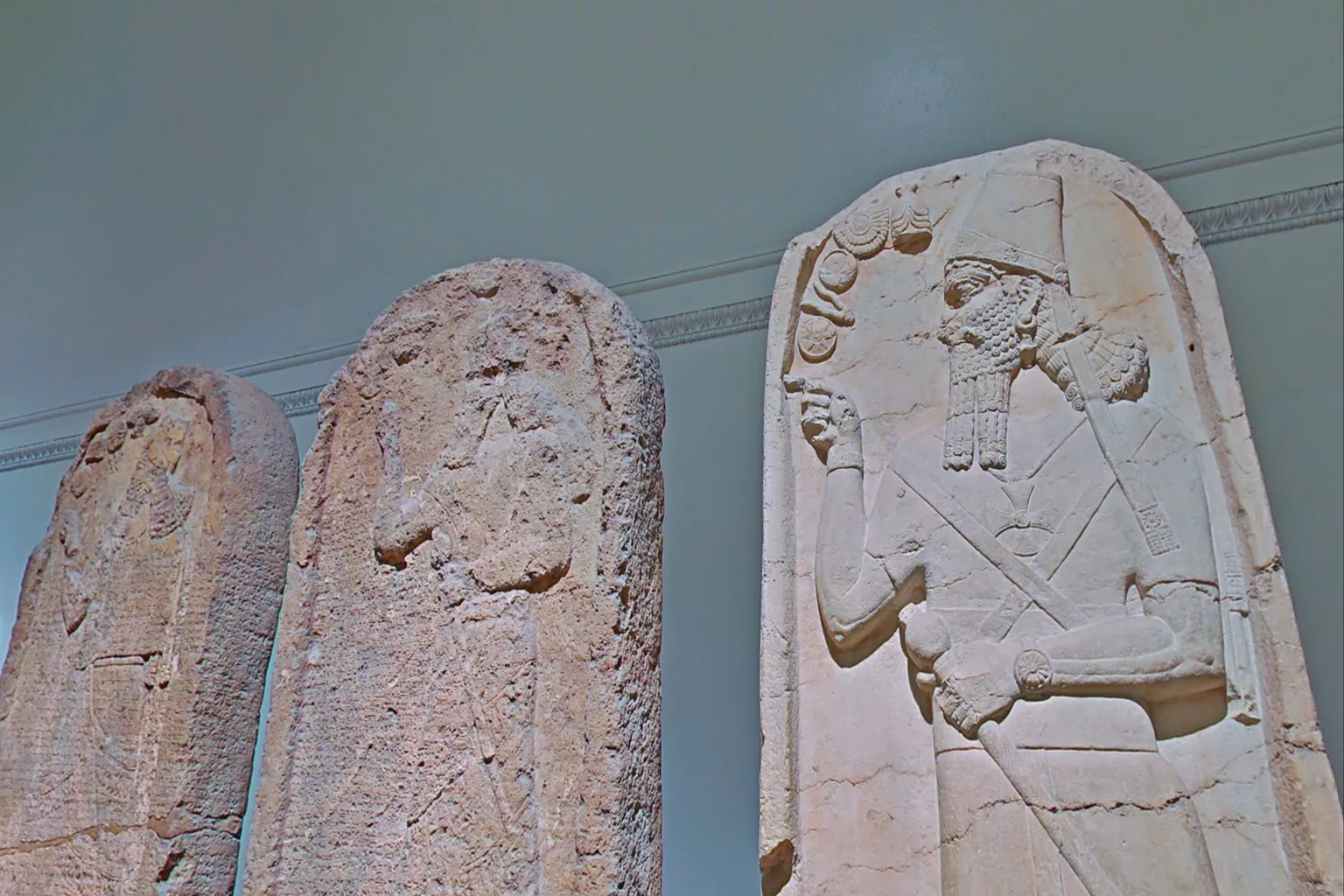
Going a little deeper inside, I start seeing reliefs carved into stone walls.
You remember the vibe, right? Yeah—that look.
Straight out of Yu-Gi-Oh! or something.
Obelisk the Tormentor, Blue-Eyes White Dragon… honestly, that’s about where my own knowledge stops too.
But this is where you need to be a bit careful.
Before bringing family or friends here, it’s worth memorizing at least a basic explanation.
Something like:
“This is an Assyrian stone relief. On the right is a bearded king holding a staff,
and on the left is a weathered ancient warrior.”
You should at least be able to say that much.
This is where adult pride is on the line.
You really don’t want to blurt out,
“Hey, isn’t this the Yu-Gi-Oh guardian priest Mahad?”
Yeah… don’t do that.
Traveling in VR really is something else.
You can feel the air of cities and landscapes around the world almost as-is,
like opening portals Doctor Strange–style
and warping to wherever you want in an instant.
If you want to instantly jump around the world, Wander on the Meta Store is definitely worth checking out.
Also, when buying a headset on the Meta official site, just enter VRPUPU at checkout and you can get an extra 30 dollars in Quest Cash.
On top of that, for any games that are not already on sale, plus some DLCs and bundles, entering VRPUPU at checkout also gets you 10% off right away.
Right now, VR travel apps based on Google Street View basically come down to three:
Wander, Wooorld, and WorldLens.
And the one I’m focusing on here is Wander—
the simplest to use, and easily the smoothest overall experience.
How to Use Wander: Controls & Basic Guide
This app is built on Google Street View data,
letting you move freely in VR and explore places all over the world.
First, grab Wander from the Meta Store.
The main menu is divided into four tabs:
Search
Type in a place name or landmark, and you’ll warp there instantly.
Explore
A curated list of famous spots from around the world.
Just pick one and you’re there—no setup, no waiting.
Social
Travel together with friends.
You can act as the guide and lead the way, or jump into someone else’s trip and explore side by side.
My Profile
Manage personal settings, view your travel history, and create private rooms.
Alright, let’s go through each feature one by one.
Search
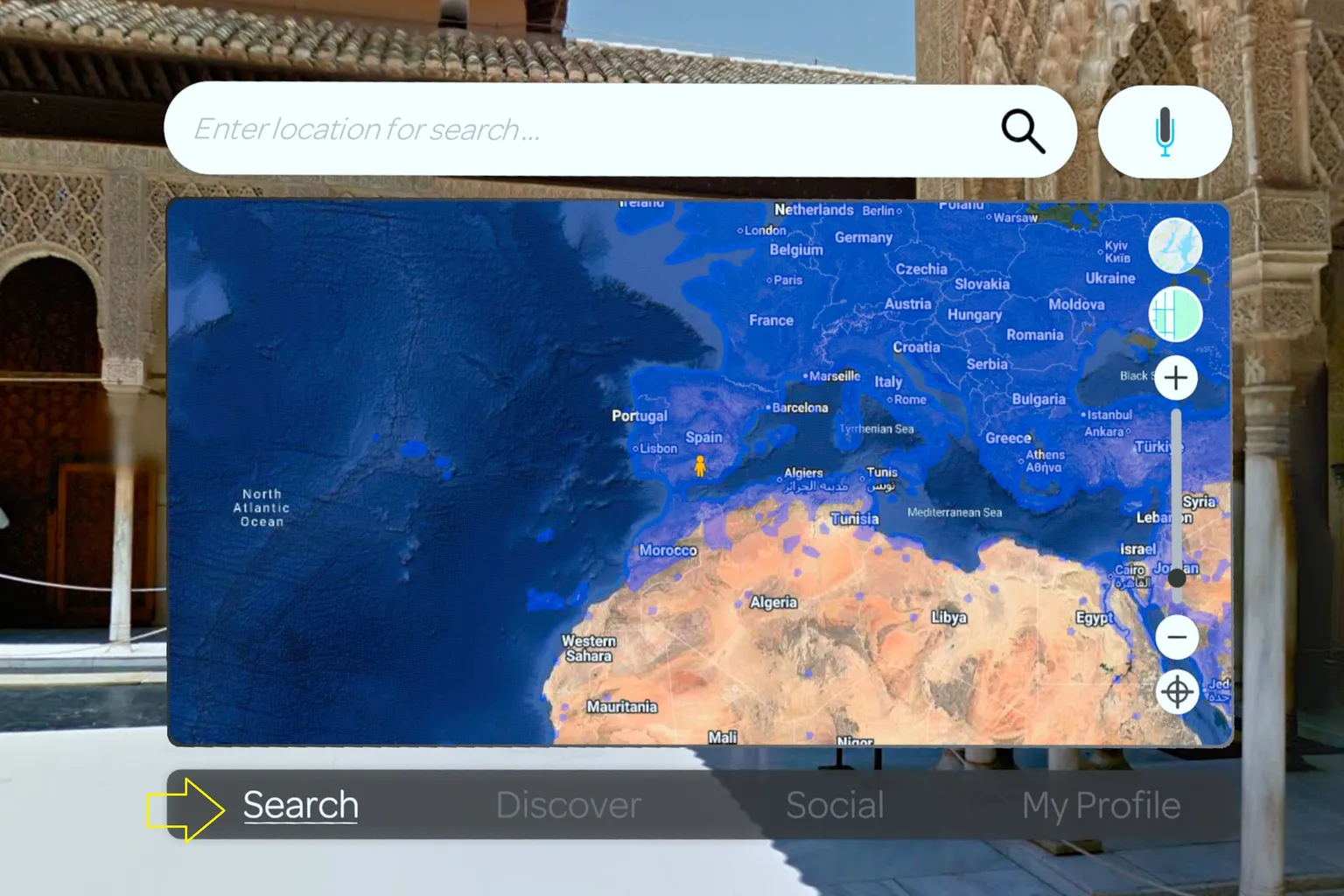
When you enter the main screen, the first thing you’ll see is a world map.
Click on any dark blue area on the map, and you’ll instantly warp to that location.
At the top of the screen is the search bar.
Enter a landmark name or address to jump straight to your destination.
(English and Japanese input are supported. Chinese text input is currently not supported.)
Voice search is also available.
It reliably recognizes English, Japanese, Chinese, and more, so you can just say the place name out loud.
On the right side of the screen are map controls for switching views and zooming.
You can toggle between satellite and terrain modes,
and use the + / - buttons to adjust the map scale.
Explore
This tab mainly has three features.
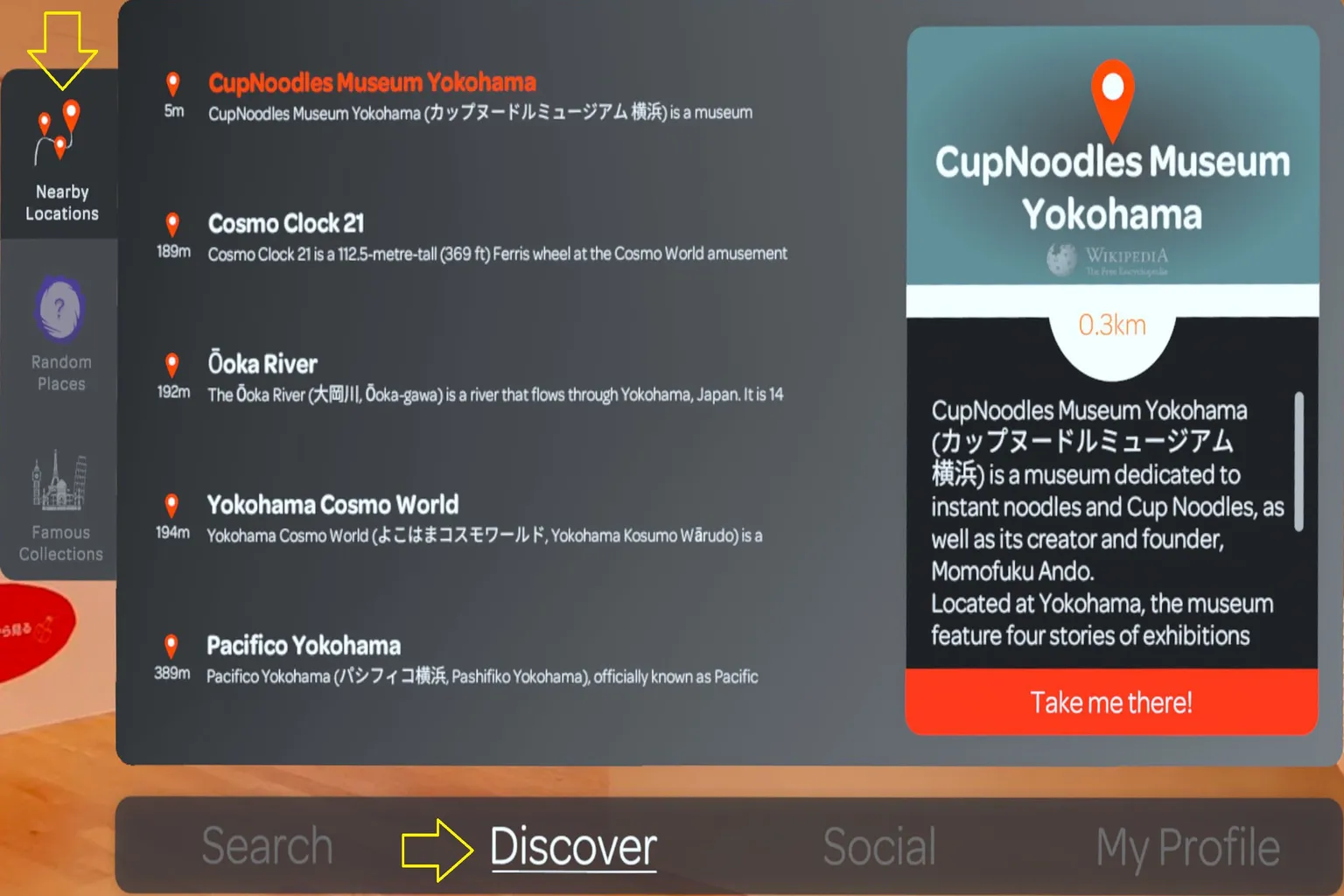
Nearby Places
This shows a list of landmarks and sightseeing spots around your current location.
Just pick one, and you’ll move there instantly.
For example, when I’m standing at the Great Pyramid of Giza in Egypt,
the Nearby Places list shows a short overview of the area’s geography and history,
along with several representative landmarks nearby that I can visit next.
Random Destination
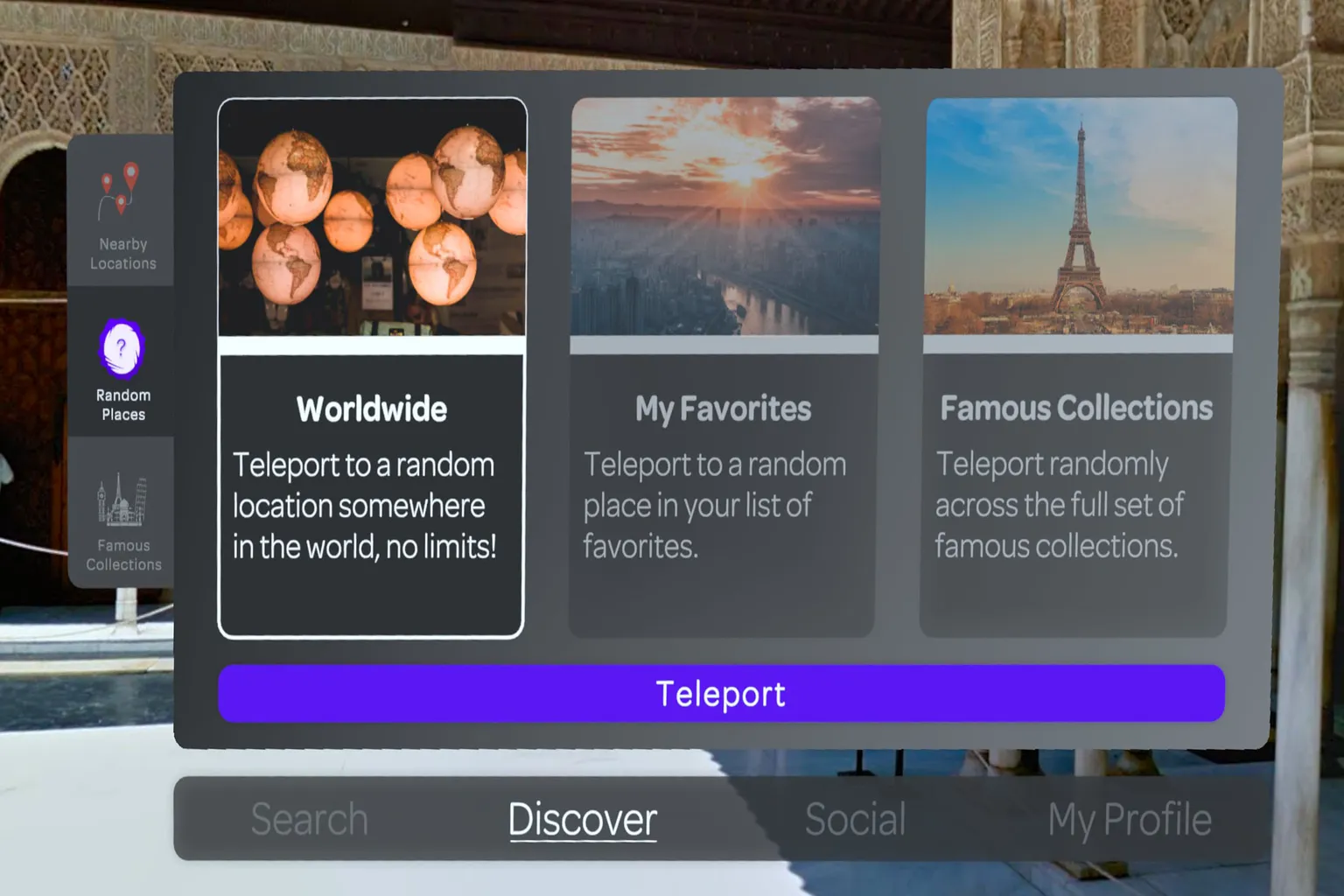
This feature instantly warps you to a random place somewhere on Earth.
There are three options to choose from:
- Worldwide: Completely random—anywhere on the planet.
- My Favorites: Jumps to a random spot from your saved favorites list.
- Famous Collections: Teleports you to well-known landmarks and tourist spots curated by the app.
You never know where you’ll end up, and that sense of surprise is half the fun.
It really feels like a global “leave it to fate” kind of trip.
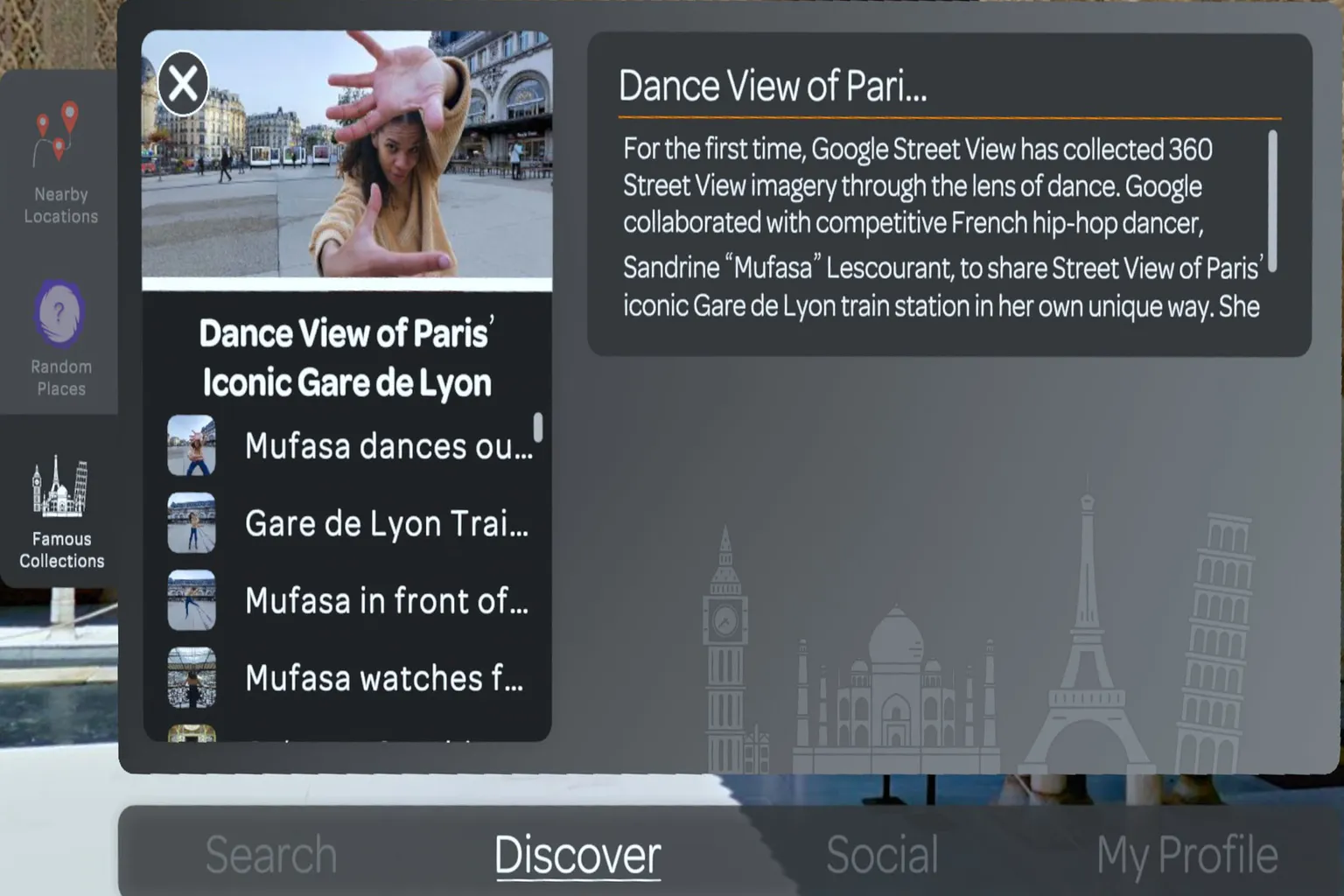
Famous Collections
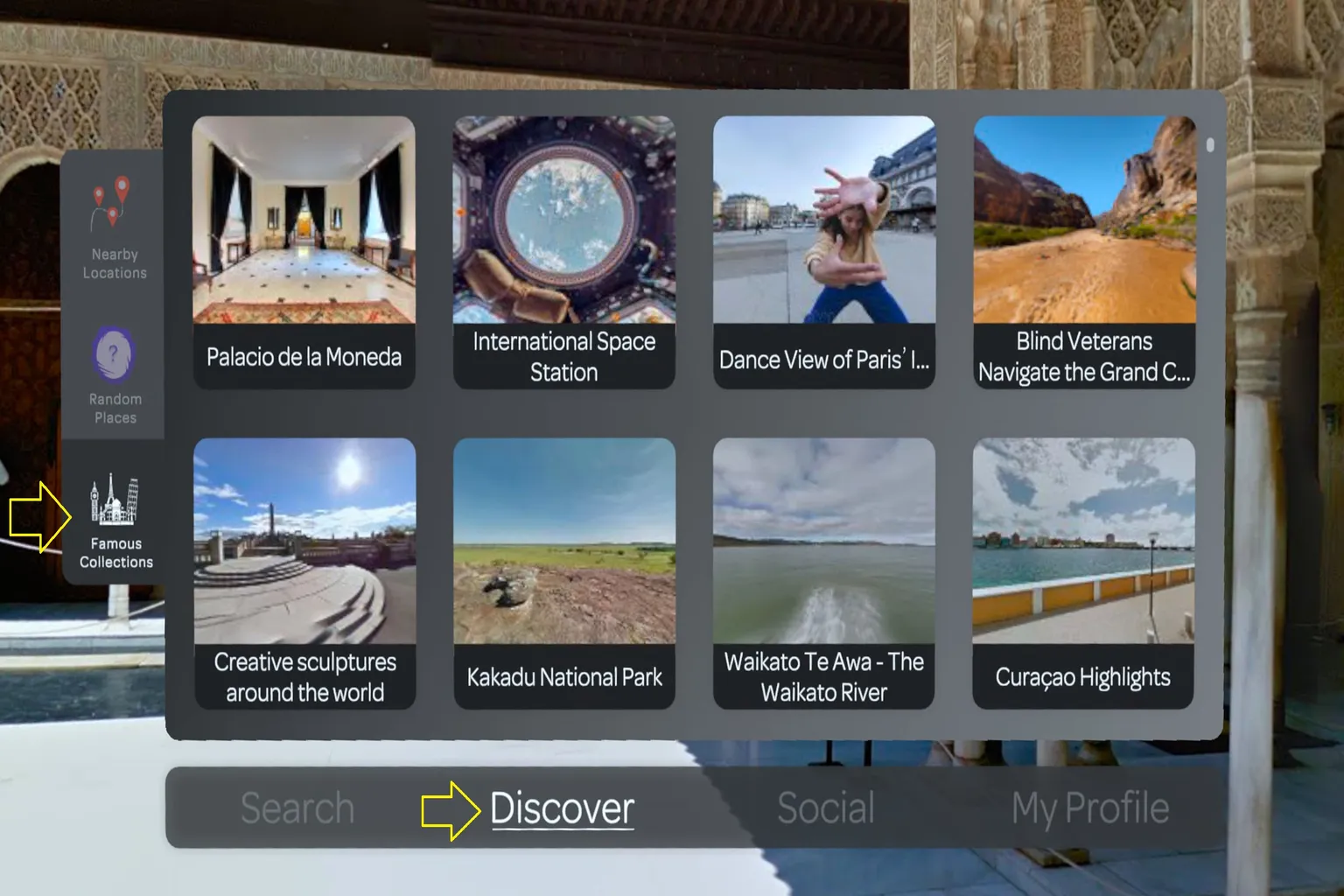
This is an official collection of famous landmarks from around the world,
with more than 100 locations included.
Just click on a photo of the place you’re interested in,
and you’ll instantly warp straight to that spot.
Each spot comes with an explanation in English,
and by pressing the Translate button, you can switch it to other languages.
Each location also includes multiple viewing points.
By clicking the small icons on the screen,
you can freely move to different angles or positions to explore the area.
Social
With this feature, you can create your own travel group,
invite family or friends,
or travel the world together with people you meet in VR.
By selecting Create Room on the right side of the screen,
you can start a new travel group right away.

If you don’t set a password, anyone can join freely.
If you do set one, only family or friends who know the password can enter.
Once you’ve checked the settings, just press Create Room and you’re all set.

After creating a room, you can use the Invite feature to send a message to friends and have them join you.
Of course, it’s totally fine to start exploring the world on your own first.
When someone enters the room, the system will automatically notify you.

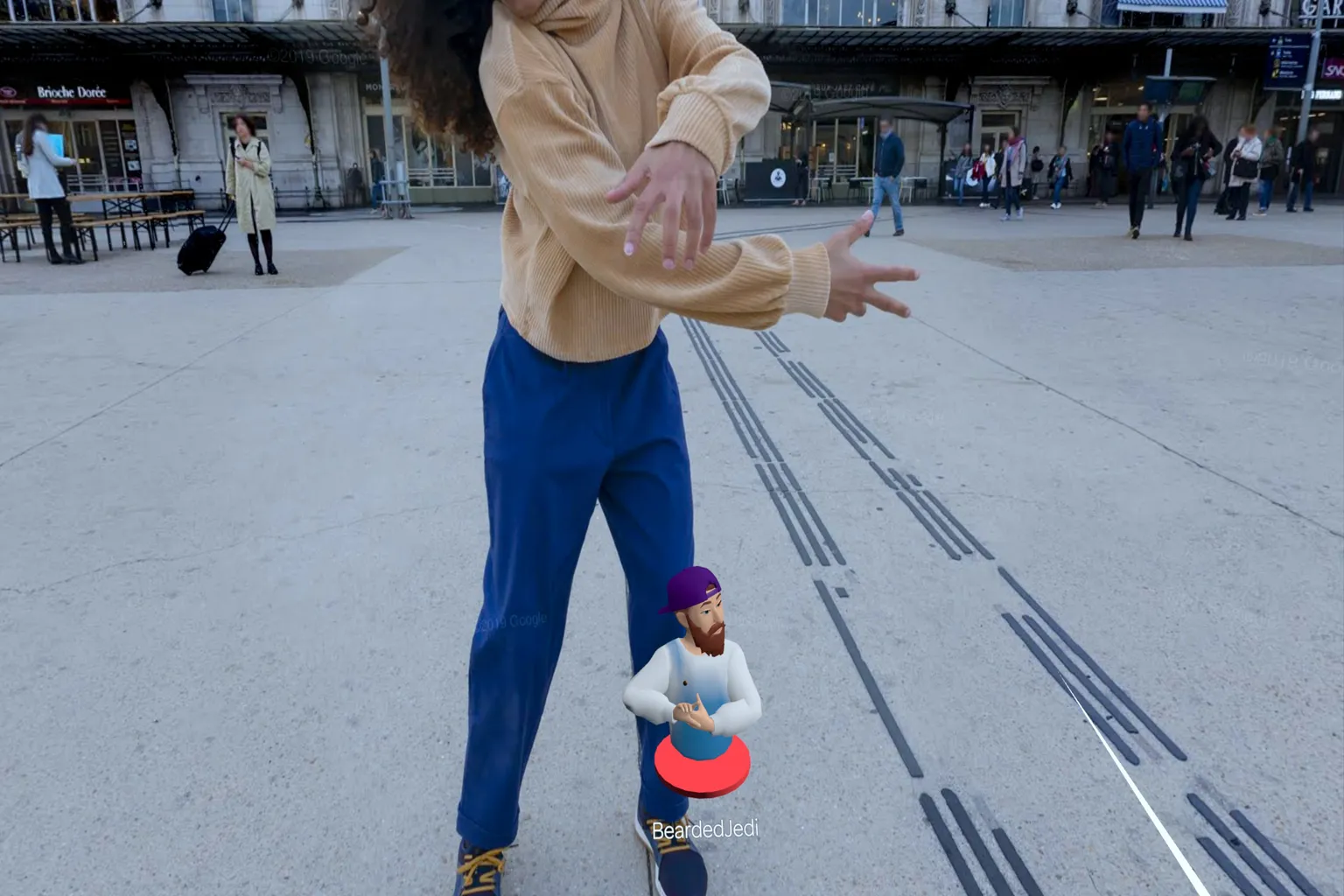
When a friend joins the room, their avatar shows up at the bottom of the screen.
You can walk around together, point things out, guide them through the city, and just chat as you go.
The voice quality in this social mode is surprisingly clear, with almost no noticeable lag.
While writing this, I actually guided a player from the UK—BeardedJedi—around Japan.
I showed him Akihabara and its anime culture,
then we swung by Shinjuku Kabukicho and wandered around together, looking for Godzilla.
You should try being the guide at least once.
When you’re showing your favorite places to friends from another country,
the experience feels genuinely special,
and you’ll probably end up liking this way of traveling even more.
Of course, if you find a room created by another player,
you can jump in and travel together with them.
That said, some rooms are password-protected.
When that happens—just save it for another time.

My Profile
On the My Profile screen, the main functions are split between the left and right sides.
Right side: Home / Help / Collections / Avatar Edit
Left side: Favorites / Settings
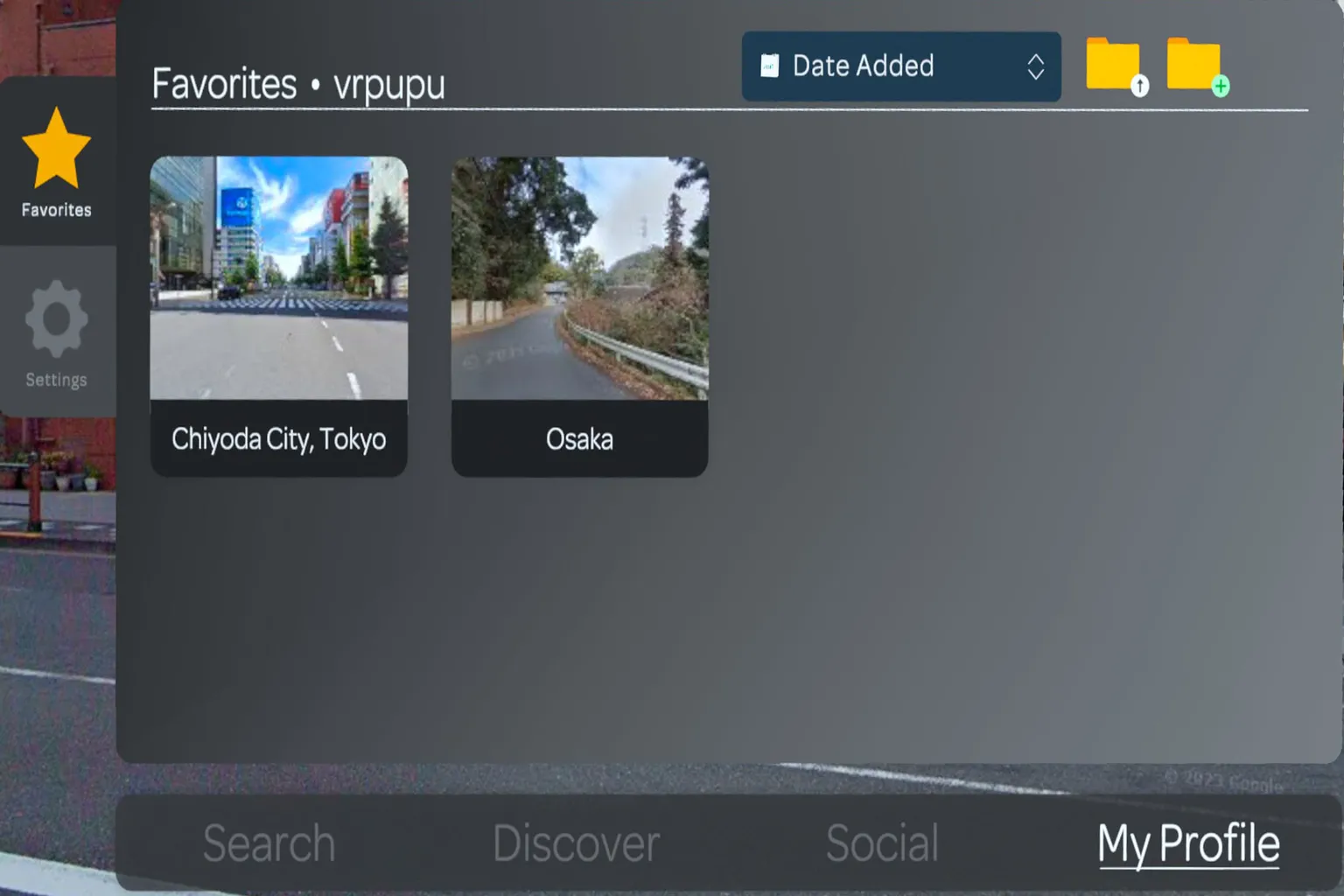
Favorites
This works a lot like Windows File Explorer.
It’s where you create your own personal “tourist spot folders.”
Click the yellow folder icon on the screen, and you can add a new folder to organize places you want to revisit later.

Each folder can be copied, cut, deleted, or renamed.
Folder names can be written in multiple languages, including English and Japanese.

All spots added to Favorites can be sorted by options like date added or name.
This makes everything easier to manage and helps you find the place you’re looking for quickly.
When you open Settings,
the left side shows system settings, and the right side displays controller controls.
System Settings
Navigation arrows
When enabled, arrows appear on the ground showing your movement direction,
making walkable routes easier to understand.
Maximum resolution
When enabled, image quality becomes sharper, but may introduce slight latency.
(Recommended: On)
Smooth rotation
On: Continuous rotation with smoother visuals, but more likely to cause motion sickness.
Off: Step-based rotation, easier on the stomach.
Invert rotation
Reverses the controller’s rotation direction.
Example: pressing left turns the view to the right.
Interface sound
Toggle sound effects for menus and button interactions.
Left-handed mode
Switches the main control hand to the left, for left-handed players.
First-person avatar
When enabled, your own hands are visible, and other players can see your avatar as well.
(Recommended for multiplayer)
Controller controls:
- Left stick: Rotate view or scroll the map
- Right stick: Rotate view or scroll the map
- A / X button: Select and warp
- B / Y button: Open or close menus
- Grip button: Grab and move UI elements
- Trigger button: Select or warp
At the bottom of the screen, you can switch control modes:
- Standard: For most users (Recommended Choice)
- One-handed: Operate everything with one hand
- Advanced: Allows finer control customization
Recommended setup
I recommend Standard mode.
Using the left hand for panels and voice warp, and the right hand for beam movement
feels the most natural and intuitive.
Overall, Wander’s default controls and visual settings are very well designed,
and even without tweaking much, the experience is already comfortable and smooth.

Home
This is your own private cabin.
It sits quietly in the middle of a forest, serving both as your starting point for travel and a place to take a break.
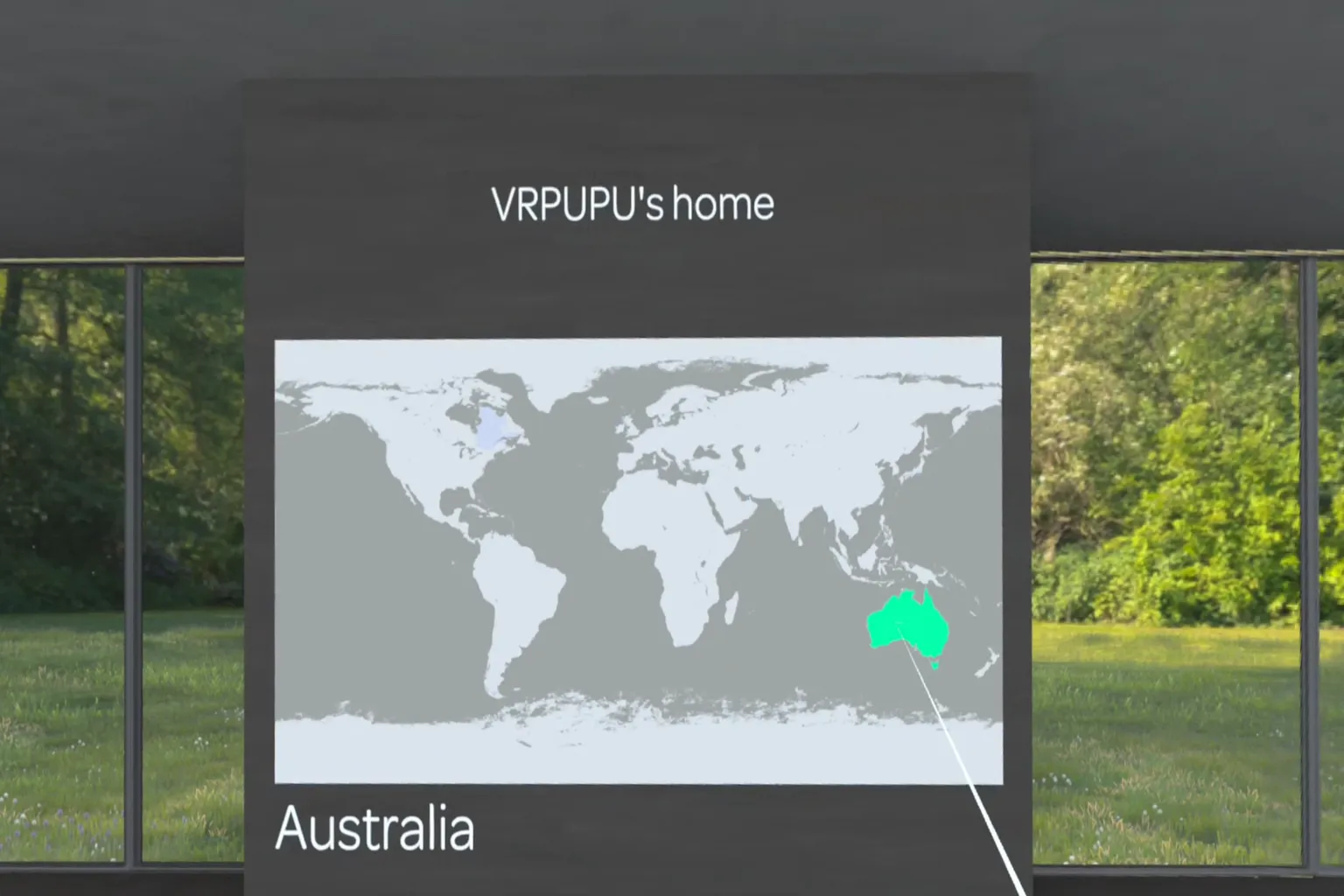
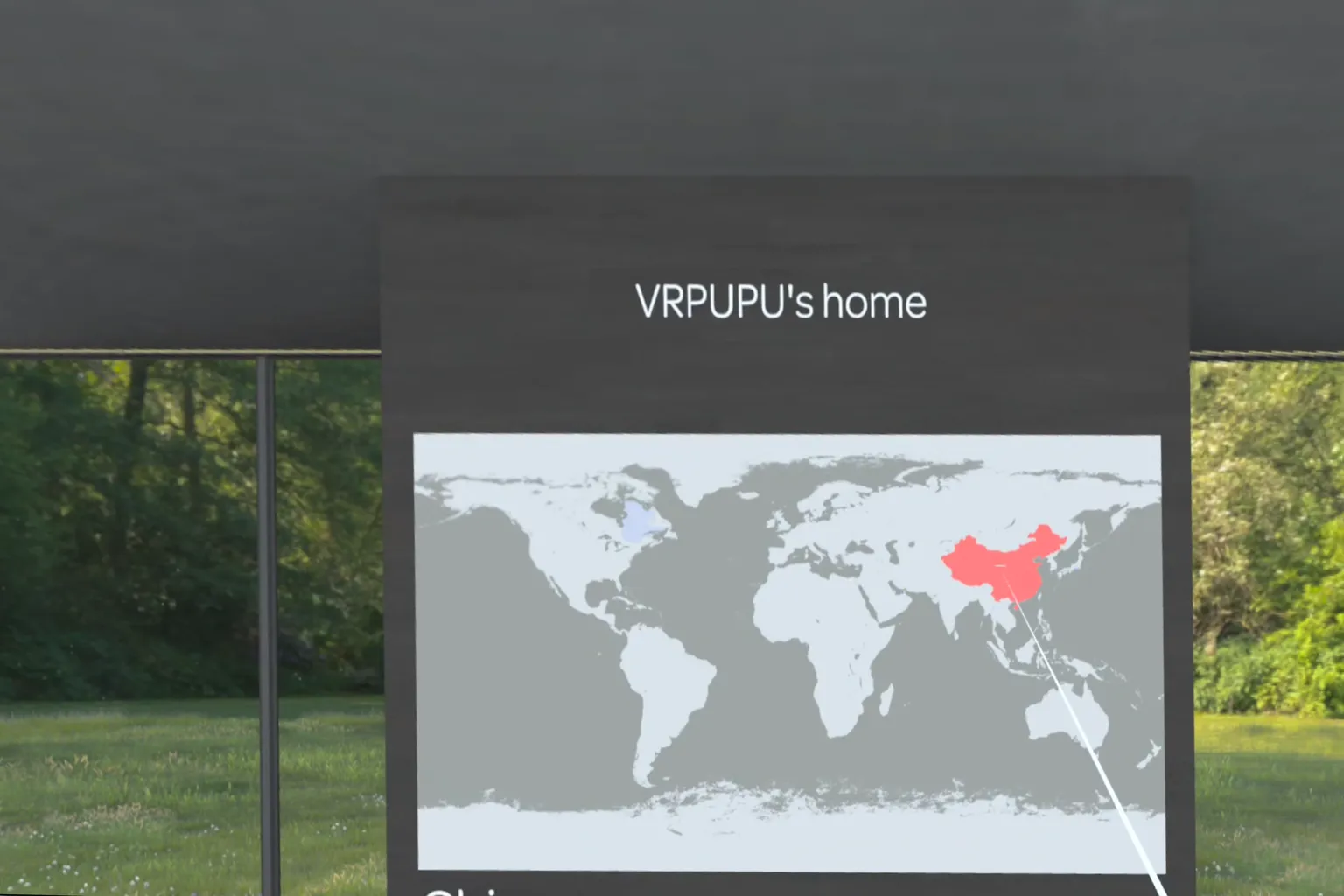
A large world map hangs on the wall,
and through that map, you can warp directly to anywhere in the world.
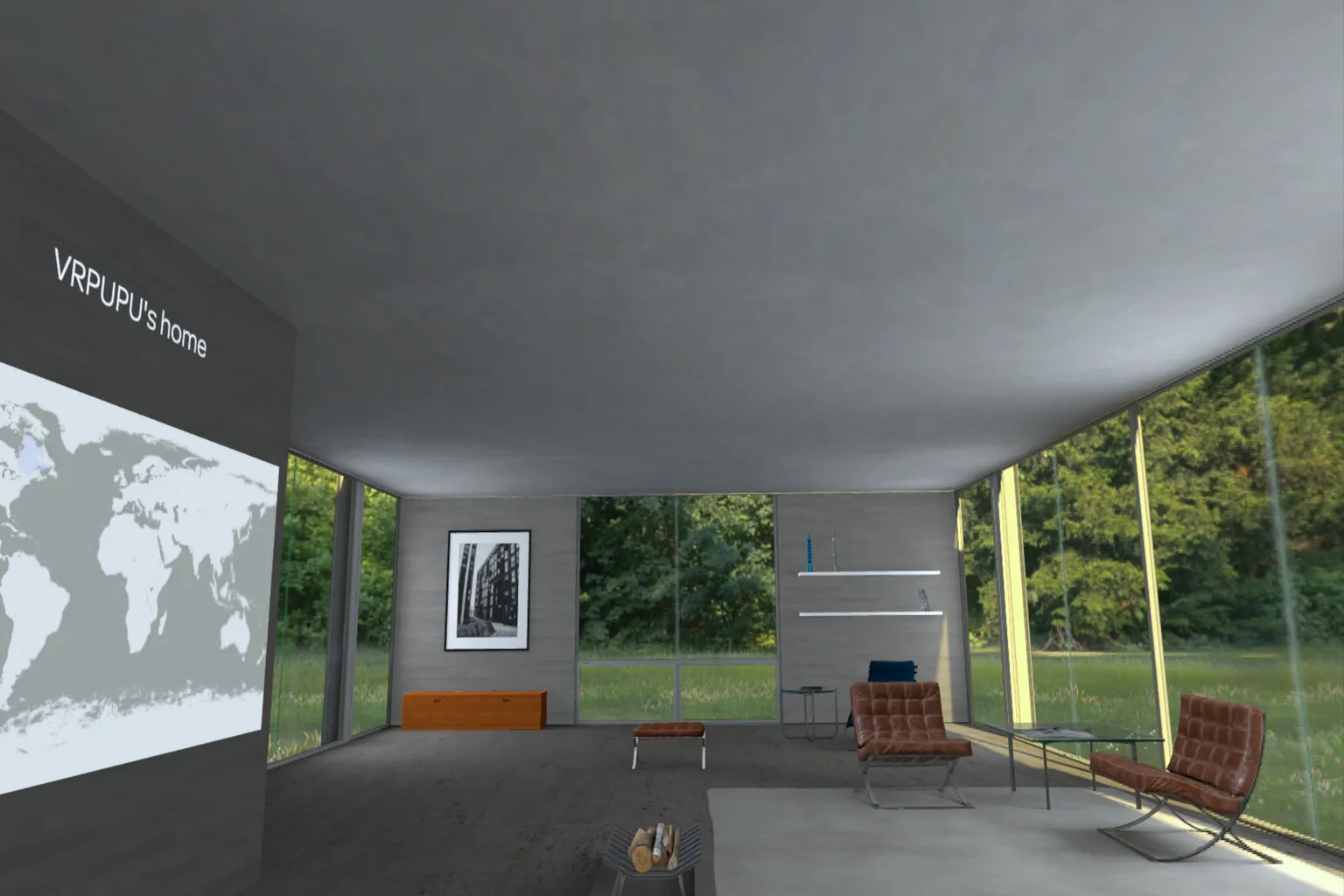
Pointing at the map with the beam:
If an area on the map is highlighted in green,
you can move there and start exploring that location.
If an area is shown in red,
it means Google Street View data is not available for that region,
so it can’t be accessed at the moment.
Avatar Customization
Wander uses Meta’s older avatar system,
so for now, you choose your appearance from a set of preset characters provided by the system.
Pick an avatar you like,
and head out to explore the world together with your friends.

Control Menu
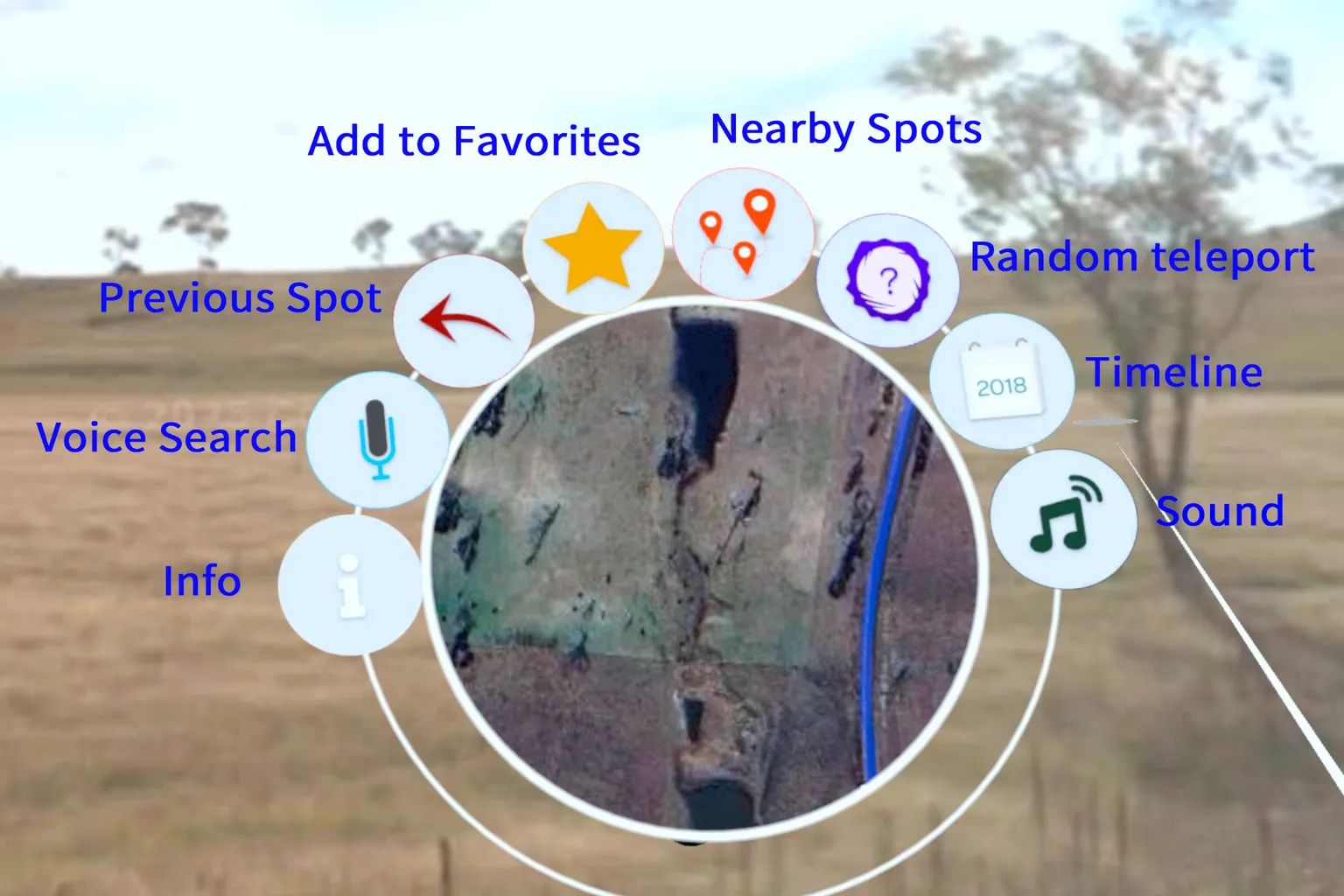
While traveling, raise your left hand to open the control menu.
The blue lines on the mini-map show where you can move—anywhere those lines appear, real Street View data is available.
This menu gives you quick access to features like voice warp, nearby spots, and the timeline,
all designed to make exploration smoother and more immersive.
Here’s a quick look at the main features you’ll be using.
Info
Here you can check the Google Maps version you’re currently using, and the Street View data source.
Voice Search
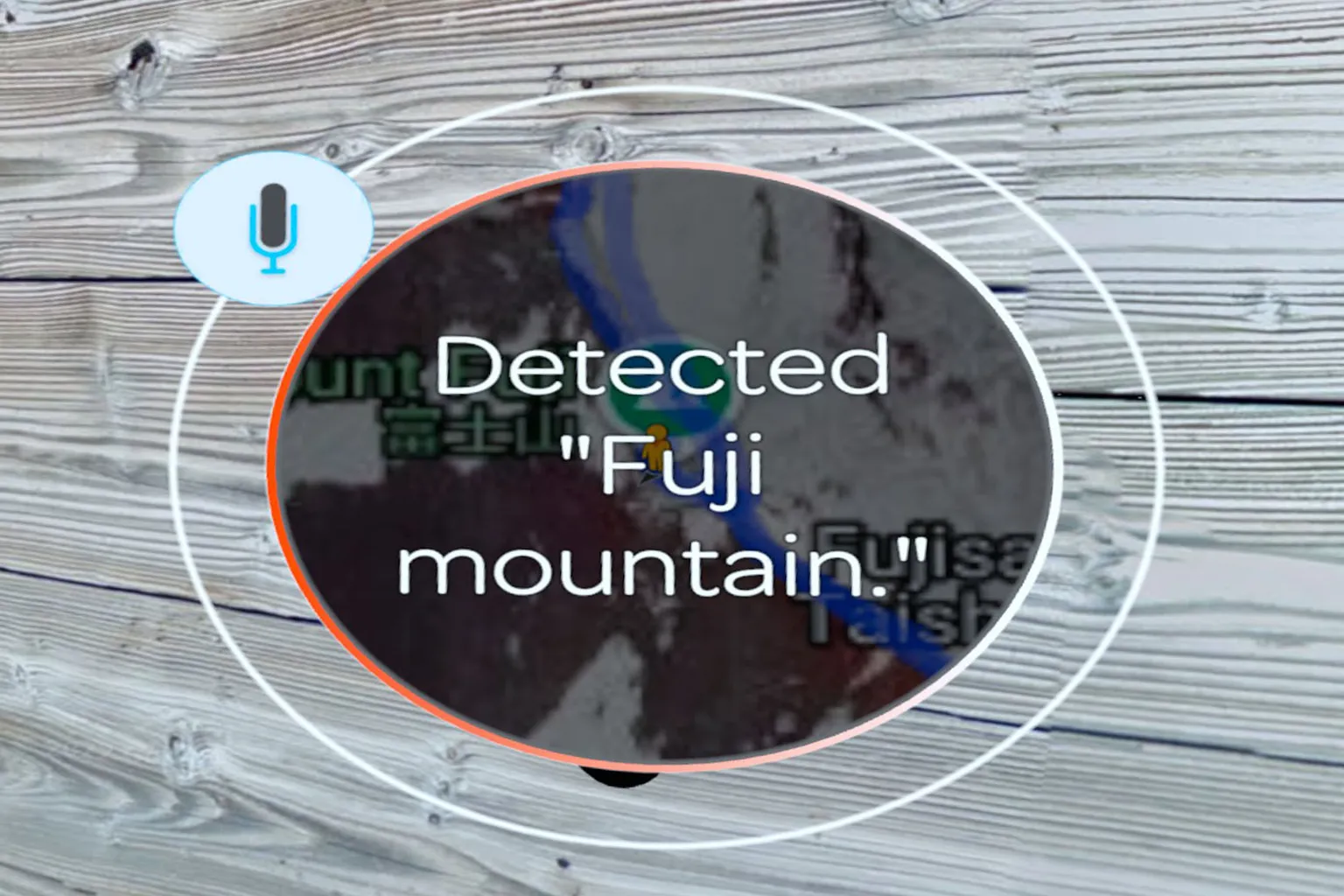
This lets you warp to a place without typing—just say the location name, and you’ll jump there in about a second.
For example, if you say “Mount Fuji,” you’ll instantly move to the Mt. Fuji area in Japan.
One thing to watch out for: the system searches for the closest matching result, so if you only say “Fuji,” it might occasionally send you to something like a “Fuji ramen shop.”
If you want better accuracy, say the country too—like “Mount Fuji, Japan.”
Previous Spot
Jump straight back to the place you visited just before.
Add to Favorites
Save your current location to a favorites folder, so you can come back to it easily next time.
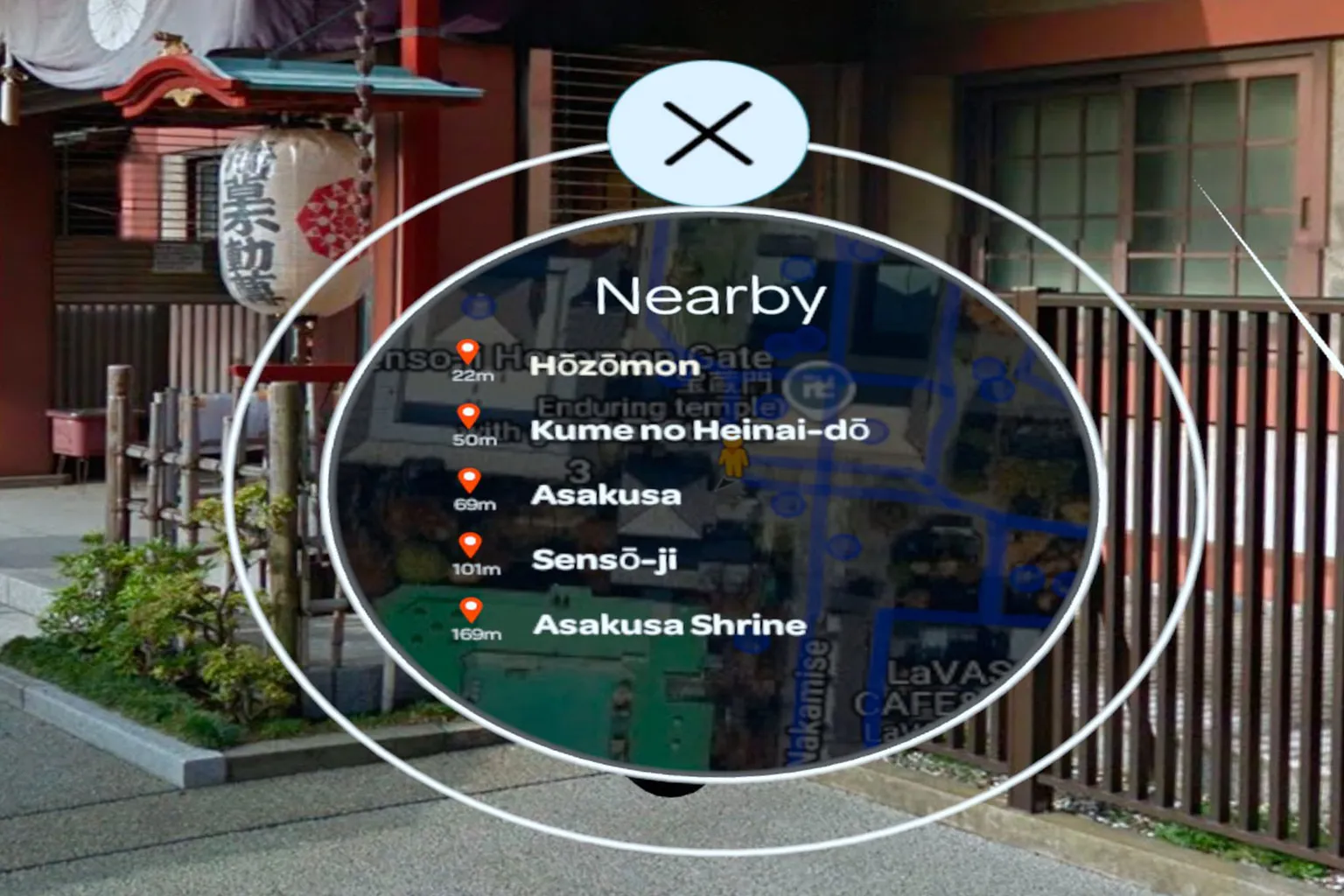
Nearby Spots
Shows a list of well-known landmarks around your current location.
For example, if I’m in Akihabara, places like “Messiah Sanoh” or “Akihabara Dear Stage” show up in the list, and I can move there with a single click.
Random Warp
Instantly teleport to a random spot somewhere on Earth.
It feels like drawing a “random world card” — you never know which country you’ll land in next, and that little bit of uncertainty is part of the fun.
Timeline
Switch between different years of Google Maps data to travel through time.
The menu shows timeline points for each year; just pick one, and the scenery changes to what that place looked like in that era.

This feature is seriously fun.
For example, at an Akihabara intersection back in 2013,
there was a huge billboard on a building advertising
“A Certain Scientific Railgun” Blu-ray — Now on Sale.

And when I switched to 2023, the billboard in that exact same spot
had changed to a promotion for Genshin Impact on PS5 and PS4.
Ten years had passed, and the ads were completely different,
but the trees along the street—strangely enough—
looked almost exactly the same as they did back then.

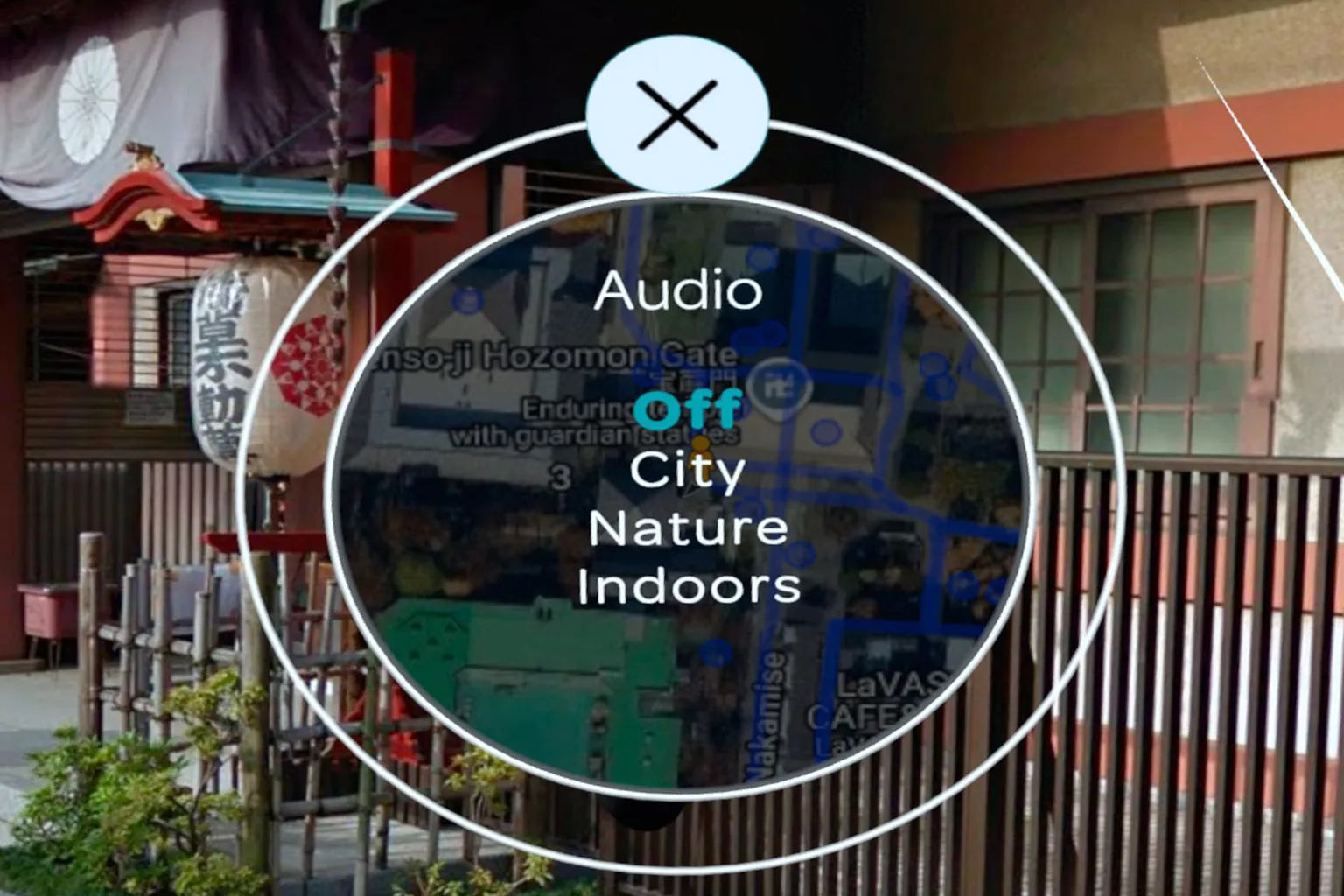
Sound
City
Feels like standing on a Tokyo street corner.
You hear cars passing by and bits of conversation drifting past your ears.
Nature
Quiet, like being in a forest at night.
Insects chirping, wind brushing through the leaves—soft, steady, calming.
Indoor
A relaxed, café-like atmosphere.
Faint voices in the distance, just enough to make the space feel alive.
Movement Controls
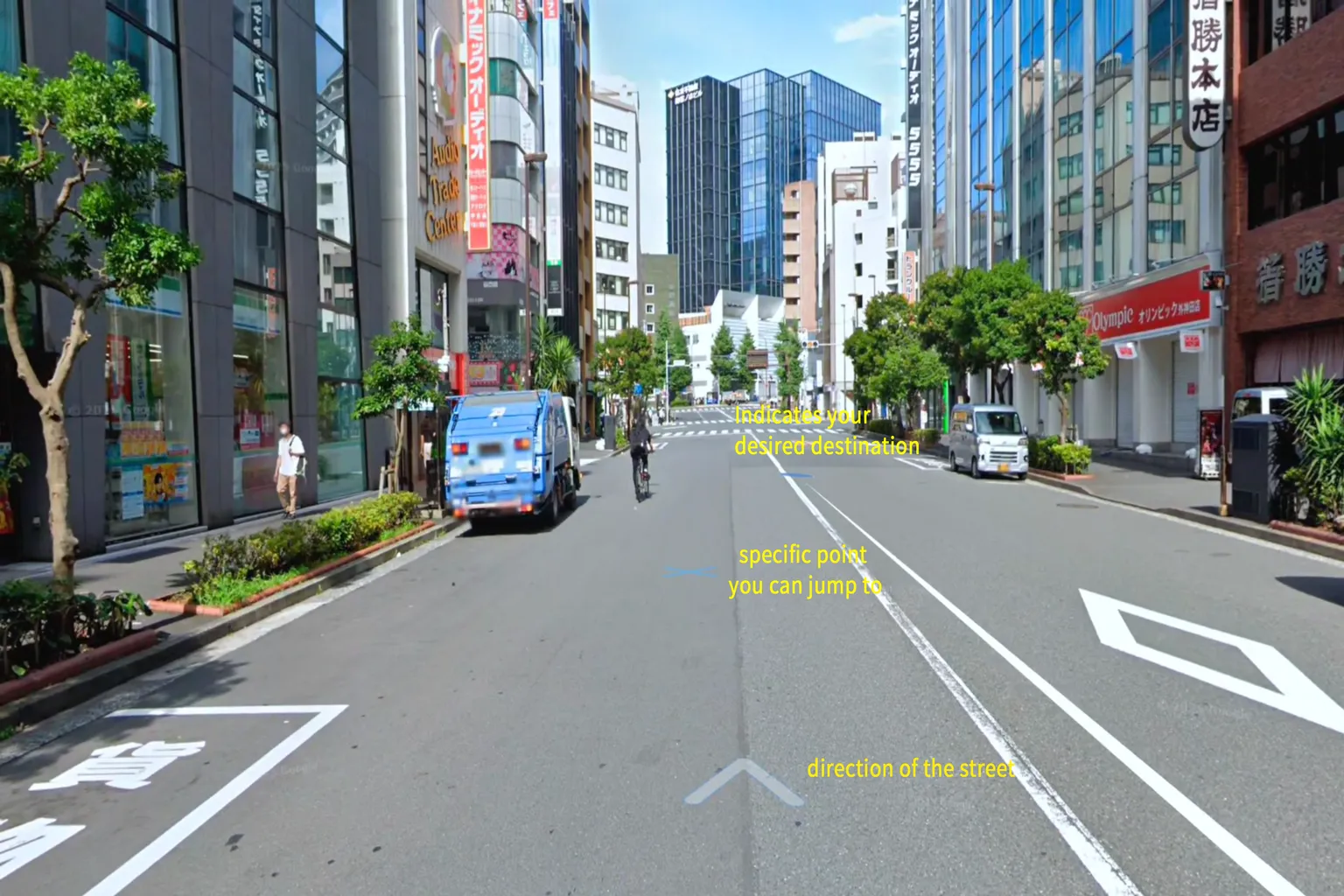
While you’re traveling, the beam from your right hand acts as your guide.
Point at a spot on the screen, and you’ll see three types of markers:
∧ icon:
Shows the direction of the street. Select it to move forward along that road.
X icon (✕):
Indicates a movable point. Select it to instantly warp to that location.
O icon (〇):
Marks a destination you want to reach. The system automatically warps you to the nearest available Street View position.
That’s the overview of Wander.
If VR travel caught your interest, check out the next articles as well.
There’s Deep Travel, where you explore places in far more detail,
Time Travel, where you step back into the past,
and Group Travel, where you journey together with a host or guide.
Each one offers a completely different kind of experience.
That pretty much wraps up Wander. If it sounds interesting, go check it out on the Meta Store.
And just a quick reminder: when you buy a headset on the Meta official site, enter VRPUPU at checkout to get an extra 30 dollars in Quest Cash.
For any games that are not already on sale, plus some DLCs and bundles, entering VRPUPU at checkout will also give you 10% off.
Best VR Travel Apps on Meta Quest
Brink Traveler, Wander & More

Brink Traveler
The Ultimate VR Travel App
FAQ – Common Questions
Is Wander free?
No. Wander is a paid app. The regular price is around $9.99, though it sometimes goes on sale on the Meta Store. Once purchased, you can use it permanently.
Does Wander require an internet connection?
Yes. Wander uses Google Street View data, so an internet connection is required to load images and location information.
Can I use voice search in English?
Yes. Wander supports voice search in English, Japanese, and Chinese. Just say a place name and you’ll warp there instantly.
How do I travel together in multiplayer?
From the Social tab, you can create a room and invite friends. You can also freely join rooms opened by other players and explore the world together.
Are there places I can’t visit?
Yes. Wander depends on Google Street View coverage. Areas without data—such as China, parts of the Middle East, and military zones—are shown in red on the map and cannot be accessed.