Want sharper visuals and better performance on your Meta Quest? The Quest Games Optimizer (QGO) is exactly what you need. This complete walkthrough covers everything from purchasing safely on itch.io to easy installation methods via PC or straight to your headset. We will also look at real before-and-after gameplay comparisons so you can see exactly how QGO reduces jagged edges and makes VR feel cleaner and more immersive.
Feature overview
Quest Games Optimizer, or QGO for short, is a tool for Meta Quest headsets. It lets you adjust CPU and GPU performance levels, render resolution, refresh rate, and other parameters to tune the system’s performance for each game. Depending on how you set it up, you can improve visual quality or extend battery life.
So let’s take a look at how that difference shows up on screen in A Fisherman’s Tale.
This is what the screen looks like before and after turning QGO on.
In the PC-side comparison, the left shows the original game image, and the right shows the same scene with QGO enabled. On mobile, the first image is with QGO off, and the second is with it on.
You can tell right away from the images that once QGO is on, the jagged edges around the screen are noticeably reduced. In VR, improvements like this—even small ones—go a long way toward making the experience feel more immersive.




Because this tool directly changes performance and rendering parameters on the headset, it isn’t an app that Meta officially approves. That’s why you can’t buy it from the official Quest Store. Instead, you need to purchase it directly from the developer on itch.io and install it on your headset through SideQuest.
Also, because this software changes performance and rendering parameters on the headset, you should understand what these settings do before using very demanding profiles for long sessions. For that reason, it is better suited for intermediate to advanced users who are already comfortable with their hardware and know how to adjust the settings based on the situation.
How to buy it
This software is sold on itch.io for $9.99. You can purchase it without creating an account, but I recommend registering one anyway. That way, the software will be saved to your itch.io library after purchase, which makes it much easier to manage later.
Step 1: Create an account
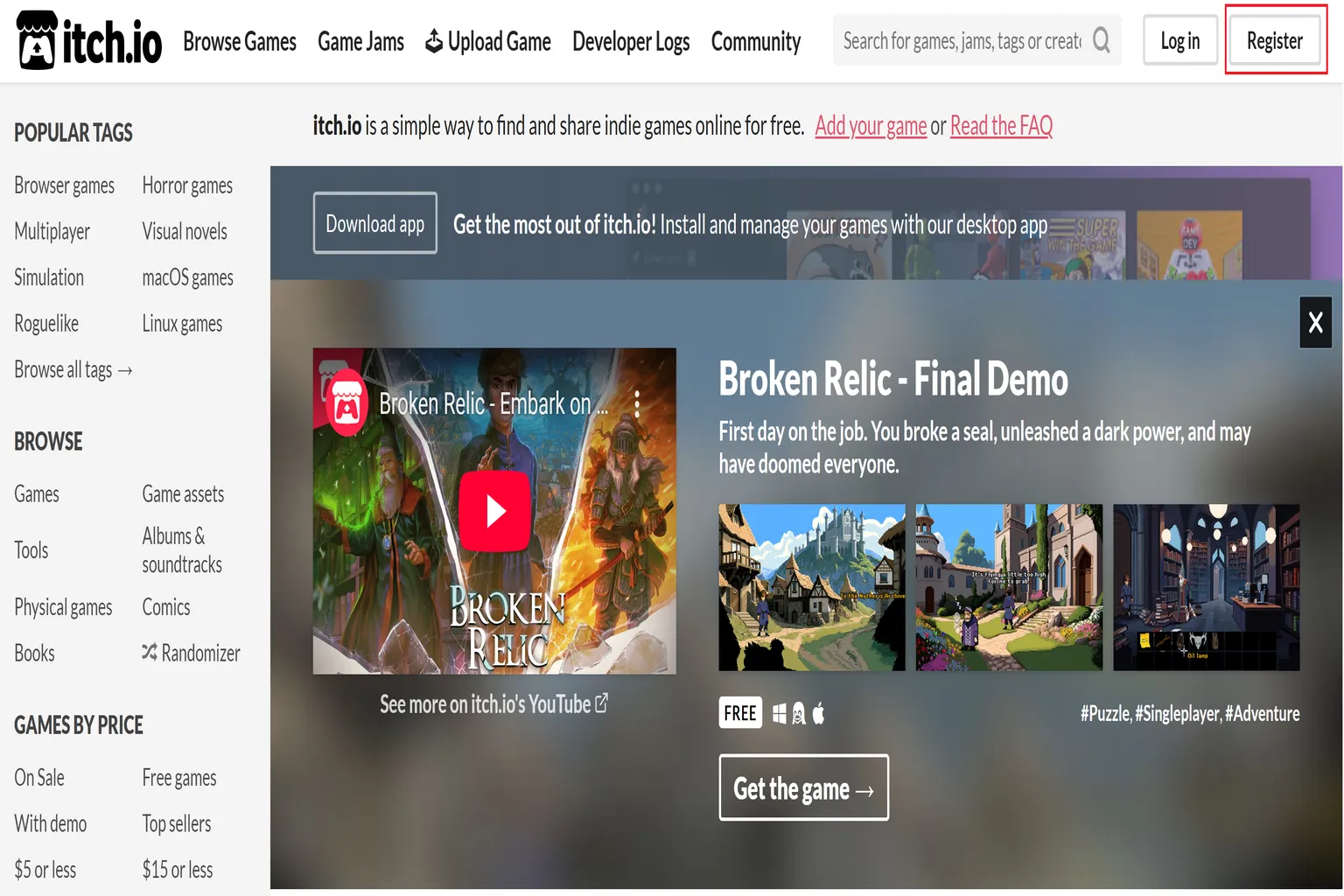
First, go to the official itch.io website and click Register in the top-right corner.
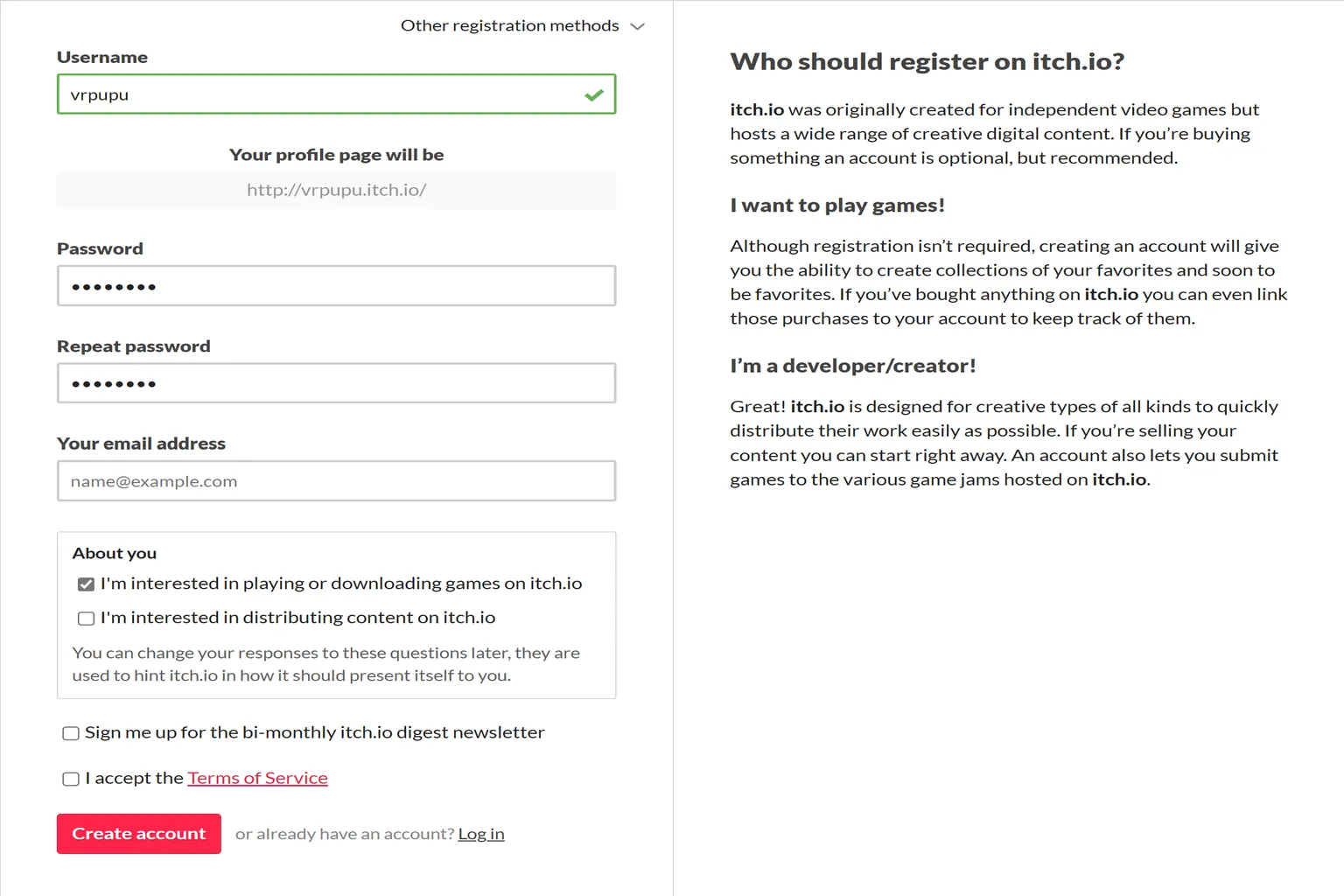
Enter your username, password, and email address to sign up.
Once you’re done, click Create Account to finish creating your account.
Step 2: Verify your email
Once registration is complete, check the inbox of the email address you used. You should receive a message from itch.io. Click the Click to verify your email address icon in the email to complete the verification.
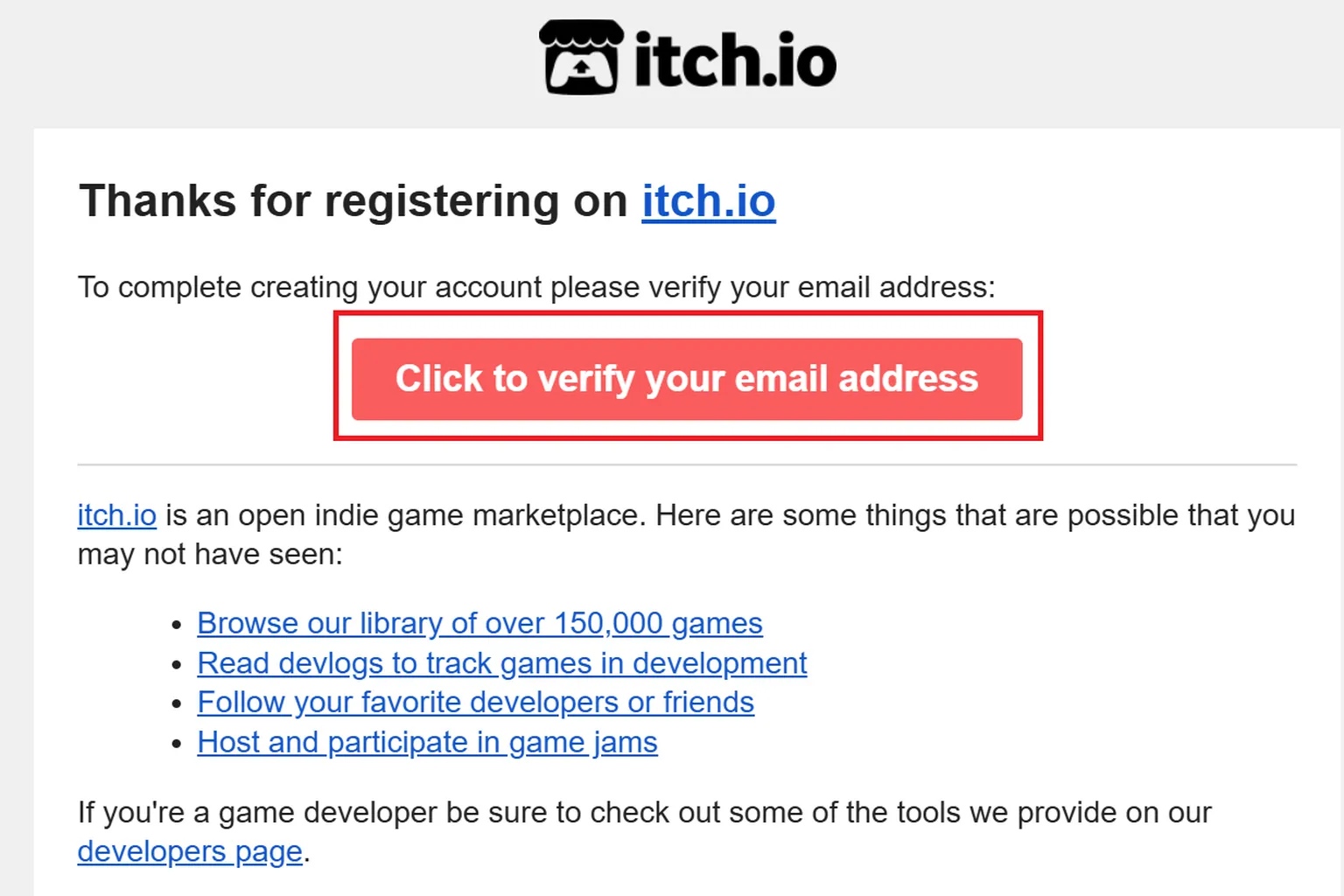
Your browser will then open the itch.io website. On that page, click the red Confirm email verification button.
With that, your account registration and email verification are complete.

Step 3: Go to the purchase page
Head back to the itch.io homepage and type “Quest Games Optimizer” into the search bar at the top of the page.
From the results, find the QGO product page and click it.
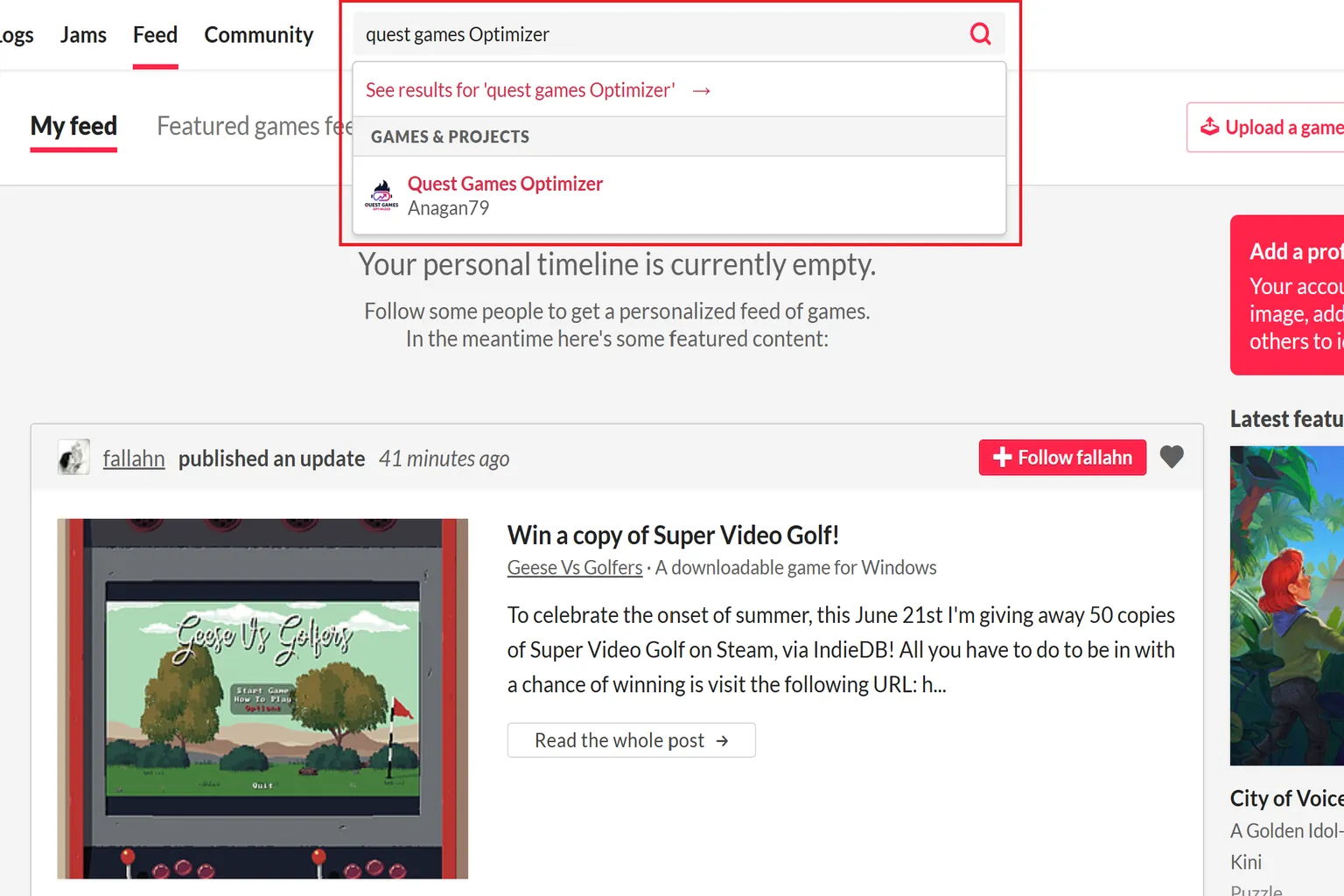
Once the purchase page opens, click Buy Now on the screen. This will take you to the payment process.
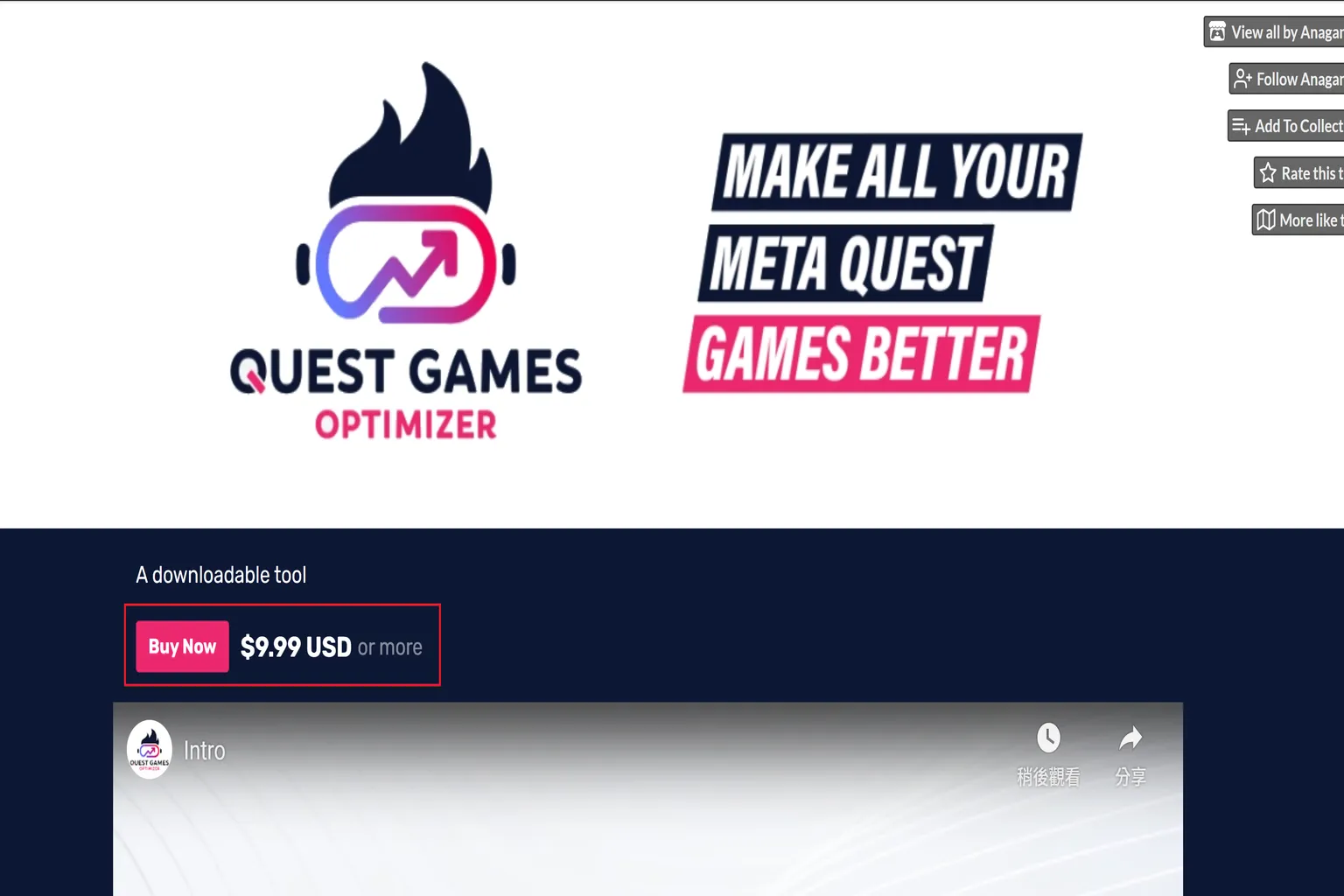
Step 4: Complete the Quest Games Optimizer purchase
On the purchase page, the default price is set to $9.99.
If the amount looks fine, proceed with payment using PayPal or a credit card.
If you’re thinking “I really want to support this developer,” you can also add an extra contribution by clicking one of the +$1.00 to +$10.00 buttons. That extra amount goes directly to the creator and helps support continued development.
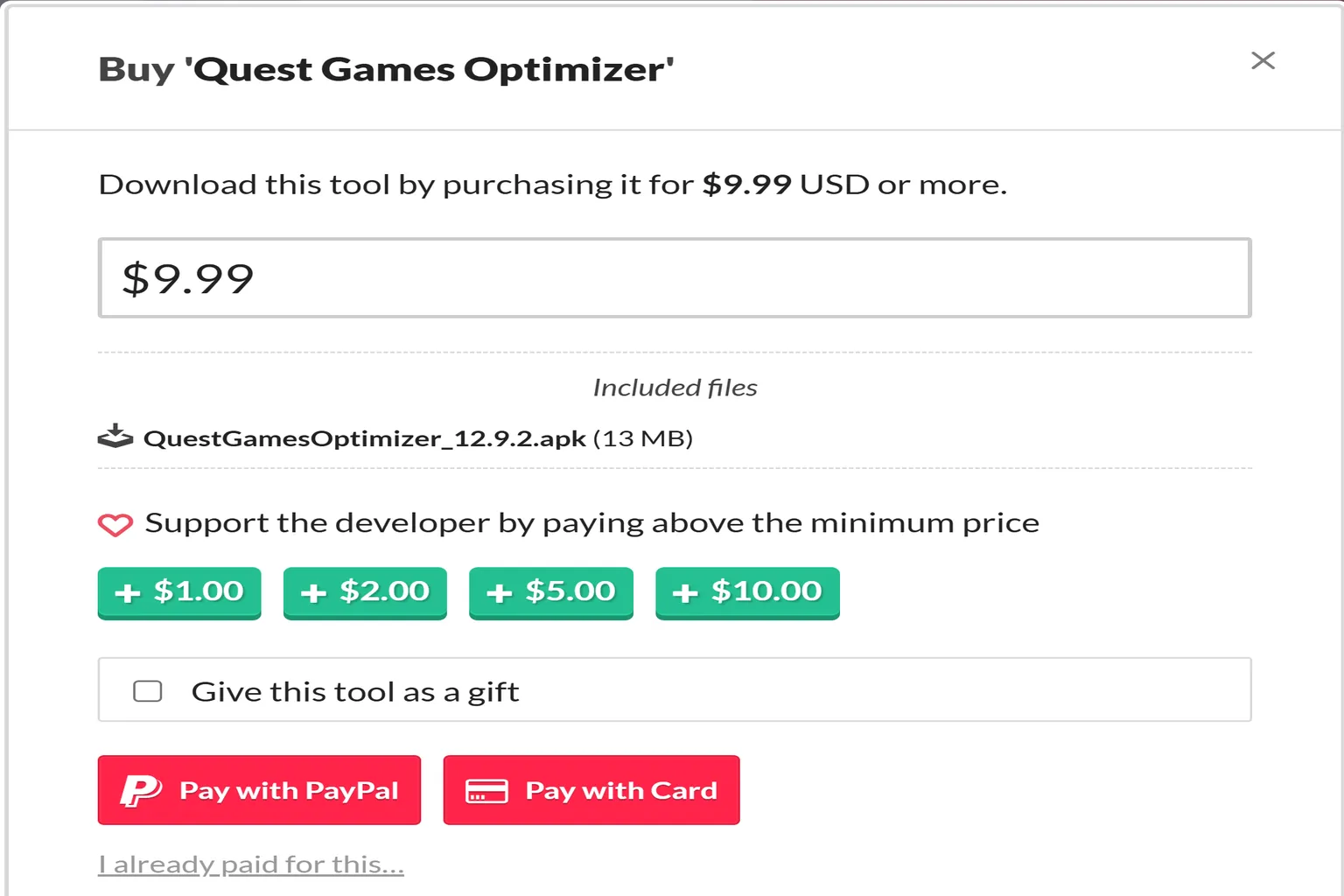
Once the payment is complete, you’ll be automatically redirected to the QGO download page.
Click Download there to download the software to your PC.

Purchasing Quest Games Optimizer (if the purchase fails)
If you try to pay with a credit card and an error message appears, then the screen switches to the right side and gets stuck—don’t worry. This simply means the purchase failed, and no payment request was sent to your bank.
The cause of this issue is having Google Chrome’s page translation feature turned on. If you turn off page translation, the purchase process should go through normally.

With page translation enabled, I wasn’t able to complete the purchase with any of my five credit cards, no matter how many times I tried. If you really want to keep translation on, using PayPal will still let the payment go through.

Installation methods
There are two ways to install it: installing through a PC, or installing directly inside the headset.
For instructions on how to install it directly on the headset, see this guide.
The PC method is straightforward in terms of steps, but it does require more tools and hardware, like extra software and a USB cable.
Installing directly on the headset is more convenient overall. You do not need a PC, a cable, or SideQuest. ADB activation is handled directly inside the headset through Android Developer Options and a pairing code.
PC-based installation
Installing through a PC is relatively simple, but it does require using Developer Mode and the PC app SideQuest along the way.
If you haven’t used either of them before, it’s a good idea to go through the setup guides for those two first before continuing.
How to Enable Meta Quest Developer Mode
Fix Errors and Sideload Apps Fast
How to Install SideQuest on Meta Quest
Sideload Games & Custom Apps
Before you start the installation, make sure you have the following ready:
- A PC running Windows 10 or Windows 11 (64-bit)
- A USB-C cable (one end connected to the headset, the other to the PC)
- SideQuest installed on the PC
- Developer Mode enabled on the Quest headset
- The Quest headset successfully connected to the PC via SideQuest
- Quest Games Optimizer already purchased on itch.io
- The Quest headset connected to Wi-Fi
Step 1: Download
After logging into the official itch.io website, open the menu in the top-right corner and click My Library.
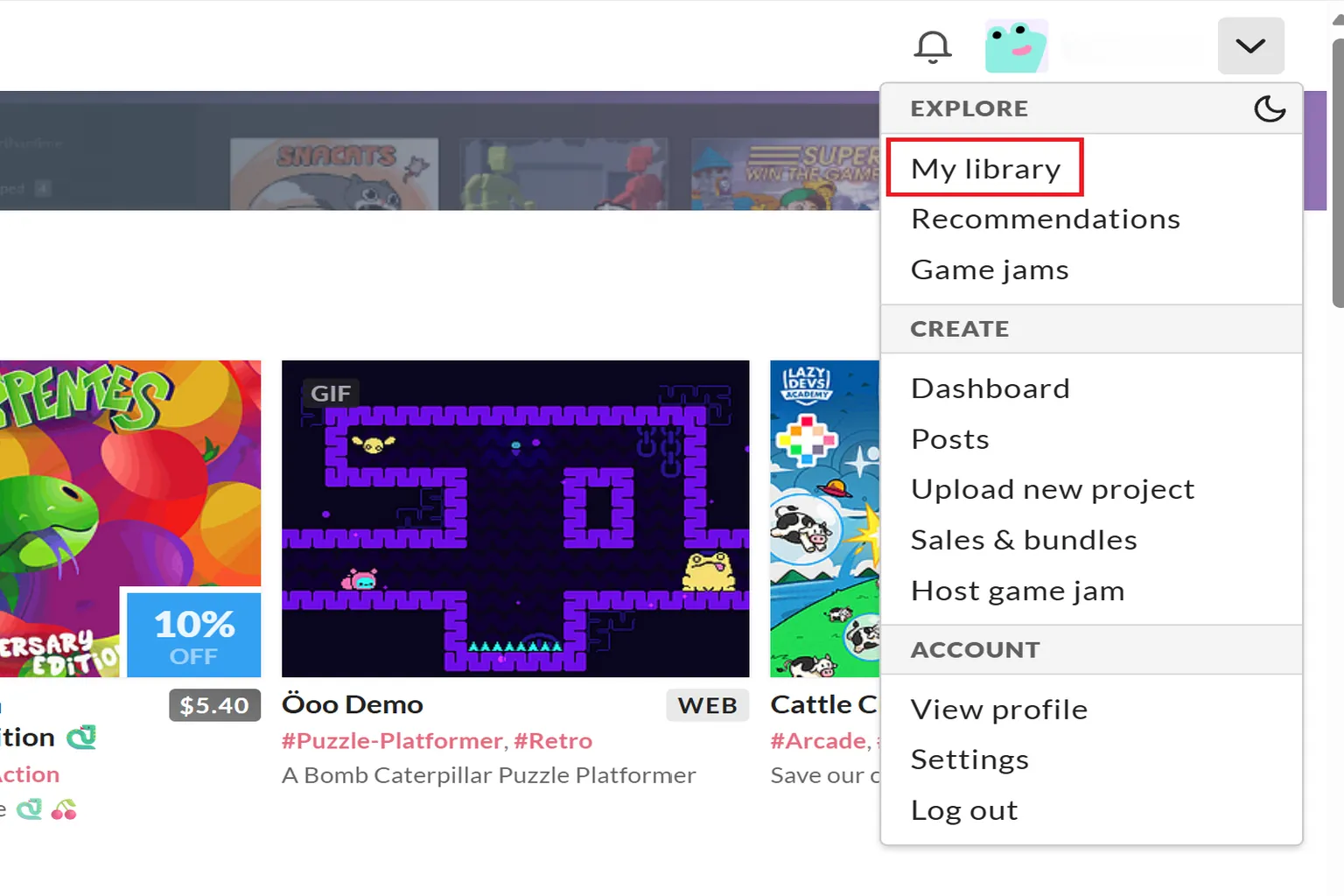
You’ll see Quest Games Optimizer listed in your library. Click Download to download the file to your PC.

Step 2: Install
Launch SideQuest on your PC and first check whether the indicator light in the top-left corner is green.
If it’s green, the connection is good. Go ahead and click the install button on the screen.
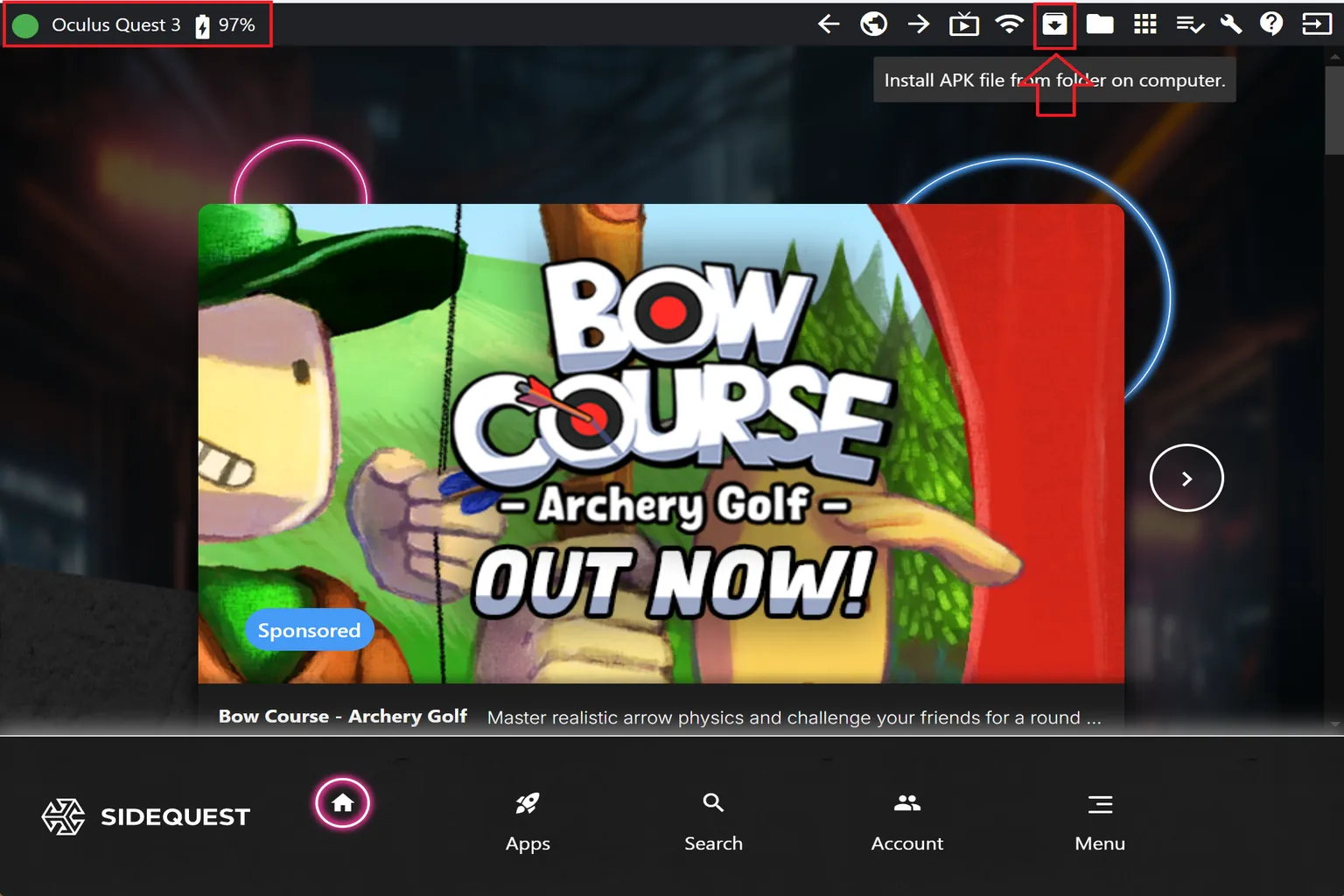
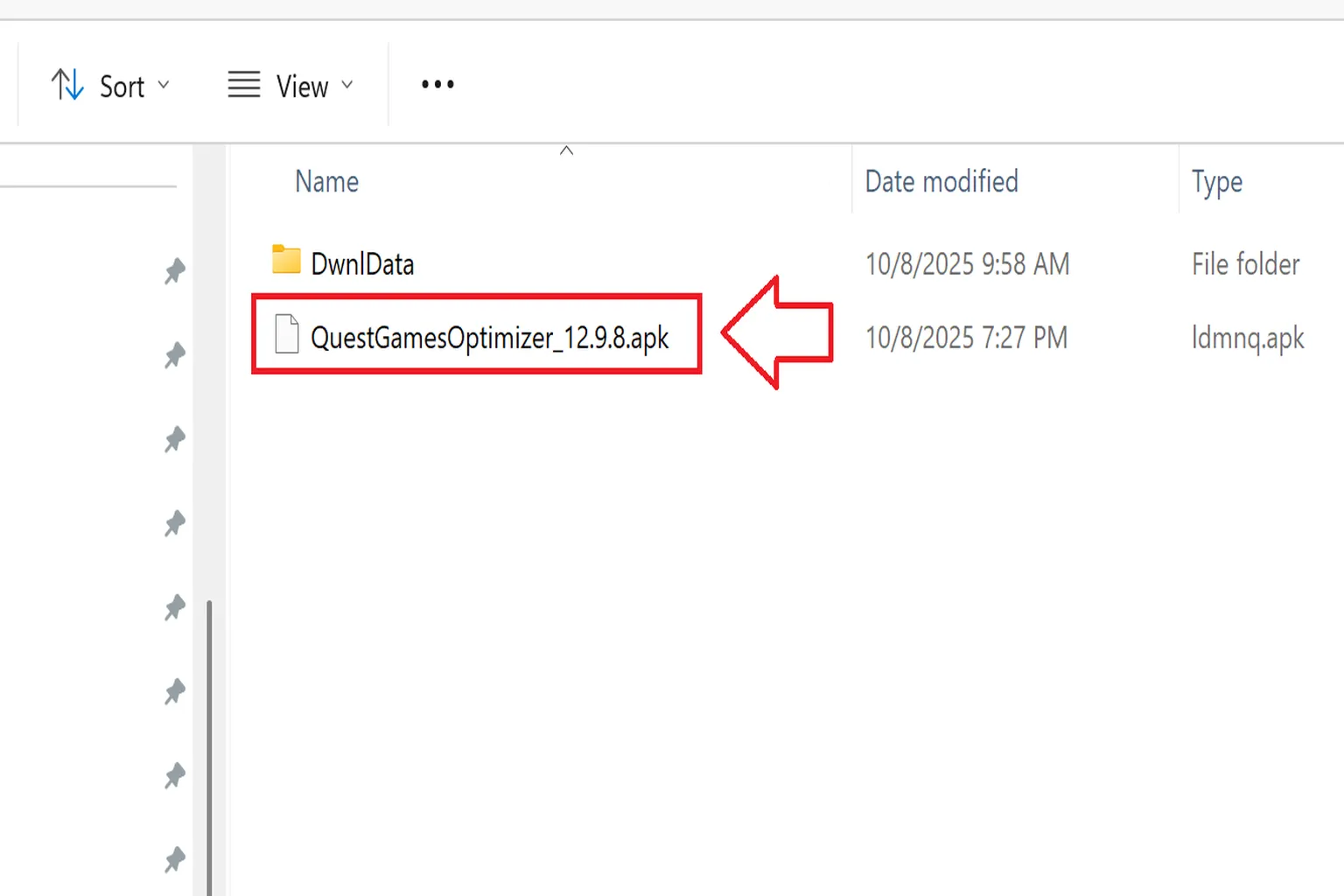
Next, select the QuestGamesOptimizer.apk file you downloaded earlier and install it.
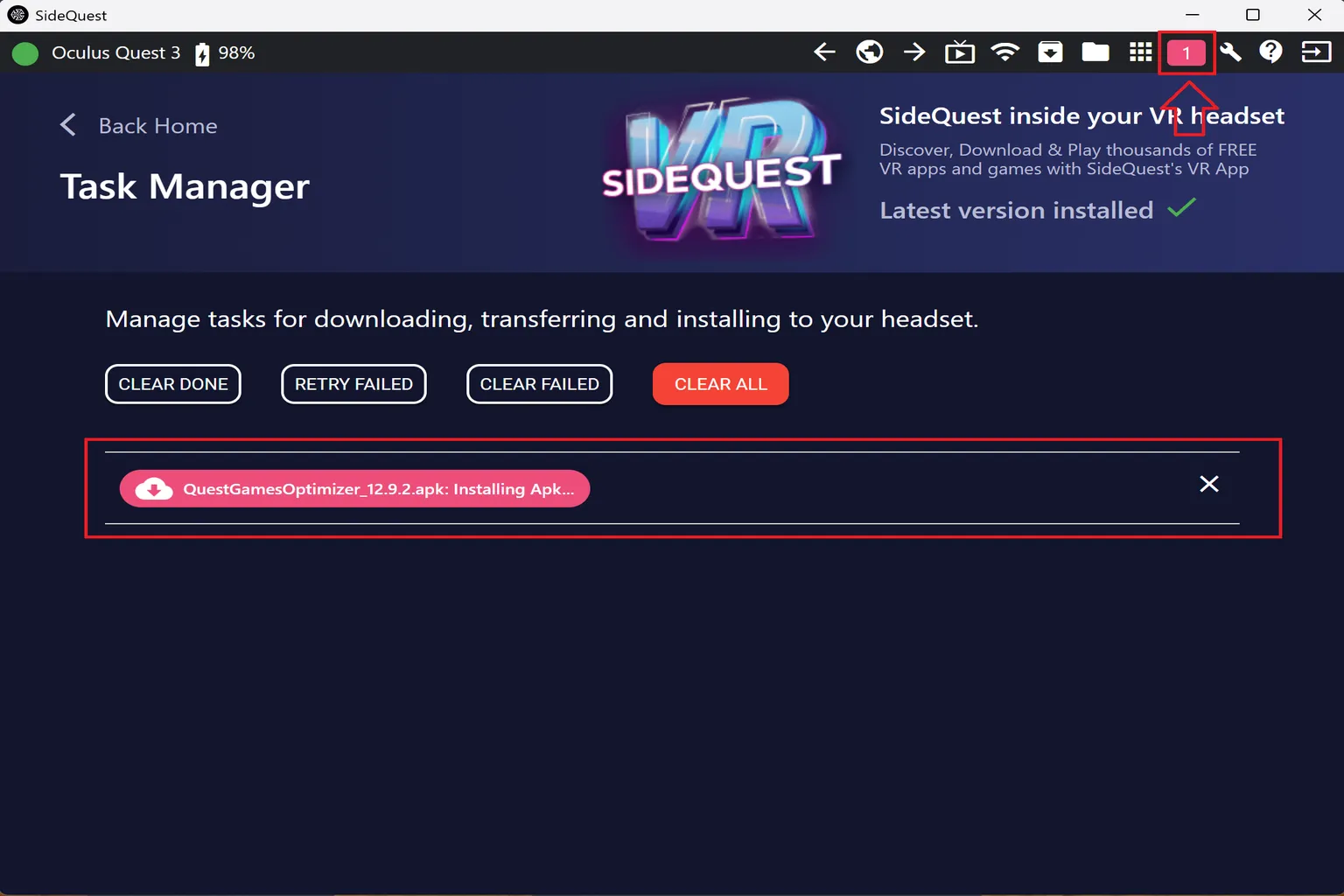
If the indicator light in the top-left corner isn’t green, you may have forgotten to connect the cable, or the SideQuest setup isn’t finished yet. In that case, go back to the guide on how to install SideQuest on Meta Quest and double-check the steps.
Step 3: Installation complete
Once the installation finishes, you should see an “Install successful” message in SideQuest.
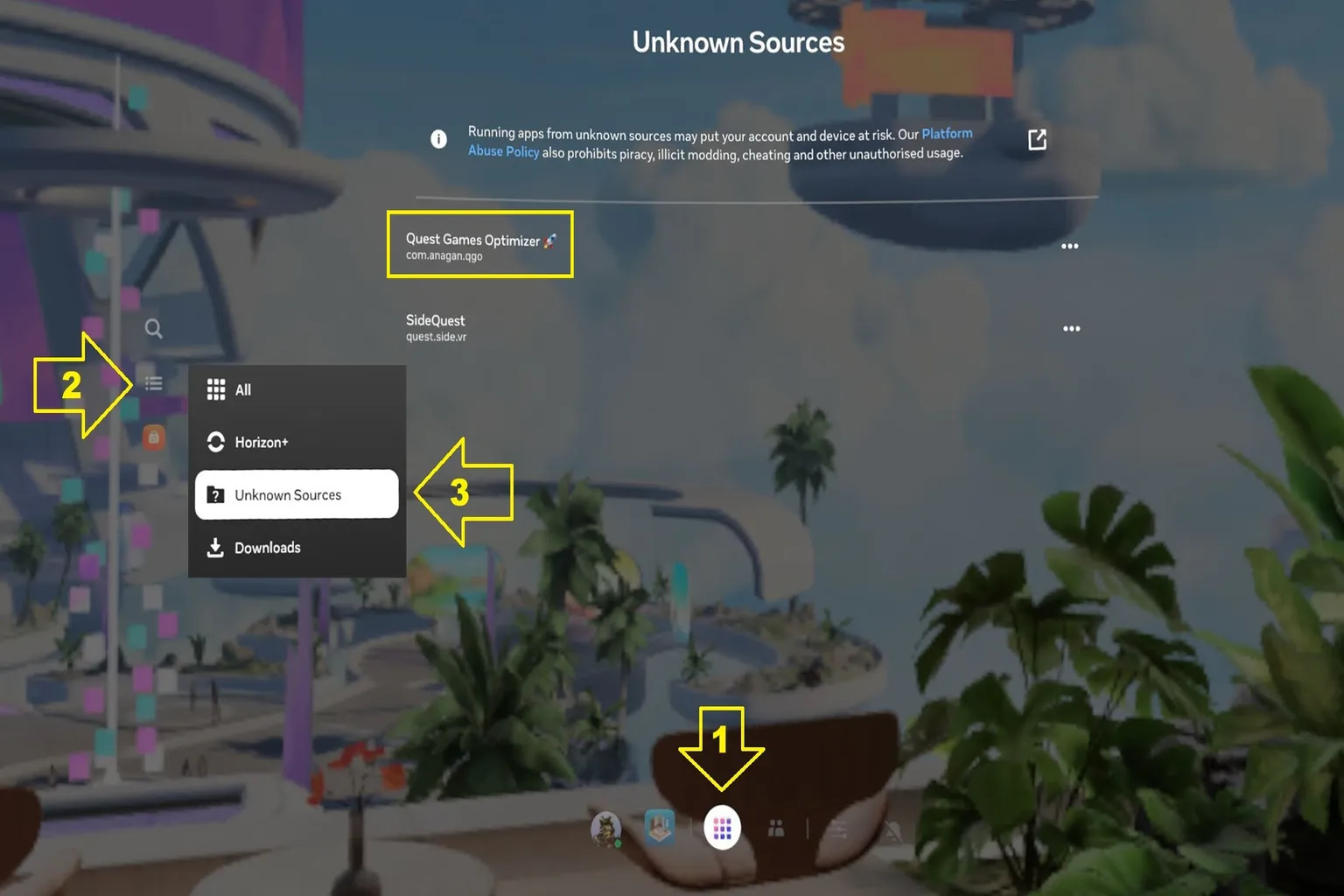
In the headset’s game library, go to Unknown Sources, and you should see the QGO app listed there.
Step 4: Set up inside the headset
When you launch QGO, you’ll first be asked to enter the email address you used at the time of purchase to complete online activation.
Once the verification goes through, you’ll be taken straight to the main app screen and can start using it.

Once you’ve confirmed that auto-detection is turned on, the installation is complete.
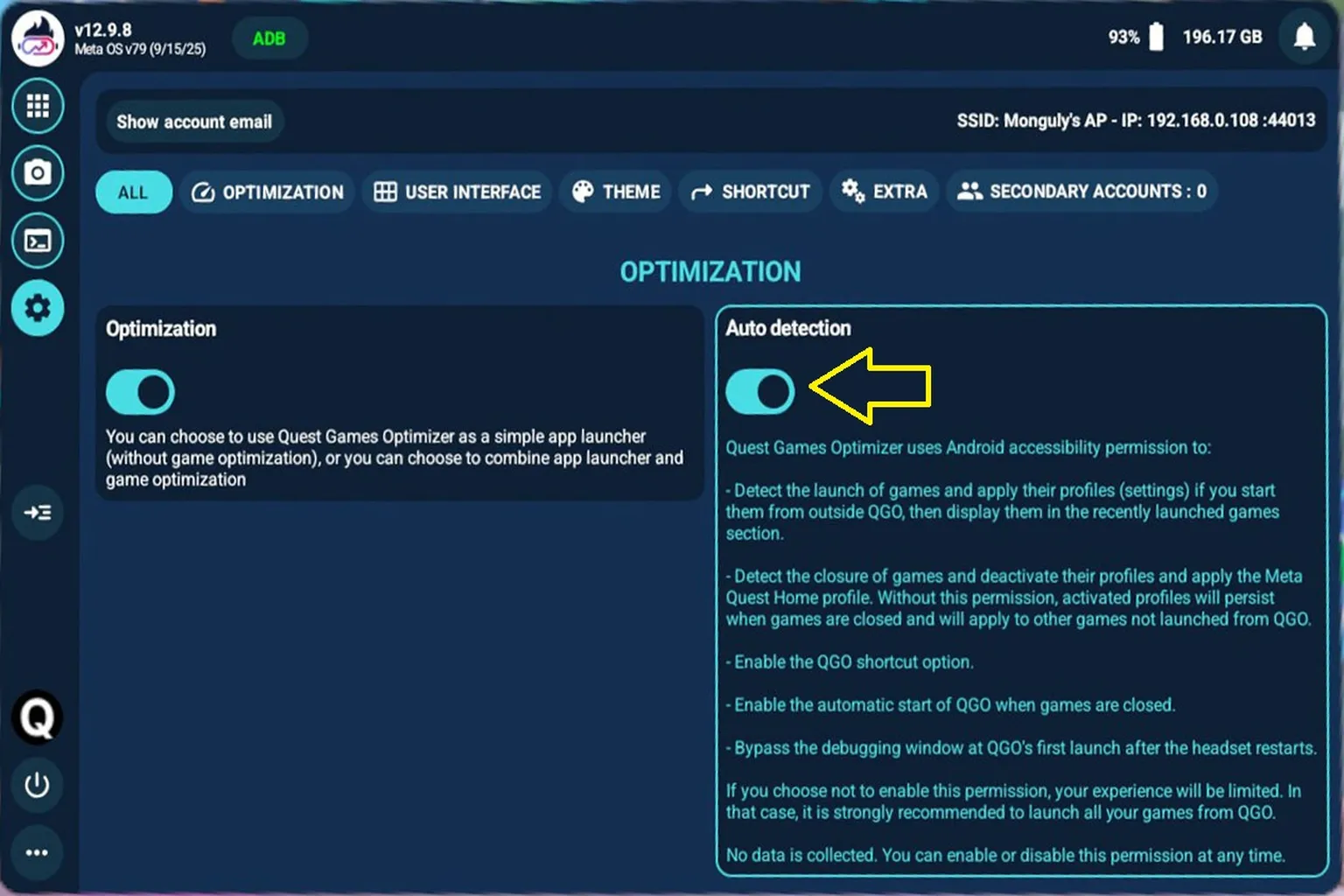
Once the setup is done, QGO is fully installed and ready to use. At this point, you’re probably wondering, “So what can it actually do?”
From here on, we’ll go through QGO’s features one by one, using before-and-after screenshots to clearly show the differences.
FAQ – Common Questions
Is QGO an official Meta product?
No. Quest Games Optimizer is not an officially authorized Meta tool, which is why you won’t find it in the official Quest Store. It’s sold through itch.io and provided directly by the original developer.
Will QGO affect the lifespan of my Quest headset?
QGO improves performance by adjusting performance levels and rendering parameters on the headset. Using high-performance profiles for long sessions can increase heat and power consumption. It is best suited for advanced users who understand the settings and adjust them based on the situation.
What if my credit card payment fails?
itch.io is an English-language site, so most English users usually won’t run into this issue. However, if you have Chrome or Edge translation enabled, it may cause a payment error.
To fix it, turn off the browser translation feature, or use PayPal for the payment.
I installed QGO but don’t see any visual difference. What should I do?
Not every game shows an obvious visual difference right away. In QGO, first check whether the game has an active profile. HD and HD+ profiles are mainly for improving visual quality, while Performance or Battery Saving profiles focus more on smoother gameplay or longer battery life.
Does QGO improve video playback quality for movies?
Not really. QGO can improve VR games by adjusting rendering, 3D models, and textures, but video streams or already encoded video files can barely be improved. So when watching movies, you should not expect a real image-quality improvement.