
Want to enjoy VR with your family or friends, but don’t want to buy the same games over and over? I’ll walk you through how to set up Meta Quest account sharing. This covers the main account and sub account setup, the rules for game sharing, and the limits when using it across different headset models.
With this, you can use multiple accounts on one headset, save a little money, and keep things convenient. You can share games while still keeping your own save data separate.
About Shared Accounts
When you buy a new Meta Quest headset, family or friends usually want to try it too. But handing it over can be stressful if you’re worried about your own game progress. That’s where Meta Quest’s game sharing feature comes in. On a single headset, you can add up to three sub-accounts, and those sub-accounts can play your games.
This feature can share more than just the main app.
It can also share some DLC, and even Horizon+ content can be shared together.
The sharing rules work like this:
- Games owned by your account (the primary account) can be played by both the primary account and all sub-accounts.
- Games owned by a family member or friend (a sub-account) can only be played by that specific sub-account.
In short:
On your primary account:
- Your own games: playable
- Sub-account games: not playable
On a family or friend’s sub-account:
- Your games: playable
- Their own games: playable
How to Let Sub-Accounts Play on the Same Headset
Meta Quest lets you register multiple accounts on a single headset. So if you want your kids, your spouse, your partner, or a friend to play the games you bought, this is the setup you’ll use.
Before you start, make sure you have the following ready:
- A Meta Quest headset that’s already logged in with the primary account
- A Meta account created in advance for the sub-account
Once those two are in place, you’re good to go. Just follow the steps below and set things up in order.
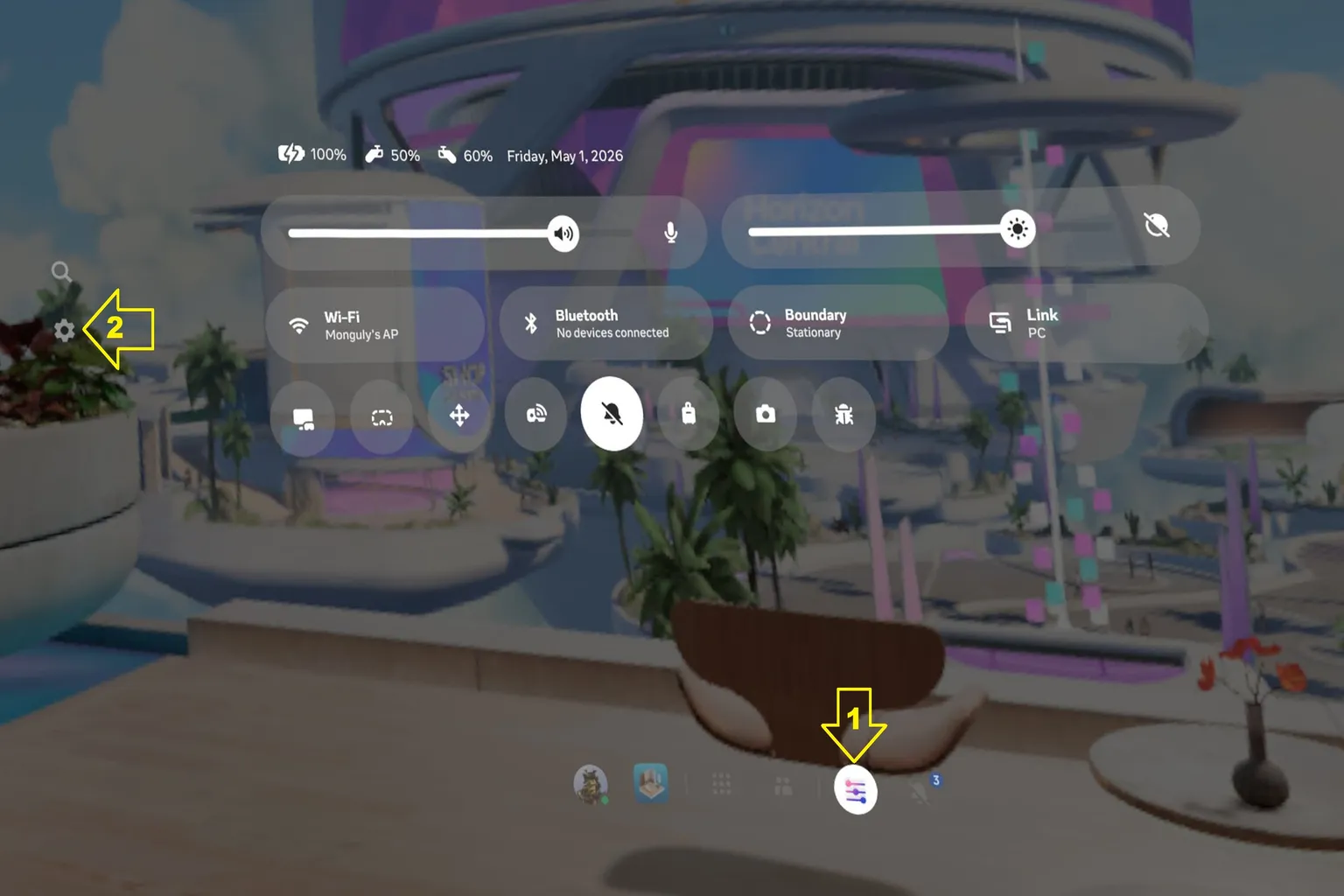
Step 1: Open the settings screen
Start up your Meta Quest, press the function button at the bottom of the screen, and open the quick menu.
Then press the ⚙️ icon on the left side to enter the settings screen.
Step 2: Open your profile
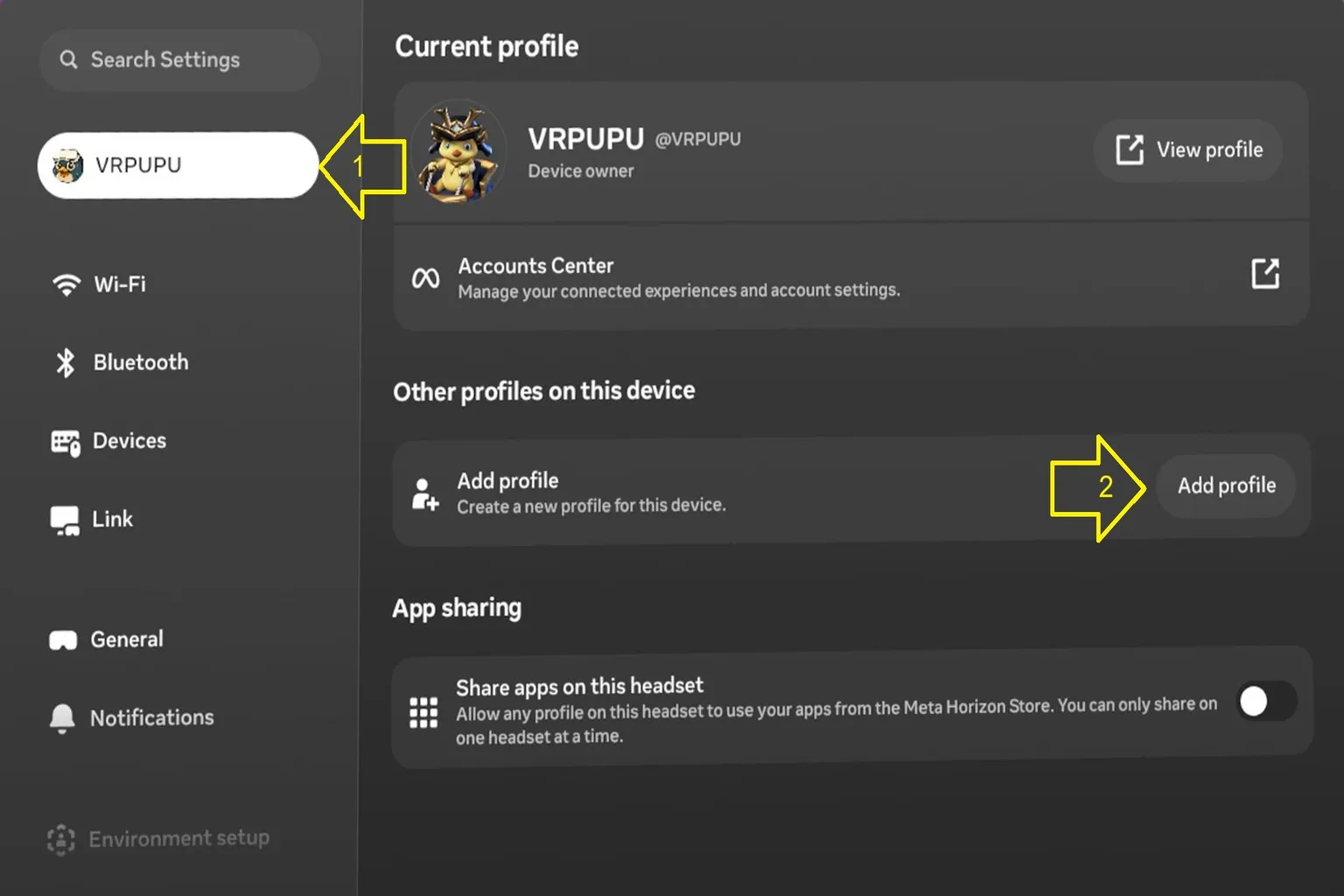
On the settings screen, click Personal account on the left.
Then choose Add profile in the right corner.
Step 3: Add an account
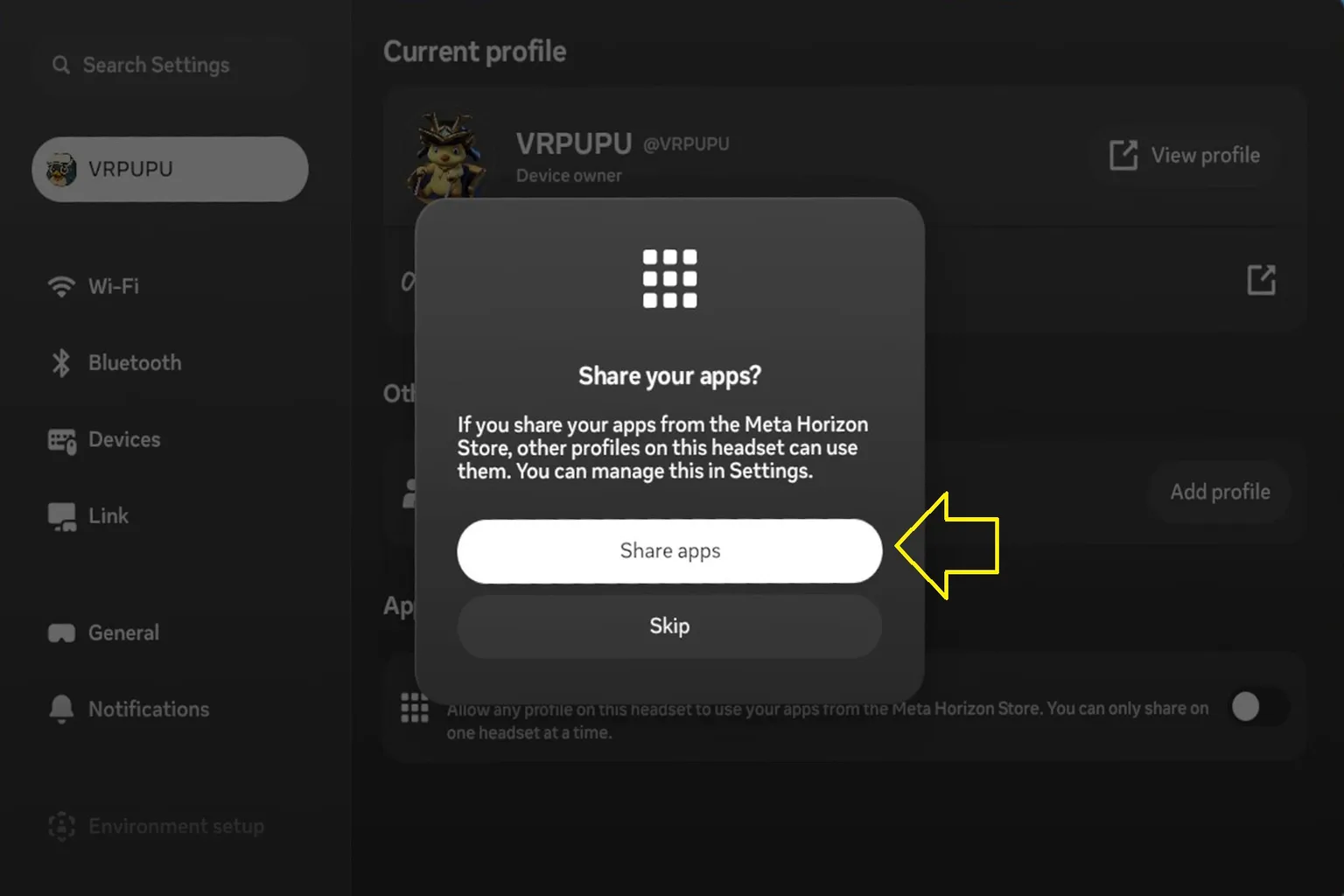
After you press Add profile in Step 2, Meta Quest will ask whether you want to share apps and games with the account you’re adding.
Here, press Share apps.
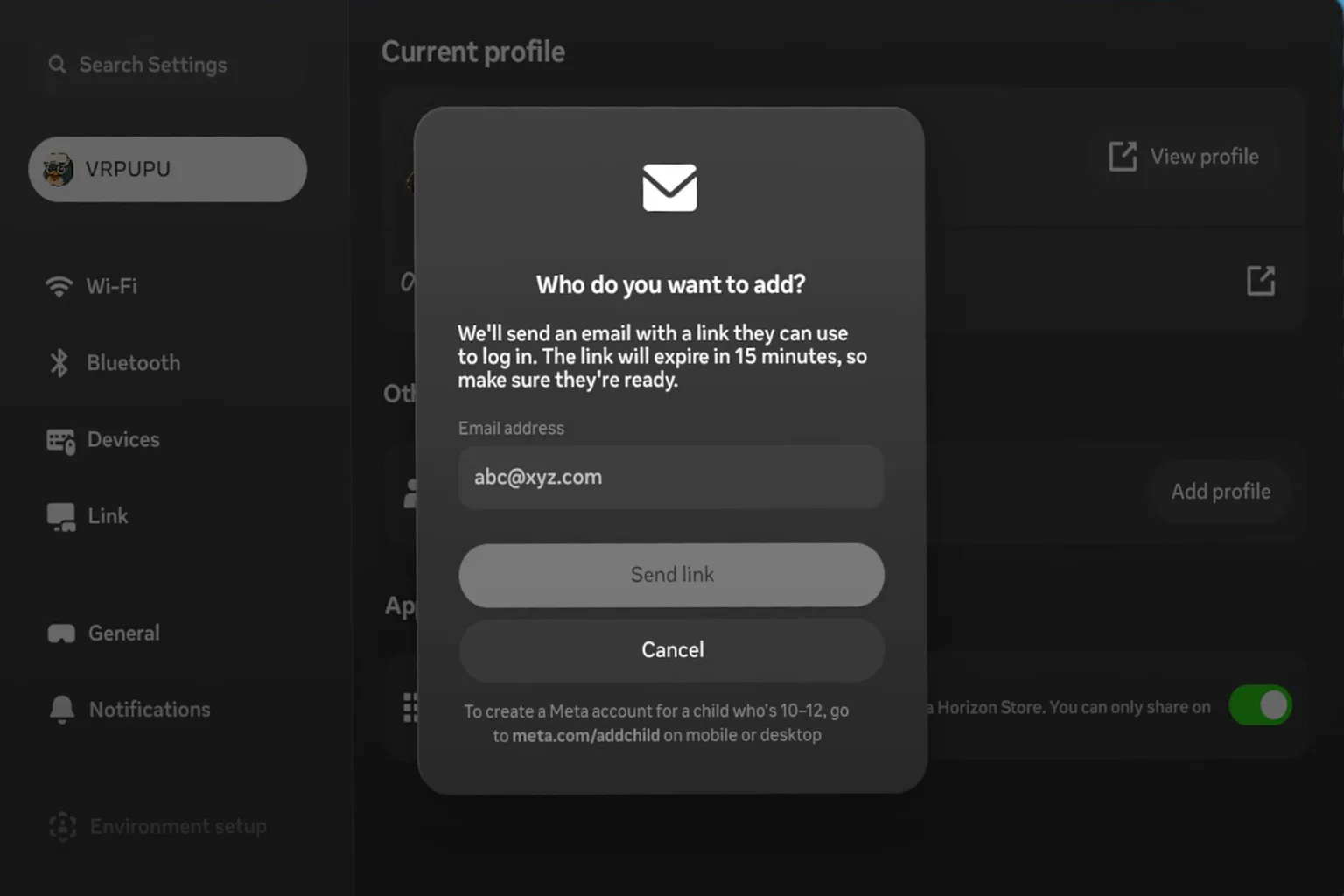
Next, enter the email address of the family member or friend you want to invite.
Once you’ve entered it, press Send link.
Step 4: Add the sub account
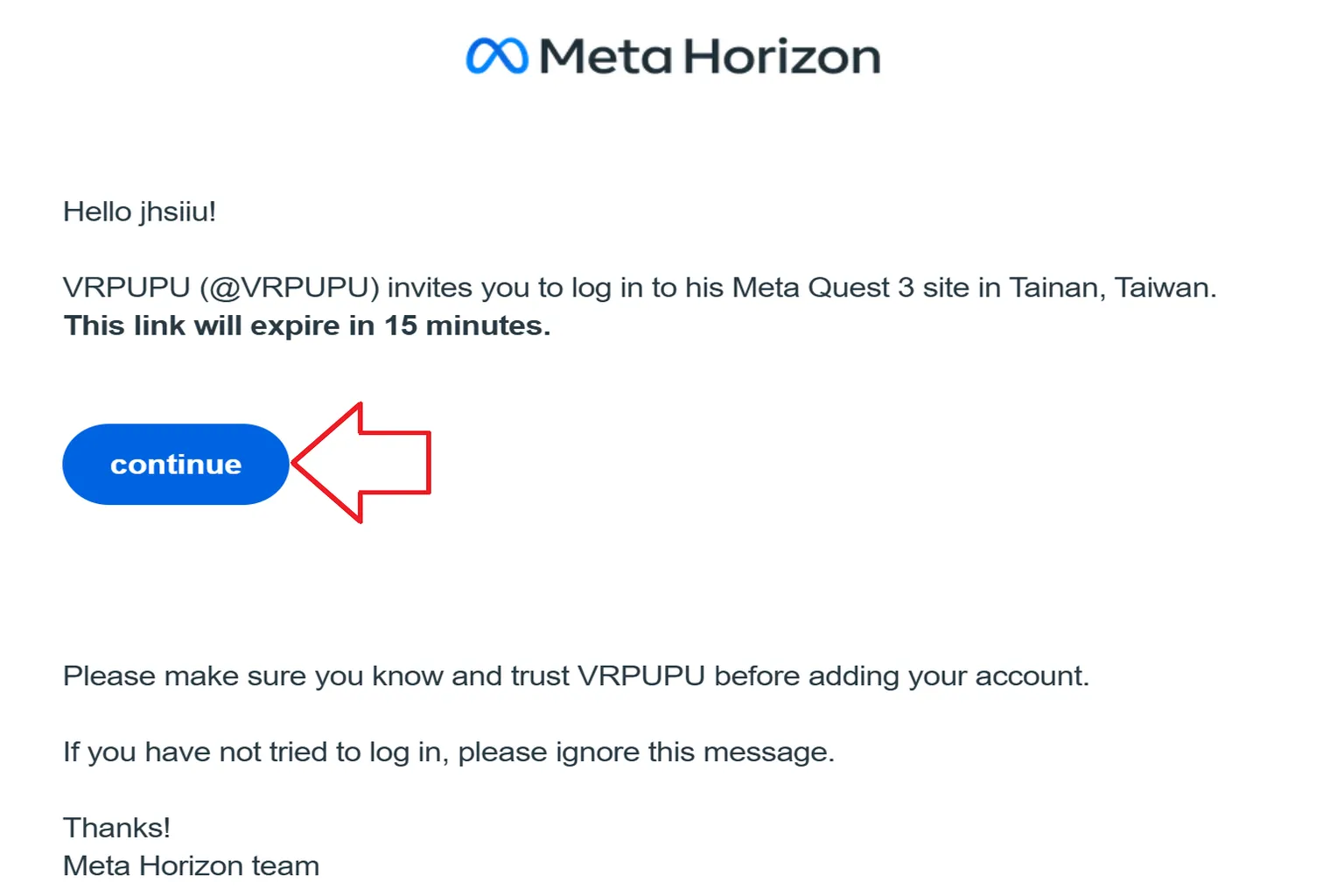
Meta will send an invitation email to the email address you entered.
After you receive the email, press Continue as soon as you can.
This email is only valid for 15 minutes. Once that time passes, the link will stop working.
If the link expires, go back to Step 3 and try again.
Step 5: Confirm the account you’re adding
When you press the link in the email, Meta’s website will open.
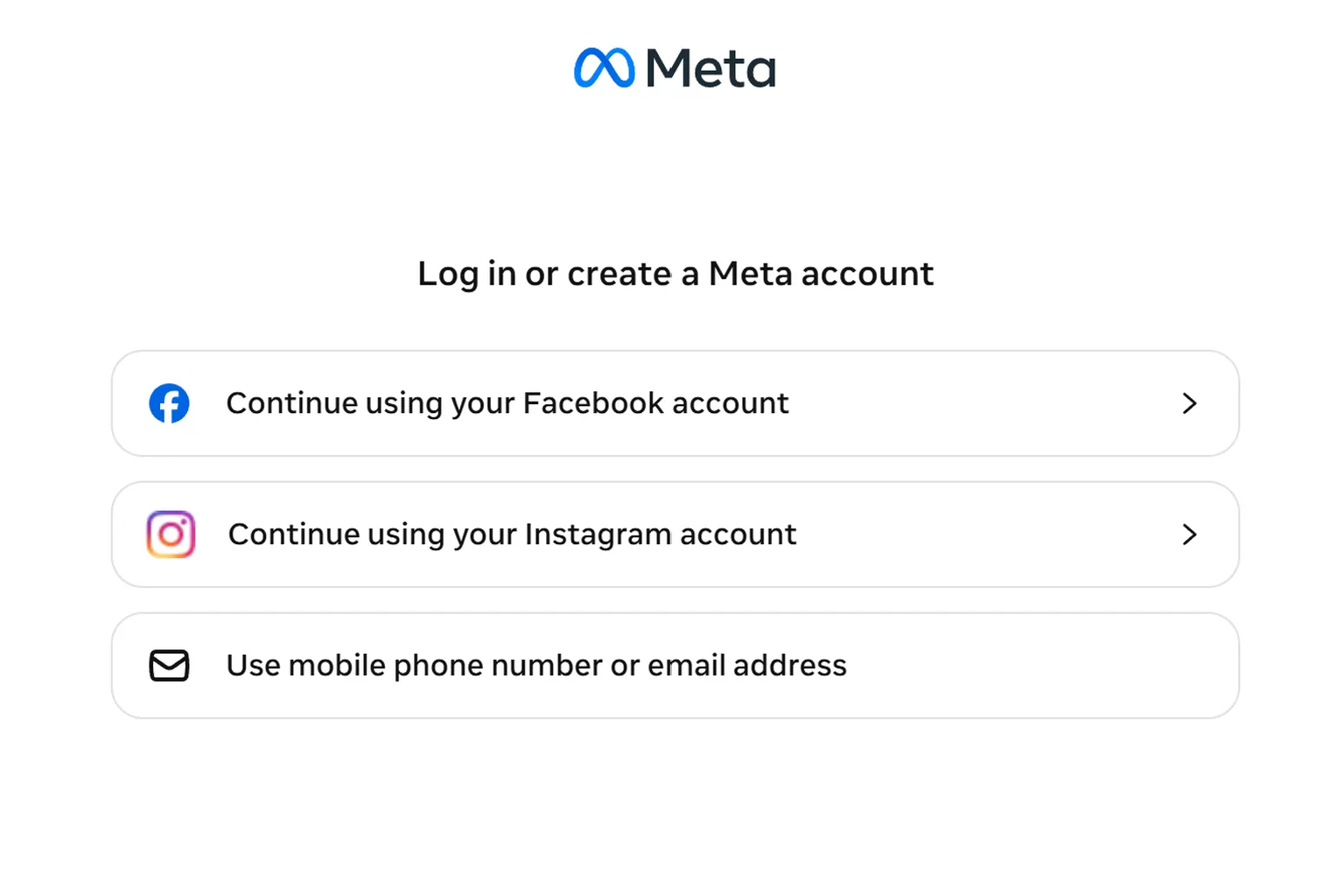
Log in with the Meta account of the person who was invited.
You can log in with Facebook, Instagram, or an email address.
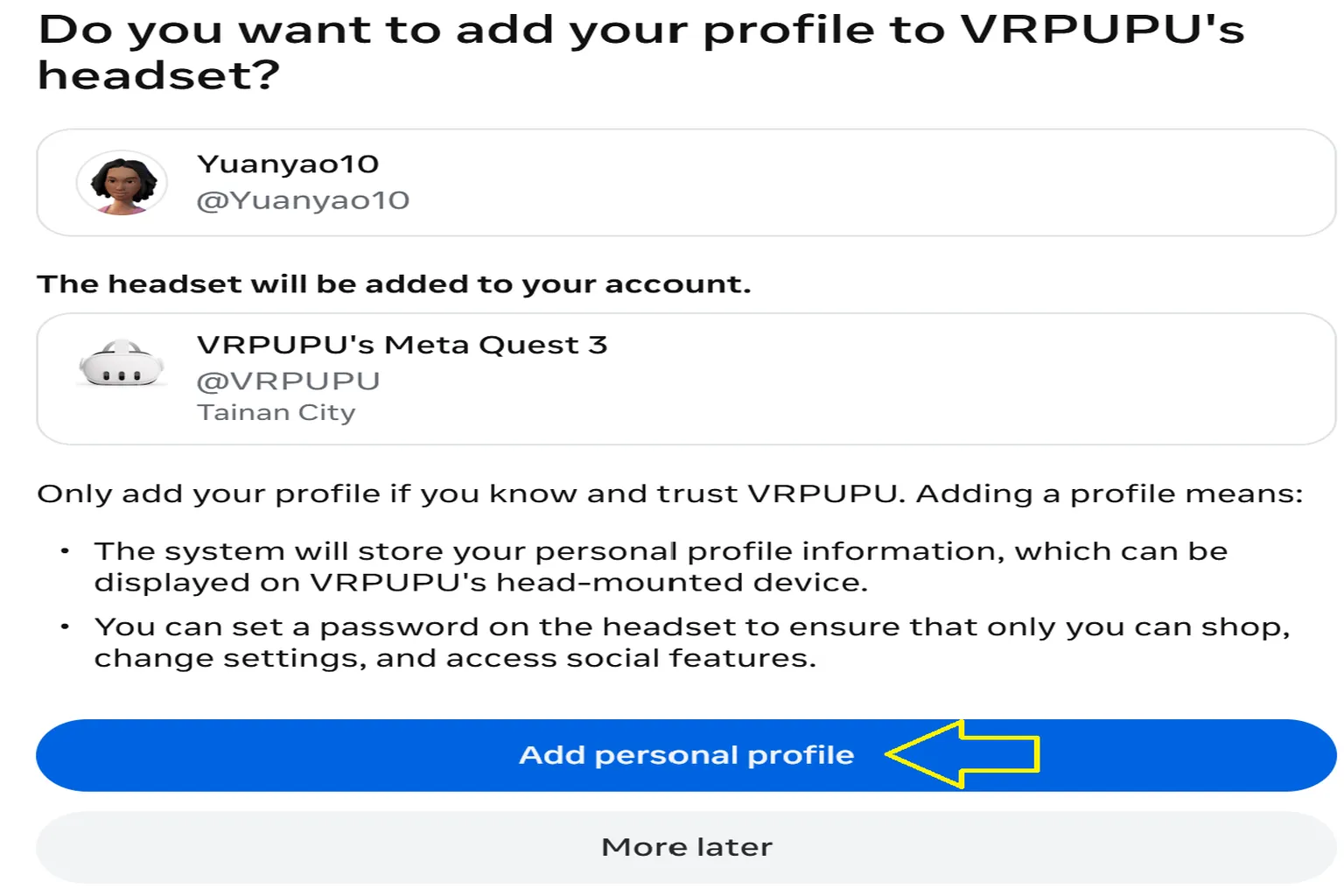
Next, check that the Meta Quest headset you’re logging in to is the correct one.
If everything looks right, press Add personal profile.
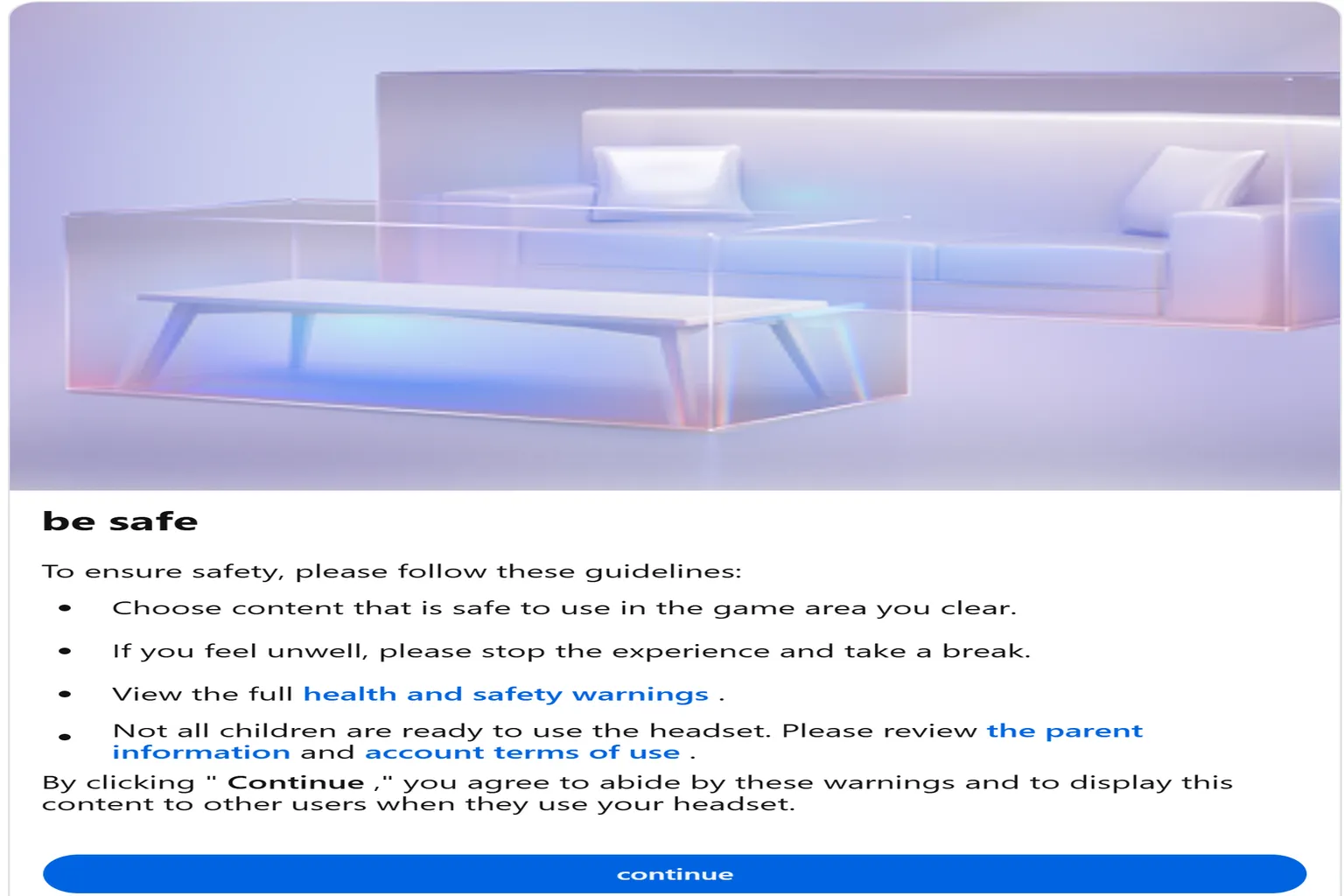
Next, Meta Quest will show a few safety notices.
After you read them, press Continue.
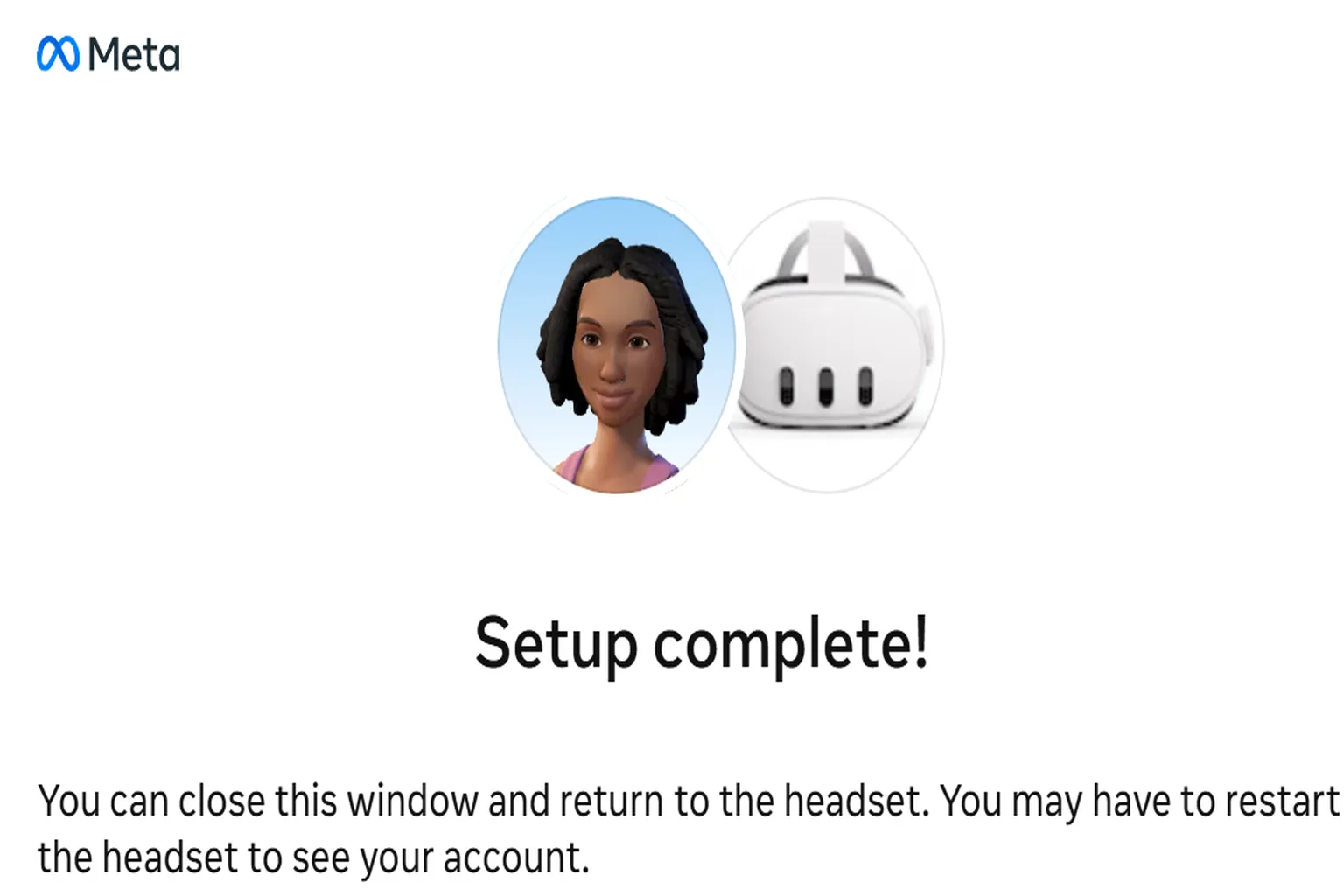
Once it’s done, the screen will show that setup is complete.
Step 6: Check the account you added
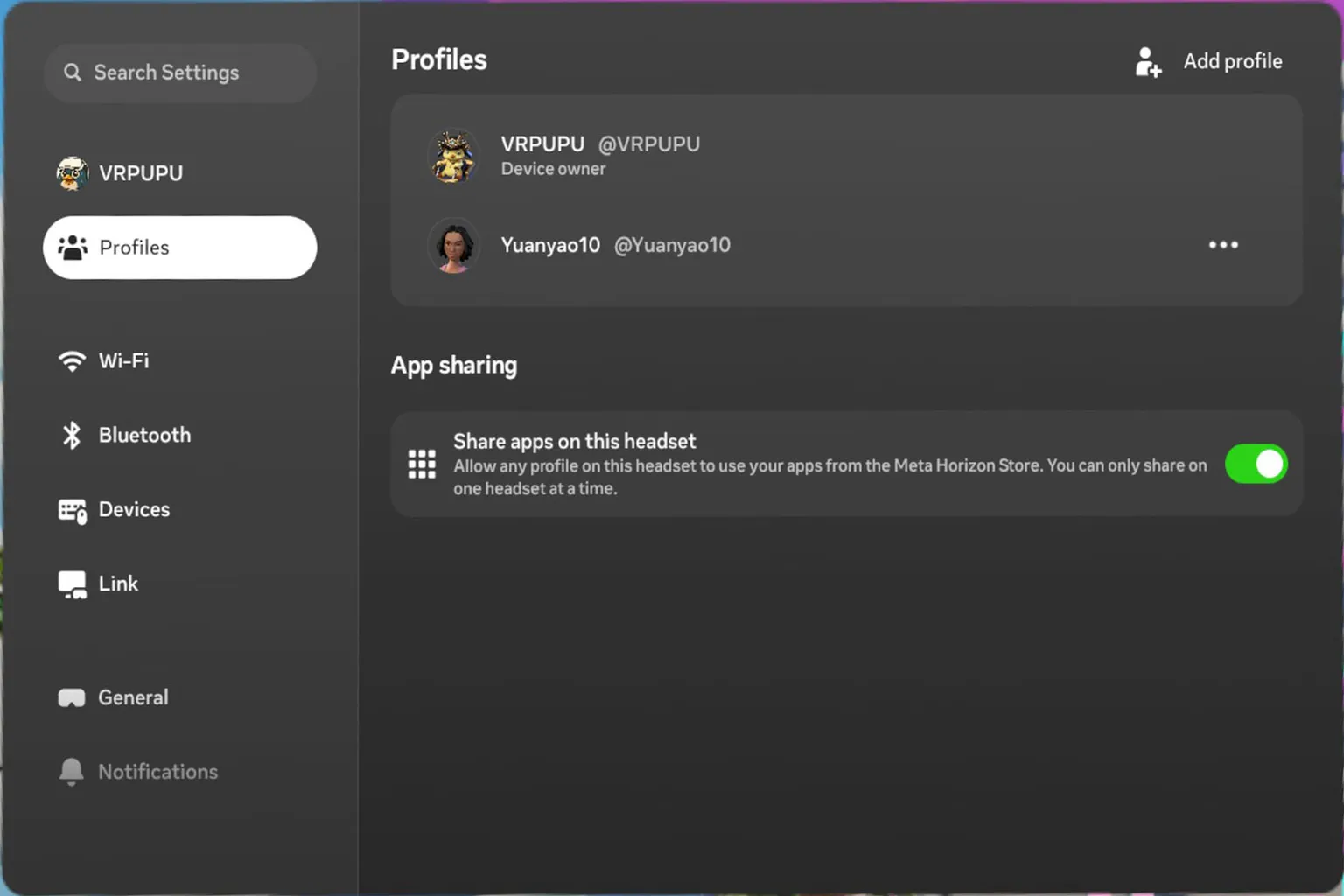
Go back to the profile screen from Step 2.
At this point, you should be able to confirm that the invited account is now logged in on this Meta Quest headset.
Step 7: Switch accounts
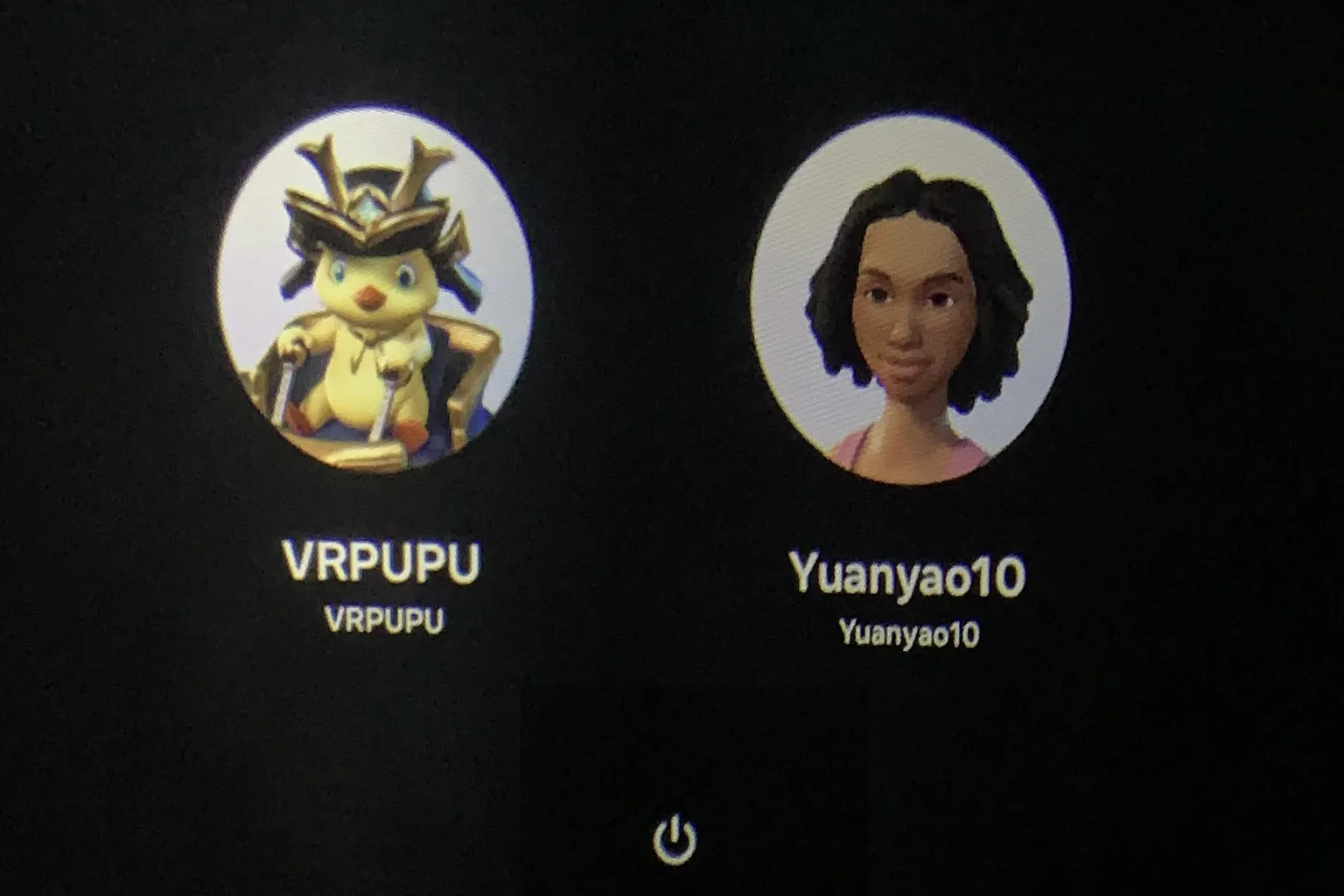
Once multiple accounts are enabled, the Meta Quest login screen will show an account selection screen.
Here, choose the sub account you just added.
The first time you log in on the headset, Meta Quest will show an introduction to the controls.
Once that’s finished, you can start using it.

The sub account’s game library will show the games shared from the main account.
Once the download is finished, you can play them normally.
Even if both the main account and the sub account download the same game, Meta Quest automatically shares the game’s data folder.
It will not take up twice the storage space.
However, game progress is saved separately for each account.
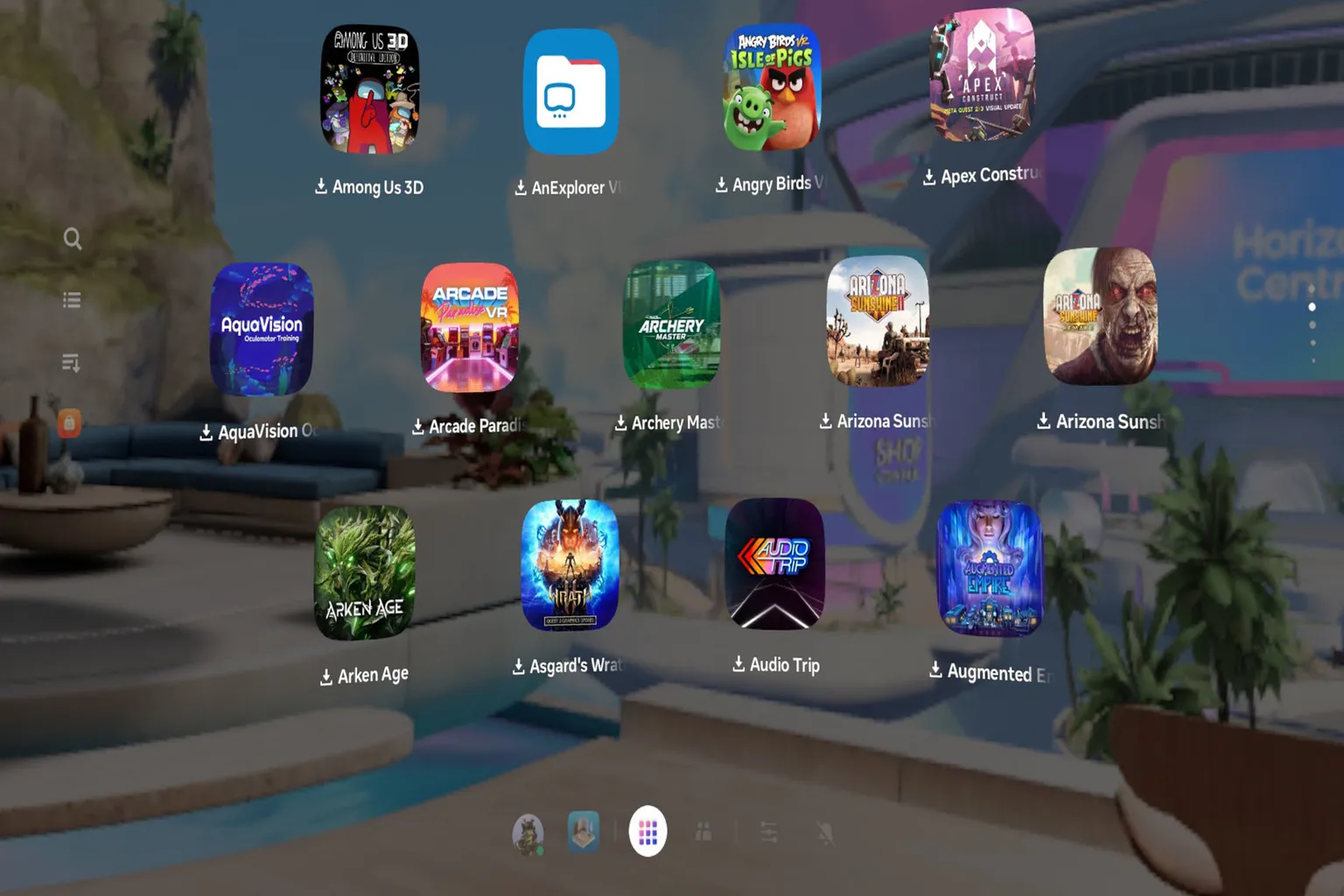
If you want to switch accounts while using the headset, press Me at the bottom of the screen.
Then choose View profile.
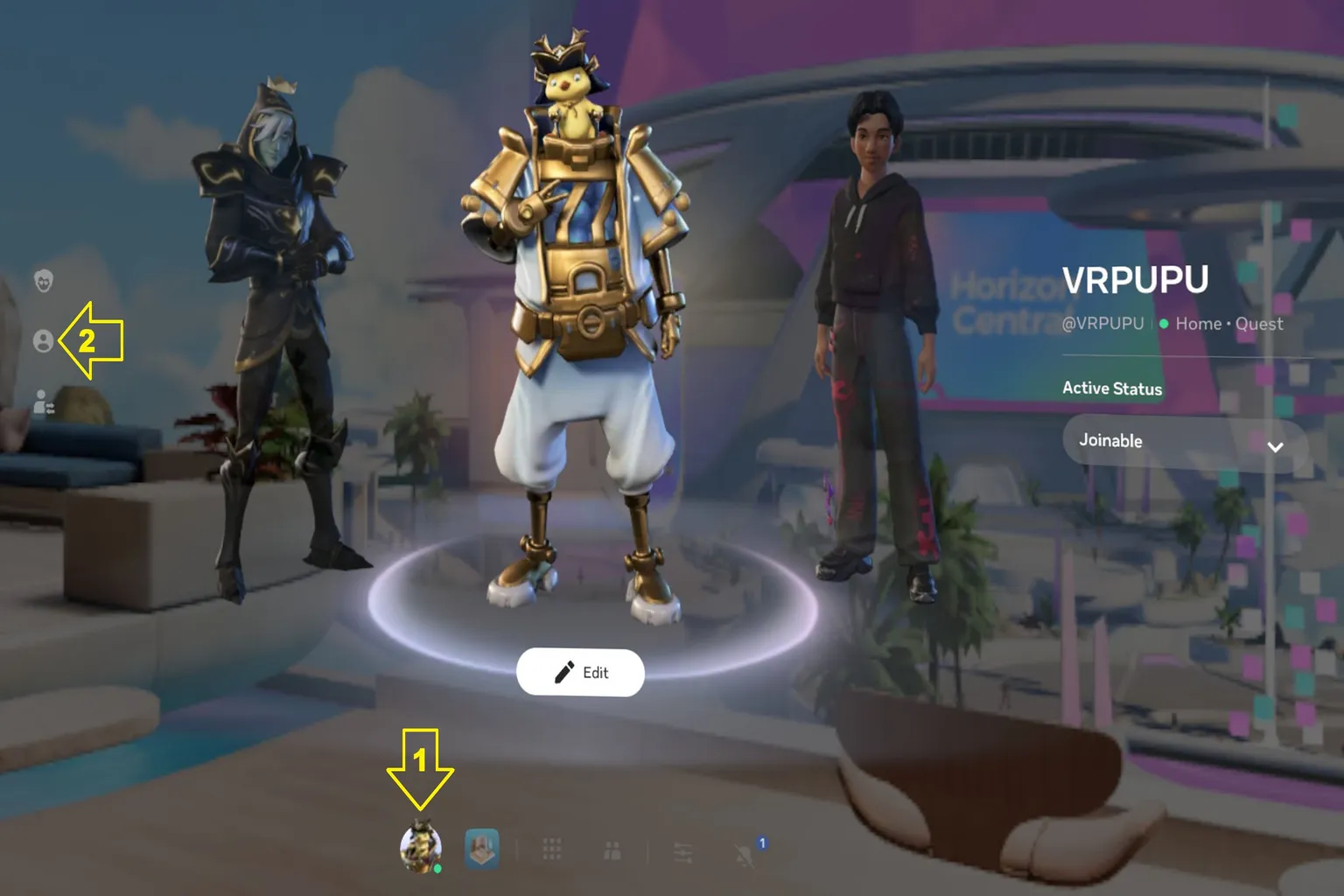
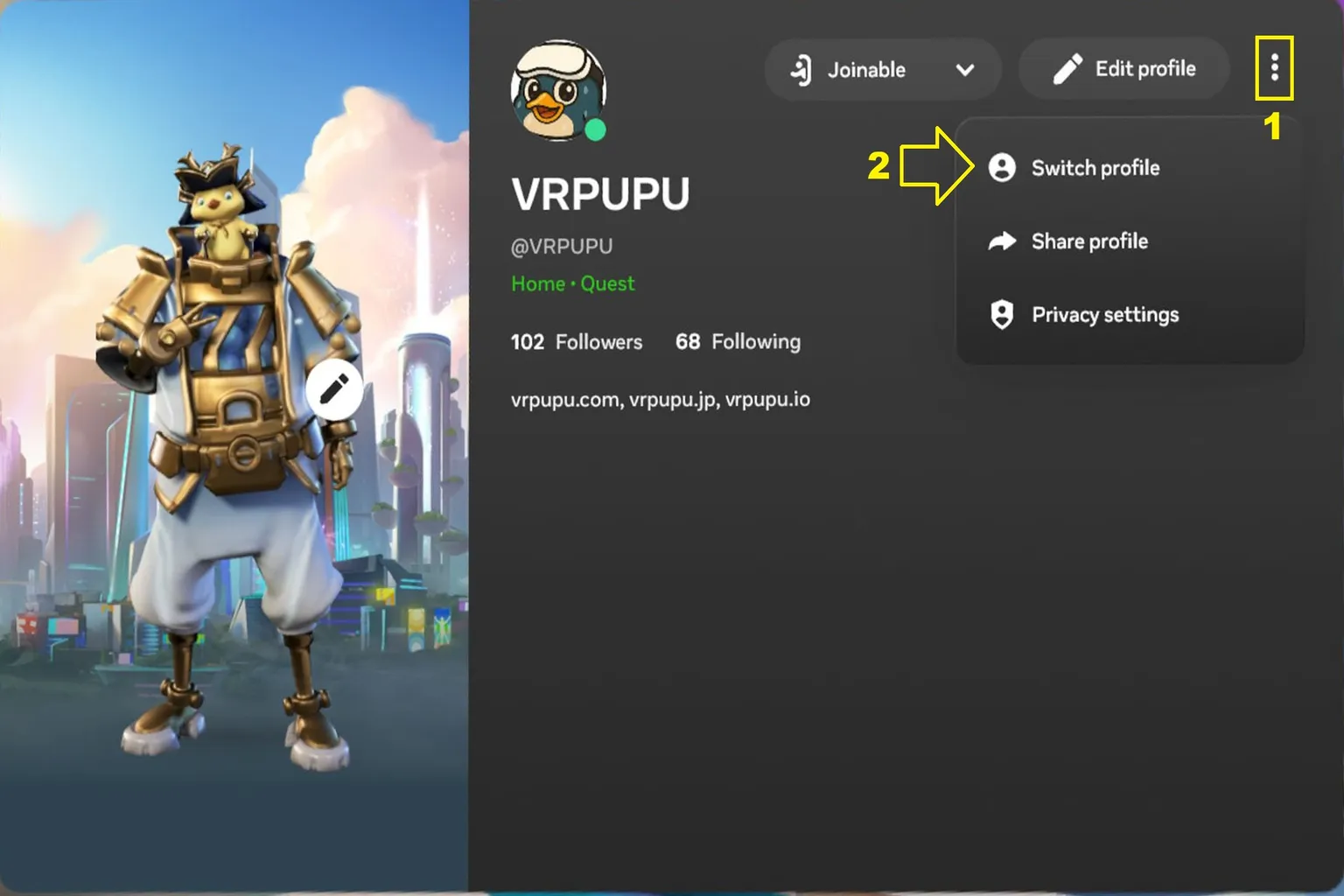
On the Profile screen, press ⋮ in the upper-right corner.
Then choose Switch profile to return to the account selection screen from Step 7.
That flow feels a little annoying, though.
I think it’s easier to press the power button on the headset once, put the headset to sleep, and then wake it up again.
This method also takes you to the same account selection screen.
Delete a sub account
If you do not want to use the sub account feature, open the profile screen.
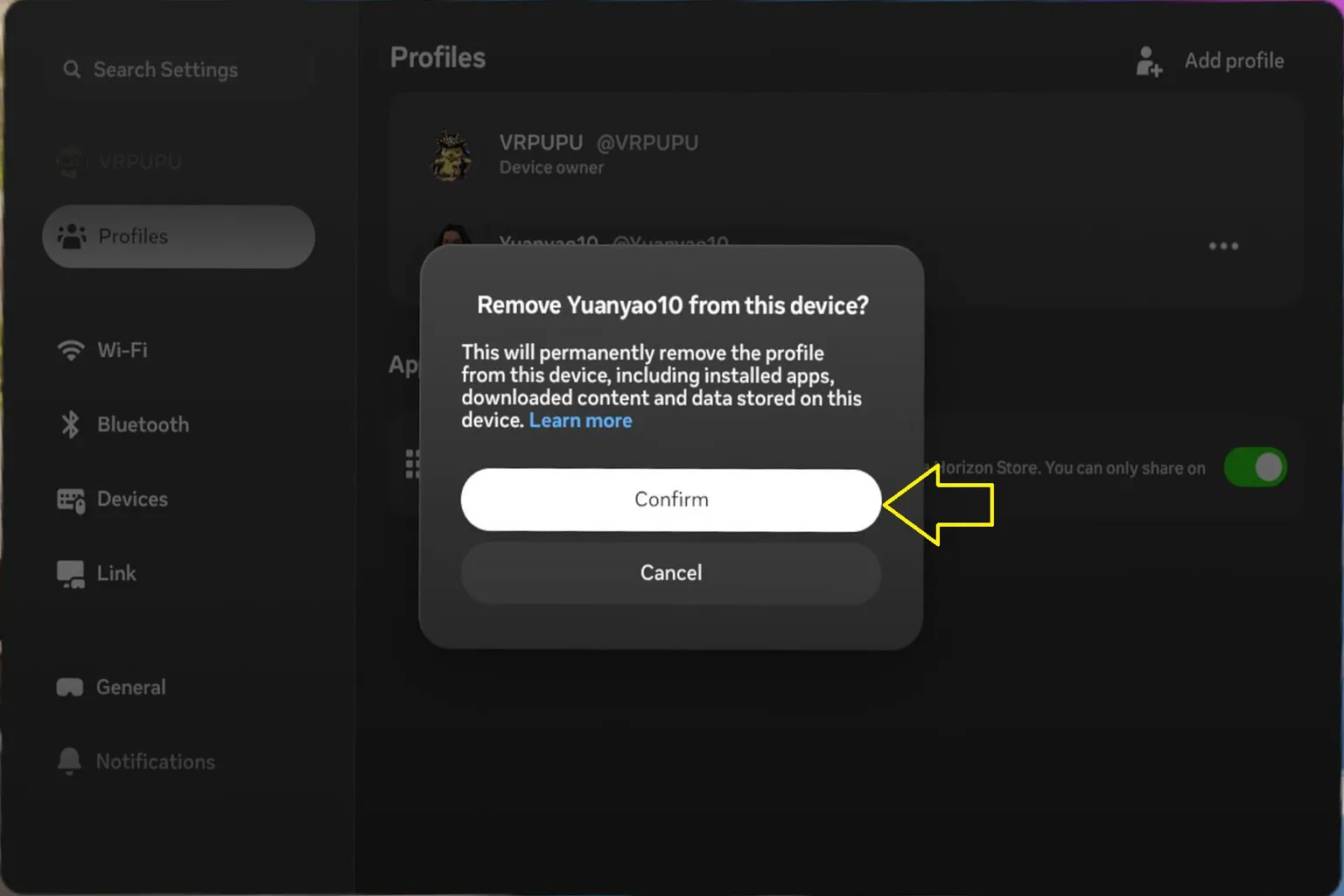
Press ⋯ next to the sub account, then choose Remove.
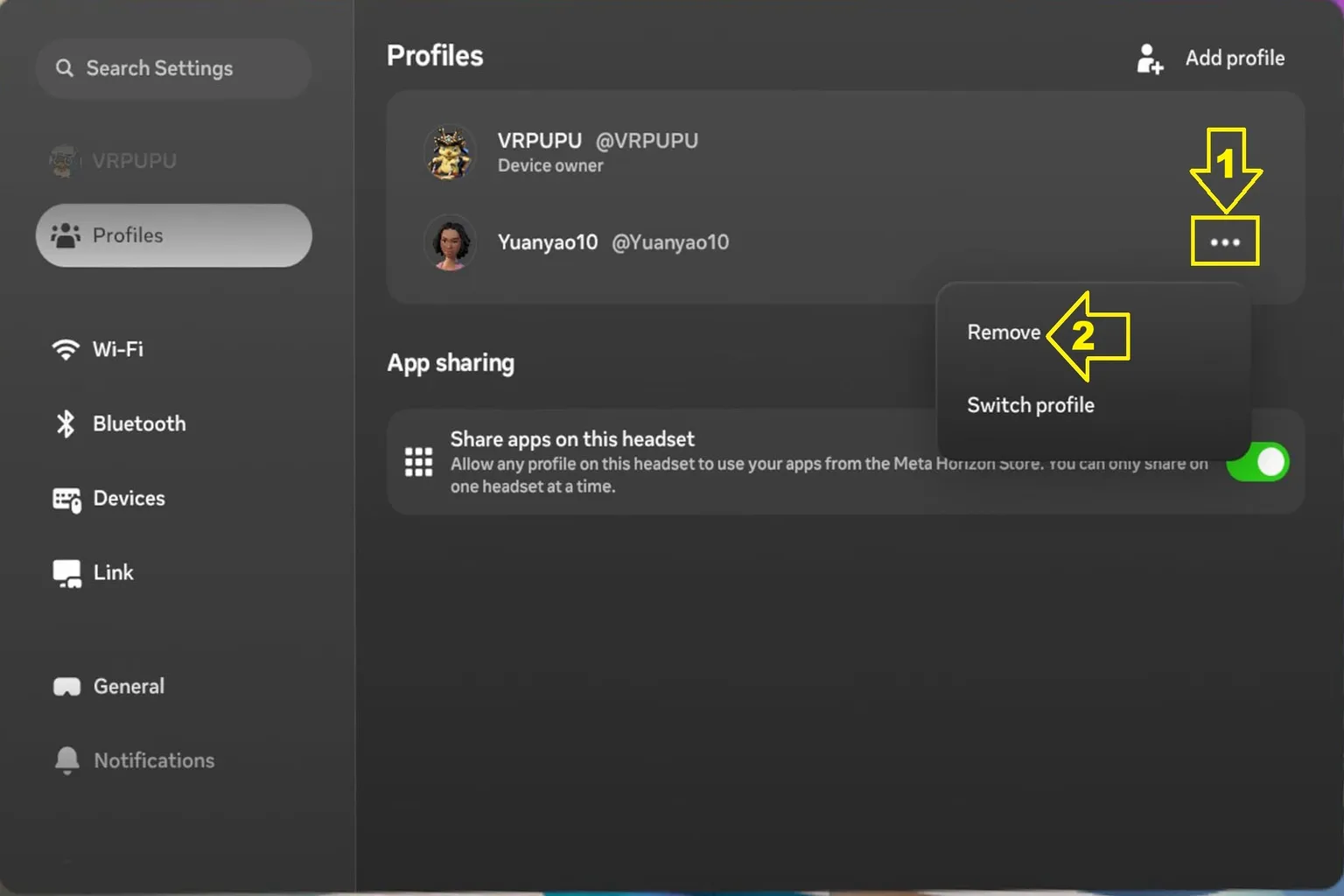
Press Confirm, and the sub account will be deleted.
One thing to keep in mind: when you delete a sub account, the games downloaded with that account, along with saved images, videos, and other data, will also be removed from this headset.
If the headset is connected to Wi-Fi and the game supports cloud backup, save data is basically uploaded to the cloud automatically.
If you log back in with the same account later, you can download it again.
If You Want to Buy One Game and Play It on Two Headsets
If you own two Meta Quest 3 headsets and want to buy a game just once but play it on both, this setup works best:
- Headset A (for you): Log in with your Meta account
- Headset B (for family or friends): Log in with your Meta account first, then create a sub-account for your family member or friend
| Account | Your games | Family / friend games |
| Headset A: your account | Playable | Not playable |
| Headset B: your account + family/friend sub-account | Playable | Playable |
With this setup, the second headset can use account sharing to play your games.
If You Want to Share Games Both Ways Across Two Headsets
This setup is often used when two friends each own a lot of games and want to swap libraries so they can play each other’s games.
There’s a catch, though. Meta only allows one primary account per headset, so you can’t do this with the standard setup. Instead, here’s how it works:
- Your headset (for you): Set your friend’s account as the primary account, and add your account as a sub-account
- Your friend’s headset (for them): Set your account as the primary account, and add your friend’s account as a sub-account
| Account | Your games | Family / friend games |
| Your headset: friend’s account (primary) + your account (sub) | Playable | Playable |
| Friend’s headset: your account (primary) + friend’s account (sub) | Playable | Playable |
This method requires resetting both headsets and swapping the accounts, so it’s a bit of a hassle. Honestly, it’s not something I’d really recommend.
Downsides of shared accounts
The nice thing about this Meta feature is that it can help you save a little money on games.
However, if you have two accounts on one headset, you’ll get an extra “Select account” step every time you start it up.
That makes the startup flow feel a little slower.
Also, some content may be visible between accounts, so privacy is a bit weaker.
If you use account sharing, I recommend setting up passcode protection at the same time.
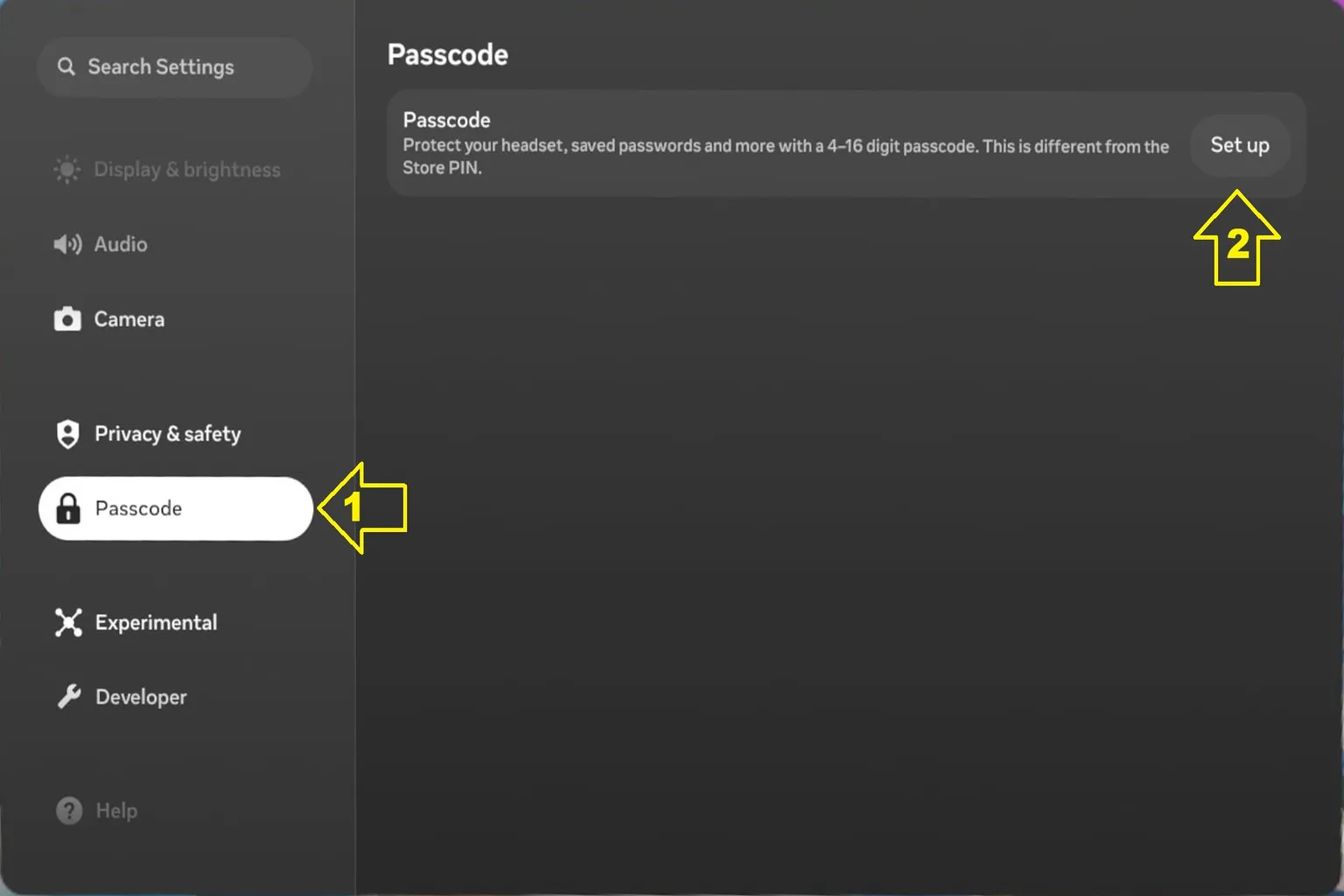
Go back to the settings screen from Step 2, scroll down, choose Passcode, and set a numeric passcode.
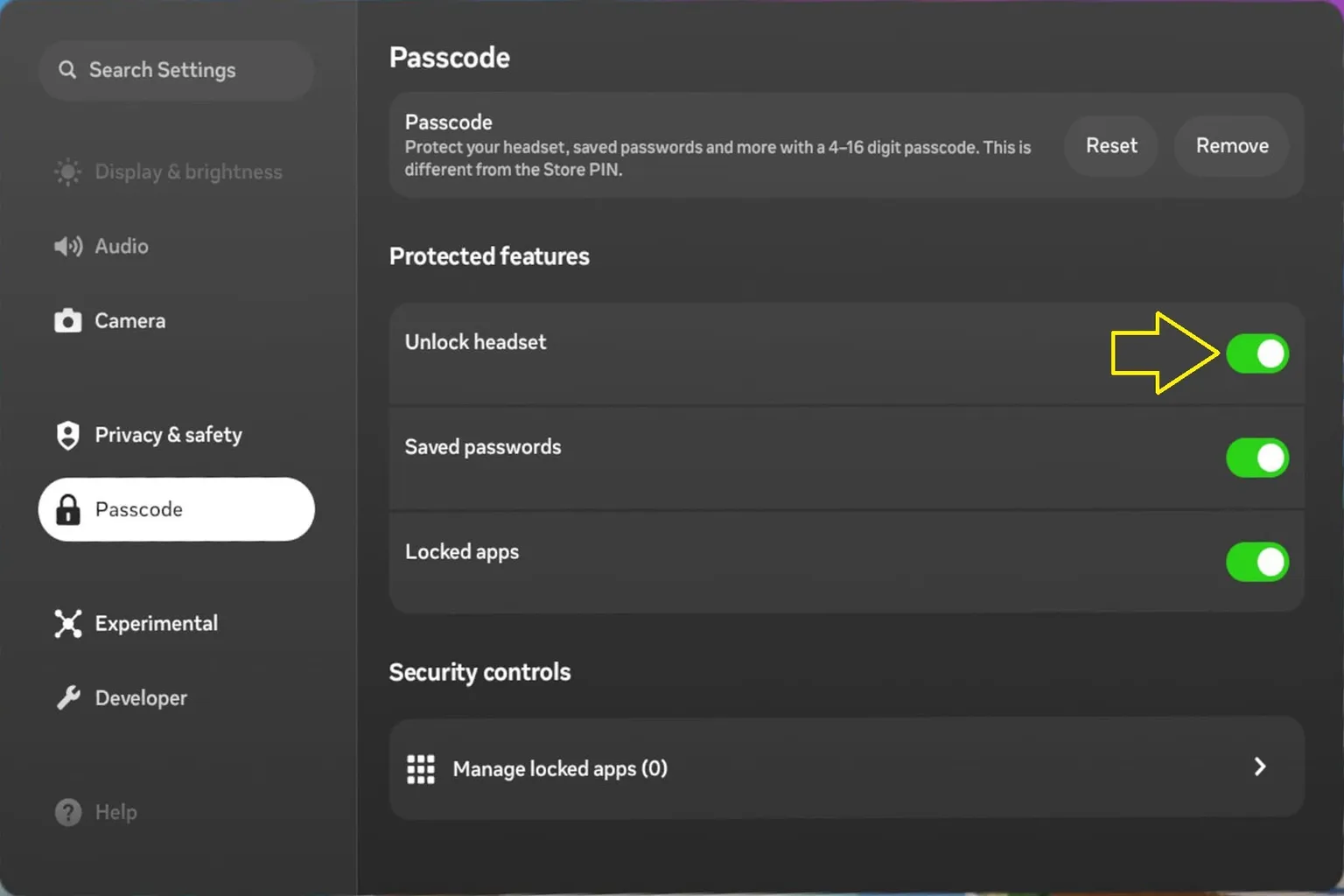
Turn on Unlock headset under Protected features.
After that, you’ll need to enter the passcode every time before entering your own account.
This makes it easier to prevent family members or friends from accidentally logging in to your account.
If you’re going to share your account with family or friends anyway, it’s way cooler when your game library actually looks solid.
I’ll recommend a few games I’ve played myself that are genuinely fun and easy on motion sickness, so you can pick from those.
Set it up right, and even your best friend will be like, “Wow, this library is actually really good.”
FAQ – Common Questions
How many accounts can you create on one Meta Quest device?
You can create up to 4 accounts on a single headset:
1 primary account and up to 3 sub-accounts at the same time.
Can sub-accounts play games purchased by the primary account?
Yes. As long as App Sharing is enabled on the primary account, sub-accounts can play the primary account’s games.
Not every title supports sharing, but most games work without issues.
Can sub-accounts see the primary account’s social data or personal info?
No. Each account logs in separately, so social data, friend lists, and message notifications are not shared.
Your privacy is protected.
That said, if you don’t set a password and someone logs directly into your primary account, they’ll be able to see everything. Make sure to enable password protection.
Do sub-accounts have their own save data and progress?
Yes. Each account has its own save files and progress. Nothing overlaps or interferes with other accounts.
Can the same purchased games be played on two Quest headsets?
Yes, but there are limitations.
If your primary account is set as the main account on Headset A, and you log into Headset B as a sub-account with App Sharing enabled, the games can be played.
However, if the same game is launched on both headsets at the same time, one of them may be force-closed by the system.
Will a game be force-closed if a sub-account is playing it on another headset?
Yes, it can happen.
In short, one game tied to one account can only be actively played on one headset at a time.
Can I let my child use my headset and play games I bought?
Yes. Set your account as the primary account on that headset, then create a sub-account for your child.
Your child can play your games using their own account, and your personal progress won’t be affected.
When is sub-account sharing most useful?
- When the whole family shares one headset but wants separate progress
- When you own two headsets and want one for yourself and one for a friend
- When you want to save money by buying a game only once
- When you want a friend to try your games without sharing your login info