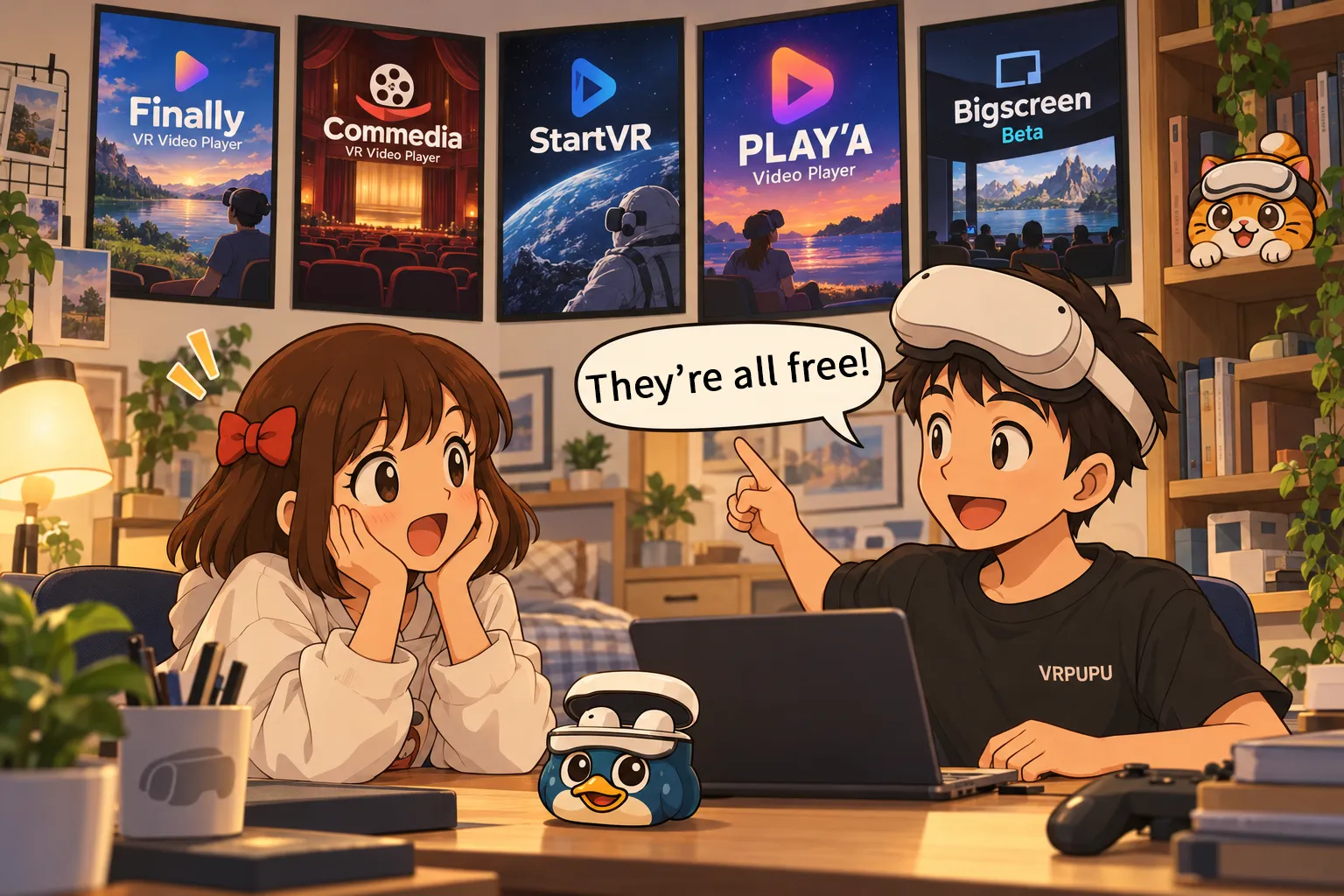
Do you really need a paid video player for Meta Quest? I tested five free options—Finally, Commedia, StartVR, PLAY’A, and Bigscreen Beta—and compared USB, SMB, DLNA, WebDAV, viewing scenes, and ease of use.
Free Video Players for Meta Quest
Watching videos is one of the most common things people use Meta Quest for.
Whether it’s regular movies, 3D movies, VR180, or 360-degree videos, if you watch a lot of video on Quest, you may have already bought a video player.
SKYBOX VR Video Player, Moon VR Video Player, and 4XVR Video Player all have polished interfaces and a solid set of features.
But if you just want to watch a video once in a while, or occasionally open one stored on your PC, do you really need to pay for a video player?
Are there any free video players?
Yes. There are several video players you can use on Meta Quest for free. For this roundup, I picked five of them to try out.

Finally VR Video Player
Feature-packed, but the UI is quite complicated
Recommendation: 🌟

Commedia VR Video Player
Simple and easy to use
Recommendation: 🌟🌟
StartVR
Super simple—open it and start watching
Recommendation: 🌟🌟

PLAY’A Video Player
A good balance of features and ease of use
Recommendation: 🌟🌟🌟
Bigscreen Beta
Great for streaming, but limited for local playback
Recommendation: 🌟
They can all handle basic video playback, but there are some pretty big differences in features.
Let’s go through them one by one.
Finally VR Video Player
This free video player launched in July 2026, and its feature set is strong enough to compete with well-known players like SKYBOX.
It supports videos stored on the headset, USB drives, SMB, WebDAV, and even Plex. In the Sources section at the bottom of the home screen, you can add video folders or connect to a PC. CFG opens the settings menu.
The center of the screen shows the video folders available for playback.
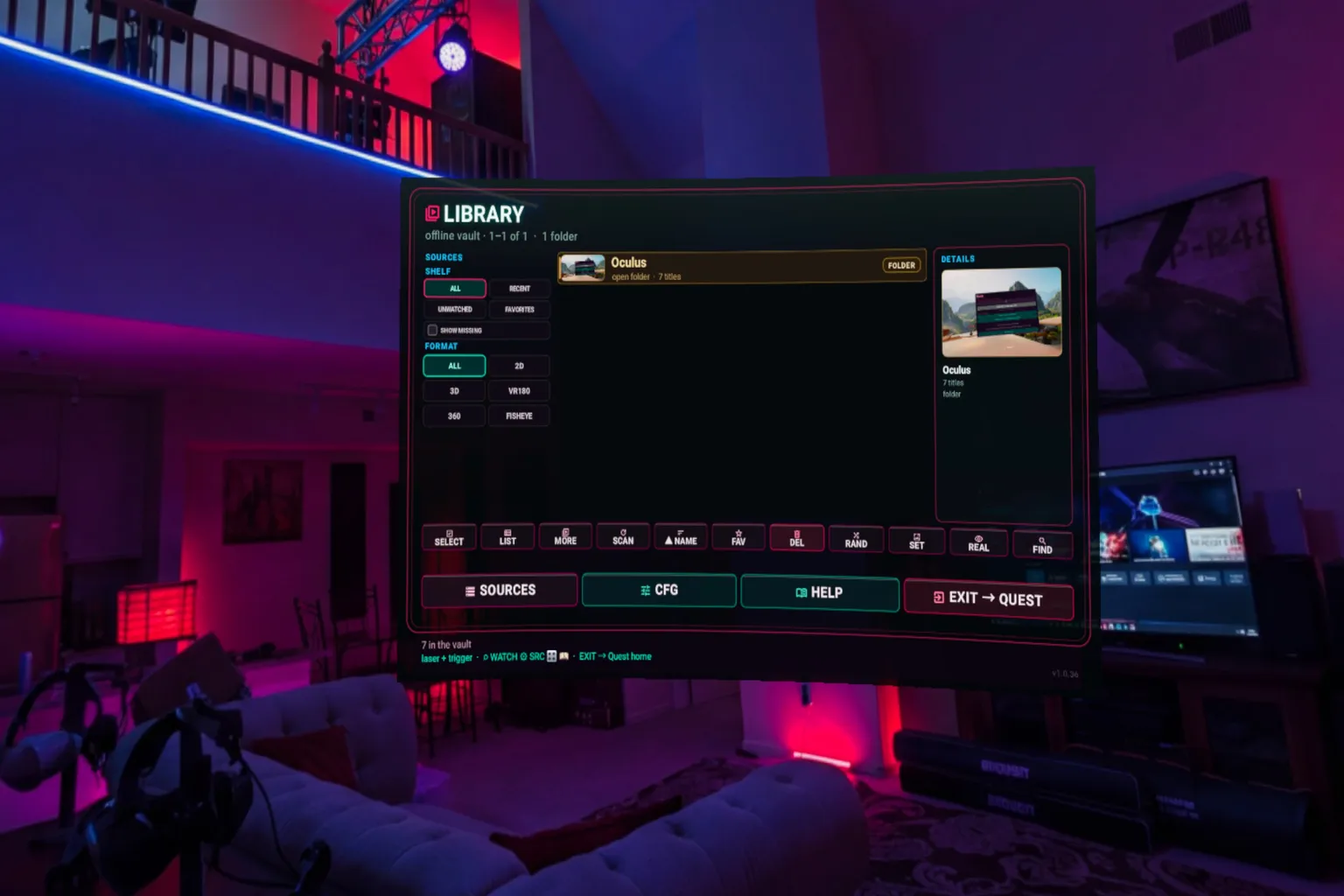
The problem is that it starts to feel a little tedious almost as soon as you open it. Each function sits in its own small panel, so you end up going through them one by one.
HereSphere VR Video Player is one of the most complicated players I’ve introduced so far, and Finally VR Video Player isn’t far behind in that regard.
This is the settings screen, and it’s packed with options for fine-tuning just about everything.
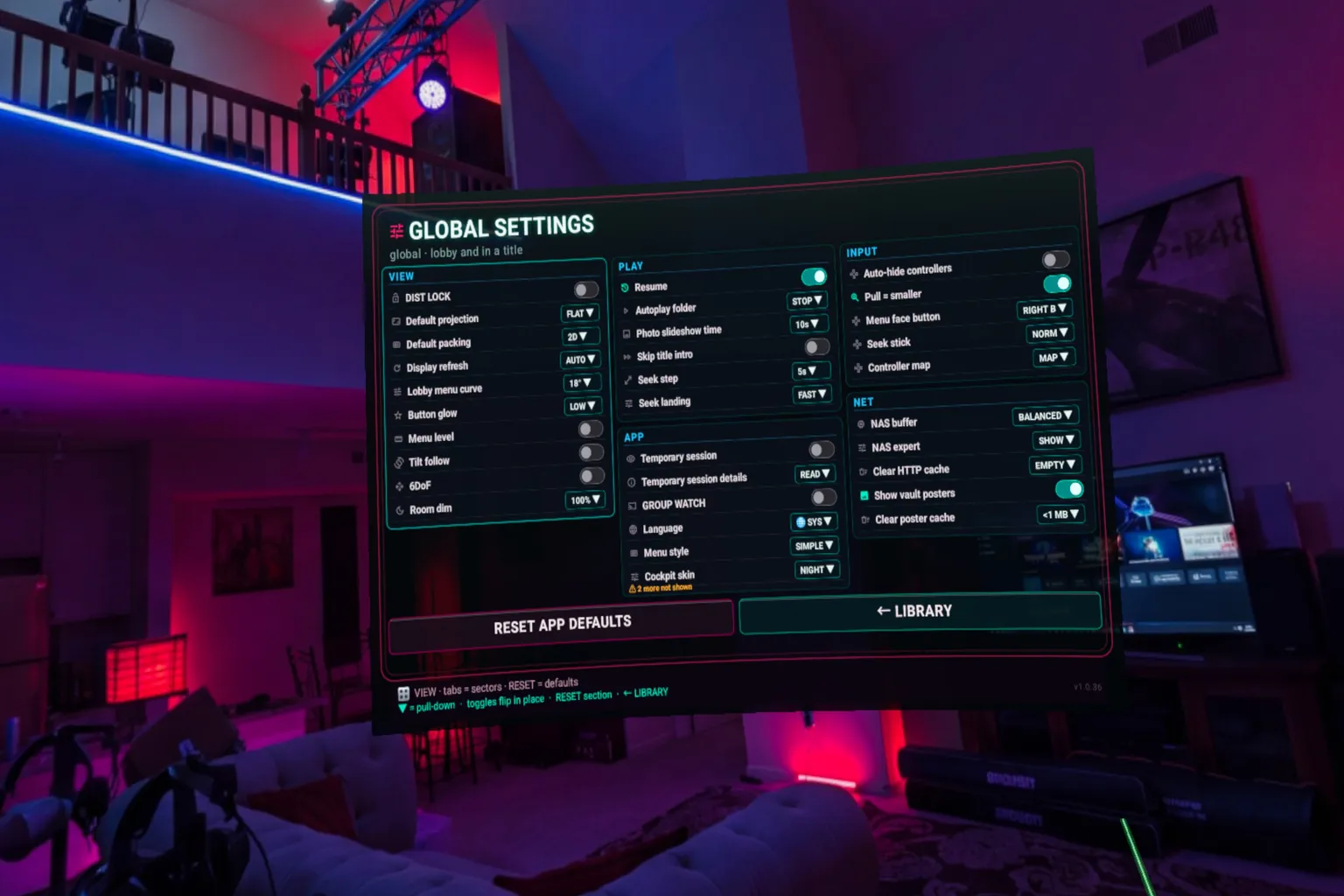
The biggest strength of this player is its wide range of supported features. In some areas, it even goes beyond what many paid video players offer.
- USB playback: Supports videos stored on the Quest headset, and you can also plug in a USB drive and play videos directly from it
- Local network: Supports SMB and DLNA
- Remote network: Supports WebDAV
- Other features: Plex and web playback
It has almost everything you could want.
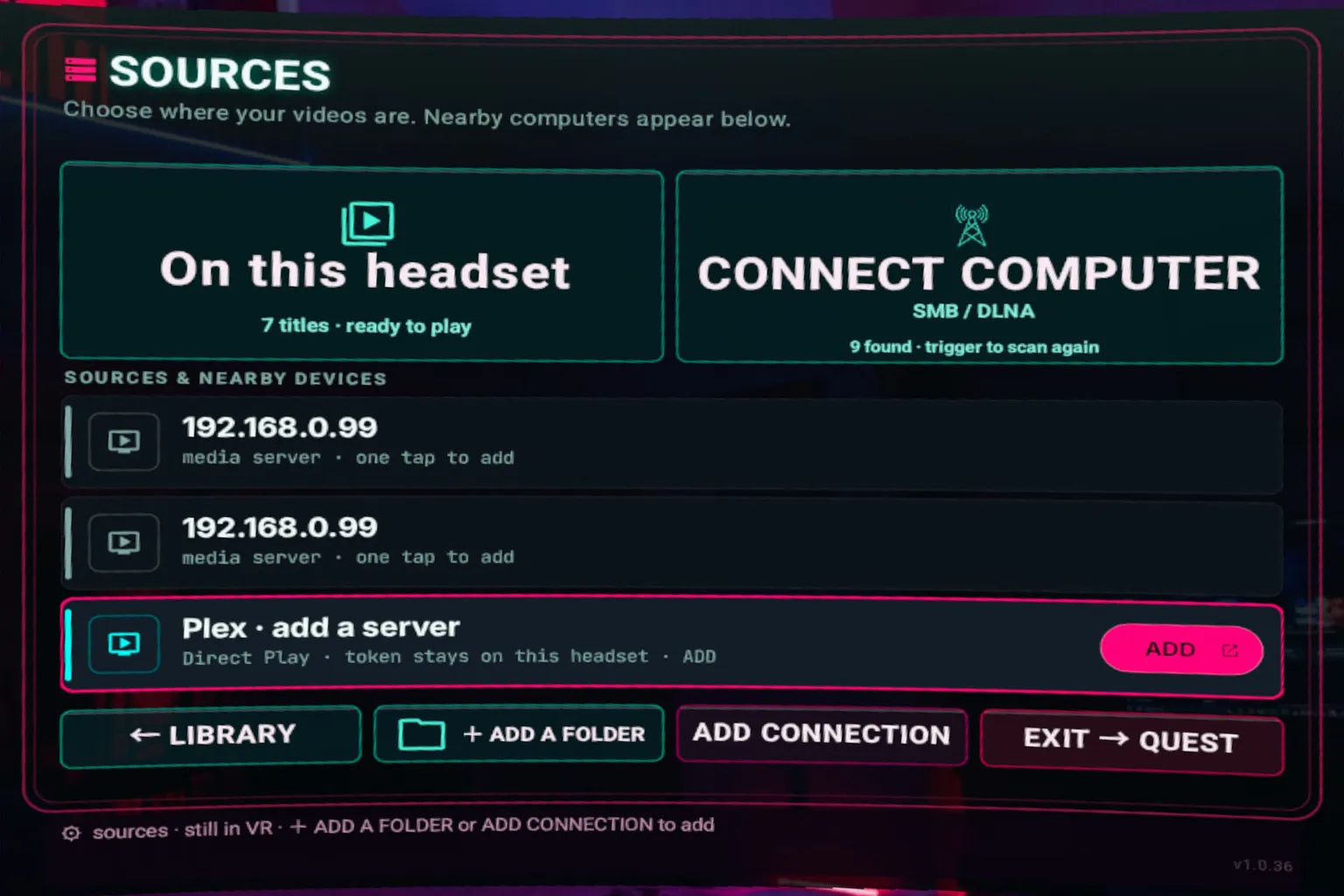
There are several viewing scenes, most of them with a darker look, like a dim living room or a nightclub.
The backgrounds are not actually rendered in 3D, though. They use background images instead. Once you’re inside, it doesn’t really feel like you’re sitting in a room or a movie theater. It feels more like you’re surrounded by one large image.
The screen and the background also don’t blend together very well, so it doesn’t really give you the feeling of watching a movie in a theater or enjoying a video in a home theater.
This is what the playback screen looks like. Most of the controls are text-based panels, and they take up a pretty large portion of the screen.
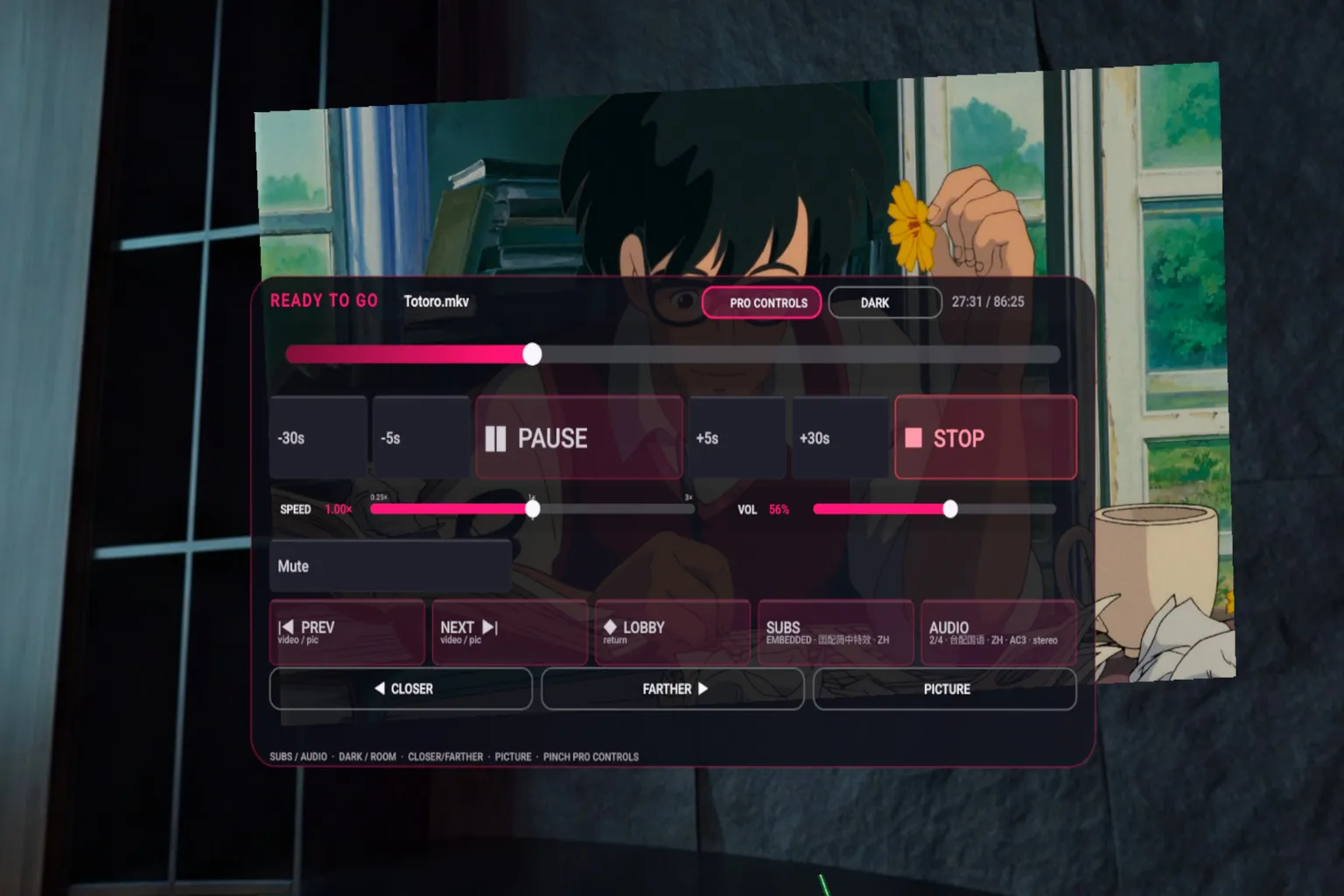
That said, it has the same problem as HereSphere VR Video Player: it’s pretty difficult for the average user to navigate.
The settings are packed with so many options that just looking at the screen can make you want to close the app.
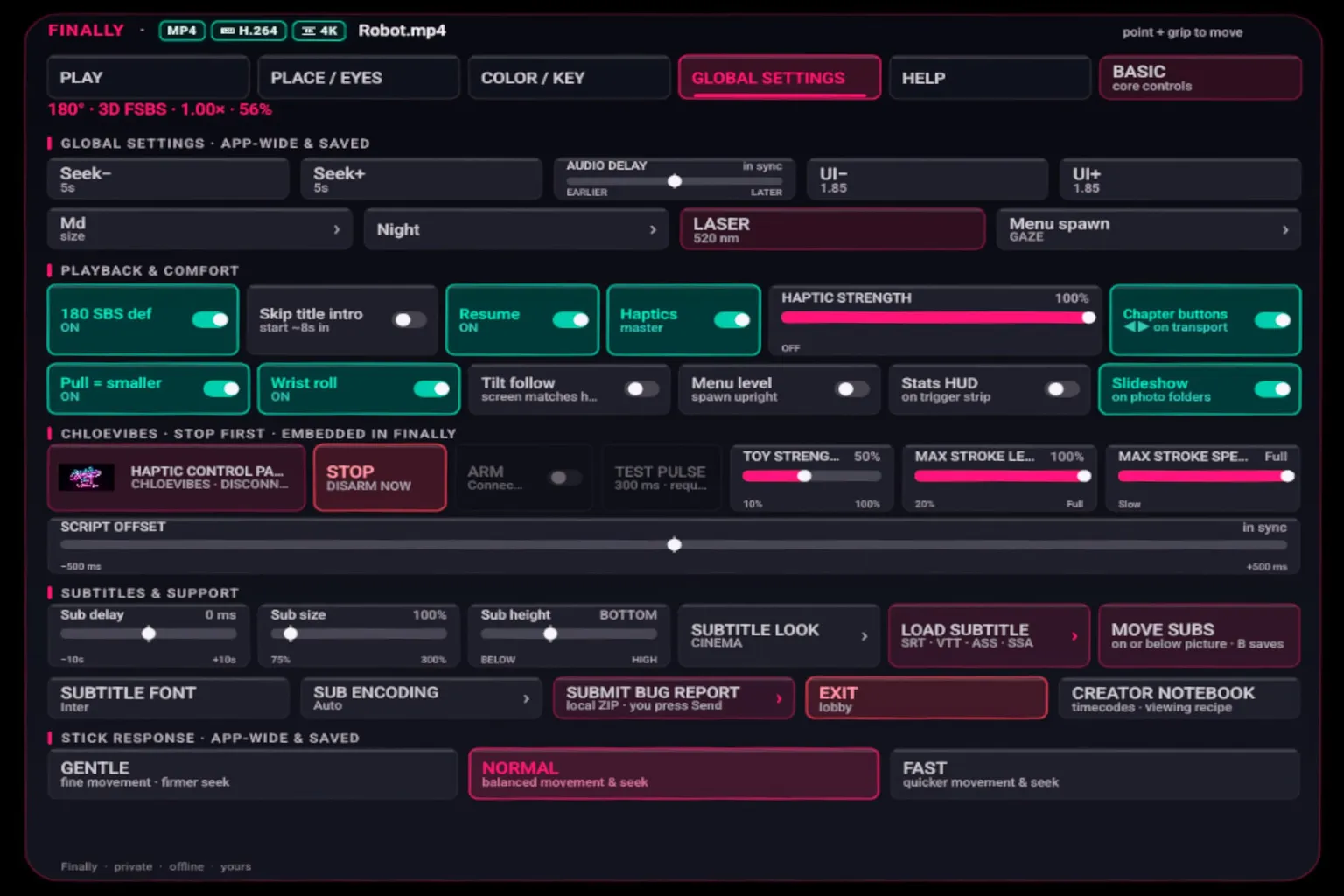
If we’re looking at features alone, Finally VR Video Player is probably the most capable free player in this roundup. It can handle regular videos, 3D videos, and VR videos.
But I still don’t really recommend it. The UI is so complicated that most of its strengths get buried under the interface.
This player is clearly built to do just about everything. But if you got your first Meta Quest today and just want to start watching one of your VR movies right away, you probably won’t be watching it tonight if you choose this player.
Commedia VR Video Player
This player has a simple interface and can play videos stored on the Quest headset, as well as files over SMB and DLNA.
The home screen only has a few basic icons, so it feels more like a smartphone app than a VR app.
The playback icons are mixed in with things like information about the developer and their background, which makes the app feel like it’s still a work in progress.
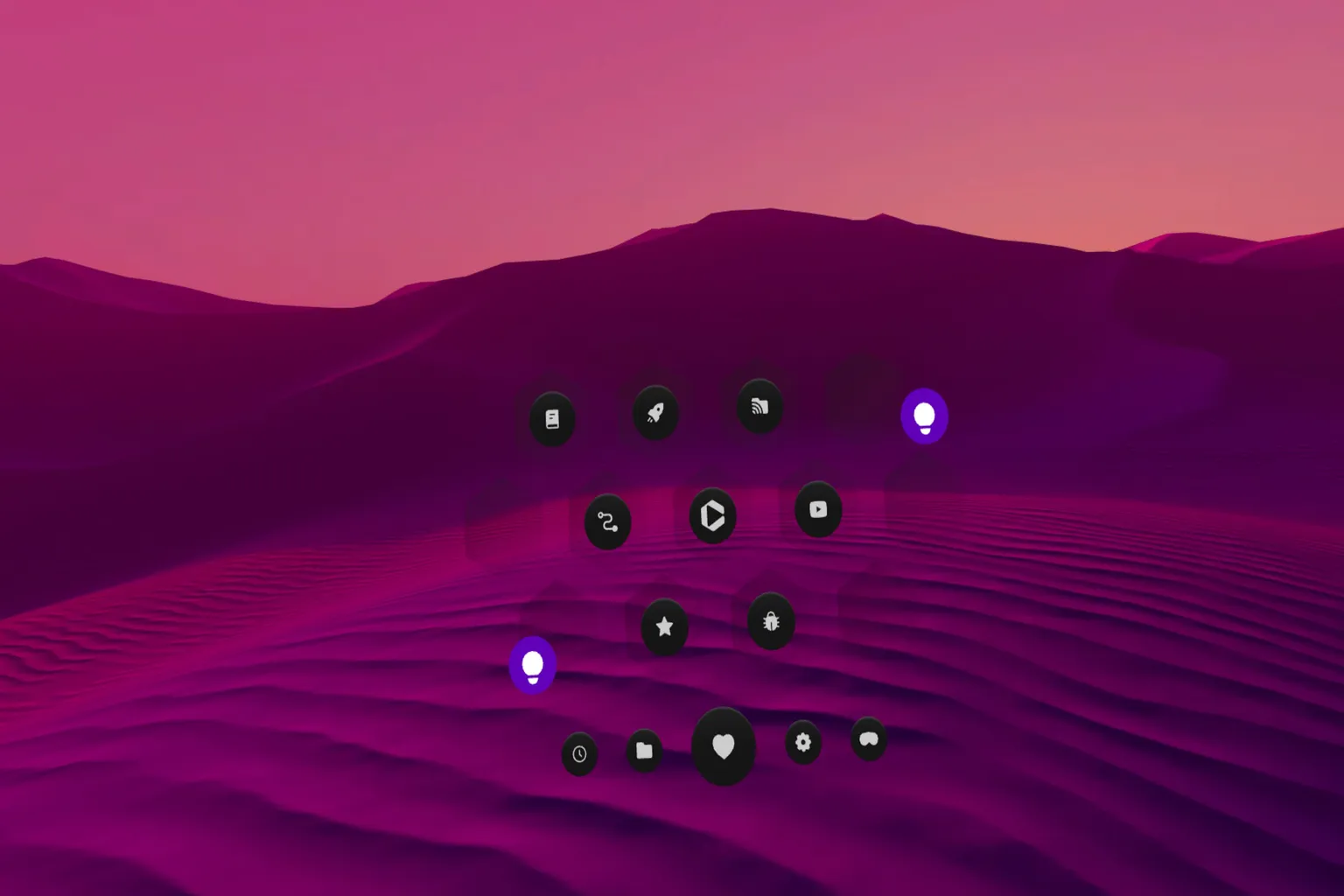
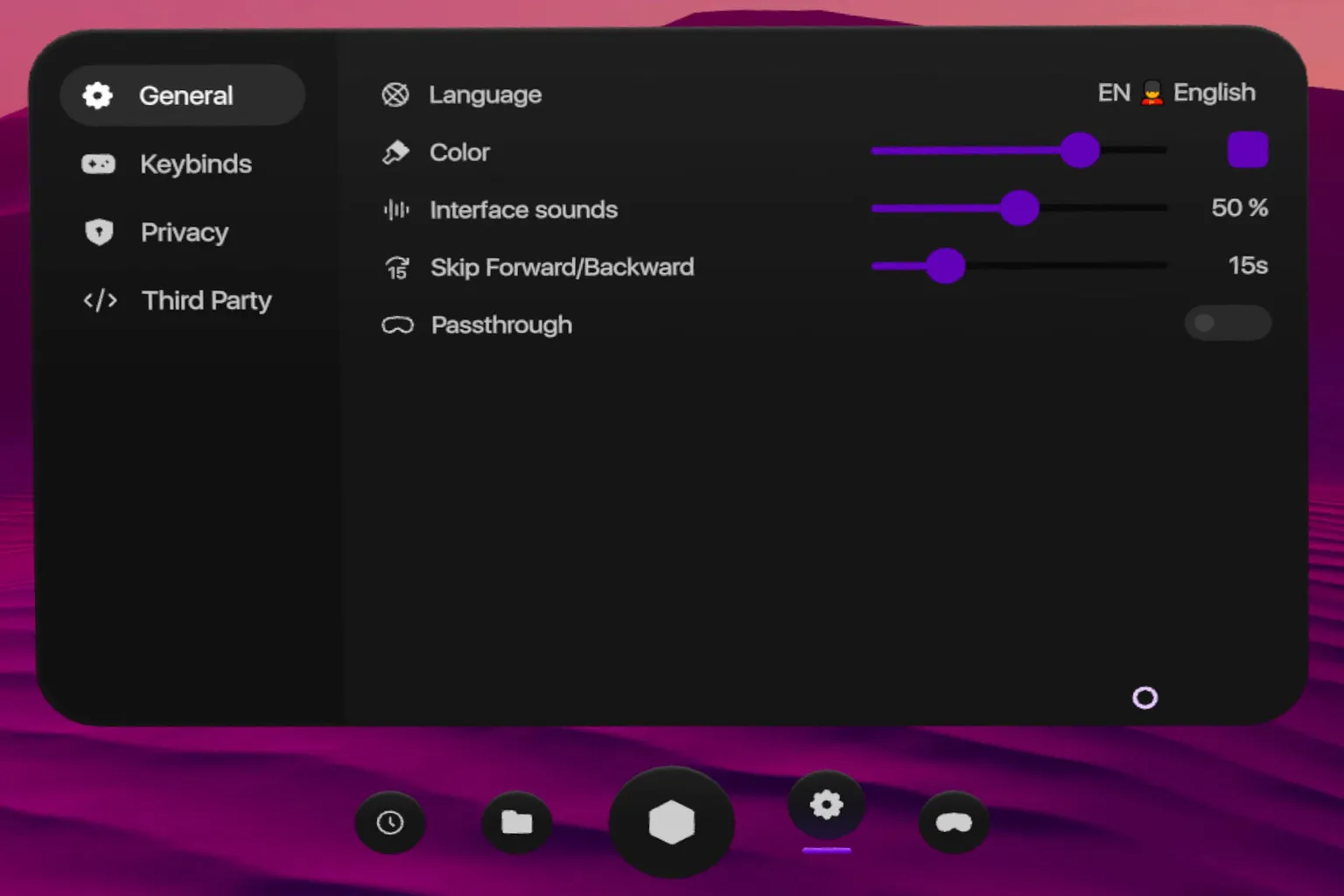
The settings screen is also very simple, with just a few options for things like language and passthrough.
It supports multiple languages, so you can switch from English to Japanese, Chinese, French, and others.
You can play videos stored directly on the Meta Quest headset, or connect to a PC over SMB.
If you normally keep your videos in a shared folder on your PC, setting up SMB means you won’t have to copy them to the headset every time.
The basic feature set is pretty simple.
- Local playback: Supports videos stored on the headset only. USB drive playback is not supported
- Local network: Supports SMB and DLNA
- Web features: Includes a basic web version of YouTube
The built-in web version of YouTube is nothing special. In terms of the interface, controls, and overall viewing experience, it doesn’t come close to the YouTube app on Meta Quest.
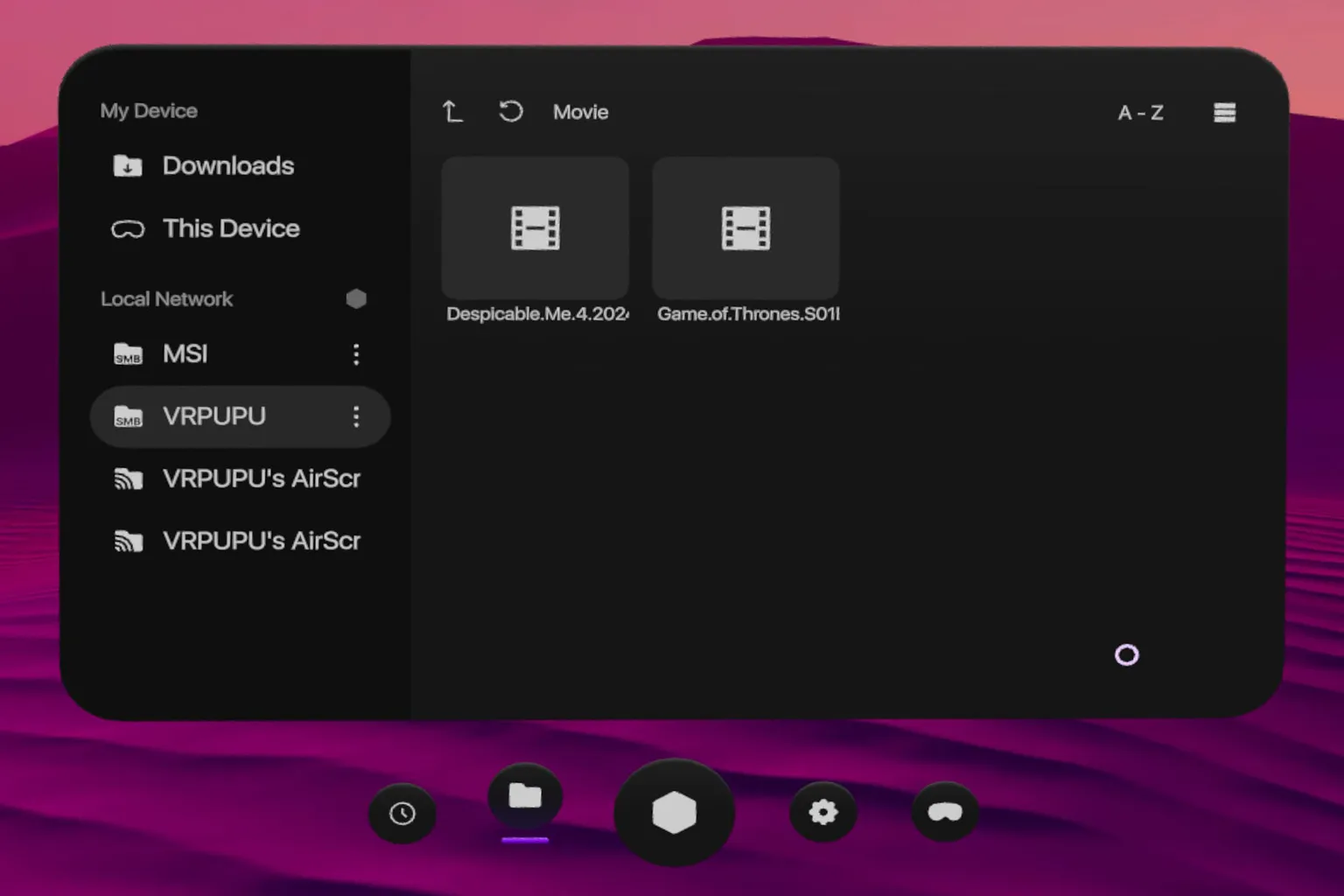
There’s no option to switch between different viewing scenes. During playback, you just get a background behind the video.
The player controls at the bottom let you adjust things like subtitles and audio tracks.
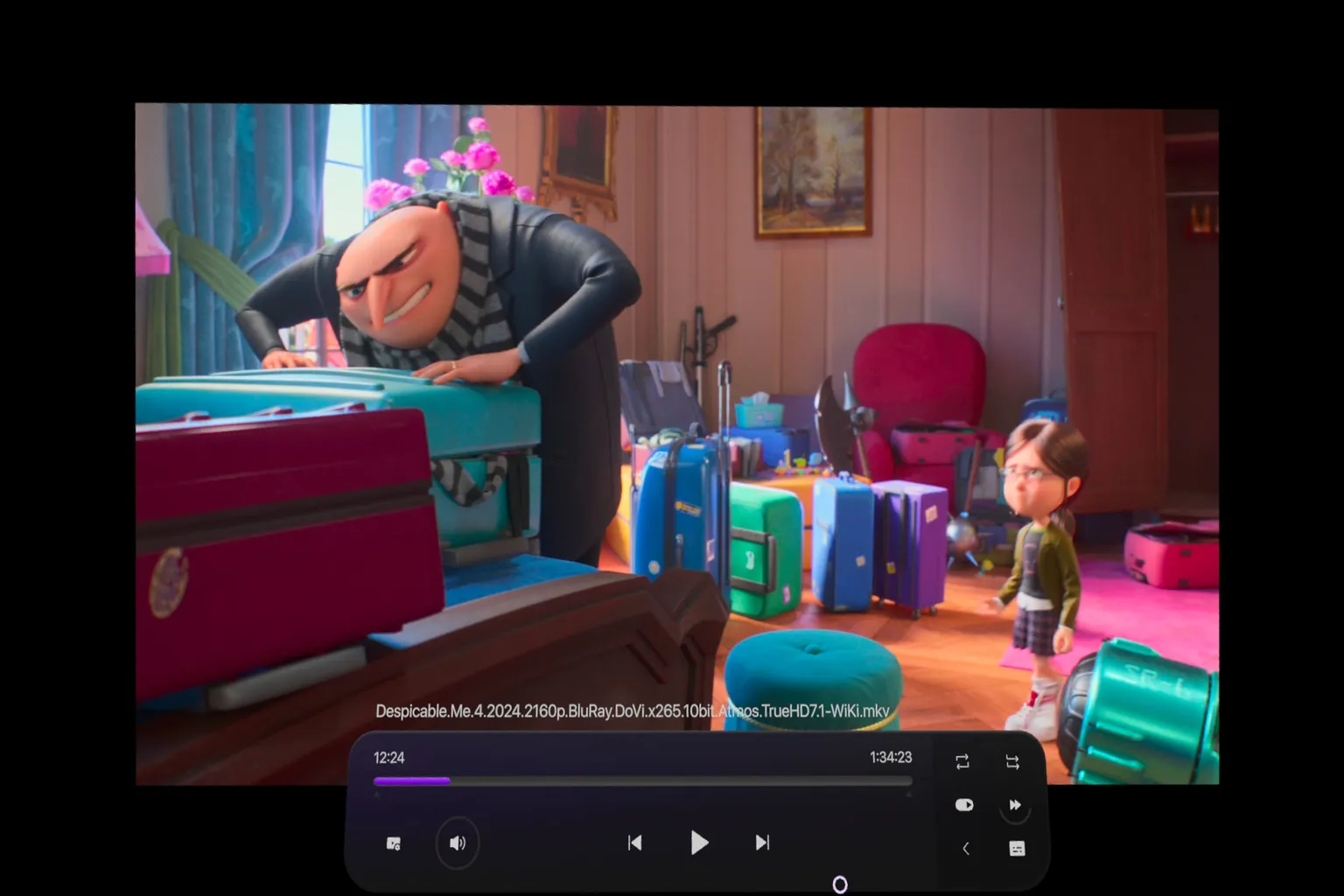
This player doesn’t have a complicated home screen, a huge list of settings, or configuration pages you need to study before you can get started.
Even the first time you open it, you can start watching videos within a few minutes. That kind of simplicity is exactly what you want from a free player.
If you’re using a video player on Meta Quest for the first time, this is the one I’d recommend.
StartVR
StartVR has the simplest interface of all the players in this roundup.
When you open the app, the home screen only gives you two options: Local Playback and LAN Playback.
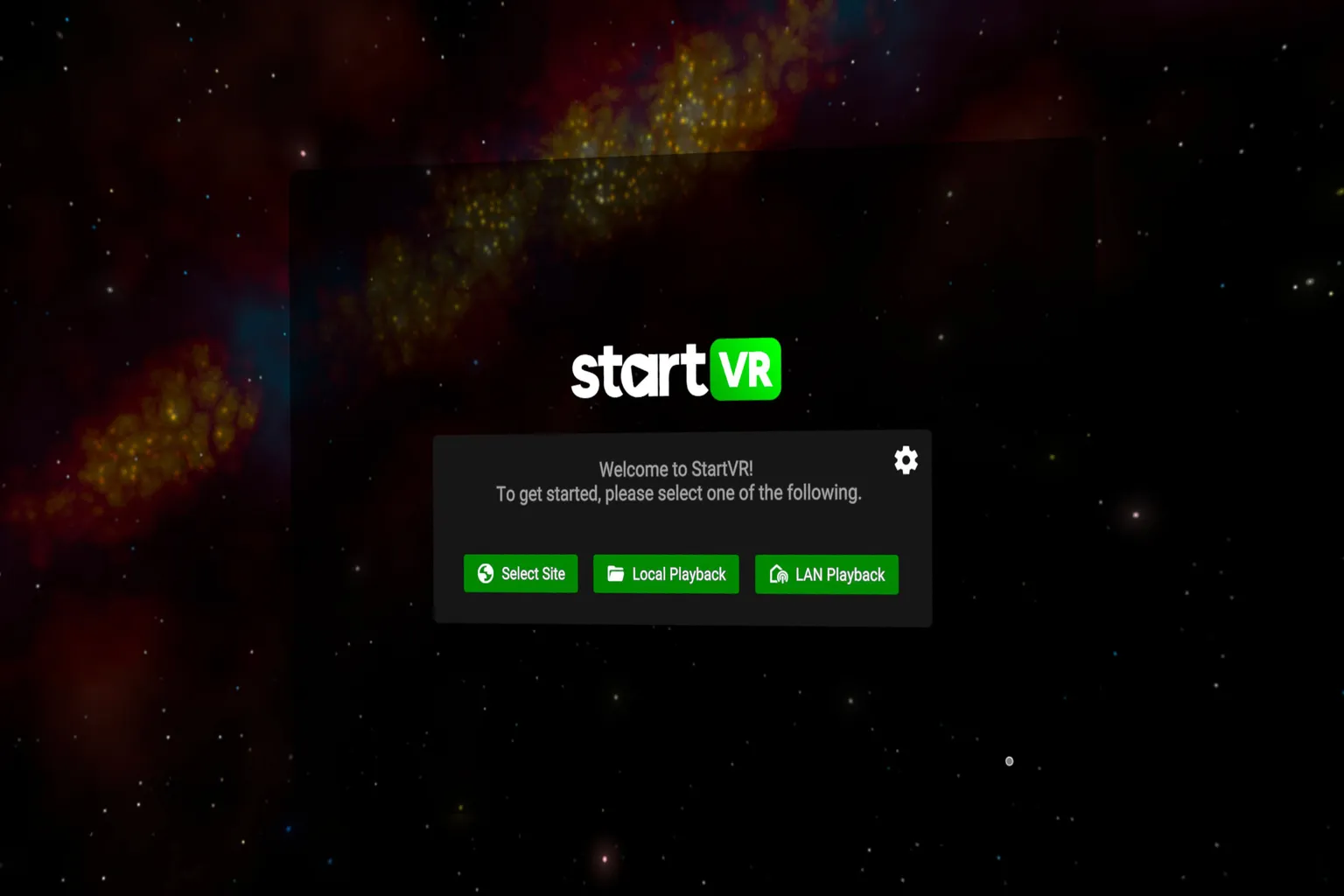
The overall settings screen is very similar to DeoVR Classical, and the options are not particularly complicated.
You can change the background used during playback, but most of the choices are things like galaxies or flowing light effects rather than movie theater-style environments.
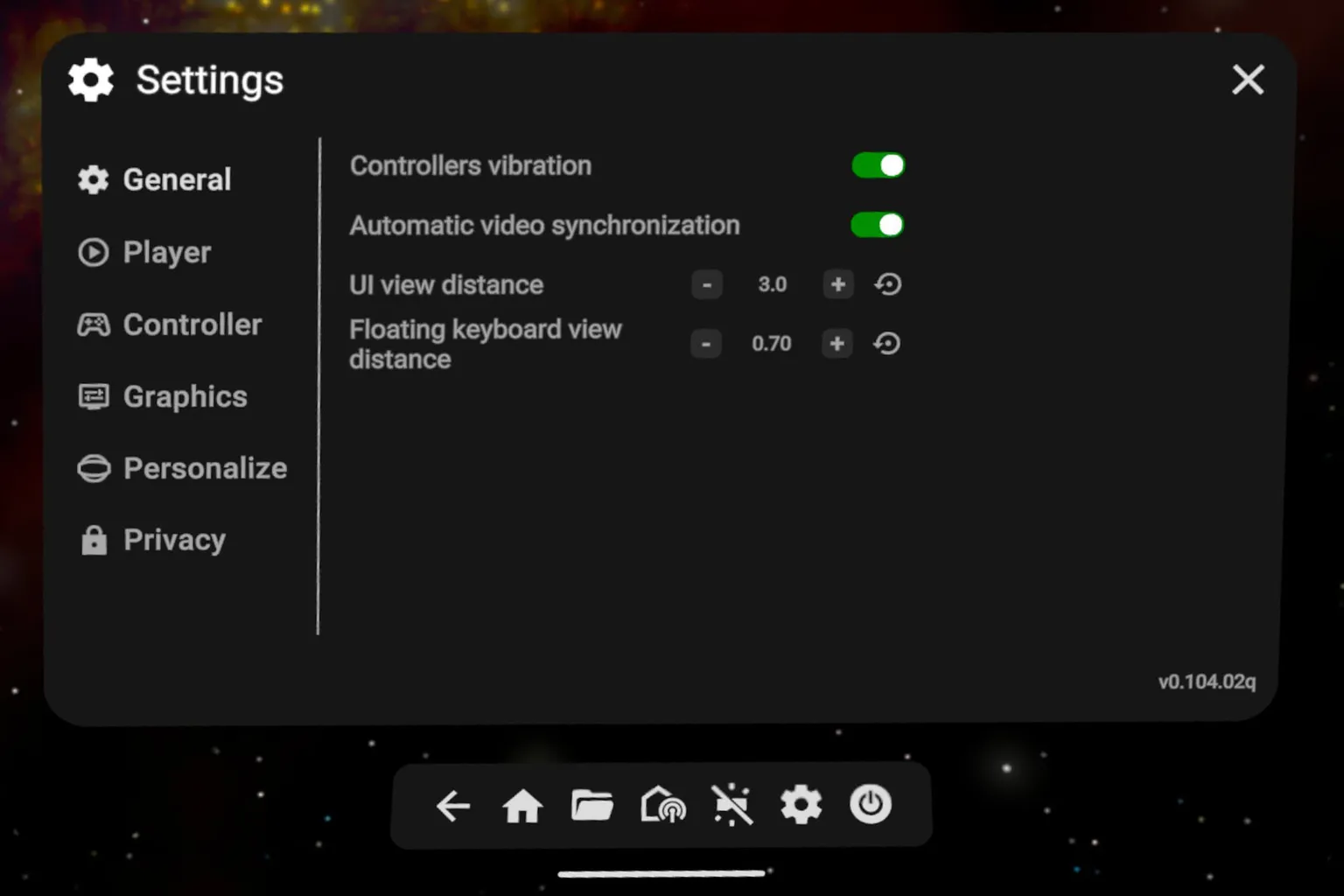
You can play videos stored directly on the Meta Quest headset, or connect to a PC over SMB.
The basic feature set is also very simple.
- Local playback: Supports videos stored on the headset. USB drive playback is not supported
- Local network: Supports SMB and DLNA
- Supports switching to a curved screen
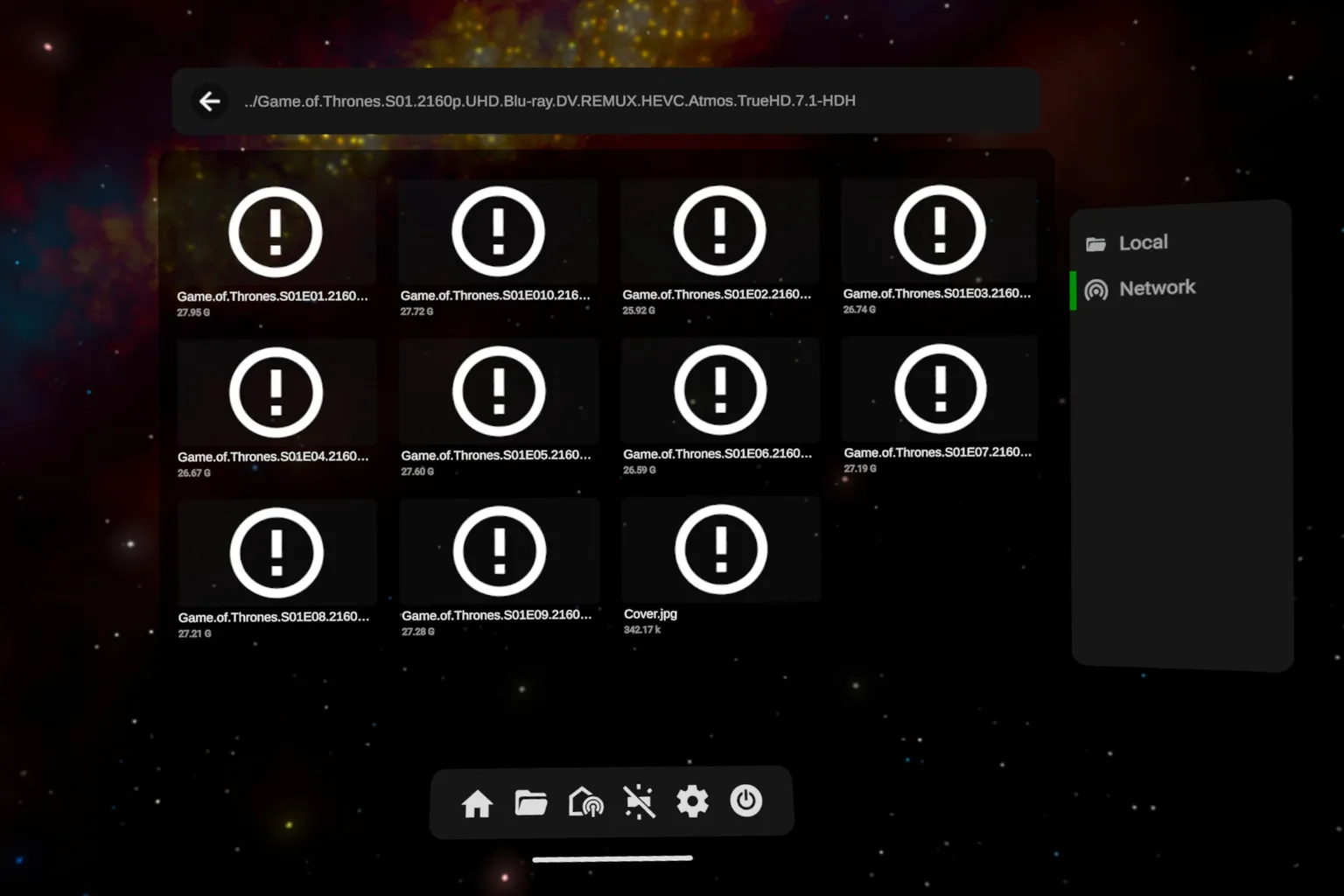
StartVR doesn’t have any viewing scenes. When you play a video, everything around the screen is just black.
There’s no movie theater, living room, or any other virtual space. So if you like the feeling of sitting in a theater or a room while watching videos, it may feel a little bare.
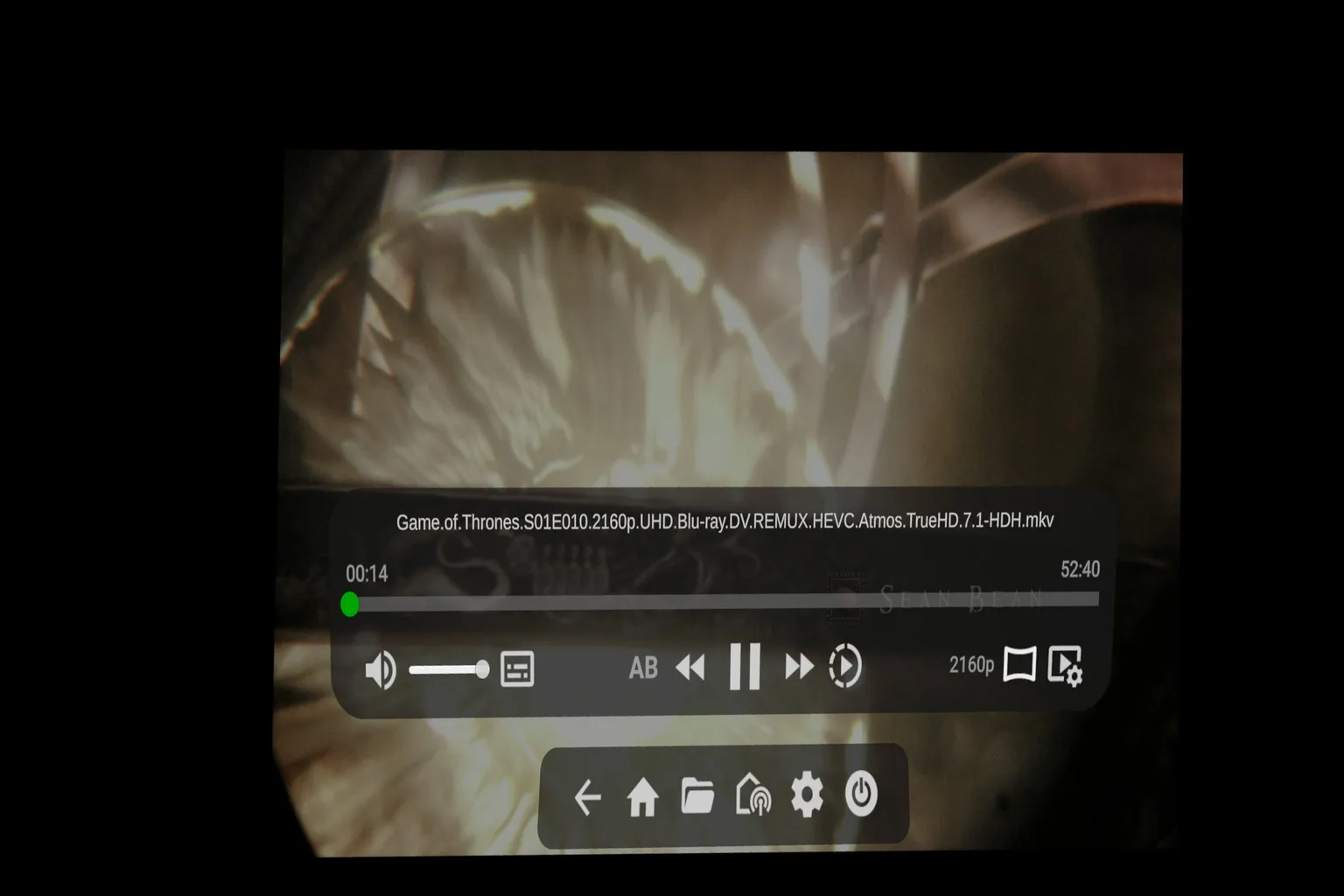
This player is extremely simple and easy to use without looking anything up first. There are almost no unnecessary screens to get in the way.
It’s a well-made app that keeps things as simple as possible, and it’s one I’d recommend to Meta Quest users.
PLAY’A Video Player
Of all the free players in this roundup, this one feels the most balanced overall.
In addition to English, it supports Japanese, Chinese, and Korean. It doesn’t have a huge number of features, but the interface is simple, and it includes the basics you’d want, such as viewing scenes and a curved screen.
It also supports web playback, and VRPORN recommends this player as well.
The home screen is set in an open-air villa on top of a mountain.
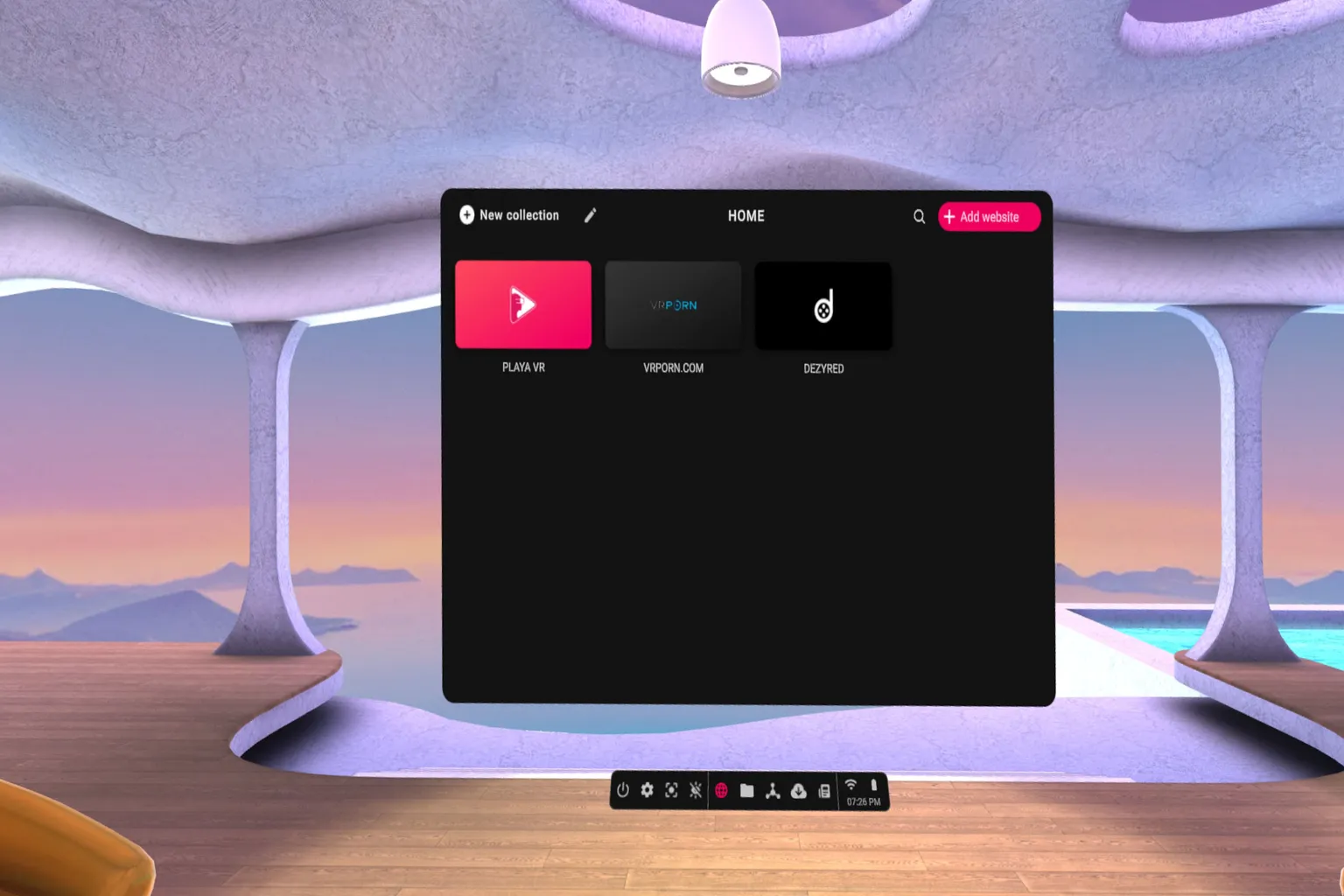
There are quite a few settings, but the categories and UI are easy to understand, so it’s hard to get lost.
In the Player menu, you can change the language, while Device lets you choose which device you want to use for controls.
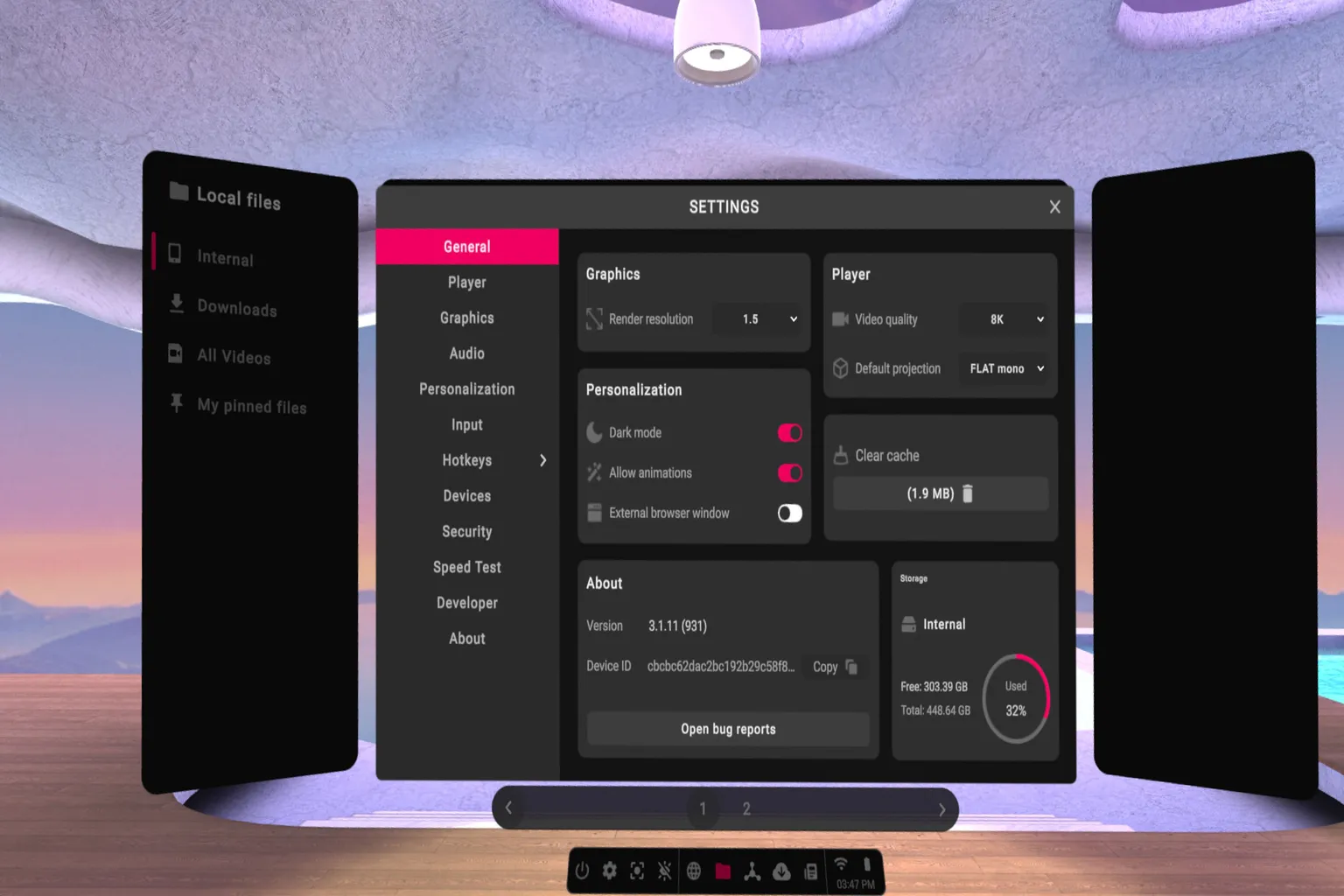
It supports both SMB and DLNA, so you can play videos directly from your PC or NAS without moving the files to your headset.
The basic features are as follows:
- Local playback: Supports videos stored on the headset. USB drive playback is not supported
- Local network: Supports SMB and DLNA
- Supports switching to a curved screen
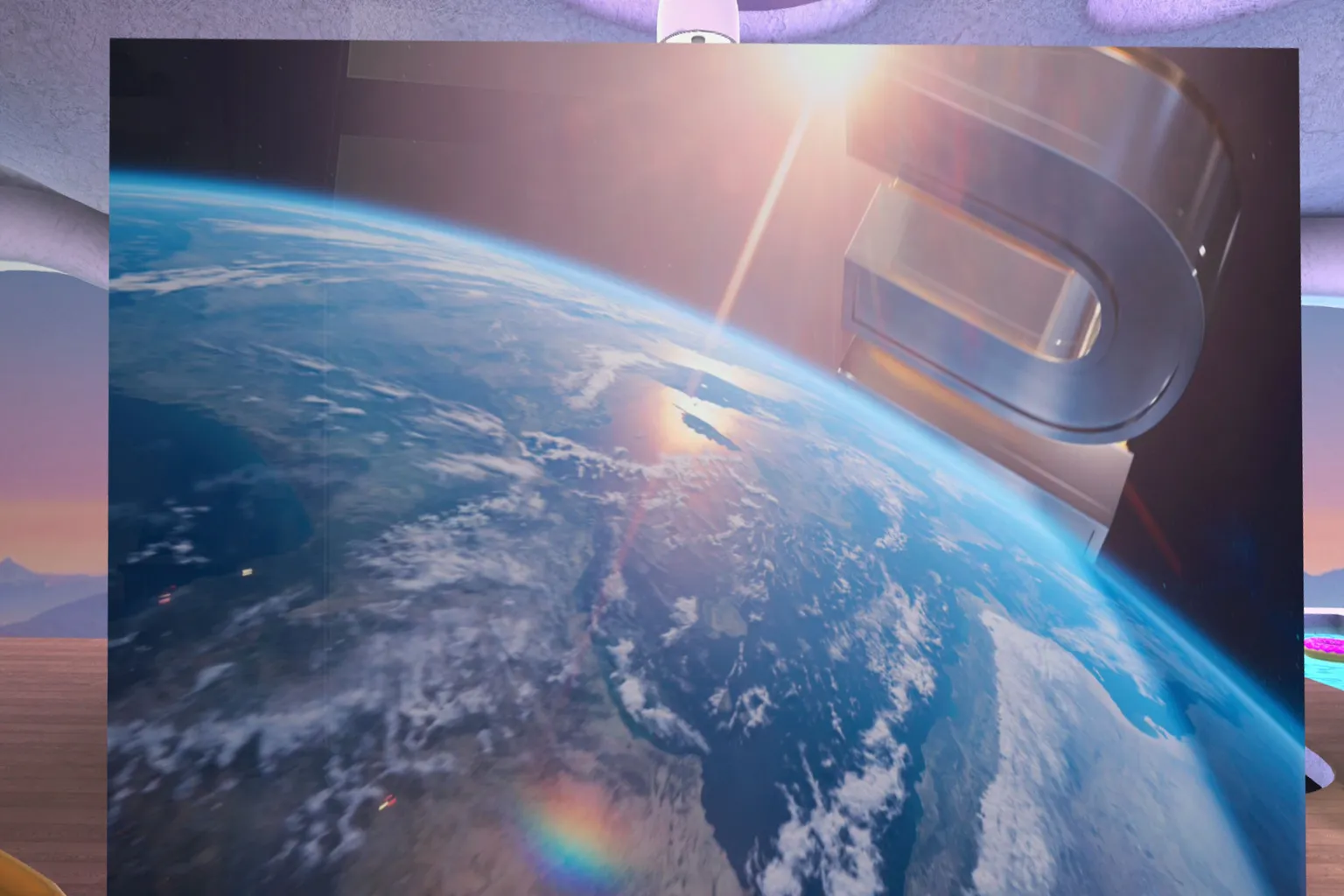
The video screen sits right in front of you, with an outdoor view all around you.
The playback controls are also simple and easy to use, so the whole experience feels very straightforward.
PLAY’A keeps things simple, but the quality of its core features comes pretty close to what you get from paid players.
There aren’t many viewing scenes, but the overall presentation is clean and polished.
If you want to try one free video player on Meta Quest, this is the one I’d start with.
Bigscreen Beta
This player takes a slightly different approach from the others covered so far.
The home screen is filled with social features, avatar options, and streaming-related tools. It was originally built for watching videos together, so you can meet up with friends in VR and enjoy the same video at the same time.
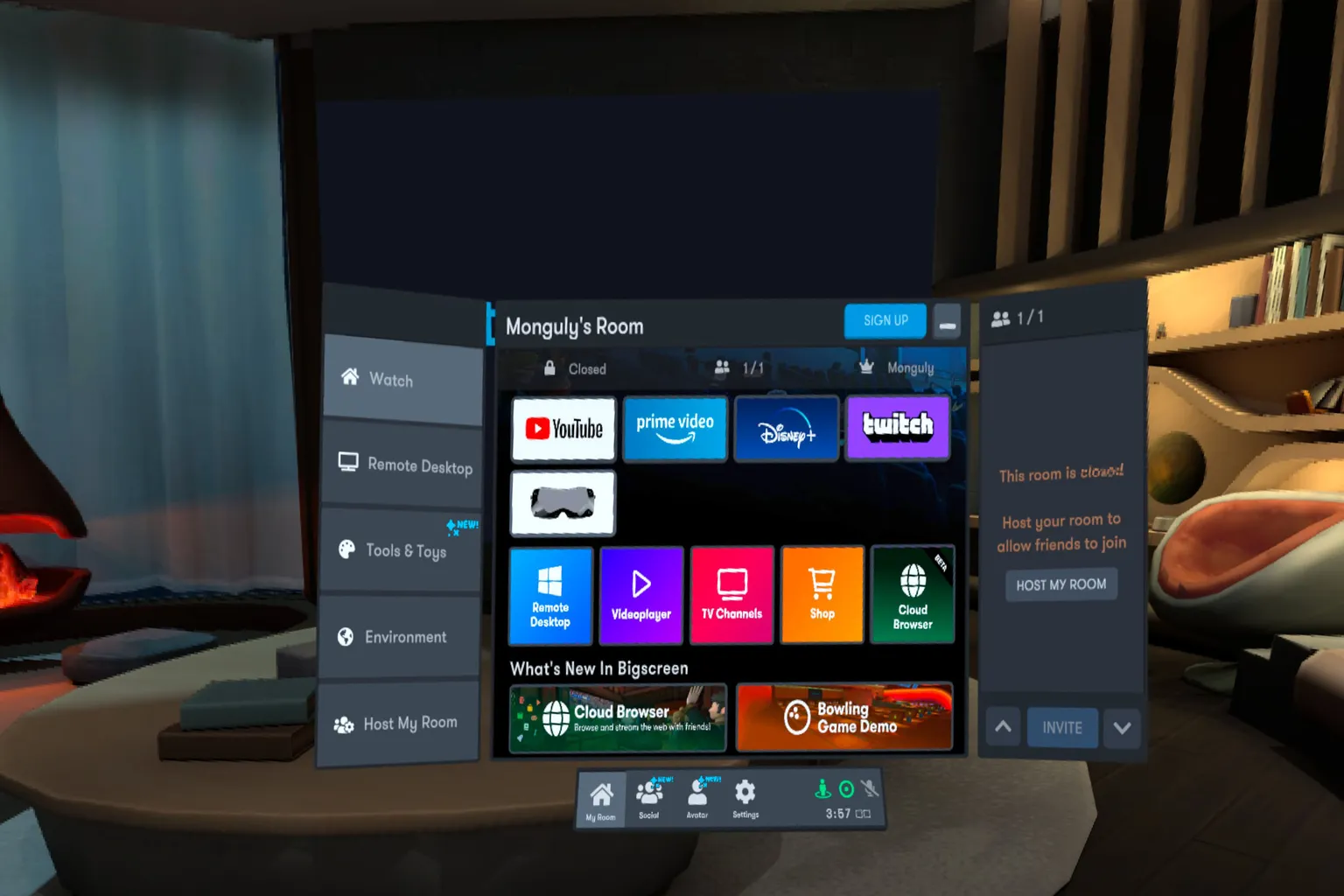
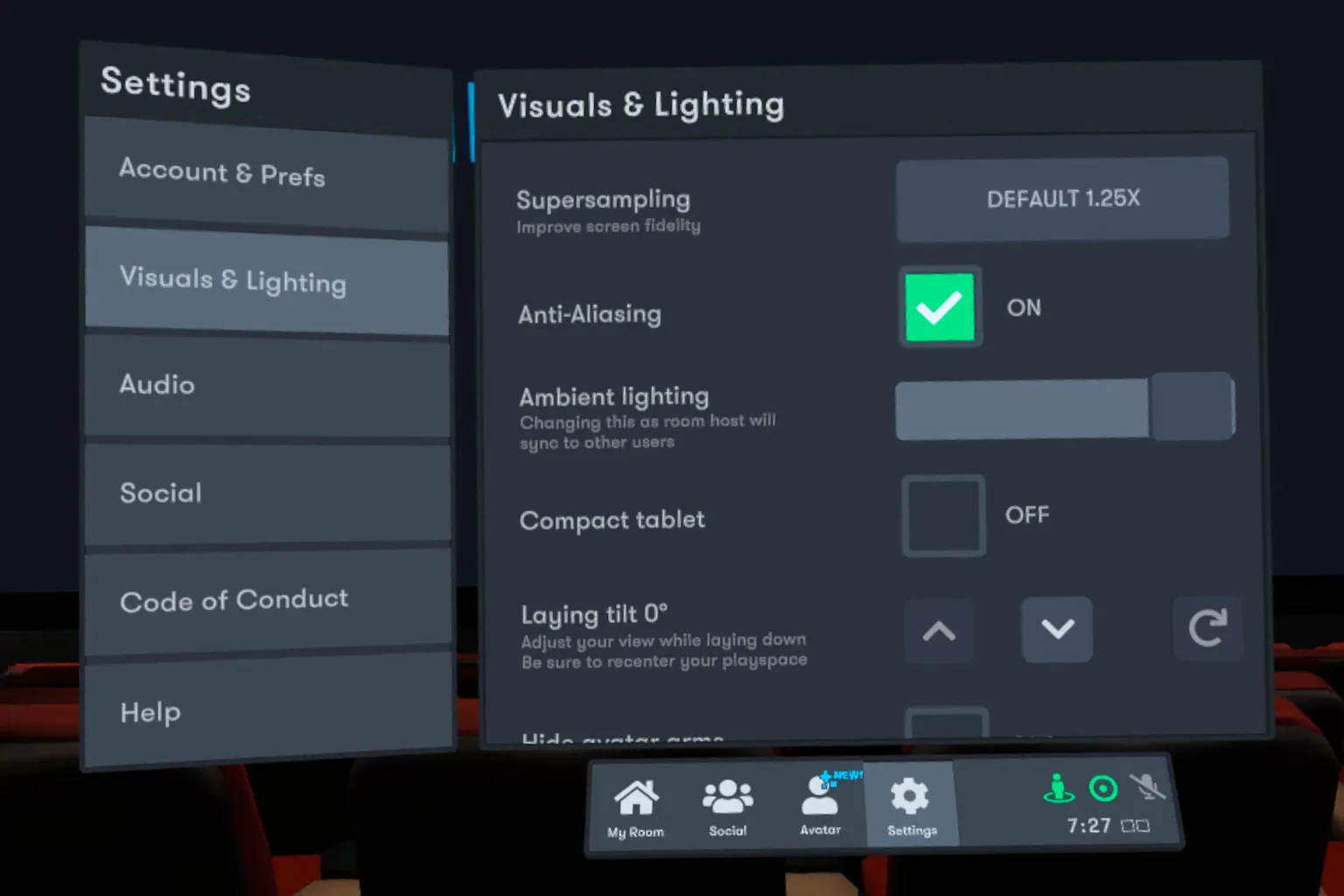
Unlike the other players, this app requires you to create an account, and you can change your name in the settings.
You can also increase the video quality from the settings menu. Overall, the controls are simple and easy to use.
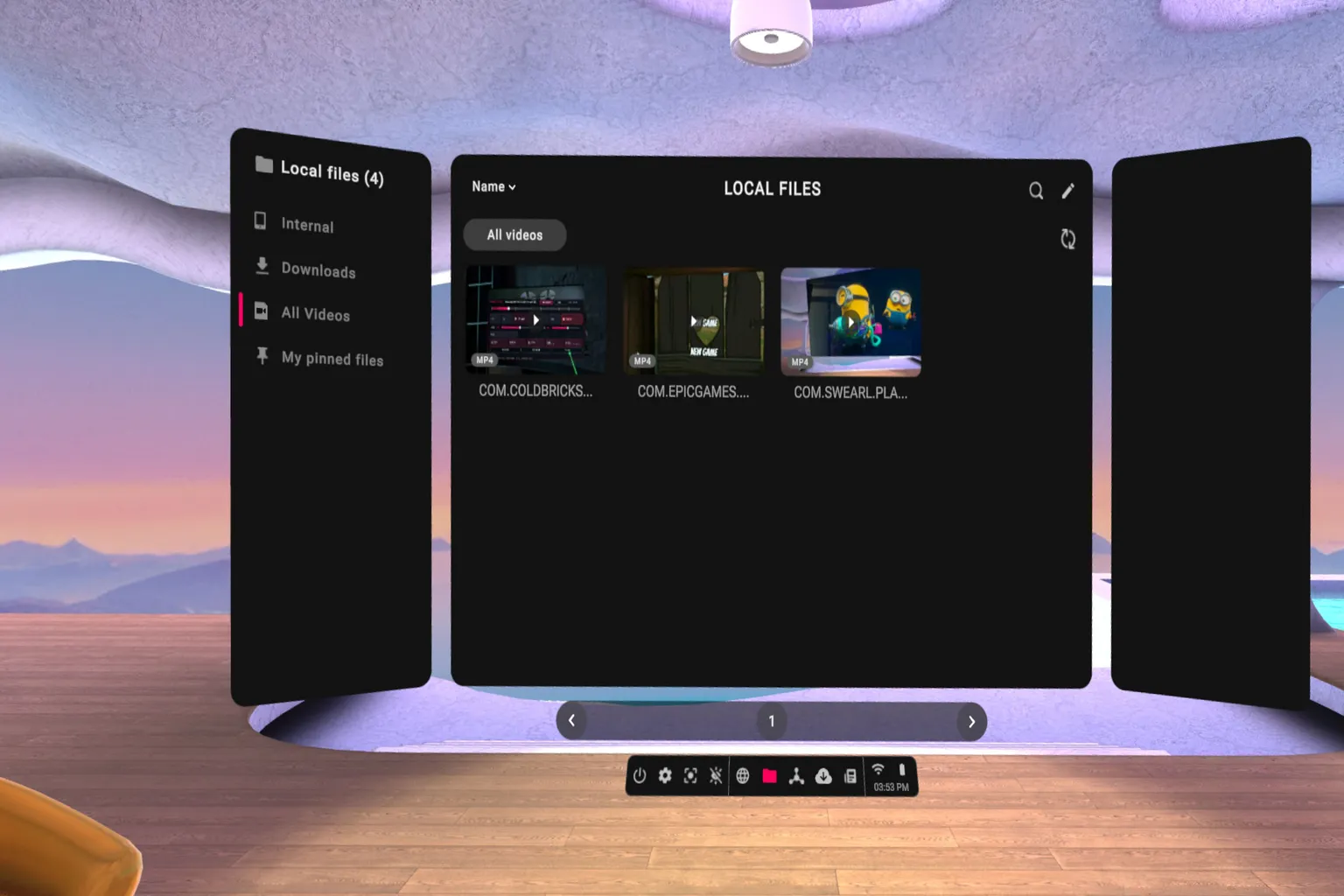
However, if you use Bigscreen Beta as a regular local video player, it comes with quite a few limitations.
It can play videos stored on the Meta Quest headset, but it only shows files inside the Movies folder. Videos stored in any other folder do not appear at all.
The basic features are as follows:
- Local playback: Supported, but only videos inside the Movies folder are shown. USB drive playback is not supported
- SMB: Not supported
- DLNA: Supported
Since Bigscreen Beta does not support SMB, you need to use DLNA if you want to play videos over your local network.
In my testing, it found my PC and displayed the shared folders without any problem. However, when I opened a folder containing videos, the app crashed.
If that means you are effectively limited to videos stored on the headset, then this is a pretty significant restriction.
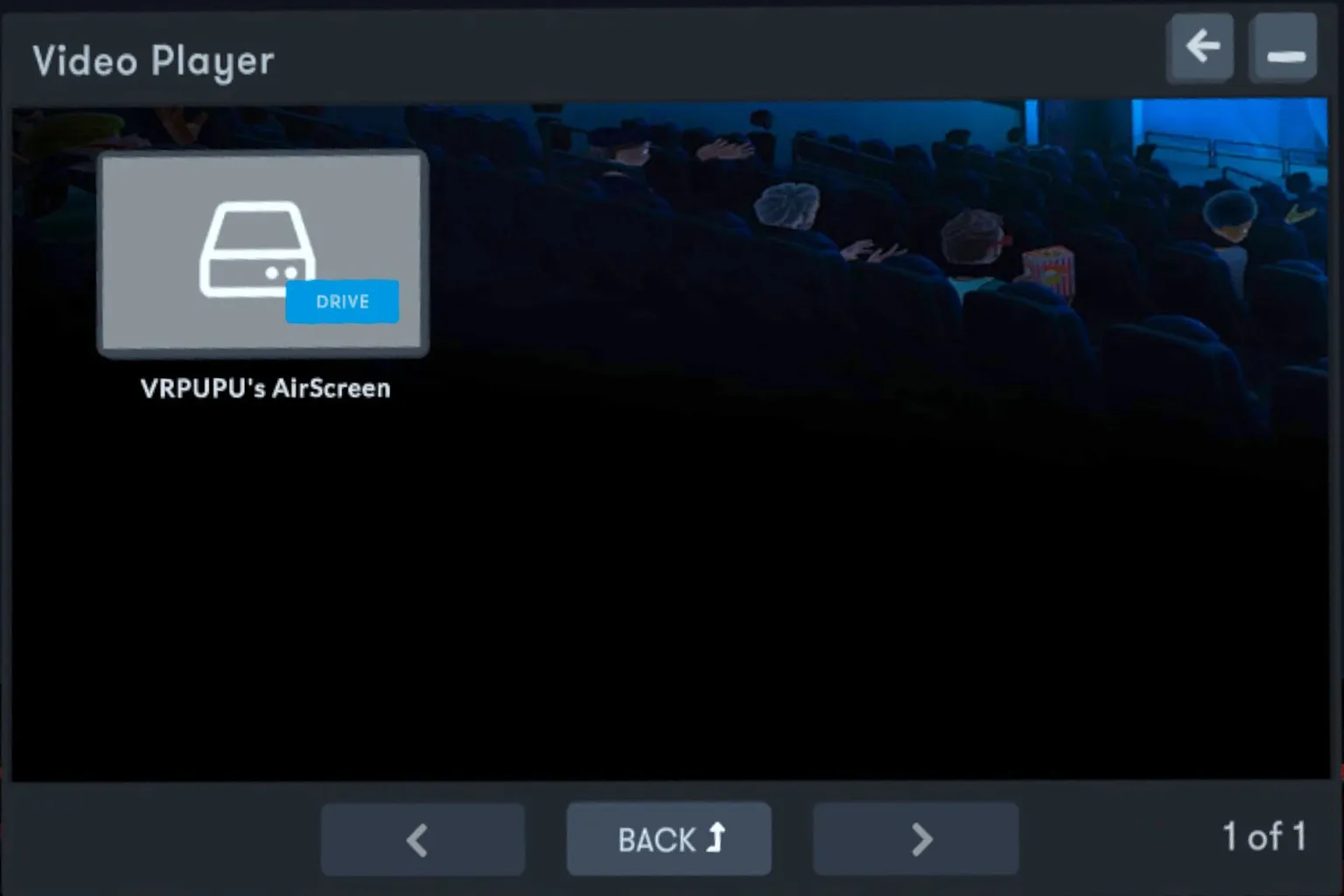
If you’re only watching YouTube or Disney+, I find Bigscreen Beta easier to use than SKYBOX VR Video Player.
The screen, controls, and viewing scenes are all well designed. Once you start a video, it genuinely feels like you’re sitting in a movie theater watching a film.
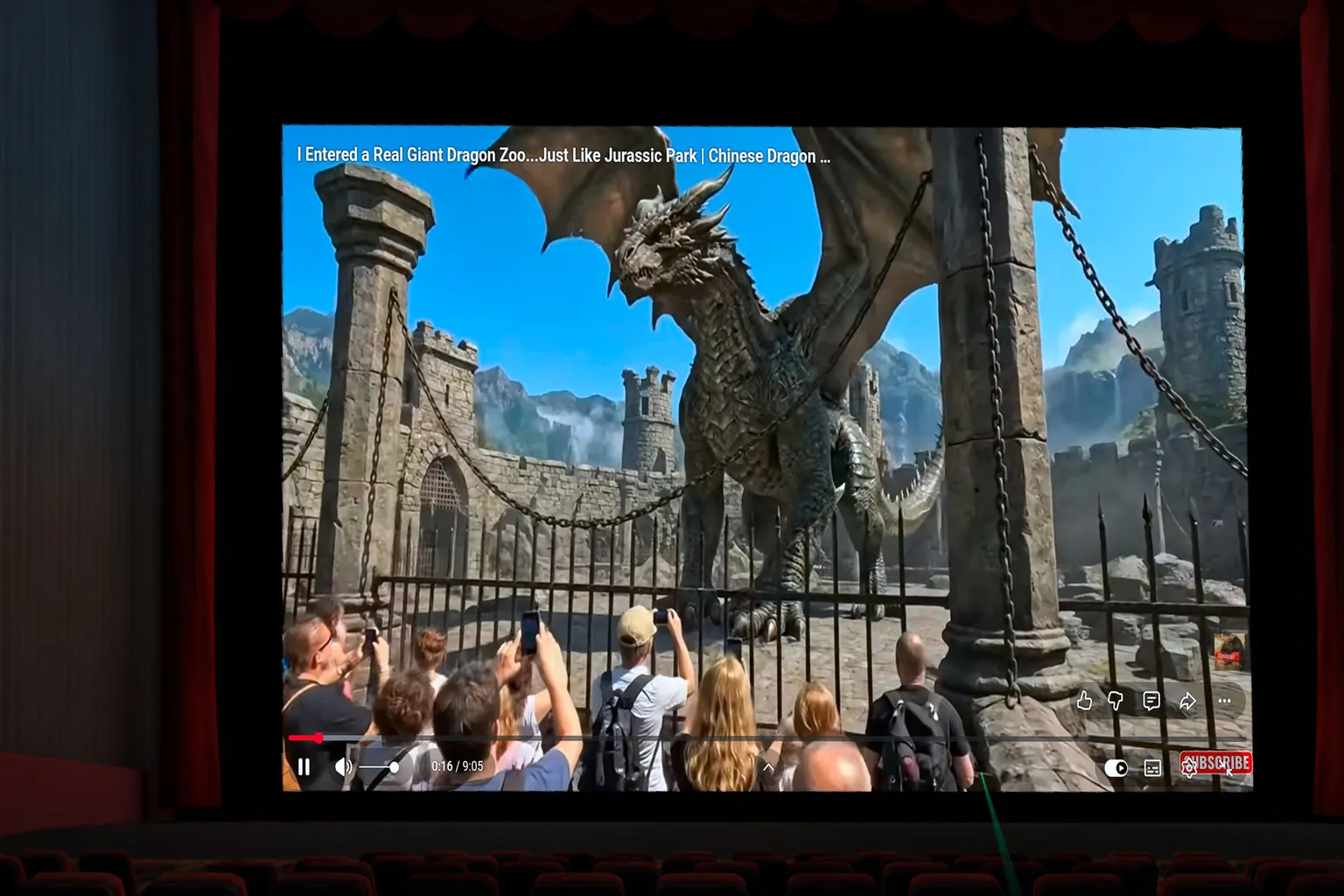
It comes with several highly polished VR scenes, and its movie theater setting is the best of all the free players in this roundup.
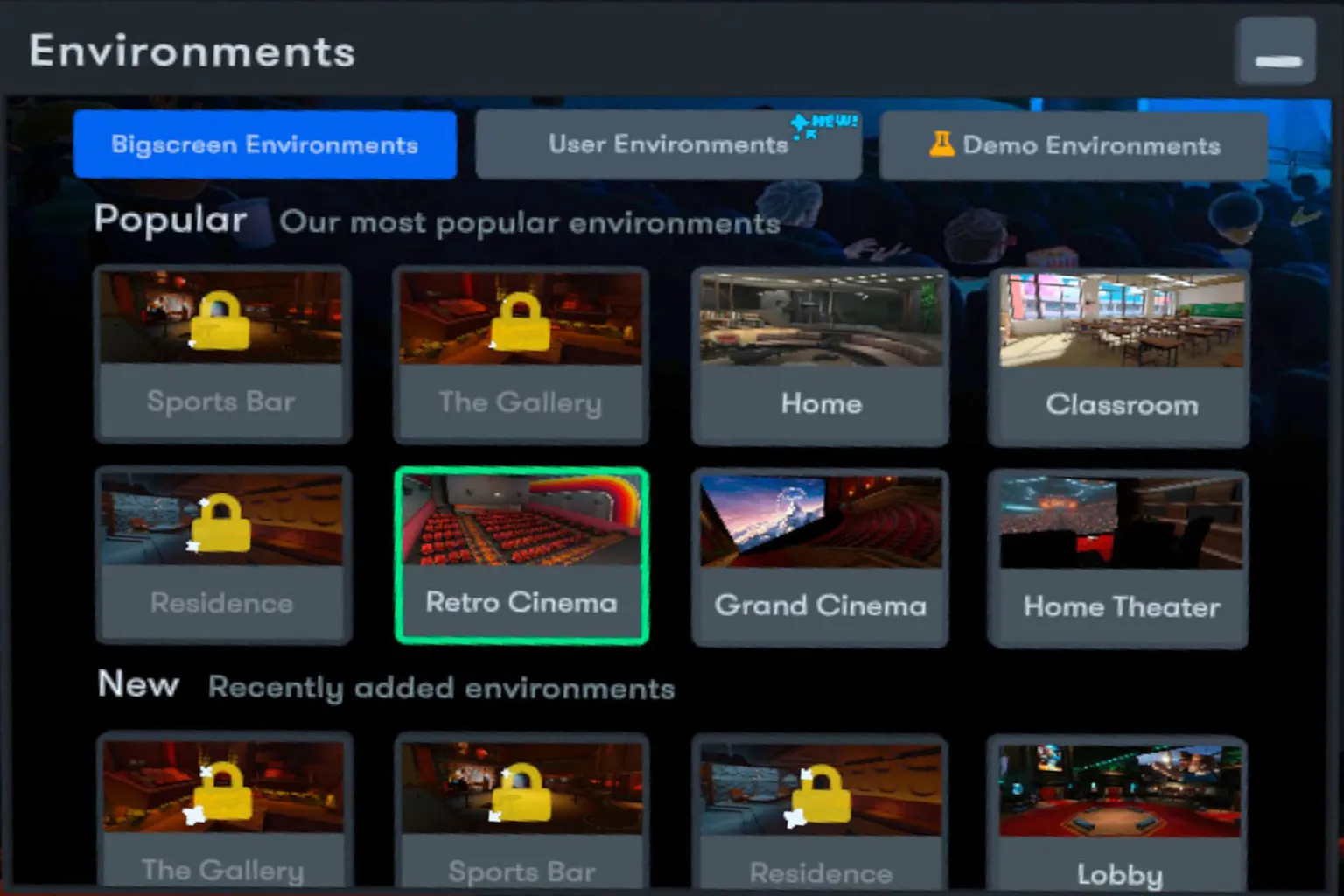
If you want to watch YouTube or Disney+ with friends, Bigscreen Beta creates a really nice atmosphere.
But if your videos are stored on a PC, the limitations are pretty significant.
I wouldn’t recommend using it as a regular video player.
Overall Comparison
This section compares the features and overall experience of each player to help you find the one that fits you best.
That said, these are all free players, so their overall quality, visuals, and feature support generally don’t match paid apps like SKYBOX VR Video Player or 4XVR Video Player.
Because of that, the 🌟 ratings here use a different standard from the paid video player comparisons elsewhere on this site. Don’t compare the scores directly.
Playback Feature Comparison
| Player | Language Support | Quest Storage | USB | SMB | DLNA | WebDAV |
| Finally | X | O | O | O | O | O |
| Commedia | O | O | X | O | O | X |
| StartVR | X | O | X | O | O | X |
| PLAY’A | O | O | X | O | O | X |
| Bigscreen Beta | X | O* | X | X | △** | X |
* Only videos stored in the Movies folder on the headset are shown.
** DLNA devices can be found, but the app crashes when opening a folder that contains videos.
Viewing Experience
| Player | Scenes | Curved Screen | Ease of Use | Recommendation |
| Finally | O* | X | 🌟 | 🌟 |
| Commedia | X | X | 🌟🌟🌟 | 🌟🌟 |
| StartVR | X | O | 🌟🌟🌟 | 🌟🌟 |
| PLAY’A | O | O | 🌟🌟🌟 | 🌟🌟🌟 |
| Bigscreen Beta | O | X | 🌟🌟 | 🌟 |
* Viewing scenes are available, but they mainly use background images rather than fully 3D environments.
Conclusion and Recommendations
After trying all five of these players, I found that free video players on Meta Quest are more than good enough if you just want to watch videos.
The biggest difference between them isn’t whether they can play videos. It’s how easy they are to use.
Finally has the most features, but it also has the most complicated interface.
Commedia and StartVR are both very simple, and even first-time users should be able to figure them out without much trouble. The tradeoff is that they also feel pretty basic.
PLAY’A has the best balance of features, controls, and viewing scenes, and it’s the one I’d recommend most people try first.
Bigscreen Beta offers the best movie theater environment and the best experience for streaming video, but it has quite a few limitations when it comes to playing your own files.
So if you only watch videos occasionally, or you just bought a Meta Quest, I’d start with one of these free players. They work perfectly fine for regular video playback.
But if you watch a lot of movies, VR180, or 3D videos on Quest, I’d still recommend a paid player with a more complete feature set.
The UI design, overall polish, and ease of use are noticeably better across the board.
If you’re looking for a player you can keep using long term, you may also want to check out this article:
Meta Quest VR Video Player Recommendations | NEX, Moon, Skybox, 4XVR, and HereSphere Compared
It covers the differences in features and ease of use between paid players such as SKYBOX VR Video Player and 4XVR Video Player.
FAQ – Common Questions
Are There Any Free Video Players for Meta Quest?
Yes. Meta Quest has several free video players, including Finally VR Video Player, Commedia VR Video Player, StartVR, PLAY’A Video Player, and Bigscreen Beta.
They can all handle basic video playback, but there are some pretty big differences when it comes to USB, SMB, DLNA, viewing scenes, and the overall interface.
Which Free Video Player Is Best for Meta Quest?
If you want the best balance of features, interface, and viewing scenes, PLAY’A Video Player is the one I’d recommend trying first.
It supports videos stored on the Meta Quest headset, along with SMB and DLNA. It also includes a curved screen and viewing scenes, and the overall experience comes pretty close to a paid player.
Which Free Video Player Can Play Videos Directly From a USB Drive?
Of the five players I tested, Finally VR Video Player can read and play videos directly from a USB drive.
Commedia, StartVR, PLAY’A, and Bigscreen Beta do not support playback from USB drives.
Is Bigscreen Beta Good for Watching Your Own Videos?
Bigscreen Beta can play videos stored on the Meta Quest headset and also supports DLNA. However, it has quite a few limitations if you use it as a regular local video player.
It’s better suited for watching streaming services like YouTube and Disney+, or for watching videos together with friends in VR.