Tired of playing VR alone while your friends and family just stare at you in silence? You don’t have to keep the Meta Quest experience all to yourself. With the headset’s built-in screen mirroring feature, you can cast your VR gameplay to a TV, computer, or mobile device in real time.
In this guide, I’ll walk through how to mirror Meta Quest to each type of device, the Wi-Fi setup you need before connecting, and how the image quality compares across TV, mobile, and computer mirroring. This makes it much easier for everyone nearby to see what you’re doing inside the headset instead of just watching you move around the room.
Screen Mirroring Feature
When you’re playing VR games on Meta Quest, it’s a blast for the person wearing the headset. For everyone else, though, it can look like, “what’s so fun about that?” Some people may even think VR players look a little weird.
It gets even worse when you’re playing with family or friends and there’s only one headset. Anyone waiting for their turn usually gets bored pretty fast.
That’s where Meta Quest’s built-in casting feature comes in handy.
It lets you mirror exactly what the player sees in VR to a TV, computer monitor, or mobile device in real time. Instead of one person having all the fun, everyone can watch and get into it together.
To use casting, the headset and the display device need to be connected to the same Wi-Fi router. Here’s what you’ll need.
Required
- Wi-Fi router. Wi-Fi 6 or newer is recommended.
- Meta Quest 2 / 3 / 3S headset.
Optional (display devices)
- Android TV or Android TV box with Chromecast support
- Computer
- Mobile device, such as a smartphone or tablet, with the Meta Horizon app installed and logged in.
How to Cast to a TV
TV is the mirroring destination I use the most, since the screen is large and easy to watch.
If you want to mirror your Meta Quest screen to a TV, follow the steps below.
Step 1: Use the mirroring feature
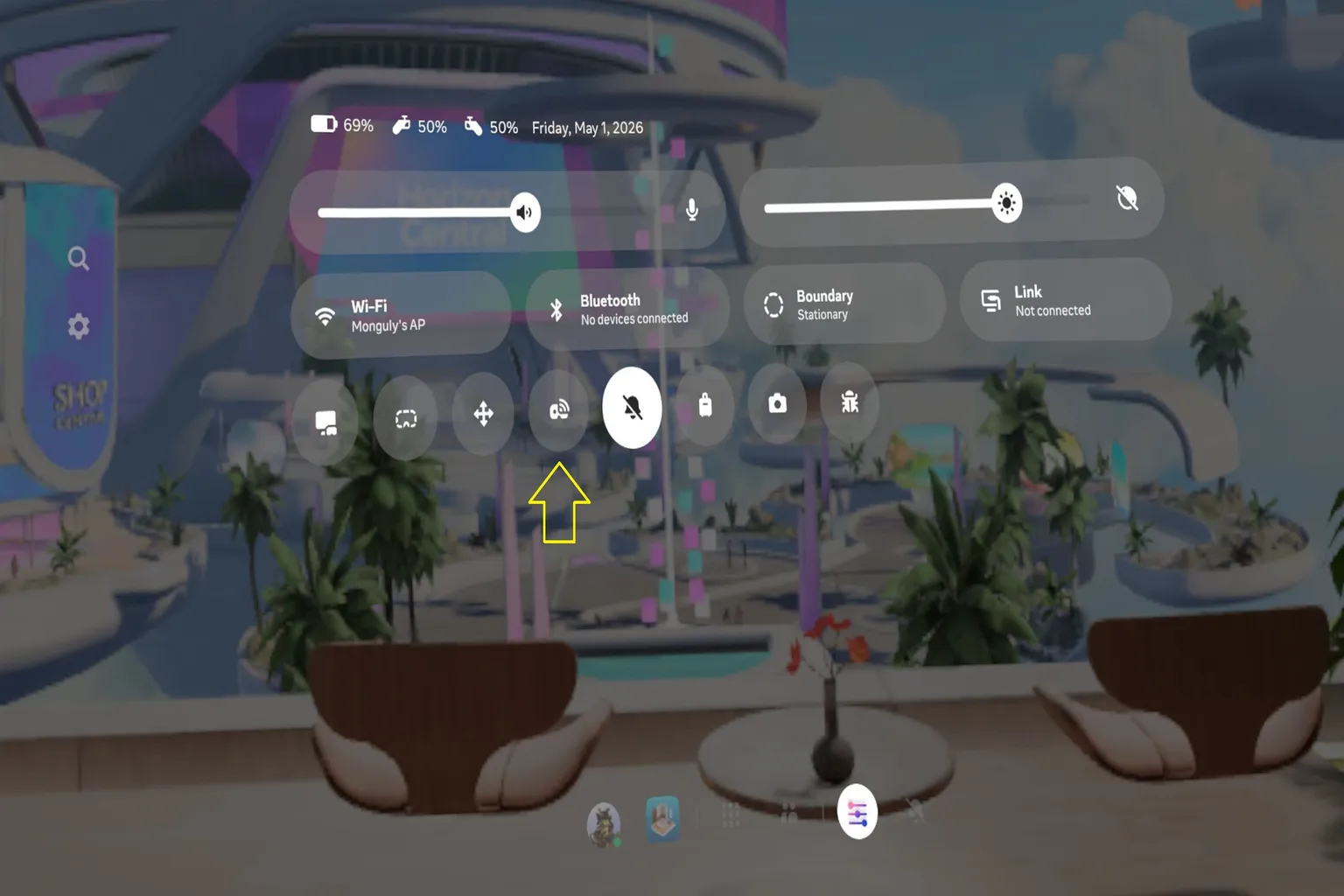
Press the Meta button on the right controller, then choose Mirroring from quick settings.
If the headset is currently recording, the mirroring feature will be locked.
You need to stop recording first before you can use it.
Step 2: Mirror to a TV
On the mirroring screen, you’ll see three destination types: mobile, web, and TV.
Mirroring to a TV uses Chromecast.
Connect the TV and the headset to the same Wi-Fi network, and make sure the TV is turned on. Once that’s ready, the TV mirroring option should appear.
The device name may look different depending on the TV or TV box brand.
Select your TV name or Chromecast to start connecting.

Step 3: Watch on the TV
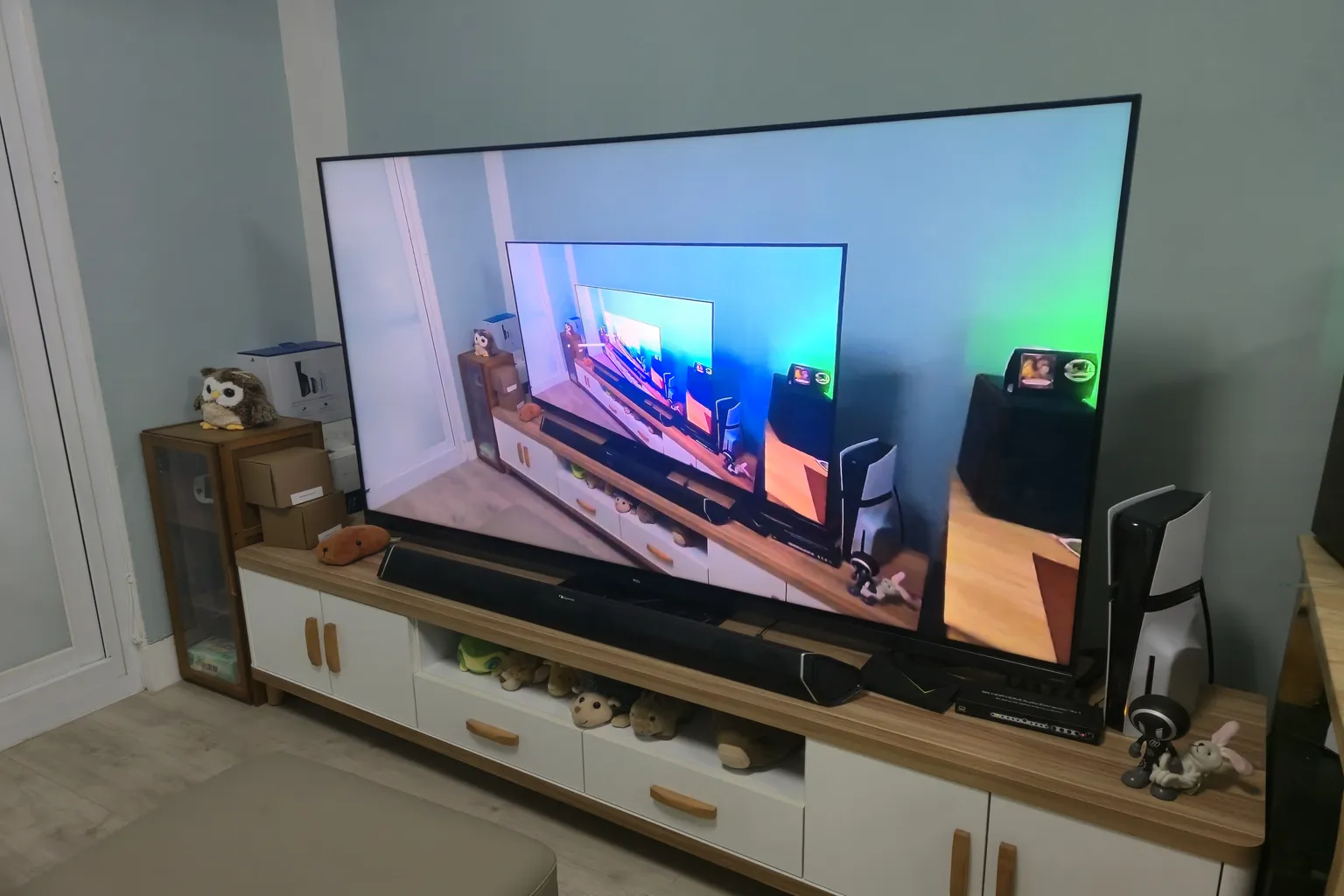
Once mirroring is connected, the TV will show the same screen you see inside the headset.
How to Cast to a Mobile
After you mirror to a mobile device, you can record using the mobile device’s own recording feature.
This is another mirroring method I use pretty often.
Before mirroring, open the Meta Horizon app on your mobile device and log in with the same account as the headset.
Keep the Meta Horizon app open on the screen.
Note: Bluetooth needs to be turned on on the mobile device.
Step 1: Use the mirroring feature
On the mirroring screen, select Mobile and connect.

Step 2: Play it on the mobile device
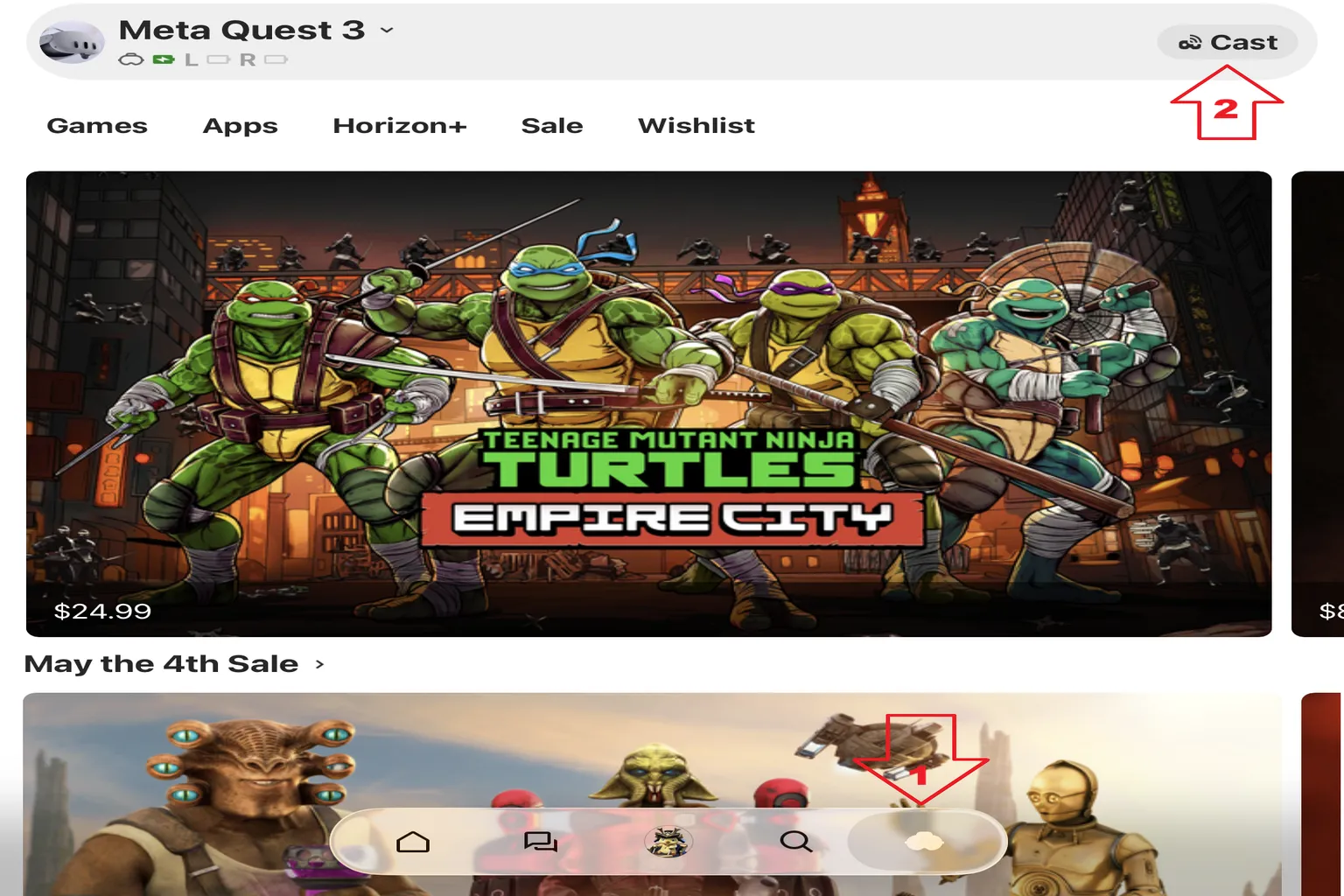
Go back to your mobile device and press Cast on the screen.
This connects the mobile device to the headset.
Step 3: Watch on the mobile device
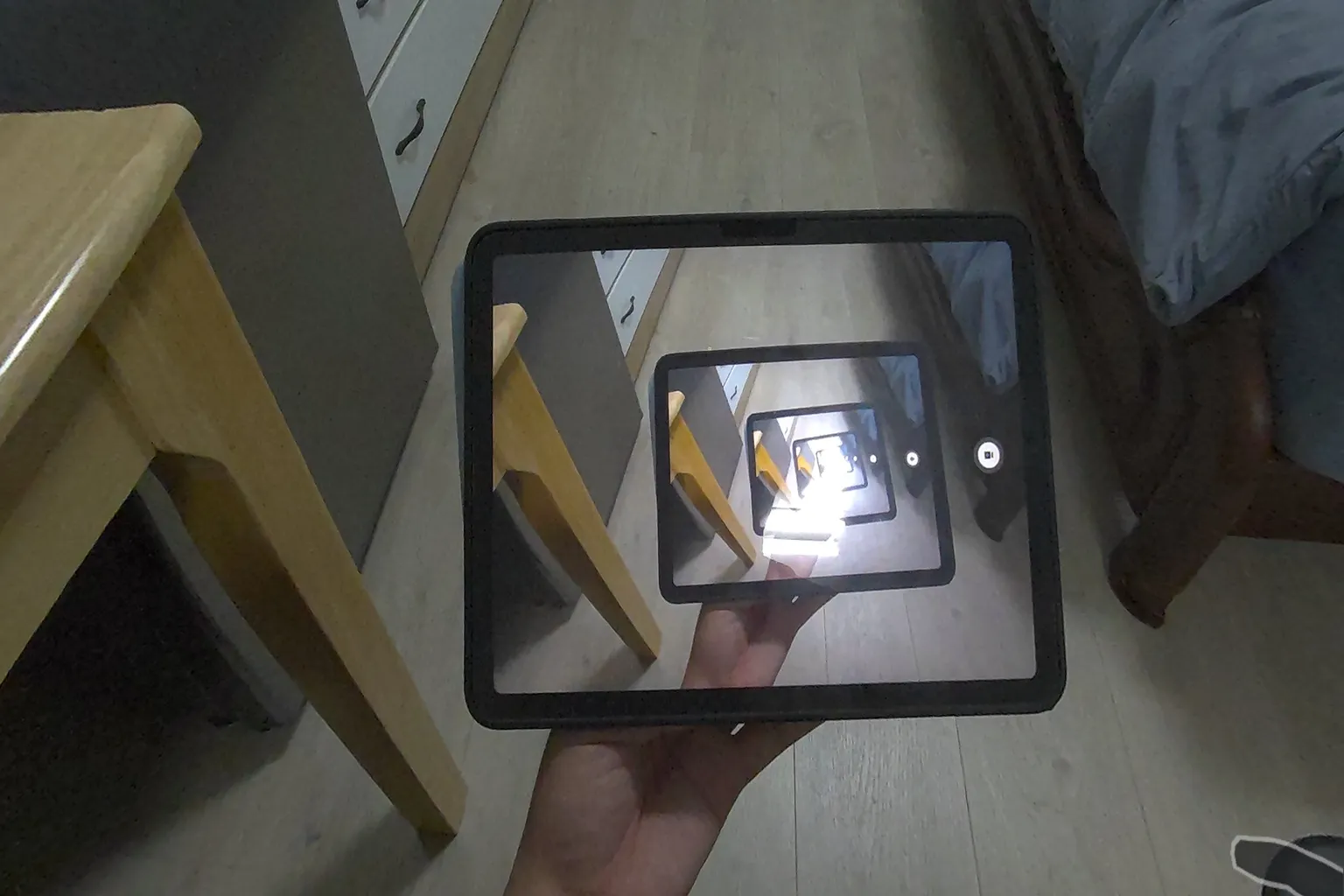
Once mirroring is connected, the mobile device will show the same screen you see inside the headset.
If it will not connect
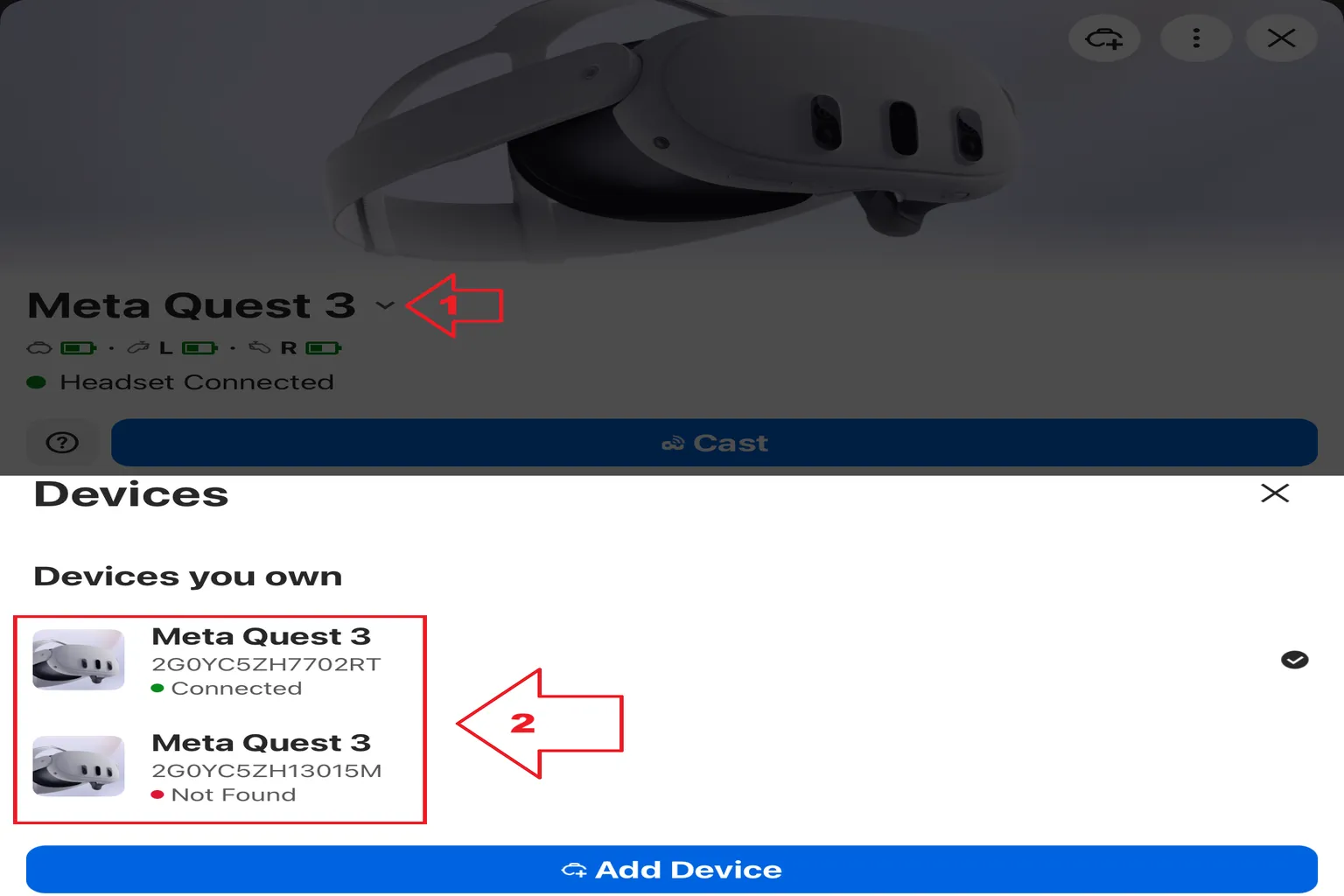
A mobile device can only connect to one headset at a time.
If you have two or more headsets, you need to switch the headset you want to pair with on the mobile side first.
On the mobile device, press the headset name currently shown on the screen.

From the list of devices you own, select the headset you want to use and switch to it.
The ✔️ mark on the right shows the device that is currently paired.
How to Cast to a PC Monitor
This feature is pretty useful if you want to livestream.
You can show the headset screen directly on your computer monitor.
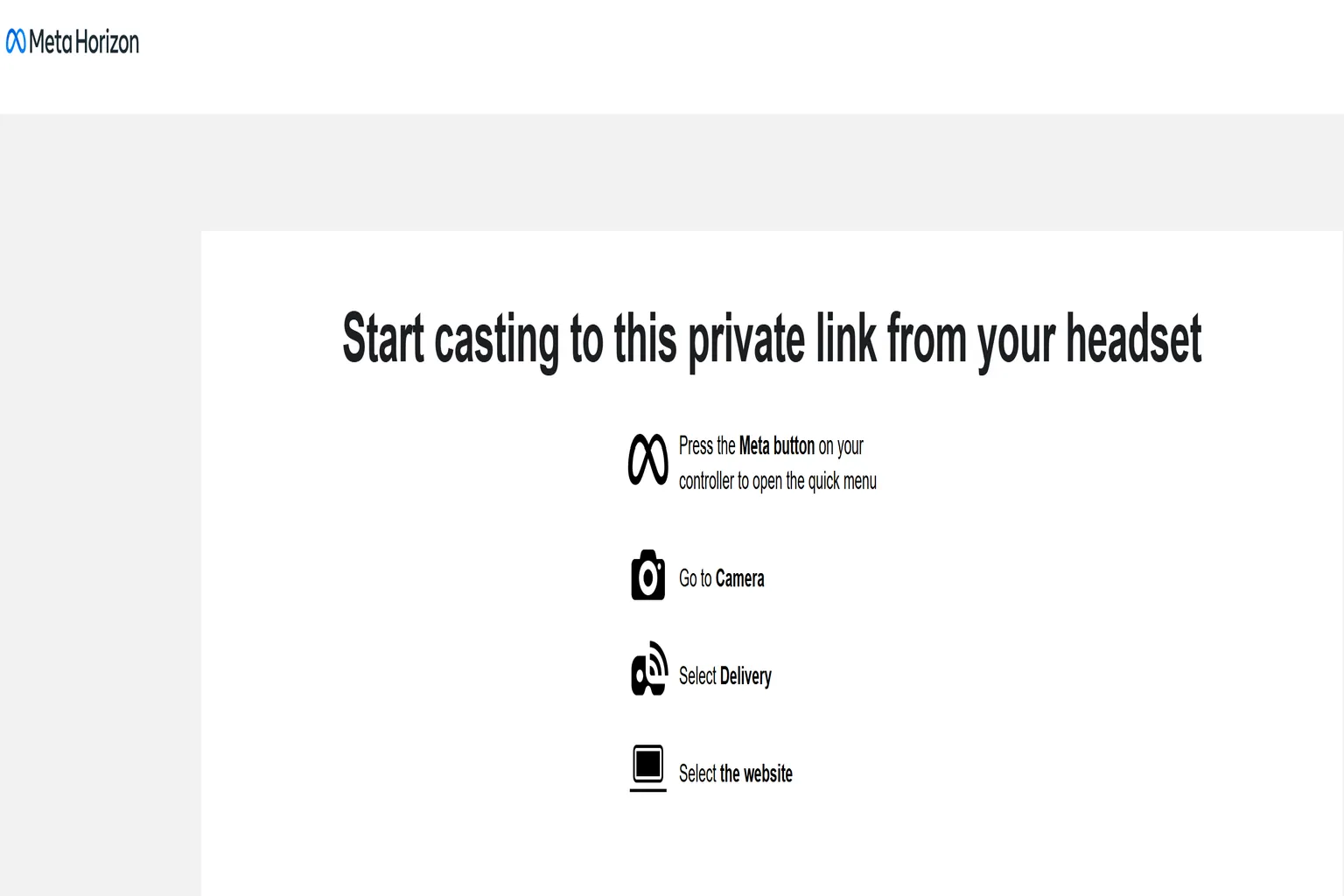
Step 1: Log in to the official page
Before you start, log in to Meta’s web page for mirroring.
Use the same Meta account as the headset.

Once you open Meta’s official mirroring page, the computer will stay on the screen waiting for the headset to connect.
Step 2: Use the mirroring feature
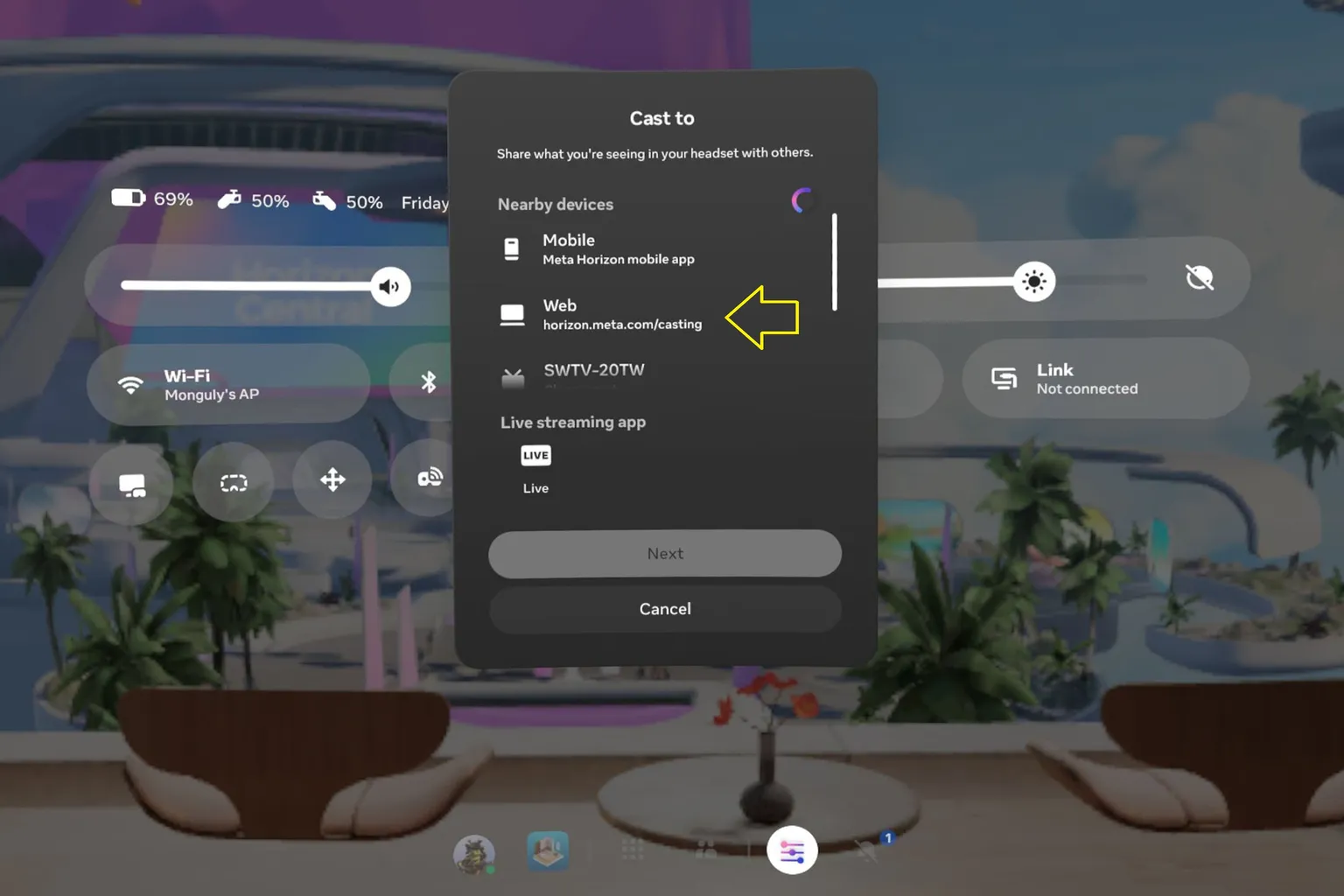
On the mirroring screen, select Web and connect.
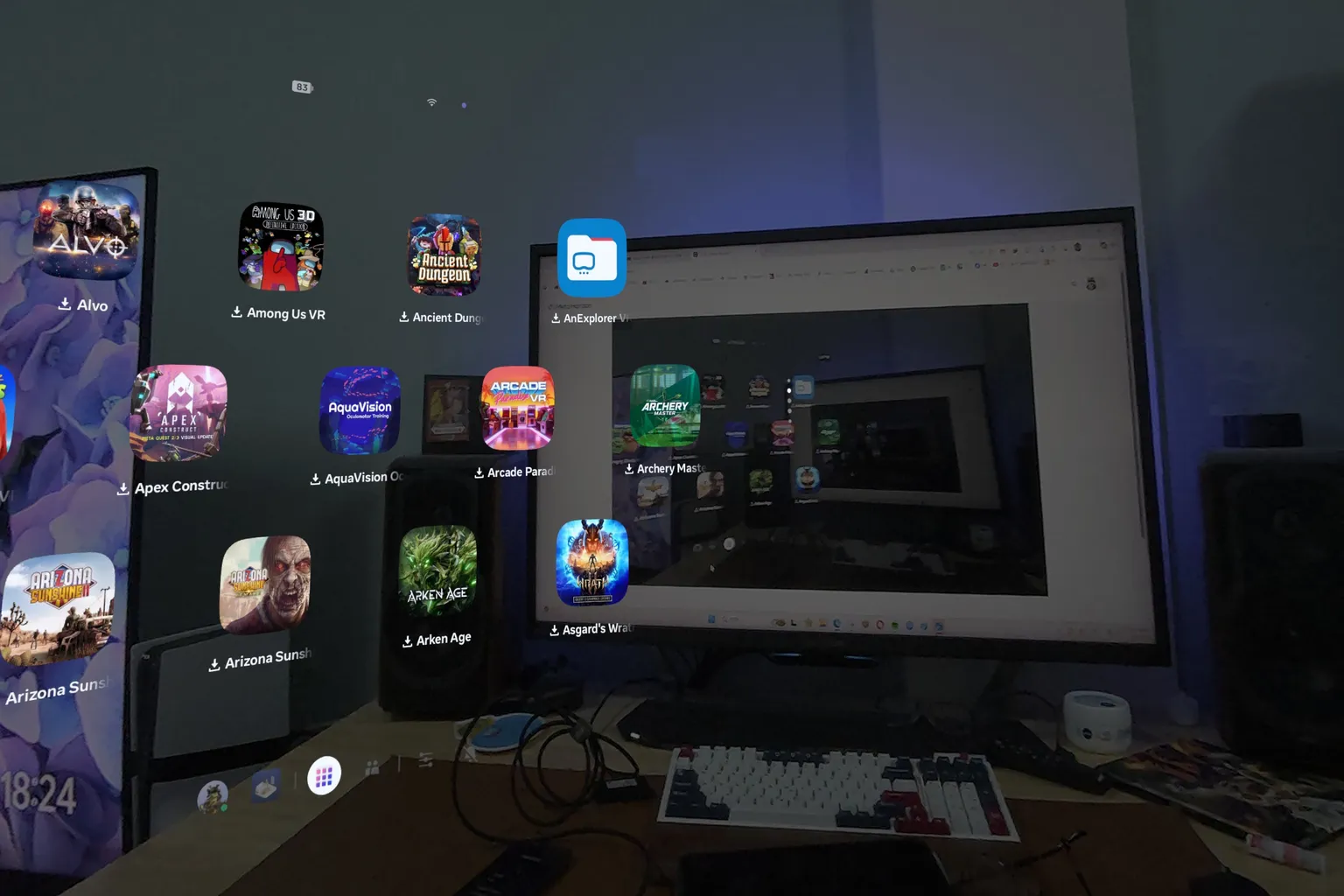
Step 3: Mirror to your computer
Once mirroring is connected, your computer screen will show the same view you see inside the headset.
Casting Display Comparison
When you mirror to a TV, Meta Quest uses Google Chromecast.
There is enough bandwidth, and the image looks pretty clean.
Based on the screenshot, the resolution even reaches 3840 × 2160, which is 4K level.
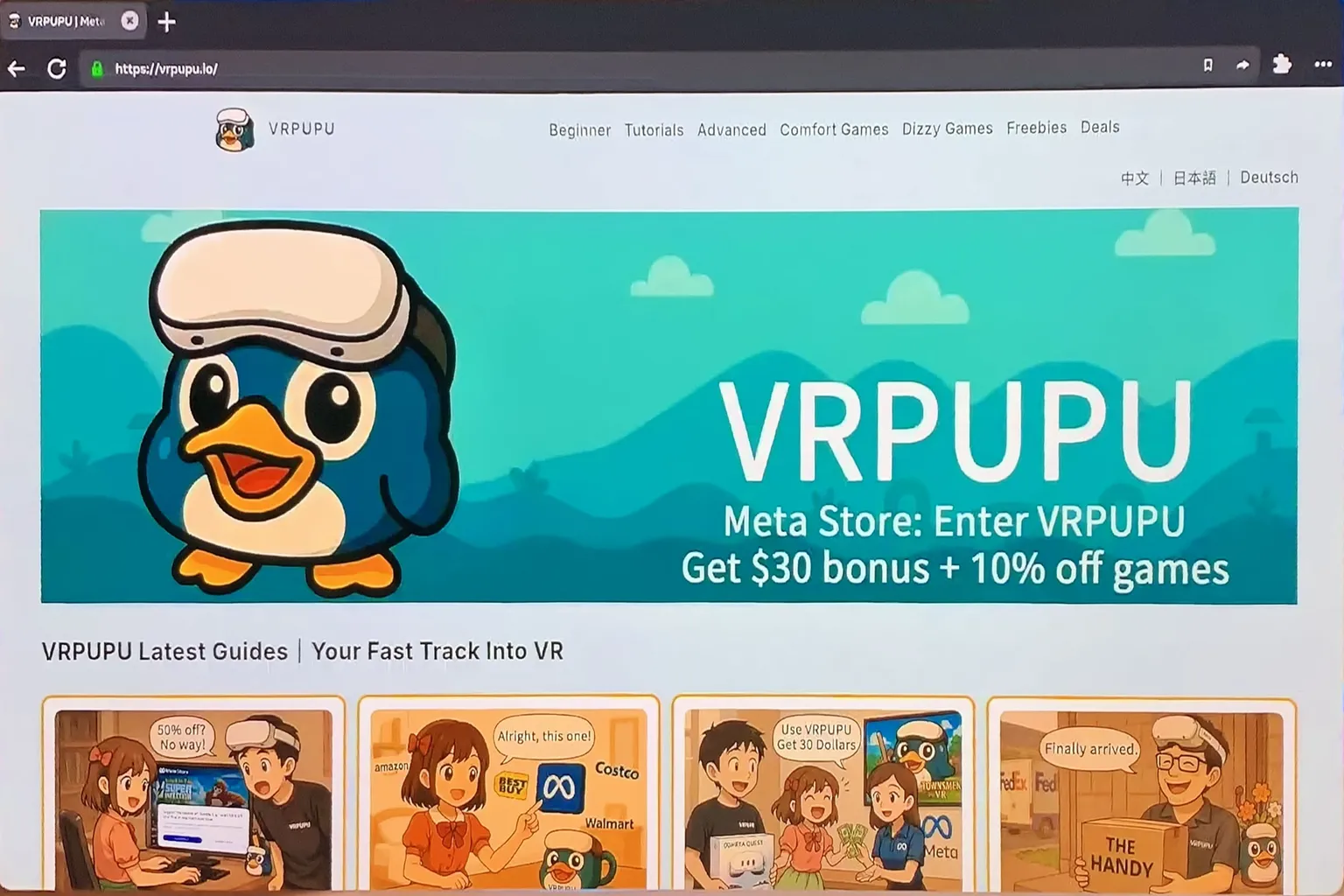
When you mirror to a mobile device, Meta Quest uses Meta’s own mirroring method.
The bandwidth and image quality are a little weaker than TV mirroring.
Looking at the screen, the edges of the text look slightly blurry.

When you mirror to a computer, Meta Quest also uses Meta’s own mirroring method.
The bandwidth and image quality are not that great.
Looking at the screen, the display quality is about the same as mobile.

By now, you should have a pretty good idea of what casting quality looks like. If comfort is your priority, casting to a TV is the option I’d recommend most.
One thing to note: DRM-protected apps like Netflix or Disney+ can’t be cast to a TV. Those have to be watched directly inside the headset.
If you plan to share a single headset with family or friends, check out the article I’ll link next. It explains how to switch between multiple users on one device and how to share game libraries properly.

FAQ – Common Questions
Does Meta Quest casting have latency?
Yes, it does.
The amount of delay depends on the device. TV casting through Chromecast is the most stable, mobile comes next, and computer casting tends to stutter the most.
The Cast button is grayed out and I can’t tap it. Why?
You’re probably recording right now. Meta Quest can’t record and cast at the same time. Stop the recording first, then try again.
My TV or PC doesn’t show up in the device list. What should I check?
Make sure the headset and the TV or PC are connected to the same Wi-Fi router. Also confirm that the TV or PC is powered on and standing by.
Can I stream while playing VR?
Yes. Cast to a PC and capture the browser window with OBS.
Just keep in mind that the image quality will be a bit lower than recording directly on the headset.
Can I cast Netflix or Disney+ so everyone can watch?
These services use DRM protection, so you can only watch them inside the headset.
You can’t cast them to a TV, mobile device, or computer.