This is a full breakdown of UEVR’s advanced settings for people who really want to dig in.
It lists over 150 parameters you can tweak across the PC side and the in-game UI. You’ll find everything here—screen correction, controller tuning, UI scaling, depth of field, HDR, snap turn, garbage collection, key bindings, and more.
Each setting comes with a quick note on what it does and whether it’s worth turning on, so you can immediately understand what each switch actually changes.
Some of these can help stabilize games that keep crashing, some reduce motion sickness, and others barely make a noticeable difference.
If you just want to play, you can skip this page. But if you’re trying to optimize visuals, improve compatibility, or create guide content, this is basically your playbook.
Feature Overview
The basic guide already covers how to use UEVR. Thanks to constant tuning and feedback from players around the world, the software is already set up in a near-optimal state the moment you launch it. In other words, the default settings are good enough for almost everyone.
Because of that, this section focuses on areas I wouldn’t normally recommend regular players touch. Think of this page as a reference that explains what each function does, not something you’re expected to tweak right away.
You can skip this page entirely and still play without any issues. If your goal is simply to enjoy UEVR-supported games, the basic guide is more than enough.
PC-Side Advanced Settings
From here on, these are the advanced settings on the PC side.
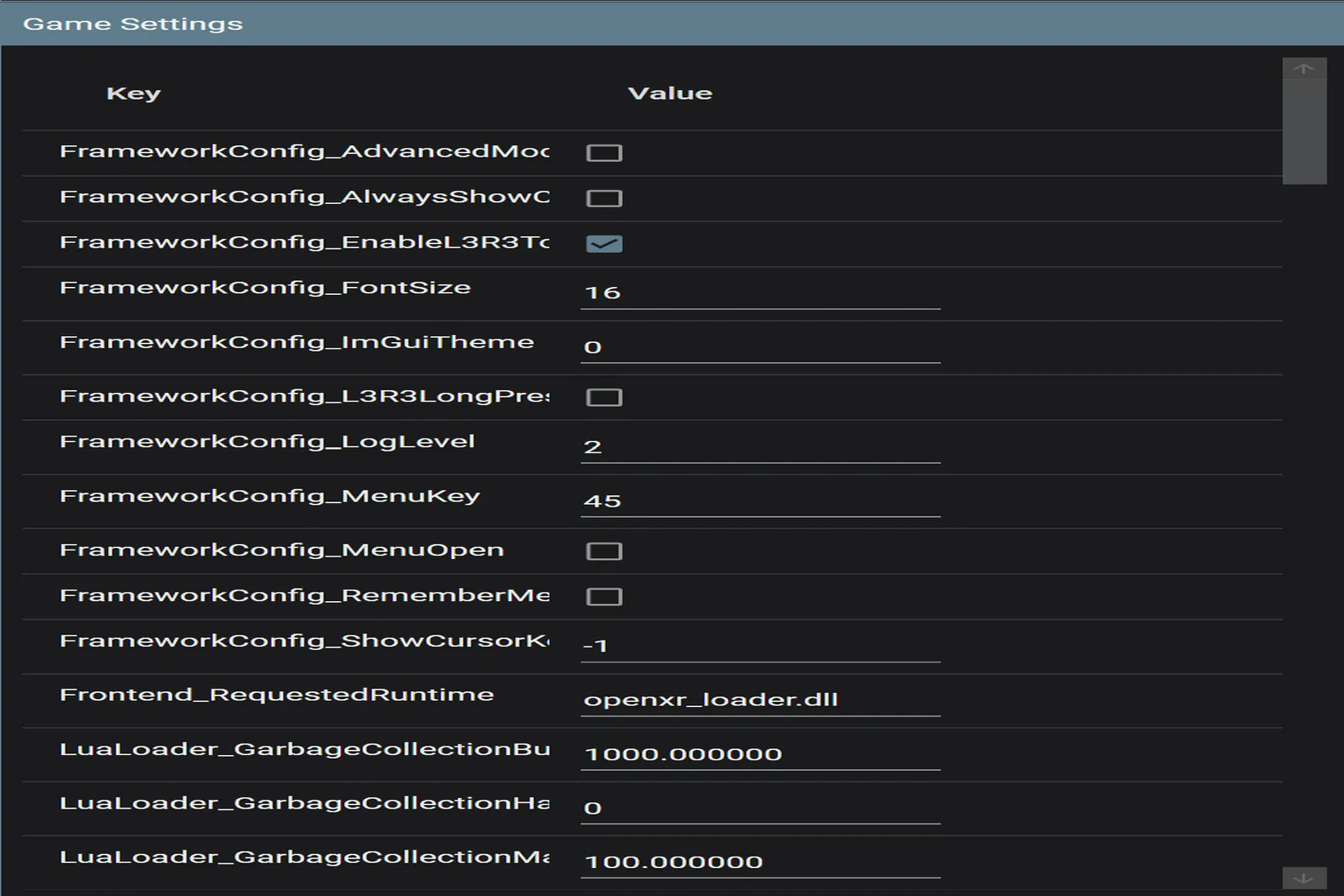
FrameworkConfig_AdvancedMode
Enables Advanced Mode. It’s OFF by default.
FrameworkConfig_AlwaysShowCursor
Keeps the mouse cursor visible at all times, even when you’re not using VR.
FrameworkConfig_EnableL3R3ToOpenMenu
Enables opening the menu by pressing L3 + R3 (pushing in both analog sticks).
FrameworkConfig_FontSize
Controls the UEVR UI font size. The default value is 16.
FrameworkConfig_ImGuiTheme
Selects the UI theme style number (0 = default, 1 = dark theme).
FrameworkConfig_L3R3LongPress
Requires a long press of L3 + R3 to open the menu.
FrameworkConfig_LogLevel
Sets the level of detail for logs and error messages (0 = none, 1 = normal, 2 = detailed).
FrameworkConfig_MenuKey
Defines the shortcut key code used to open the main menu.
FrameworkConfig_MenuOpen
Controls whether the menu opens automatically on startup.
FrameworkConfig_RememberMenuState
Remembers the menu’s last position and on/off state from the previous session.
FrameworkConfig_ShowCursorKey
Assigns a shortcut key for showing or hiding the mouse cursor.
Frontend_RequestedRuntime
Selects the VR runtime to use. openxr_loader.dll means OpenXR mode.
LuaLoader_GarbageCollectionBudgetMs
Sets the maximum time, in milliseconds, that Lua scripts can spend on memory cleanup. The default is 1000 ms.
LuaLoader_GarbageCollectionHardLimitMs
Defines the hard upper limit for forced Lua garbage collection.
LuaLoader_GarbageCollectionMaxStepMs
Controls the maximum step time for a single garbage collection pass. Setting this too high can cause stuttering.
LuaLoader_GarbageCollectionMinStepMs
Sets the minimum processing time for a single GC (memory cleanup) pass. If this is too short, garbage collection can trigger too often and interfere with gameplay.
LuaLoader_GarbageCollectionMode
Selects the garbage collection mode. 0 means automatic.
LuaLoader_GarbageCollectionType
Defines the garbage collection type. If you don’t have a specific reason, leaving this at 0 is fine.
LuaLoader_LogToDisk
Controls whether Lua execution logs are written to disk. This is mainly for development; keeping it OFF is recommended for normal use.
OpenXR_IgnoreVirtualDesktopCheck
Ignores checks for whether Virtual Desktop is being used, preventing related warning messages from appearing.
OpenXR_ResolutionScale
Sets the VR rendering resolution scale. 1.0 equals 100%. Increasing this improves image quality but also increases GPU load.
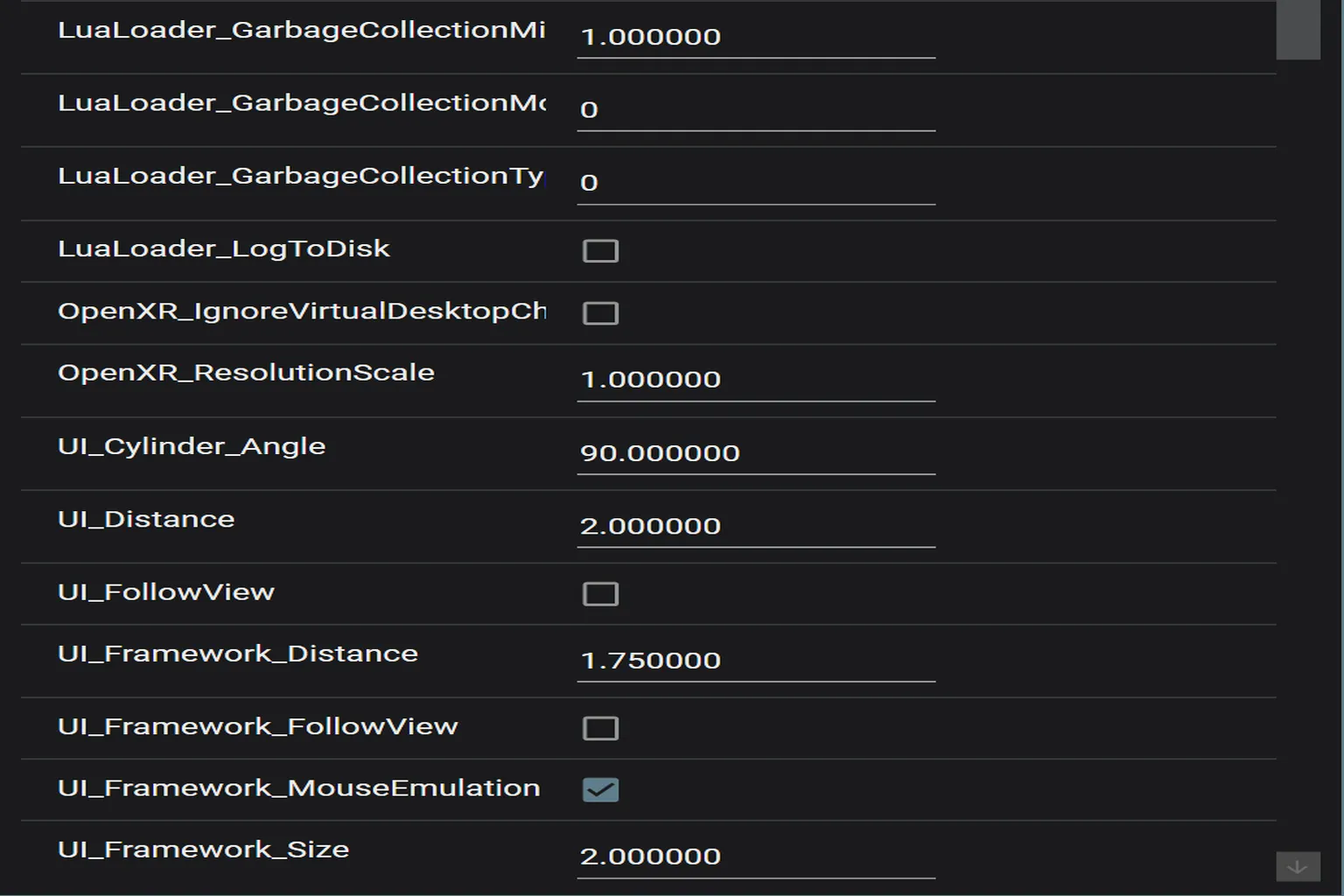
UI_Cylinder_Angle
Adjusts the curvature angle of the menu UI. A value of 90 gives a comfortable, wrap-around feel in your view.
UI_Distance
Sets the distance to the menu, in meters. The default is 2 meters.
UI_FollowView
Determines whether the menu follows your head movement. OFF is recommended.
UI_Framework_Distance
Sets the distance between the player and the framed UI.
UI_Framework_FollowView
Controls whether the framed UI follows your view direction.
UI_Framework_MouseEmulation
Enables mouse emulation, allowing you to click UI elements using controllers or a head-based cursor.
UI_Framework_Size
Adjusts the overall scale of the menu UI. The default value is 2.
UI_Framework_WristUI
Enables or disables the wrist-mounted UI.
UI_OverlayType
Selects the overlay display mode for the VR window. The default value is 0.
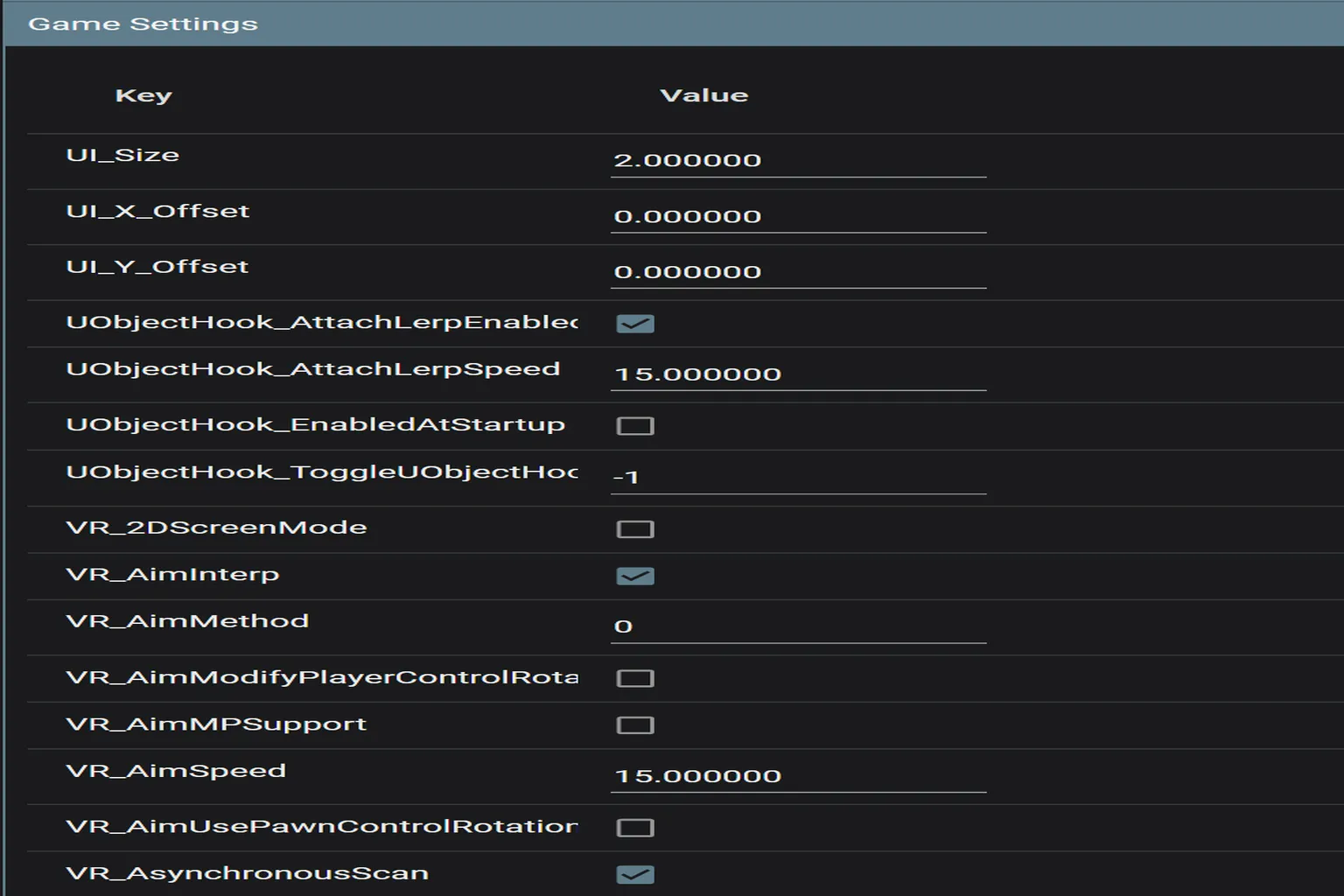
UI_Size
Controls the overall scale of the VR interaction UI. The default value is 2. Increasing it makes the entire UI larger; decreasing it makes everything smaller.
UI_X_Offset
Horizontal offset for the VR interaction UI. Negative values move it left, positive values move it right.
UI_Y_Offset
Vertical offset for the VR interaction UI. Positive values move it downward.
UObjectHook_AttachLerpEnabled
Enables smooth interpolation animation when attaching objects.
UObjectHook_AttachLerpSpeed
Sets the speed of the attachment interpolation. Higher values make objects snap into place faster.
UObjectHook_EnabledAtStartup
Automatically enables UObjectHook when UEVR starts.
UObjectHook_ToggleUObjectHookKey
Shortcut key for toggling UObjectHook on and off.
VR_2DScreenMode
When enabled, the game is rendered in 2D mode instead of VR.
VR_AimInterp
Smooths camera movement during aiming by applying interpolation.
VR_AimMethod
Selects the aiming method.
VR_AimModifyPlayerControlRotation
Determines whether aiming also affects the player’s control rotation.
VR_AimMPSupport
Enables aim support during multiplayer sessions.
VR_AimSpeed
Controls how fast the view follows aiming input. Higher values feel snappier, but setting this too high can cause VR sickness. If you’re sensitive, keep this lower.
VR_AimUsePawnControlRotation
Uses the character’s internal rotation logic for aiming.
VR_AsynchronousScan
Enables asynchronous scanning, which can slightly improve performance and stability.
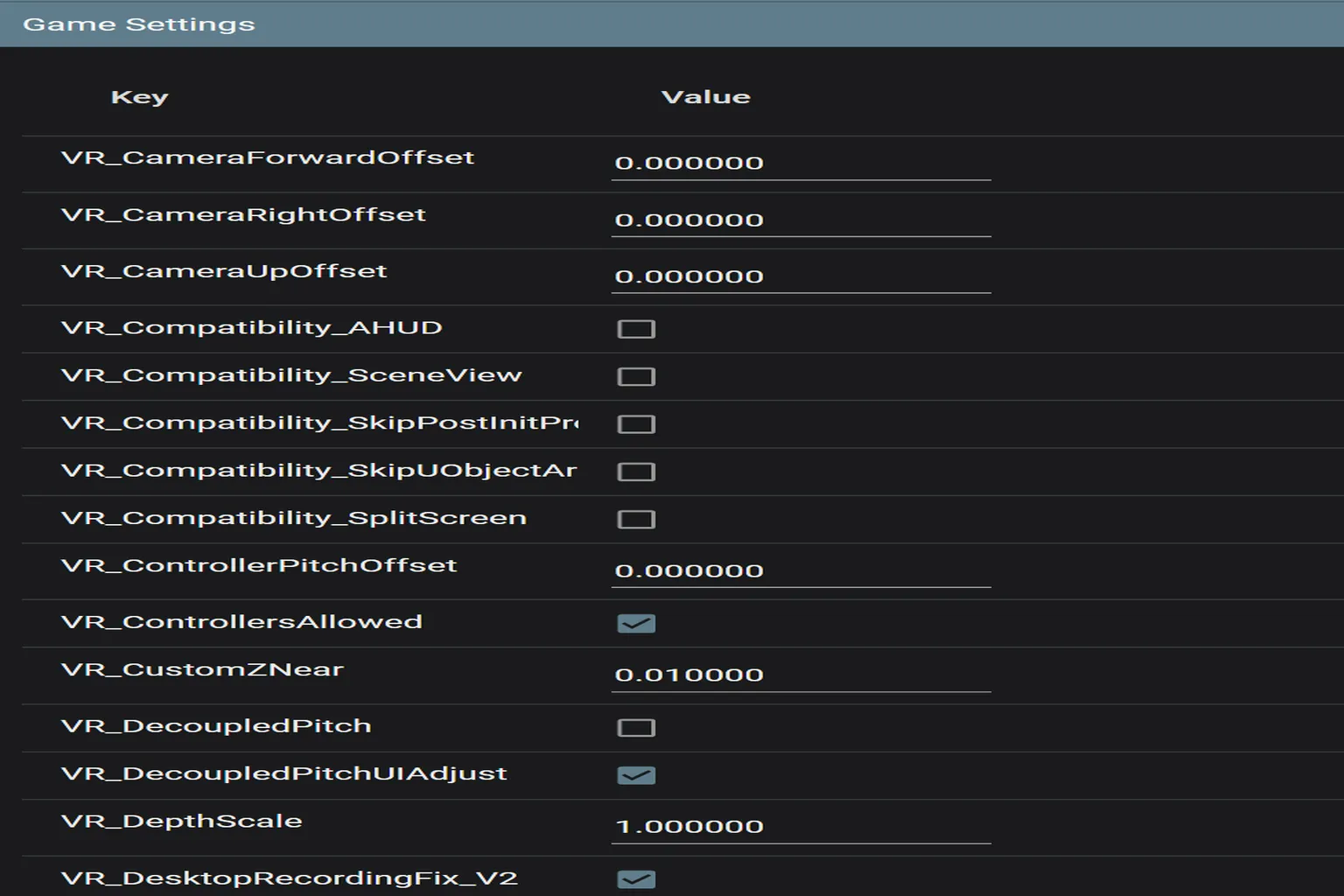
VR_CameraForwardOffset
Moves the camera forward or backward, letting you push the viewpoint ahead or pull it closer.
VR_CameraRightOffset
Offsets the camera left or right. Negative values move it left, positive values move it right.
VR_CameraUpOffset
Adjusts the vertical height of the camera viewpoint.
VR_Compatibility_AHUD
Attempts to fix cases where the HUD (UI elements) do not appear.
VR_Compatibility_SceneView
Fixes issues where parts of a scene are missing or not rendered correctly.
VR_Compatibility_SkipPostInitPr / SkipUObjectAr
Addresses freezing issues that occur during the initialization process in certain games.
VR_Compatibility_SplitScreen
Fixes visual problems caused by split-screen rendering.
VR_ControllerPitchOffset
Compensation value for the controller’s pitch (up/down tilt).
VR_ControllersAllowed
Enables tracking for VR controllers.
VR_CustomZNear
Sets the ZNear value, which defines the closest rendering distance. The default is 0.01, helping prevent nearby models from clipping through your view.
VR_DecoupledPitch
When enabled, allows free up-and-down head movement independent of other rotations.
VR_DecoupledPitchUIAdjust
Adjusts the UI position to match when DecoupledPitch is enabled.
VR_DepthScale
Adjusts the strength of depth perception (stereoscopic depth). Changing this too much can feel very unnatural, so caution is needed.
VR_DesktopRecordingFix_V2
Fixes desync and stuttering issues when recording gameplay footage.
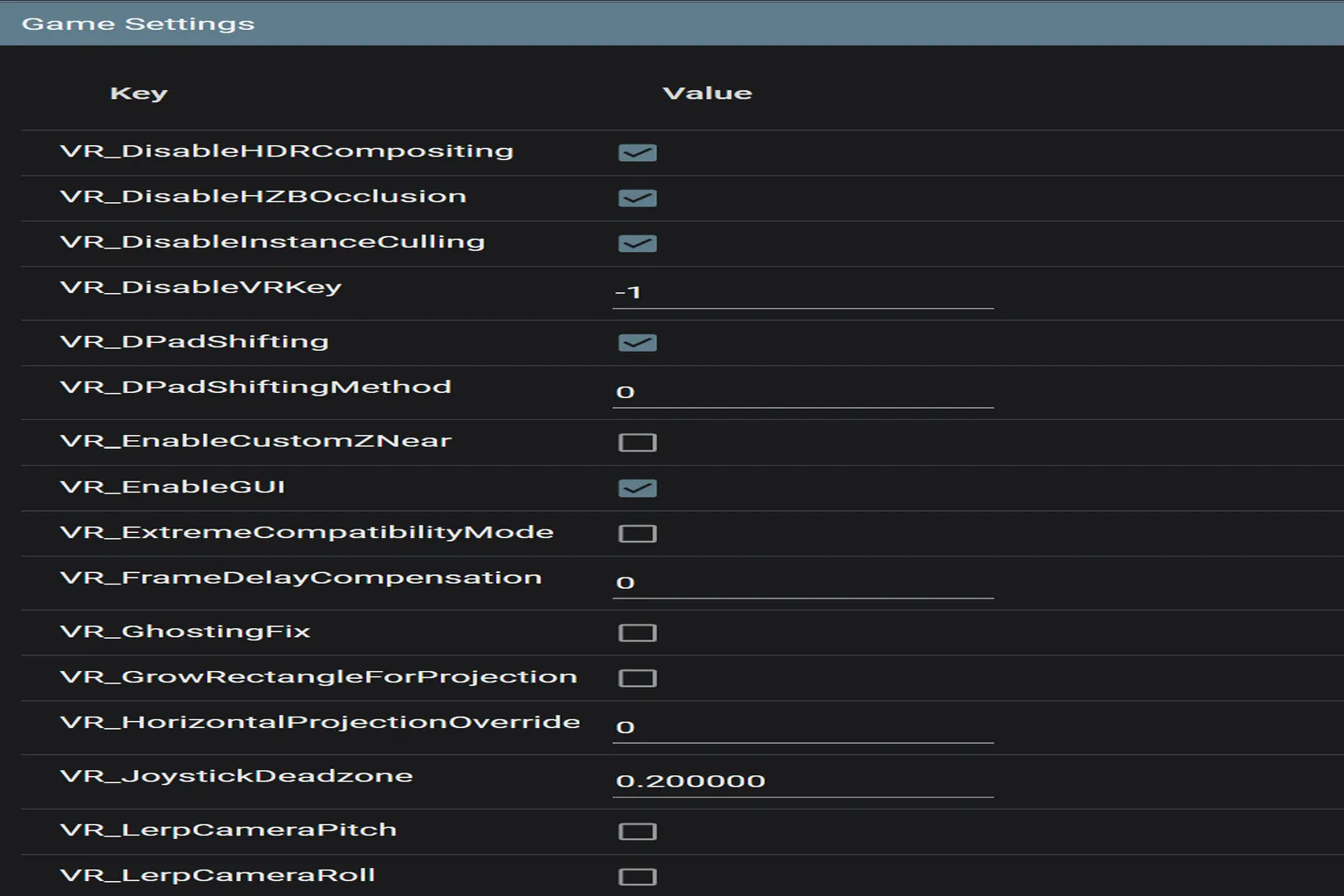
VR_DisableHDRCompositing
Disables HDR. Useful for games where enabling HDR causes visual glitches or flickering.
VR_DisableHZBOcclusion
Disables HZB occlusion to prevent certain objects from being hidden incorrectly.
VR_DisableInstanceCulling
Disables instance culling, which can help when some models in a scene fail to appear.
VR_DisableVRKey
Disables the hotkey used to bring up the VR interface.
VR_DPadShifting
Allows viewpoint movement using the D-pad.
VR_DPadShiftingMethod
Selects the control method used for D-pad movement.
VR_EnableCustomZNear
Enables manual control of a custom ZNear value (the closest visible distance).
VR_EnableGUI
Controls whether the UEVR control UI is enabled.
VR_ExtremeCompatibilityMode
Extreme compatibility mode. Forces multiple fixes at once as a last resort when a game cannot enter VR mode at all.
VR_FrameDelayCompensation
Compensation value for frame delay. Higher values apply stronger compensation.
VR_GhostingFix
Enables ghosting correction. Turn this on if afterimages are noticeable.
VR_GrowRectangleForProjection
Expands the projection area to fix cases where parts of the UI get clipped.
VR_HorizontalProjectionOverride
Overrides horizontal projection to prevent unnaturally wide images from being distorted or squeezed in VR.
VR_JoystickDeadzone
Sets the joystick deadzone. For example, 0.2 means input within 20% tilt is ignored, helping prevent drift or accidental movement.
VR_LerpCameraPitch
Applies interpolation to camera pitch (up/down). When OFF, the view snaps instantly, which can feel jarring in third-person views or cutscenes. When ON, the movement smooths over about 0.1–0.3 seconds.
VR_LerpCameraRoll
Applies interpolation to camera roll (left/right tilt), smoothing movement in the same way as pitch interpolation.
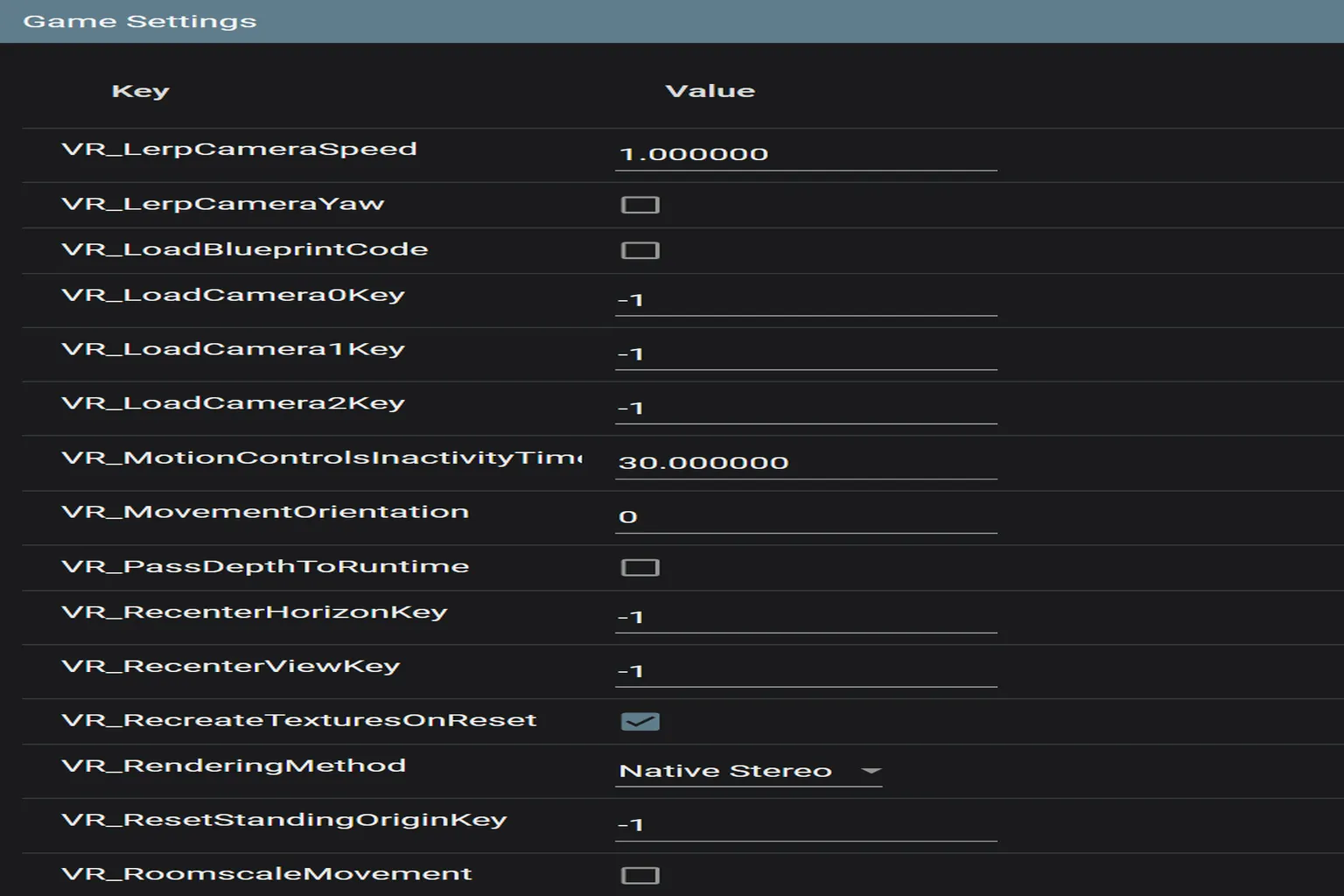
VR_LerpCameraSpeed
Controls the speed of camera interpolation animations. Higher values make viewpoint transitions faster.
VR_LerpCameraYaw
Adds interpolation animation to yaw (left/right head rotation).
VR_LoadBlueprintCode
Controls whether special Blueprint code is loaded. Intended for developers.
VR_LoadCamera0Key / VR_LoadCamera1Key / VR_LoadCamera2Key
Shortcut keys for recalling three preset camera positions.
VR_MotionControlsInactivityTimeout
If the controllers are not moved for this many seconds, they enter an idle state.
VR_MovementOrientation
Defines the reference for movement direction.
0 = movement follows head direction.
1 = movement follows controller direction regardless of head orientation.
VR_PassDepthToRuntime
Controls whether per-pixel depth data is passed to the game engine runtime. Used by a small number of games for effects or distance checks, but OFF is fine in most cases.
VR_RecenterHorizonKey
Key for resetting the horizontal view.
VR_RecenterViewKey
Key for resetting the overall view.
VR_RecreateTexturesOnReset
Reloads textures when the view is reset. Useful for games where the image becomes blurry after recentering.
VR_RenderingMethod
Selects the rendering method.
- Native Stereo (native dual-eye rendering): Optimized for VR. This is the default and recommended option.
- Alternating / AFR (alternate rendering): Renders left and right eyes alternately. Lighter load, but lower image quality.
- Synced Sequential (synchronized sequential rendering): Renders each eye separately while attempting synchronization. Mainly for avoiding bugs; not recommended.
VR_ResetStandingOriginKey
Key for resetting the standing origin position.
VR_RoomscaleMovement
Enables room-scale movement. Since most PC games are designed primarily for standing-in-place play, this is usually recommended to stay OFF.
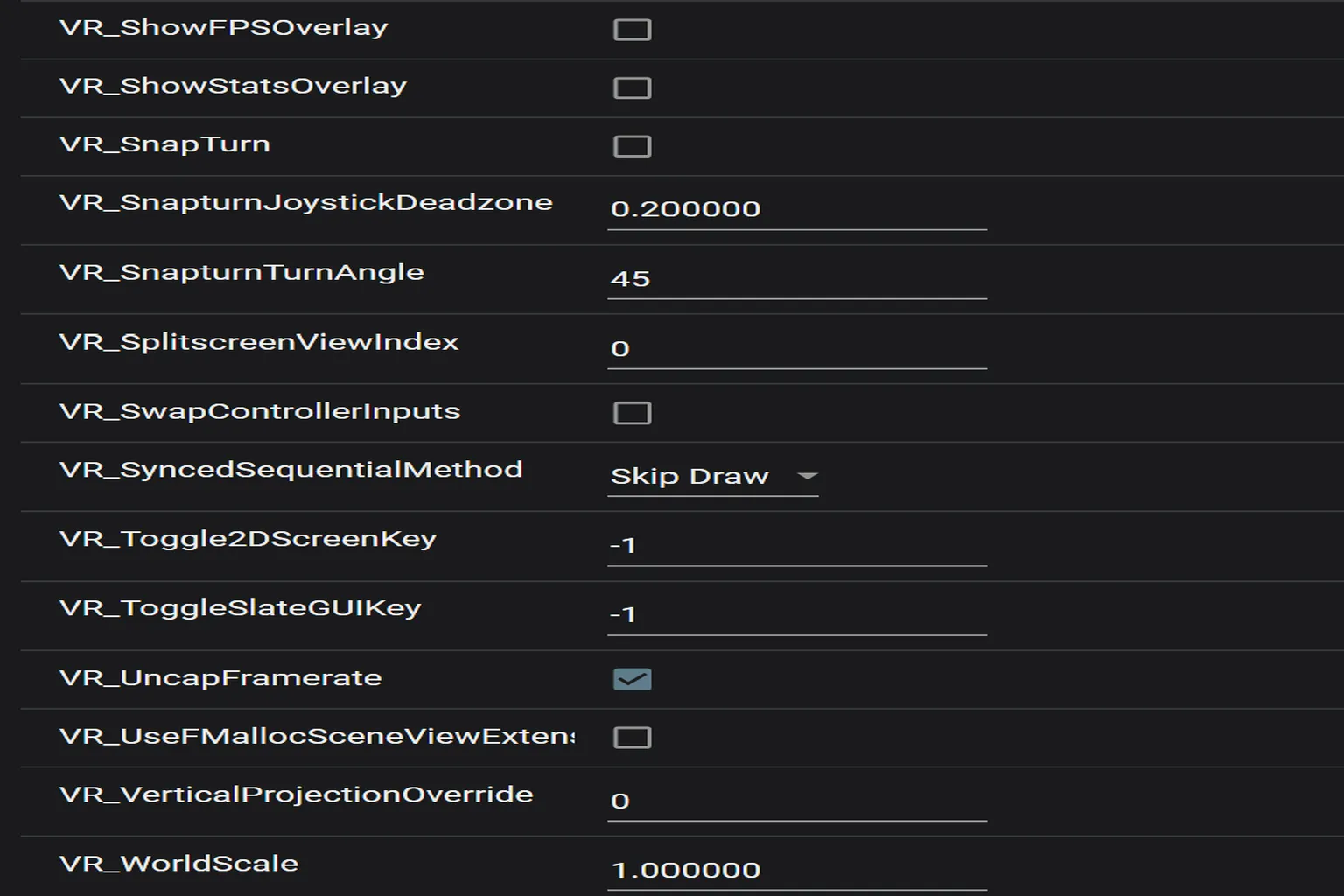
VR_ShowFPSOverlay
Shows the FPS counter inside the VR view.
VR_ShowStatsOverlay
Displays more detailed stats such as render time and latency.
VR_SnapTurn
Enables snap turning (fast camera rotation). Each small push of the right stick rotates the view by a fixed angle instantly.
VR_SnapturnJoystickDeadzone
Sets the joystick deadzone specifically for snap turning.
VR_SnapturnTurnAngle
Rotation angle per snap turn. The default is 45 degrees.
VR_SplitscreenViewIndex
Selects which view index to use when split or multi-view rendering is active.
VR_SwapControllerInputs
Swaps left and right controller inputs. Useful for left-handed players.
VR_SyncedSequentialMethod
Selects the method used for synced sequential stereo rendering.
- Skip Tick reduces CPU load but can make motion feel less responsive.
- Skip Draw reduces GPU load. Since most games are GPU-bound, this option is generally preferred.
VR_Toggle2DScreenKey
Key to toggle the 2D screen display on or off.
VR_ToggleSlateGUIKey
Key to toggle the GUI display on or off.
VR_UncapFramerate
Removes the framerate cap. This can improve smoothness in some cases.
VR_UseFMallocSceneViewExtension
Enables Unreal Engine internal memory optimizations.
VR_VerticalProjectionOverride
Overrides vertical projection settings.
VR_WorldScale
Controls the scale of the VR world. 1.0 is true-to-scale. Adjust this if characters or environments feel too large or too small.
Advanced Settings After Injection
Once you inject the VR module into a game, a system window appears that lets you fine-tune a wide range of settings. This section explains each function found inside that window.
Top Bar Options
Transparency
Controls whether the UI window background is semi-transparent. When enabled, the UEVR settings panel becomes see-through, making it easier to see what’s happening behind it in VR.
Input Passthrough
Allows you to keep the UEVR panel open while adjusting UI settings and controlling your character at the same time. Honestly, this isn’t recommended. If you want to avoid unnecessary issues, it’s better to leave this OFF.
Show Advanced Options
Toggles the visibility of advanced settings. This is OFF by default.
Left Bar Options
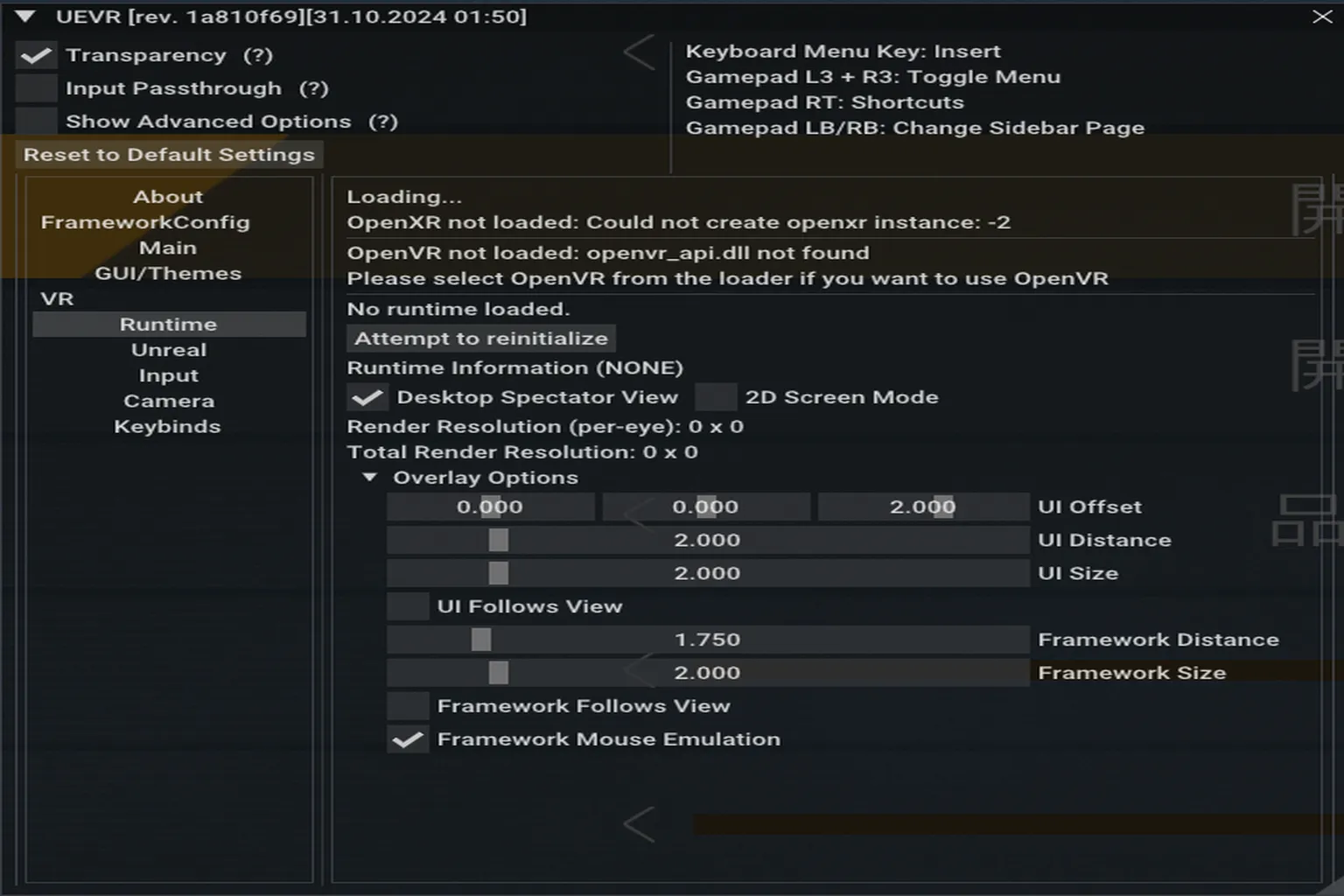
Runtime Area
Shows whether the VR device is running correctly, and lets you preview the image as well as adjust UI position and size.
Desktop Spectator View
When enabled, the same VR view you see in the headset is displayed on the PC monitor. Useful for recording or showing the game to someone else. Generally recommended to keep this ON.
2D Screen Mode
Forces the image into 2D and disables stereoscopic depth. When enabled, the VR feel is lost.
UI Offset
Offsets the VR UI position.
First row: left / right
Second row: up / down
Third row: forward / backward
UI Distance
Controls the distance between your eyes and the UI. Higher values push it farther away; lower values bring it closer.
UI Size
Adjusts the overall size of the UI. Increasing the value makes the UI larger.
UI Follows View
Determines whether the UI window always stays centered in your view. When ON, the UI appears in front of you no matter where you look.
Framework Distance
Controls the distance between your viewpoint and the entire control panel. Similar to UI Distance, but applies to the whole panel.
Framework Size
Adjusts the size of the control panel. If it feels too small to read, increasing this helps.
Framework Follows View
Chooses whether the UEVR framework elements (controller guides, 3D gizmos, coordinate info, etc.) stay fixed in space or follow your view. When ON, they always appear in front of you.
Framework Mouse Emulation
When enabled, you can interact with the framework using a mouse. This allows you to click and adjust settings with the mouse even while in VR.
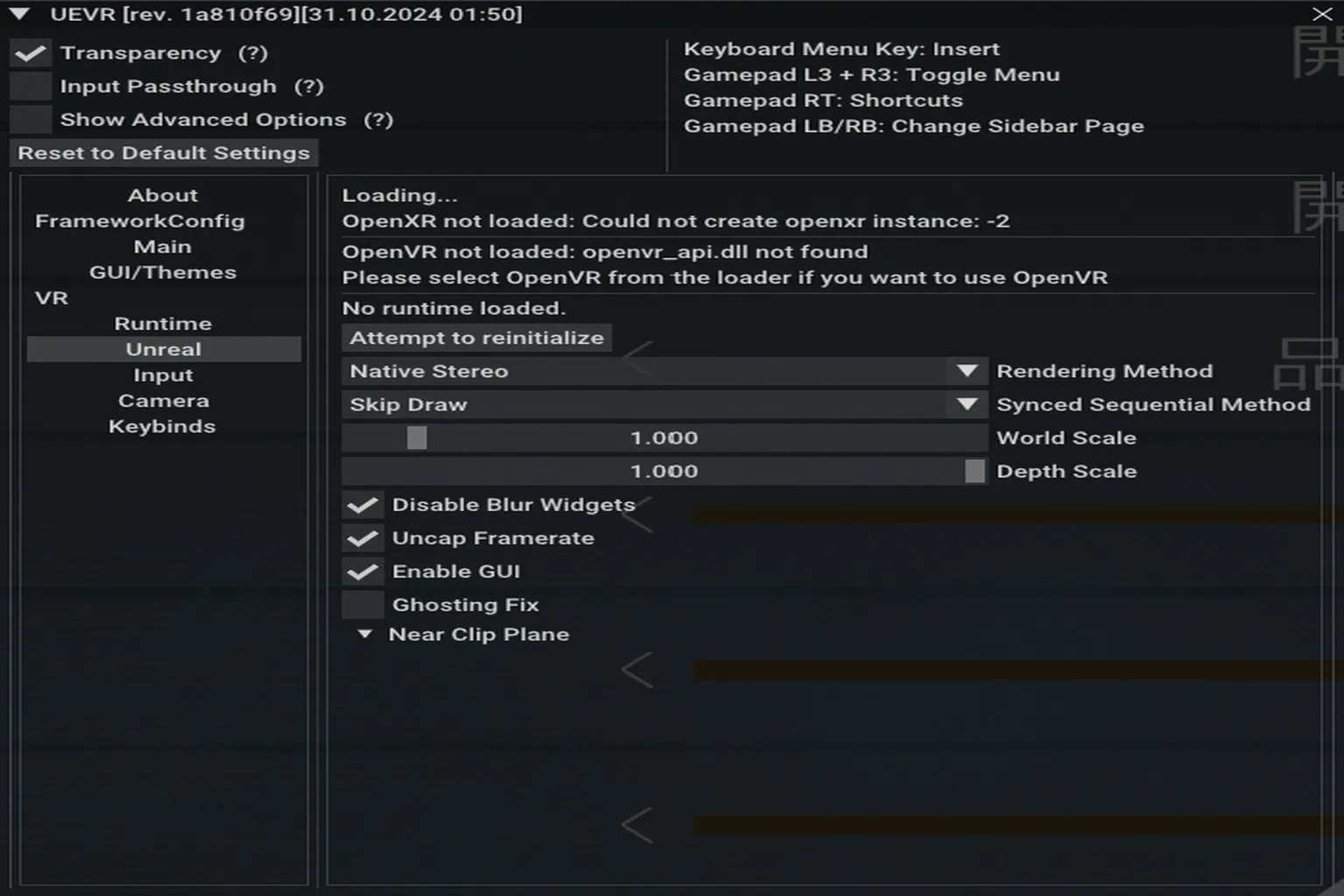
Unreal Area
Extra Optimization Settings for Unreal Engine Games
Attempt to reinitialize
Reloads the runtime. If the game fails to start correctly, pressing this will try to reconnect and reinitialize VR.
Rendering Method
The default is Native Stereo. This provides the most natural stereoscopic view and works well for most games.
Skip Draw
Skips part of the frame rendering to improve performance.
World Scale
Adjusts the scale of the entire virtual world. 1.0 is true-to-scale.
Depth Scale
Controls how strong the sense of depth and 3D separation feels.
Disable Blur Widgets
Disables blur effects on in-game UI elements. Useful if you want the UI to appear sharper and clearer in VR.
Uncap Framerate
Removes the framerate cap to allow smoother visuals.
Enable GUI
Enables or disables the UEVR GUI.
Ghosting Fix
Attempts to reduce ghosting and afterimage artifacts.
Near Clip Plane
Sets the closest distance at which objects can be rendered in front of your eyes. In VR, objects that get too close are clipped by the system; this lets you adjust that cutoff distance.
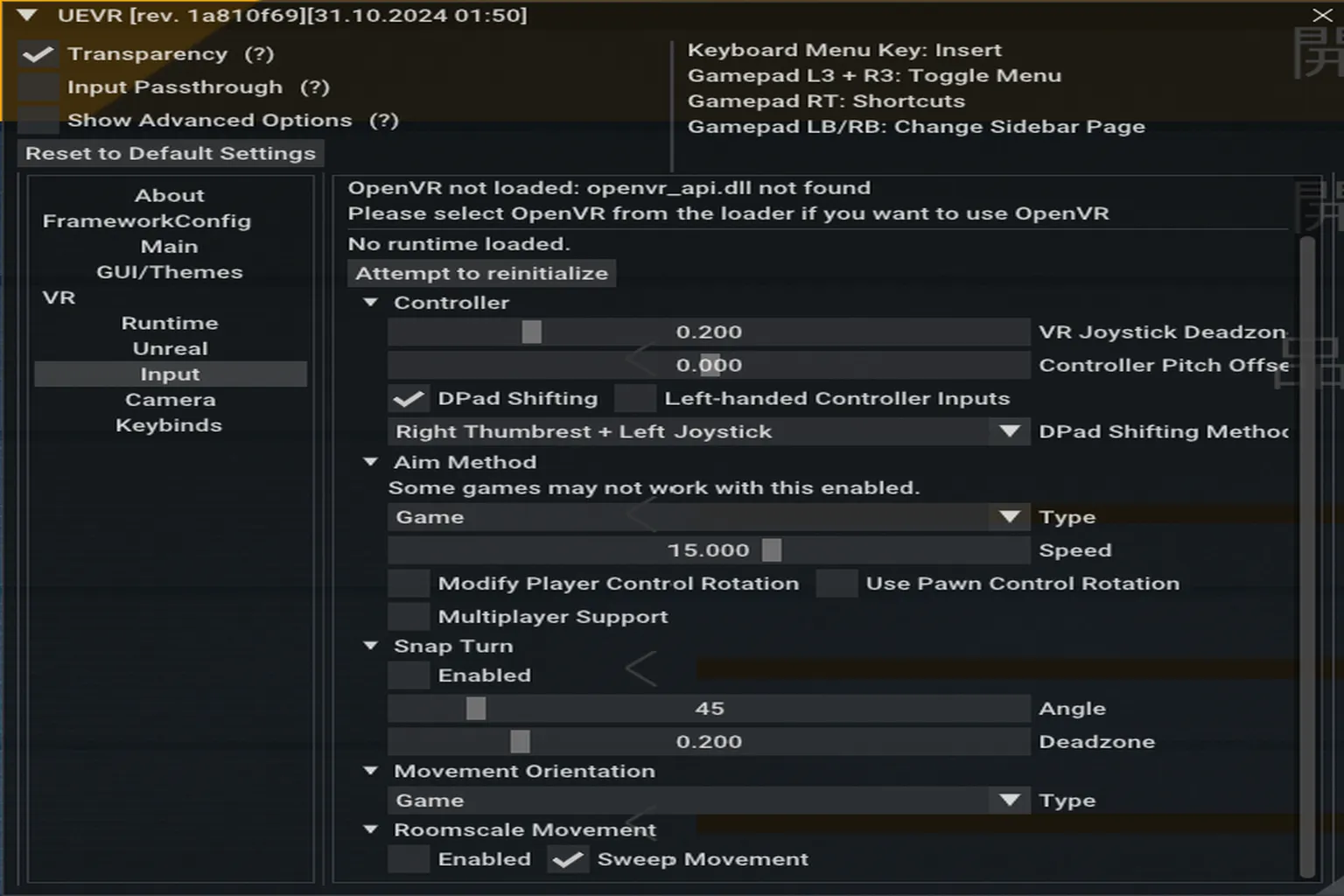
Input Area
Controller Input Settings
VR Joystick Deadzone
Sets the joystick deadzone. If it’s too small, the stick becomes overly sensitive; if it’s too large, inputs feel sluggish. This can also help reduce stick drift.
Controller Pitch Offset
Adjusts the controller’s vertical angle (up/down) offset.
DPad Shifting
Turns the D-pad into a multi-function input, allowing additional actions through button combinations.
Left-handed Controller Inputs
Swaps left and right controller inputs. Intended for left-handed users.
DPad Shifting Method
Defines the button combination used to activate the multi-function D-pad. Here, it’s right stick + left stick press.
Type (Aim Method)
Selects how aiming works.
- Game
Uses the game’s original aiming logic. - VR
Uses head or hand direction directly as the aim.
Speed
Controls how quickly the view and aiming respond. Higher values result in faster response.
Modify Player Control Rotation / Use Pawn Control Rotation
Determines whether character rotation is synced with head or controller movement. This affects both aiming and movement direction.
Multiplayer Support
Improves synchronization accuracy during multiplayer sessions.
Snap Turn
When enabled, moving the stick instantly rotates your view by a fixed angle.
Angle
Sets the rotation angle per snap turn (for example, 45 degrees).
Deadzone
Defines how far the stick must be tilted to trigger a snap turn. Lower values make it more sensitive.
Movement Orientation
Chooses what determines movement direction.
- Game
Uses the game’s original movement logic. - Head
Movement follows the direction your head is facing. - Controller
Movement follows the direction the controller is pointing.
Roomscale Movement
Generally not recommended, since most PC games are not designed for room-scale play.
- Enabled
Moves the character based on real-world physical movement. - Sweep Movement
Enables collision checks during real-world movement to prevent passing through walls.
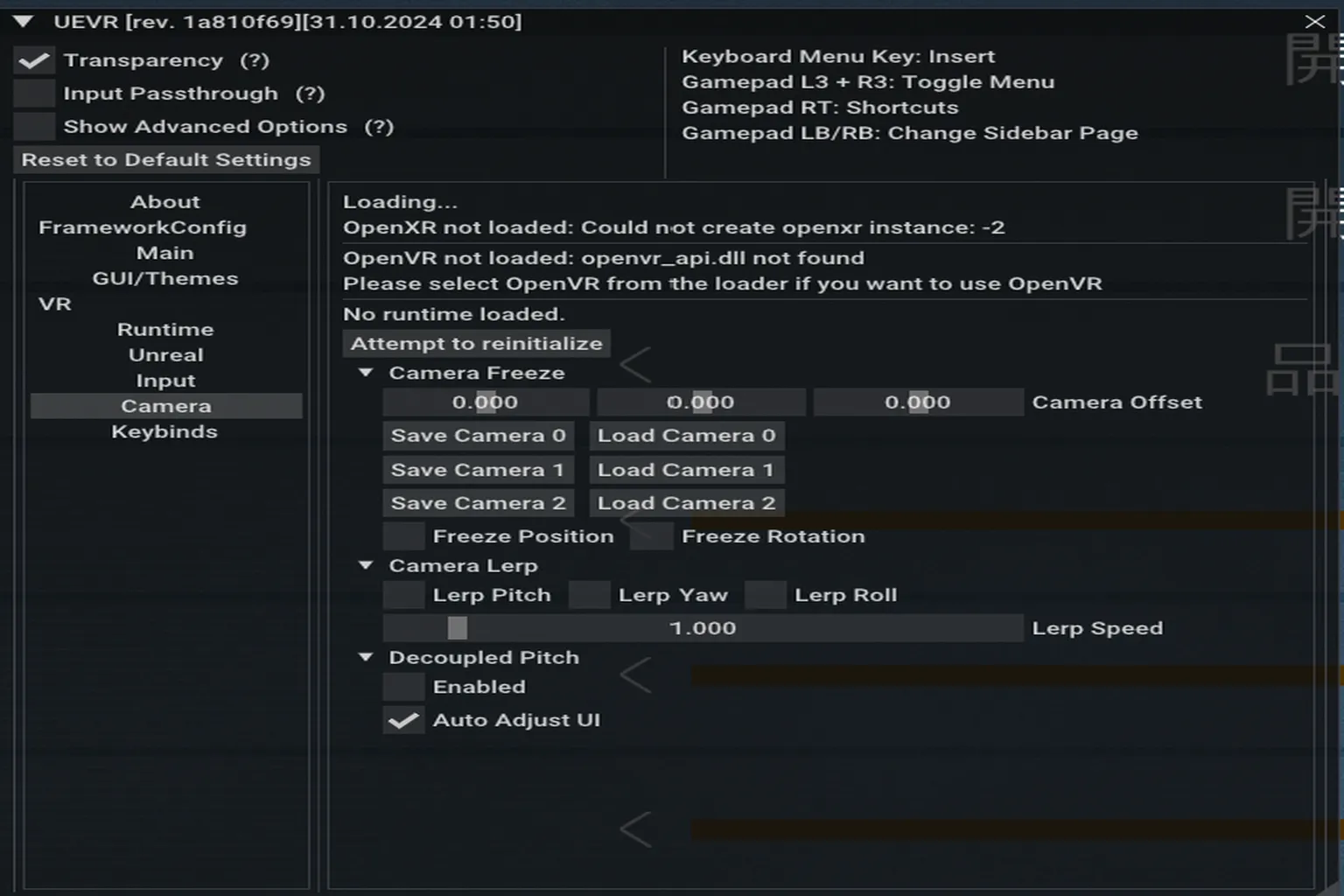
Camera Area
Camera Position, Angles, and Rotation Settings
Camera Freeze
Locks the camera so it no longer moves. Useful when you want to keep the view fixed at a specific angle.
- Camera Offset
After freezing the camera, lets you fine-tune its position. The three fields correspond to the X, Y, and Z axes, allowing small adjustments like moving the view slightly upward or forward. - Save / Load Camera 0–2
Lets you save and recall up to three camera presets, making it easy to switch between fixed viewpoints. - Freeze Position
Locks the camera’s position so it doesn’t move even when you move your head. - Freeze Rotation
Locks the viewing direction so the image doesn’t rotate when you turn your head.
Camera Lerp
Smoothly interpolates camera movement to follow head motion. Useful for reducing shake or creating more cinematic camera movement.
- Lerp Pitch / Yaw / Roll
Adjusts smoothness for up/down, left/right, and tilt movements. Higher values make the response slower and smoother. - Lerp Speed
Controls overall response speed. Lower values feel smoother but can introduce more perceived delay.
Decoupled Pitch
Processes vertical head movement independently.
- Enabled
Looking up or down causes less dramatic screen movement, which can help reduce VR sickness. - Auto Adjust UI
Automatically adjusts UI position so it doesn’t drift out of view when you change your viewing angle.
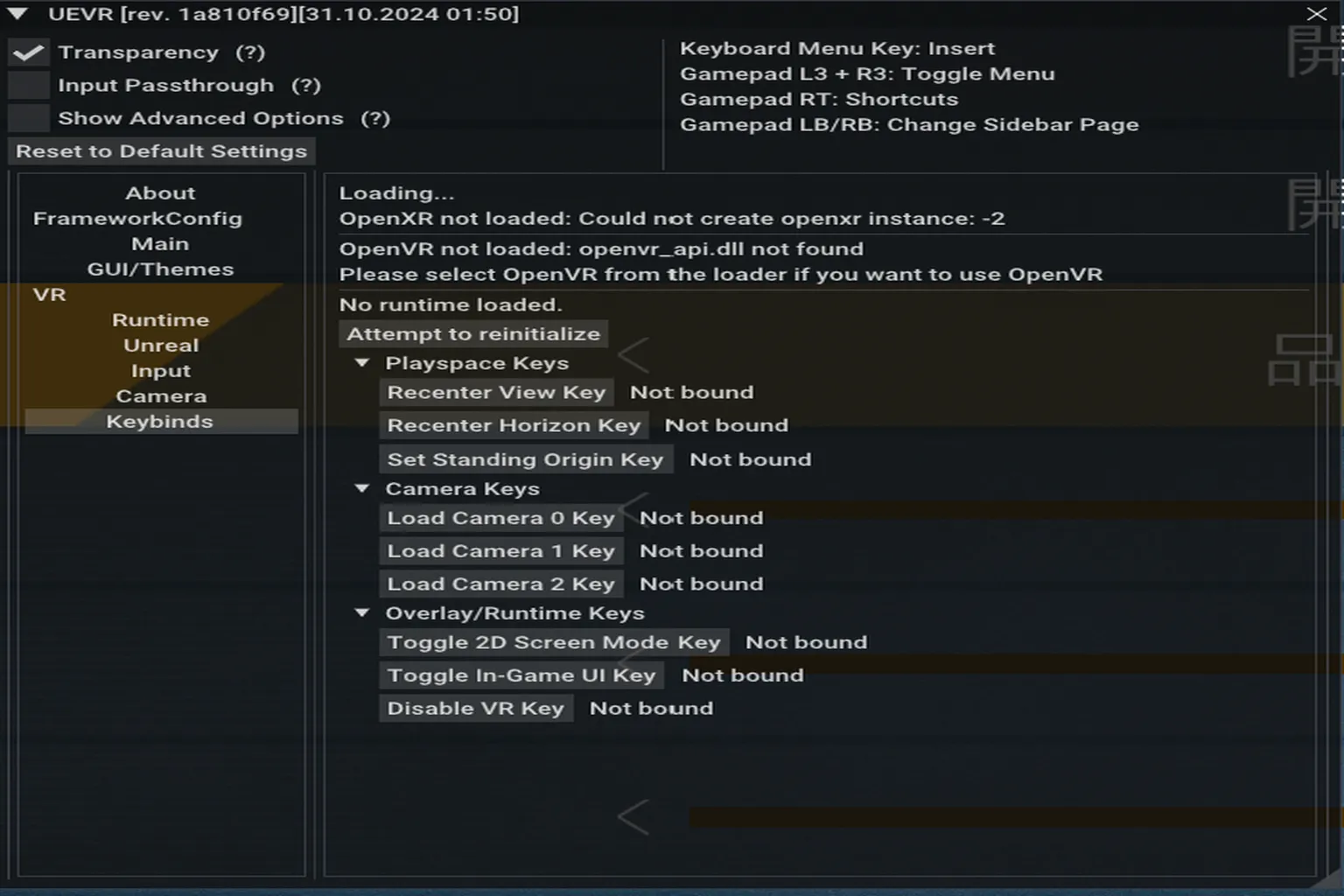
Keybinds Area
Custom Shortcut Key Settings
Playspace Keys (playspace-related)
- Recenter View Key
Resets the center point of your view. - Recenter Horizon Key
Resets the horizontal alignment. - Set Standing Origin Key
Sets your current physical position as the character’s standing origin. For example, if after starting a game the character feels too far forward or shifted sideways compared to where you’re actually standing, move to the position you want and press this key. That spot will become the new reference point.
Camera Keys (camera switching)
- Load Camera 0 / 1 / 2 Key
Instantly switches to one of the saved camera presets.
Overlay / Runtime Keys (UI and runtime)
- Toggle 2D Screen Mode Key
Toggles 2D screen mode. This temporarily turns off the VR view and switches back to a flat display. This is especially useful during cutscenes, where VR rendering can sometimes cause double images. You can watch the scene in 2D, then switch back to VR afterward. - Toggle In-Game UI Key
Shows or hides the UEVR control UI. Handy when the UI gets in the way. - Disable VR Key
Completely turns off VR mode and returns the game to its normal non-VR display.
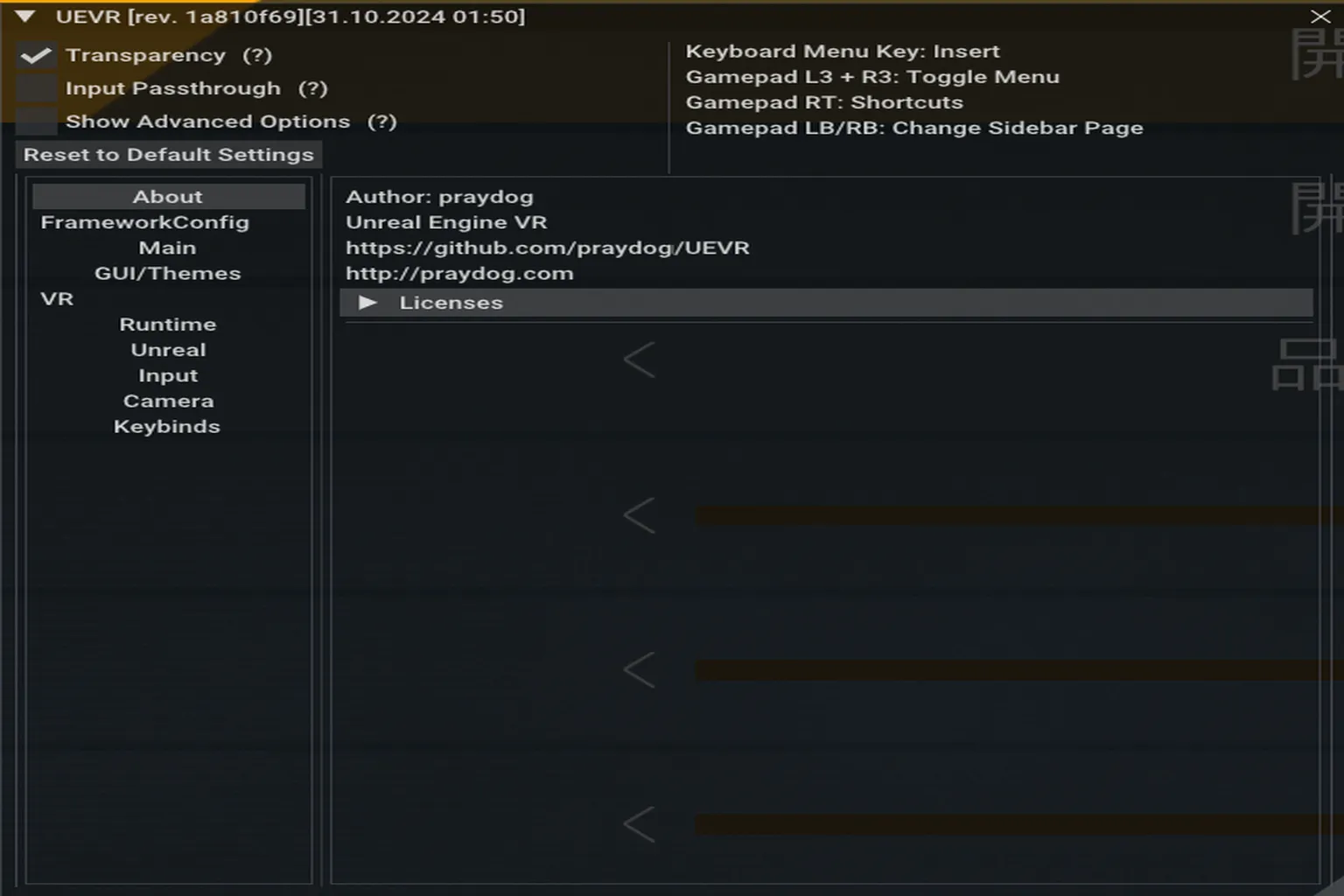
About Area
This is the information page for the software. It includes things like the creator’s website link and copyright notices.
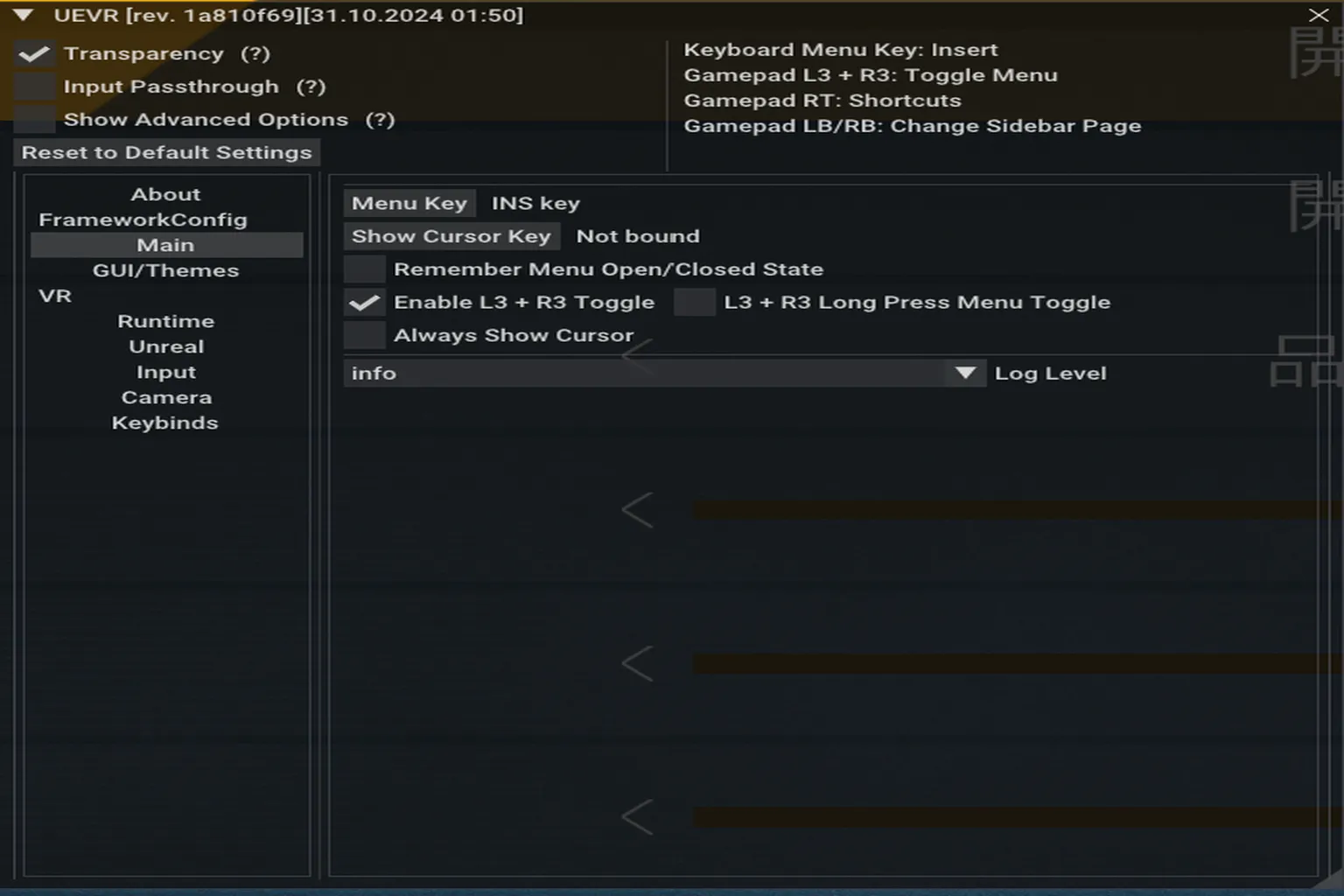
Main Area
Settings for how you interact with the UEVR tool itself, not the game content. This section mainly covers how the menu opens and how the cursor behaves.
Menu Key
Shortcut key used to open the menu. The default is the Insert key on the keyboard, but you can change it to any key you prefer.
Show Cursor Key
Shortcut key to manually show the mouse cursor. It’s a good idea to set this in case the cursor suddenly disappears.
Remember Menu Open/Closed State
When enabled, UEVR remembers whether the menu was open or closed last time, and restores that state the next time the game launches.
Enable L3 + R3 Toggle
Allows you to open and close the UEVR menu by pressing in the left stick (L3) and right stick (R3) at the same time.
L3 + R3 Long Press Menu Toggle
A long-press version of the L3 + R3 toggle. This helps prevent accidental activation.
Always Show Cursor
Keeps the mouse cursor visible at all times, even while in VR mode.
Log Level
Sets how detailed the log messages are.
- info
basic information only - debug
more detailed technical information - warning / error
only logs issues or errors when they occur
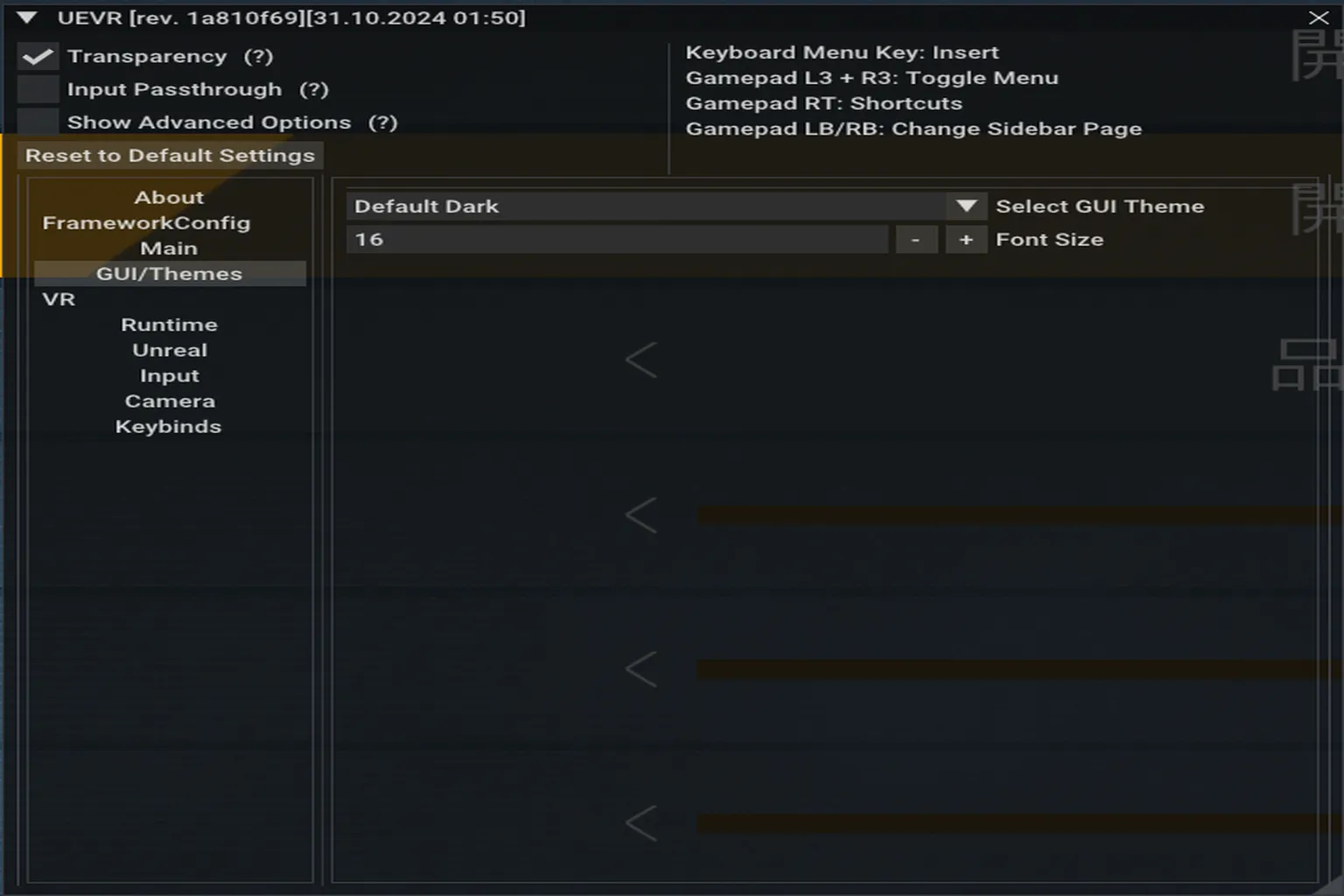
GUI / Themes Area
Settings for adjusting UEVR’s appearance and font size
Select GUI Theme
Lets you choose the UI theme from a dropdown menu. Default Dark is the standard dark mode.
Font Size
Adjusts the text size used in the control menus.
That wraps up the overview of UEVR’s advanced features. As you can see, there are plenty of settings here where a small change can easily stop a game from working at all.
If you’re just a regular player who wants to play and enjoy games, it’s totally fine to treat this page as a “wow, UEVR is way more complex than I thought” kind of read. Tweaking these out of pure curiosity is honestly not recommended.
FAQ – Common Questions
Do I need to read this page if I just want to play games with UEVR?
No. This article is meant for advanced users and content creators. If you’re not having any problems, there’s no need to touch these settings.
Can changing these settings cause issues?
Yes. UEVR’s default values are already quite stable. Many of these options exist for developers or to rescue games that crash. Changing them without a clear reason can make things worse.
Which settings help reduce ghosting or VR sickness?
You can try VR_GhostingFix, VR_LerpCameraPitch, and VR_LerpCameraYaw. These help smooth out camera movement and visuals.
Which settings should I enable for recording videos?
Turn ON Desktop Spectator View and Uncap Framerate, and keep the rendering method set to Native Stereo. This usually results in more stable recordings.
What if the screen flickers when HDR is enabled?
Try turning ON VR_DisableHDRCompositing. This setting is designed to fix HDR-related visual issues.
The VR UI keeps sticking right in front of my face. Why?
UI_FollowsView or Framework Follows View is likely enabled. Turning these OFF will keep the UI fixed in space instead of following your view.
I want the character’s standing position to match where I’m actually standing. How do I do that?
Use the Set Standing Origin Key shortcut. This resets the in-game standing position to your current real-world location.
Can I click the VR settings panel with a mouse?
Yes. If you enable Framework Mouse Emulation, you can interact with the UI using a mouse even while in VR.