Did you just buy a new Meta Quest 3 or 3S? Before you turn it on, you need to read this! Meta offers a free $30 referral bonus to all new headset owners, but the setup process is full of hidden traps. From clicking the link too many times to regional mismatches, one small mistake will cost you your free Quest Cash. In this complete 2026 guide, we walk you through the exact step-by-step process to safely claim your $30 reward. Learn how to set up your account correctly, troubleshoot common “Unable to accept” errors, and start your VR journey with free games in your library.
Referral Bonus Claim Guide
This page is for people who just bought a Meta Quest 3 or 3S and want to grab the $30 referral bonus as quickly as possible. Here, I’ll clearly walk you through how to use a Quest 3 / 3S referral code, step by step.
Why does this $30 bonus even exist?
Meta offers this bonus to promote VR hardware and encourage new users to jump in. When you buy a new headset, you can immediately use that money to buy games. On the creator side, it means more chances to sell what they’ve made. The more people buy games, the more motivated creators are to make them even better. That’s the idea.
If you bought a brand-new Meta Quest 3 or 3S, there are a couple of conditions you need to meet before logging into the headset for the first time. You must be 18 or older, and you need to do one of the following:
Create a new account using a veteran player’s referral code
Or, use an existing account and click a veteran player’s referral code
After you power on the Quest 3 or 3S for the first time, Meta will add the $30 bonus to your wallet. You can then use it in the Meta Store to buy any game you want, and the veteran who referred you gets the same $30 as well.
That’s why this is a one-time, new-device-only chance you really don’t want to miss.
So how do you actually do it?
Next, I’ll walk you through the steps with images, one by one.
For people who already have a Meta account
This applies if you bought the headset from the official site and had already created your account before purchasing.
Step 1: Use a referral code
Click the referral code from the veteran player you want to use.
Step 2: Approve the referral
When this screen appears, click the Accept referral button.

Step 3: Referral successful
If everything goes through, you’ll see this “Referral successful” screen. That’s it.
All that’s left is to log into the headset with this account.
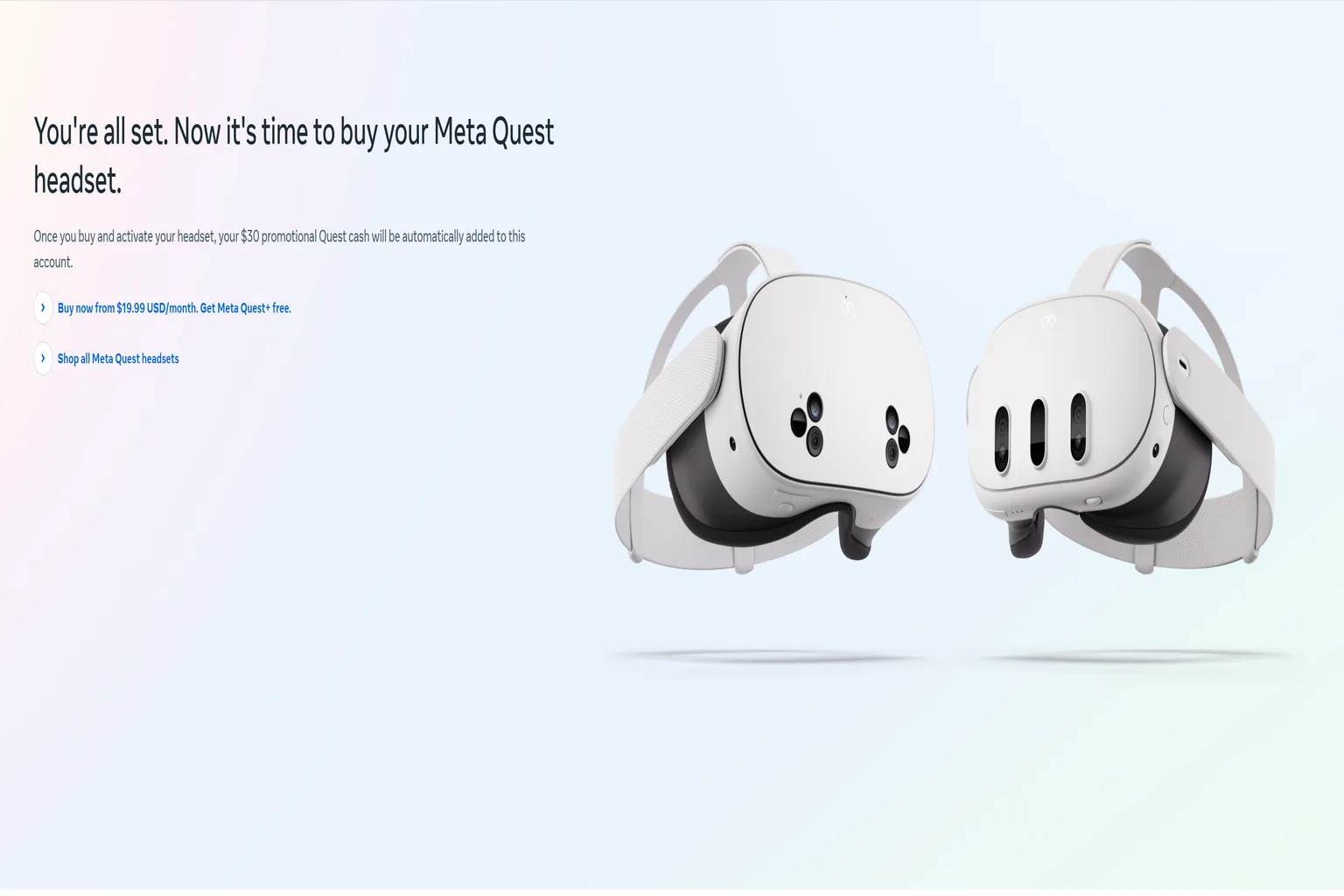
For people who don’t have a Meta account yet
When you click a referral code, you’ll be taken to Meta’s new account signup page.
Step 1: Use a referral code
Click the veteran player’s referral code you want to use.
Step 2: Approve the referral
When this screen appears, click Sign up or log in to a Meta account.
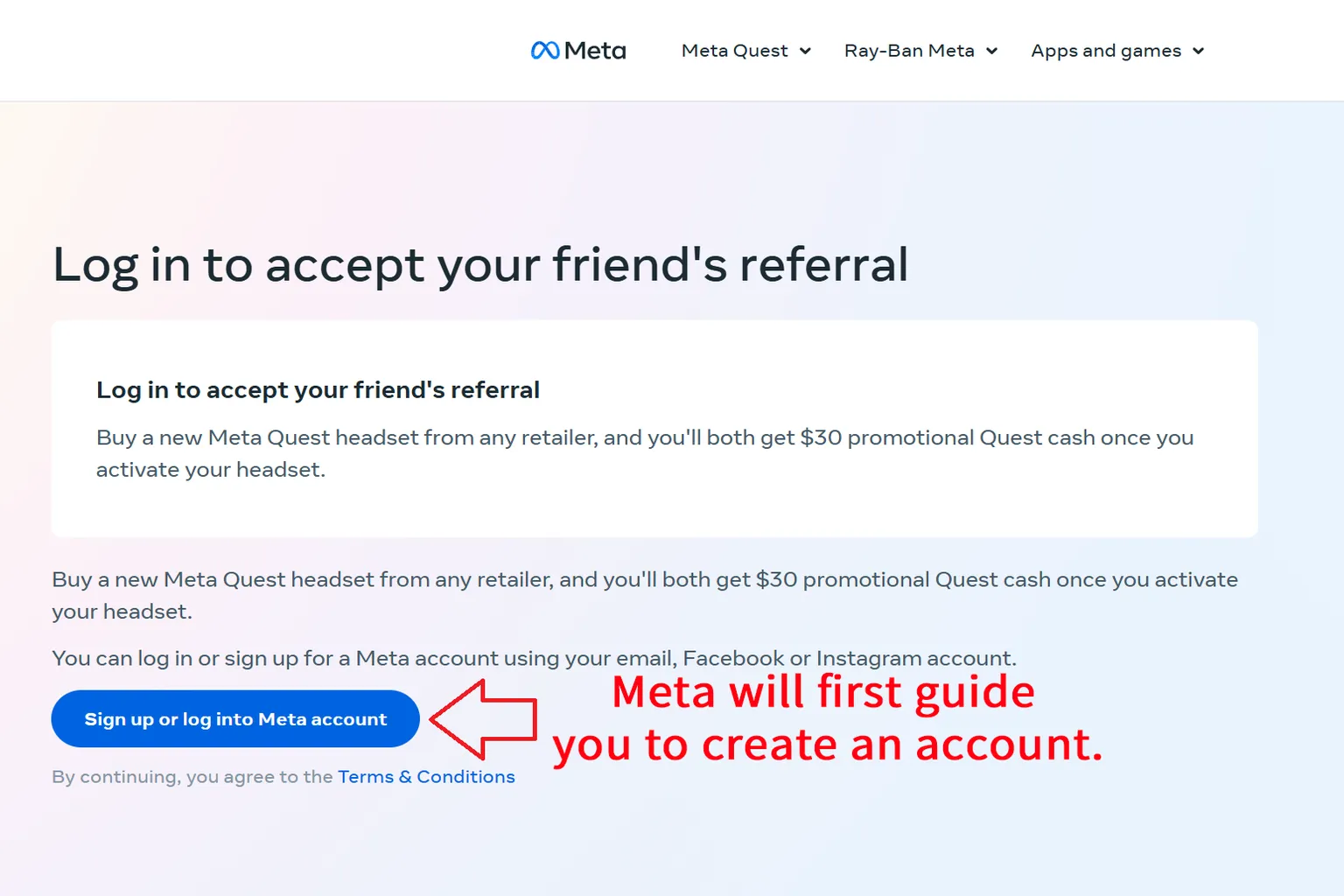
Step 3: Create a Meta account
You can sign up using an email address, Facebook, or Instagram.
Meta has three services—Facebook, Instagram, and Meta Quest—but the accounts themselves are separate and can be linked together later.
The recommended option is to sign up with an email address first.
This email can be the same as or different from your Facebook or Instagram email, and you can always change it later on the official site.

Step 4: Enter your date of birth
Make sure your age is set to 18 or older during registration. If not, you won’t be able to receive the $30 bonus.
Also be careful not to set it under 13—under Meta’s terms, accounts under that age can be deleted at any time.

Step 5: Create the new account
Once Steps 2 and 3 are done, go ahead and confirm creation of the new account.

Step 6: Enter your name
If possible, use your real name. If Meta Support ever asks for identity verification later, this makes the process much smoother.
Don’t worry—this information isn’t shown publicly. Only Meta can see it.

Step 7: Set a password
Use a mix of uppercase and lowercase letters, numbers, and symbols to improve account security.
After setting it up, Meta will send you an email. Check the message for the six-digit code and enter it on this page to continue.

Step 8: Set your Meta ID and nickname
- Name (nickname): Any language is allowed.
- Username (Meta ID): English letters only.
Social visibility options:
Public: Anyone can follow you directly, and friend requests are automatically accepted.
Private: Follows require approval before they’re accepted.

Step 9: Approve the referral
Once account setup is complete, you’ll be taken back to the referral page. Click the Accept referral button.
Step 10: Referral successful
If everything works, you’ll see the “Referral successful” screen. That completes the process.
Now just log into the headset with this account, and the referral will be applied.
What should you do if you see “Unable to accept referral”?
Meta’s referral system has a few built-in restrictions, and this is where a lot of new players get stuck.
The most common case is clicking Accept referral, then immediately being shown a screen that says the referral can’t be approved.

There are several possible reasons this screen appears:
- Your account age is under 18 → Create a new account and try again.
- You’ve logged into another Quest headset before → You’ll need to start over with a brand-new account.
- You’ve already used a referral code in the past → The bonus can’t be claimed a second time.
- You logged into the headset before clicking the referral code → In this case, the referral is invalid and you’ll need to create a new account.
- Your region doesn’t match the referrer’s → It’s recommended to switch to the same country or region as the referrer using a VPN, then try again.
Once you grab the Quest Cash, you can jump straight into the Meta Store and start picking out games.
Also, even for games that aren’t on sale, you can enter “VRPUPU” before checkout to get 10% off. Some DLCs and bundles may also get discounted together.
That discount alone can be enough to pick up one or even two extra games, so it’s honestly a great deal.
And since Meta is offering such a generous bonus right now, if you don’t have a headset yet, buying a Quest 3 or 3S is totally worth considering.
Here’s a little insider tip:
If you buy directly from the official Meta Store, you can get an additional $30 bonus on top of everything else.
I’ve put together a full buying guide that breaks down where to buy for the best value. Take a look first and choose the smartest option.
FAQ – Common Questions
Why does it say “Not eligible” after clicking a referral code?
There are a few possible reasons.
- You’ve used someone else’s referral code before → Meta keeps a record, so clicking another person’s code later won’t work.
- Your age was set under 18 during signup → Meta does not grant bonuses to minors.
Fix: Create a new account with the age set to 18 or older. - Browser cache or history is confusing Meta → Meta may think you’ve already redeemed a referral.
Fix: Try a different browser. If you’re using Chrome, switch to Edge or Firefox and try again. - Your region doesn’t match the referrer’s → For example, the referrer is on a UK account and you’re trying to claim it from US.
Fix: Use a VPN on your phone or PC, switch to the same region as the referrer, then follow the steps again.
What if I only have one browser? Is there a way to fix a failed referral?
Installing another browser is the fastest option.
If you only have one browser, clearing cookies will let you try again.
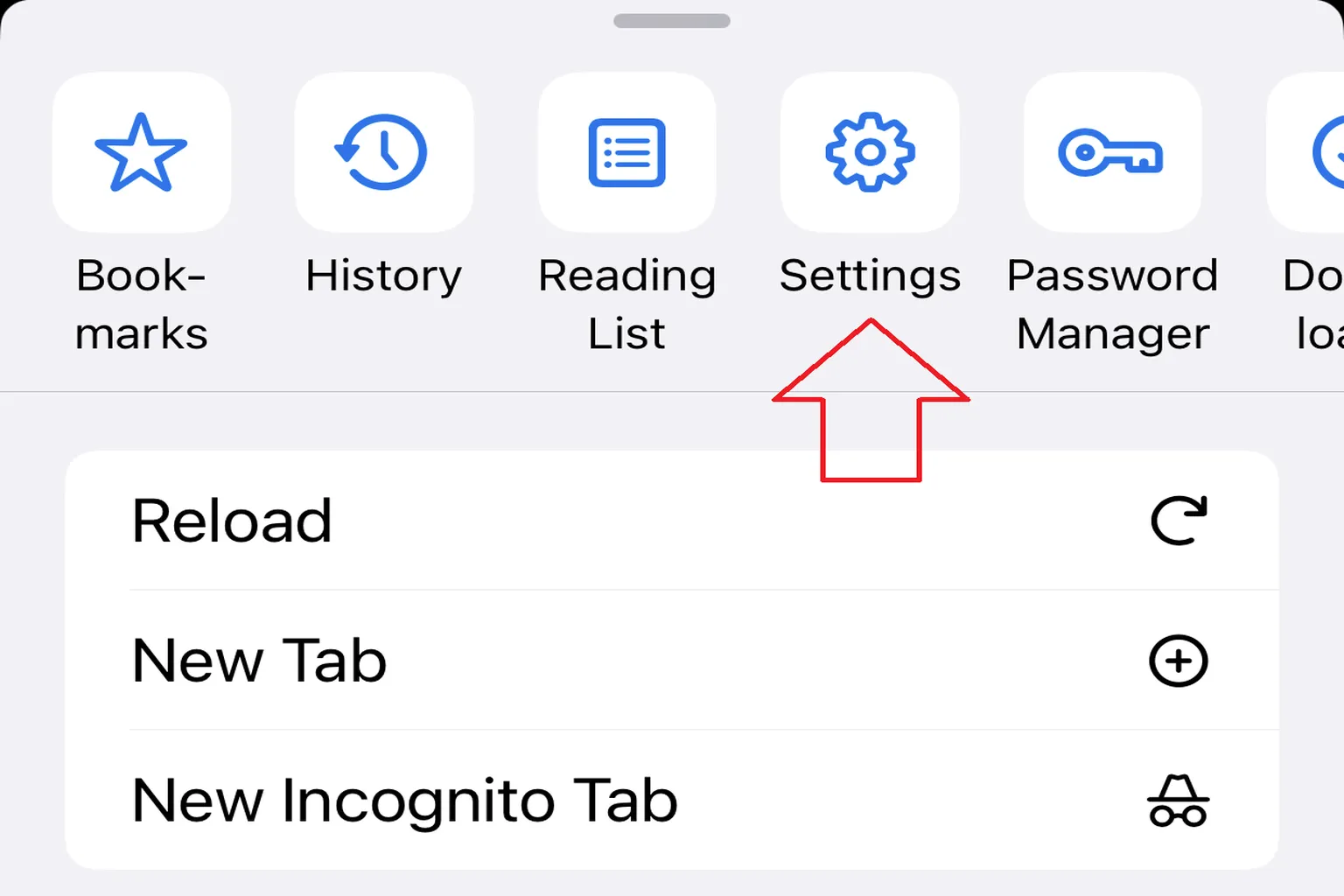
Here’s how to do it in Google Chrome (the steps are the same on mobile):
Step 1: Open Settings in Chrome
Step 2: Select Privacy and security

Step 3: Choose Clear browsing data

Step 4: Set the time range to All time and clear the data

After that, you should be able to retry the referral.
What happens if I click the referral code more than once?
This is a big gotcha.
In Meta’s system, the first click approves the referral. The second click cancels it.
So if you click it twice, the referral is canceled. This is the most common failure pattern.
If you clicked it by mistake, click it again until you see the “Referral successful” screen.
How can I tell if the referral actually went through?
Contact the person who gave you the referral code. They can check the status from the Meta app or the official site.
If you used my referral code, send me your Meta nickname and I can check it for you.
I’m sure the referral succeeded, but I didn’t get the $30 after starting the headset. Why?
Sometimes it’s a Meta-side bug, but most cases come down to one of these:
- You accidentally clicked the referral code a second time, which canceled it
- The referrer no longer owns a headset and lost referral eligibility
I used a friend’s referral code but didn’t get the $30. What happened?
Either the referral failed, or the headset had already been logged into with another account.
Try resetting the device, then link the account again and repeat the process.
I forgot to claim the referral bonus when I first turned it on. Can I still get it?
If it’s within two weeks of first activation, you still have time.
Check the related article on this site and follow the steps to claim it afterward.