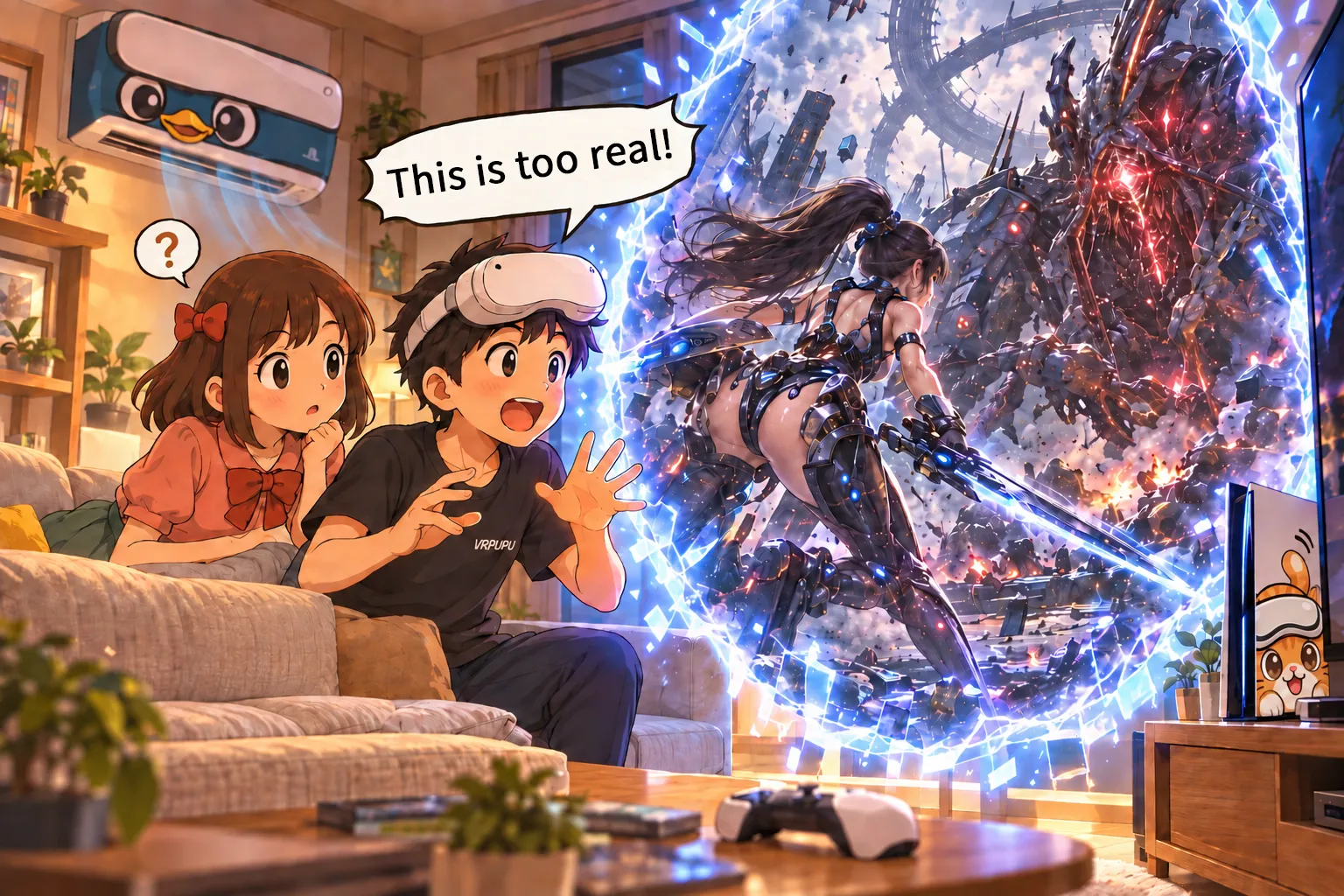
UEVR 6DOF Window lets you open a 3D portal into a PC game instead of stepping fully inside it. Here’s how to set up Portal Mode and use Virtual Desktop passthrough to bring that portal into your own room.
A Third Way to Play PCVR: Portal Mode
When you connect a VR headset to a PC, there are usually two ways to play.
The first is to use the VR headset as a giant screen. The game itself stays completely flat, and you’re basically using the headset like a TV.
The headset may be small, but the screen you see in front of you can feel hundreds of inches wide.
In the image below, the 43-inch PC monitor is on the right, while the virtual screen inside the headset is in the center. It easily looks more than 150 inches.

With Meta Quest’s passthrough mode, you can place a huge, high-resolution curved screen right in your room. It’s a very comfortable way to play games.
The biggest advantage of this setup is how easy it is to use, and how much less likely it is to make you motion sick.

The second way is to step directly into the game world.
You can use native VR or tools like UEVR to turn regular flat-screen games built with Unreal Engine into VR.
For more on how to use UEVR, check out this guide: Complete UEVR Guide: Turn PC Games Into VR With One Click, and Suddenly Tifa Is Right in Front of You!
In this case, you’re not looking at the game from the outside. You’re actually standing inside the game world yourself.
Take Stellar Blade as an example. In the original game, you can only watch Eve fight in front of you from a third-person perspective.
Once you convert it to VR with UEVR, you can stand inside the game world and fight alongside Eve.
You’re also no longer locked to the game’s original camera. You can look wherever you want and view the game world from angles you would never normally be able to see.
For example, you can crouch down and watch Eve slash through enemies.
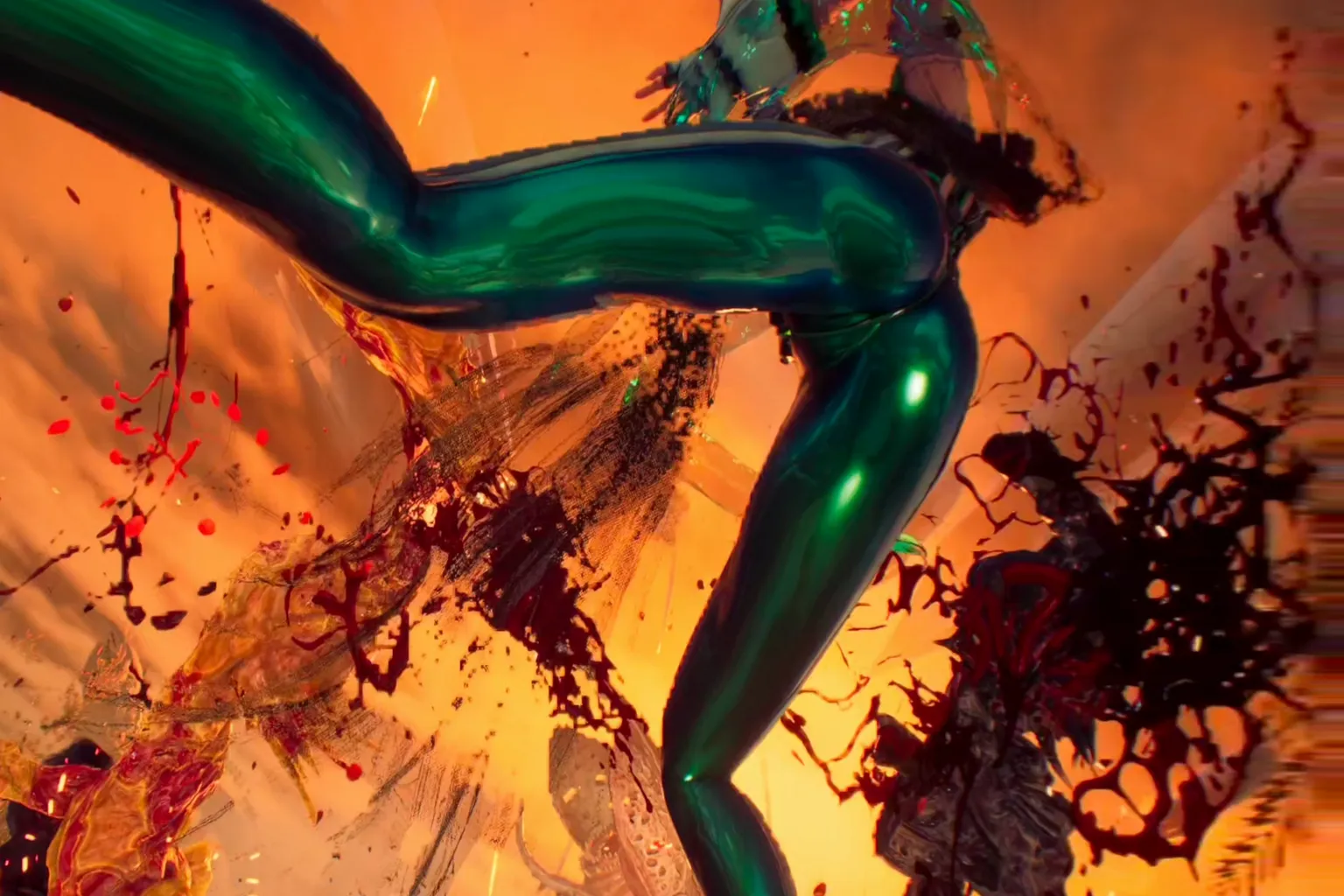
Or you can stay seated and take a long look at Tifa’s abs.

Once you try it, you’ll be surprised by how many little details were hiding in the game world, even if you’ve already beaten the game multiple times.
That’s the most interesting part of VR mode.

But there’s one problem with this way of playing.
These games weren’t originally designed for VR, so fast movement can make you motion sick pretty quickly. Turning a third-person game into VR doesn’t always mean it will be comfortable to play.
That’s where 6DOF Window comes in as a new way to play: Portal Mode.
It turns the screen inside your VR headset into something that feels like an entrance to the game world. Beyond it, the game world has much more depth than a regular 3D screen.
Move to the left, and your viewing angle changes. Move to the right, and it changes again. Step closer or crouch down, and what you can see changes too.

It feels like opening a portal from a god’s-eye view and watching what’s happening in another world.
Since you’re not actually inside the game world, the characters can move around without dragging your viewpoint along with them.
That means you can play with almost no motion sickness, while still getting a much stronger sense of depth than you would from a regular flat-screen game.
The easiest way to think of it is as an “upgraded VR game screen.”

If you’re playing a regular flat-screen game, there’s only so far you can go—you can buy a bigger monitor, or one that’s brighter and more vibrant. With today’s technology, that’s basically the limit.
But as VR players, we can open a portal right in our own room and connect it directly to the game world.
That’s a completely different kind of fun.
How to Enable UEVR Portal Mode
Praydog’s original version of UEVR does not include this feature.
To use it, you need a version of UEVR with the 6DOF module added.
This version was created by Elliott Tate based on the UEVR Nightly build, with the 6DOF module added.
It can also run through SteamVR, but in my testing, some games did not work properly in SteamVR mode.
For example, in Final Fantasy VII Rebirth, I could not get 6DOF Window Portal Mode to open correctly when using SteamVR.
After switching to Virtual Desktop and setting the OpenXR Runtime to VDXR, the portal opened normally.
So the steps below will use Virtual Desktop + VDXR.
Installation and controls are almost the same as the original UEVR. Here’s the basic process.
Step 1: Download UEVR 6DOF Window
Open the developer’s GitHub Releases page. You’ll see the available versions of 6DOF Window Mode there.
The newest release is listed at the top. Since it generally has better compatibility, use the latest version.
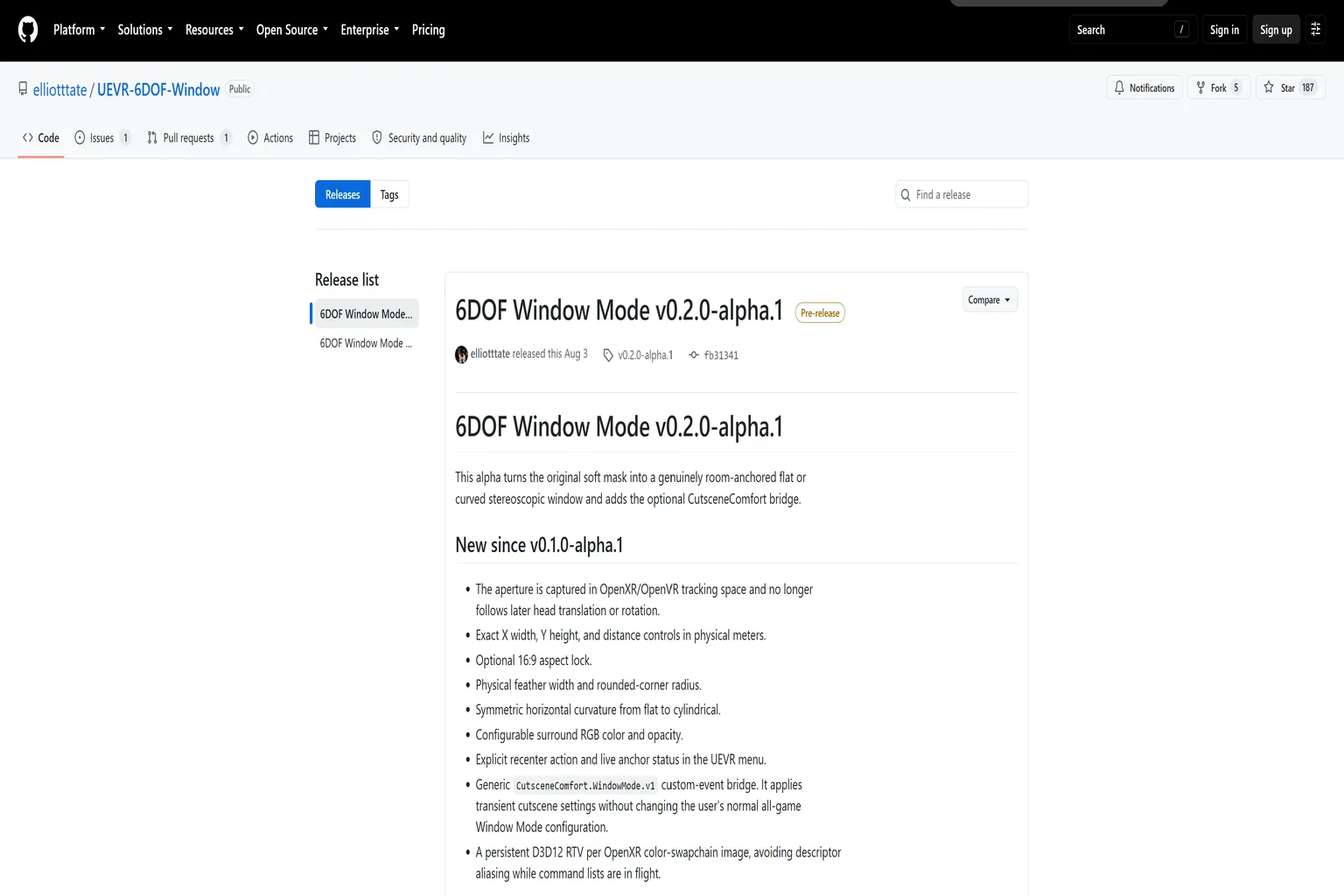
Scroll down and open the Assets section. Select the latest UEVR-6DOF-Window-nightly build and download it to your PC.
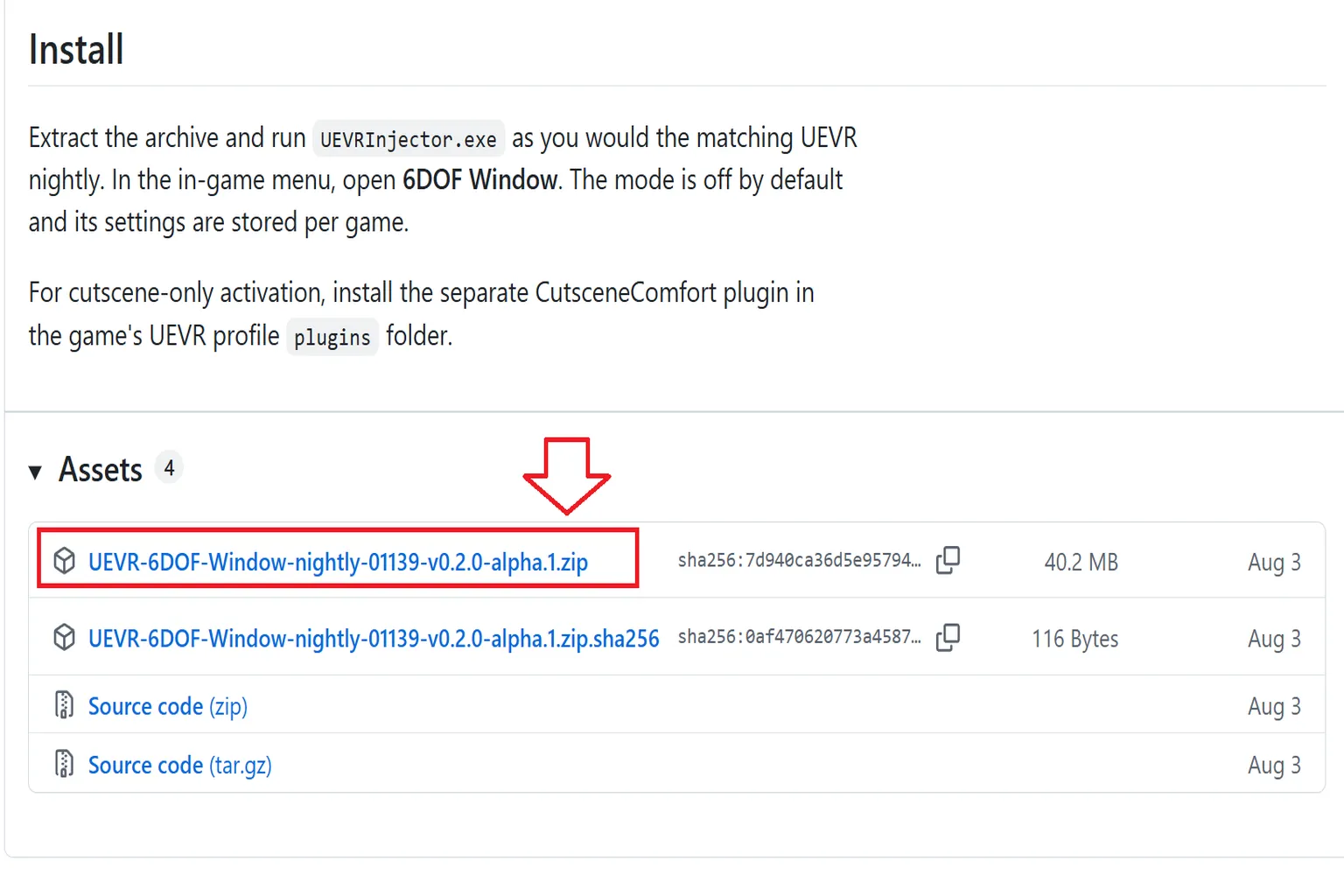
After extracting the downloaded file, you’ll find UEVRInjector inside. This is the UEVR build with the 6DOF module included.

Step 2: Launch UEVR 6DOF Window
UEVR needs to run with administrator privileges. After launching it, click Restart as Administrator.
The app will restart in administrator mode.

Having to restart it every time you launch UEVR is honestly pretty annoying.
Another option is to right-click UEVRInjector and open Properties.
Under the Compatibility tab, check Run this program as an administrator, then click Apply.
After that, you won’t need to restart it every time.

Step 3: Prepare Virtual Desktop
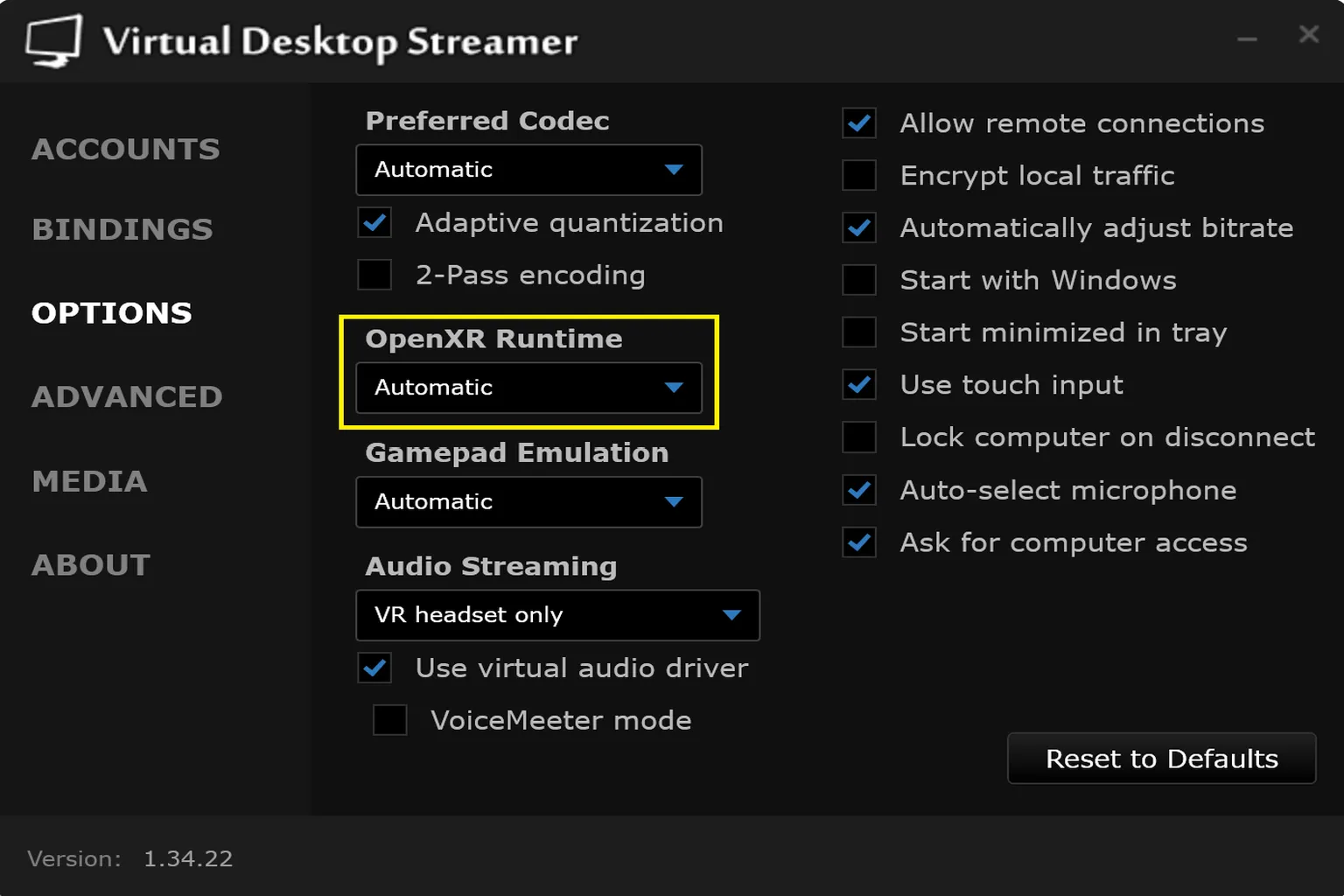
Open Virtual Desktop Streamer on your PC and select Options.
OpenXR Runtime is the layer that connects VR apps to the system. By default, it is set to Automatic.
There are three modes:
- Automatic: Virtual Desktop automatically selects the appropriate OpenXR Runtime
- SteamVR: Uses Steam’s connection method and automatically launches SteamVR
- VDXR: Virtual Desktop’s own connection method, which is generally stable and fast
For this setup, use VDXR instead of SteamVR.
When you launch it through Virtual Desktop, a VD Warning message will appear the first time you open UEVR 6DOF Window.
Just click OK to close it.

Step 4: Launch the Game
Change the connection mode from the default OpenVR setting to OpenXR, and leave the other options at their default settings for now.
Click the ▼ on the far right, select the game you want to launch, then click Inject.

Once you’re in the game, the UEVR settings menu will appear. You can also bring it up by pressing L3 and R3 at the same time on your Meta Quest controllers.
Use the right-hand controller to move the cursor, and press the A button on the right controller to select an option.
Select 6DOF Window on the left, then check Enable Room-Anchored 6DOF Window.

If Anchored appears to the right of Recenter Window In Front Of Me, Portal Mode has been enabled successfully.
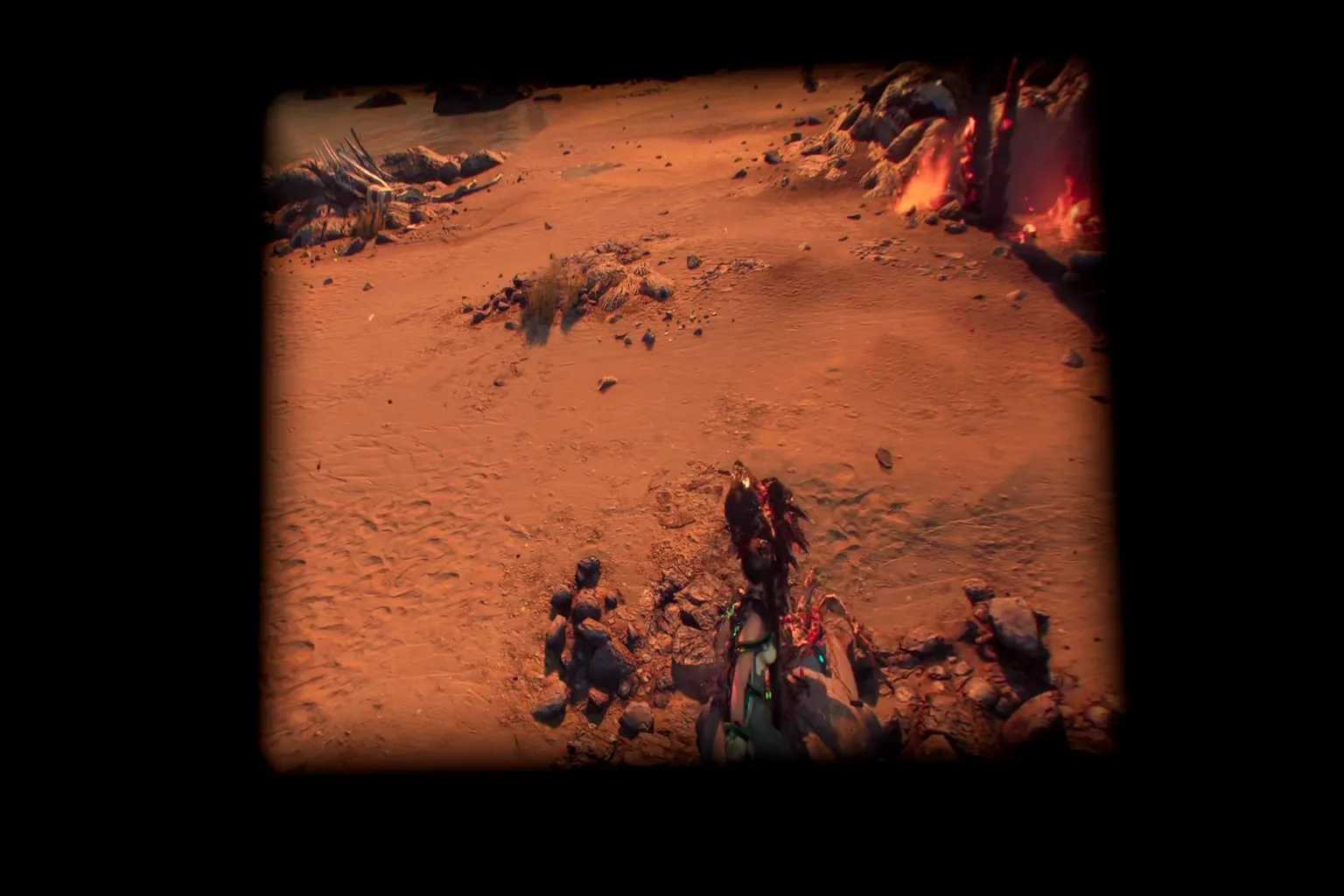
The view will change from being fully inside the VR world to having a portal open in front of you, with the game world visible through it.
The settings on the 6DOF Window page are as follows:
- Enable Room-Anchored 6DOF Window: Enables Portal Mode. When turned on, the game no longer fills your entire field of view and is instead displayed as a 6DOF window anchored in space
- Window X Width (meters): Sets the width of the portal in meters. For example, 2.4 gives you a portal about 2.4 meters wide
- Lock to 16:9 Aspect: Locks the portal to a 16:9 aspect ratio. When enabled, changing the width automatically adjusts the height
- Window Y Height (meters): Sets the height of the portal. You can adjust it separately when the aspect ratio is not locked. If 16:9 is enabled, the height is calculated automatically
- Distance From Recenter Origin: Sets the distance to the portal. A higher value moves it farther away, while a lower value brings it closer
- Feather Width (meters): Sets how much the edges of the portal are softened. The image above shows it set to 0.1
- Corner Radius: Controls how rounded the corners are. At 0, the corners are square. Increasing the value makes the four corners more rounded
- Horizontal Curvature: Controls how much the portal curves horizontally. At 0, it is completely flat. Increasing the value turns it into a curved screen
- Surround Color: Sets the background color outside the portal. The default is black, but you can change it to any color you want
- Surround Opacity: Controls the opacity of the background outside the portal. At 1.000, it is completely opaque. Lower values make the outside area more transparent
- Recenter Window In Front Of Me: Resets the portal position. It uses your current head position and direction as the reference point and places the window back in front of you
I recommend enabling Lock to 16:9 Aspect first, then using Window X Width (meters) to adjust the portal to the size you want.
You can adjust the other settings based on your preference.
Note: After enabling 6DOF Window mode, you may see Waiting for tracking appear at the bottom.
This means the tracking data required by 6DOF Window is not being detected properly. I ran into this during testing as well.
First, check that the OpenXR Runtime settings in both UEVR and Virtual Desktop are configured correctly.

Opening the Portal in Your Own Room
Just opening a single portal in a pitch-black space honestly isn’t all that exciting.
If you’re connected through SteamVR, this is basically as far as it goes. The background stays completely black, and it feels more like you’re watching the in-game characters from the outside. You don’t really get the sense that two worlds are connected.
With Virtual Desktop, you can take it one step further.
You can remove the black background and place the portal directly inside your own room.
It feels like opening a doorway to another world right in your room.
This method uses Virtual Desktop’s VR Passthrough feature. It treats the background like a green screen, then replaces that area with passthrough video.
Step 1: Disable the Quest Play Area Boundary
Since you’ll want to walk around and look into the game world inside the portal from different angles, the first thing to do is disable the Meta Quest play area boundary.
Open Developer in the headset settings, then turn off Physical space features.
Note: After turning off Physical space features, Meta Quest will no longer warn you about obstacles around you. Make sure you clear enough safe space before you start playing.

Step 2: Set Up Passthrough Mode in Virtual Desktop
Before opening Virtual Desktop on the headset, make sure the OpenXR Runtime on your PC is set to VDXR.

In Virtual Desktop on the headset, select Environment and enable Passthrough.
The view will switch to passthrough mode. At this point, however, the game is still displayed as a flat 2D screen.

Set VR Frame Rate to 72, 80, or 90 FPS, since VR Passthrough Mode only works at 90 FPS or lower.
Under VR Passthrough at the bottom of the screen, check Environment, then open Configure….

Here, you’ll choose the color that Virtual Desktop should replace. When Virtual Desktop detects that color, it replaces those areas with the Quest passthrough view.
The walls in my room are Morandi green, so green isn’t a good choice for me. Instead, I set Red and Blue to 255 and use this magenta color for passthrough.
Using the same settings also gives the portal a pretty clean edge.
- Red / Green / Blue: Sets the color to be replaced. Recommended setting: Red 255, Green 0, Blue 255
- Similarity: Controls how close a color needs to be to the selected color before it is also replaced with passthrough. Higher values include a wider range of similar colors. Recommended setting: 35%
- Smoothness: Controls how smooth the edges of the passthrough area are. Higher values make the edges softer. Recommended setting: 0%
- Passthrough Opacity: Controls the opacity of the passthrough view. At 100%, you’ll see your room exactly as captured by the Quest cameras. Recommended setting: 100%
- Show boundary: Controls whether the Quest safety boundary is displayed. If you don’t want the boundary lines to appear while standing, walking around, or recording from different angles, leave this unchecked.

Step 3: Set the Passthrough Area in UEVR 6DOF Window
In UEVR on your PC, change the connection mode from the default OpenVR setting to OpenXR, then inject it into the game.
In the UEVR settings menu inside the headset, select Surround Color and enter #FF00FF in the field below.
#FF00FF is the same color as Red 255, Green 0, Blue 255 in Virtual Desktop.
Once the setup is complete, the portal will appear directly inside your room.
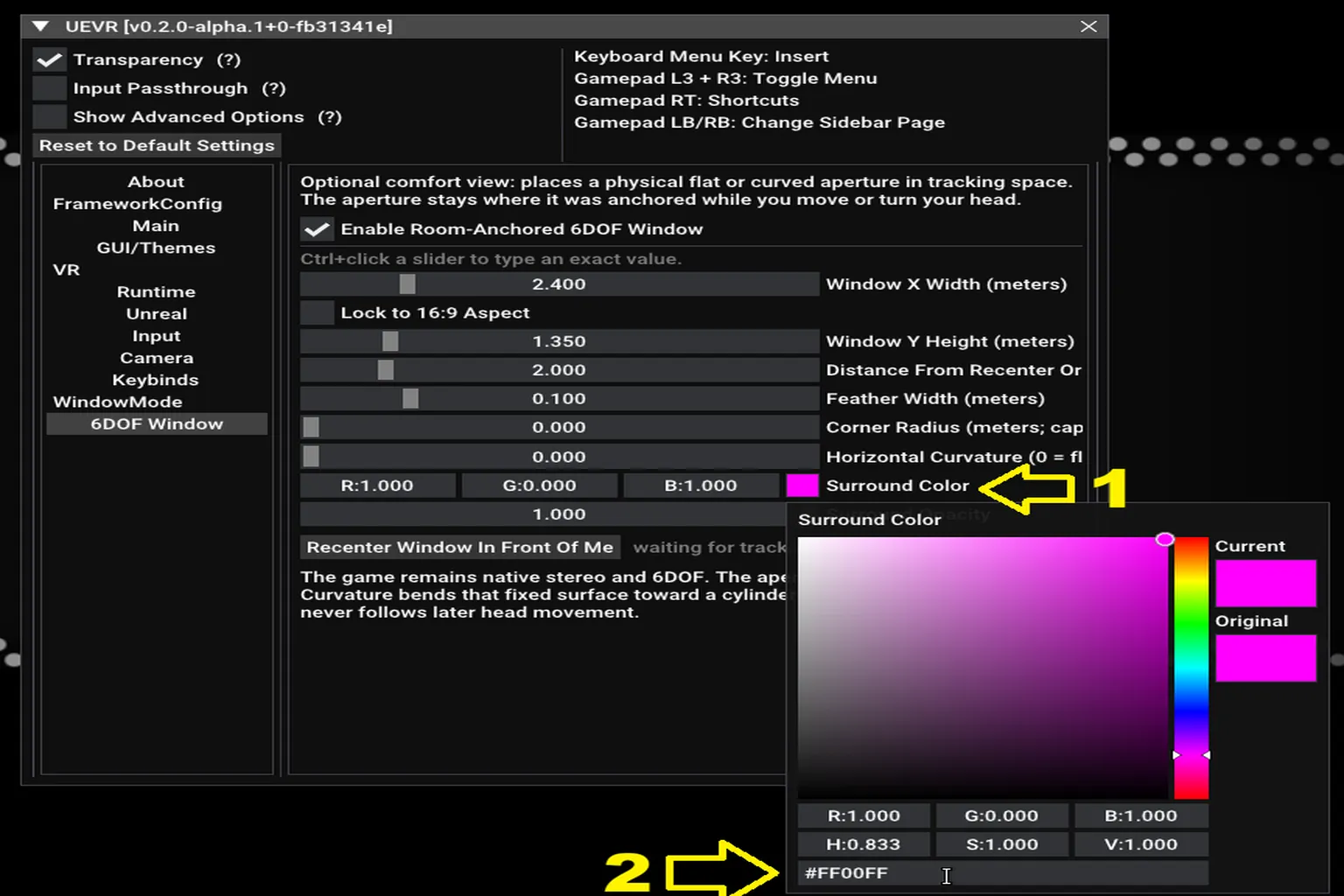
I recommend setting Feather Width (meters) and Corner Radius to 0, and Surround Opacity to 1.000.
This gives the portal a sharper outline and makes it look cleaner.

Once the setup is complete, Virtual Desktop replaces the magenta around the UEVR portal with the Quest passthrough view.
You may still see a faint red edge around the screen, but otherwise it really looks like a portal has opened right inside your room.
From here, you can move around freely. You can look at it from the front, move to the side, step closer, or crouch down and peek inside.
As you move, your view into the game world changes with you.
This is what it looked like when I crouched down on the floor and looked into the game world from the side.

Which VR Headsets Work with Portal Mode?
If you’re only using UEVR 6DOF Window with a black background, almost any headset that can run PCVR properly should work.
But if you want to place the portal directly inside your room, not every VR headset will work.
The headset needs to meet two requirements:
- It supports Virtual Desktop
- It supports passthrough (color passthrough is recommended)
There are several standalone headsets that support Virtual Desktop, including Meta Quest, PICO, and VIVE Focus / XR Elite.
However, to place the portal inside your room like in this guide, the headset also needs passthrough support.
Here’s how the most commonly used VR headsets compare right now.
| VR Headset | Virtual Desktop | Passthrough | Method in This Guide |
|---|---|---|---|
| Meta Quest 3 / 3S / Pro | Supported | Color | Can display the portal in your room in full color |
| Meta Quest 2 | Supported | Black and white | Can display the portal in your room in black and white |
| PICO 4 / 4 Ultra | Supported | Color | Can display the portal in your room in full color |
| VIVE XR Elite / Focus Vision | Supported | Color | Can display the portal in your room in full color |
| Steam Frame | Not supported with the Virtual Desktop method used in this guide | Built-in black-and-white passthrough; optional color cameras sold separately | This method cannot be used |
| Pimax Crystal Light | Not supported with the Virtual Desktop method used in this guide | Black and white | This method cannot be used |
| Valve Index / Bigscreen Beyond | Not supported with the Virtual Desktop method used in this guide | No built-in passthrough | This method cannot be used |
One thing to keep in mind: I don’t own that many VR headsets.
The “portal supported” ratings in the table above are based on the hardware and software specifications. I haven’t personally tested every headset listed.
The steps in this guide were tested using a Meta Quest 3.
If you don’t want to spend time checking compatibility across different headset brands, the easiest options are the Meta Quest 3 or Meta Quest 3S.
Both are widely used VR headsets right now, so it’s easy to follow the steps in this guide as written.
FAQ – Common Questions
What Is UEVR 6DOF Window?
UEVR 6DOF Window is a way to display the game world inside a three-dimensional window.
Unlike a regular virtual screen, it keeps the VR depth and full 6DOF head movement.
You can move left or right, step closer, or crouch down to view the game world inside the window from different angles.
How Is UEVR 6DOF Window Different From a Regular VR Big Screen?
A regular VR big screen simply displays a flat game image on a large virtual screen.
With 6DOF Window, the game world inside the window is actually rendered in 3D VR.
When you change your position, the viewing angle changes with you.
The easiest way to think of it is like a portal into the game world.
Does UEVR 6DOF Window Cause Motion Sickness?
It’s much less likely to cause motion sickness than a typical VR game.
Because you stay outside the game world, movement from the in-game character or camera does not make your entire field of view move with it.
Does the Original Version of UEVR Include 6DOF Window?
The version used in this article is UEVR 6DOF Window, created by Elliott Tate.
It is based on UEVR Nightly with the 6DOF Window feature added. This feature is not included by default in Praydog’s original version of UEVR.
Does 6DOF Window Work With Every UEVR-Compatible Game?
Some games work normally, while others may show Waiting for tracking or fail to work correctly depending on whether you are using OpenXR, SteamVR, VDXR, or another connection method.
If you run into problems, first check the OpenXR Runtime settings in both UEVR and Virtual Desktop.
Is Virtual Desktop Required?
Virtual Desktop is not required if you only want to use 6DOF Window with a black background.
However, if you want to place the portal directly inside your room, you need Virtual Desktop’s VR Passthrough and Chroma Key features.
Can I Use This on Quest 2?
Yes. Quest 2 supports both Virtual Desktop and passthrough, so this method works.
However, Quest 2 passthrough is black and white.
That means you can still place the portal inside your room, but the room around it will appear in black and white.