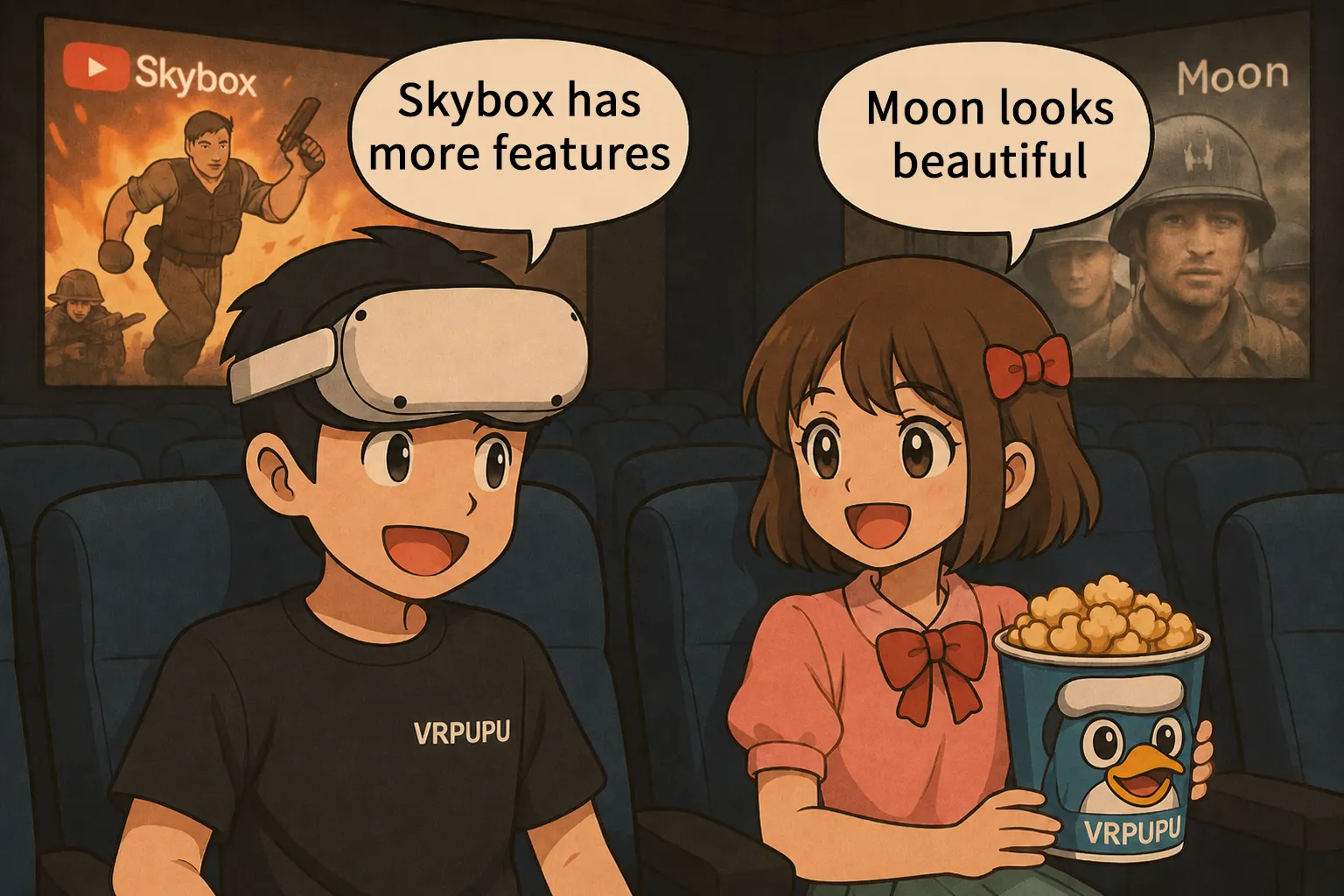
Torn between Skybox and Moon VR Player for your Meta Quest? We put both video apps to the ultimate test. In this deep dive, we compare actual frame-by-frame image quality across 4K Dolby Vision, HDR, and VR180 content to see which one truly looks better. We also break down their unique features, including how Moon’s Web Theater DLC unlocks Disney+ and Apple TV+ in VR. Keep reading to find out which player fits your setup, and grab an exclusive 20% off promo code to get the winning app for just $7.99.
Specs Comparison
These two players are among the top sellers on the Meta Store, and each has a pretty loyal fan base. Let’s start with the basic differences.
| Item | Skybox VR Player | Moon VR Player |
| Price | $9.99 → $8.99 | $9.99 → $7.99 |
| Local Playback | On-headset, USB storage | On-headset, USB storage |
| Remote Playback | SMB, WebDAV | SMB, WebDAV, Baidu Netdisk, Aliyun 🏆 |
| PC Streaming Software | PC files | PC files |
| Subtitles | Embedded & external | Embedded & external |
| HDR Files | Supported | Supported |
| Dolby Vision Files | Playable | Playable |
| 3D Video | 180°, 360°, auto-detect | 180°, 360°, auto-detect |
| YouTube | Supported 🏆 | Not supported by default, available via DLC |
| PC Screen Mirroring | Supported 🏆 | Not supported |
| Hidden Files | Supported 🏆 | Not supported |
| Blu-ray 3D ISO | Not supported | Not supported |
| Audio | 5.1 / 7.1 spatial audio | 5.1 / 7.1 spatial audio |
| Theater Modes | Cinema, Ultra Cinema, Void, Space, Moon | Moon Max, Moonlight Villa, Starry Sky |
| Images / 3D Images | Supported 🏆 | Not supported |
| Other Features | Plex support planned in v2.0 | DLC adds 18 streaming services including Disney+ and Plex 🏆 |
Both Skybox VR Player and Moon VR Player are priced at $9.99. Skybox comes with very practical features like virtual desktop support, YouTube playback, and the ability to show hidden files. Moon VR Player, on the other hand, stands out by offering direct access to Chinese cloud services such as Baidu Netdisk and Aliyun.
Looking at the base features alone, Skybox feels slightly more polished and easier to use overall. Moon VR Player really changes once you add the DLC “Web Theater” With that installed, it not only supports YouTube, but also unlocks streaming services like Disney+, Apple TV+, Plex, Prime Video, Hulu, Max, and more—18 services in total—making its online streaming support one of the strongest out there.
Now, let’s move past the spec sheet and take a look at what really matters: how the image quality actually looks during real playback.
Image Quality Comparison
This time, I used Meta Quest 3 and compared actual playback screenshots side by side. The test content included the following:
- Resident Evil: 4K, Dolby Vision
- Fast & Furious Presents: Hobbs & Shaw: 4K, Dolby Vision
- The Dark Knight: 4K, HDR
- Despicable Me 2: Full HD, SDR
- Ranma ½: Big Trouble in Nekonron, China: HD, SDR
- JVRPorn VR video: 4K, 3D 180°
Test Environment
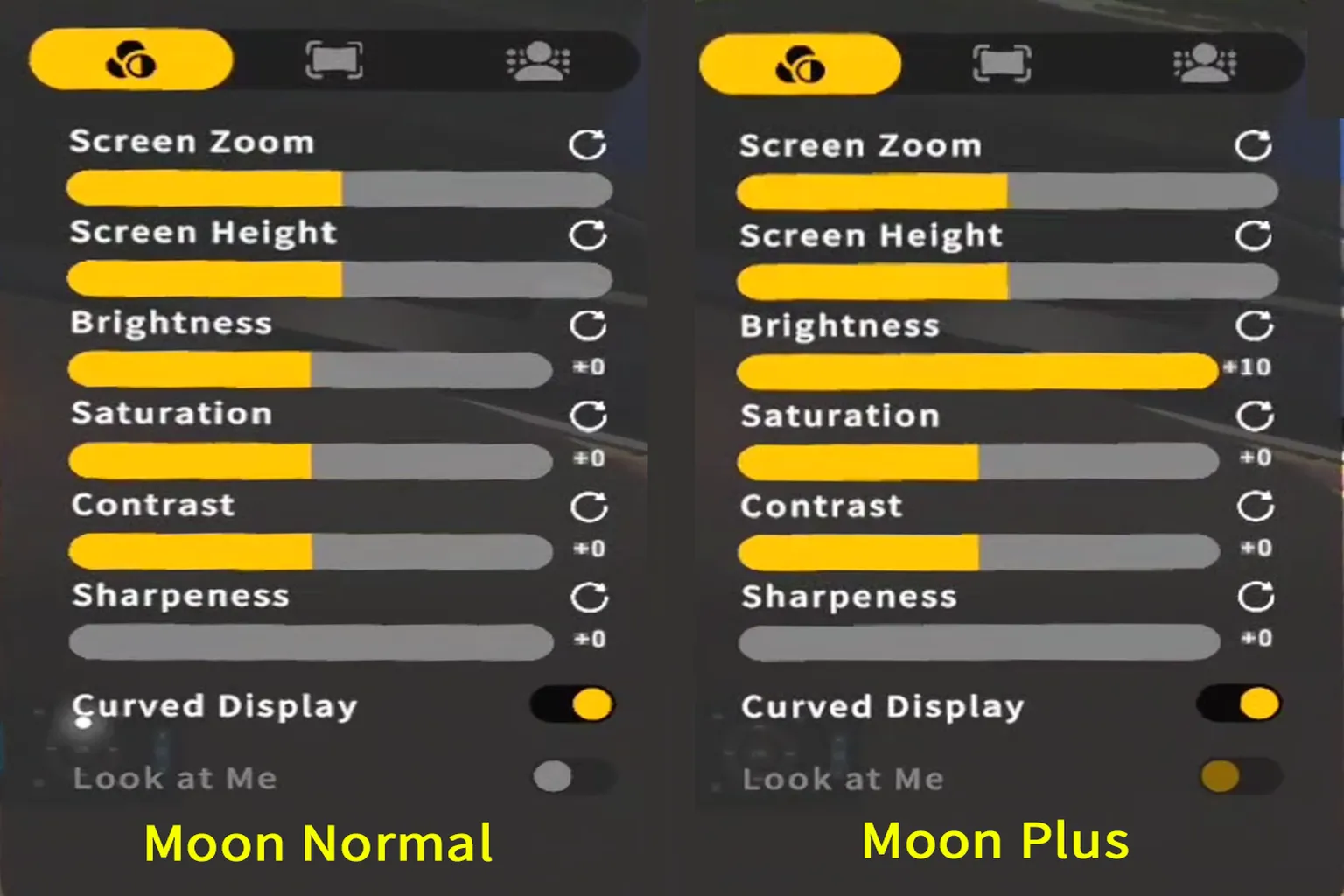
For Moon VR Player, all tests were done using the default settings. When capturing screenshots of HDR or Dolby Vision content, I used the following brightness values:
- Moon-Normal, HDR on: HDR brightness +0
- Moon-Plus, HDR on: HDR brightness +10
If the HDR button is yellow, HDR is on. If it’s white, HDR is off.
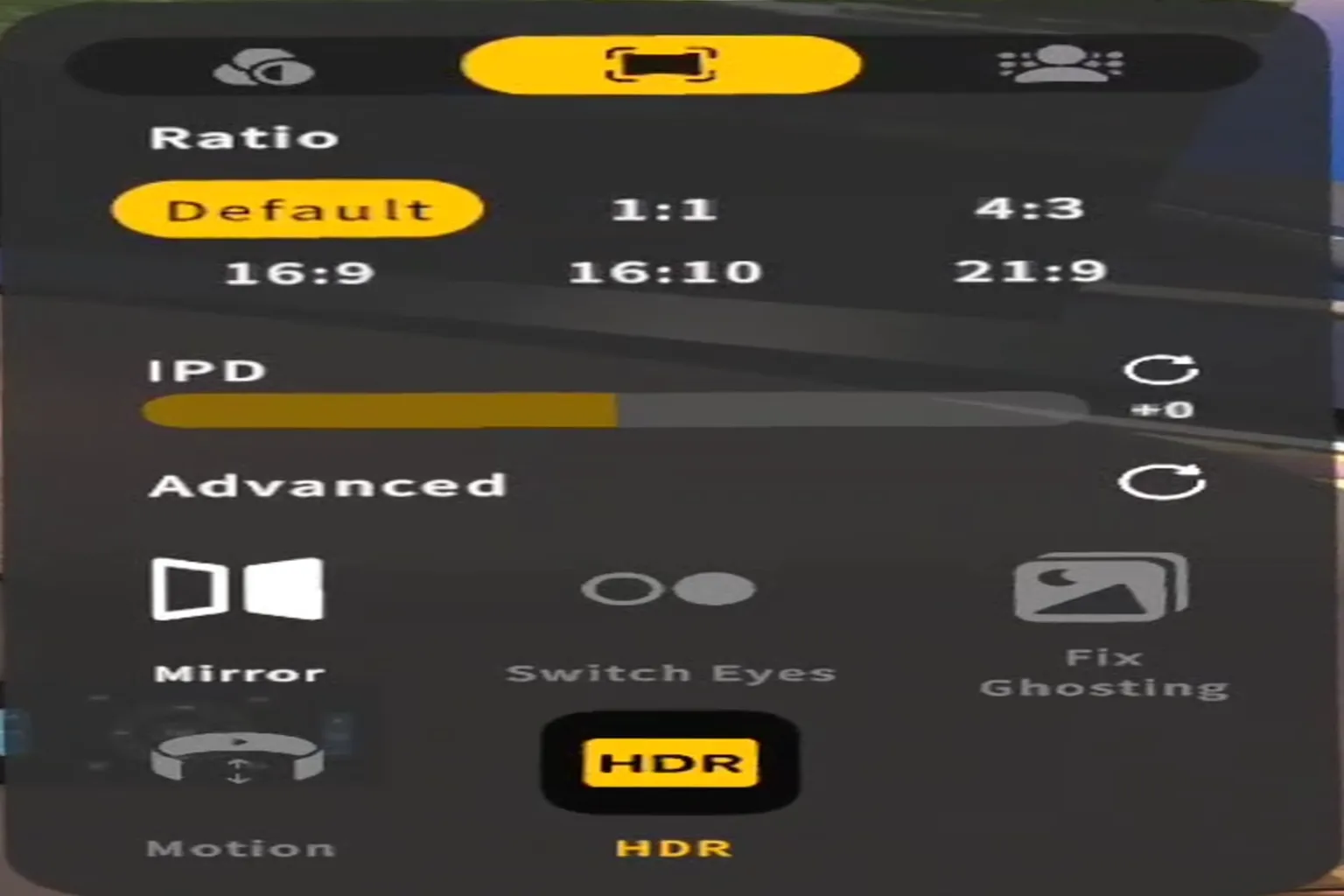
Only HDR brightness was adjusted. All other parameters were left untouched.
For Skybox VR Player, I pushed image quality settings as far as possible: 120Hz refresh rate, render scale set to 2, anti-aliasing set to 8, and sharpness set to Automatic.
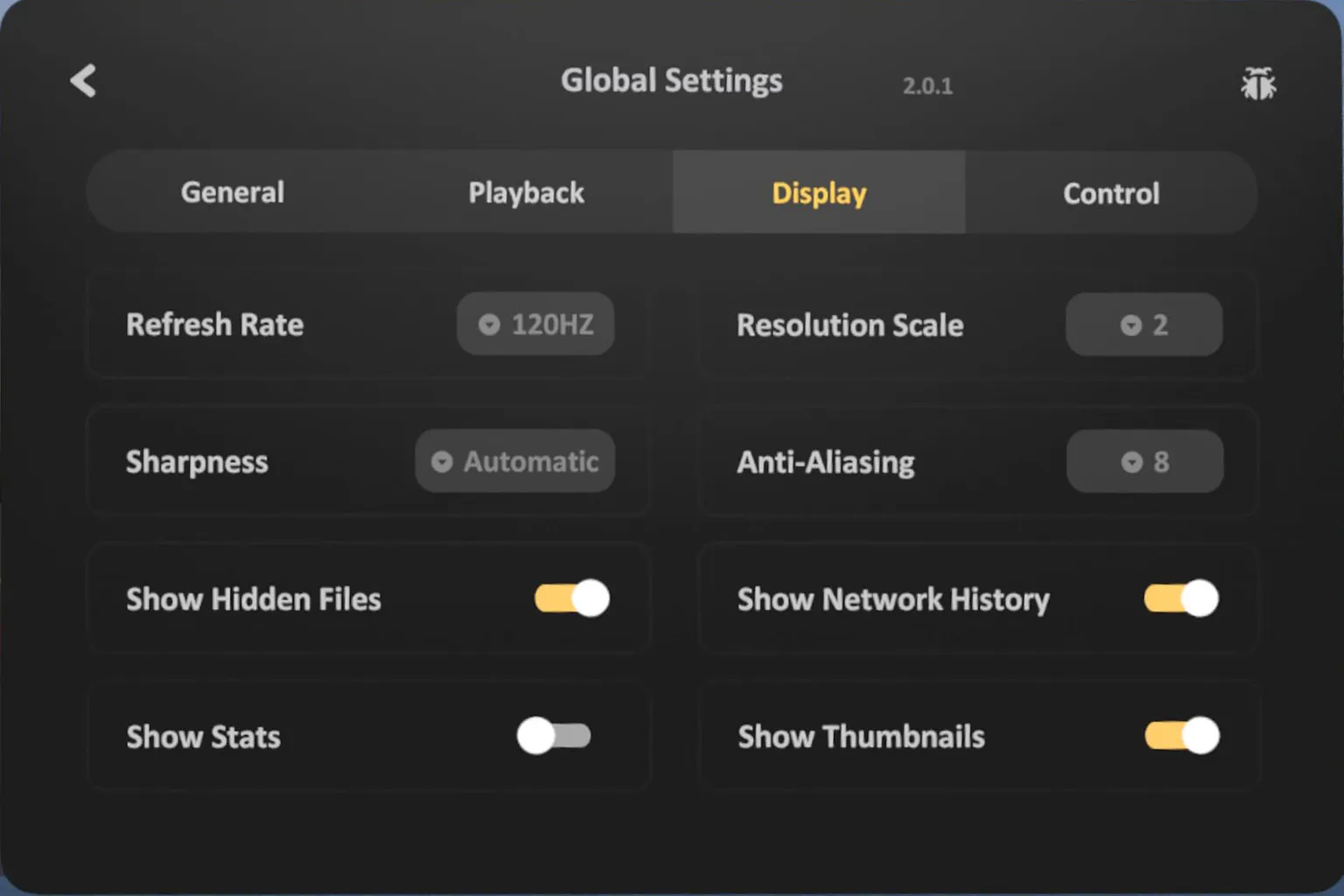
When capturing Dolby Vision and HDR screenshots, brightness was set as follows:
- Skybox-Normal: default (brightness +0)
- Skybox-Plus: brightness +4
(It can go up to +10, but contrast starts to break down noticeably past +5.)
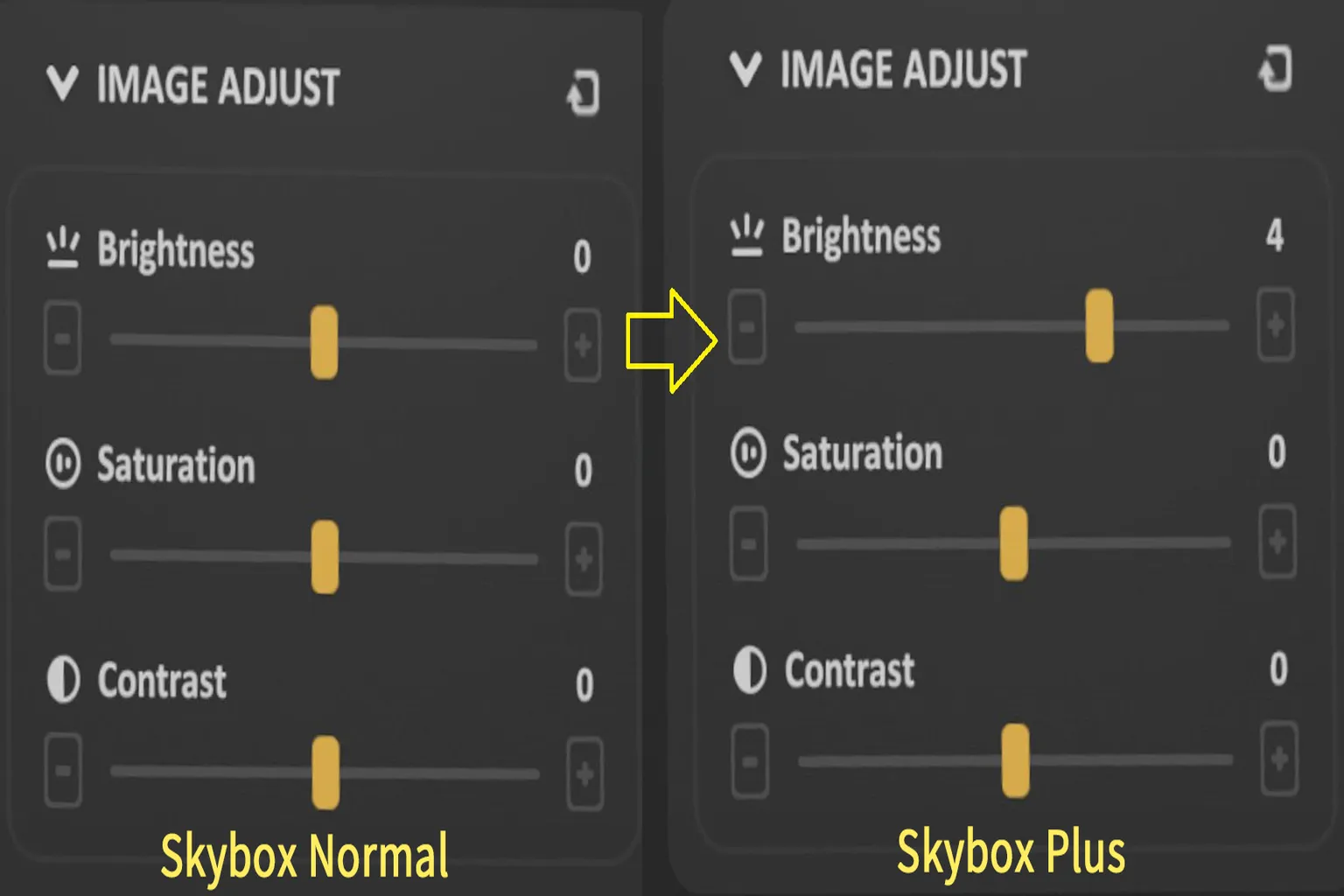
For standard SDR content, HDR was turned off on both players, and playback was done using normal mode with default brightness settings.
Dolby Vision Video Comparison
4K Dolby Vision is currently one of the highest-end video formats available. That said, Meta Quest 3 itself does not support Dolby Vision. Because of this, players have to map Dolby Vision content into HDR for display. This is where each app’s tuning really shows its strengths and weaknesses. Here, I compared standard playback against HDR brightness boost modes.
Resident Evil (2002)
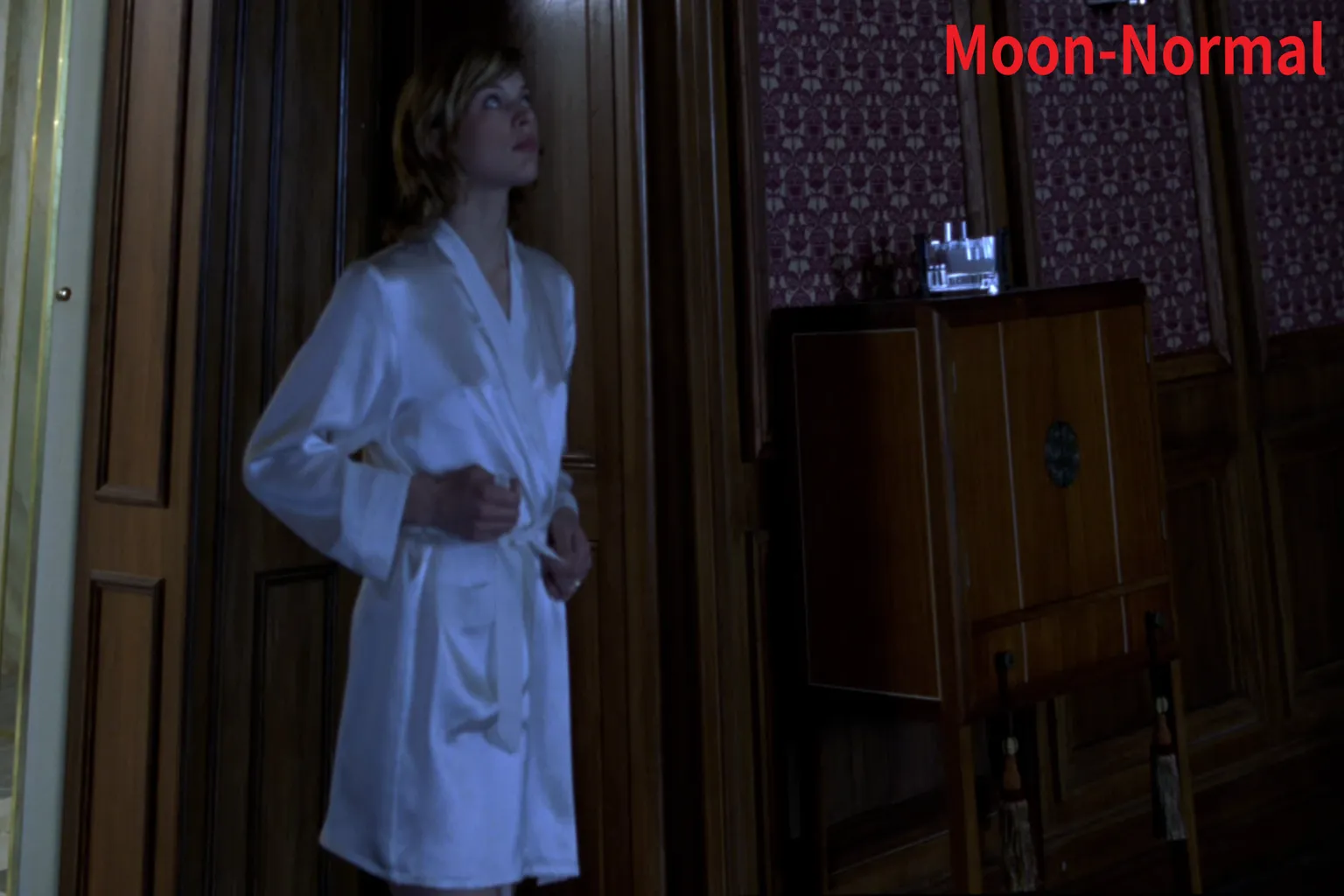
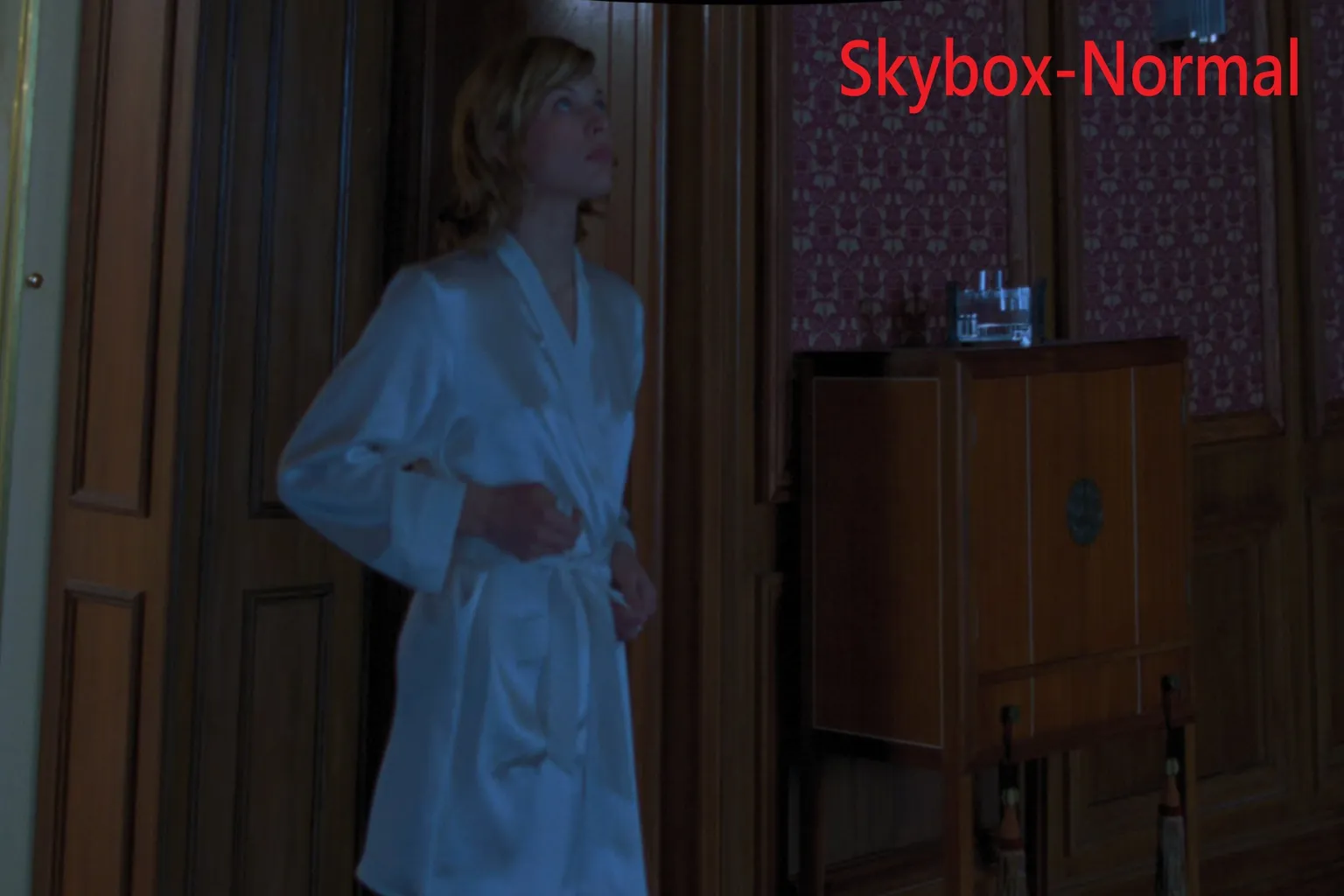
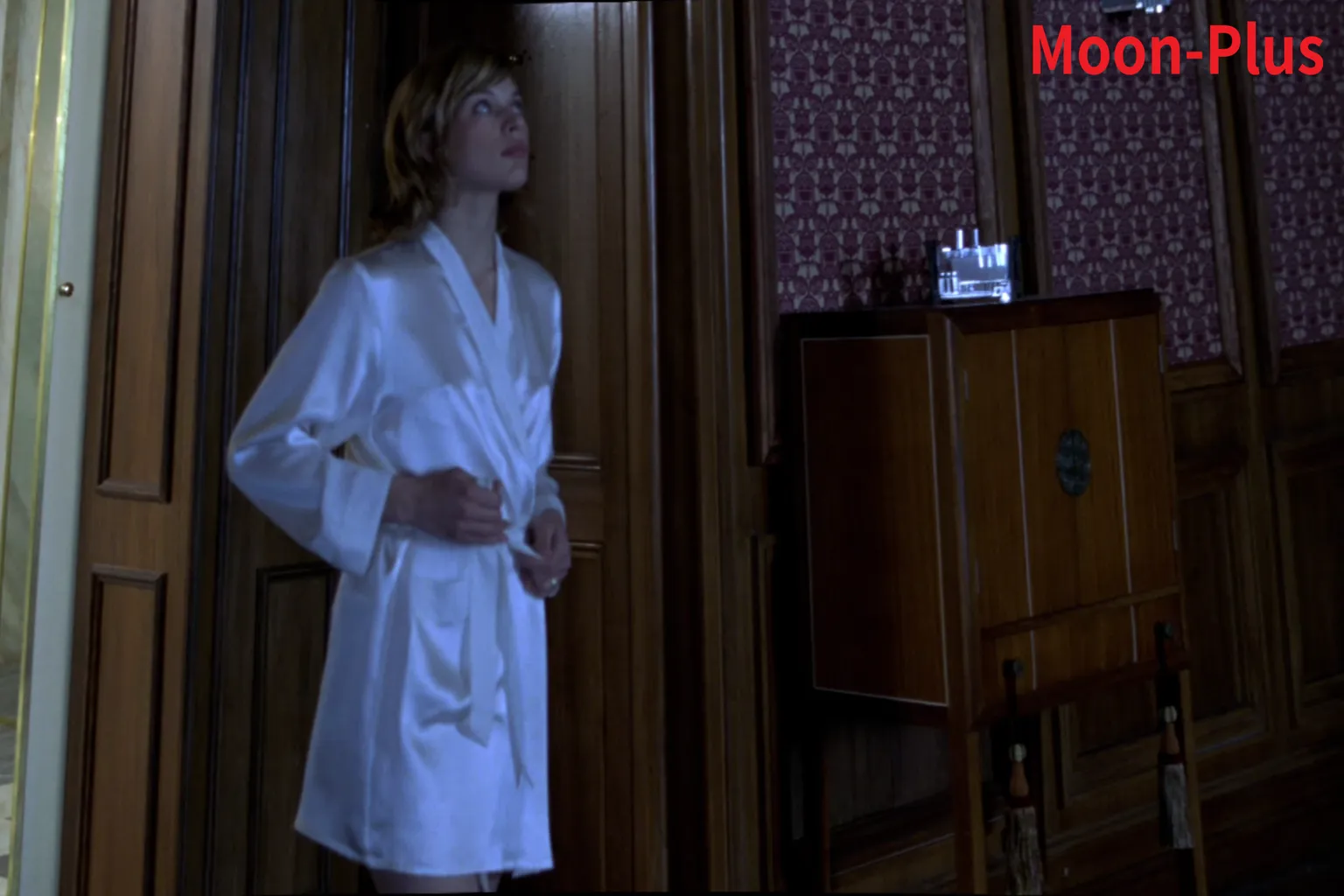
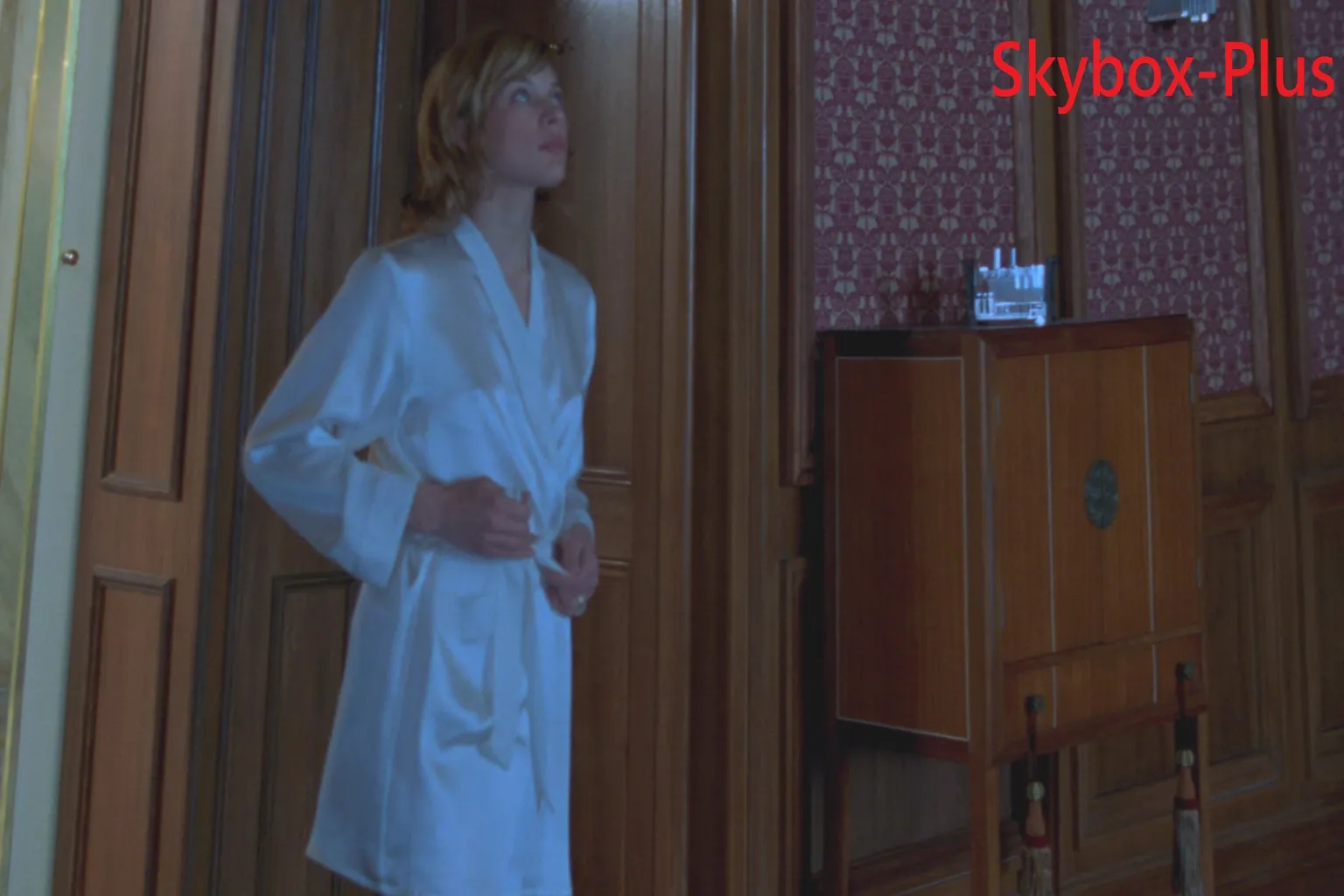
This file is 54.79GB, HEVC encoded, with a resolution of 3840×2160 and Dolby Vision. The screenshots were taken around 10 minutes into playback, during a dark hallway scene.
Moon VR Player – Normal:
Contrast is well defined, and shadow detail looks natural. Overall color accuracy is solid, and the nighttime atmosphere comes through clearly. Even though the scene is dark, the strong contrast makes textures in clothing and wooden walls easy to pick out. 🏆
Skybox VR Player – Normal:
The image is brighter overall, but colors are shifted. Skin tones look unnatural, and contrast feels weaker. Detail isn’t bad, but the sense of a nighttime scene is noticeably reduced.
Moon VR Player – Plus:
Keeps a very cinema-like mood while delivering strong contrast and clear details. Textures on walls and furniture remain easy to see without breaking the atmosphere.
Skybox VR Player – Plus:
The image becomes brighter and clearer, and patterns on walls and shelves stand out more. Close-ups show richer gradation, but the overall image takes on a stronger washed-out look. Skin tones skew bluish, and white clothing also appears slightly blue.
Fast & Furious Presents: Hobbs & Shaw
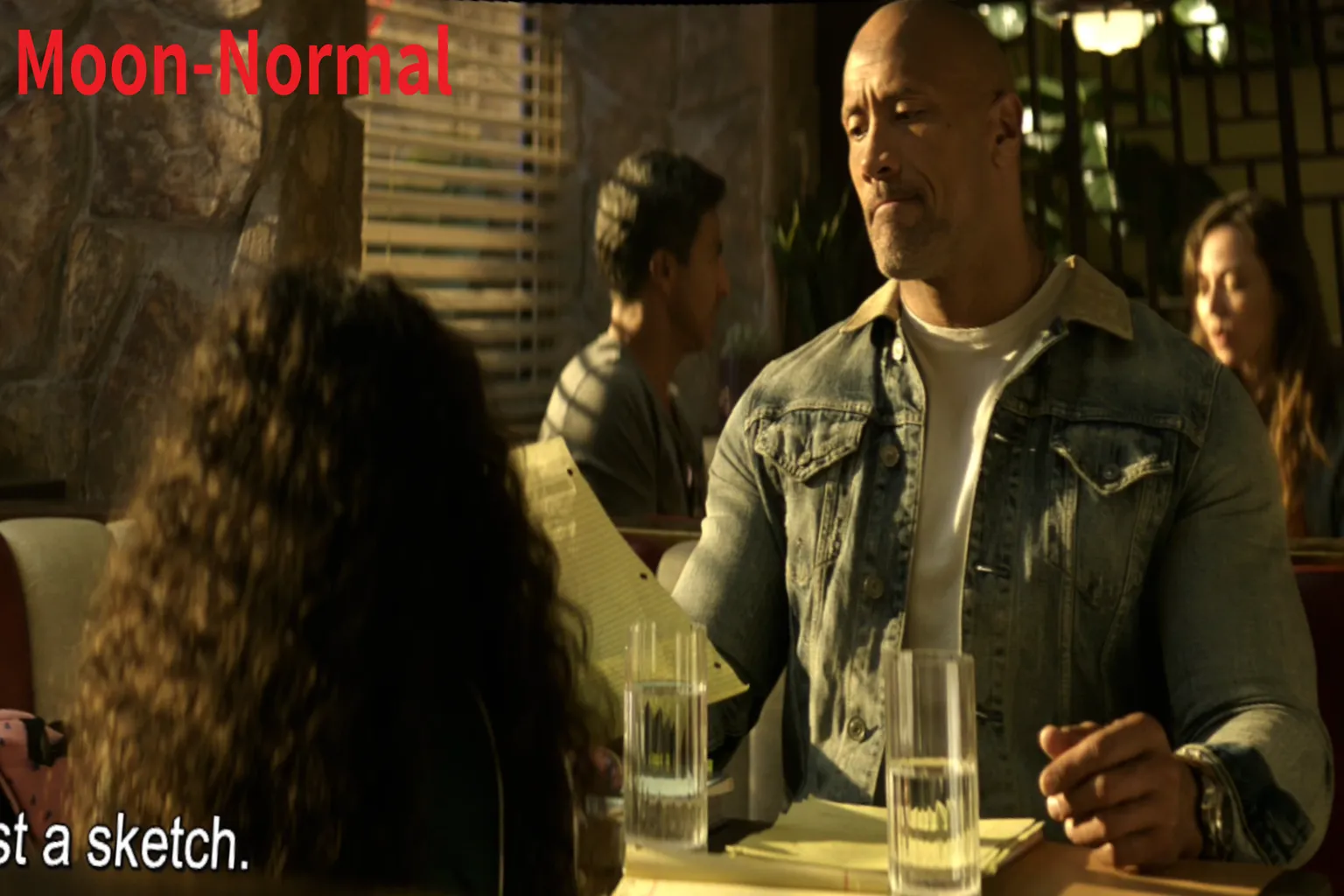
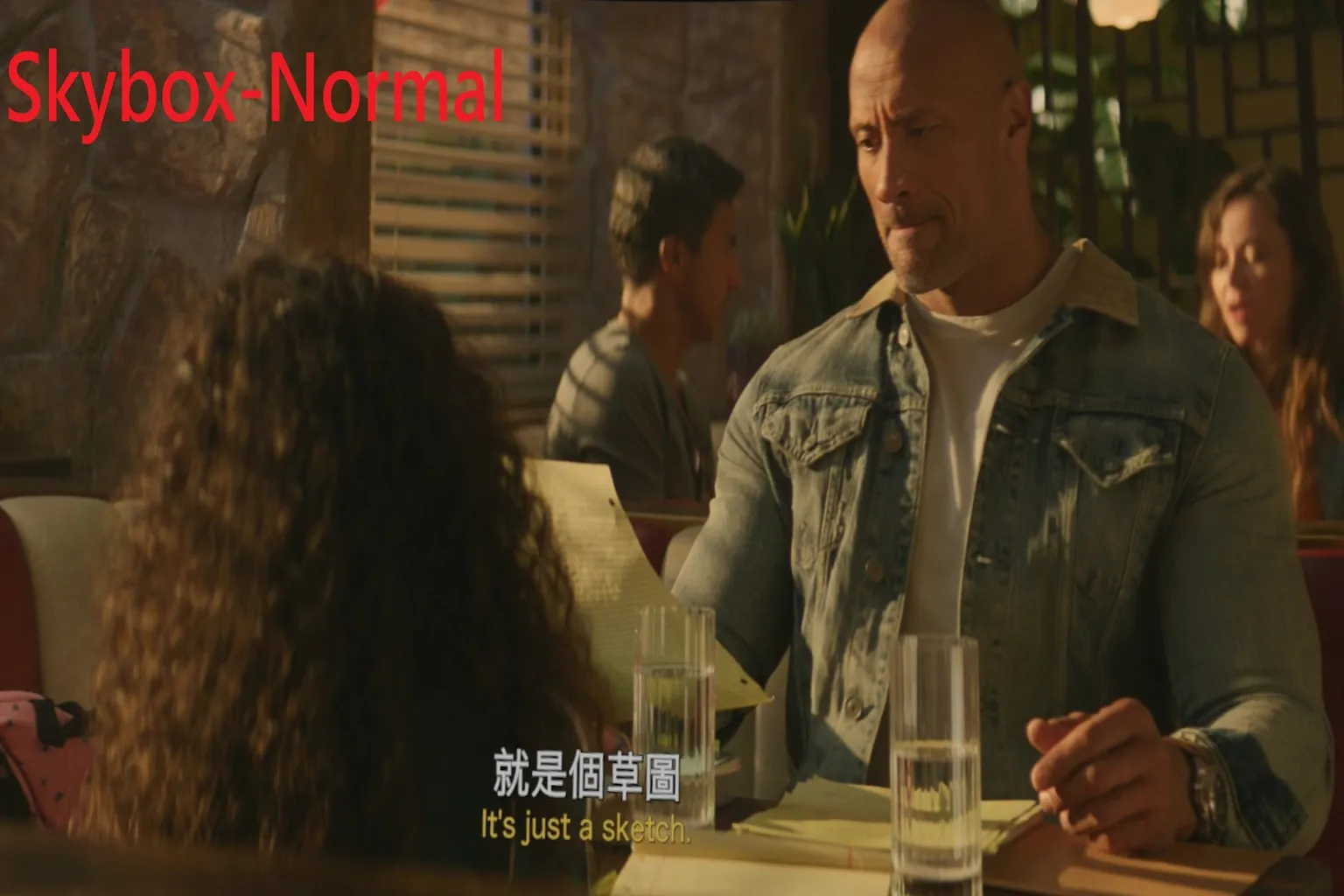
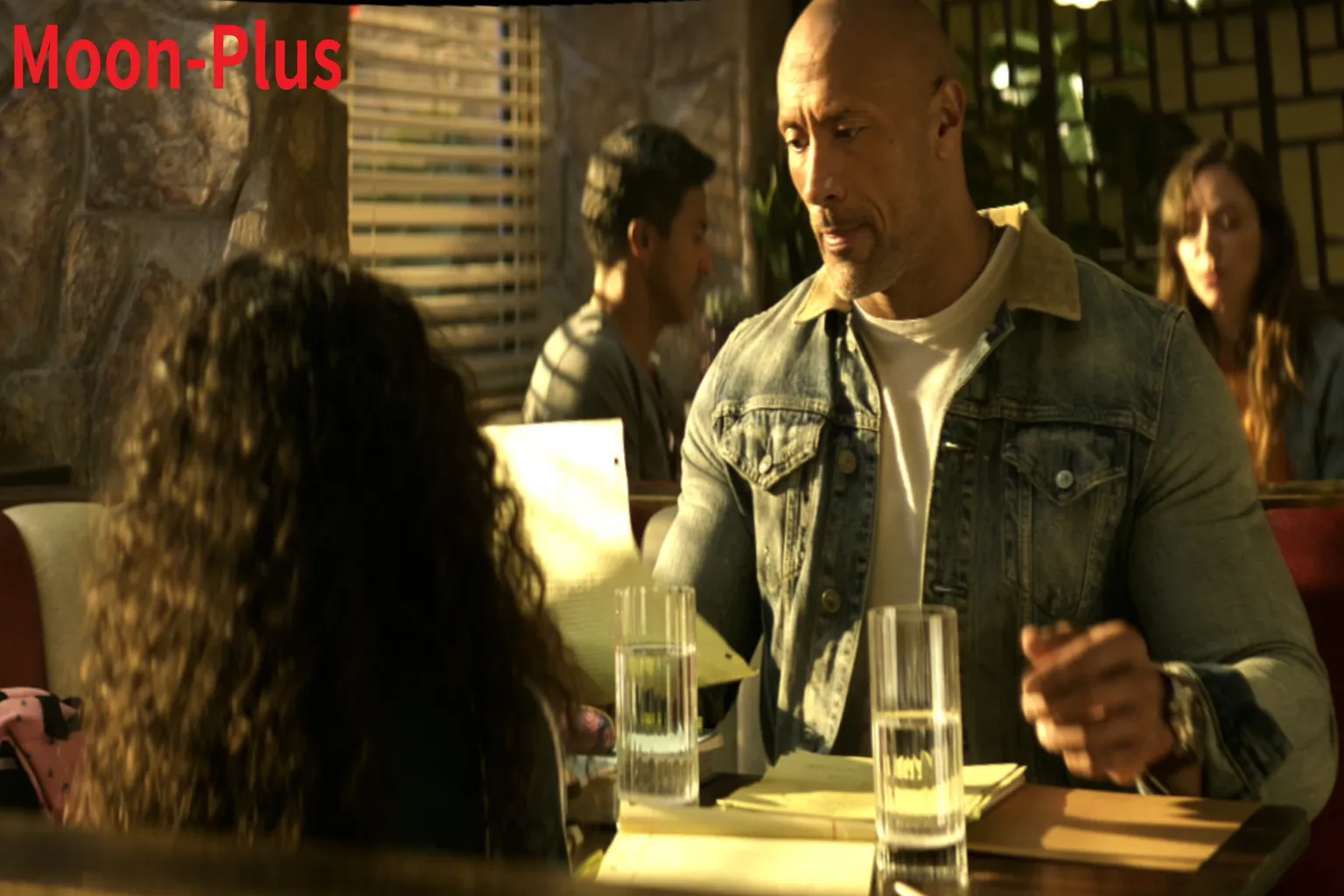
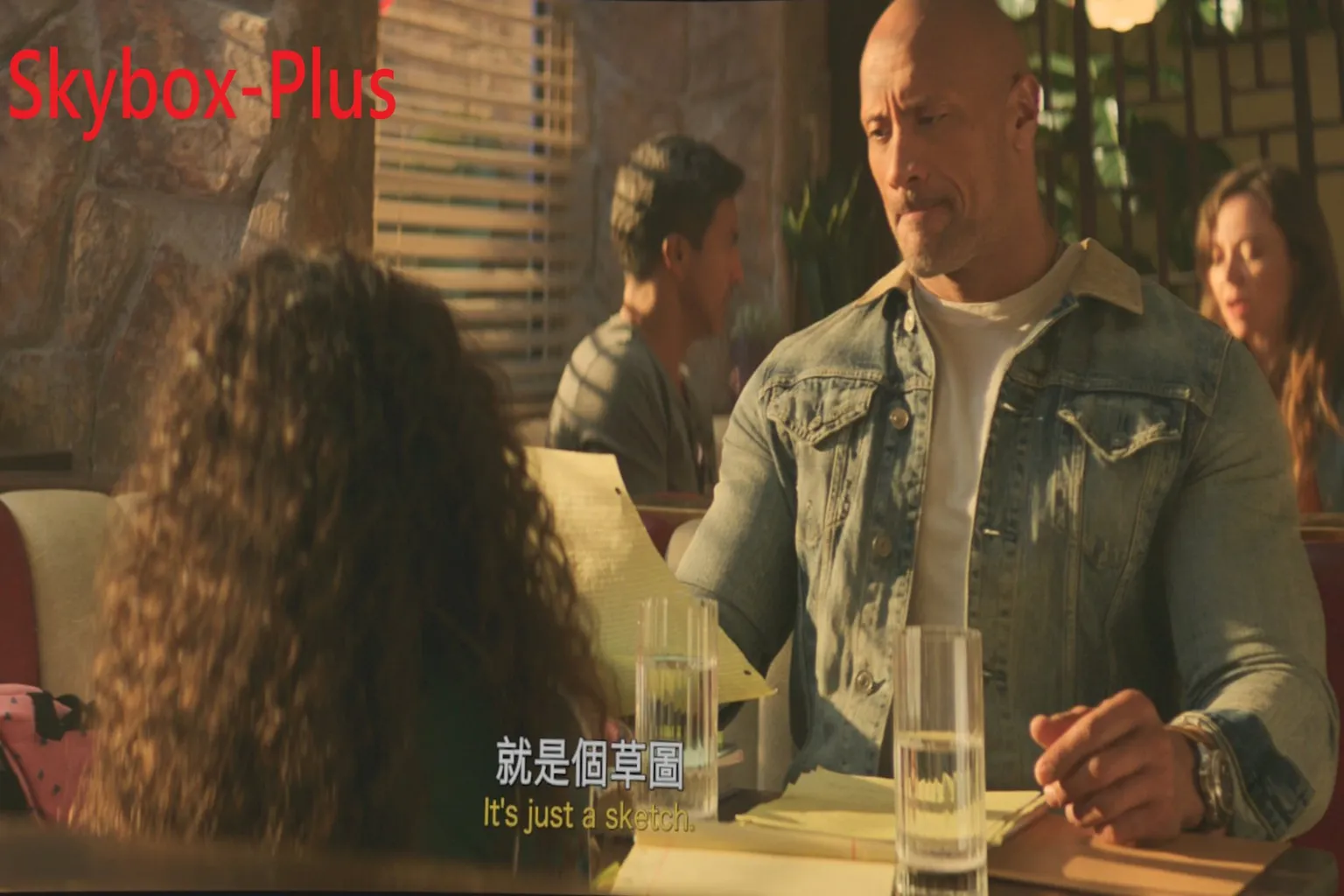
File size is 71.19GB, HEVC encoded, with a resolution of 3840×2160 and Dolby Vision. The screenshots were taken around 10 minutes into playback, during a restaurant scene.
Moon VR Player – Normal:
The overall image leans yellow and warm, giving off a strong sunset-like mood. Contrast is solid and adds depth to the characters, but skin tones look slightly yellowed and dark. Facial details are a bit crushed in places.
Skybox VR Player – Normal:
The image feels softer, with a color temperature closer to natural light. Skin tones look natural and balanced. Contrast is on the lower side, so fine details are slightly muted, but the overall image is easy on the eyes. Brightness and shadow balance are well controlled, with no obvious blown highlights or crushed blacks. 🏆
Moon VR Player – Plus:
Very vivid overall, with an excellent balance between brightness and contrast. Skin tones look healthy and three-dimensional, and tonal gradation across the image is strong. Colors lean slightly warm. Textures in glass, water surfaces, and denim fabric come through sharply, giving the scene a strong sense of presence. 🏆
Skybox VR Player – Plus:
Leans warm overall, with slightly higher brightness. Skin tones look soft but a bit yellowish, and gradation in faces and clothing feels somewhat blurred. The entire image has a slightly hazy look.
HDR Video Comparison
Meta Quest 3 supports HDR, so the players can fully show what HDR is meant to look like. For this test, we used The Dark Knight.
Batman — The Dark Knight
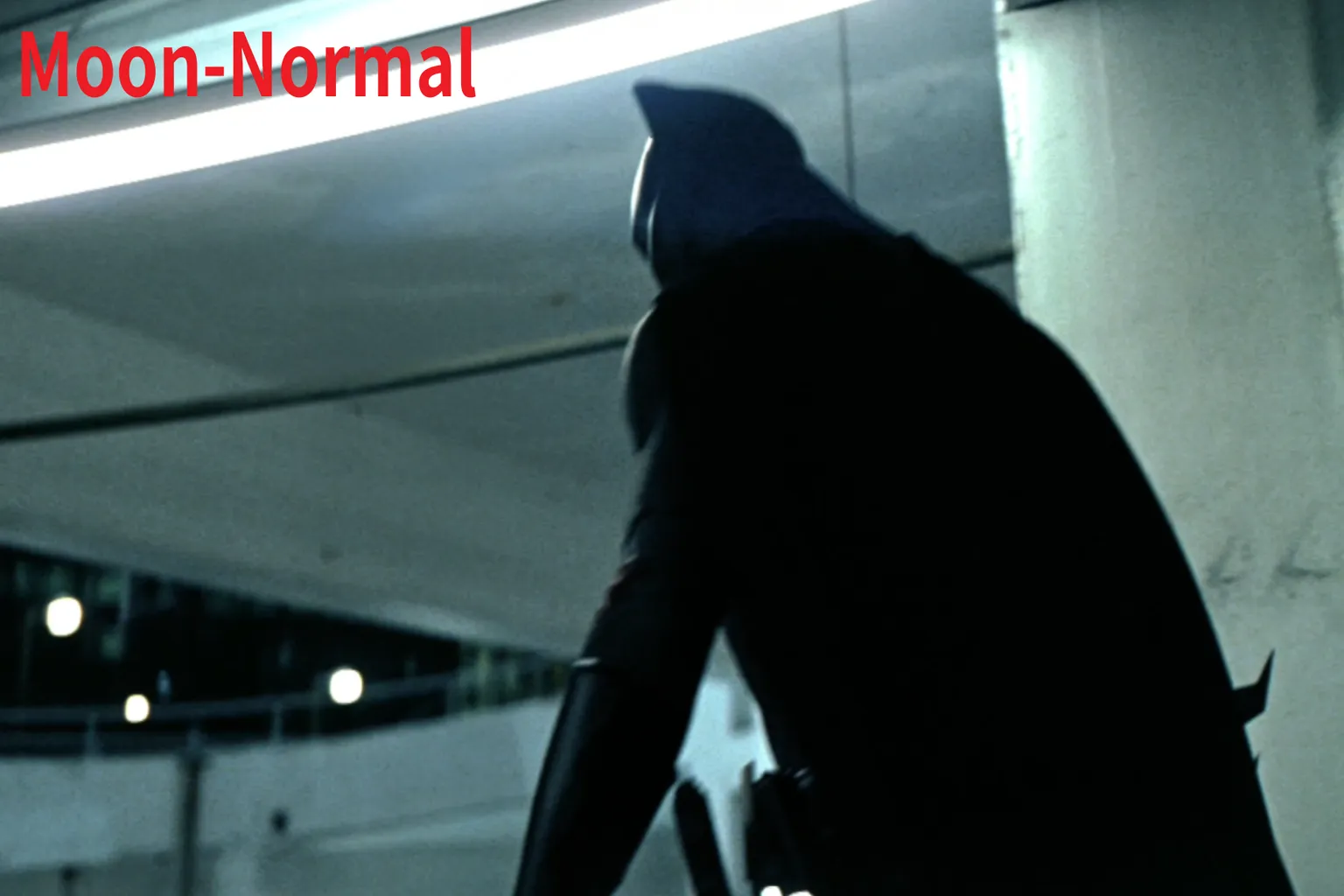
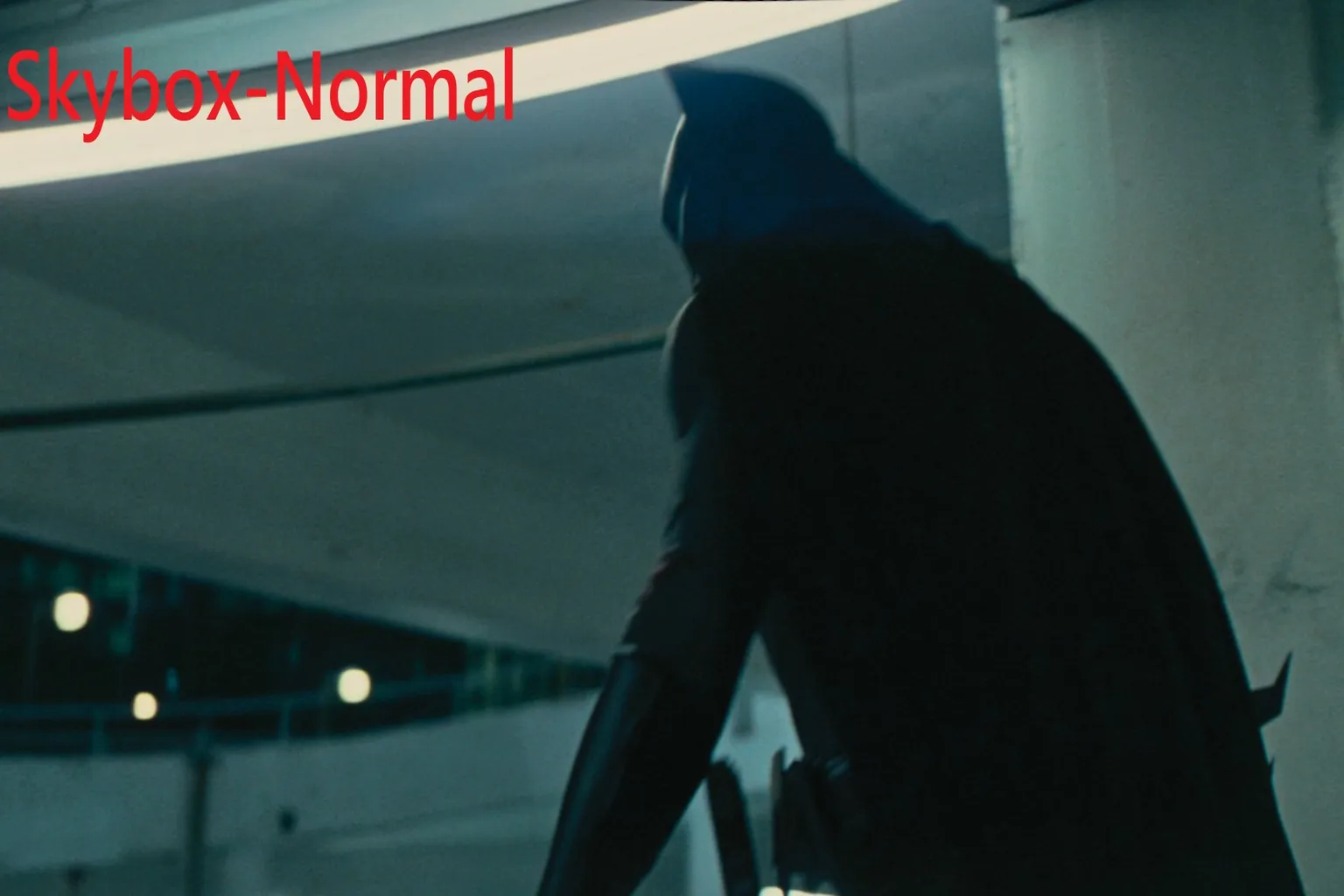
The file size is 32.38GB, HEVC encoded, with a resolution of 3840×2160 and HDR. The screenshots were taken around 10 minutes into playback, during a parking garage scene.
Moon VR Player – Normal:
Contrast is relatively strong, and the separation between Batman’s suit and the background is very clear. Bright areas stay bright without blowing out, character outlines are sharp, and fine details are rendered at a high level. 🏆
Skybox VR Player – Normal:
Overall colors lean slightly green and blue. Tonal gradation between light and dark looks natural, but the separation between Batman and the background is weaker. Fluorescent lights take on a yellowish tint, which feels a bit off.
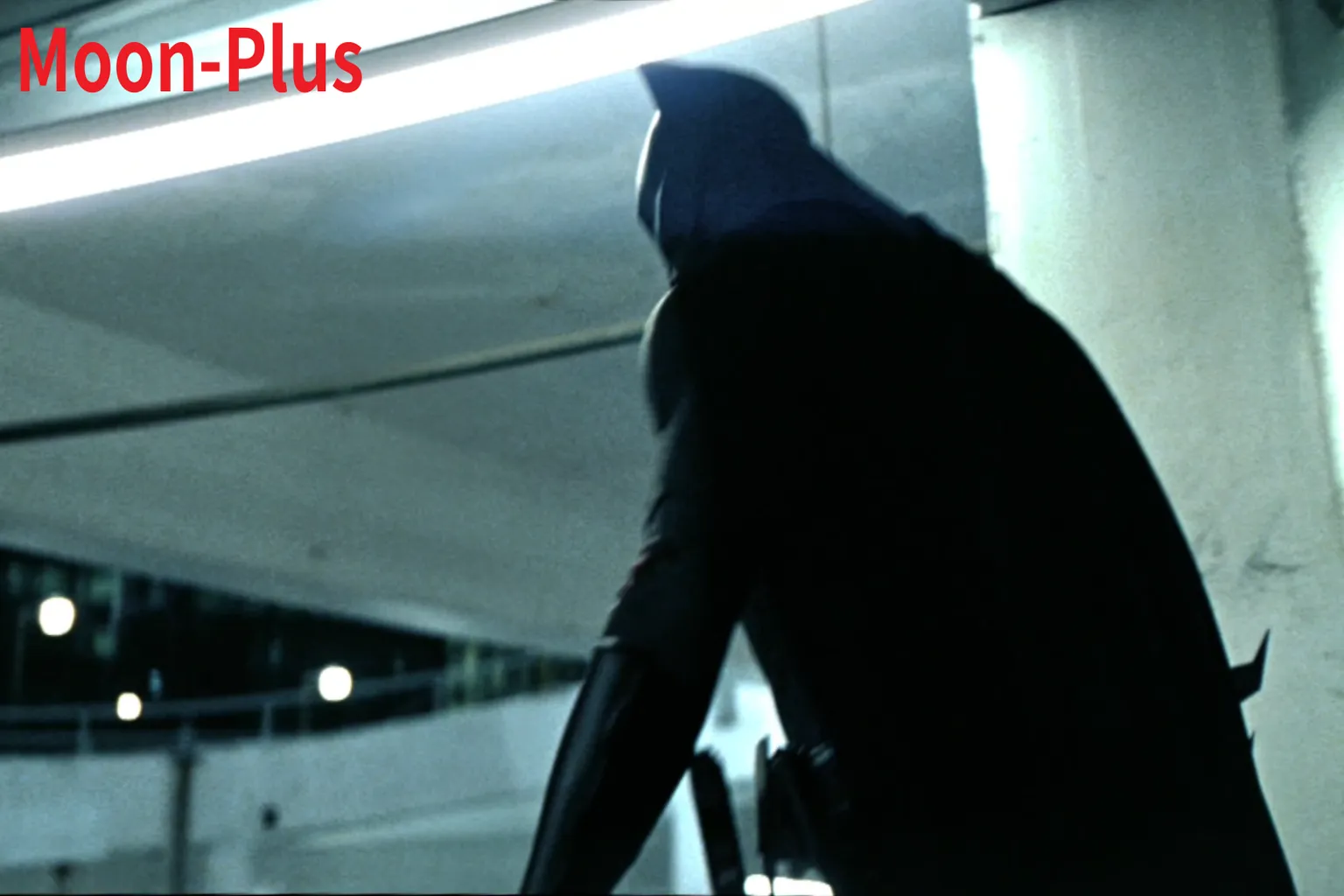
Moon VR Player – Plus:
Even with increased brightness, highlights don’t clip. Batman’s outline remains crisp, and background buildings and lighting show clear tonal steps. The overall balance feels very solid. 🏆
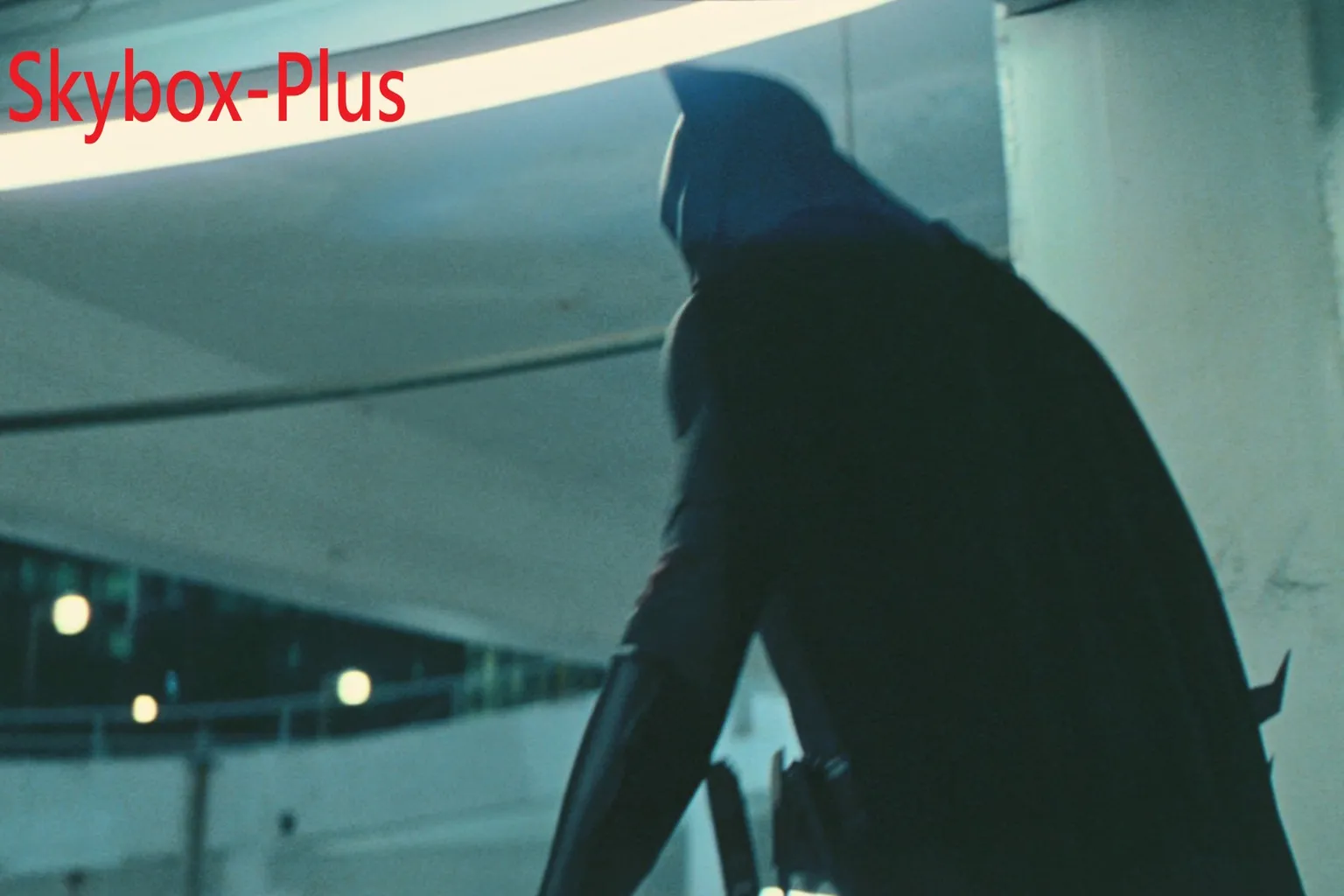
Skybox VR Player – Plus:
The image is brighter, but the color tone shifts cooler. Batman’s outline is clear, yet fluorescent lights still look yellowish. Compared to the brightness gain, some surface texture and realism are lost.
SDR Video Comparison
SDR is the most commonly used video format, and the majority of anime titles fall into this category. For this comparison, I chose the Full HD title Despicable Me 2 and the HD title Ranma ½: China Nekkonron Great Battle.
For SDR content, I didn’t adjust brightness at all. Both players were tested using the original image as-is, without any enhancement, to see how they handle standard SDR playback out of the box.
Despicable Me 2
The file is 3.52GB, HEVC encoded, with a resolution of 1920×1080. The screenshots were taken around 10 minutes into playback, during a factory scene.
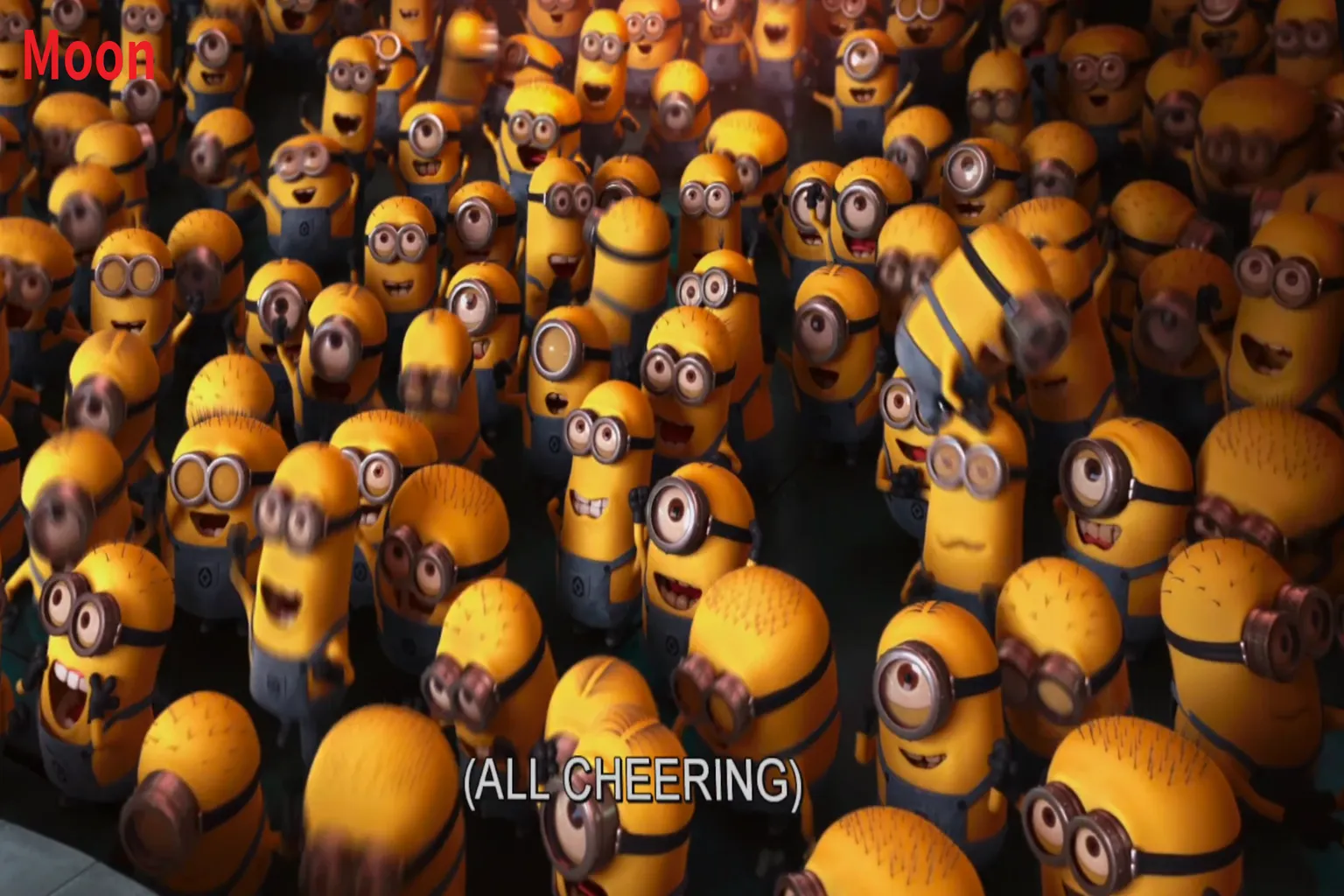
Moon VR Player:
Colors are vivid with high saturation, and the Minions’ depth and shadow detail come through clearly. Contrast is well defined, character outlines feel three-dimensional, and the entire image looks lively and punchy. 🏆
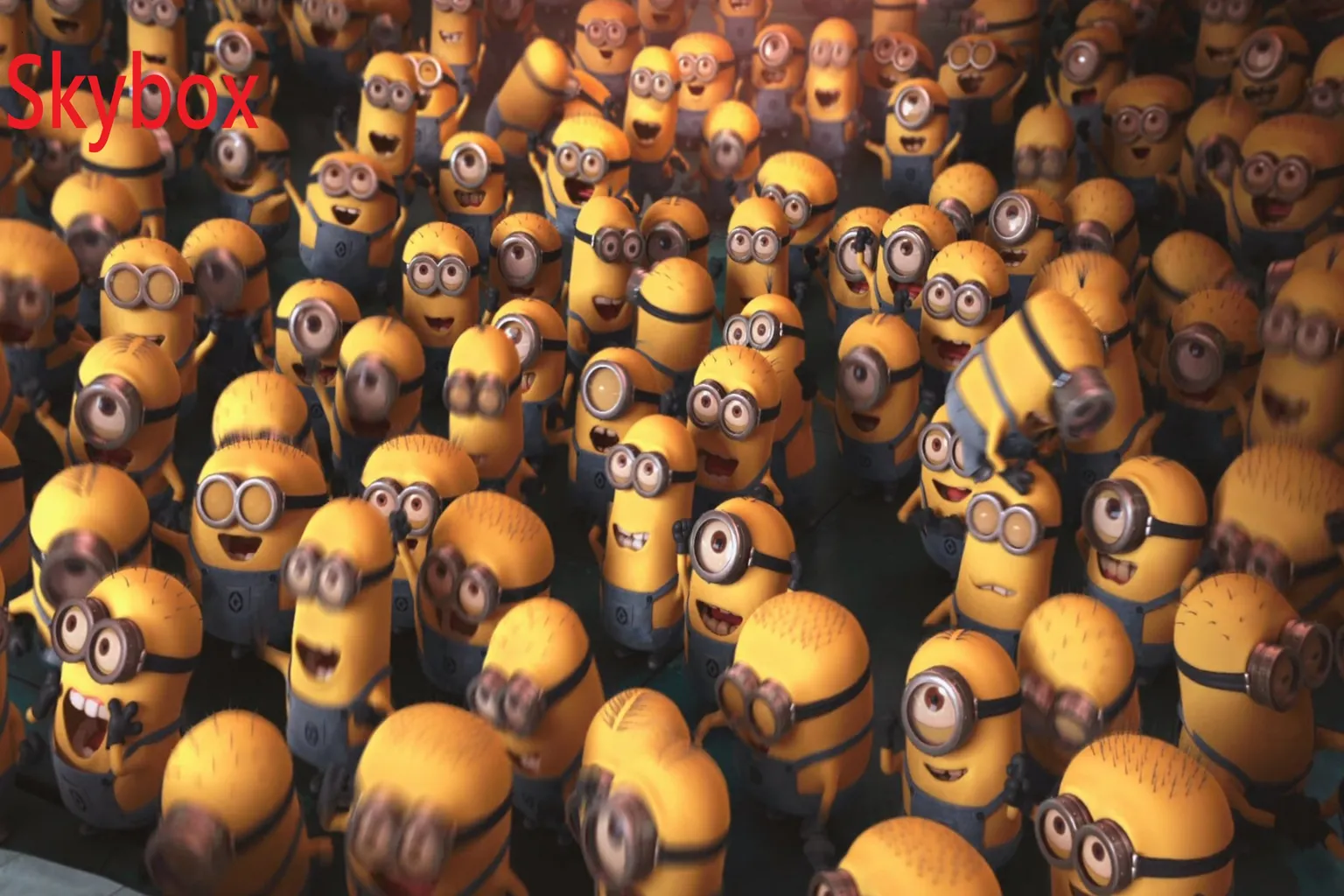
Skybox VR Player:
Brightness looks natural, but the Minions appear slightly washed out. Colors feel clean, yet contrast is a bit weak. Overall, the image is softer, with yellows looking lighter and slightly hazy.
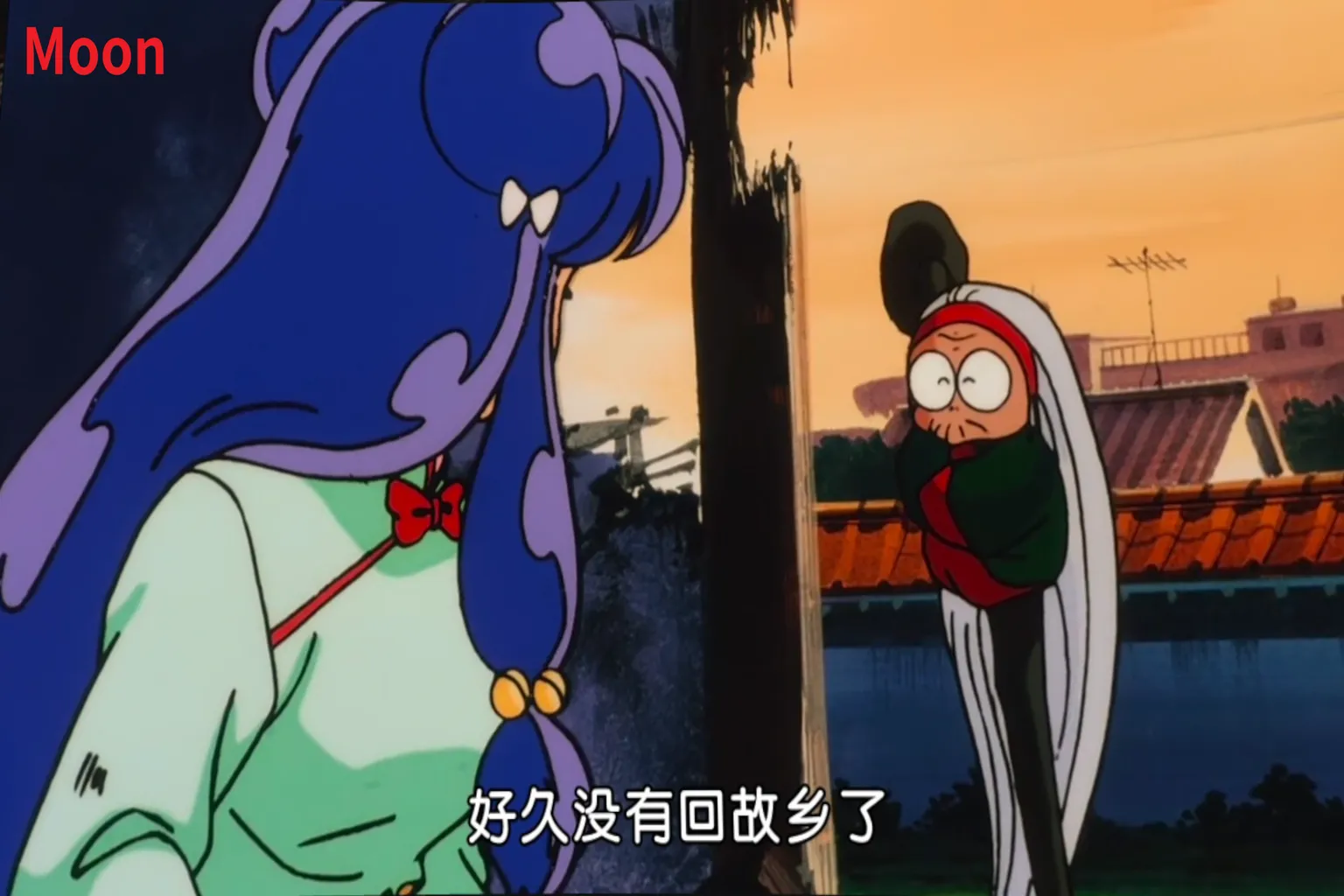
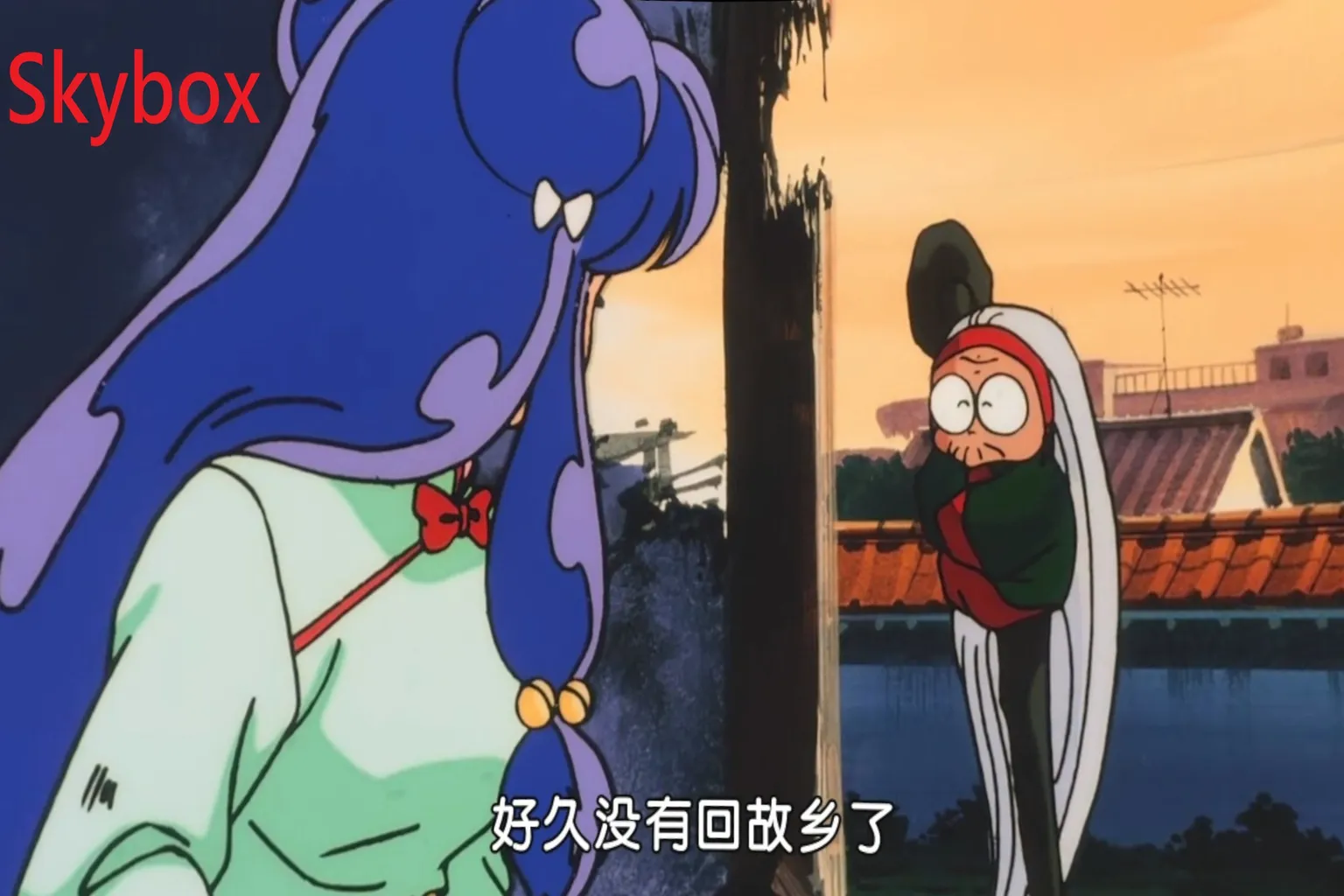
Ranma ½: China Nekkonron Great Battle
The file is 0.93GB, H.264 encoded, with a resolution of 1280×720. The screenshots were taken around 20 minutes into playback, during a post-destruction corridor scene.
Moon VR Player:
Color saturation is rich and dense, with crisp black outline lines. The anime-style texture is rendered in fine detail. The sunset background looks soft, and Shampoo’s sense of depth comes through nicely. 🏆
Skybox VR Player:
Colors are natural and gentle, and Shampoo’s line work is sharp. Background tones are even, but the overall image feels slightly washed out.
VR Video Comparison
Since we’re talking about VR players, it wouldn’t feel complete without comparing actual VR videos. Regular VR content is surprisingly hard to find, so this time I used a JVR-Porn title and captured the opening dialogue scene to compare image quality.
JVR-Porn 100000!?
This is a video I got from a friend, so I’m not completely sure the number is correct. The file size is 2.42GB, H.264 encoded, with a resolution of 4096×2048. The screenshots were taken about 0.1 minutes after playback started, during an office scene.
Moon VR Player:
Colors look natural, skin tones feel healthy, and there’s a strong sense of depth. Brightness is well balanced, contrast is clear, and separation between red folders, white shirts, and the background is very distinct. The overall image feels realistic and stays visually engaging. 🏆

Skybox VR Player:
The image is bright and natural, but brightness feels a bit too strong, making the whole scene look slightly washed out. Faces also appear a bit shiny, which can be distracting.

Based on the test results, 4K Dolby Vision playback ends in a tie. For all other types of content, Moon VR Player comes out ahead.
Overall playback evaluation looks like this:
| Content Type | Better Player |
| Dolby Vision / HDR (Standard) | Tie |
| Dolby Vision / HDR (Brightness Boost) | Moon VR Player |
| SDR Video | Moon VR Player |
| VR 180° Video | Moon VR Player |
Playback Environments
Both players offer multiple environments to choose from, but personally, I still find theater-style scenes the most relaxing. Even with the same “movie theater with a big screen” concept, the presentation feels a bit different between the two.
Moon VR Player:
Feels like watching a movie in a seatless theater, with the focus fully on the screen.

Skybox VR Player:
Feels like sitting in the standard seating area of an IMAX theater.
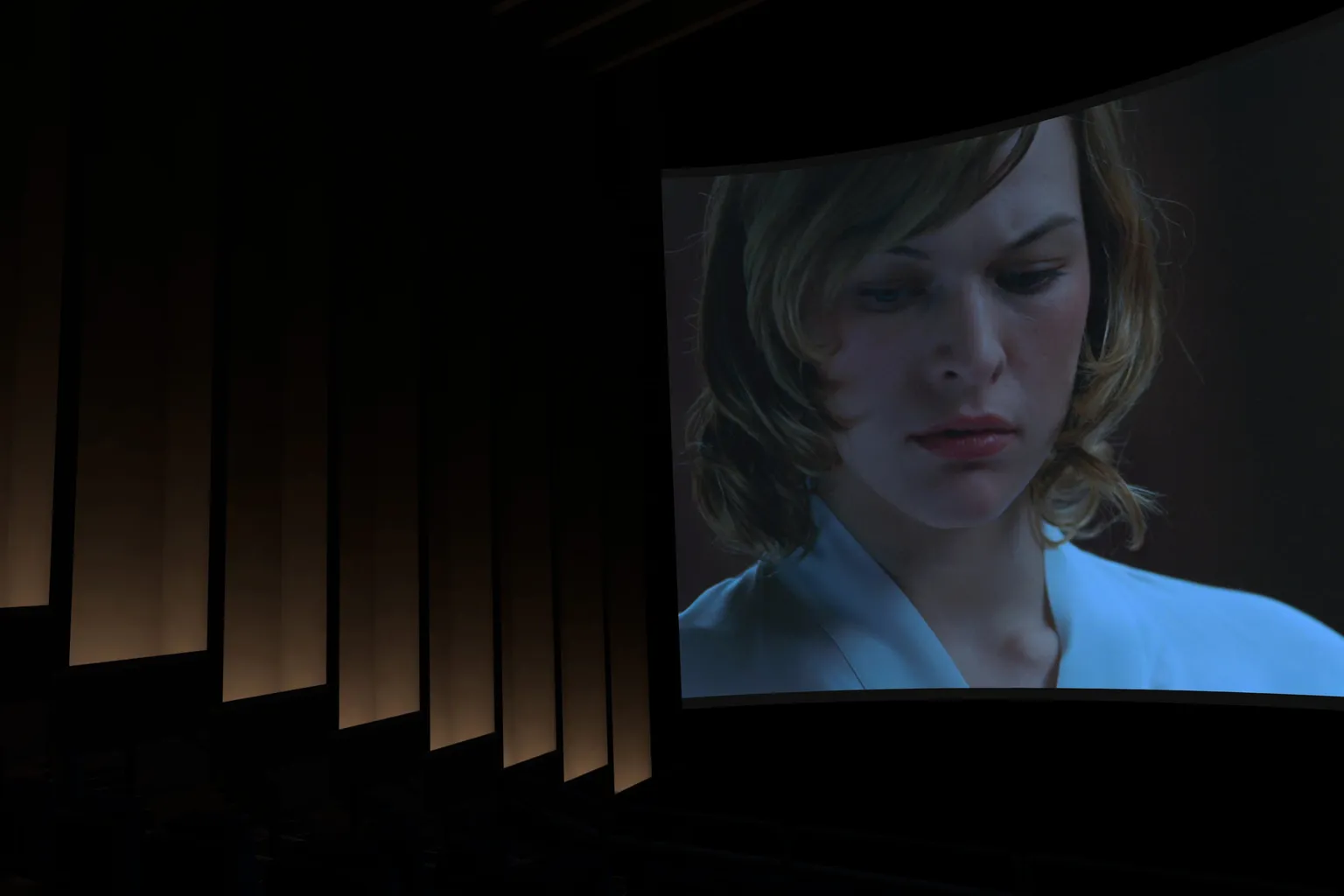
The screen size is closer to what you’d see in a large AMC-style cinema in the US, and it even recreates details like exit signs, which is kind of charming in its own way.
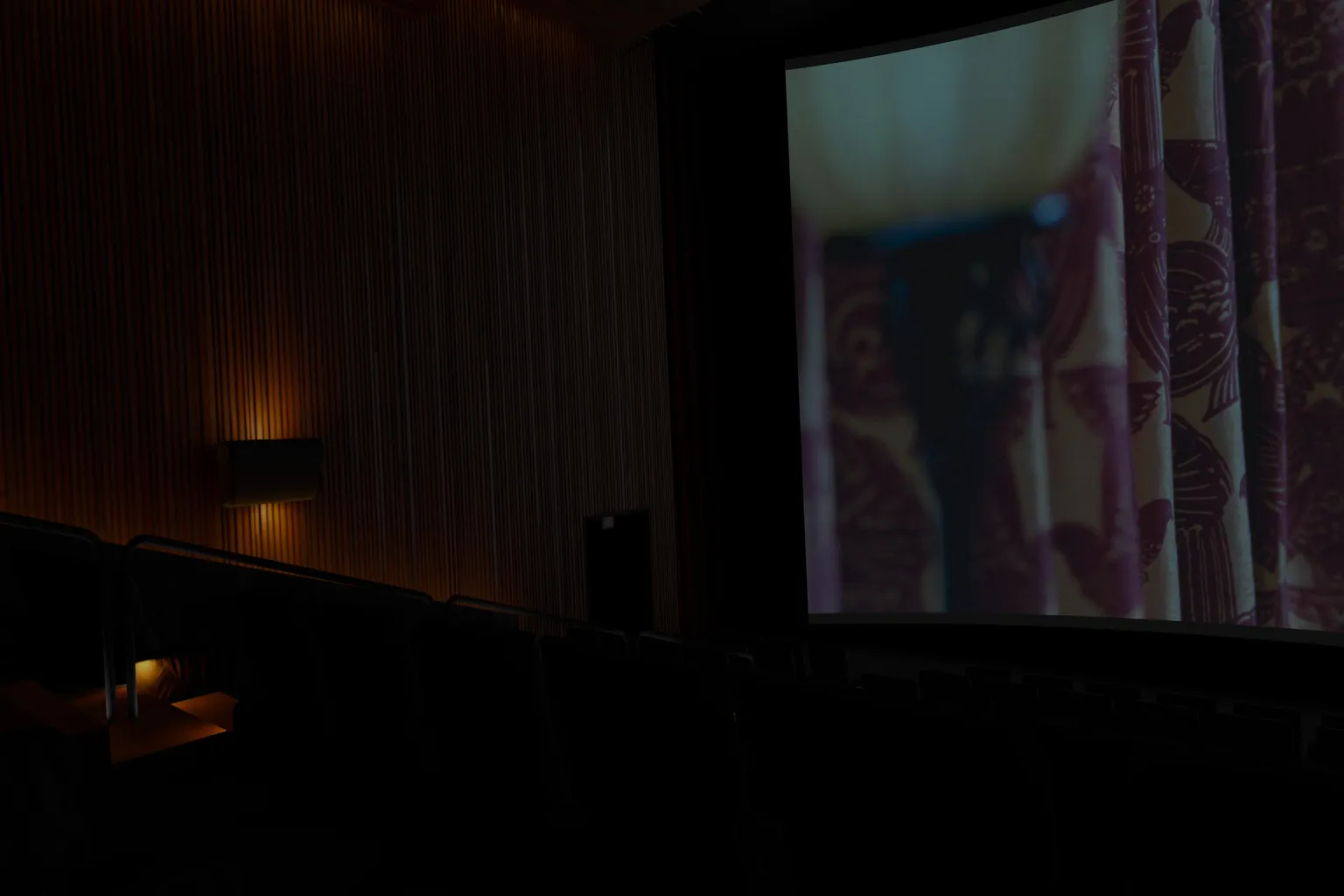
Comparing the environments of these two players, I personally find Skybox VR Player far more premium and comfortable. Moon’s approach—basically sitting on the floor to watch a movie—honestly makes no sense to me. This isn’t an outdoor screening, so what kind of movie theater would ever be designed that way?
When you’re watching a movie alone in VR, a luxurious setting just feels better. This is something 4XVR Video Player Premium really gets right, with executive-style leather seats and proper VIP seating. That kind of environment noticeably boosts overall viewing satisfaction.
Audio Performance
Sound isn’t something you can compare visually, so this is entirely based on personal listening impressions. After using both players, here’s how they feel.
Moon VR Player:
Positional audio is decent, and surround presence is also just okay.
Skybox VR Player:
Positional audio is decent, and surround presence is also just okay.
Both feel slightly weaker than watching Netflix through Meta Quest’s built-in app. Audio isn’t really a strong point for either player.
Conclusion and Recommendations
The two players tested here each shine in different areas.
Skybox VR Player’s strength is its wide range of features, while Moon VR Player stands out for its image quality.
- If your main use is YouTube or streaming from a PC → Skybox VR Player is the better fit.
- If you mainly watch TV shows, VR videos, or want to expand features with DLC → Moon VR Player is the better choice.
Neither is bad, but at the same price point, Moon has a big advantage thanks to a VRPUPU reader-only 20% discount. Enter the code VRPU-3A6442 at purchase and you can grab the app for just $7.99, which makes it well worth considering.
After comparing the two players, you might be wondering, “So how do you actually use them?”
Below, you’ll find separate guides for each one, so be sure to check those out next.
That said, finding good VR videos on your own can be a real hassle. There are also online services that let you stream VR content directly. DeoVR, for example, is a well-known option. If that sounds more convenient, take a look at the introduction below.
Moon VR Player Ultimate Guide
PC Streaming, WebDAV & Web Theater DLC
Skybox VR Player Complete Guide
Setup AirScreen, Network Streams & YouTube VR
FAQ – Common Questions
What’s the biggest difference between Moon VR Player and Skybox VR Player?
Skybox VR Player focuses on feature breadth, with built-in support for YouTube, virtual desktop, and hidden file viewing. Moon VR Player stands out for image quality. With optional DLC, Moon also adds support for 18 streaming services, including Disney+, Apple TV+, and Plex.
Which one should I choose if image quality is my top priority?
Moon VR Player. Its video tuning is clearly stronger, delivering a more cinema-like look in both HDR and SDR, with better color and contrast for VR content as well.
Which one supports YouTube playback?
Skybox supports YouTube out of the box. Moon requires purchasing a DLC to enable YouTube.
Do both support 3D video and HDR?
Yes. Both can play 180°/360° 3D video and support HDR and Dolby Vision. Their rendering styles differ, though, so check the hands-on comparisons in the main article.
How do I use the Moon VR Player discount?
When buying Moon VR Player, enter the discount code VRPU-3A6442 to get 20% off, bringing the price down to $7.99. It’s a limited-time offer.