
Skybox VR Player and 4XVR Premium are the top two video players on Meta Quest, but with a $20 price gap, which one should you actually buy? We put both to the test with a side-by-side, frame-by-frame image quality comparison. From 4K Dolby Vision and HDR movies to standard SDR and VR180 content, we break down exactly how their color tuning, brightness levels, and audio performance differ. Read on to find out which player delivers the ultimate home theater experience for your specific needs.
Skybox vs 4XVR Image Quality Test Specs Comparison
These are two of the best-selling VR video player apps on the Meta store, and each one has a loyal fanbase. First, let’s look at the basic performance differences between them. Skybox VR Player costs $9.99, which is much cheaper than 4XVR Video Player Premium at $29.99. On top of that, Skybox also has the advantage in quite a few feature areas.
Today, I’m going beyond the spec sheet and focusing on the details people tend to miss, so you can see the real differences between these two players.
| Item | Skybox VR Player | 4XVR Video Player Premium |
| Price | $9.99 → $8.99 🏆 | $29.99 → $15.00 |
| Local Playback | On-headset, USB connection | On-headset, USB connection |
| Remote Playback | SMB, WebDAV | SMB, WebDAV, FTP 🏆 |
| PC Streaming | PC files | PC files, web data, WebDAV 🏆 |
| Subtitles | Embedded & external (color not adjustable) | Embedded & external (color adjustable) 🏆 |
| HDR Files | Supported / playable | Supported / playable |
| Dolby Vision Files | Playable | Playable |
| 3D Video | 180°, 360°, auto detection | 180°, 360°, auto detection |
| YouTube | Supported 🏆 | Not supported |
| PC Screen Mirroring | Supported 🏆 | Not supported |
| Hidden Files | Supported | Supported |
| Blu-ray 3D ISO | Not supported | Supported 🏆 |
| Audio | 5.1 / 7.1 spatial audio | 5.1 / 7.1 spatial audio |
| Theater Modes | Cinema, Ultra Cinema, Void, Space, Moon | Passthrough, Max Cinema, Space, Void, Balloon |
| Images / 3D Images | Supported 🏆 | Not supported |
Image Quality Comparison
This time, I used Meta Quest 3 and compared real playback screenshots side by side. Here’s the test footage I used:
- Resident Evil: 4K, Dolby Vision
- Fast & Furious Presents: Hobbs & Shaw: 4K, Dolby Vision
- The Dark Knight: 4K, HDR
- Despicable Me: Full HD, SDR
- Ranma ½: China Nekkonron Great Battle: HD, SDR
- JVRPorn VR video: 4K, 3D 180°
Test Setup
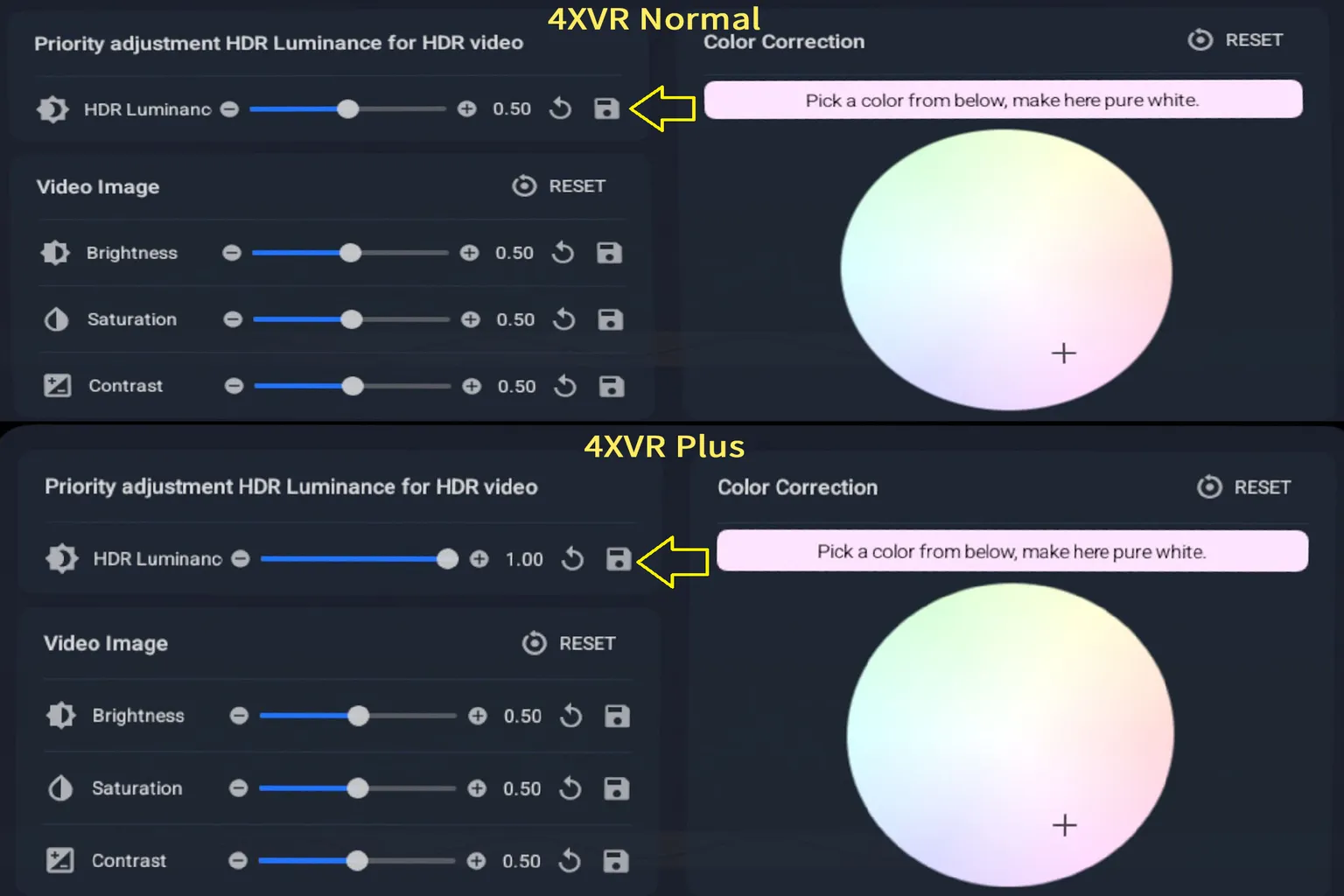
For 4XVR Video Player Premium, I left every setting at the default. For the screenshots, I used these brightness settings:
- 4XVR-Normal (standard HDR): HDR Brightness 0.5
- 4XVR-Plus (HDR brightness boost): HDR Brightness 1.0
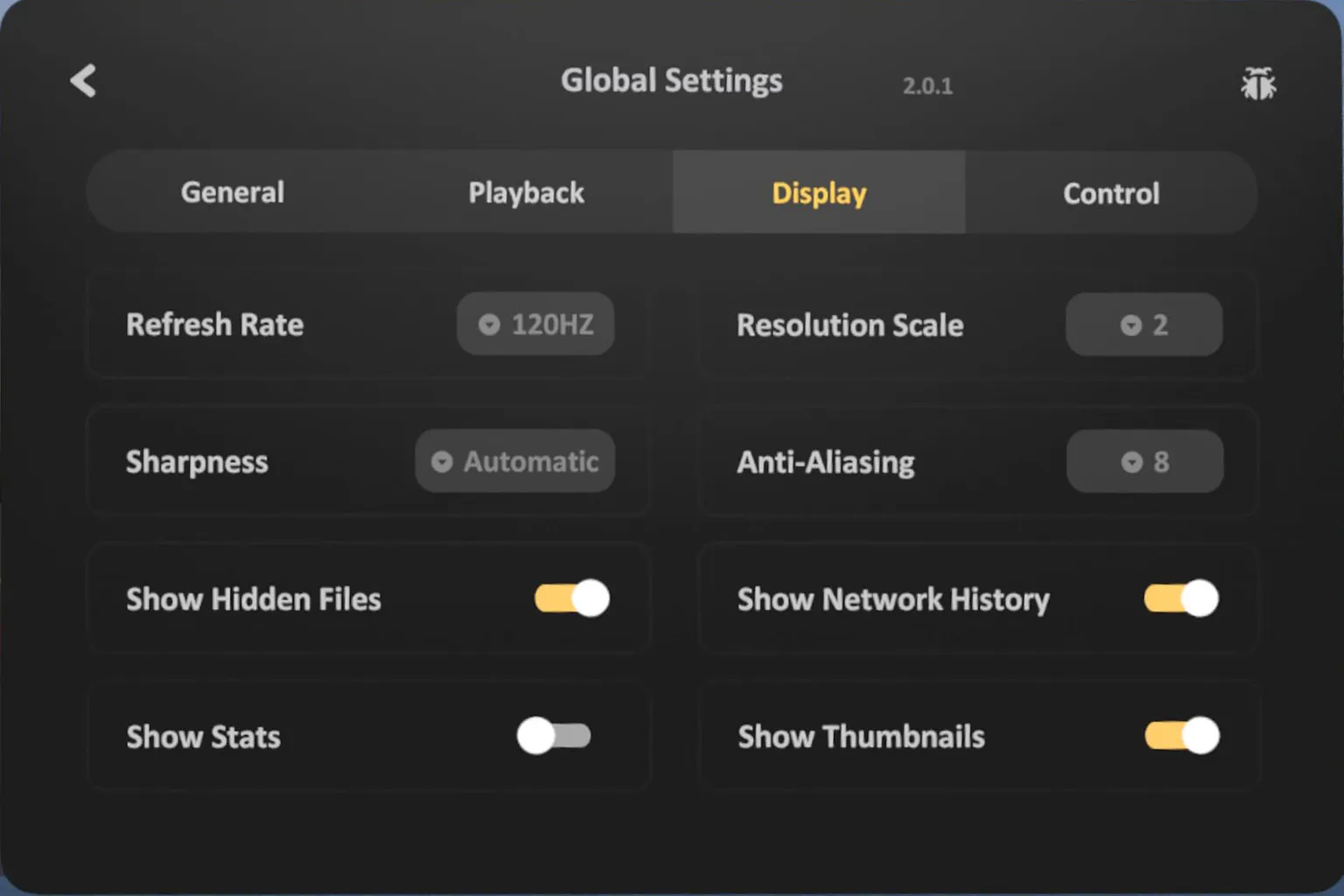
For Skybox VR Player, I set the refresh rate to 120Hz, effective resolution scale to 2, anti-aliasing to 8, and sharpness to Automatic. Basically, I maxed out every setting that could improve image quality for this test.
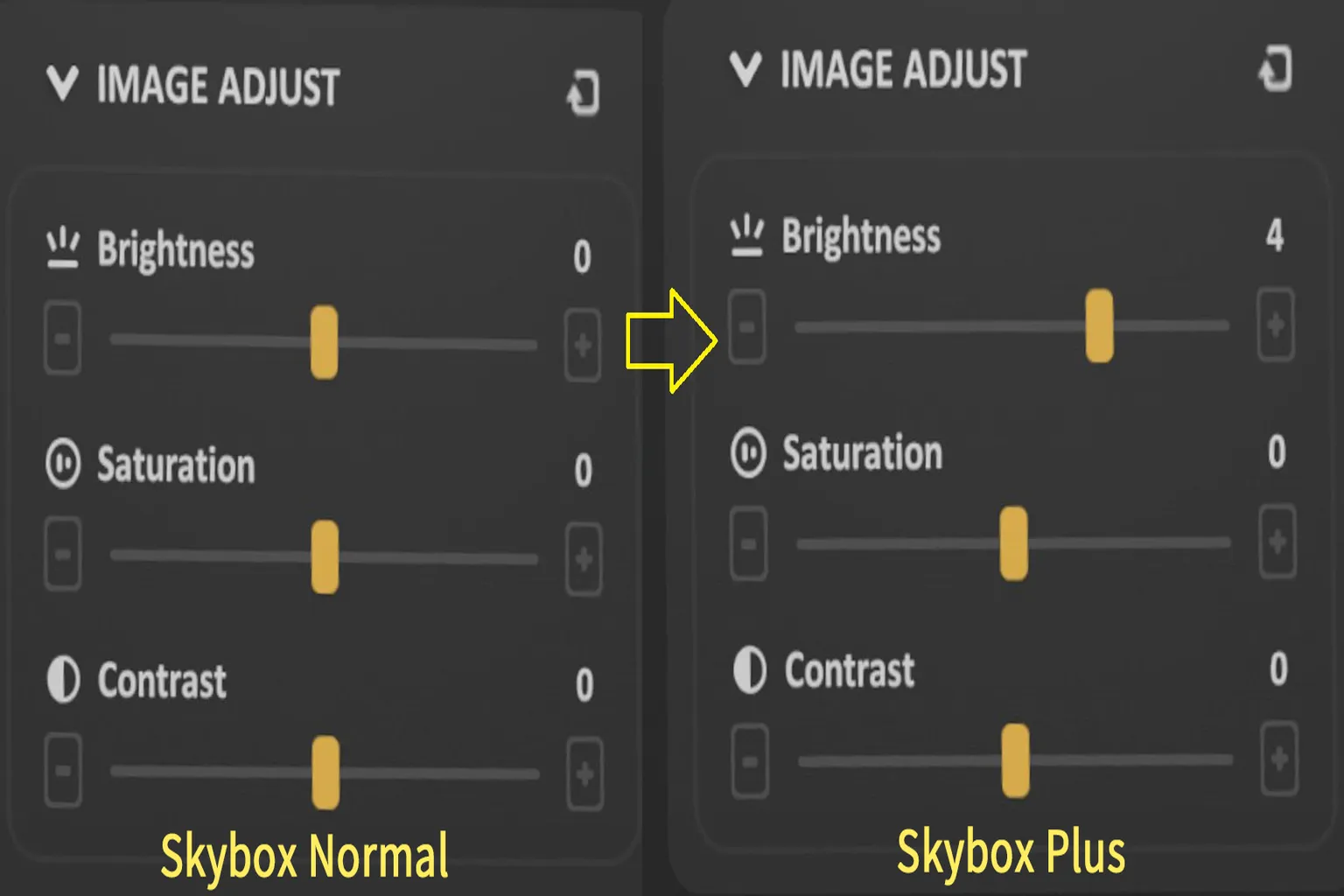
When taking screenshots of Dolby Vision and HDR content, I used the following brightness settings:
- Skybox-Normal: Default (Brightness +0)
- Skybox-Plus: Brightness +4 (the maximum goes up to +10, but once you go past +5, the contrast starts to break down pretty badly)
Dolby Vision Video Comparison
4K Dolby Vision is currently one of the highest-end video formats available. However, Meta Quest 3 itself does not support Dolby Vision. Because of that, VR players have to map Dolby Vision content into HDR for display. This is where each player’s tuning really matters. For this comparison, I looked at both standard display and HDR brightness boost modes side by side.
Resident Evil (2002)
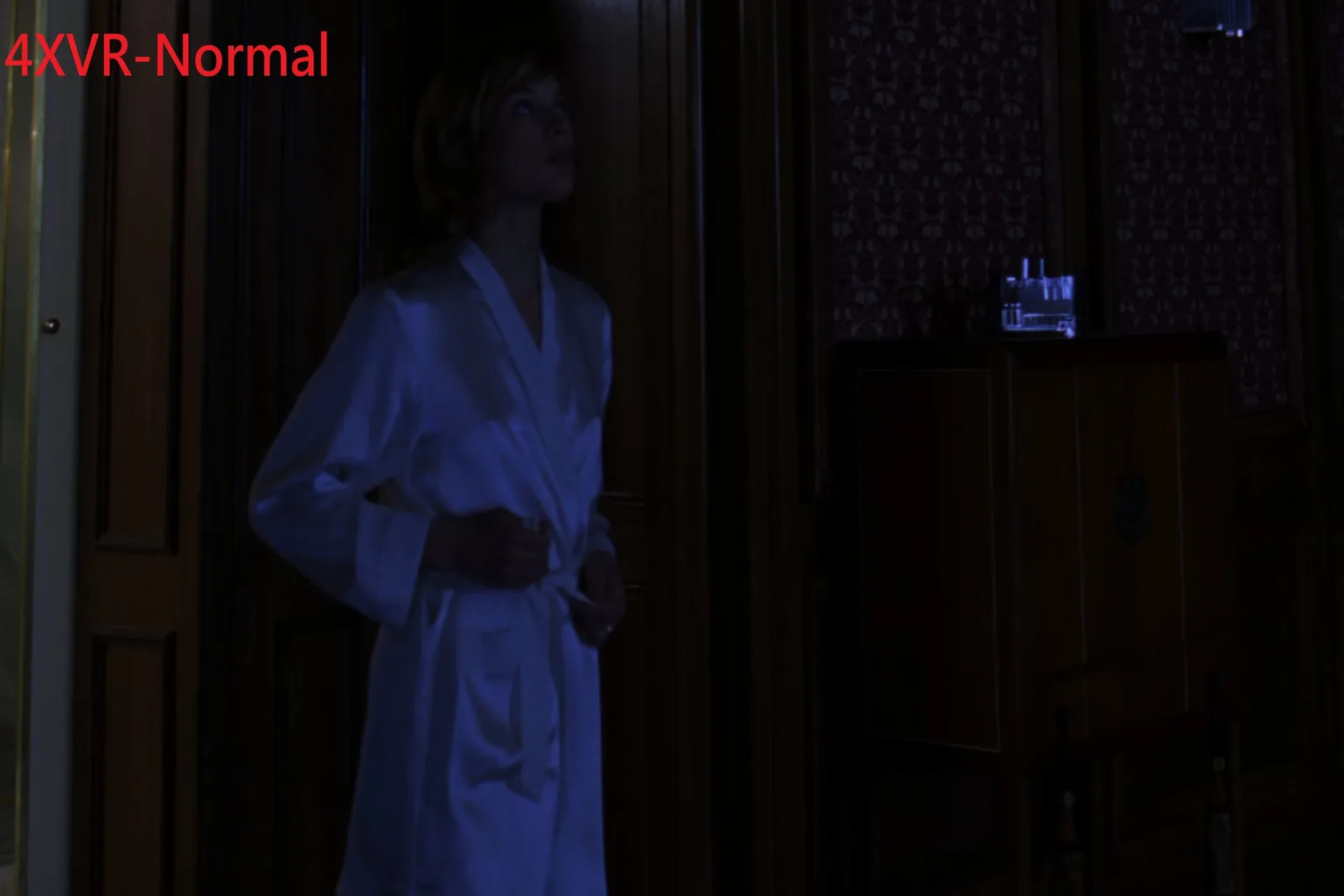
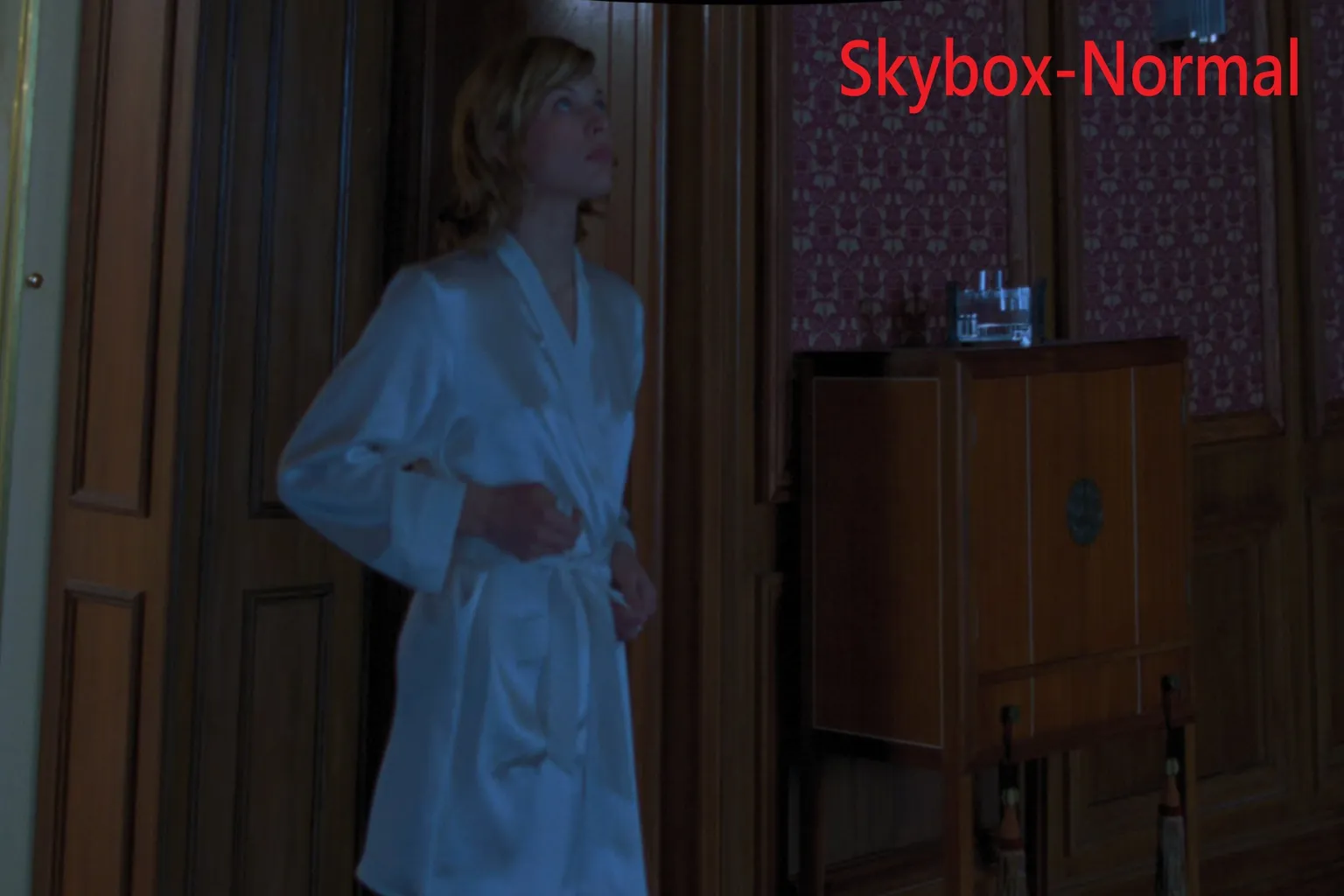
This file is 54.79GB, HEVC encoded, with a resolution of 3840×2160 and Dolby Vision. The screenshots were taken around the 10-minute mark, during a dark hallway scene.
4XVR Video Player Premium – Normal:
The HDR image looks very dark overall, and details don’t stand out. Characters blend into the background, and most of the environment is barely visible, which hurts the viewing experience.
Skybox VR Player – Normal:
Even in dark HDR scenes, brightness is slightly better than 4XVR Normal. Some shadow areas still look a bit soft, but overall visibility is improved. 🏆
4XVR Video Player Premium – Plus:
With HDR brightness enhancement enabled, background patterns and character facial features become much clearer. Overall detail improves significantly. 🏆

Skybox VR Player – Plus:
The image becomes brighter and cleaner, with wall textures and shelf details clearly visible. Close-ups of characters also show richer tonal gradation.

Fast & Furious Presents: Hobbs & Shaw
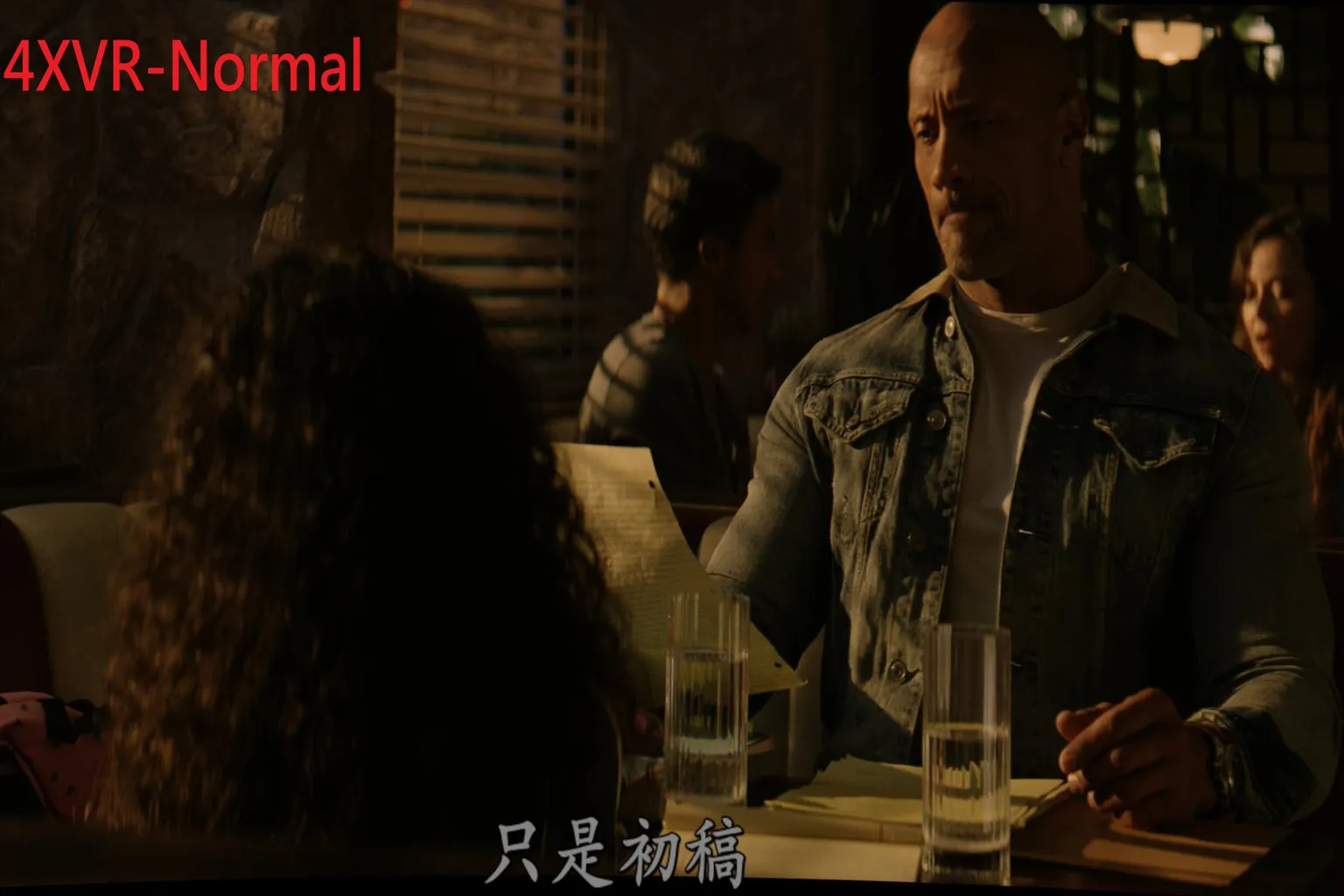
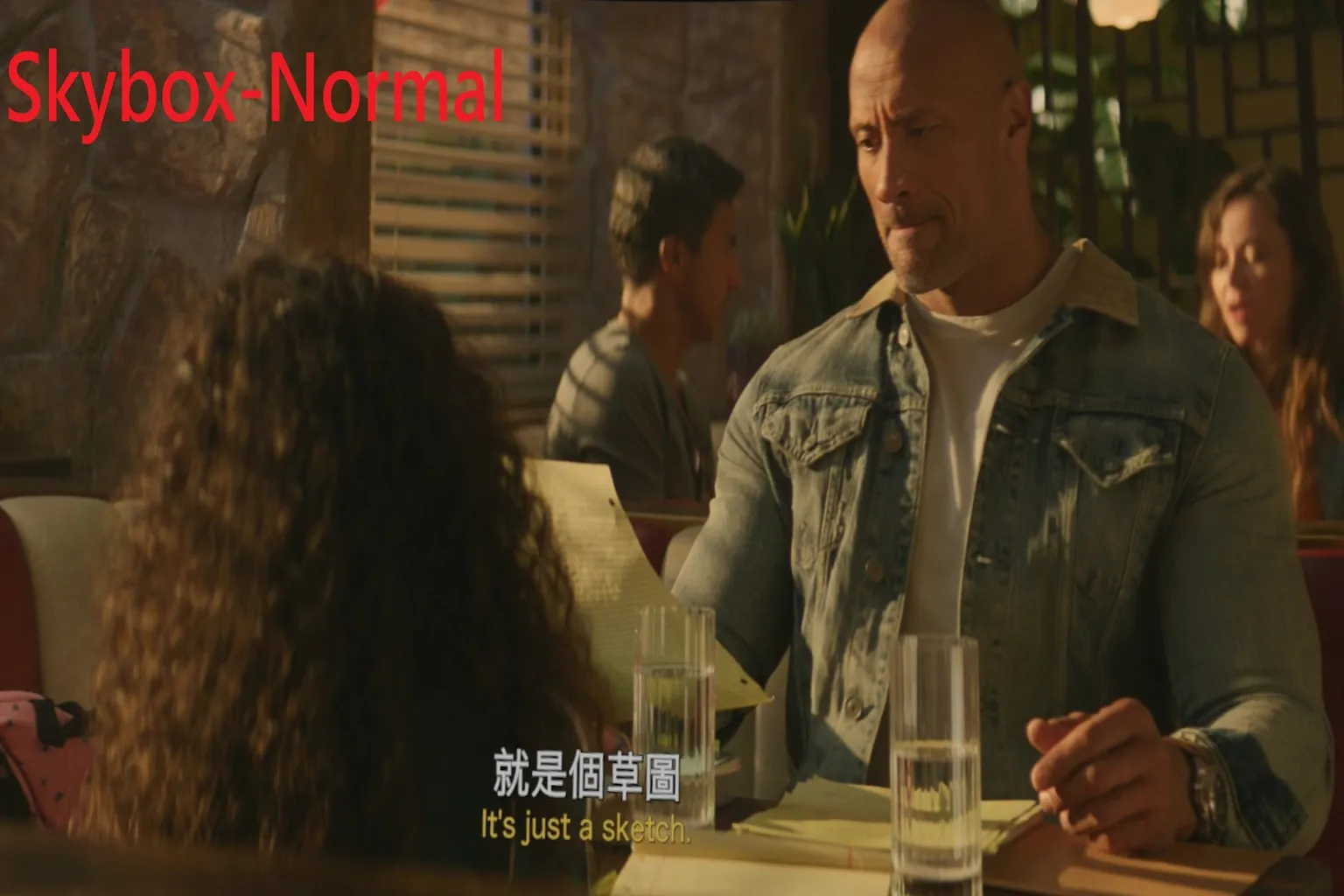
This file is 71.19GB, HEVC encoded, with a resolution of 3840×2160 and Dolby Vision. The screenshots were taken around the 10-minute mark, during a restaurant scene.
4XVR Video Player Premium – Normal:
The image looks darker overall, with heavy shadows and limited detail visibility.
Skybox VR Player – Normal:
Colors look natural, and contrast is well balanced. 🏆
4XVR Video Player Premium – Plus:
The image is brighter but leans yellow. Contrast gradation is good and details are easier to see, but character skin tones look slightly unnatural. 🏆

Skybox VR Player – Plus:
The overall image shifts toward warmer tones with higher brightness. Skin tones look soft, but there’s a noticeable yellow tint.

HDR Video Comparison
Meta Quest 3 supports HDR, so VR players should be able to take full advantage of it. Here, I used The Dark Knight to compare how HDR playback differs between players.
Batman: The Dark Knight
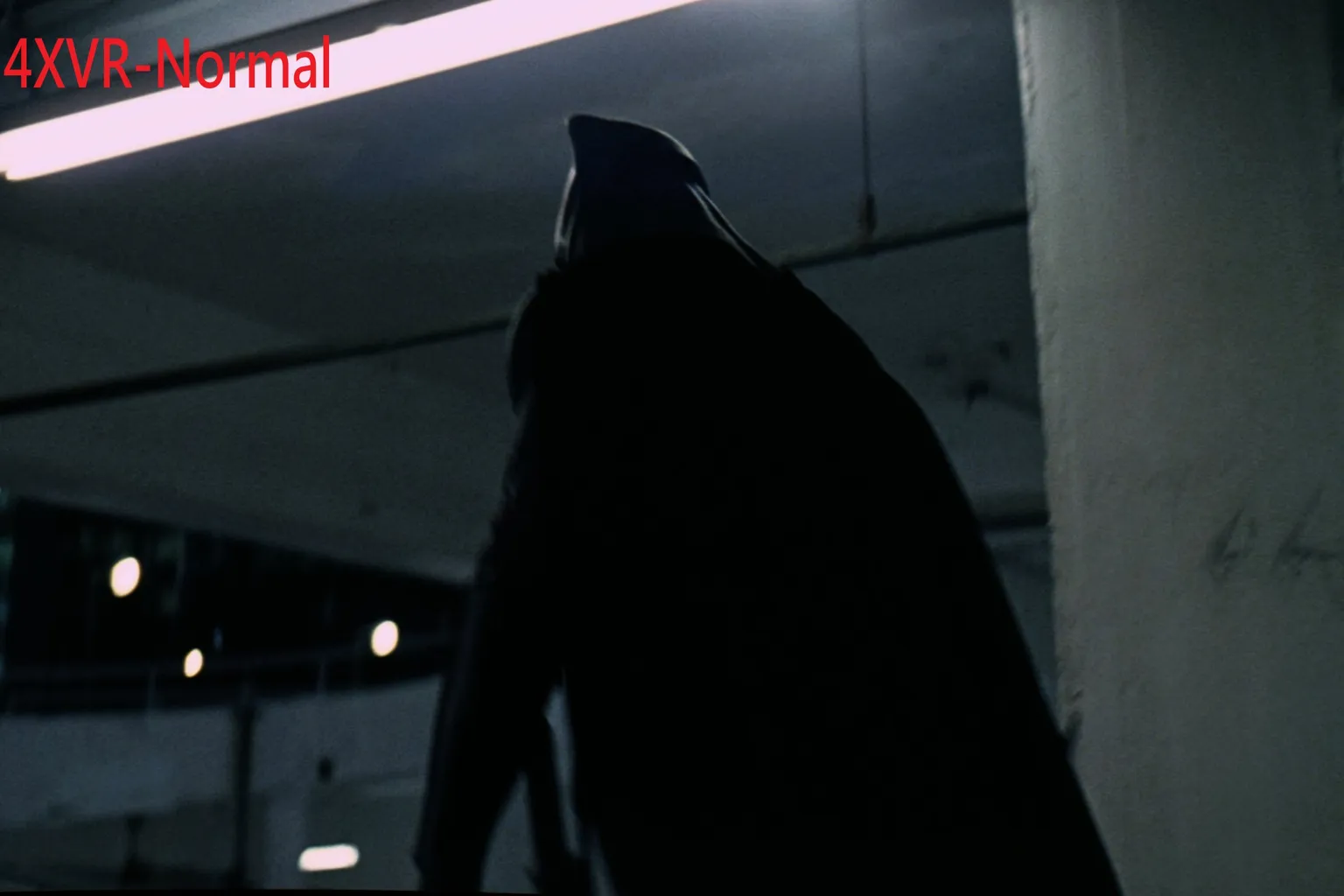
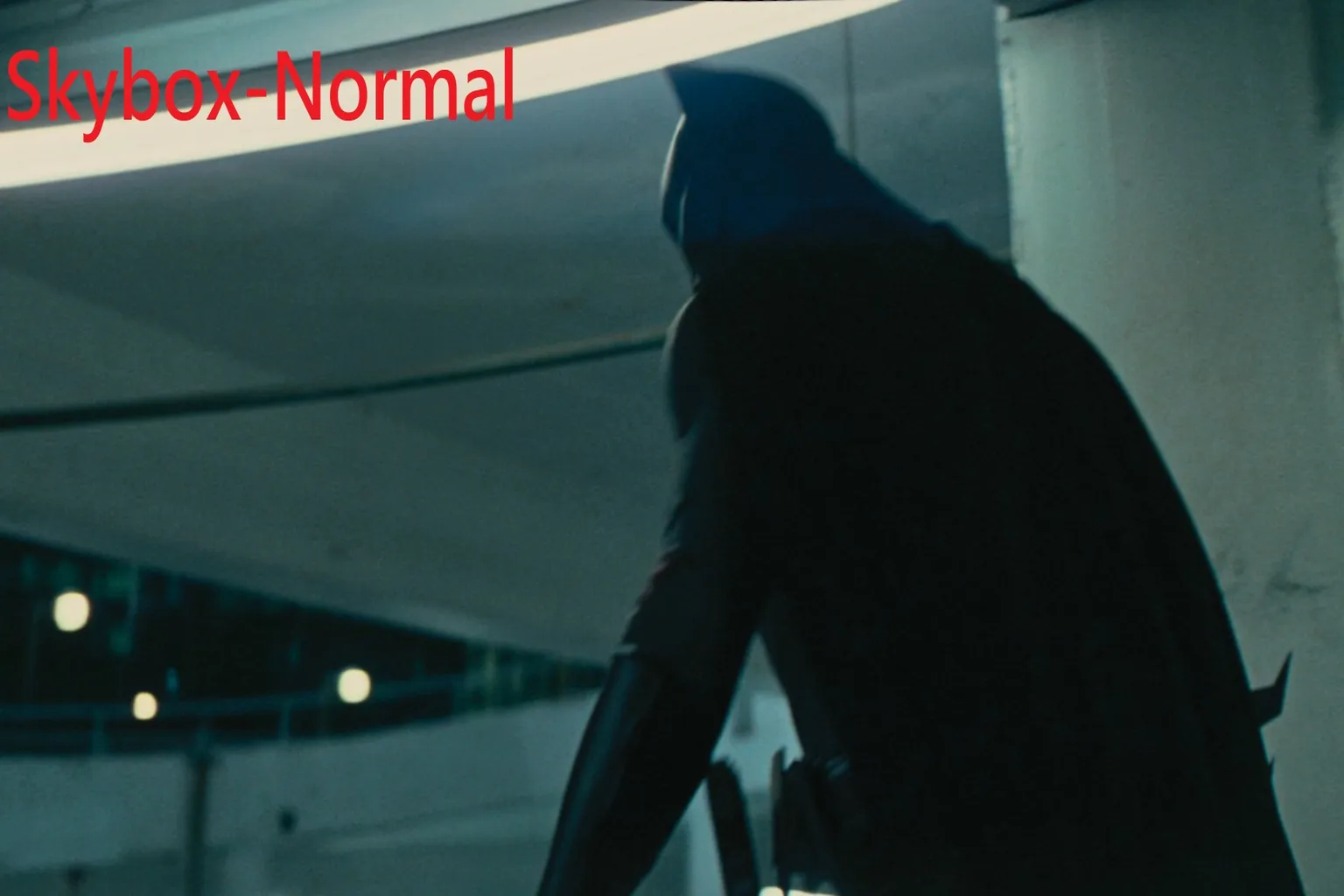
File size is 32.38GB, HEVC encoded, with a resolution of 3840×2160 and HDR. The screenshots were taken around the 10-minute mark, during a parking garage scene.
4XVR Video Player Premium – Normal:
The image is quite dark overall, with most character and background details crushed into black. Highlights don’t stand out much either.
Skybox VR Player – Normal:
The image leans toward green and blue tones, but brightness gradation looks natural and balanced. 🏆
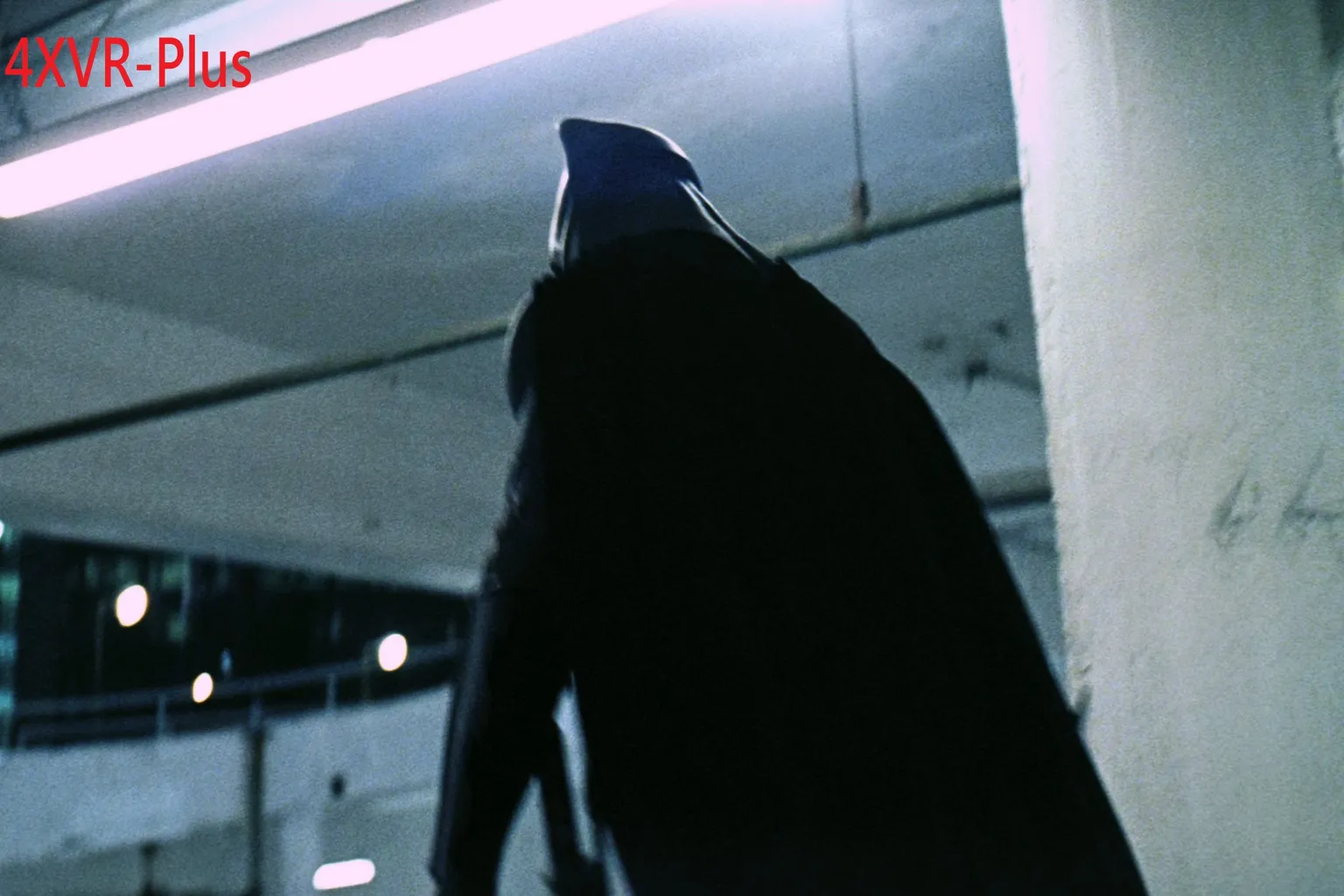
4XVR Video Player Premium – Plus:
Contrast is very strong, with noticeable glossy highlights in blue areas. 🏆
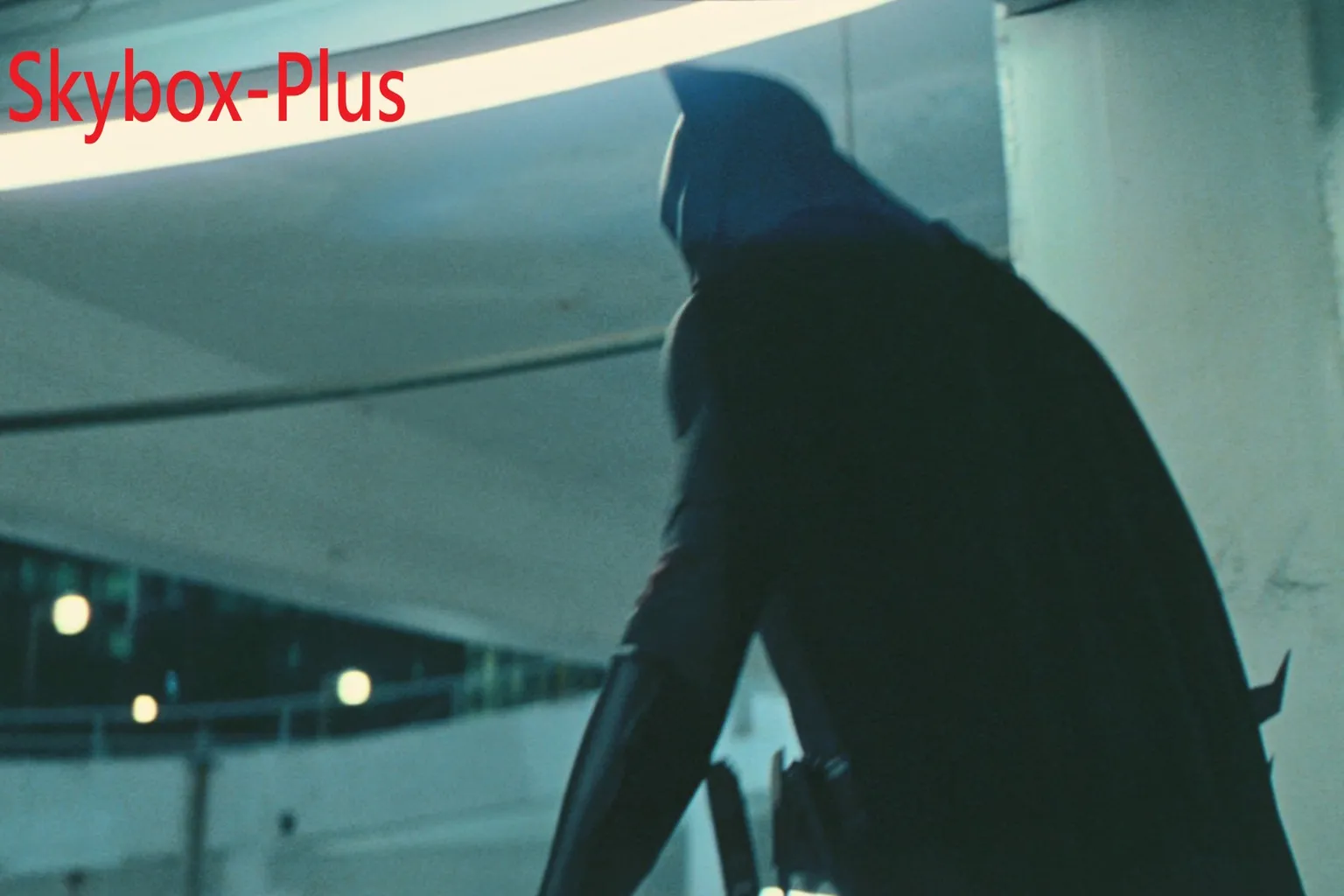
Skybox VR Player – Plus:
Overall brightness increases, with a slightly cooler color tone. Character outlines are sharp, but there’s a bit of color bias.
SDR Video Comparison
SDR content makes up a huge portion of available videos, especially for anime, where most titles still use this format. For this test, I compared the Full HD version of Despicable Me and the HD version of Ranma ½. For SDR footage, I didn’t adjust brightness at all and evaluated everything using the original image as-is.
Despicable Me: Minion Mayhem
This file is 3.52GB, HEVC encoded, with a resolution of 1920×1080. The screenshots were taken around the 10-minute mark, during a factory scene.
4XVR Video Player Premium:
Colors look stronger and lean red overall, making the Minions’ yellow appear more orange. Light and shadow contrast is strong, but the whole image feels slightly dark. With 4XVR’s default settings, the Minions almost turn into “mini oranges,” so the color difference here is pretty noticeable.

Skybox VR Player:
Brightness looks natural, and the Minions’ yellow has a lighter, slightly glossy feel. Colors are clean and balanced, though overall contrast is a bit weaker. 🏆

Ranma ½: China Nekkonron Great Battle
This file is 0.93GB, H.264 encoded, with a resolution of 1280×720. The screenshots were taken around the 20-minute mark, during the corridor scene after the destruction.
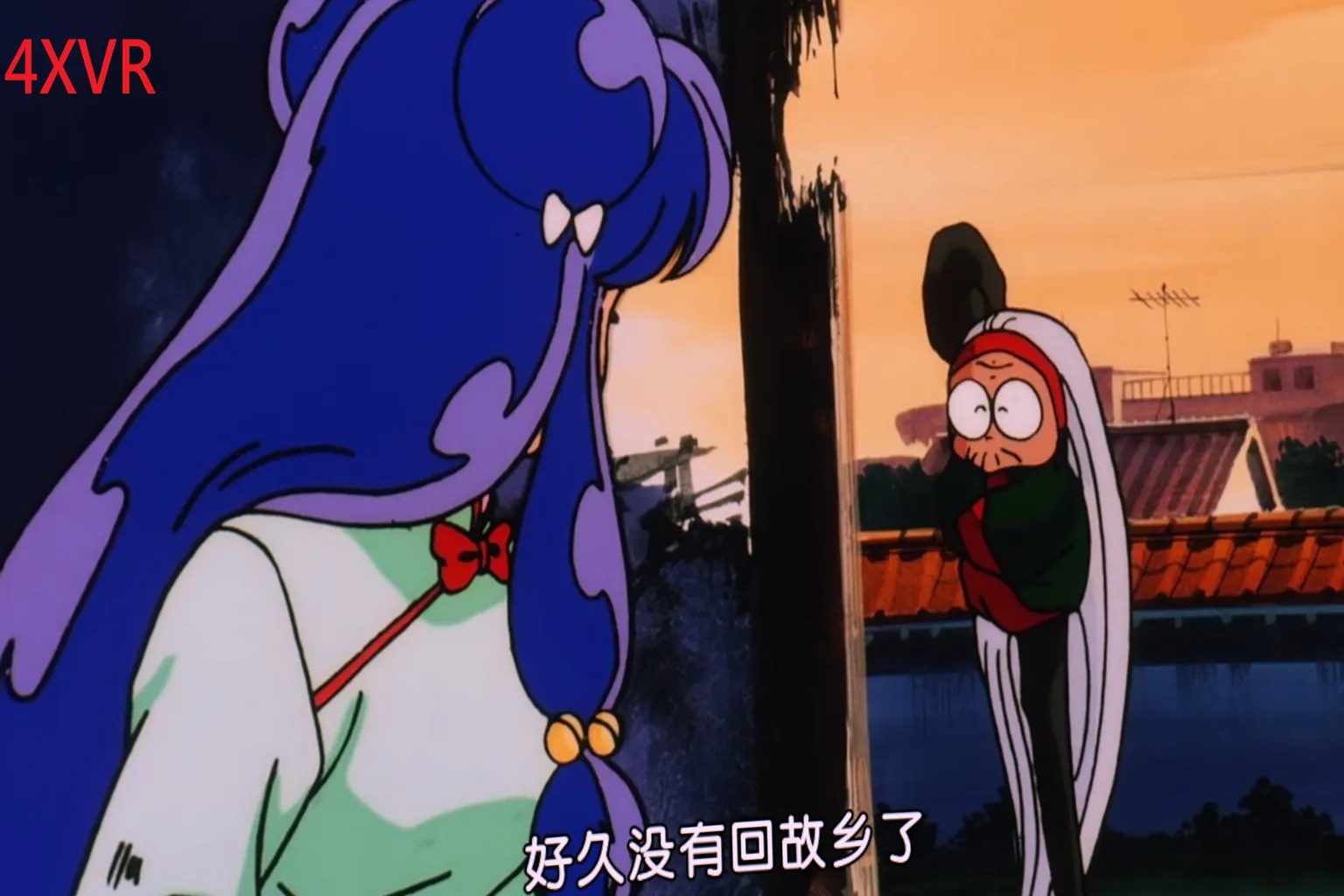
4XVR Video Player Premium:
Overall contrast is strong, with deep blacks in darker areas. However, the sky shifts toward an orange tone, and Shampoo’s outline looks slightly oversaturated.
Skybox VR Player:
Colors look natural and soft, Shampoo’s lines are sharp, and the background color balance is even and stable. 🏆

VR Video Comparison
Since we’re talking about VR players, it wouldn’t make sense to skip VR video testing. Regular VR videos are actually harder to find than you’d expect, so this time I used a JVR-Porn title and captured the opening dialogue scene to compare image quality.
JVR-Porn 100000!?
This was a video I got from a friend, so I’m not 100% sure the number is correct. The file size is 2.42GB, H.264 encoded, with a resolution of 4096×2048. The screenshots were taken around 0.1 minutes into playback, during an office scene.
4XVR Video Player Premium:
Skin tones lean red, highlights look slightly blown out, and there’s a noticeably stronger grain across the image.

Skybox VR Player:
The image looks bright and natural. Skin tones are slightly on the cooler side, but depth and dimensionality come through clearly. 🏆

Overall video playback performance summary:
Based on the test results, Skybox comes out ahead in most scenarios, except when dealing with 4K Dolby Vision and HDR content.
| Content Type | Better Player |
| Dolby Vision / HDR (Standard) | Skybox VR Player |
| Dolby Vision / HDR (Brightness Boost) | 4XVR Video Player Premium |
| SDR Video | Skybox VR Player |
| VR 180° Video | Skybox VR Player |
Playback Environments
Each player offers multiple environment modes to give users more choices, but personally, I still find a theater-style environment the most comfortable. Even though both players aim for the same “movie theater with a big screen” concept, the way they present it feels quite different.
4XVR Video Player Premium:
It feels like watching a movie from a VIP balcony seat in an IMAX theater, sitting on a luxury sofa you’d expect for executives or private box guests.
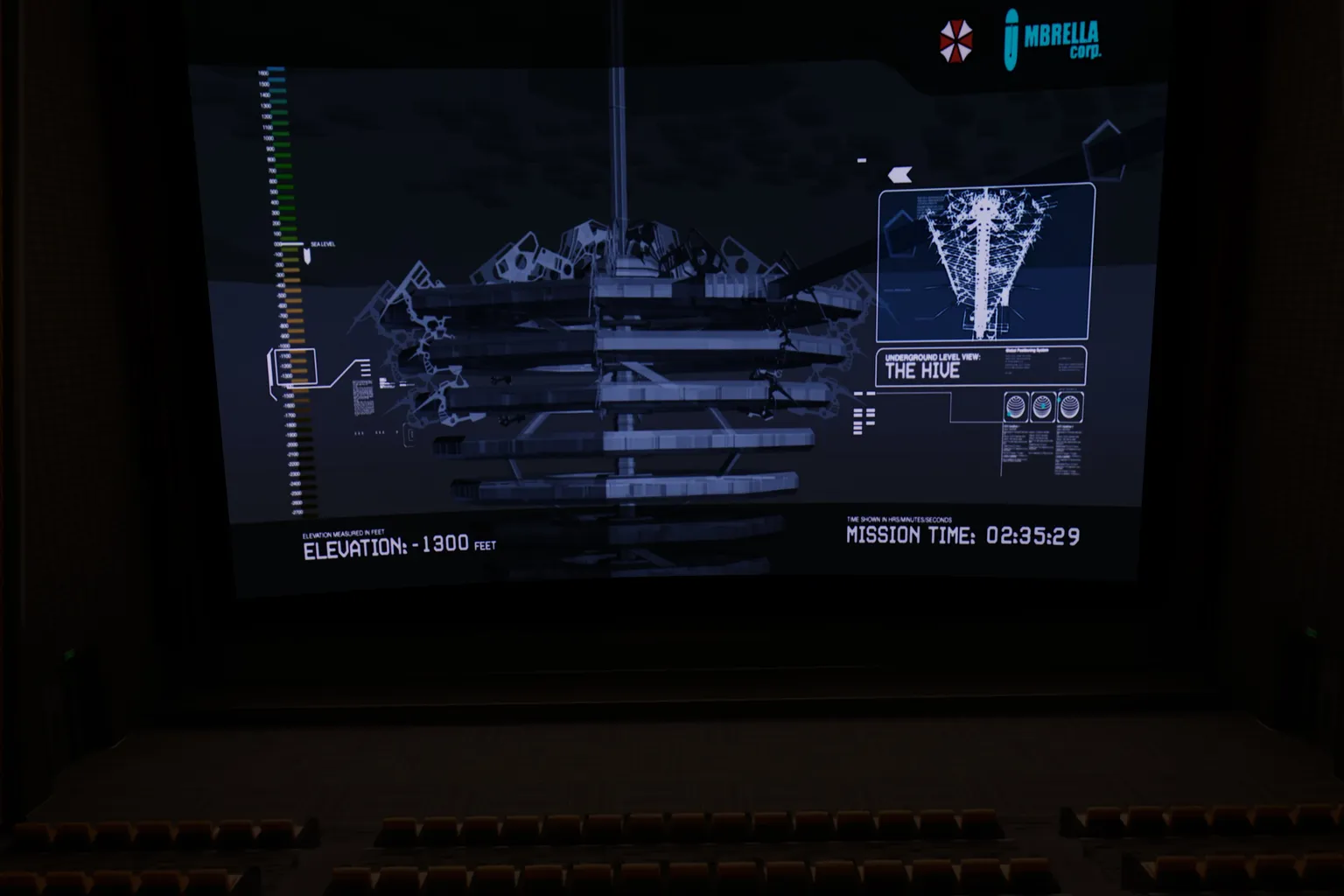
Skybox VR Player:
This feels more like watching a movie from the regular seating area of an IMAX theater.
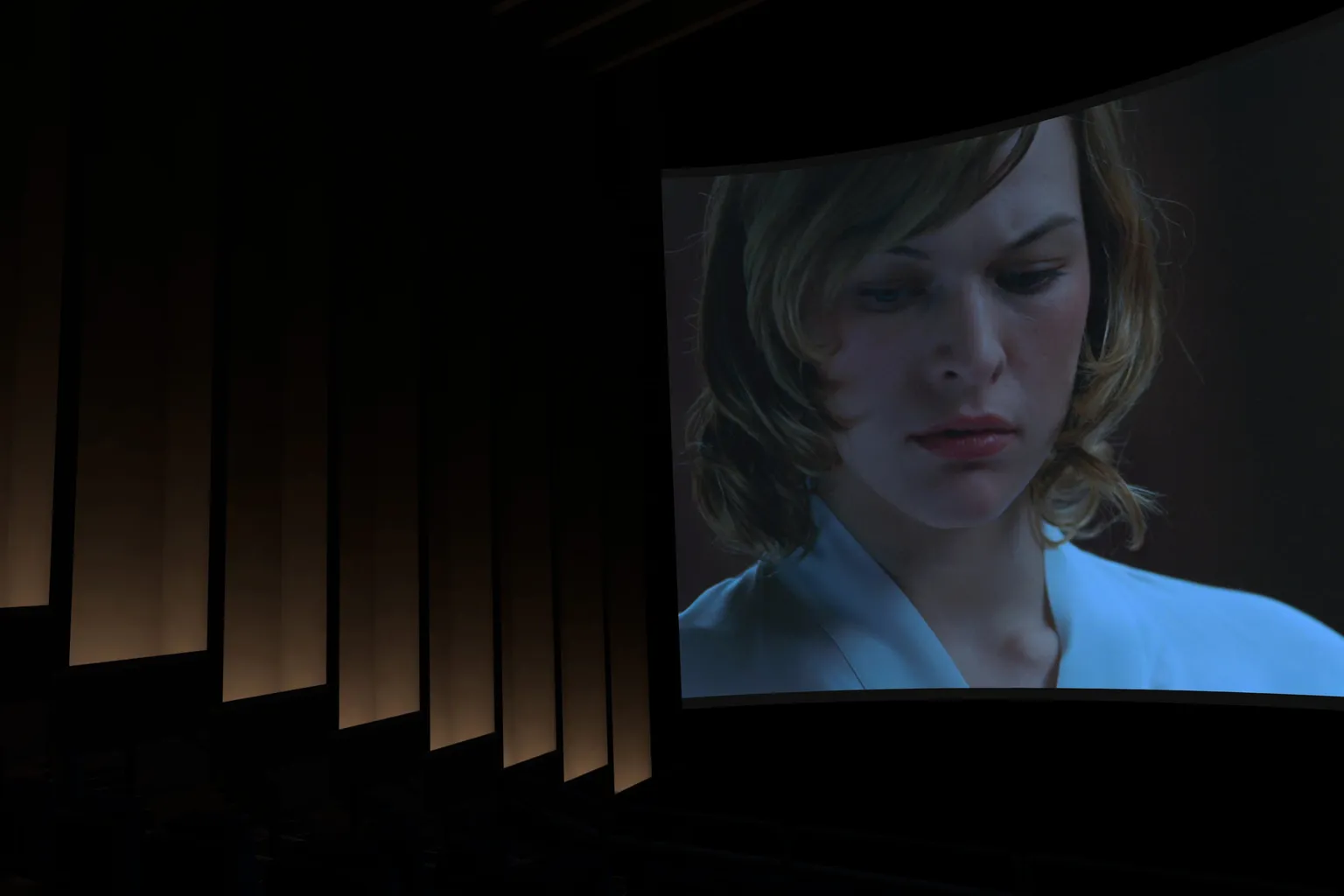
The screen size is closer to what you’d see in a large AMC-style cinema in the US, and it even recreates details like exit signs, which is kind of charming in its own way.
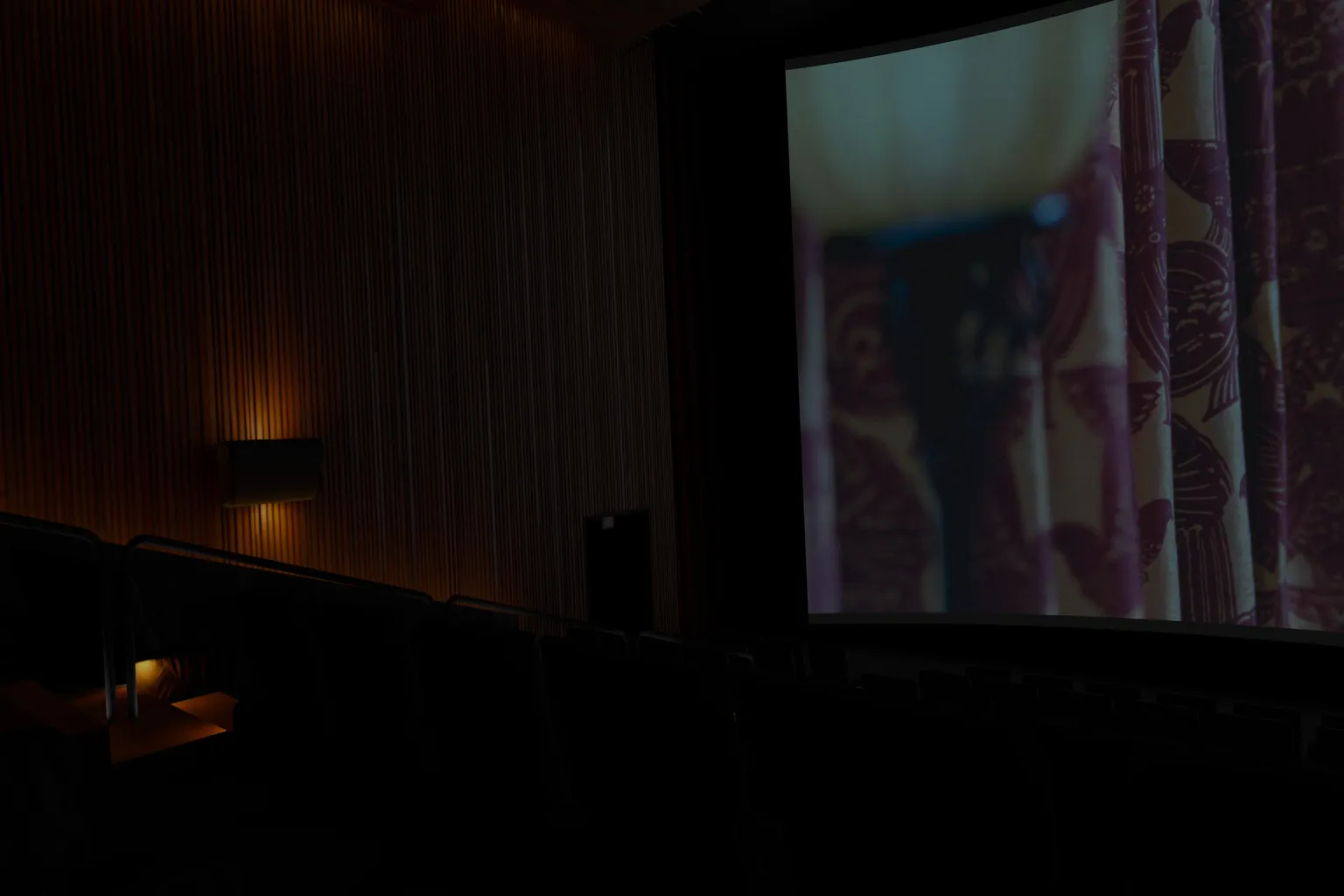
Comparing the two environments, I personally prefer the design of 4XVR Video Player Premium. It feels more comfortable and easier to settle into.
Audio Performance
Sound isn’t something you can compare visually, so this part is based entirely on personal listening experience. After using both players, here’s how they felt to me.
4XVR Video Player Premium:
Positional audio is extremely strong, and the overall surround effect is excellent. It honestly doesn’t feel far off from a real movie theater. Once you hear it, it’s easy to get hooked.
Skybox VR Player:
Positional audio is decent, and surround sound is okay. Compared to Netflix playback on Meta Quest, it feels slightly weaker. Audio isn’t really Skybox’s strongest area.
Conclusion and Recommendations
Both players tested here have their own strengths.
If your main priority is watching high-resolution Dolby Vision or HDR movies, 4XVR Video Player Premium is the better choice.
On the other hand, if you mainly watch TV shows, VR videos, or YouTube, Skybox VR Player is hard to overlook.
If you’ve finished this comparison and are now wondering, “So how do you actually use these players?”, the next section walks you through it.
Skybox VR Player Complete Guide
Setup AirScreen, Network Streams & YouTube VR
4XVR Video Player Premium Guide
PC Streaming, WebDAV & USB Setup
FAQ – Common Questions
Which player is better for YouTube VR playback?
Skybox VR Player can play YouTube VR videos directly, and the controls are very intuitive. This is one of Skybox’s standout strengths.
Which is better, standard HDR or HDR brightness boost?
If you want a clearly noticeable brightness boost, 4XVR Video Player Premium offers a more vivid and punchy image with its HDR brightness enhancement mode.
What about subtitle color adjustment and format support?
4XVR lets you change subtitle colors, which is great if you want to fine-tune subtitle style and contrast. Skybox, on the other hand, uses fixed subtitle colors.
Which remote streaming protocols are supported?
Both players support SMB and WebDAV, but 4XVR also adds FTP support.
Can they play Blu-ray 3D ISO files?
4XVR supports Blu-ray 3D ISO files. Skybox only supports standard 3D formats and does not handle ISO containers.