Ever wished a K-pop idol or your favorite cosplayer could step right into your living room? With DeoVR on Meta Quest, that is actually possible. This in-depth guide explores how DeoVR uses AI background removal and full-color passthrough to blend ultra-high-resolution 8K videos seamlessly into your real-world environment. We will walk you through the massive content library, explain the best filter settings to avoid visual glitches, and help you decide if a premium subscription is worth it for the ultimate mixed reality experience.
DeoVR Overview
You might buy a Meta Quest expecting to enjoy games and videos, only to realize that the Meta Horizon Store is packed with games, while video content is pretty limited—and most of it is documentaries. So if you’re looking for ways to stream VR videos online, there are basically three main options.
Meta Quest TV:
You can watch high-resolution VR videos, but the genres are mostly documentaries and exhibition-style content. Overall, the library is fairly small.
YouTube VR:
Most content is mid-resolution VR video. This platform also leans heavily toward documentaries and scenic footage, with relatively few videos that focus on people.
DeoVR:
High-resolution VR videos, a wide range of genres, and a much larger content library.
DeoVR is a video platform designed specifically for VR headsets, featuring mainly 180-degree and 360-degree VR videos. You’ll find everything from travel footage, performances, cosplay, and dance videos to experimental animations and even interactive videos featuring AI virtual characters.
One of DeoVR’s biggest strengths is its VR-optimized interface. It’s smooth and easy to navigate, with options for adjusting video quality, changing viewing modes, and watching videos in Passthrough mode. You can even bring beautiful K-pop idols into your room to dance, almost as if they’re actually standing right in front of you.
There are currently two versions of DeoVR available on the Meta Horizon Store:
- DeoVR Classical: The original DeoVR, later renamed DeoVR Classical. It works more like a traditional app and offers a more complete set of features, including 6DoF, video adjustments, and support for interactive toys. (Recommended)
- DeoVR: Released in 2025, this newer version works more like a web browser and has a nicer-looking interface. It was originally called DeoVR Hyper, but has fewer features and doesn’t support interactive toys.
If you just want to watch videos on the DeoVR platform, either version will work. However, if you plan to use interactive toys, I’d recommend DeoVR Classical for its better compatibility.

With just a single button press, a beautiful woman appears right in your room and performs just for you—at full, life-size scale.
It’s the kind of experience that makes you grin without realizing it… ridiculously luxurious, like you’ve suddenly become some feudal lord.

DeoVR works a lot like YouTube in that users can upload their own VR videos. That means you can also publish VR footage you’ve filmed yourself and share it with everyone.
That said, VR videos take a lot of time to encode. Even short clips can take hours to process, so unlike YouTube, it’s not something you upload and watch immediately.
Key Features of DeoVR
DeoVR really does have a huge variety of content—everything from scenery and travel to videos that focus mainly on people. Here are a few examples.
Scenery content:
A video where urban rail lines and station buildings overlap, creating a unique sense of perspective that feels like multiple layers of the city stacked together. It’s almost like looking down from a station overpass, with a strong sense of depth and scale.

A Sichuan opera face-changing performer appearing inside a cave-style restaurant in China. With relief-style murals and ordering signs in the background, it feels incredibly immersive, like you’re actually standing there watching the performance.

People-focused content:
Live-action footage shot at an anime event. A cosplayer wearing cat ears strikes interactive poses right in the middle of the venue. The sense of closeness is surprisingly intense—cute, engaging, and close enough to make your heart skip a beat.

A cosplayer dressed as a Chinese hopping vampire from folklore.
If vampires really looked like this, you wouldn’t bring a weapon.
You’d bring flowers.

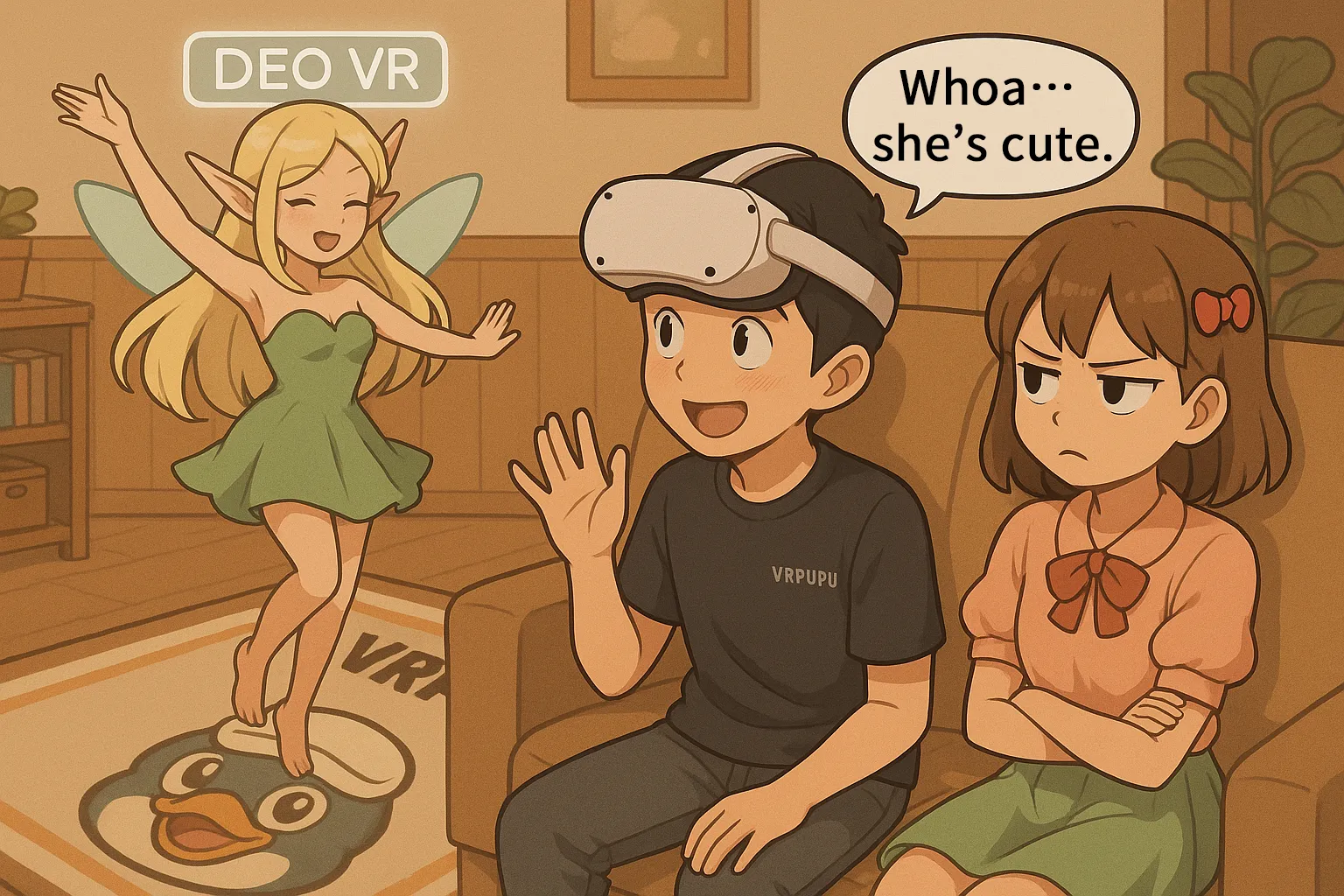
It really feels like an elf has appeared right inside your room…
Isn’t this basically a scene straight out of World of Warcraft’s Darnassus?
That moment when she shows up in your own space—the realism is just unreal.

After looking at those three images, you probably thought, “Wait… this could be used in a lot of different ways,” right?
Yeah—but video playback and AI background removal do come with some limits. The final result really depends on resolution and how complex the background is, so keep that in mind.
Type 1: Not enough resolution
This one is technically a 4K video (about 2K per eye), but the sense of depth and realism just isn’t there at all.
In VR, once the resolution drops to this level, your brain instantly goes, “Yeah… this is fake,” and the immersion collapses.

Even if you “bring her into your room,” bad image quality is something you just can’t fix.

Type 2: The image is too complex
Take the cosplayer performance video below. Watching it normally, it’s pretty good—and in VR, it’s fun.

But the background is way too busy, so the background removal fails. Only parts of her body look like they’ve been “teleported” into the room.
The result ends up looking a bit creepy.

So if you want someone to appear cleanly and naturally in your room, the video needs to meet both of these conditions:
- 8K resolution
- A black background, or a background already composited on PC
Only when both are met do you get the best possible result.
And this—this is what it looks like when those two conditions are satisfied.
At this point, she’s basically in my house, right?
If I posted this screenshot on Twitter, my friends would 100% go,
“Wait—there’s a foreign beauty at your place!?”
Yeah… guaranteed jealousy.

If you watch these videos and think, “Alright, I’m in—time to subscribe,” DeoVR offers three plans: monthly, yearly, and lifetime.
On the Meta Quest version of the DeoVR app, you’ll only see the most expensive option—the monthly plan at $14.99 per month. You can pay with a credit card or Quest Cash.
If you really like the content and plan to use it seriously, buying through the official DeoVR website is the better move. It’s noticeably cheaper there.

DeoVR for Meta Quest – How to Use Guide
DeoVR Classical can be downloaded for free from the Meta Horizon Store, and you can use its basic features without paying. Some videos do require an account and a paid subscription, though. Here’s a quick walkthrough of how the app works.
When you launch DeoVR Classical on Meta Quest, the Home screen appears first. The Home screen is roughly divided into six areas:
Video area (center)
The main space where you browse and select videos to watch.
Main category Panel (top left)
Lets you switch between regular videos, members-only content, and videos you’ve uploaded yourself.
Video properties filters (bottom left)
Quickly narrow results by video format or attributes.
Quick filter (top)
Used for URL input, searching new uploads, and fast discovery.
Video types filters (right side)
Filter videos by genre, such as scenery, people, and more.
Settings & controls (bottom)
Access account login, settings, and other system controls.

Video Area
The video area sits in the center of the screen. Here, each video card shows its duration, thumbnail, and feature icons. Some common icons and labels you’ll see mean the following:
6K
Videos with more than 3K resolution per eye. This is basically the minimum threshold for decent immersion in 180° VR.
8K
Videos with more than 4K resolution per eye. Even in 180° VR, these look clean with little to no grain, delivering a much more comfortable and immersive experience.

Background Removed
Videos where the background was removed using standard video editing software. Subject–background separation is okay, but not perfect.

AI Background Removed
Videos where the background was removed using a combination of video editing tools and AI. Subject separation is noticeably more natural and accurate.

👑 Premium-only videos can’t be watched unless you’re subscribed.

Main category Panel
This is where you narrow down what kind of content you want to browse. The options look like this:
Videos
Shows all available videos, both free and paid.
Photos
Displays 360° and VR photos.
Premium
VR videos available only to subscribers.
Subscriptions
Videos from channels you’ve subscribed to.
My Videos
Videos you’ve uploaded to DeoVR yourself.
My Photo
VR photos you’ve uploaded to DeoVR.
My Library
Videos and photos you’ve liked are saved here.

Video properties filters
Here you can narrow things down by video format or special features. The available options look like this:
8K
Shows only ultra-high-resolution 8K videos. The immersion is insane, but you’ll need a fast internet connection to play them smoothly.
120 FPS
Videos recorded at 120 frames per second. Motion looks super smooth with very little blur, especially good for dance or sports content.
That said… honestly, my eyes don’t really notice a huge difference compared to the default 75 FPS.
Passthrough
Shows videos that support background passthrough. You can see your real room while the performer appears to be right there, doing their thing.
Passthrough AI
Shows videos with AI background removal. The main subject is cut out from the background and “placed” into your room. It really feels like someone is dancing or talking right in front of you. (Though yeah, glitches and ghosting can still happen.)
Show Flat
Also shows regular, non-VR videos.
Premium only
Shows subscriber-only videos. Premium members usually get access to higher resolution and better quality versions.

Video Type Filters
Here you can quickly narrow things down by genre—stuff like ART, Animals, and plenty more.
If you tap the heart icon, that genre gets pinned to the top of the list, which makes it way faster to find next time.
Hit the arrow at the bottom to move to the second page and unlock even more genres.

Quick filter
At the very top of the screen is the Quick Access area.
You can paste a URL here to jump directly to other VR sites (for example, SLR).
Use Search if you want to find videos by keyword.
New
Shows the latest uploads in chronological order. Popularity doesn’t matter here—if it’s new, it shows up.
My Feed
Your personal recommendation feed, based on your watch history, preferences, and channel subscriptions.
Trending
Shows videos that have recently seen a rapid increase in views and are getting a lot of attention.
Top Picks
The popularity rankings. Videos are ranked by a mix of views, likes, and comments.

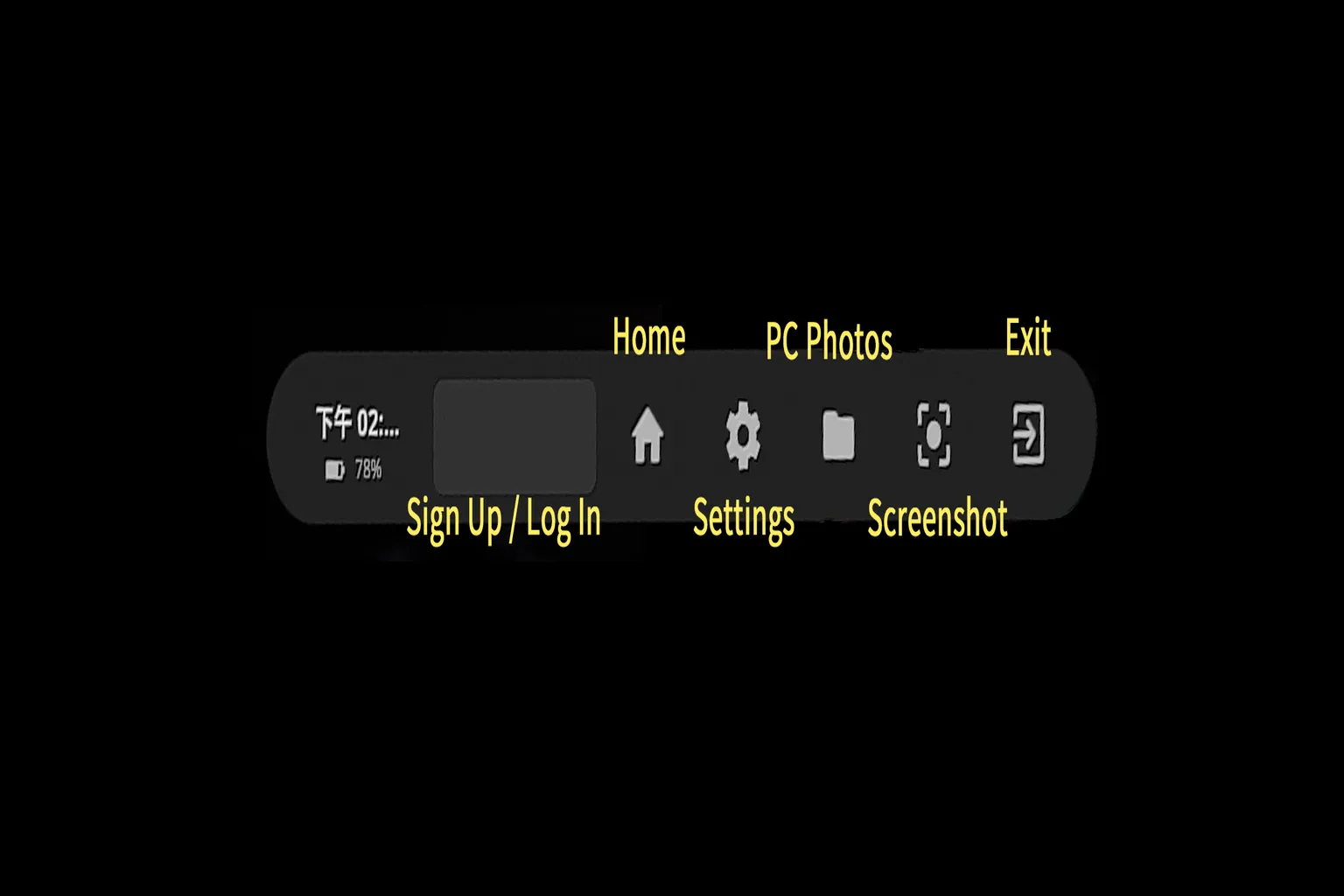
Settings & Controls
This area is where you log in to your account and access the settings menu.
In the current version of DeoVR, you can view regular photos and 3D photos stored on your PC or headset, but there’s no built-in capture feature.
For taking photos, Meta Quest already provides a system shortcut, so you can just use that instead.
Realistically, you’ll only come to this section when you need to log in or change settings.
How to Sign Up
Creating a DeoVR account is very simple. You only need to enter your email address, username, and password, then check “I agree to the Terms and Conditions.”
Once that’s done, click “Create account” to finish registration.
Below that, you’ll see two checkboxes:
I agree to the Terms and Conditions
Confirms that you agree to the terms of service. This is required—without it, you can’t complete registration.
Email me news and personal deals
Optional. If checked, you’ll receive newsletters, personalized offers, recommended videos, and limited-time promotions by email.

Signed in
You can log in by simply entering your username and password.
If you check “Keep me signed in,” you won’t need to enter your login details every time, which is pretty convenient.

How to Play Videos
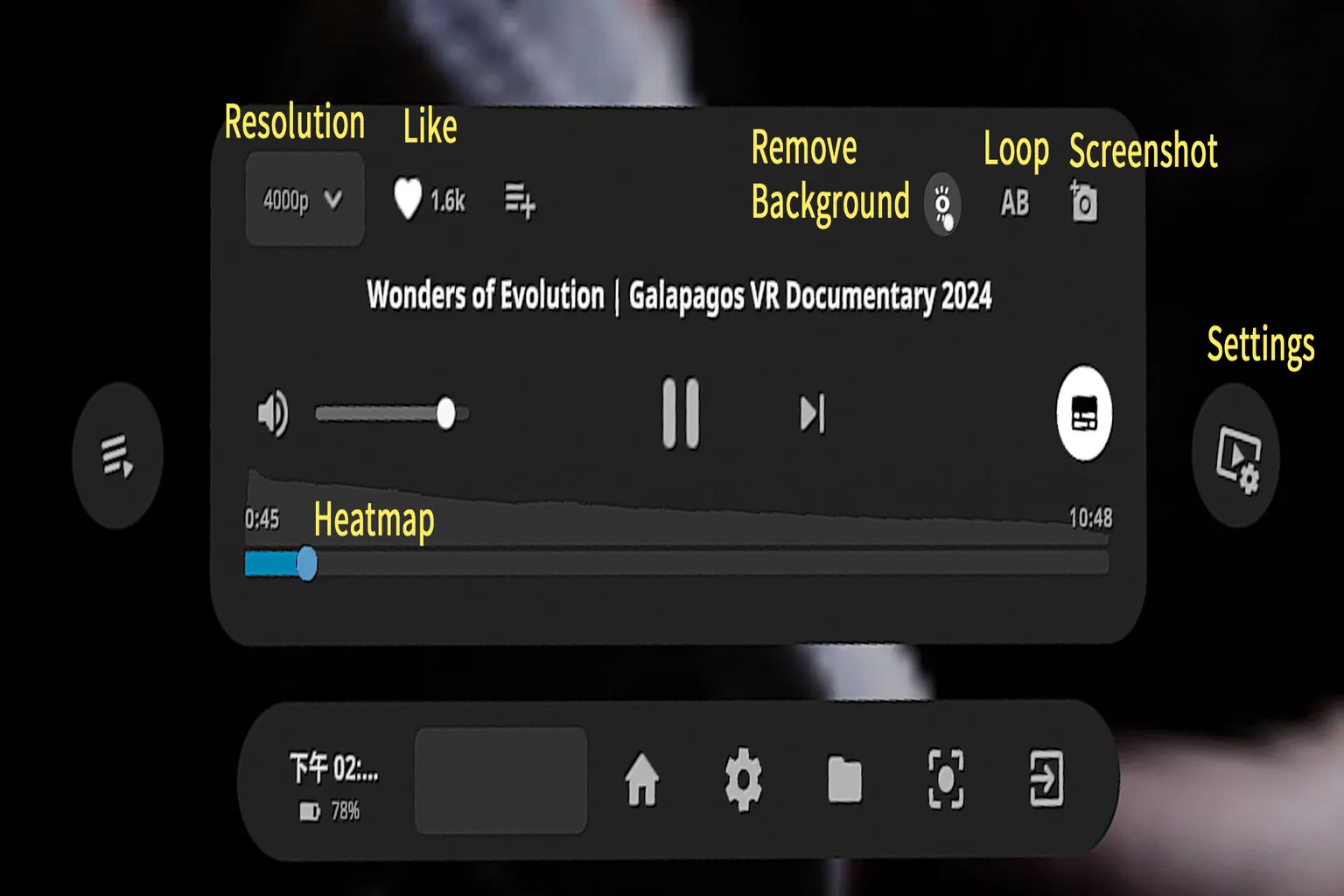
When you start a video, several menus will appear on the screen. Here’s what each one does:
Resolution
Most videos offer multiple resolution options. Unless your internet connection is very slow, it’s best to choose the highest available resolution. Higher resolution means better immersion.
Like
Tap this to like the video. The number next to it shows how many likes the video has received. Videos you like are saved to My Library.
Viewing Heatmap
Thicker sections of the bar indicate parts that many viewers watched. It’s a handy way to spot highlights.
Settings
Opens the feature and playback settings menu. DeoVR has quite a lot of options here, so this section is explained in more detail later.
Removal Background
Indicates videos where the background has been removed using video editing software.
One thing to note: DeoVR can’t play videos stored on your own PC or cloud storage.
If you want to watch local files as well, you might want to check out other popular VR video players too.
5 Best Meta Quest VR Video Players Compared
NEX, Moon, Skybox, 4XVR & HereSphere
DeoVR Settings Explained
Master 6DOF, Autofocus & Meta Quest Playback
FAQ – Common Questions
Does DeoVR Classical support local video playback?
DeoVR Classical no longer supports local file playback, so you can only stream videos online. However, the newer version of DeoVR can play videos stored on your headset.
How do I play AI background-cutout videos?
Turn on the “Passthrough AI” filter in the video genre menu, then enter the playback screen and enable Passthrough mode.
What can free users watch?
Free users can watch videos in the New, My Feed, Trending, and Top Picks categories, as well as any publicly available free videos.
Premium content requires a subscription.
Does DeoVR support VR photos?
Yes. Select Photos from the left menu to view 360° panoramic photos. Most are still images, but they’re still quite immersive.
Can I adjust video quality and frame rate?
Yes. During playback, you can use filters like 8K, 120 FPS, and Show Flat, and adjust them based on your device’s performance and internet connection speed.