
Selling your Meta Quest, trying to reclaim a missed referral bonus, or dealing with a stubborn connection glitch? When your VR headset stops cooperating, a clean wipe is usually the fastest fix. In this complete guide, we walk you through the three safest methods to factory reset your device. Whether you want to use the Meta Horizon mobile app, perform a quick hardware reset using the physical buttons, or remotely unlink your account via the official website, we have you covered. Stop wrestling with unexplained bugs—read on to safely restore your headset to its out-of-the-box state without losing your purchased games.
Why Reset a Meta Quest Headset?
Under the hood, Meta Quest works a lot like an Android smartphone. If you’re just using it normally, you almost never need to reset it. System updates and app installs are all handled directly on the headset.
That said, there are a few situations where a reset does make sense. For example:
If you’re selling the headset or giving it to a friend.
Your Meta account and wallet are normally linked to the device, so before handing it over, you should reset it properly and return it to its original factory state.
If you forgot to use a referral code.
When you first linked the headset to your account, if you missed entering a referral code and lost the $30 bonus, you can reset the headset once and set it up again with a different account.
When the headset won’t connect to your phone.
If the account you’re using for Air Link on your PC doesn’t match the one on the headset, the phone connection can break when you try to connect. If you can’t reconnect after that, doing a reset is usually the fastest fix.
When you run into issues you can’t explain.
Things like Wi-Fi not connecting or Air Link not working right. In a lot of cases, a reset fixes it.
Those examples are all things I’ve actually run into myself. With Meta, a small bug can slip in after an update once in a while. So next, I’ll walk through the reset methods step by step.
How to Reset a Meta Quest Headset
There are three main ways to factory reset your headset:
| Reset Method | Headset Required? | Common Use Case |
| Reset from the Meta Horizon mobile app | Yes | The standard option for normal resets or when the system isn’t working properly. |
| Reset using headset buttons (hardware reset) | Yes | Useful when you bought a used Meta Quest and it’s still linked to the previous owner’s account. |
| Unlink the account from the official website | No | When you realize you forgot to reset after shipping the headset, or when you want to remove your account after sending it in for repair. |
If you have both your phone and the headset with you, resetting through the Meta Horizon app is the best option. It’s the easiest and most reliable way to do it.
If you bought a used headset and it’s still linked to the previous owner’s account, you’ll want to use a hardware reset instead.
Once the headset is back to factory settings, you can simply sign in with your own account.
And if you already sold the headset and shipped it out, then realized “I forgot to reset it,” you’re still fine. You can remove the account link from the official website.
Next, I’ll go through each method step by step.
How to Reset Using the Meta Horizon App
First, let’s reset the headset itself. Even after a reset, any games you purchased from the Meta Store can be downloaded again from your game library, so there’s no need to worry.
What you need before resetting:
- You have the Meta Horizon app installed on your phone and you’re already logged in
- Bluetooth is turned on on your phone
Here’s how to reset the headset:
Step 1: Open the settings screen
In the Meta Horizon app, tap ☰ in the top-left corner to open the settings screen.

Step 2: Open Devices
In the device management section, tap Devices.

Step 3: Open your headset
From the device list, select Headset settings.

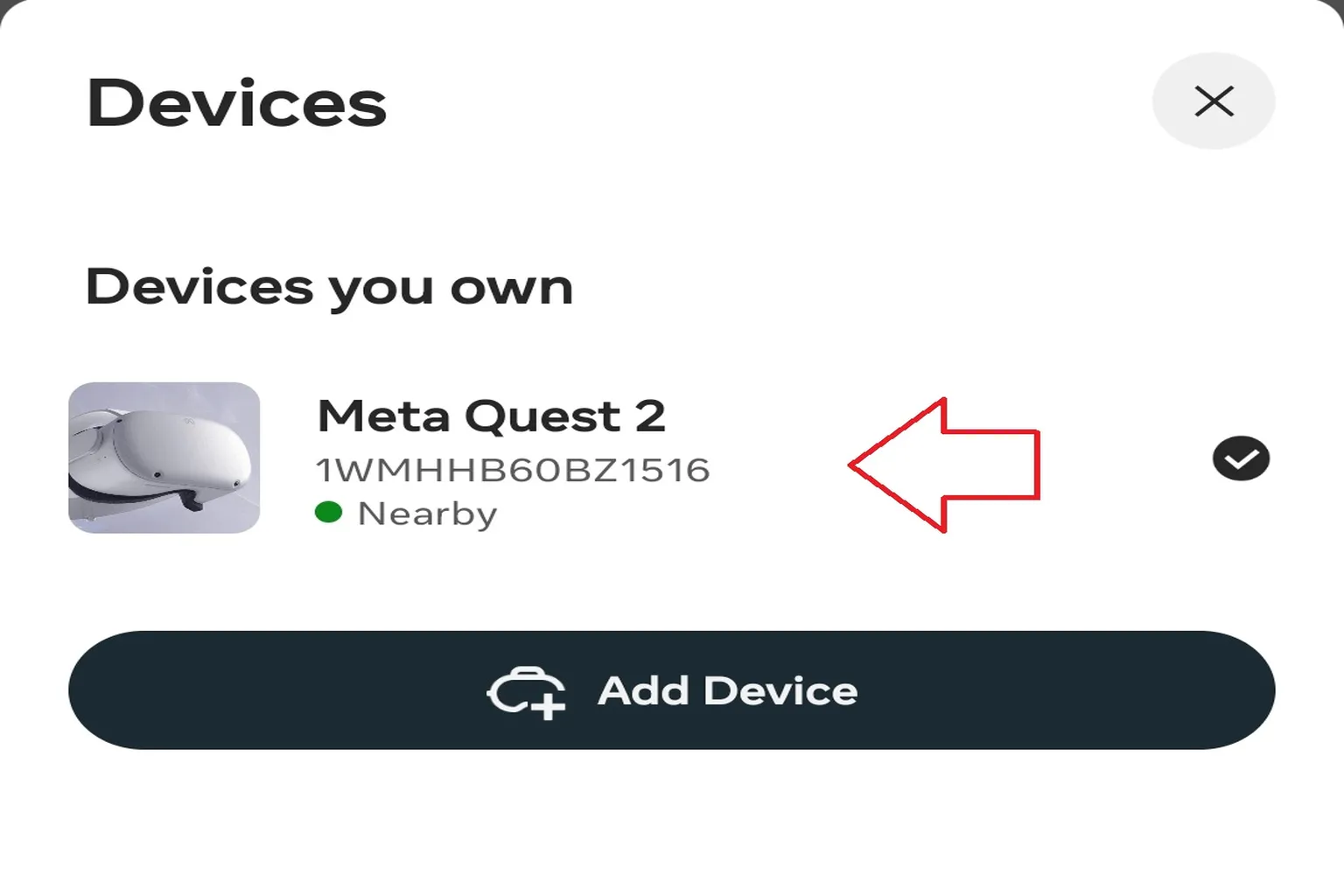
Step 4: Select your device
Choose your Meta Quest headset here. The headset needs to be with you and powered on, since that’s required to continue to the next step.
Step 5: Open Advanced Settings
In the headset settings screen, select Advanced settings to access the reset options.

Step 6: Reset to factory settings
Scroll to the bottom and select Factory reset. When you tap it, the headset will restart and return to a like-new state.

Hardware Reset
This method only requires the headset itself. You don’t need a phone or Wi-Fi, and you can do it completely offline.
Before you start, make sure the battery has enough charge. If the headset powers off in the middle of the process, the reset may fail.
Once you’re ready, follow these steps.
Step 1: Power off the headset
Press and hold the power button for about five seconds to shut the headset down.
The button placement is slightly different depending on the model, but the basic idea is the same.
Meta Quest 3 (front view)
Looking at the front of the headset, the volume buttons are on the left side and the power button is on the right. The red arrows show their positions.

Meta Quest 3 (rear view)
From the back, the power button is on the left side and the volume buttons are on the right. Of the two volume buttons, the one closer to the center of the headset is Volume Down.
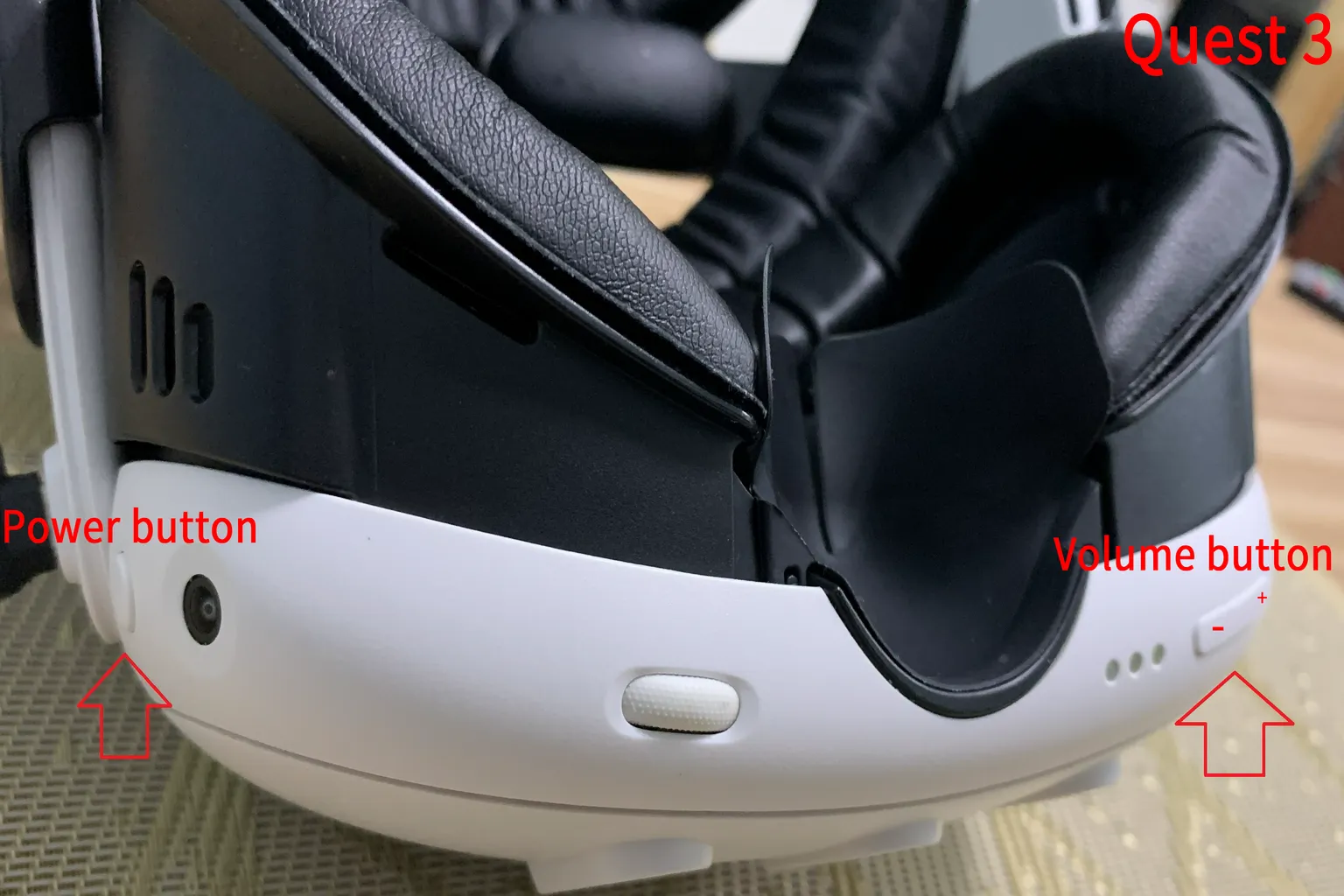
Meta Quest 3S (rear view)
The arrows show the locations of the power button and volume buttons. Just like on other models, the button closer to the center of the headset is Volume Down.

Meta Quest 2 (front view)
The arrows point to the power button and the volume buttons.

Meta Quest 2 (rear view)
The volume buttons are in the center, and the power button is on the right side. Of the two volume buttons, the one closer to the center of the headset is Volume Down.

Step 2: Enter factory mode
Press and hold the power button and the Volume Down button at the same time for about two seconds. The headset will enter factory mode
Controls in this mode work a bit differently:
- Volume buttons → Move the cursor up and down
- Power button → Confirm (select)
Move the cursor to Factory reset and press the power button. This will take you to the next screen.

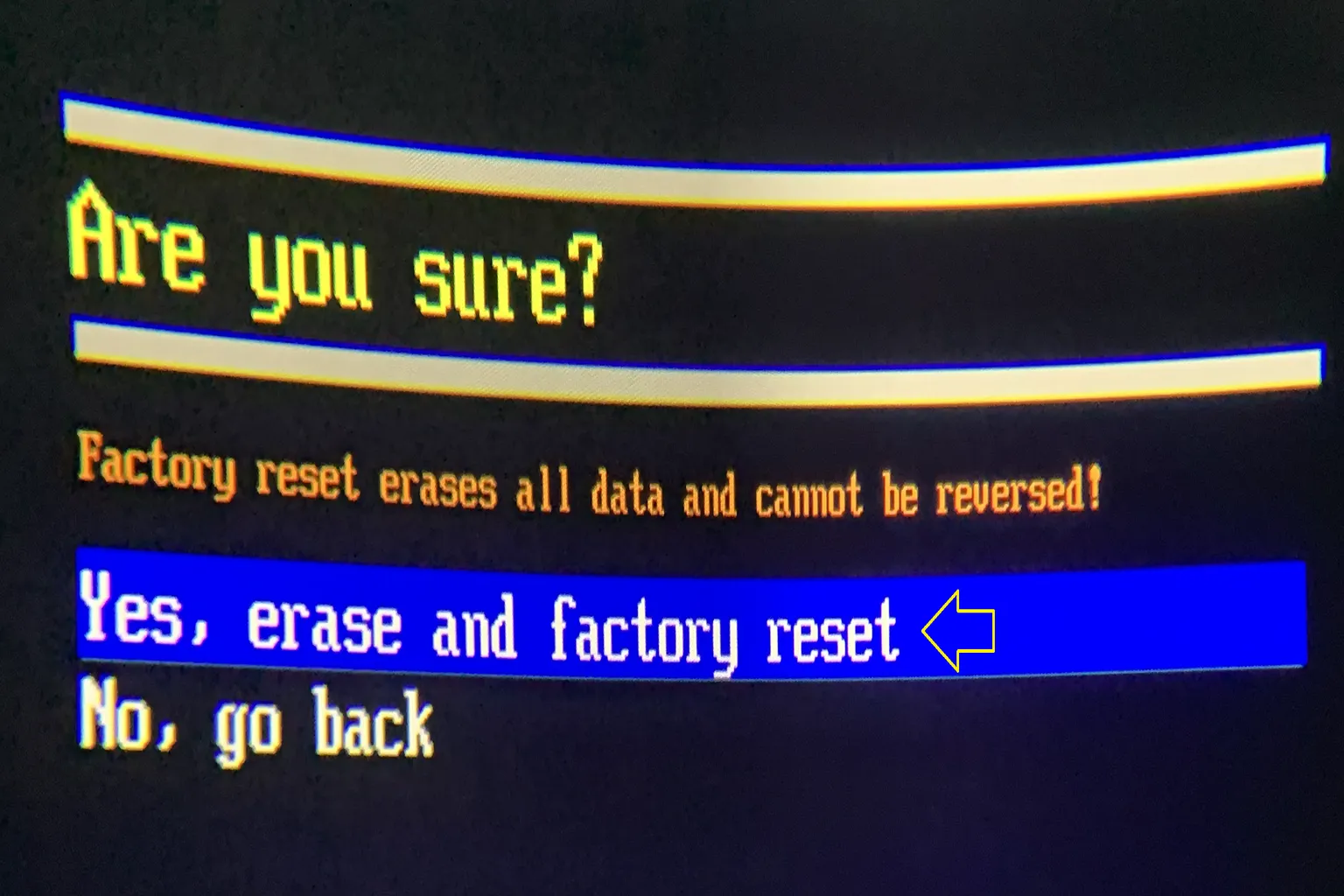
Step 3: Reset the headset
Select Yes, erase and factory reset, then press the power button.
The headset will reset and return to its factory default state.
Remove Your Account from the Official Website
Here’s how the reset process works on the official site. First, go to the Meta official website.
Step 1: Open account settings
Click the user icon in the top-right corner of the Meta website and sign in to your account.

Click Meta Horizon Profile Settings in the bottom-left corner to open it.

Step 2: Select Devices from settings
Once the settings page opens, click Devices in the menu on the left.

On that screen, you’ll be asked to sign in to your account again.

Step 3: Reset the headset
You should see your old headset listed on the screen. Click Factory reset.

A confirmation will appear next. Once you reset it, all data stored on the headset, like videos and photos, will be completely erased. If that’s fine, click continue.

You’ll then go through a security check. A six-digit code will be sent to your Meta account email. Enter that code on the page and click Submit to finish.

Select Confirm, and the old headset will be unlinked from your account.

Once the account is unlinked, you’re ready to set up a new headset.
That’s everything you need to know about resetting a Meta Quest.
If you’re buying a used headset, or planning to sell your old one and upgrade to a newer model, check out the two articles below. They walk through new headset setup and explain the key points to keep in mind when choosing your next device.

Where to Buy Meta Quest 3 & 3S
Amazon vs Official Store

Meta Quest 3 & 3S Unboxing Guide
Setup & $30 Referral Bonus
FAQ – Common Questions
Will my games be deleted if I reset my Meta Quest?
No. A reset only removes local data and settings on the headset. Any games you’ve purchased stay tied to your account, so once you log back in, you can download them again from your library.
I want to claim the $30 referral bonus again. Do I have to reset?
Yes. If you forgot to enter a referral code when you first linked the headset to an account, you’ll need to reset it and set it up again with a new account.
My phone won’t connect to the headset. What should I do?
In many cases, this is caused by Bluetooth issues or an account sync mismatch. Try restarting first. If that doesn’t work, go ahead and try a hardware reset.
I already shipped the headset and then realized I forgot to reset it. What now?
Log in to the Meta official website and open the device management page. Select the headset and run Restore Factory Settings to unlink it from your account.
Will resetting fix system bugs?
Sometimes. After Meta updates, issues like Wi-Fi disconnects or Air Link not working can pop up. In many cases, a reset brings everything back to normal.