

Setting up The Handy for VR video synchronization takes more than just turning it on. In this guide, I’ll walk you through the complete setup process for The Handy 1, The Handy 2, and The Handy 2 Pro, including Bluetooth pairing with the Handy Onboarding app, Wi-Fi configuration, firmware updates, and getting your Connection Key.
I’ll also show you how to connect The Handy to SexLikeReal (SLR) through DeoVR Classic or a VR headset’s web browser, and to VRPorn using PLAY’A Video Player. Finally, I’ll explain how to use the D-pad to adjust stroke range and speed, along with troubleshooting tips for common pairing and connection problems.
How The Handy Connects to VR Videos
For VR adult apps, services like SLR, VRPorn, and VaM support interactive toys. The Handy series performs well and has a solid connection system, so many services treat it as one of the standard recommended devices.
After you get The Handy, there are two connection steps you need to complete before watching VR videos with it.
- Connect The Handy to your smartphone
- Connect The Handy to a VR video service
The official manual does explain how to use it, but the instructions are fairly simple and do not go into much detail. From here, I’ll explain how to connect the device to Wi-Fi and then connect it to a VR video service.
If you have not bought The Handy yet, you can also check out the complete SLR sync device guide for The Handy.
If you want to use The Handy with a game-based platform like Virt-A-Mate (VaM), the connection process is a little more complicated, so refer to the guide on linking VaM with The Handy.
The Ultimate Guide to The Handy
3 Models Compared & 15% OFF Discount Code

How to Connect The Handy to Virt-A-Mate
The Ultimate Setup Guide
The Handy First-Time Setup: Bluetooth, Wi-Fi & Connection Key
To use The Handy with services like SLR or VRPorn on a VR headset, you first need to get a Connection Key. When you pair The Handy with your smartphone or tablet and connect it to Wi-Fi, the system will issue a Connection Key.
From here, I’ll walk through the actual connection steps. Before you start, make sure you have the following ready.
- A smartphone or tablet, such as an iPhone, iPad, Android phone, or Android tablet
- Turn on Bluetooth and Wi-Fi on your smartphone or tablet
- Make sure there is a Wi-Fi network available where you plan to use it, and that the network is connected to the internet
If possible, I recommend using the same Wi-Fi router as your VR headset - The Handy 1, The Handy 2, or The Handy 2 Pro
If you’re using The Handy 2 or The Handy 2 Pro, make sure the battery level is above 50%.
Once everything is ready, follow the steps below to set it up.
Step 1: Download the Handy Onboarding Connection App
Search for “Handy Onboarding” in the Apple App Store or the Google Play Store on Android, then download and install it on your smartphone or tablet. If you are reading this article on your smartphone or tablet, you can also download it directly from the link.

Step 2: Bluetooth Pairing
Press the power button to turn on The Handy. If the device has not been paired with a smartphone or tablet yet, the LED light will blink blue on first startup, and the device will start searching for nearby Bluetooth devices.
Note: The Handy 1 only has an LED light, but The Handy 2 also shows a Bluetooth icon.

Open the Handy Onboarding App on your smartphone or tablet. If this is your first time using it, tap Give Bluetooth Permission at the bottom of the screen and allow Bluetooth access.
There is also an option in the upper-right corner that looks like it lets you switch the language. However, when I actually tested it on Apple devices, the app stayed in English no matter which language I selected.

The app will automatically search for nearby compatible Handy devices.

After the search finishes, make sure the detected device is the one you want to connect, then tap Connect to pair it.

Once the connection is complete, the Bluetooth search icon will disappear, and the LED light will stay solid blue.

If the device does not appear, the most common reasons are that the device is not turned on, or it has already been paired. Go back to the beginning of Step 2 and check whether the device is powered on and whether the LED light is blinking blue.
If the LED light is pink or green, it cannot connect to your smartphone or tablet. Turn the device off once, then turn it back on. After it starts up, press and hold the Function Button and wait until the LED light starts blinking blue.

Step 3: Wi-Fi Connection
Once the Bluetooth connection is complete, the next step is Wi-Fi setup and updates. Before moving on, you need to check the following three items.
- I accept the terms and conditions
- Allow Handy to collect anonymous usage data
- Allow Handy to collect crash reports
You cannot continue to the next step unless you agree to the first item. The second and third items are not required.
After checking the items, select Accept all or Accept selected.

The app will search for available Wi-Fi networks. Select the Wi-Fi router you want to connect to, then enter the network password.

Once the Wi-Fi connection is complete, the LED indicator will stay solid pink.

Step 4: Firmware Update
When you use it for the first time, the app will recommend a firmware update. Updating the firmware can help make the device more stable.
Tap Update firmware to start the update. If you want to use it right away, you can also choose Skip.

Do not touch The Handy while the update is running. Also keep the screen on your smartphone or tablet open.
A progress bar will appear on your smartphone or tablet, so you can check the current update status.

On the Handy 2 / Pro, the LED light on the device also shows the update progress at the same time.

The update usually takes about 10 to 15 minutes. Once it is finished, The Handy will restart automatically.

Note: If the update fails, a red warning will appear on the screen. In that case, press Retry to run the update again.

Step 5: Get Your Connection Key
Once Bluetooth pairing, Wi-Fi setup, and the update are complete, you will enter the main menu. Here, you can check Your Connection Key. The Connection Key allows services like SLR and VRPorn to connect to The Handy and send synchronization data to the device. This allows The Handy to synchronize with video scripts when watching VR adult videos.
Do not show your connection code to other people. If someone gets access to your Connection Key, they could remotely control your Handy.
If you want to change the connection code, tap ☰ in the upper-left corner of the screen.

Select Settings.

Then go directly into Connection key.

Here, you can change the length of the connection code. By default, it is set to 8 digits, but you can change it to anywhere from 5 to 32 digits. If you want something easier to remember, I recommend setting it to 5 digits.

Once the change is complete, the new connection code will appear on the main screen.

The green area at the bottom of the main screen is The Handy beginner guide. You can check the basic controls, video sync, user manual, and SLR connection guide in order.

Connecting The Handy to SexLikeReal (SLR)
There are two main ways to play SLR adult videos on a VR headset.
- Play them through DeoVR
- Play them through a web browser
From here, I’ll explain how to connect The Handy using each of these two methods.
Note: To use this feature, you need to have an SLR plan that includes scripts.
Playing Through DeoVR Classic
SLR and The Handy officially use DeoVR Classic as one of the main connection methods. The connection and usage flow is as follows.
Step 1: Connect DeoVR and The Handy
Turn on The Handy. At this point, the LED light should stay solid pink. Open the settings menu from ⚙️ at the bottom of the screen.

In the settings menu, select Haptics, enable Handy, and enter your connection code. After entering the code, press Connect. If a ✅ mark appears, the device is connected properly.
Note: Even if the connection code is entered correctly, nothing may happen when you press Connect. In that case, close the DeoVR App once, open it again, and try reconnecting.

After the first connection succeeds, The Handy is already paired if Haptics appears in green on the left side of the main screen.

Step 2: Turn On Scripts and Interactive Features

Turn on scripts: Tap this icon to enable script sync for that video. When scripts are turned on, a colorful line will appear on the playback bar. Any section with this line supports script sync.

Playing SLR Videos in a Web Browser
When playing through a web browser, the passthrough feature has some limits, so the experience isn’t quite as good.
Turn on The Handy. At this point, the LED light should stay solid pink.
Open the official SLR website in your VR headset’s browser, then play a video that supports scripts. While the video is playing, tap Settings on the right side of the playback screen.

Haptics settings: Tap this icon to set up an interactive toy. Select the device model you want to use, enter your connection code, then tap Connect Device.
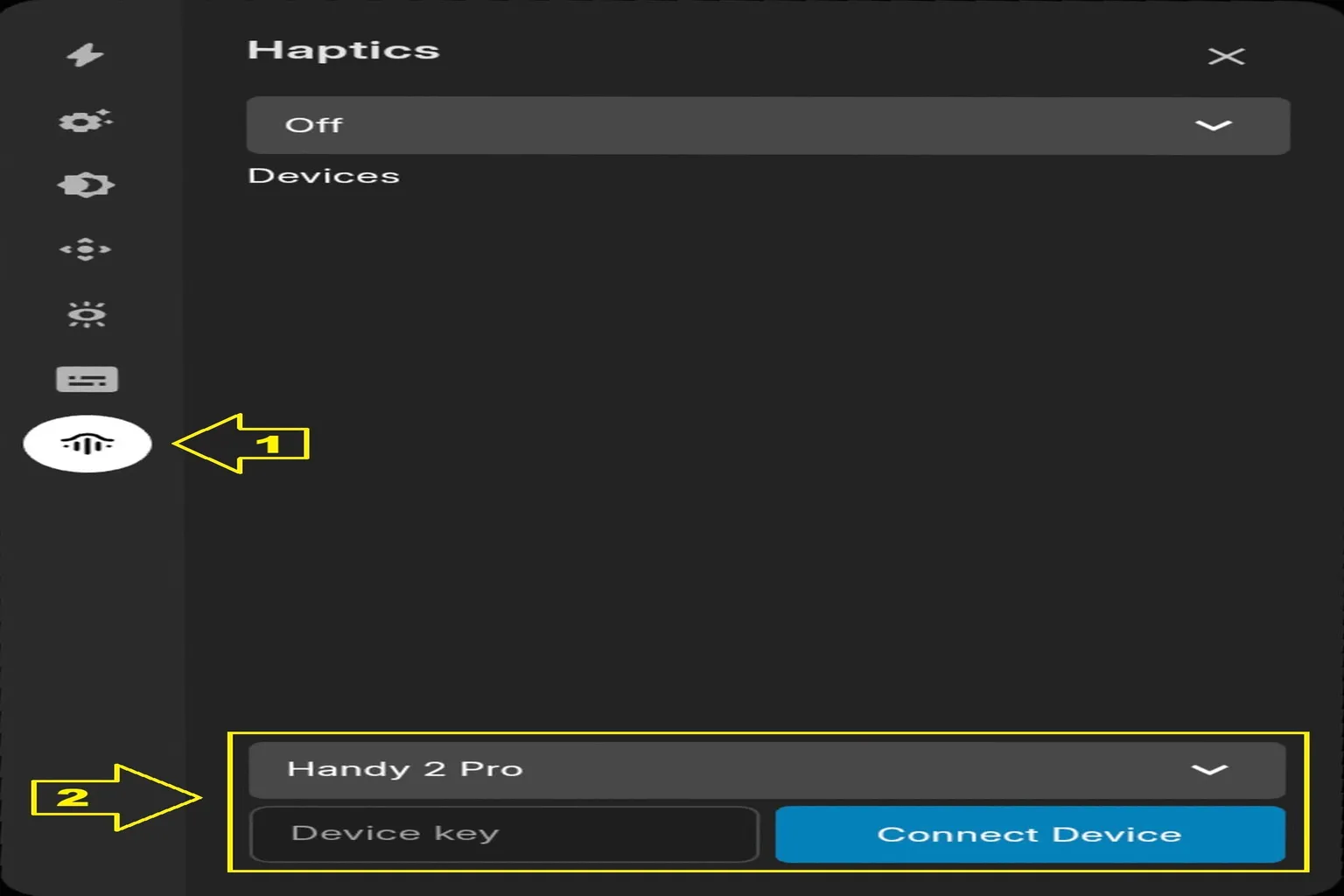
Wait about 10 seconds. The light will change from yellow to green, and the device pairing will be complete.
When you play a video that supports scripts, The Handy will start moving automatically.

Connecting The Handy to VRPorn
For VRPorn, you need to use a dedicated player. You can get PLAY’A Video Player from your VR headset’s app store or the App Store. For PC VR headsets such as Oculus Rift and HTC Vive, I recommend downloading PLAY’A Video Player from SteamVR.
VRPorn also offers script support for preview videos, so even non-subscribers can try the interactive features. Playing through PLAY’A Video Player is also the playback method recommended by VRPorn.
Step 1: Connect PLAY’A Video and The Handy
At this point, the LED light should stay solid pink. Open the settings menu from ⚙️ at the bottom of the PLAY’A Video screen.

Select Device, then tap Add Device.

For the preset, select The Handy.

Enter your Handy connection key, then press Add when you are done.

Once connected, PLAY’A will show a ✅ next to The Handy.
When you play a video that supports scripts, The Handy will start moving automatically. An interactive device icon will also appear in the function menu at the bottom.

Step 2: Turn On Scripts and Interactive Features

Videos that support interactive devices: If this icon appears on a video, scripts will work with it. When you play a video that supports interactive devices, Handy will sync automatically.
VRPorn’s script feature feels fairly basic, and the connection between the VR video in front of you and the movement from The Handy does not feel that strong.

The Handy D-Pad Controls: Speed & Stroke Range
On The Handy and The Handy 2, you can use the D-pad on the device to set the starting position, ending position, and movement strength. On the Handy 2 series, you can check the current settings directly through the LED light. On Handy 1, you need to check them inside the Handy Onboarding App.
Here is what each button does.
- Up / Down buttons, press: Set the end position.
- Up / Down buttons, press and hold: Set the start position.

- Left / Right buttons: Adjust the movement strength. 0 is the slowest, and 100 is the fastest.

Refer to the video below for how to adjust these settings.
- End position setting: Start to 24 seconds
- Start position setting: 25 to 35 seconds
- Movement position setting: 36 to 40 seconds
- Strength setting: 47 seconds to the end

Frequently Asked Questions
What setup do you need before using The Handy for the first time?
Before using The Handy for the first time, you need to complete Bluetooth pairing and Wi-Fi setup through the Handy Onboarding App, then get your Connection Key. The app may also recommend a firmware update, which you can complete during setup or skip for now.
After you get the connection code, you can pair it with services like SLR, DeoVR, VRPorn, and PLAY’A Video Player. Once paired, the device can sync with video scripts.
What is a Connection Key? Is it okay to share it?
The Connection Key is the code used to connect to your Handy. Services like SLR, VRPorn, and DeoVR use this code to connect to your Handy.
You should not share this connection code. If you make it public, someone else may be able to connect to your device remotely and control it.
What should you do if The Handy does not appear in the Handy Onboarding App?
First, check whether The Handy is turned on and whether the LED light is blinking blue. If the light is pink or green, the device is not in Bluetooth pairing mode.
Turn it off once, then turn it back on. After it starts up, press and hold the function button and wait until the LED light starts blinking blue. After that, search for the device again.
How do you connect The Handy to SLR and VRPorn?
For SLR, I recommend playing through DeoVR Classic. Open the settings menu, select Haptics, enable Handy, and enter your Connection Key.
For VRPorn, I recommend using PLAY’A Video Player. Open Device settings, add The Handy, and enter the connection code.
Once pairing is complete, The Handy will automatically sync when you play a video that supports scripts.
What can you adjust with the D-pad on The Handy itself?
On The Handy and The Handy 2, you can use the D-pad on the device to adjust the movement range and strength.
Press the Up / Down buttons to set the end position. Press and hold the Up / Down buttons to set the start position.
Use the Left / Right buttons to adjust the movement strength. The range is 0 to 100. 0 is the slowest, and 100 is the fastest.
