Virt-A-Mate (VaM) delivers one of the most immersive “virtual girlfriend” experiences out there, but the learning curve is seriously steep. Building characters from scratch can easily take hundreds of hours.
If you just want to jump in and have fun, this guide cuts through all that. It shows you how to install VaM, skip the complicated modeling process, download high-quality ready-made scenes, and get started in just a few minutes.
Features Overview
Virt-A-Mate—often called a “virtual girlfriend.”
It’s a high-end 3D model interaction system that lets you bring different characters and scenes right in front of you.
She can dance in front of you.
She can react when you talk to her.
It feels like she’s really there with you.
In the latest VaM2, you can even integrate AI models and have actual conversations. At this point, it goes beyond just “looking beautiful”—it fulfills almost every fantasy you can associate with that word.
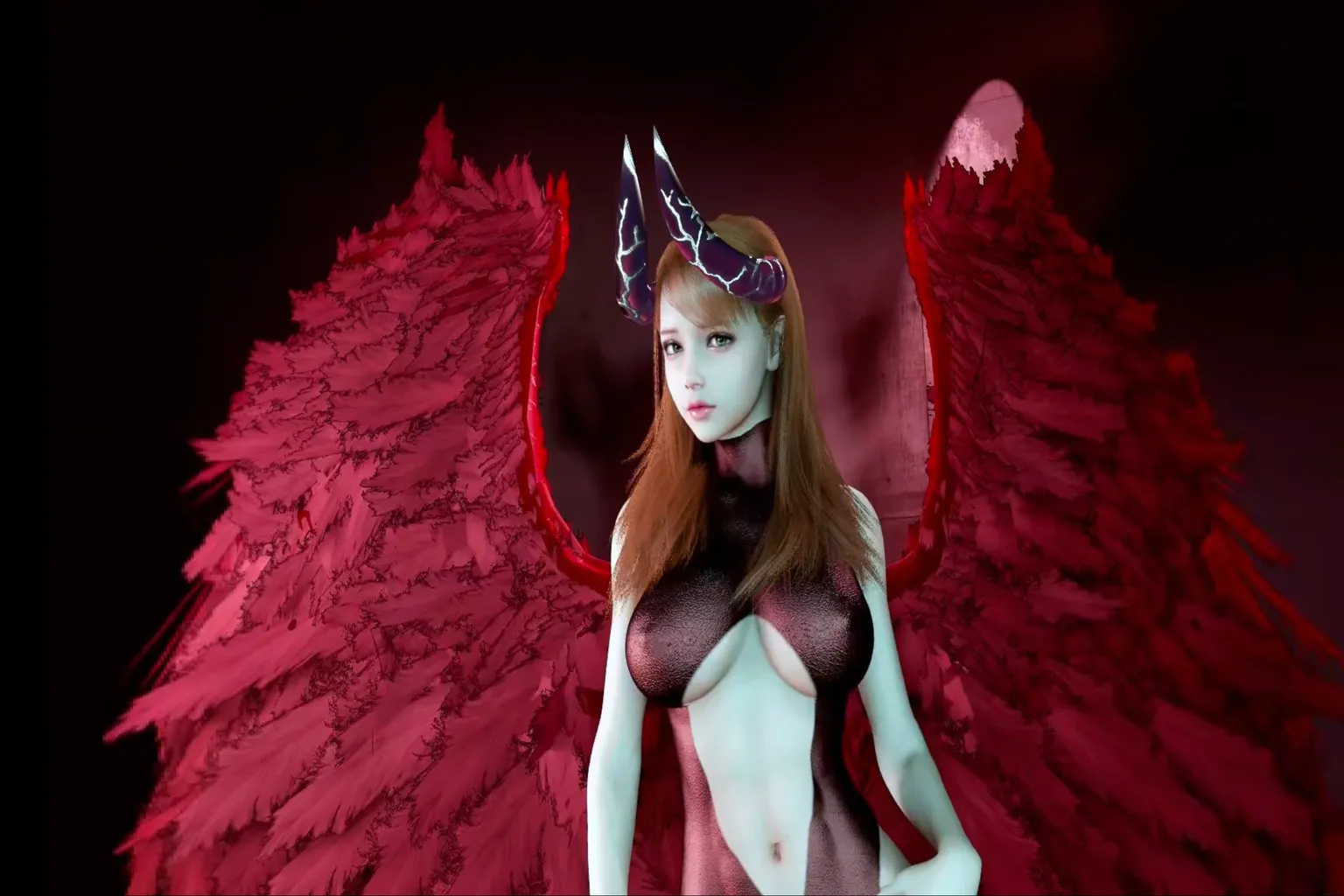
First, take a look at the screenshots.
A character like this moves in VR while looking straight at you, just for you. She’s more stunning than famous actresses, with proportions that rival top models.
If someone looked at you with that kind of soft gaze in real life…
You’d probably be left speechless.
But in the world of VaM, she exists only for you.
But here’s the reality. Trying to make a character like the one you just saw, completely on your own, is seriously hard. Just adjusting the face and body can easily take hundreds of hours of practice.
We’re VR players.
The goal is to have fun.
That’s why this guide does not cover character creation at all.
There is only one thing we focus on here. How to use VaM and interact with them as fast as possible. That’s it.
If you want to take things a step further in VaM and add device-based interaction, use this page as a reference.
How to Connect The Handy to Virt-A-Mate (VaM): The Ultimate Setup Guide
Subscription Plans and Cancellation
Virt-A-Mate uses a subscription model, with Monthly and Annual plans. You basically choose based on how you plan to use it.
When you first open the official site, you may feel completely lost because it is not obvious which plan you should choose.
But in actual use, the $2 plan is enough if you just want to download models and play creator-made content.
If you want to modify models made by other people, you can choose the $4 plan. Just keep in mind that the difficulty goes up quite a bit from there.
If you want to create models from scratch yourself, that is where the $8 plan comes in. This one is really difficult.
Also, the Annual plan does come with a 10% discount, but personally, I recommend starting with the $2 plan for just one month and trying it first.
Depending on the plan, a Lifetime membership may even be cheaper than paying annually. If you really end up liking it, then you can think about the Lifetime plan.
| Plan Name | Price (USD / month) | Features | Best For |
| DEMO | Free | View default models only | People who just want to see what VaM is like |
| Teaser | $2 | Download and play models | Those who want to properly enjoy finished VaM content |
| Entertainer | $4 | Modify models created by others | Users who want to customize existing models to their taste |
| Creator | $8 | Create models from scratch | Users who want to build fully original models |
If you really find VAM interesting, and you don’t just want to try it with a monthly plan but want to get everything set up in one go, there are three options.
The first option is the lifetime plan on the official Virt-A-Mate website.
It includes VAM Creator and VAM-X, and the price is 39.99 USD.
The second option is to get something close to lifetime access through another service.
For example, VR-Porn’s lifetime membership includes both VAM Entertainer membership and VAM-X.
On top of that, you also get access to more than 40,000 videos, so personally I think the package is quite decent.
👉 If you are interested, you can check the official site here: VR-Porn
The third option is to watch ready-made virtual character videos.
Even if you are using a high-end PC, VAM often makes you wait several minutes whenever you switch scenes or characters.
On the other hand, adult VR video sites let you enjoy already-made characters and scenes directly.
You don’t need to learn complicated settings, and you don’t need a PC either.
Personally, I think this is the easiest and most enjoyable way to play.
👉 You can also refer to this article: SLR Virtual Character Guide
Here is a simple comparison of the major adult sites.
| Official Site / Complete Guide | Adult VR Videos | VAM characters & scenes | Price (USD) |
| SexLikeReal | Western and Japanese content (66,866 videos, best overall experience) 🏆 | 1,000+ videos 🏆 | Monthly: 24.99–34.99 Yearly: 89.88–119.88 Lifetime: 299.99–399.99 |
| VR-Porn | Western and Japanese content (43,000 videos) | 300+ videos | Monthly: 19.95 Yearly: 95.40 Lifetime: 299.95 |
| VR Bangers | High-quality Western videos (750+ videos) | None | Monthly: 14.95 Yearly: 79.80 Lifetime: 250.00 |
If you only want to try it first, VAM’s $2/month plan is enough.
But if you plan to use it long-term and don’t want the experience to depend too much on your PC performance, choosing the SexLikeReal lifetime plan is also a solid option. It makes things much easier.
How to Subscribe
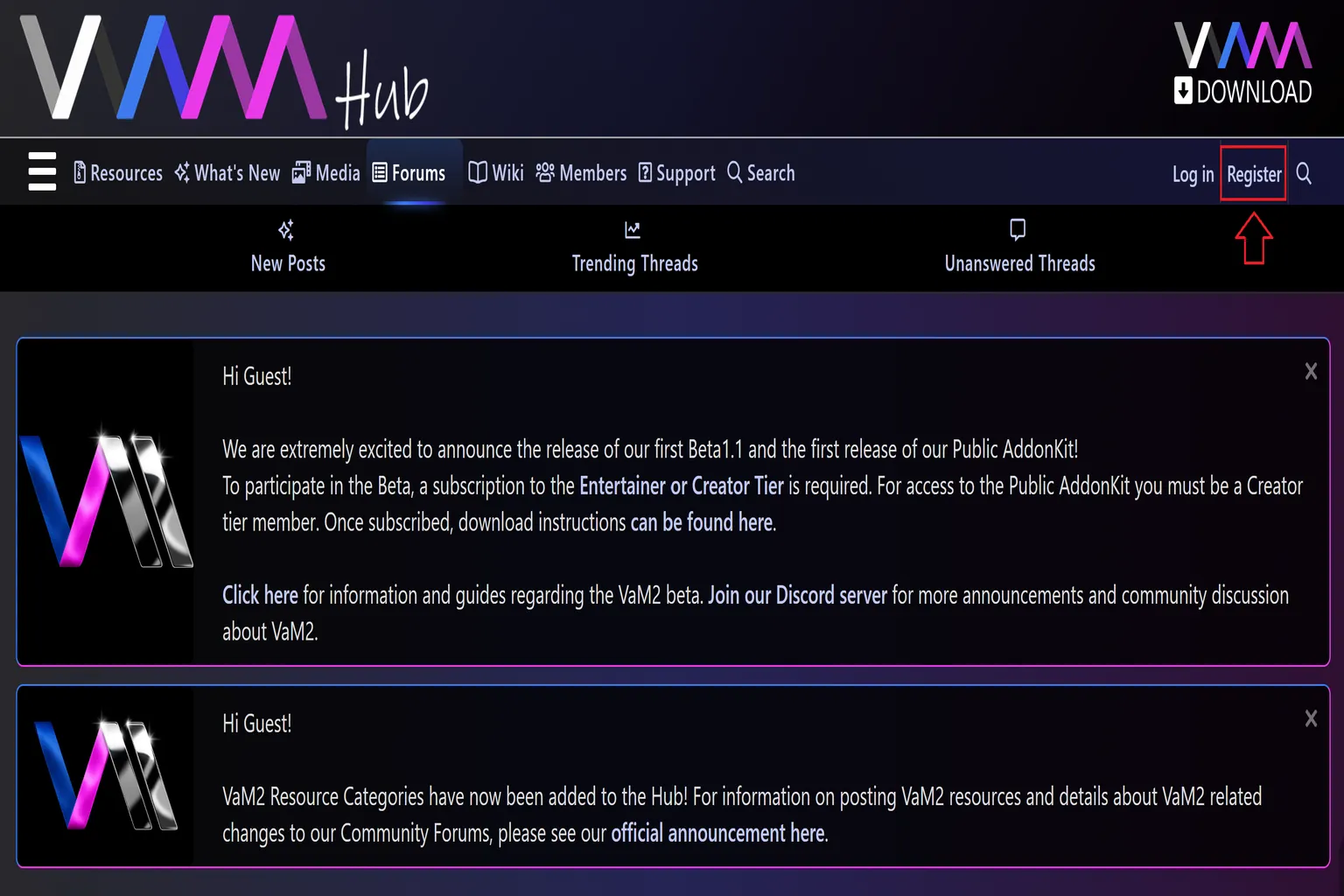
Step 1: Create an account on the official site
Start by going to the official VaM website. Click the Register button in the top-right corner to begin creating your account.
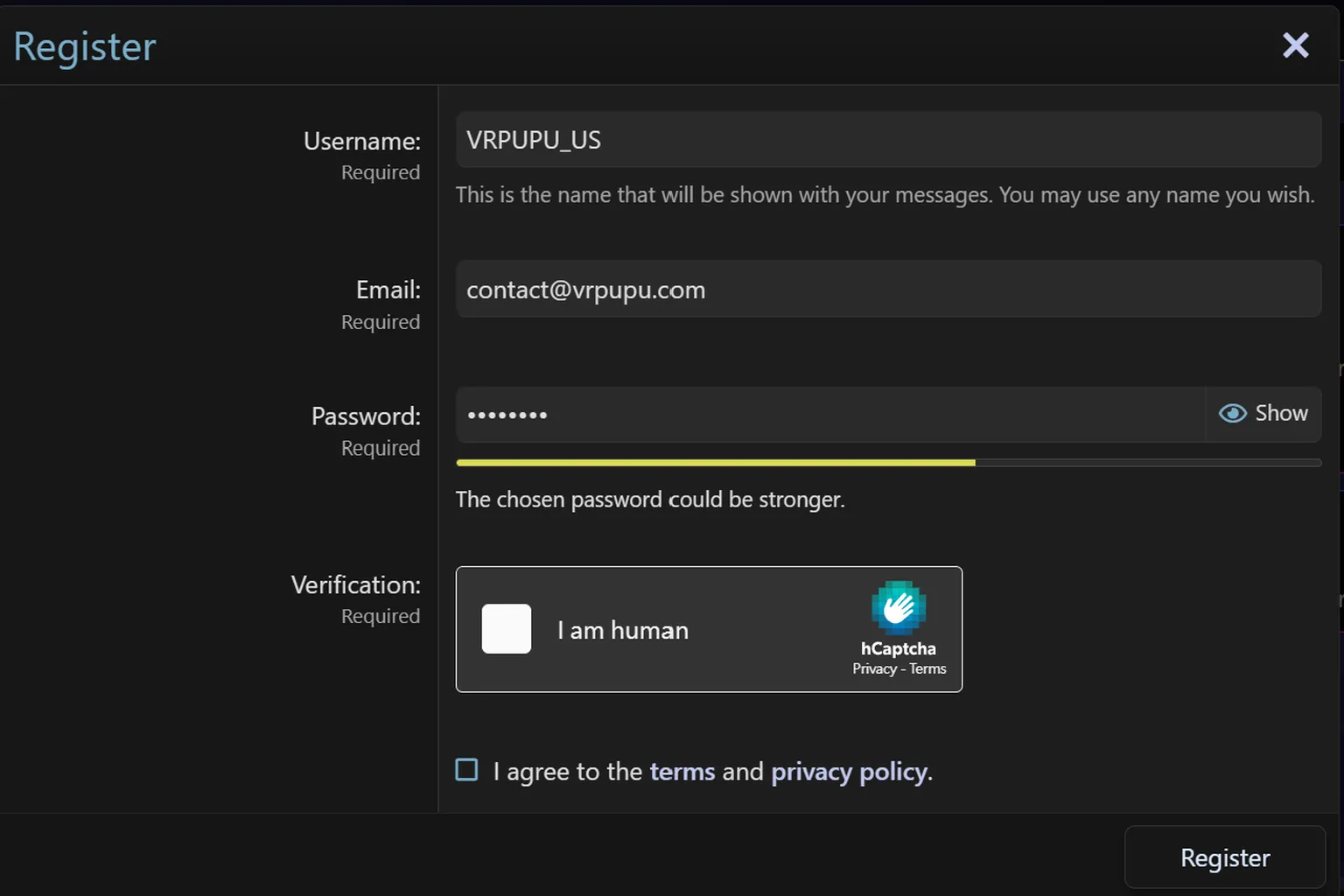
Step 2: Enter your account details
Enter your Username, Email address, and Password. After that, complete the reCAPTCHA verification to confirm you are not a robot, then click Register to create your account.
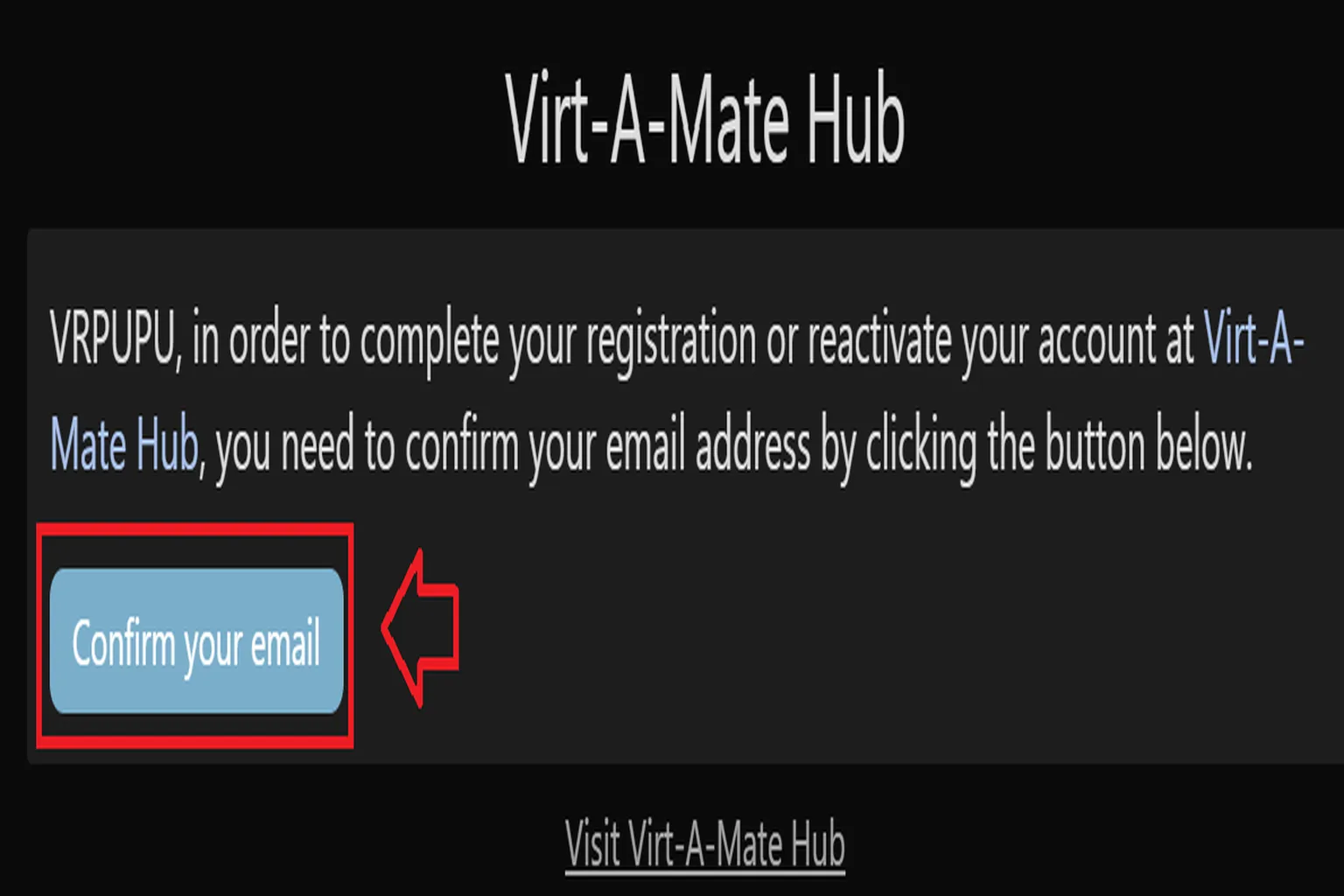
Step 3: Confirm your email
VaM will send a confirmation email to the address you just entered. Open the email and click Confirm your Email to finish the registration.
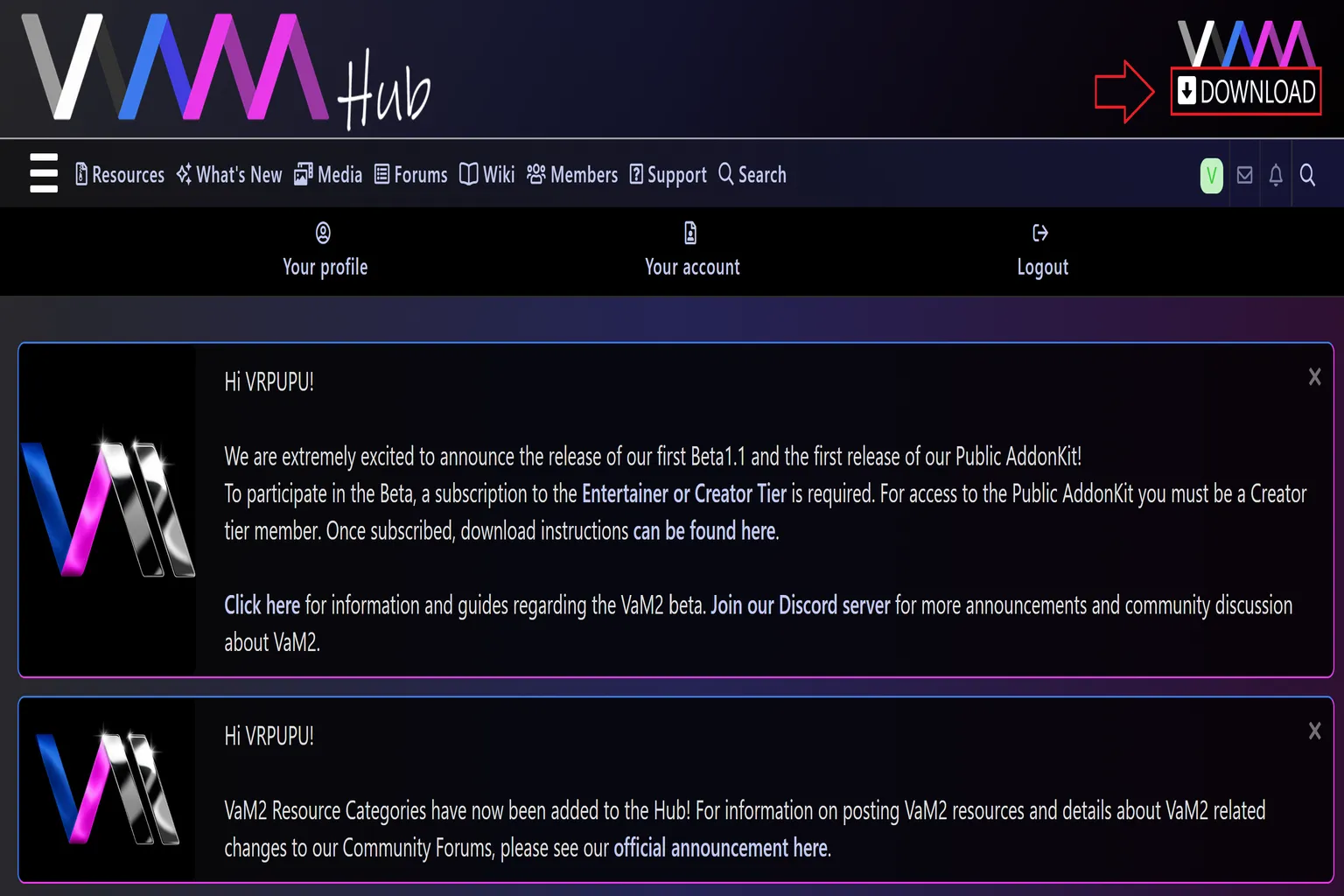
Step 4: Go to the download page
Once registration is complete, return to the official site. You should already be logged in. Click the Download button in the top-right corner to access the software download page.
Step 5: Choose a plan
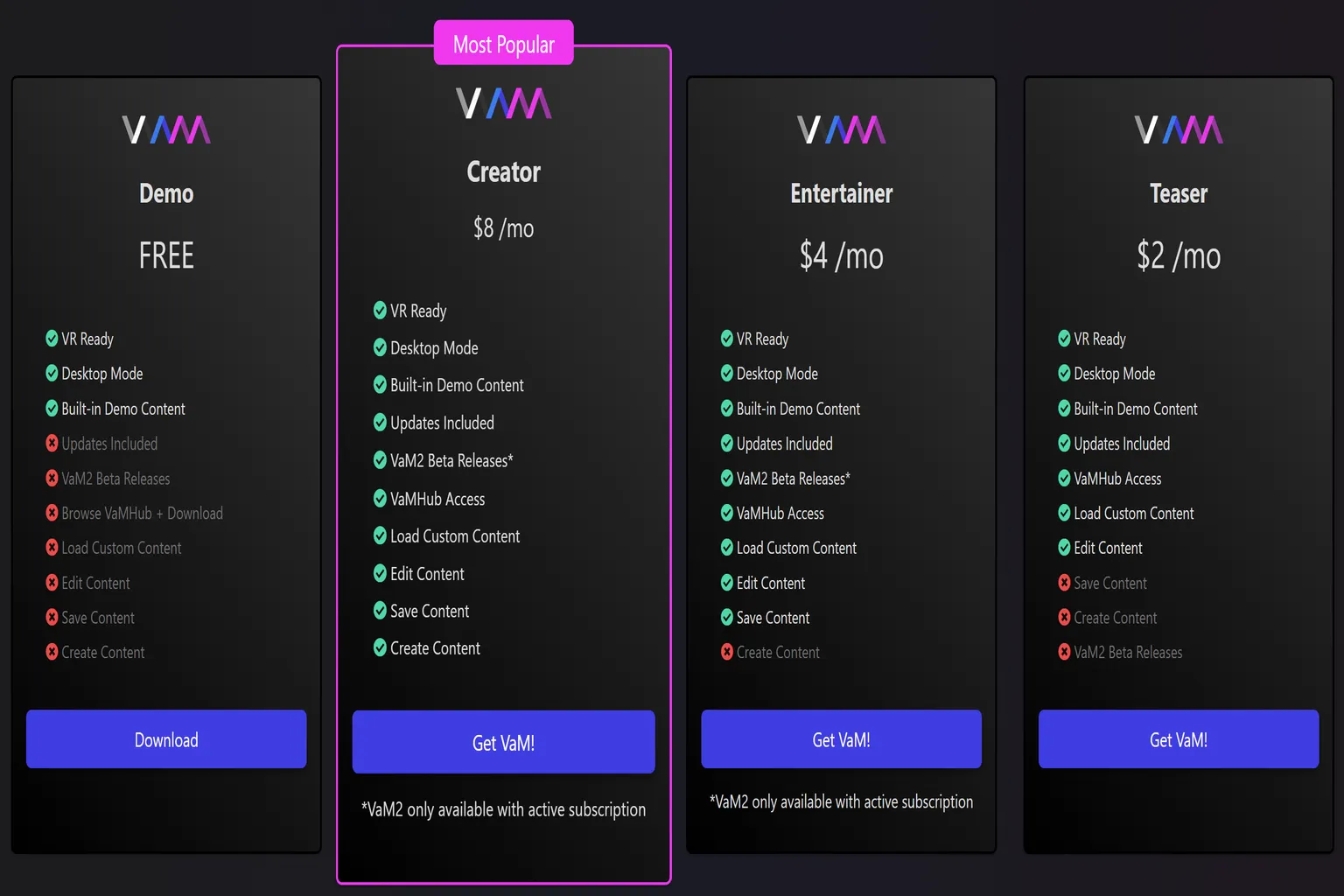
Here’s where you select your VaM plan. Use the table below as a reference and pick the one that fits you best.
If you’re going with the free version, just click Download and you’re good to go. How to use it after downloading is explained in a later section.
If you want to subscribe, click Get VaM!
No matter which plan button you click, you’ll see another confirmation screen where you can choose again, so there’s no need to worry about clicking the wrong one.
| Demo | Teaser | Entertainer | Creator |
| Free | $2/mo | $4/mo | $8/mo |
| ✅ VR Ready ✅ Desktop mode ✅ Built-in demo Content ❌ Updates Include ❌ VaM2 beta ❌ Access to VaMHub ❌ Load custom content ❌ Edit content ❌ Save content ❌ Create content | ✅ VR Ready ✅ Desktop mode ✅ Built-in demo Content ✅ Updates Include ✅ VaMHub access ✅ Load custom content ✅ Edit content ❌ Save content ❌ Create content ❌ VaM2 beta | ✅ VR Ready ✅ Desktop mode ✅ Built-in demo Content ✅ Updates Include ✅ VaM2 beta Release ✅ VaMHub access ✅ Load custom content ✅ Edit content ✅ Save content ❌ Create content | ✅ VR Ready ✅ Desktop mode ✅ Built-in demo Content ✅ Updates Include ✅ VaM2 beta Release ✅ VaMHub access ✅ Load custom content ✅ Edit content ✅ Save content ✅ Create content |
Step 6: Age verification
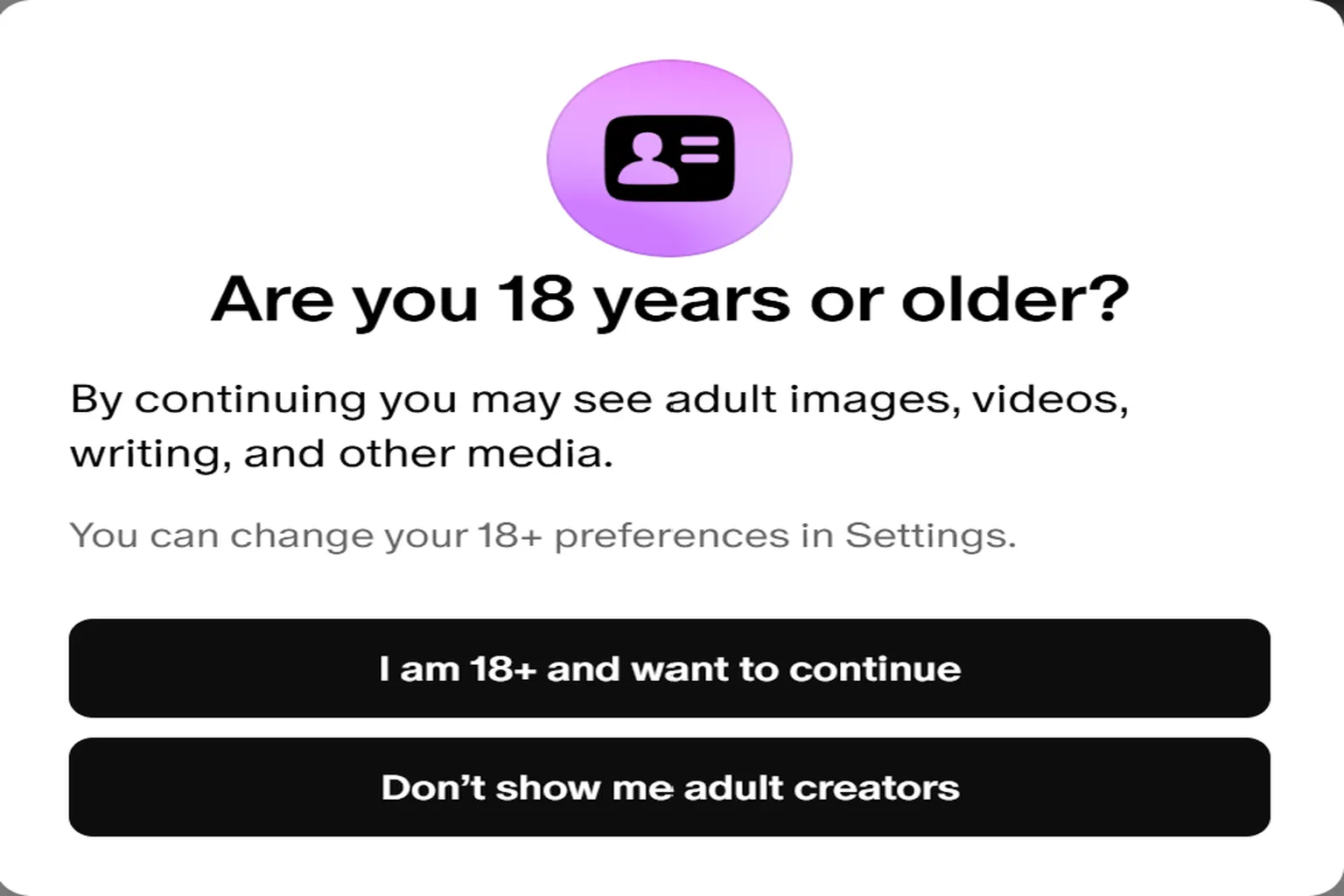
Most VaM content is for adults, and many scenes are highly explicit.
If you are 18 or older, click I am 18 or older and want to continue to move on.
Step 7: Final plan check
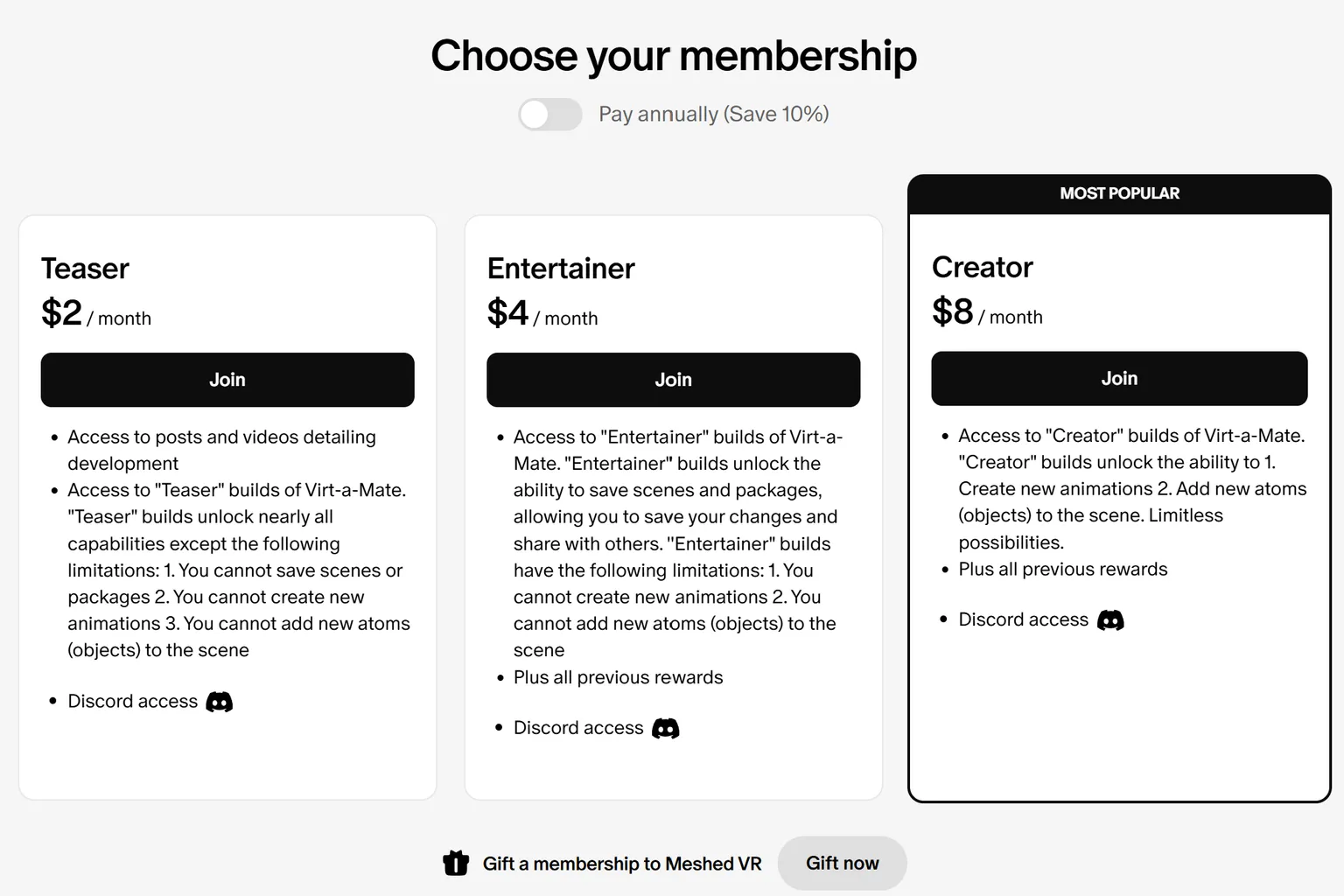
Here you will see your selected plan again. Review the details, then click Join to continue.
If you plan to use VaM long term, checking the yearly billing option gives you a 10 percent discount.
Step 8: Subscription and payment
Log in to Patreon using your Google, Apple, or Facebook account.
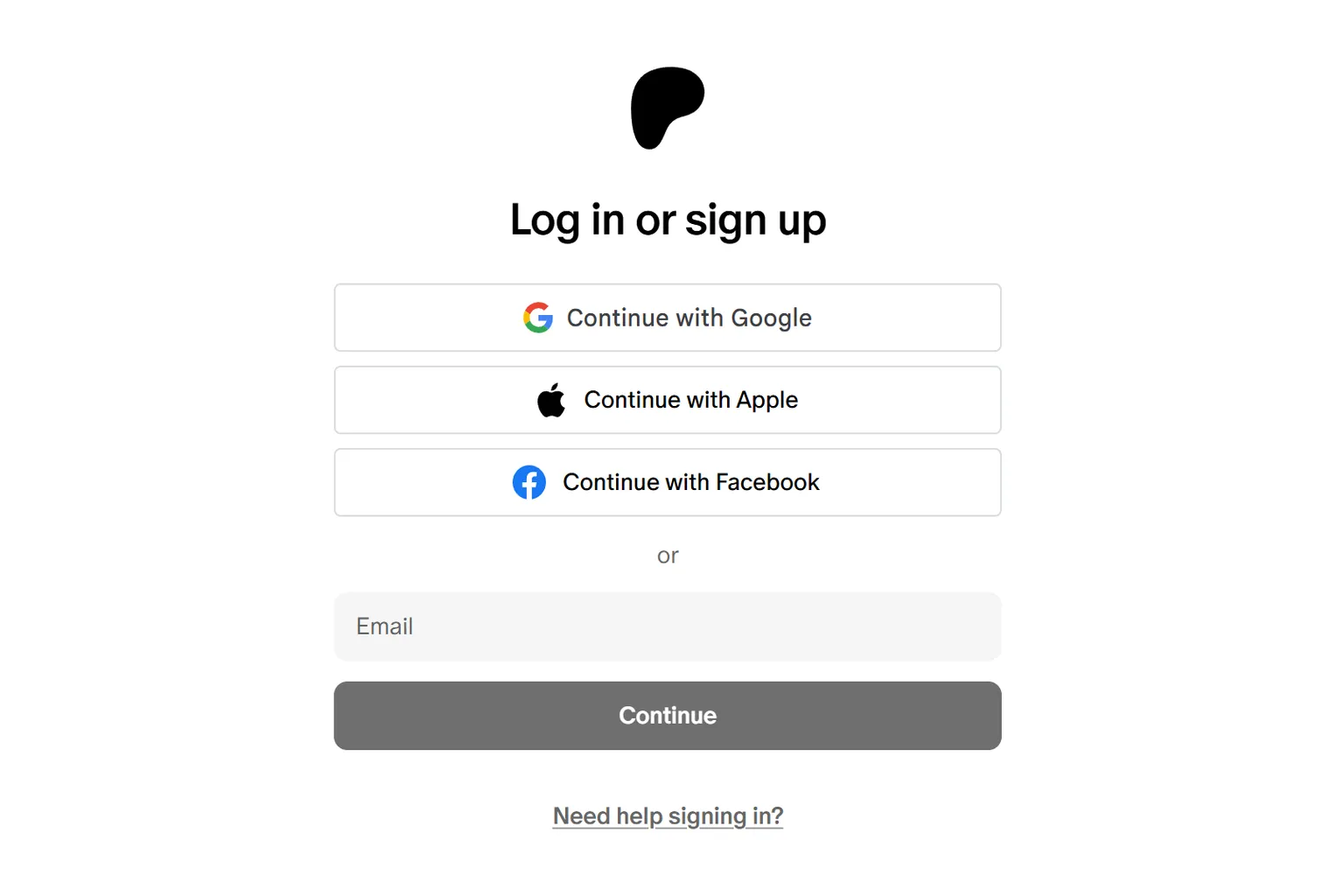
Choose either monthly or yearly billing, enter your credit card details, then click Subscribe Now.
Taxes vary by country. For example, subscribing from Japan adds no tax at all. From Taiwan, a 5 percent business tax is added.
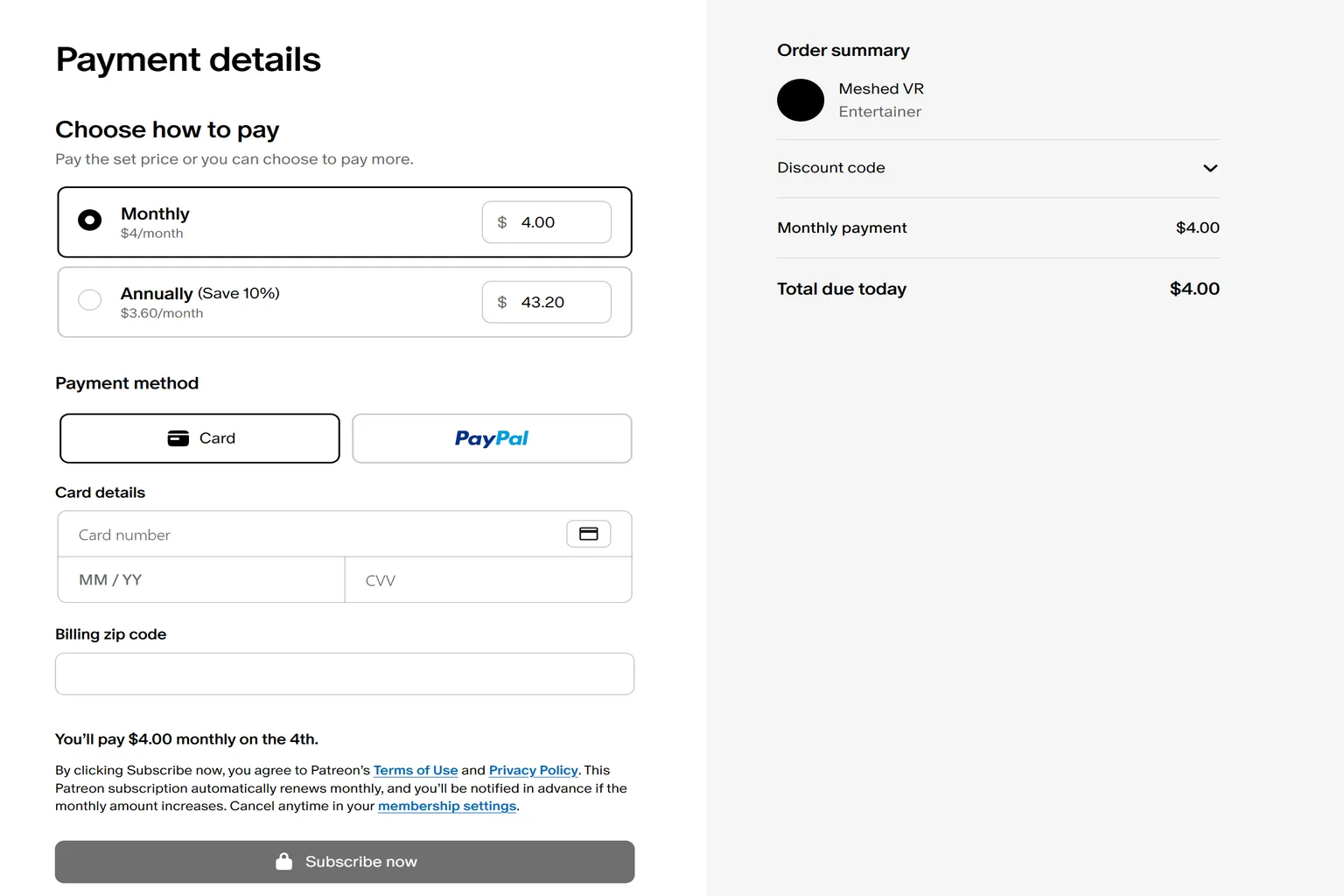
Step 9: Subscription complete
Once the subscription is complete, you’ll see a message saying that you are now a member of Meshed VR.
Click Get started now, and you’ll be taken directly to the download page.

How to Cancel Your Virt-A-Mate Subscription
Even after subscribing, it’s fine to cancel right away. Your membership stays active until the end of the billing period, and you can continue using all features during that time.
Step 1: Go to the Patreon official site
All subscription and cancellation actions are handled on the Patreon website. Open the site, log in to your account, and click Settings.
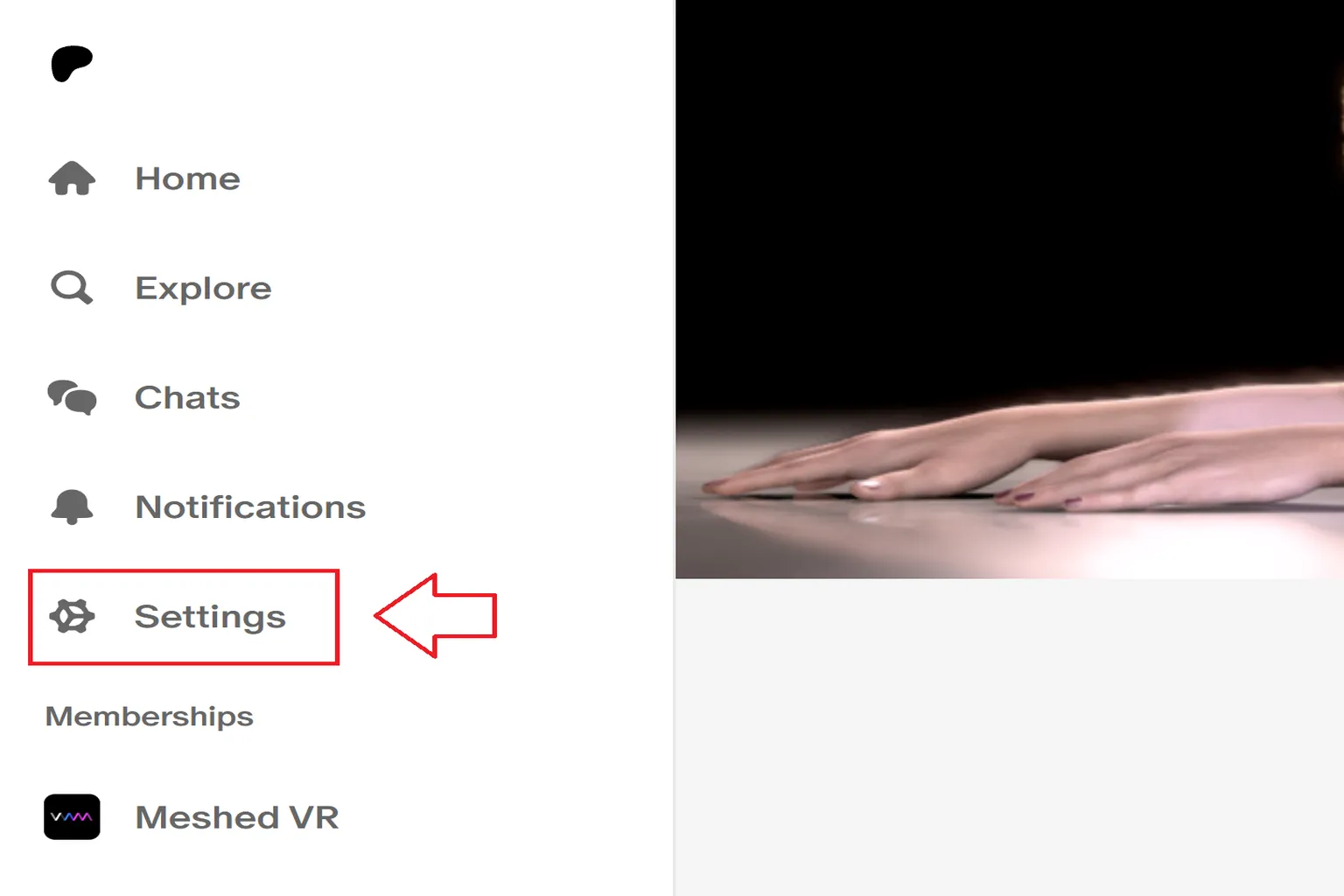
Step 2: Open the Membership page
Click Memberships at the top of the page. You will see your Meshed VR subscription listed there. Click View details to open the subscription information page.
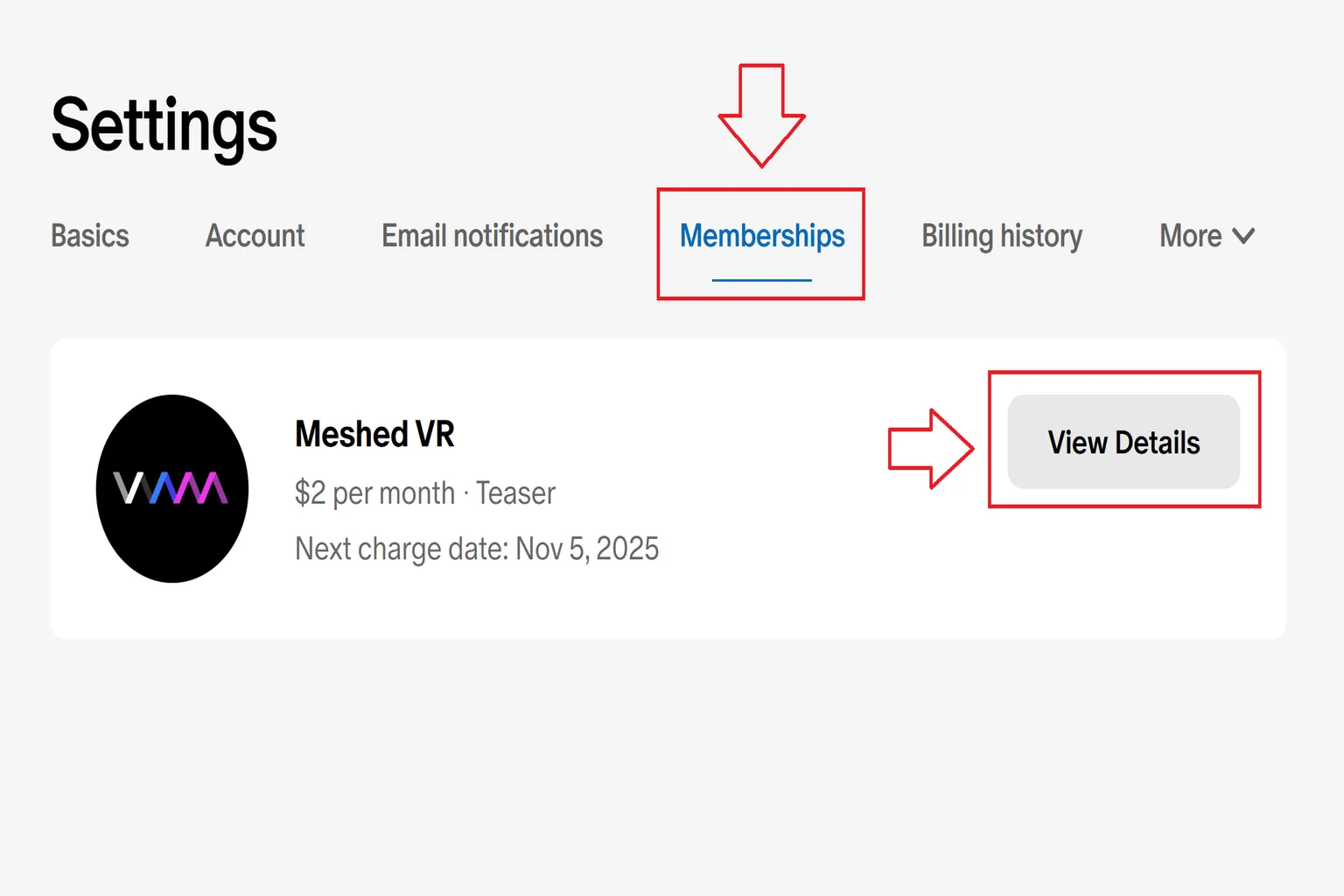
Step 3: Cancel the subscription
When you open the Meshed VR page, your current active plan is shown.
From here, you can change your credit card, switch between monthly and yearly billing, or change your plan details.
To cancel, click Cancel membership.
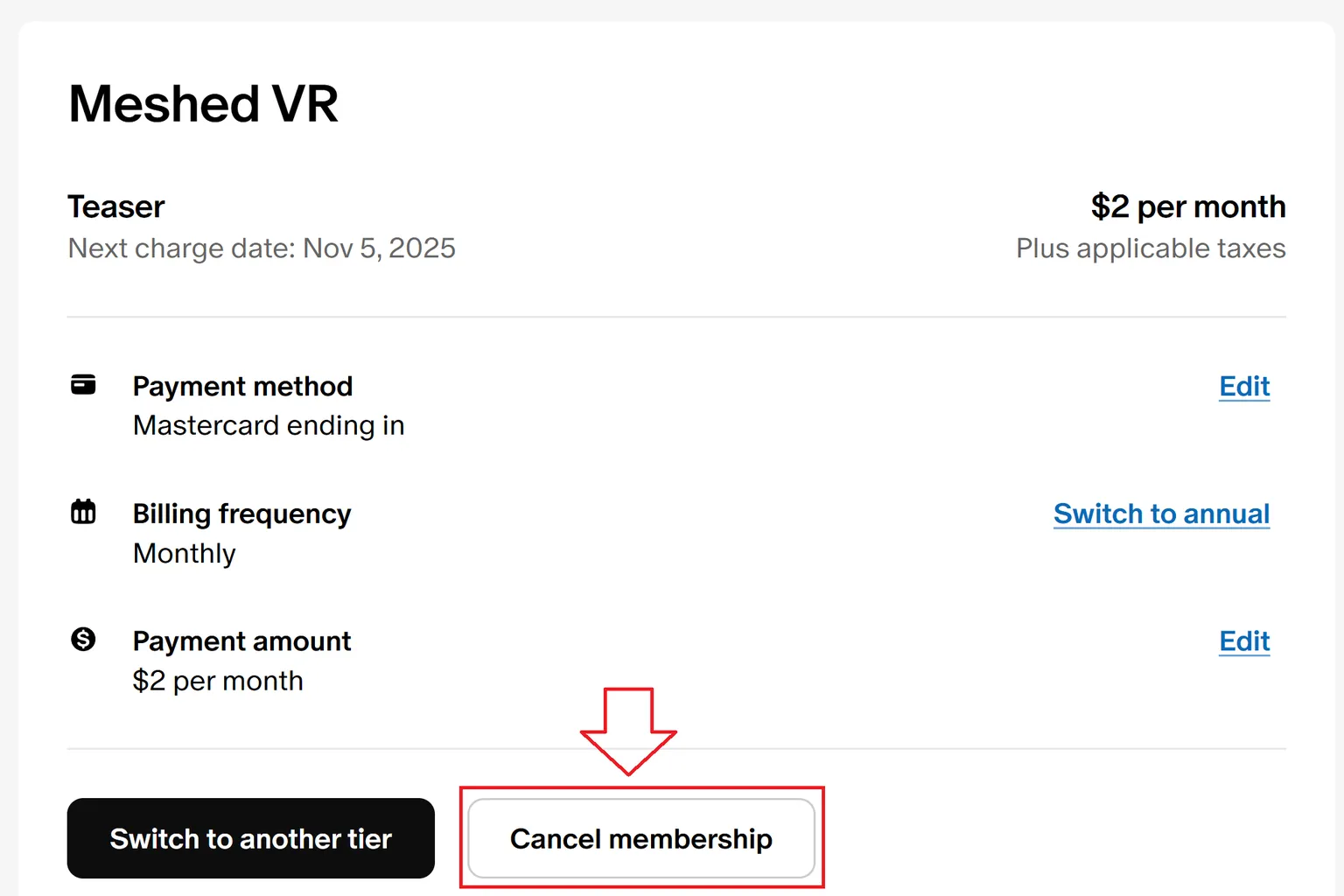
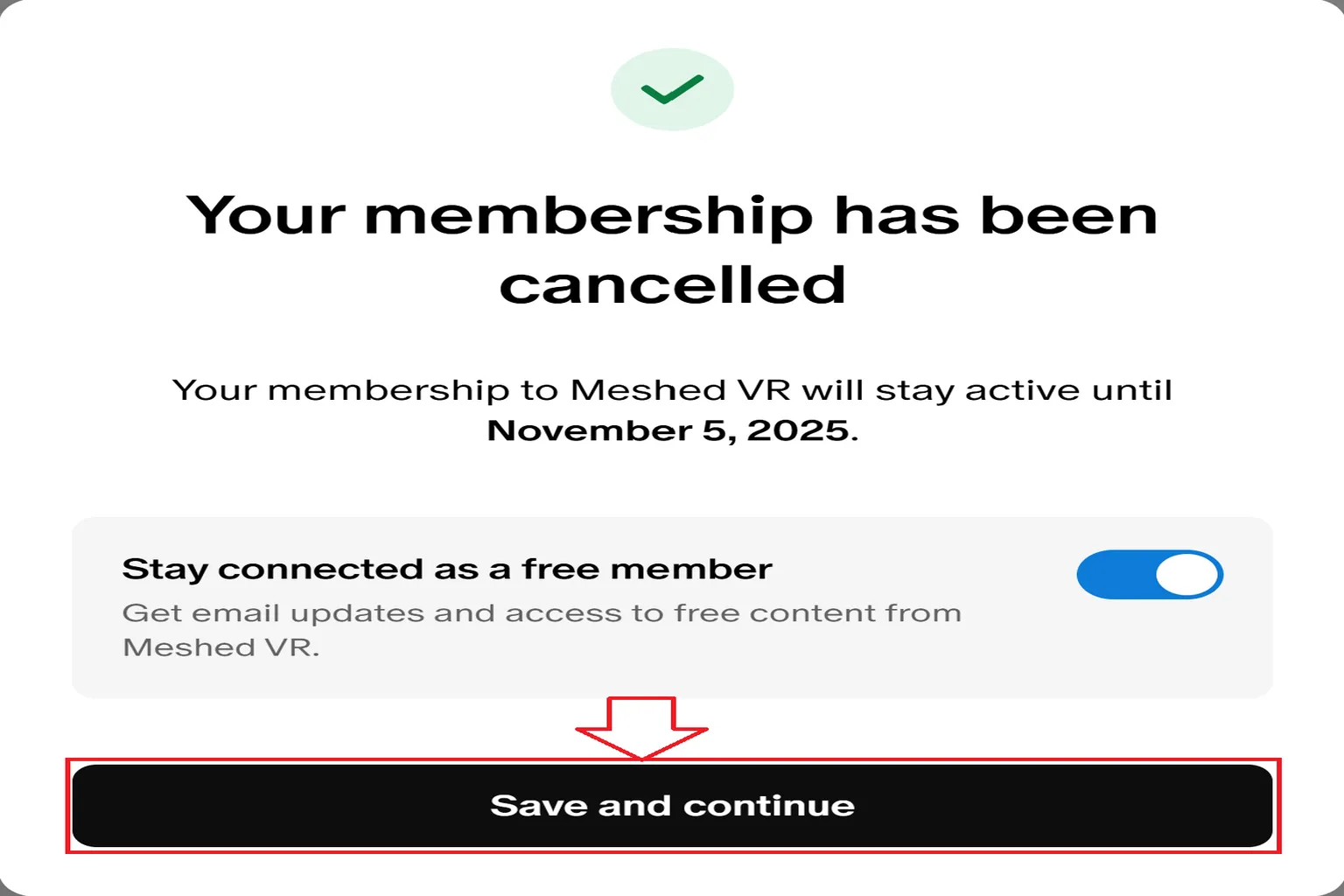
After that, VaM will show a confirmation message asking if you really want to cancel. Just click cancel membership again, and the subscription will be canceled.
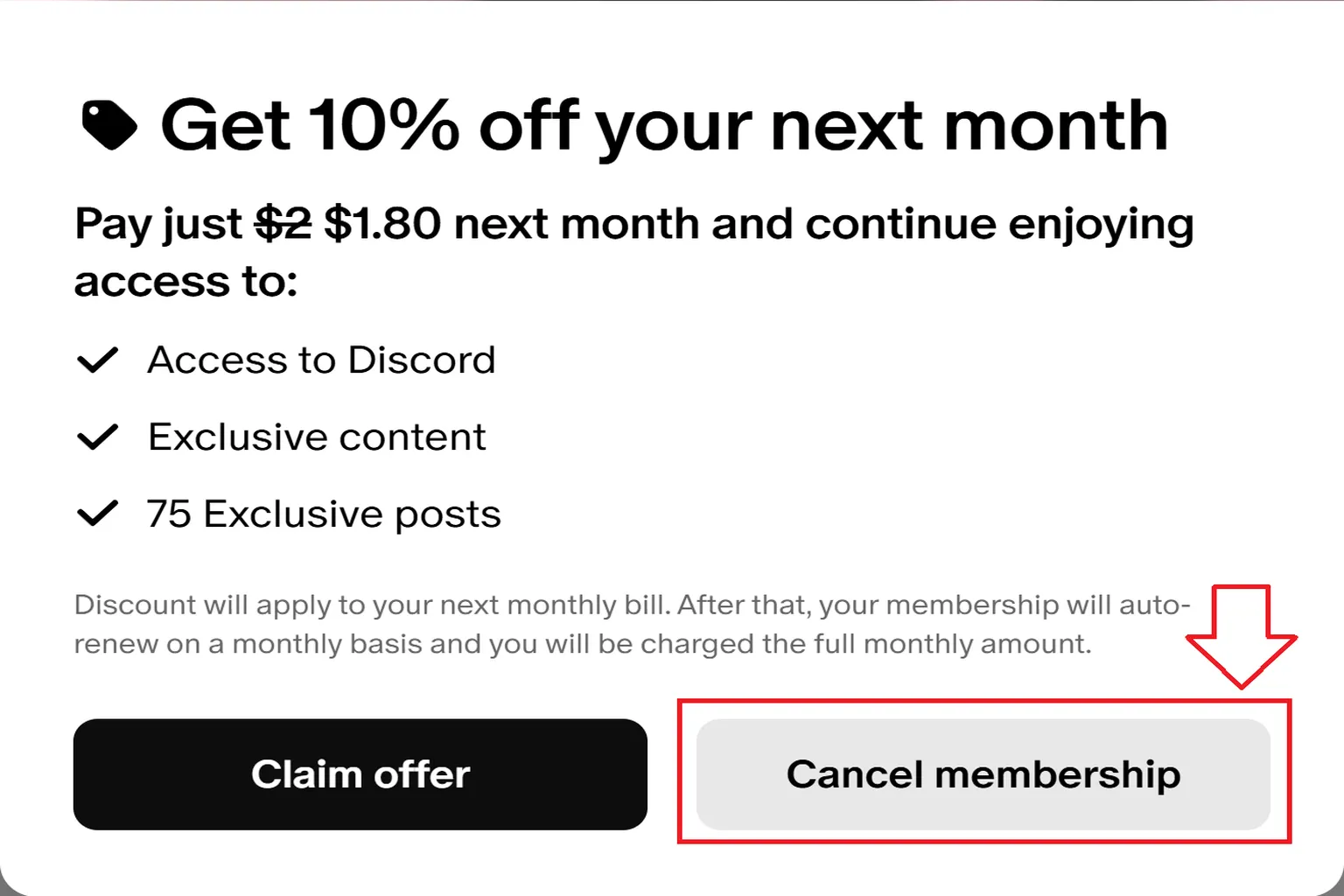
Even after cancellation, your membership stays active until the end of the current billing period.
That means you can keep using VaM exactly as before until the subscription expires.
How to Install Virt-A-Mate
Once your account setup is finished, both free users and paid users can download the VaM software and start using it.
Step 1: Go to the VaM download page
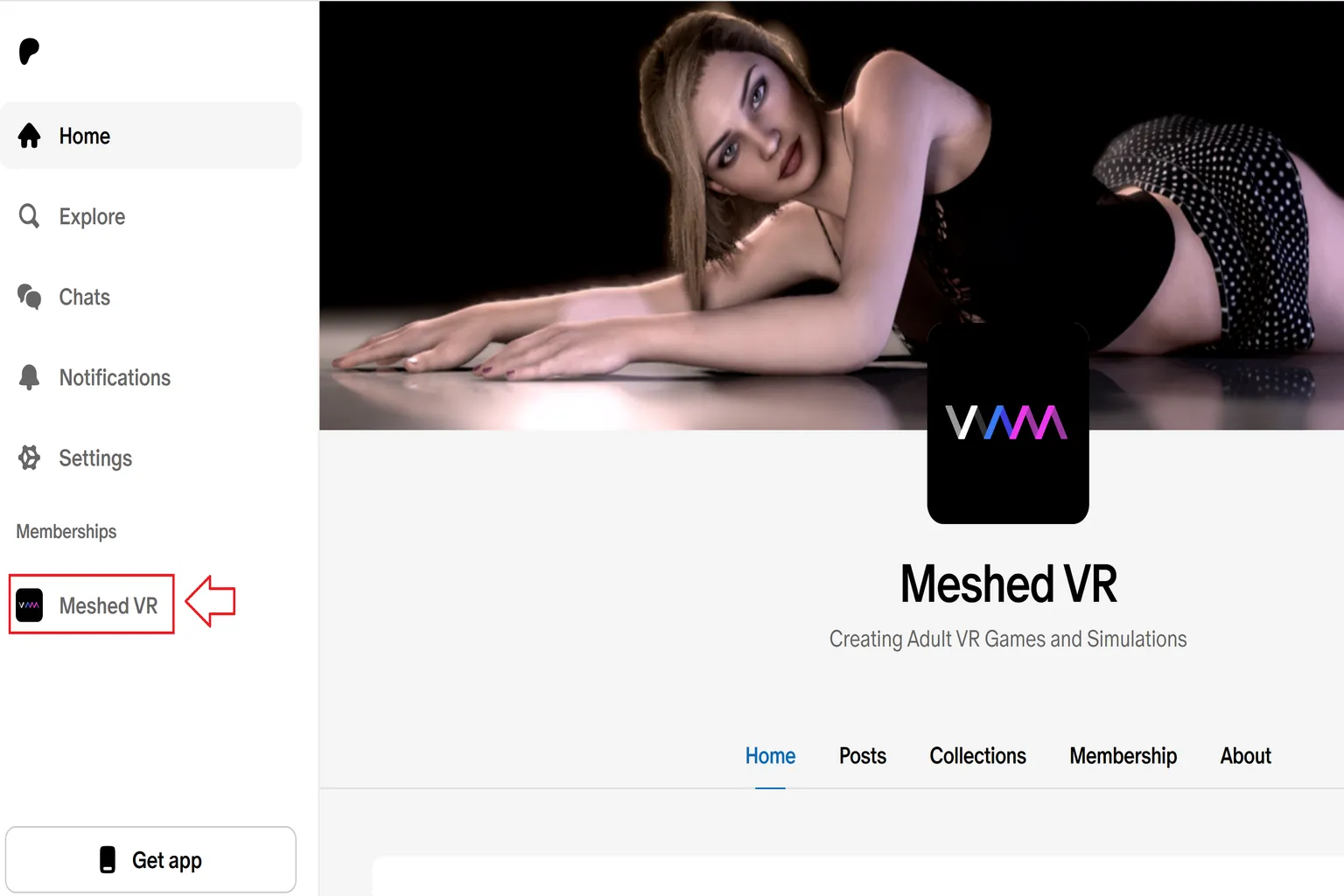
After logging in to the Patreon official site, select Meshed VR from the left-side menu.
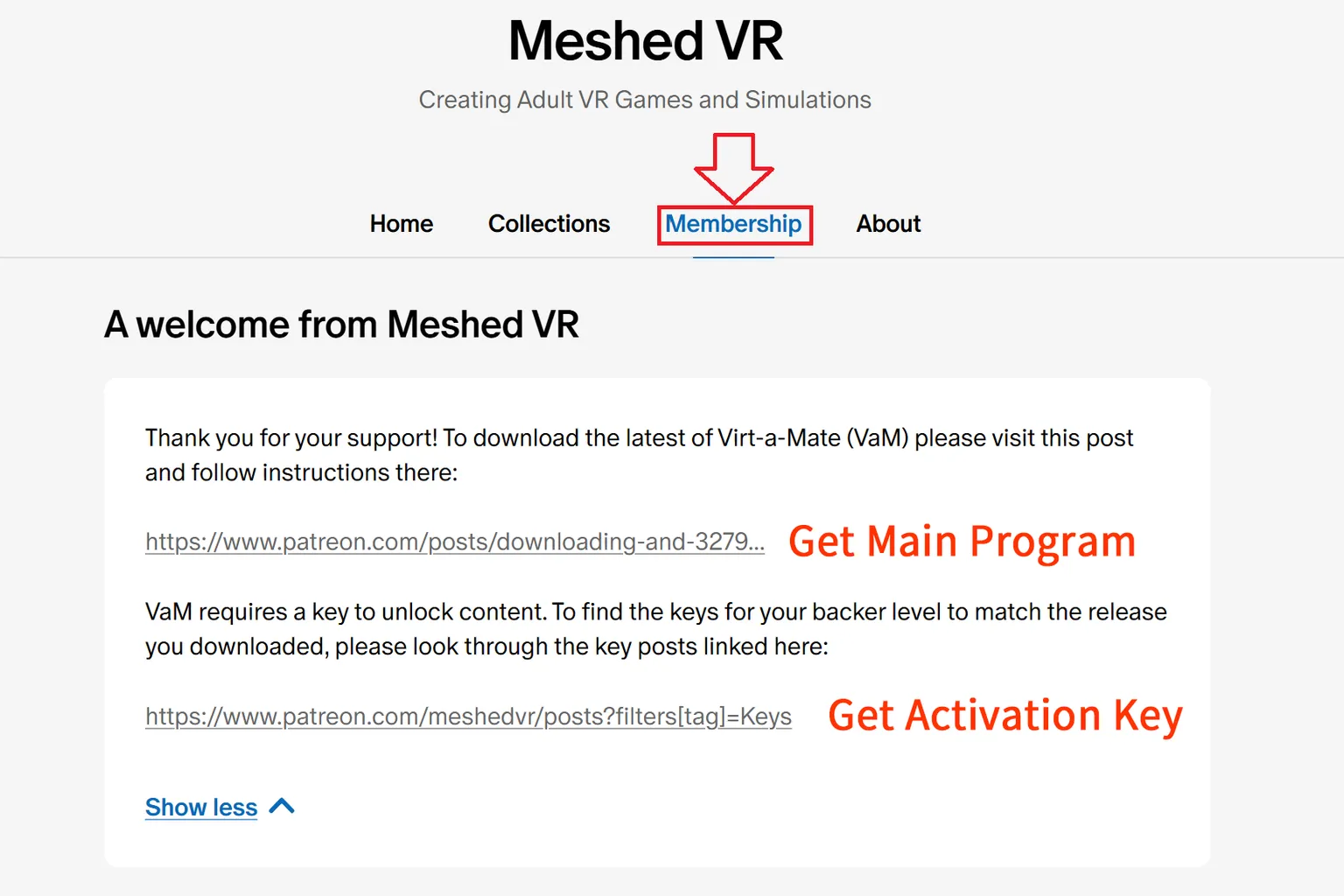
Next, click Membership in the center of the screen. You will see two links.
The top link is for downloading the VaM main program.
The bottom link is for the VaM activation code.
First, click Get the Main Program to proceed.
Step 2: Download the VaM software
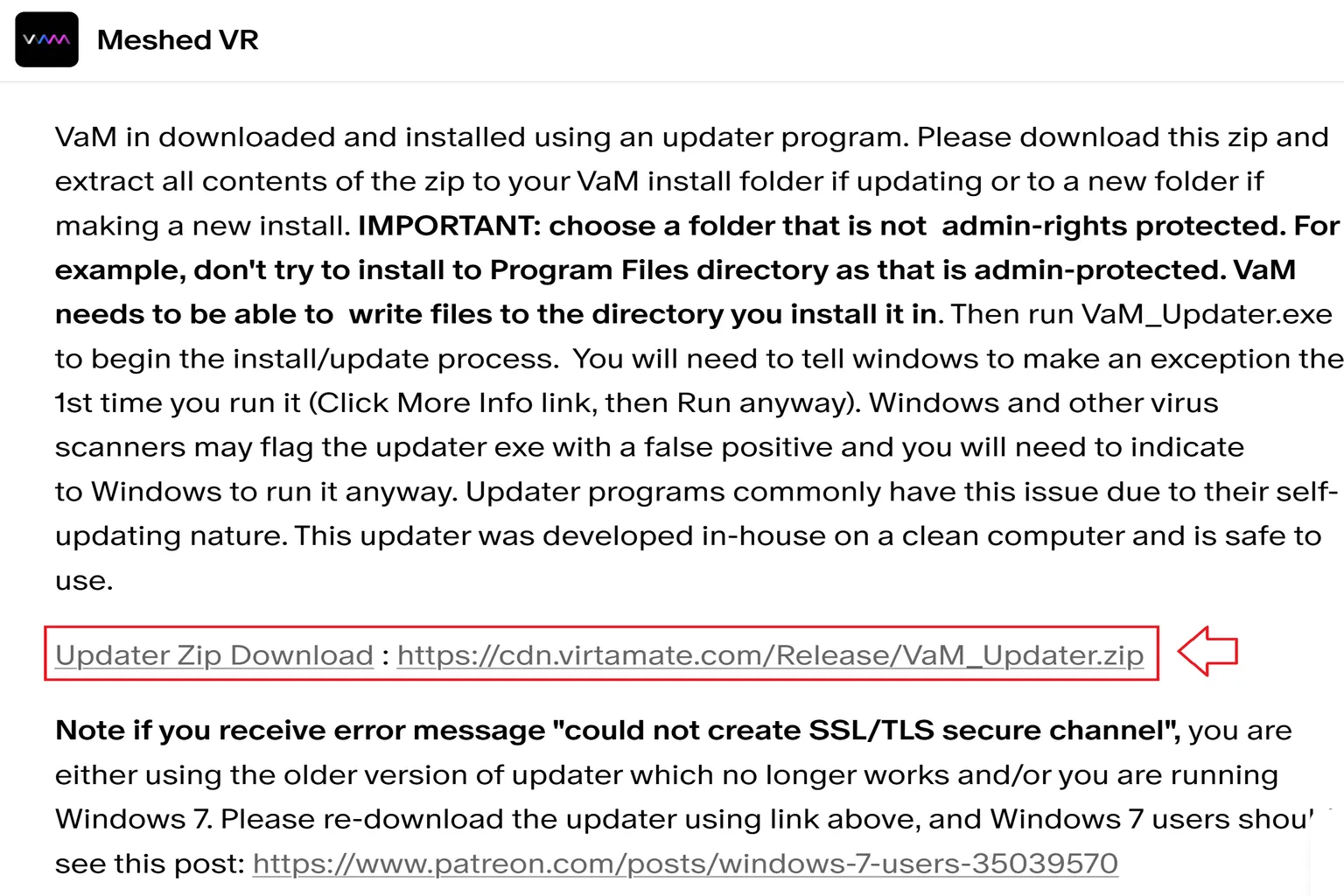
On the download page, you will see a short explanation. The key points are simple.
- You can choose any download location. As long as you can find it later, it’s fine.
- The file format is .zip, so any unzip tool works. The built-in Windows unzip function is enough.
- After extracting the files, do not place the folder in locations that require administrator permissions, such as Program Files or Program Files (x86).
Once you’ve checked the notes, click the arrow button to download the file to your PC.
Step 3: Get the activation code
If you are subscribed to a paid plan, $2, $4, or $8, click the Get Activation Key link mentioned in Step 1.
On the Keys page, you will see activation codes listed by plan:
First: Creator ($8 plan)
Second: Entertainer ($4 plan)
Third: Teaser ($2 plan)
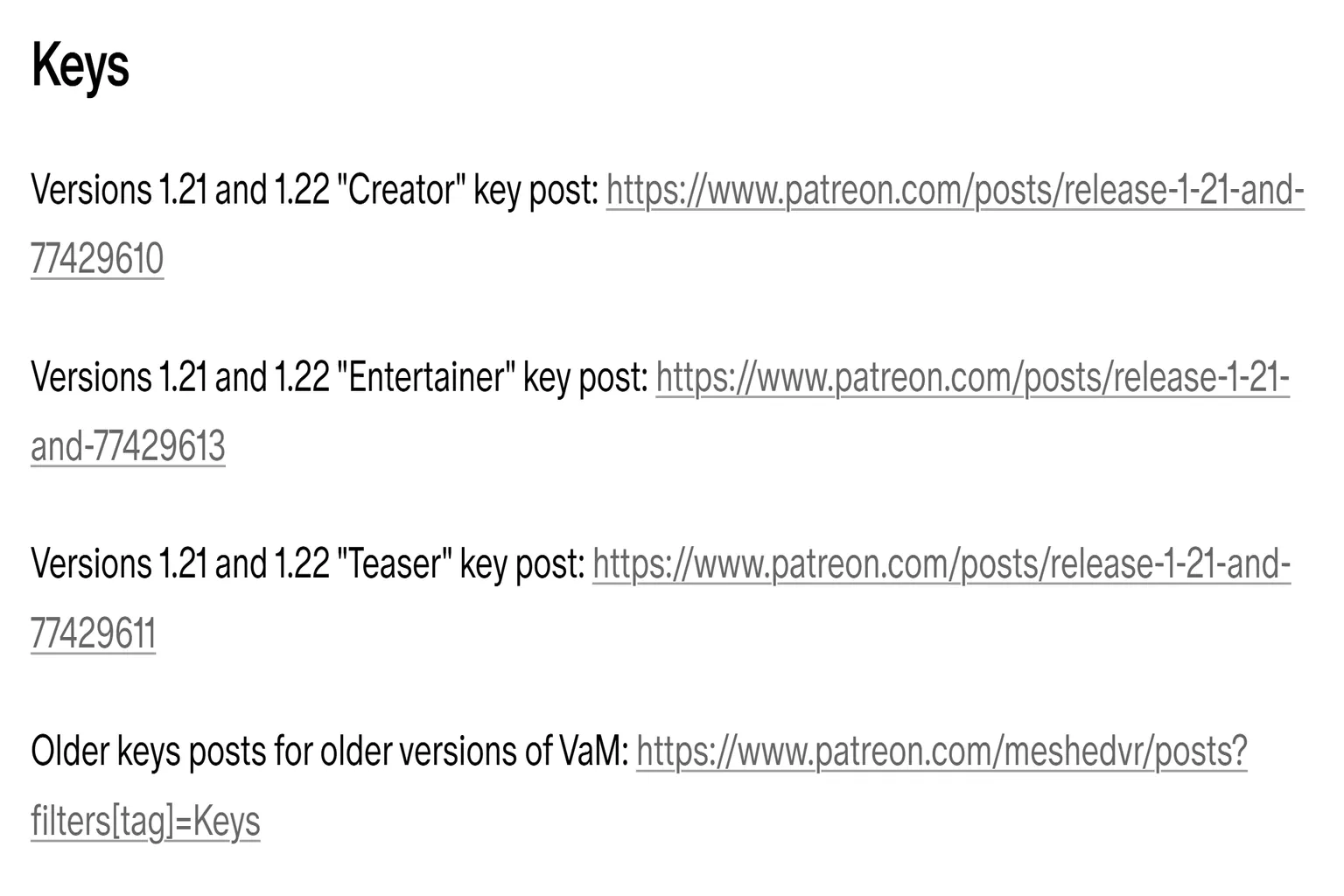
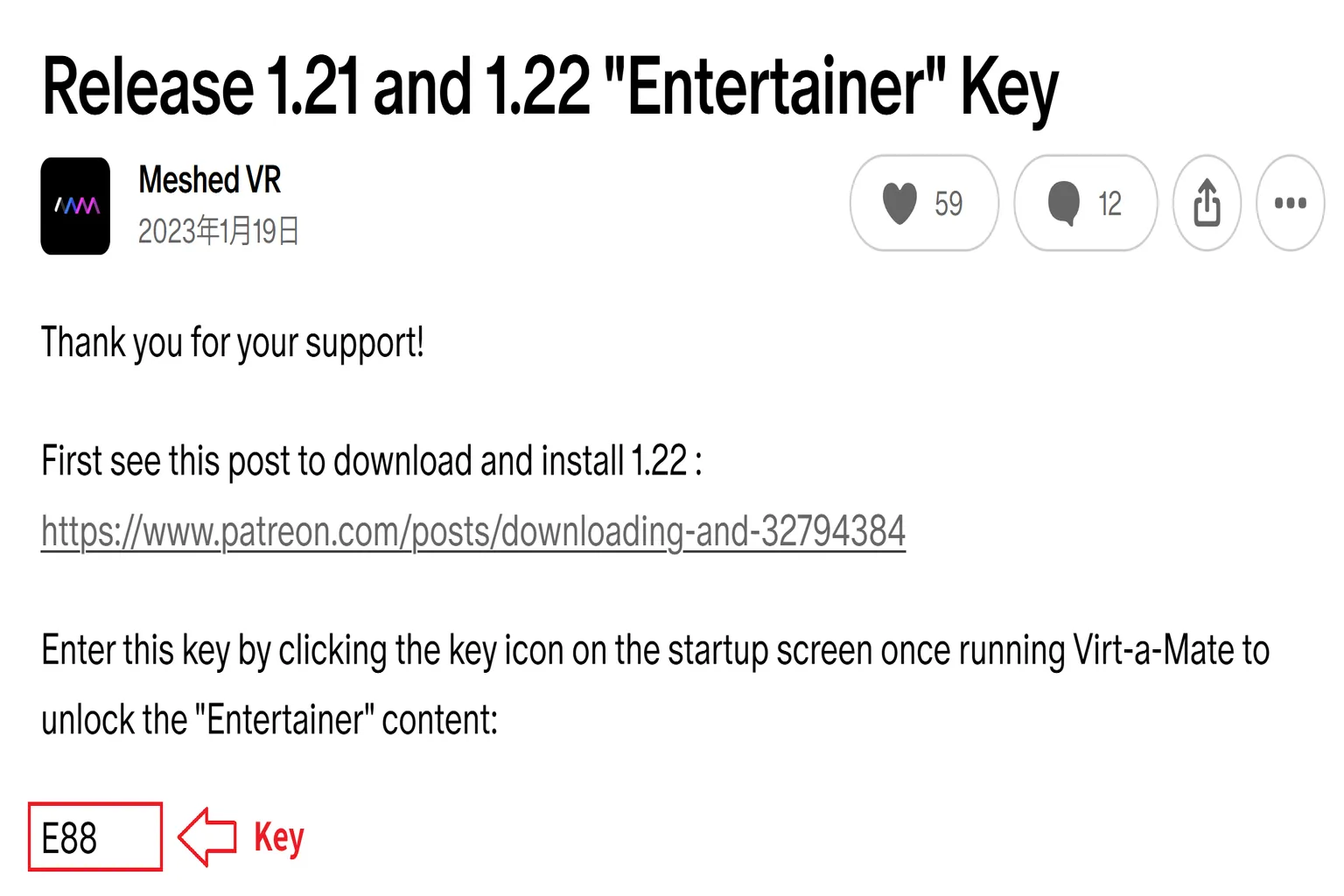
For example, if you are on the Entertainer ($4) plan, you can get the activation code from the highlighted section shown on that page.
VaM has a slightly unusual setup. Even if you are subscribed to the $4 Entertainer plan, the activation code for the $2 Teaser plan is also shown.
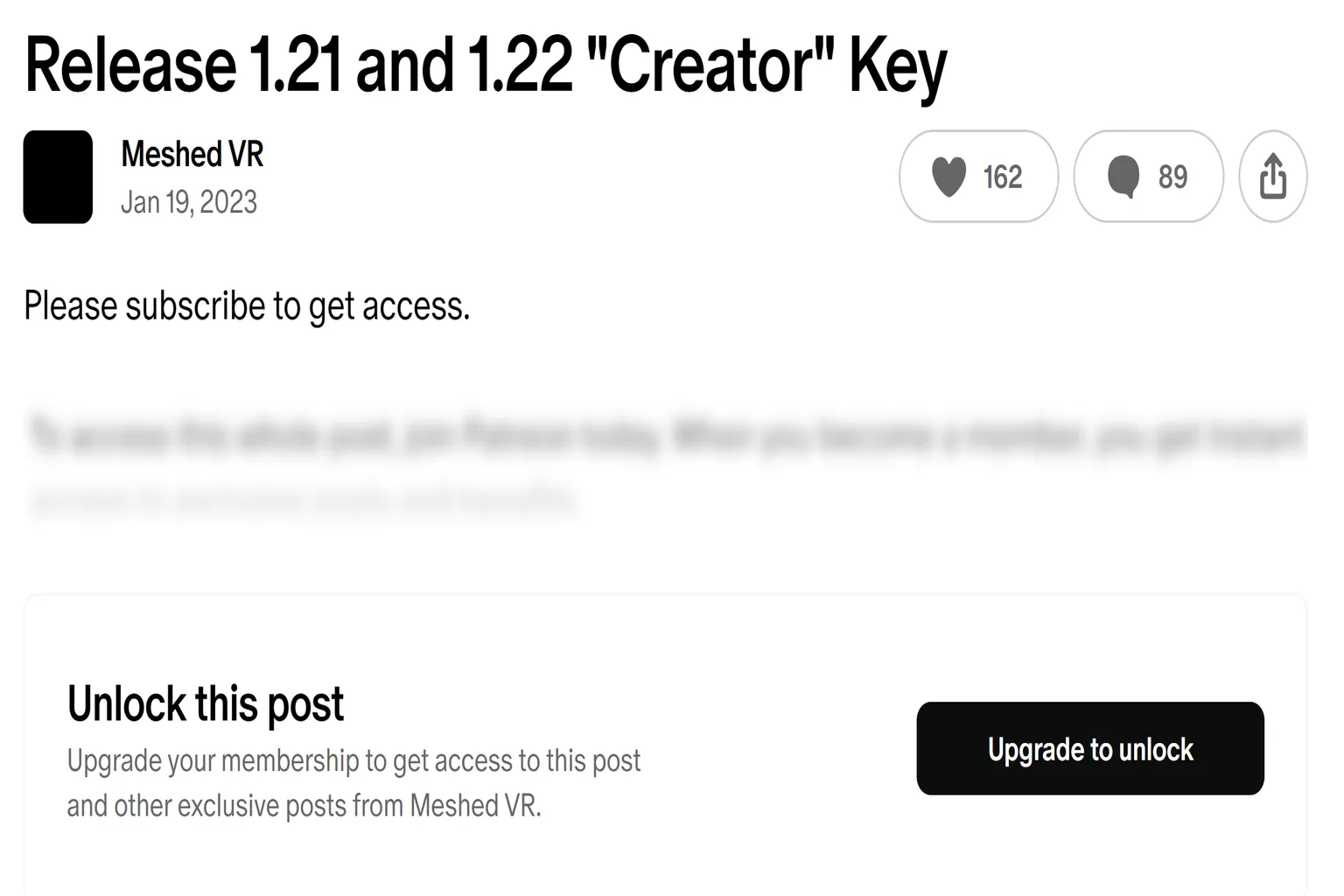
However, the activation code for the higher $8 Creator plan is only available if you are actually subscribed to that plan.
This is just a personal guess, but it might be possible for three people to share a Creator plan and each use a different level activation code.
Step 4: Extract the files
The VaM download comes as a ZIP file named Vam_Updater.zip. Extract this file first.
Most VaM models are very large, so the faster your disk speed is, the faster you get into scenes.
If possible, it’s recommended to extract everything onto an SSD.
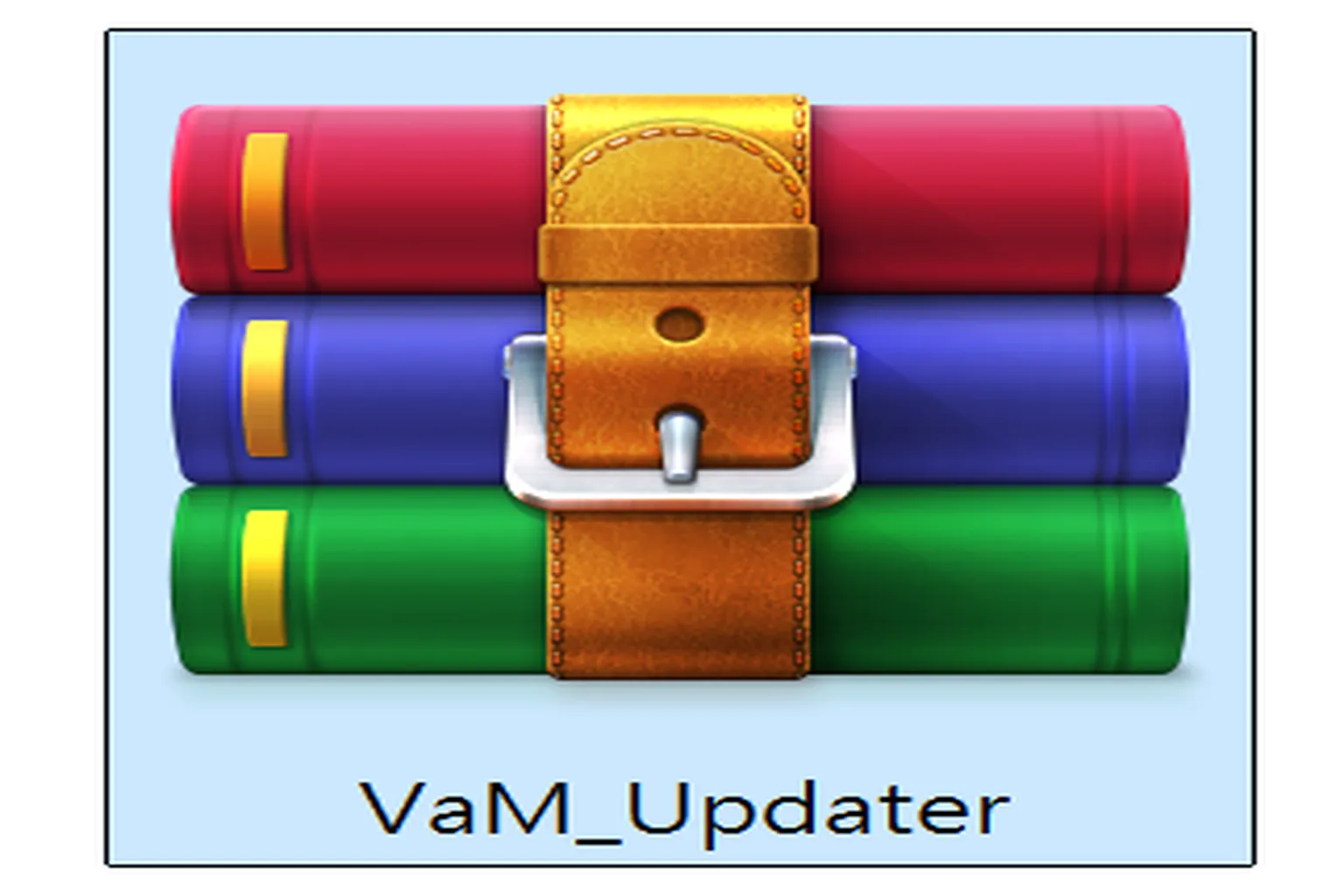
After extraction, the folder name will be VaM_Updater. To avoid path errors during execution, do not place this folder in a directory path that contains Japanese or Chinese characters.
For example, a path like
D:\網頁\VaM_Updater is not OK.
Make sure to move it to an English-only path, such as
D:\Website\VaM_Updater.
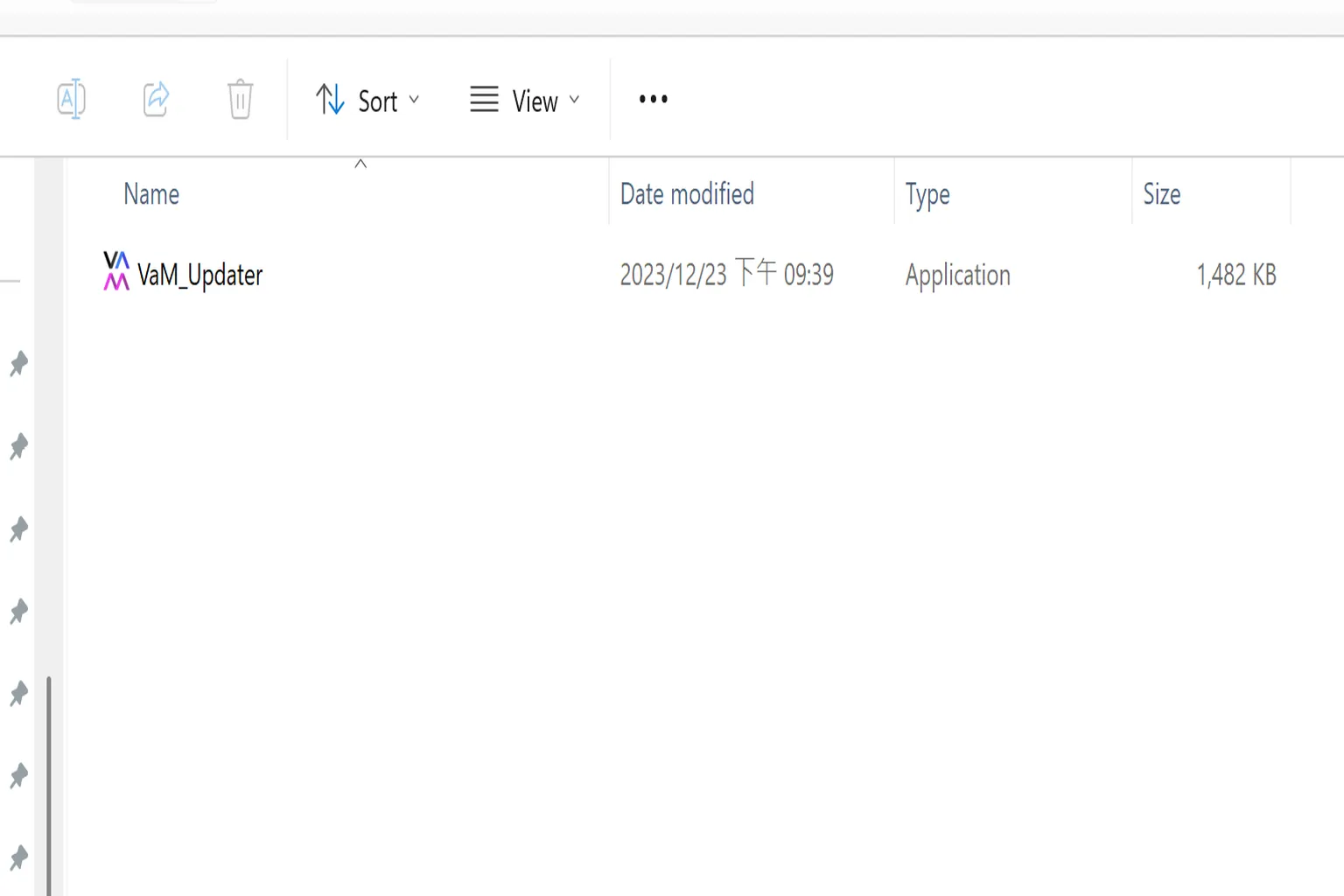
Step 5: Install VaM
Double-click the Vam_Updater file to launch the installer.
Click Install in the bottom-right corner to start downloading and installing the VaM main program.
The download speed is fairly slow, and it often takes around 20 to 30 minutes to finish. Just let it run and be patient.
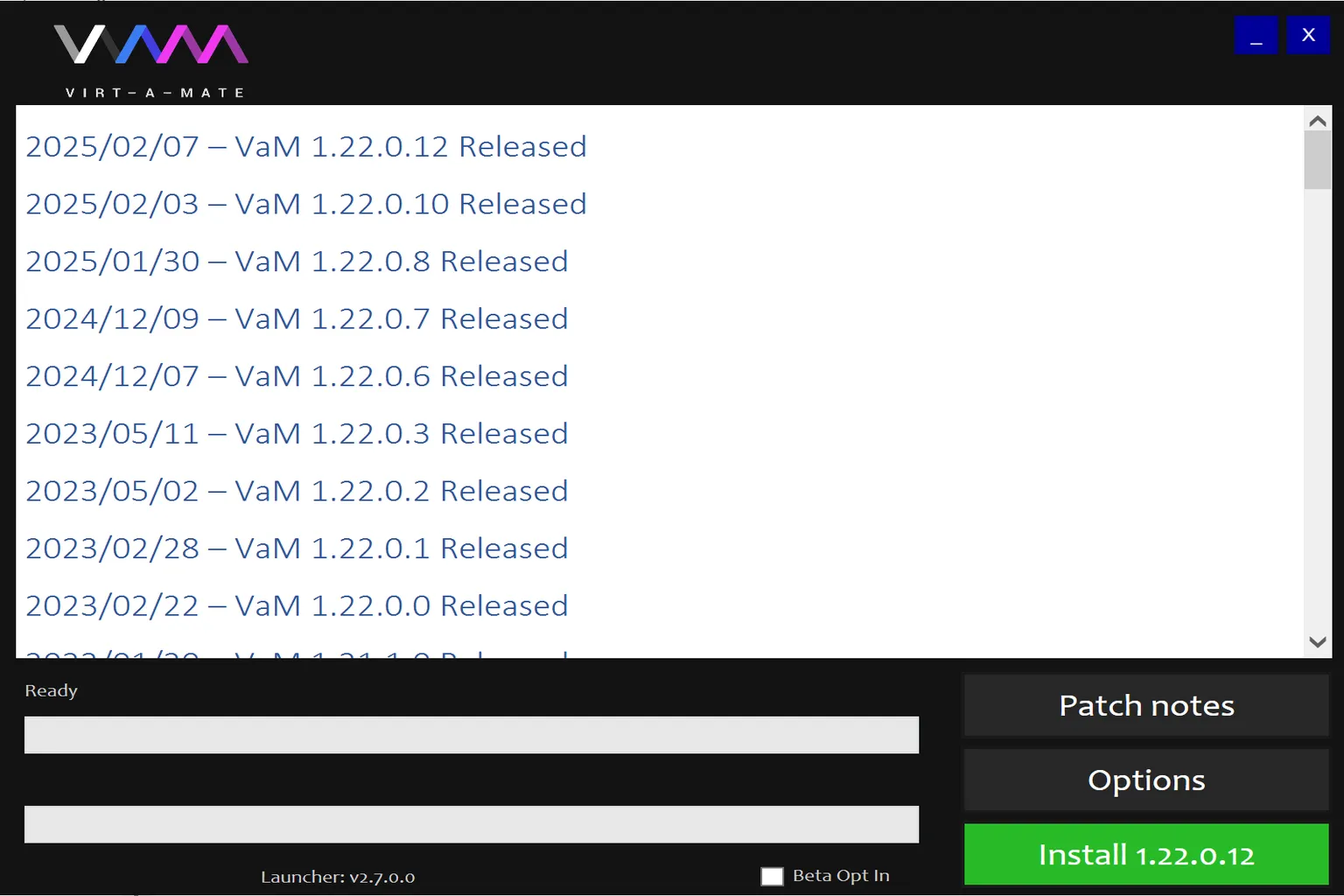
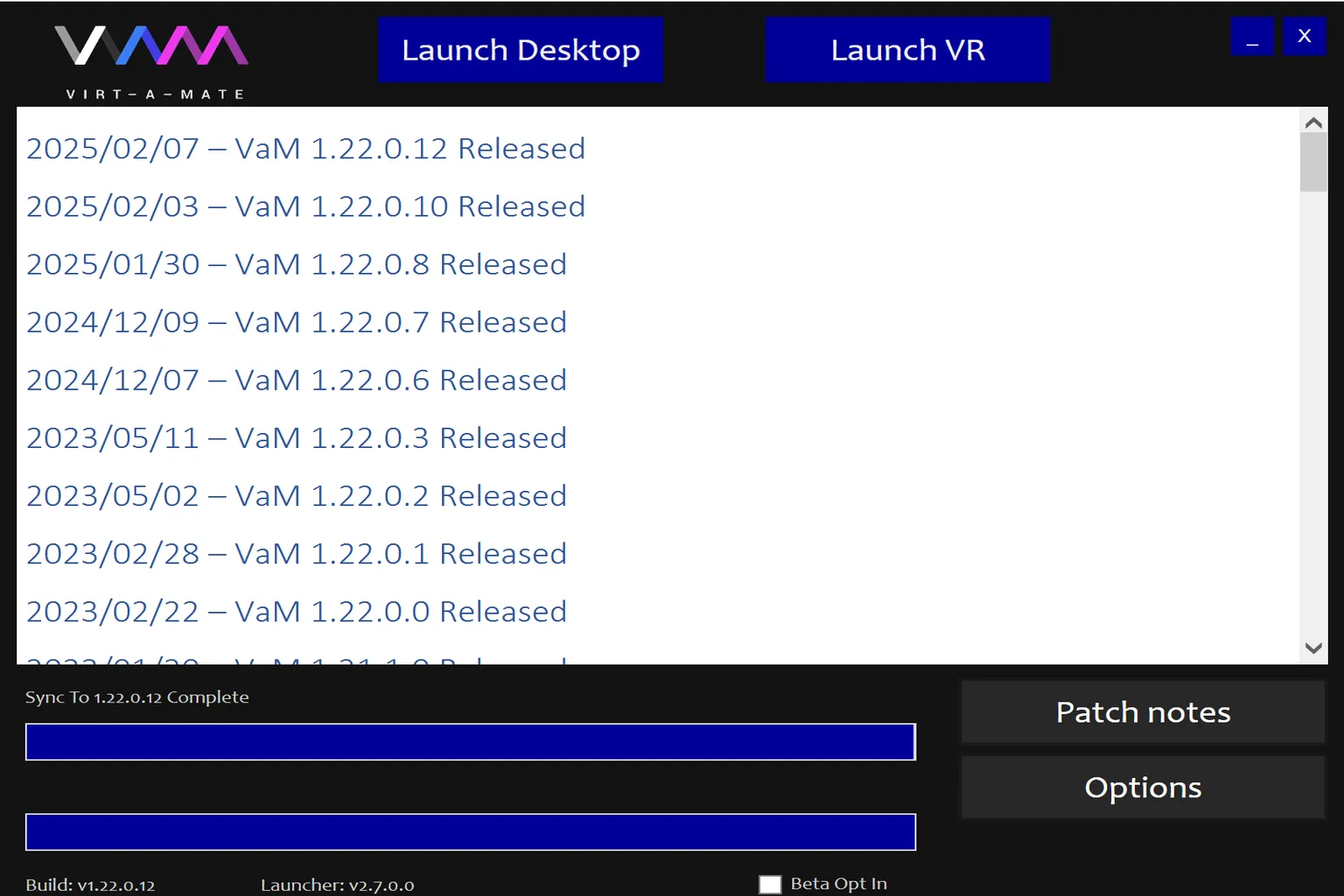
When installation is complete, you will see “Sync complete” in the center of the screen.
At this point, you can close the window, or you can click Launch Desktop to move directly into the setup screen.
Step 6: Launch VaM
Open the installation folder and double-click the VaM application inside.
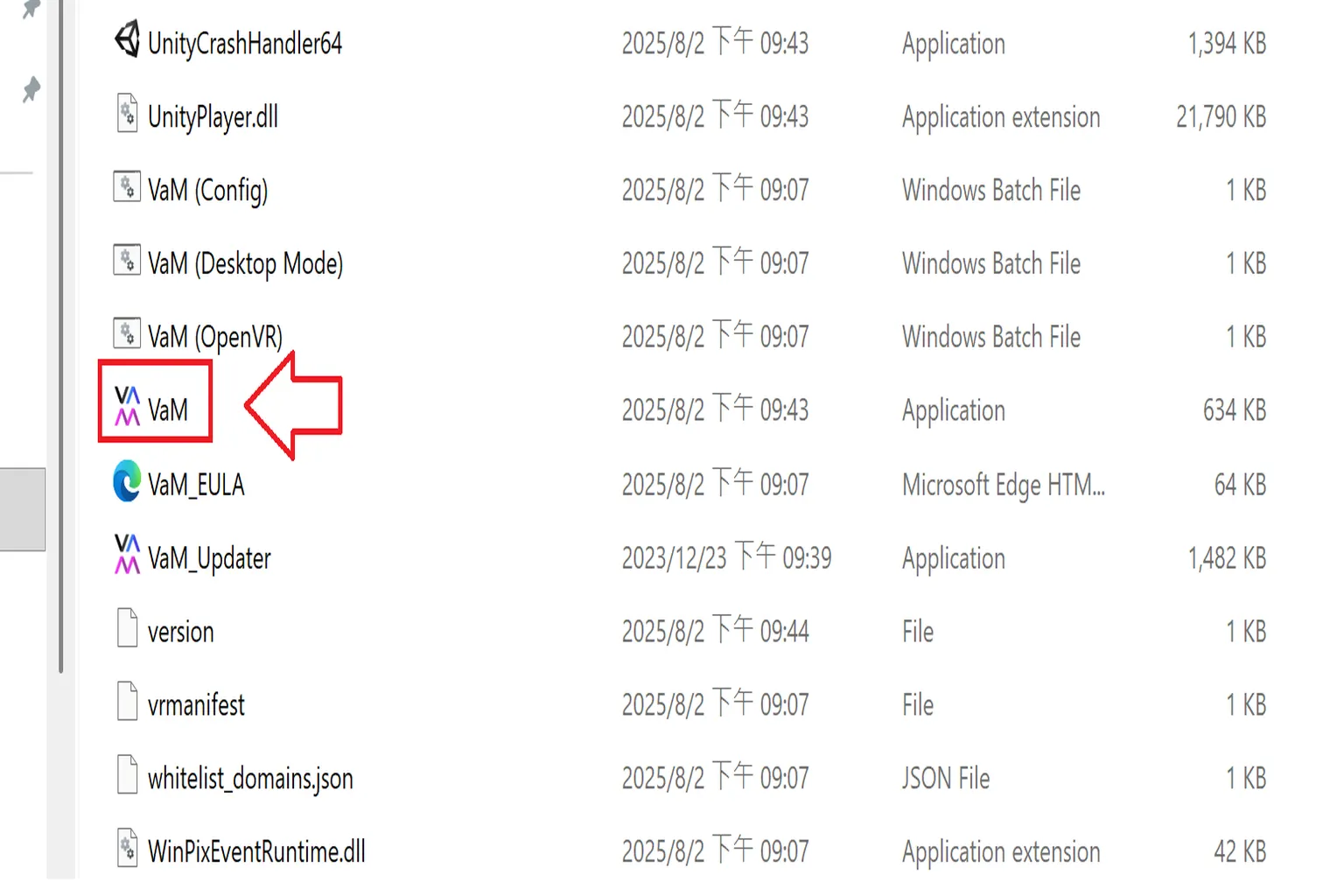
This will launch VaM.
On the first launch, the basic settings screen will appear.
By default, plugin support is enabled, but some options are unchecked. If left that way, VaM will keep asking for confirmation every time a MOD is loaded.
To avoid that, it’s recommended to check Set Always Enable Plugins under Enable Plugins (MODs).
Once you finish selecting the settings, check the EULA agreement at the bottom, then click Accept Settings Above and Continue.
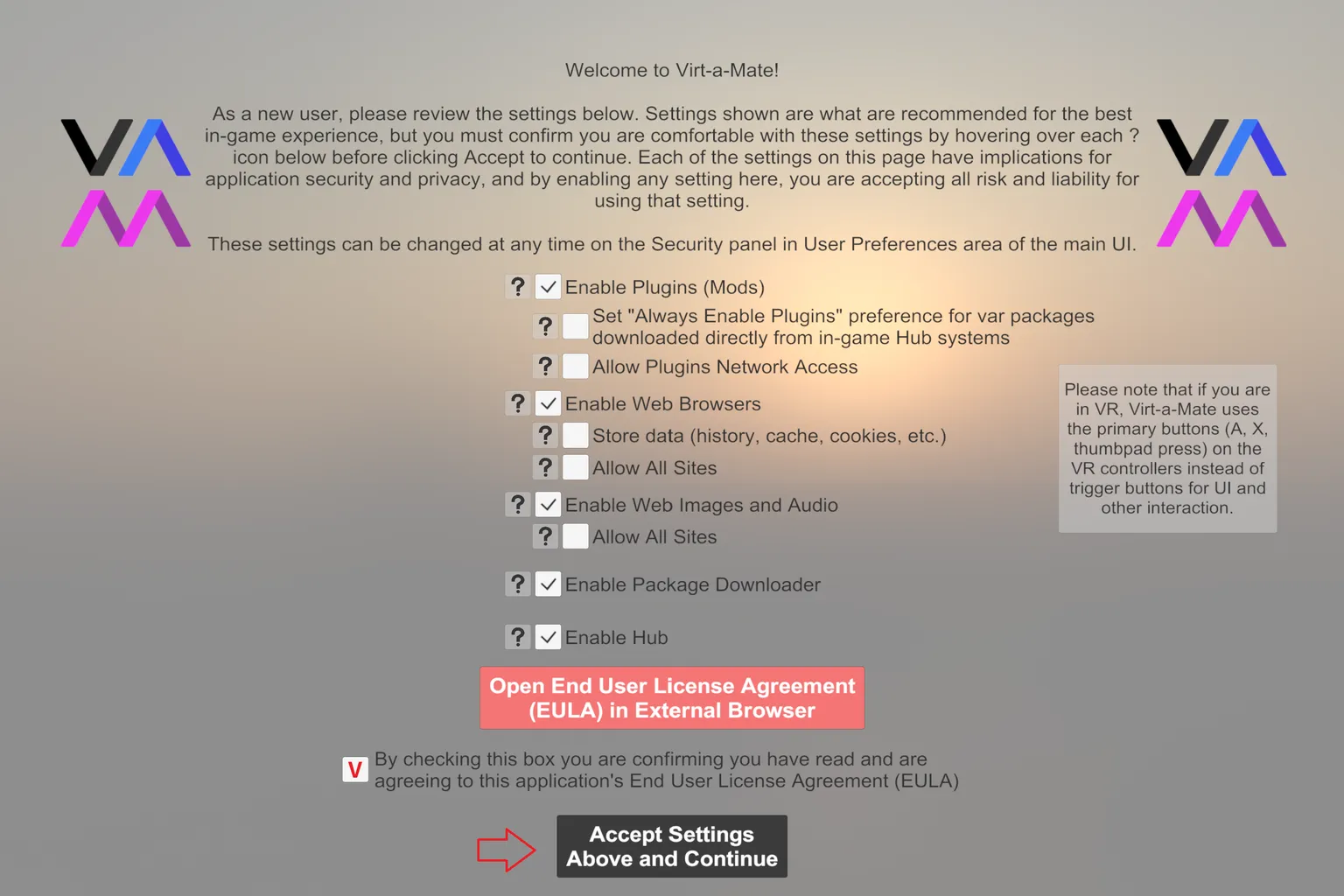
Step 7: Activate VaM
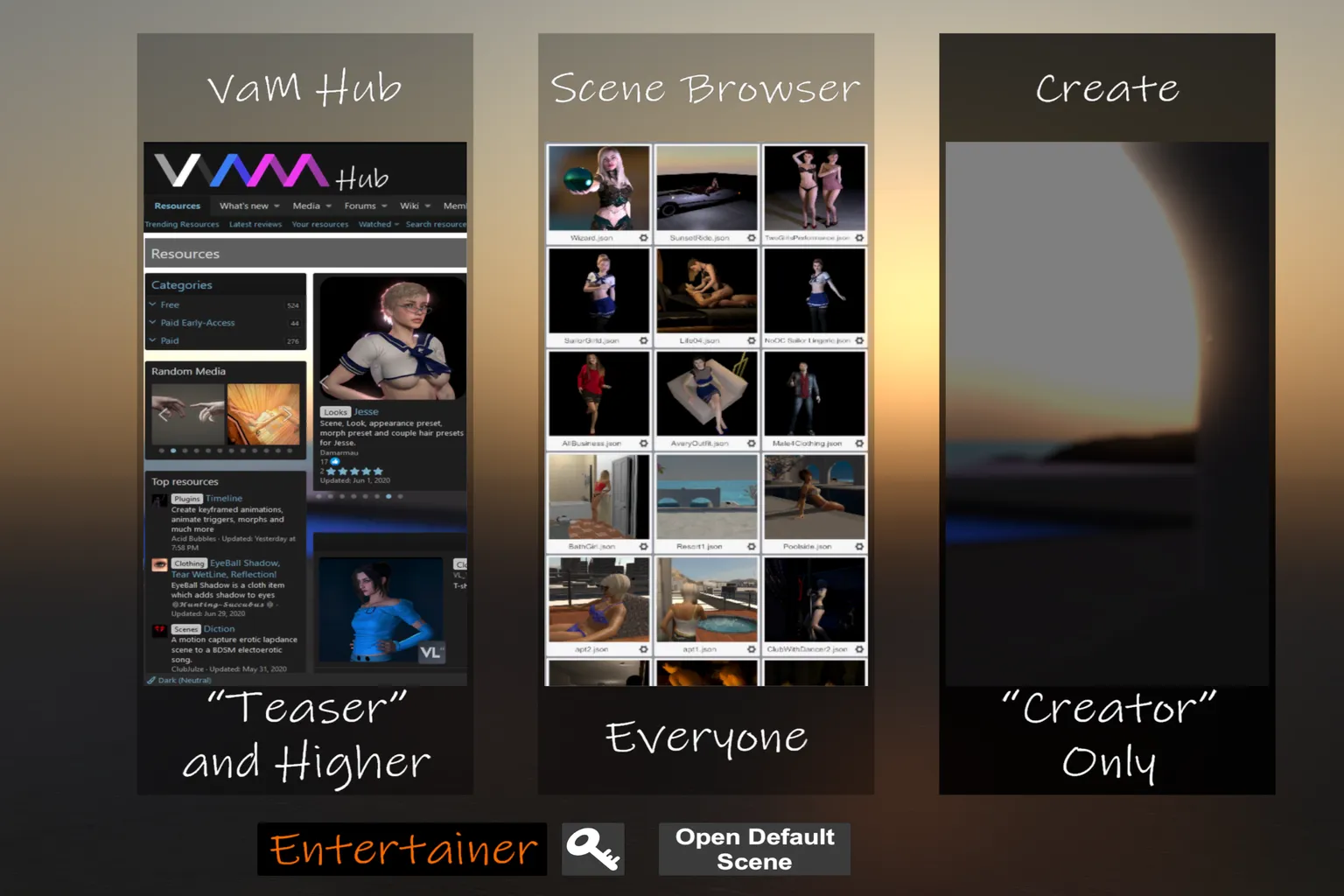
After entering VaM, you will see “Free” displayed at the bottom of the screen.
With the free plan, you can view default models from Scene Browser, but content from VaM Hub can be downloaded only and cannot be loaded or played.
If you are on a paid plan, click the 🔑 icon at the bottom of the screen to unlock your permissions.
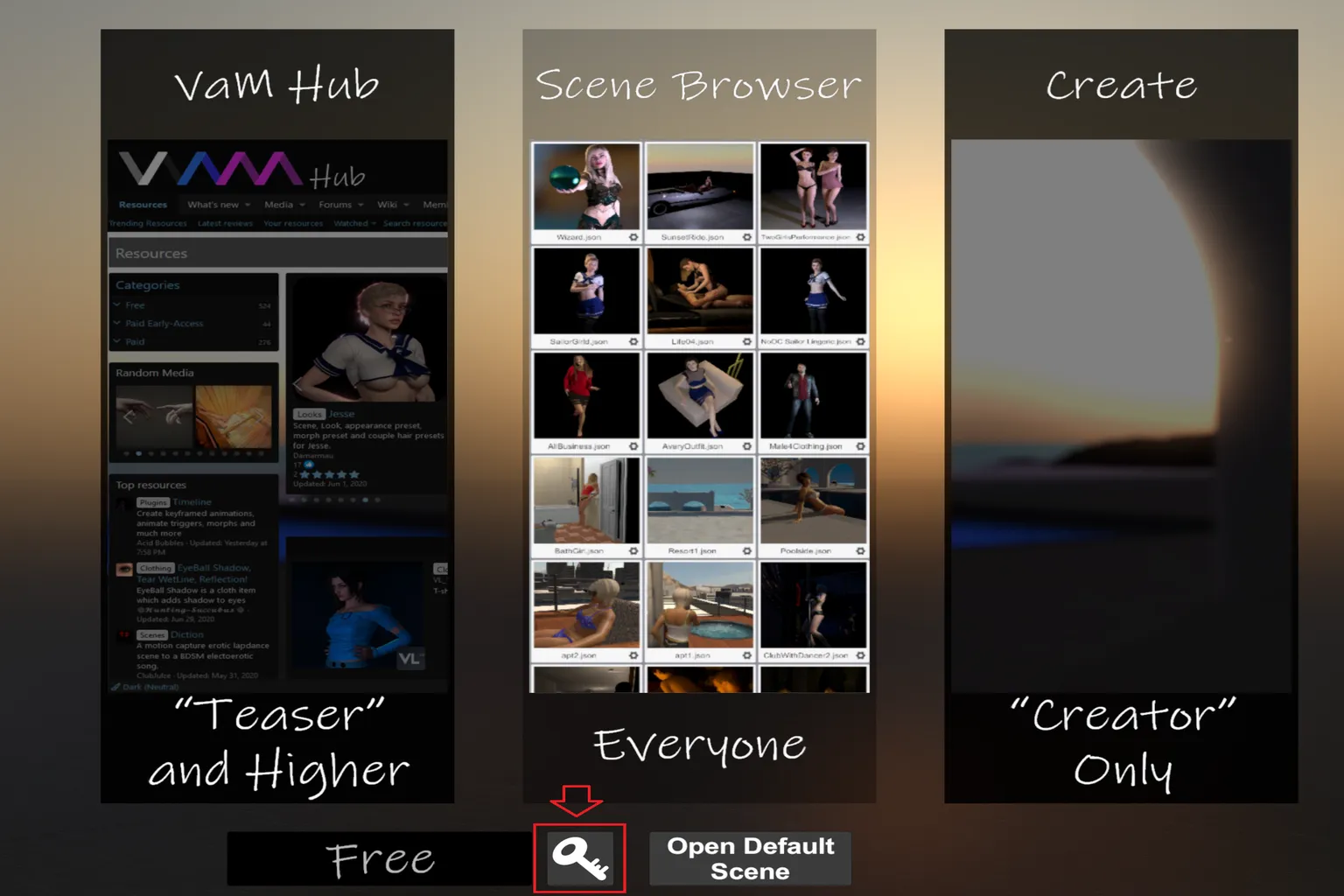
After clicking the 🔑 icon, enter the activation code you obtained in Step 3 into the highlighted input field.
Once entered, click Check.
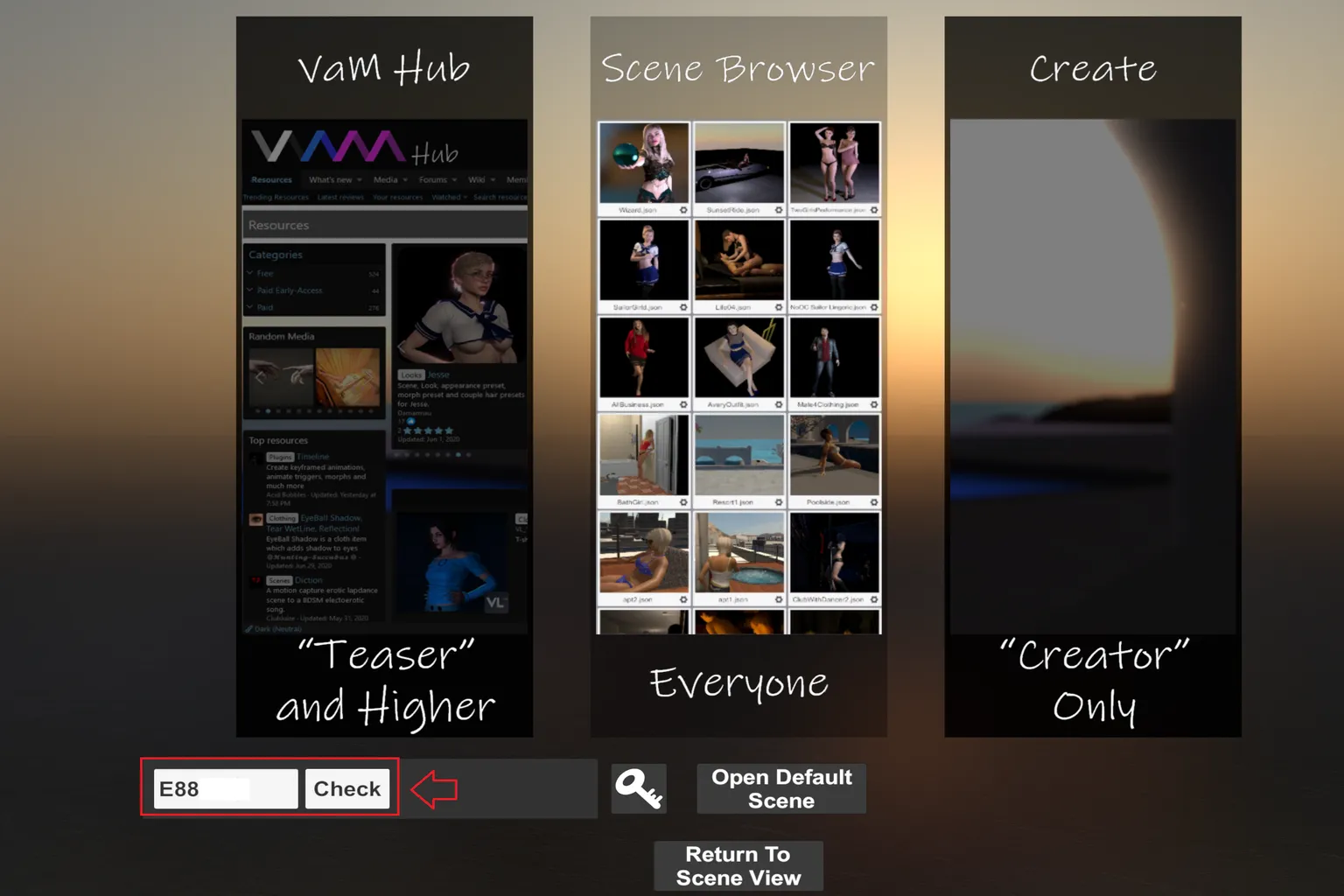
If activation is successful, your plan name will appear at the bottom of the screen.
For example, the $4 plan will show “Entertainer.”
If you are on the Creator or Teaser plan, it will display “Creator” or “Teaser” accordingly.
How to Use VaM
When using VaM in VR mode, SteamVR launches automatically by default.
Because of that, you need to have both Steam Link and SteamVR installed on your PC and headset in advance.
For detailed installation steps, refer to the separate tutorial provided.
Before using VaM, make sure you have the following ready:
- A PC with VaM and SteamVR installed
- The PC and headset connected to the same router or network
- A Meta Quest VR headset with Steam Link (or Virtual Desktop) installed
- A PC with a dedicated GPU, at least RTX 2070 recommended. Higher performance means better visuals and smoother motion
Step 1: Launch VaM
Before enjoying models in VR, it’s recommended to download the necessary MODs on your PC first.
Downloading on a PC is much faster than doing it directly inside the headset.
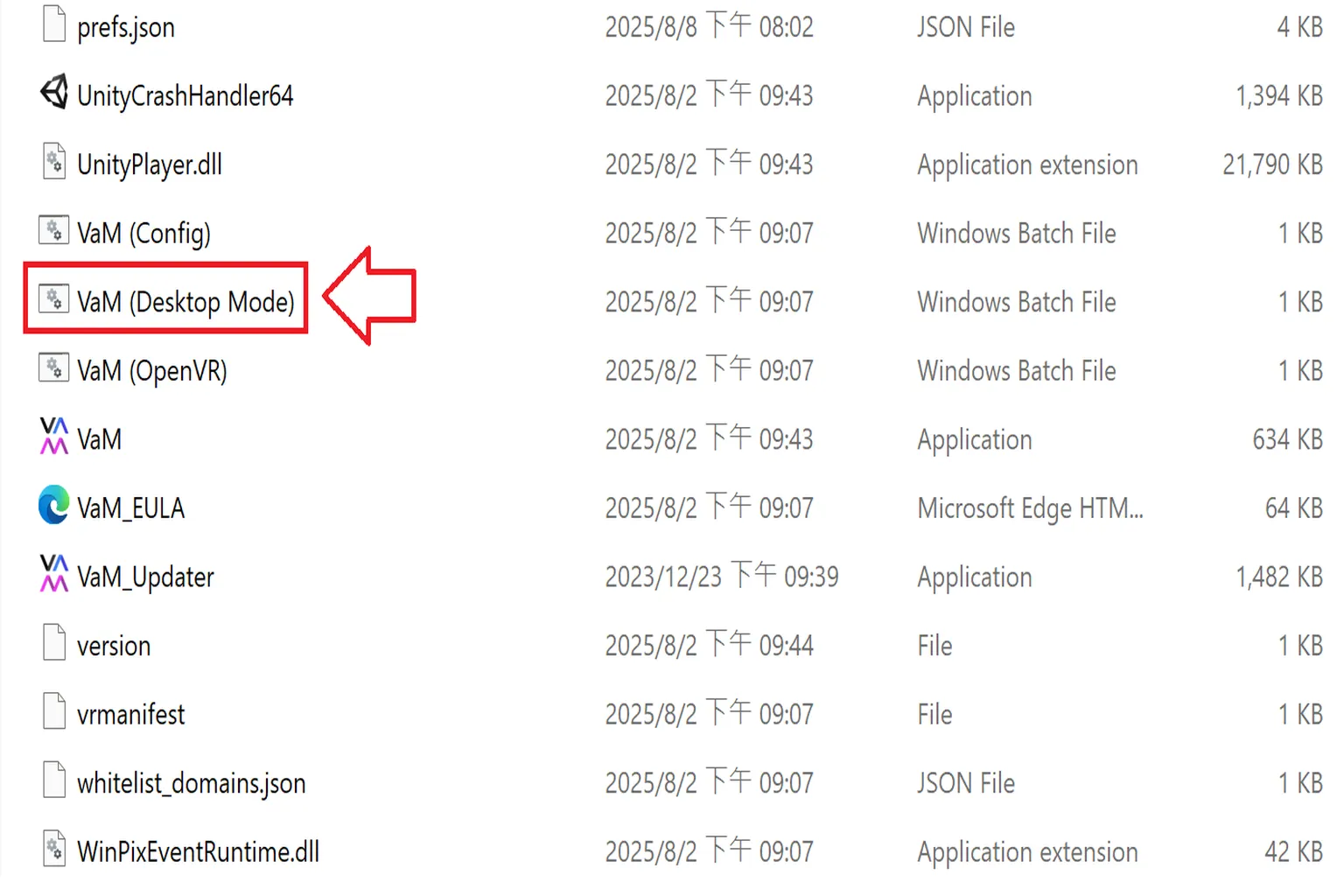
From the VaM installation folder, launch VaM (Desktop Mode).
Step 2: Enter VaM Hub
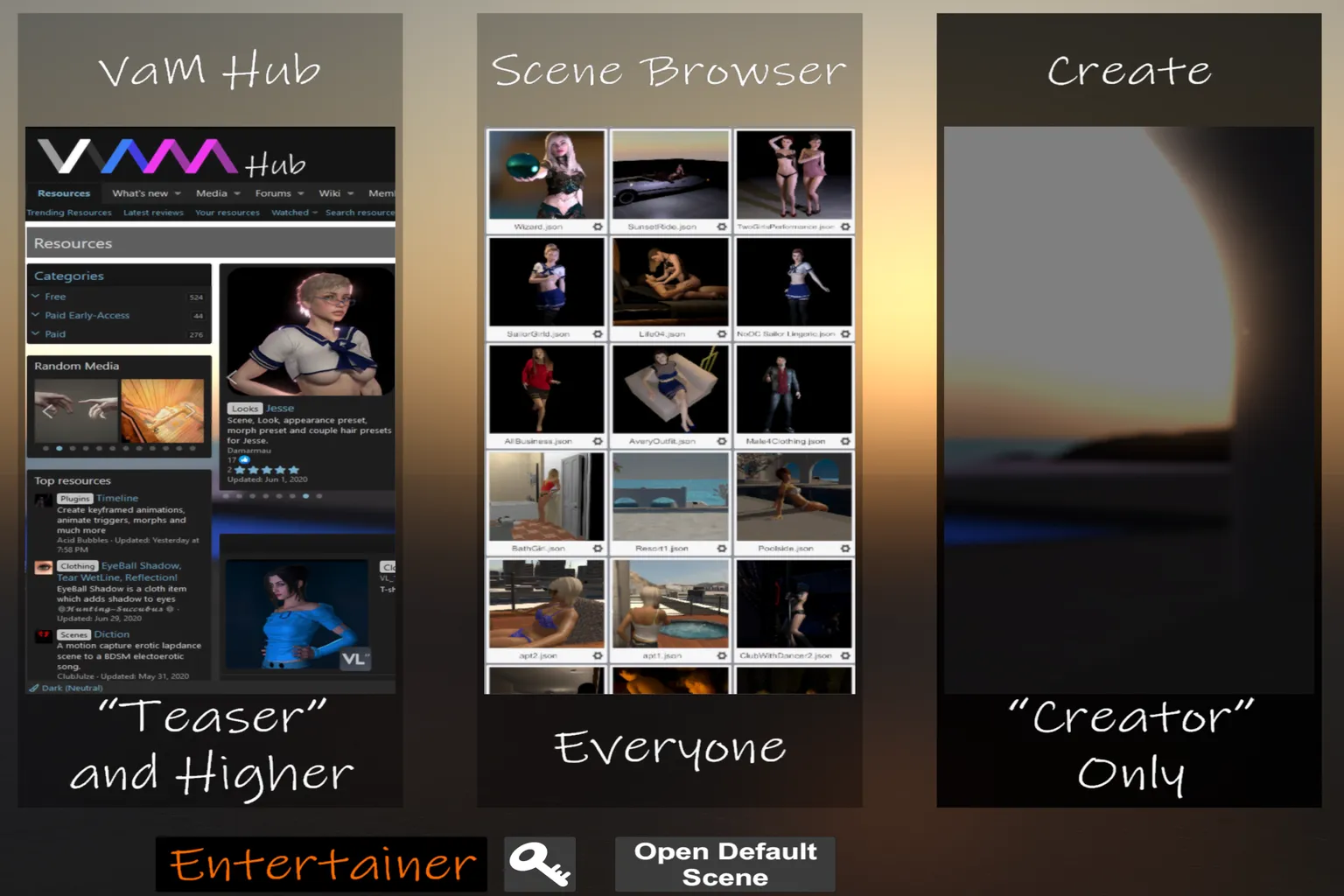
On the VaM main screen, you will see three small windows:
VaM Hub
This is where you download scenes, characters, items, and features. It’s the heart of VaM, and it’s available on the Teaser plan ($2) and above.
Scene Browser
This is where you load downloaded scenes and characters. You’ll start here when actually playing. Free users can also use this.
Create
This is the mode for creating your own scenes and characters. It’s only available on the Creator plan.
Start by clicking VaM Hub and look for content that catches your eye.
Step 3: Choose a scene you like
The first time you open VaM Hub, the sheer number of characters and scenes will probably surprise you. There are 381 pages and a total of 18,252 pieces of content available.
Each entry shows preview images, user ratings, and download counts, which makes it easier to decide what to pick.
On the left side of the screen, the quick menu includes the following options:
Refresh
Reloads the list.
Hosted Option
Selects which types of resources are shown. To avoid missing data, it’s best to leave this set to Hub And Dependencies. If required files are missing, parts of the model, clothing, or assets may not appear correctly.
- Hub
Shows only items uploaded to the official VaM Hub. This does not guarantee that all dependencies are included. - Hub And Dependencies
Shows only content that can be downloaded with all required files included, such as characters, clothing, and plugins. - External
Shows resources that were manually added to your local folders.
Reset Filters
Clears all filter conditions and returns to the default view.
Pay Type
Filters by pricing type. You can choose Free or Paid. The default is Free.
Category
Selects a category such as Clothing, Looks, or Plugins.
Creator
Enter a creator name or select one from the list.
Tags
Filters by tags. For example, entering Japan, China, or Asia helps you quickly find matching models.
Search…
Keyword search. Searches file names, descriptions, and titles.
Primary Sort
Sets the primary sorting rule.
Secondary Sort
Sets the secondary sorting rule.
Open Package Manager
Manages downloaded resource files (VAR).
Scan Hub for Missing Referenced Packages
Scans installed scenes or characters for missing VAR files and attempts to download them from the Hub.
Scan Hub for Packages With Updates
Checks for updates to installed resources.
Total / Page
Shows the total number of results that match the current filters and the current page number.
Close
Closes the Hub browser and returns to the main screen.
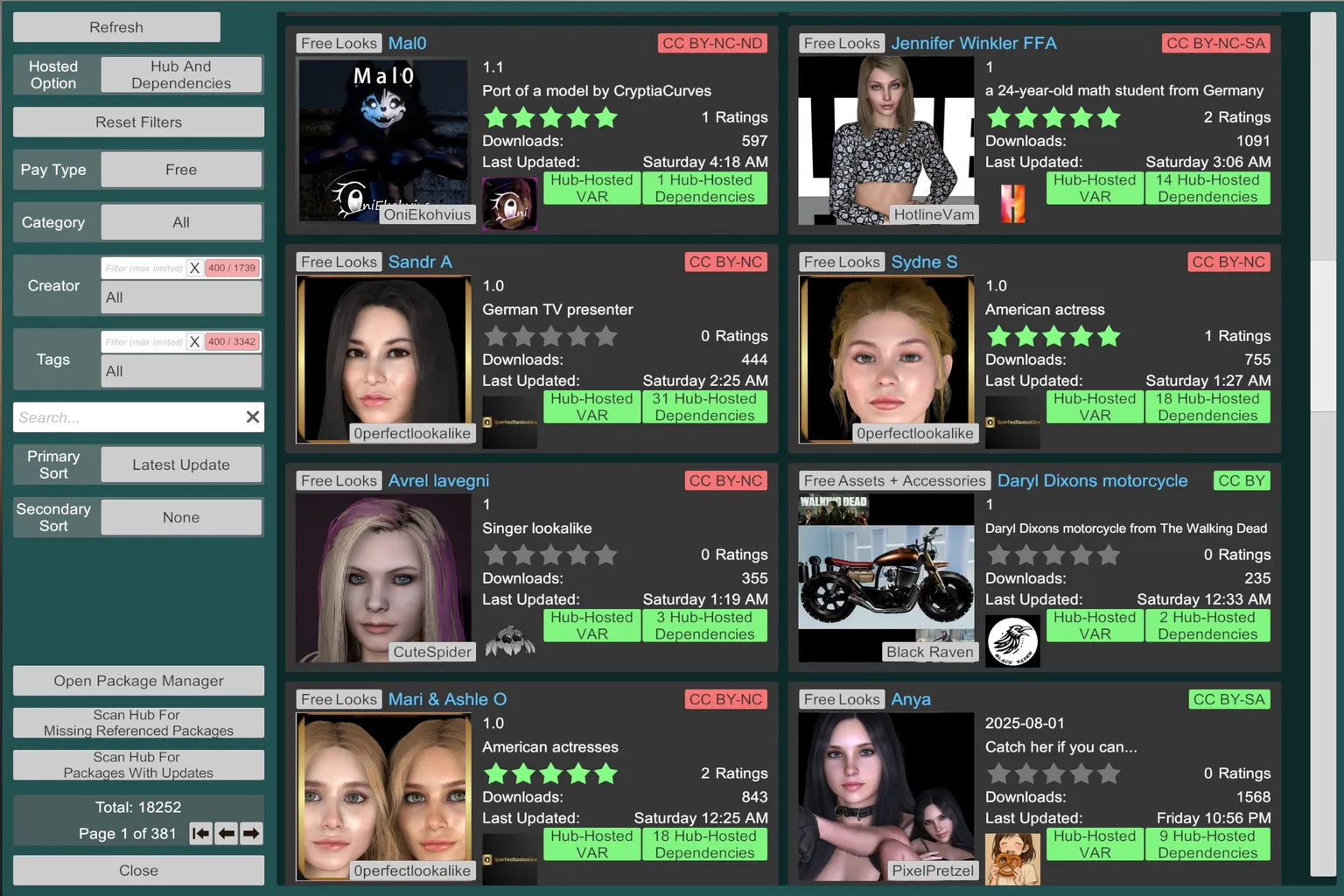
If the amount of content feels overwhelming, using Category in the left-side menu makes things much easier. It lets you narrow things down based on what you’re actually looking for.
There are a lot of categories available, and each one helps you search with a clear purpose.
All
Shows every category.
Assets + Accessories
Props, accessories, vehicles, and scene objects.
Examples include bikes, chairs, chains, and similar items.
Audio
Sound files such as sound effects, voices, and background music.
Blend Shapes
Data used for facial expression control.
Clothing
Outfit mods, including sexy lingerie, uniforms, and swimsuits.
Comics + Storytelling
Story-based modules.
Examples include interactive scenes and comic-style narratives.
Demo + Lite
Trial versions and showcase resources.
Environments
Backgrounds and full environments.
Examples include stages, rooms, and outdoor scenes.
Guides
Tutorial and instructional modules.
Hairstyles
Hair mods such as long hair, short hair, and ponytails.
Lighting + HDRI
Lighting setups and atmosphere adjustments.
Looks
Character face models, which form the core of a character’s appearance.
Mocap + Animation
Motion capture data and animation presets.
Examples include dancing, walking, and sitting motions.
Morphs
Body and face shape modification data.
When combined with Looks, these allow for a wide range of styles.
Other
Items that don’t fit into other categories.
Plugins + Scripts
External plugins and scripts used to extend functionality.
This also includes integrations with adult devices and tools.
Poses
Static pose presets.
Scenes
Complete scenes that include characters, environments, motion, and lighting.
Skins
Skin textures that affect skin tone, surface quality, and fine details.
Textures
Material textures applied to skin, fabric, and object surfaces.
Toolkits + Templates
Tool sets and templates for building or organizing content.
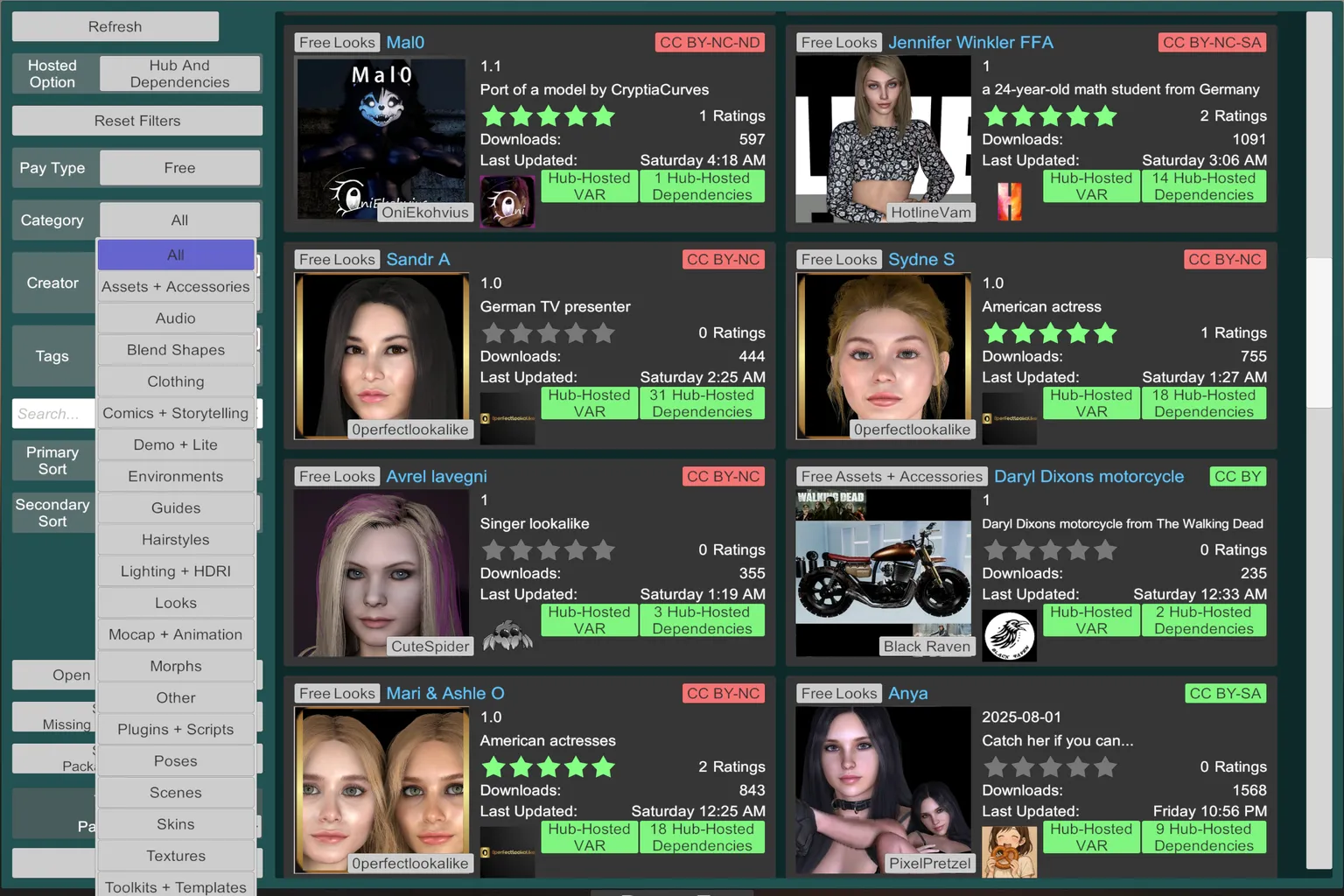
Did you notice?
Scenes are finished works created by the author. You can open them and start enjoying them right away.
All the other categories are mostly asset-type content used when creating or modifying characters yourself.
So first, select Scenes.
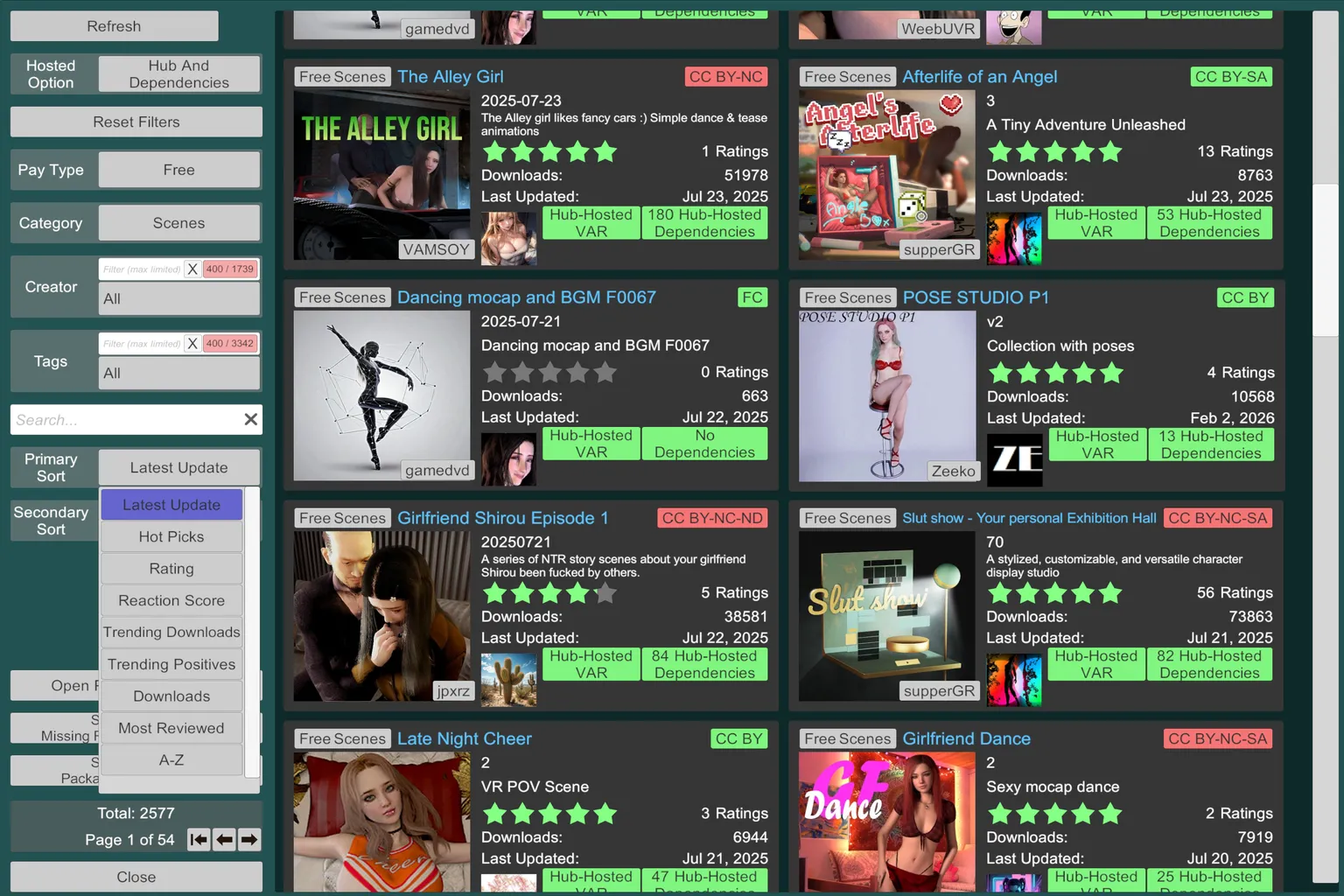
Next, take a look at Primary Sort.
This is used to quickly reorder content and find what you want. The available options are:
Latest Update
Shows content sorted by most recent updates.
Hot Picks
Popular content selected by the system based on multiple factors.
Rating
Sorted by user star ratings, with five-star content at the top.
Reaction Score
Sorted by how much user response it gets, such as comments and feedback.
Trending Downloads
Sorted by recent download activity. Useful for finding what’s hot right now.
Trending Positives
Content that has received especially positive feedback recently.
Downloads
Sorted by total lifetime downloads. Good for finding all-time favorites.
Most Reviewed
Sorted by number of reviews. Helps surface widely discussed content.
A–Z
Sorted alphabetically by name.
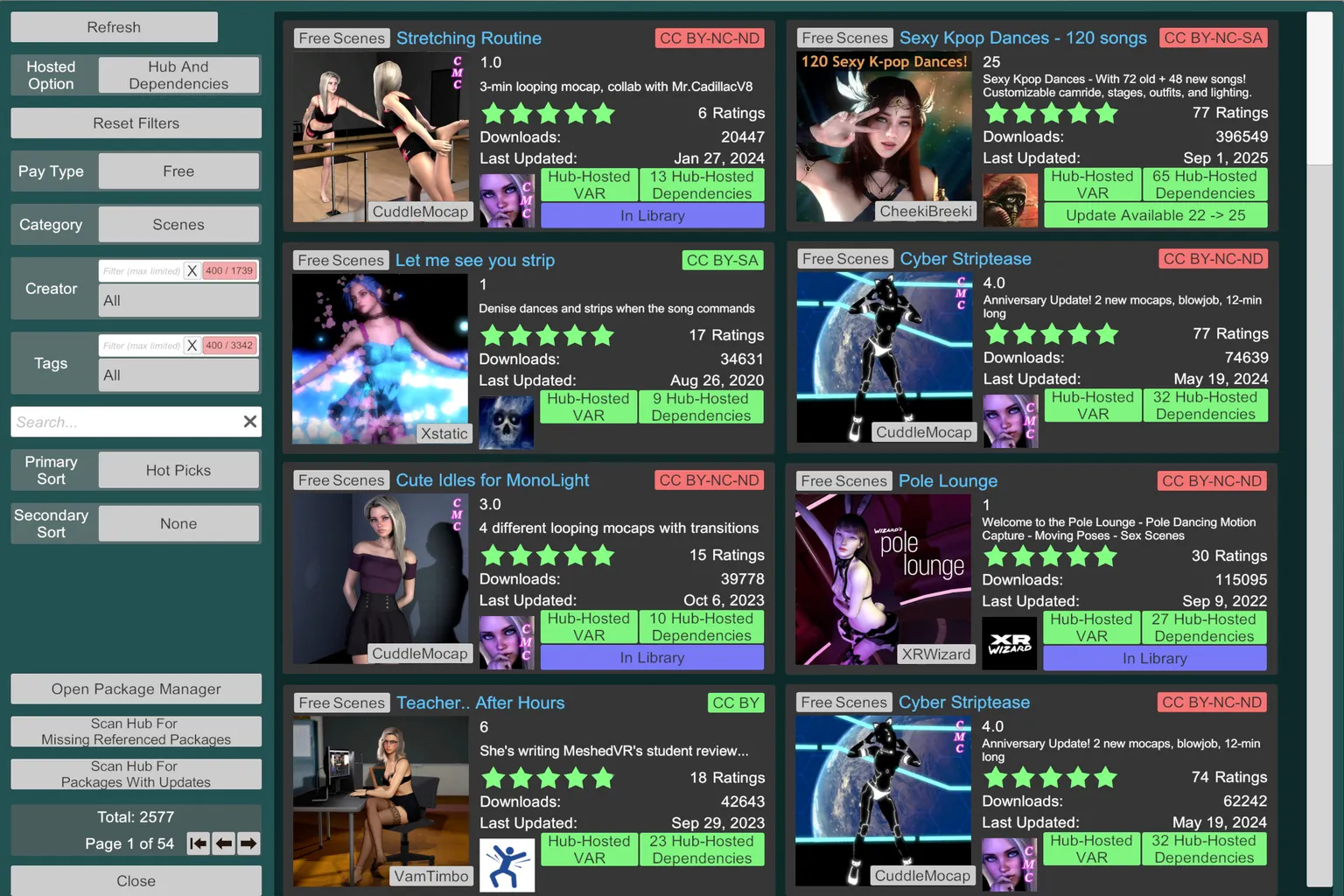
For beginners, Hot Picks is the best place to start.
It surfaces content with both high popularity and strong ratings, so it’s easier to avoid bad picks early on.
Once you’re done setting the filters, what you’ll see are finished scenes with high ratings and strong popularity, all ready to play as soon as you download them.
From there, just follow your own taste and start picking whatever catches your eye.
Step 4: Download a scene
When you click a scene you like, you’ll be taken to its download page. If the content includes nudity, the description is hidden by default.
If you are 18 or older, click I Agree at the bottom of the right-side panel to reveal the description.
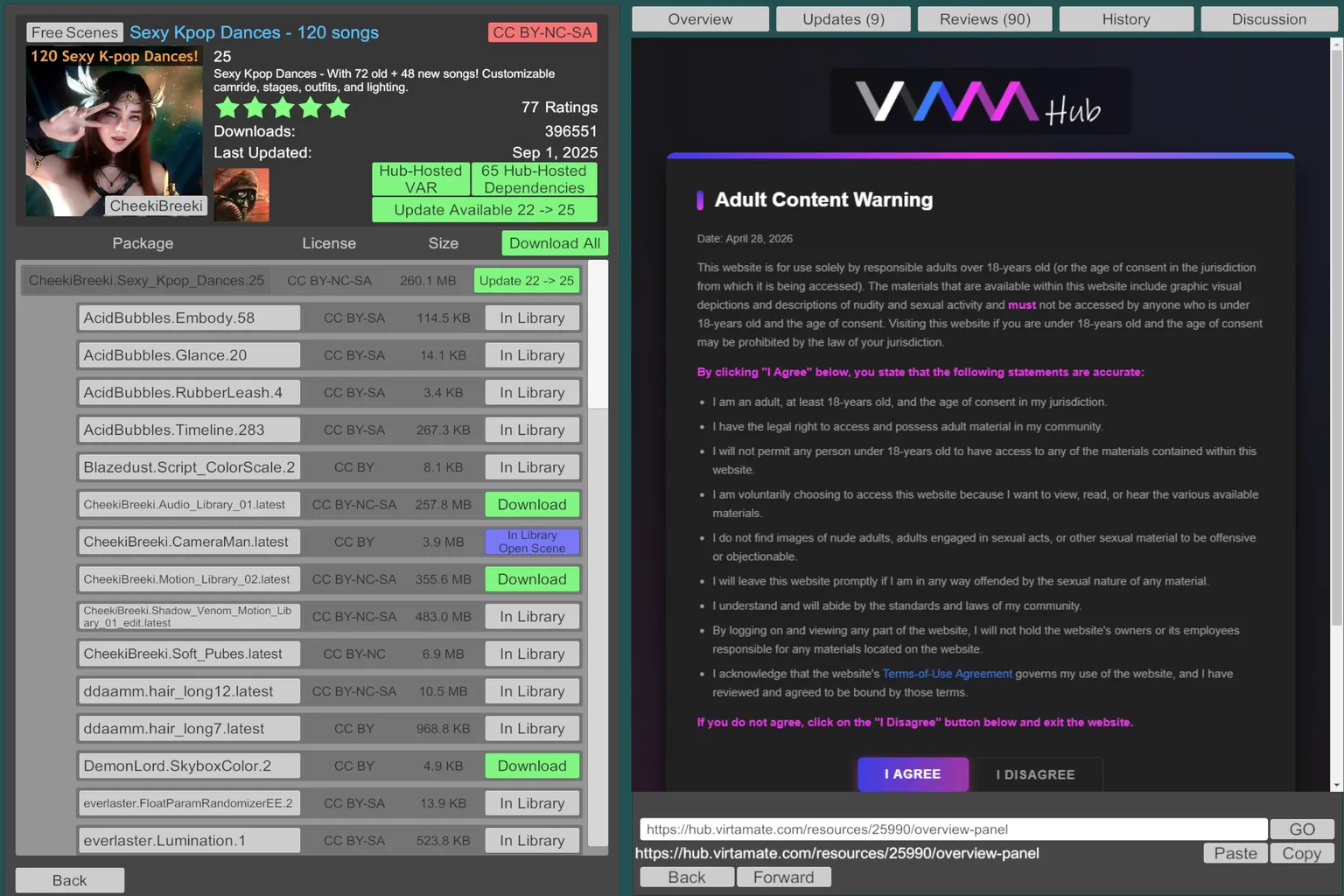
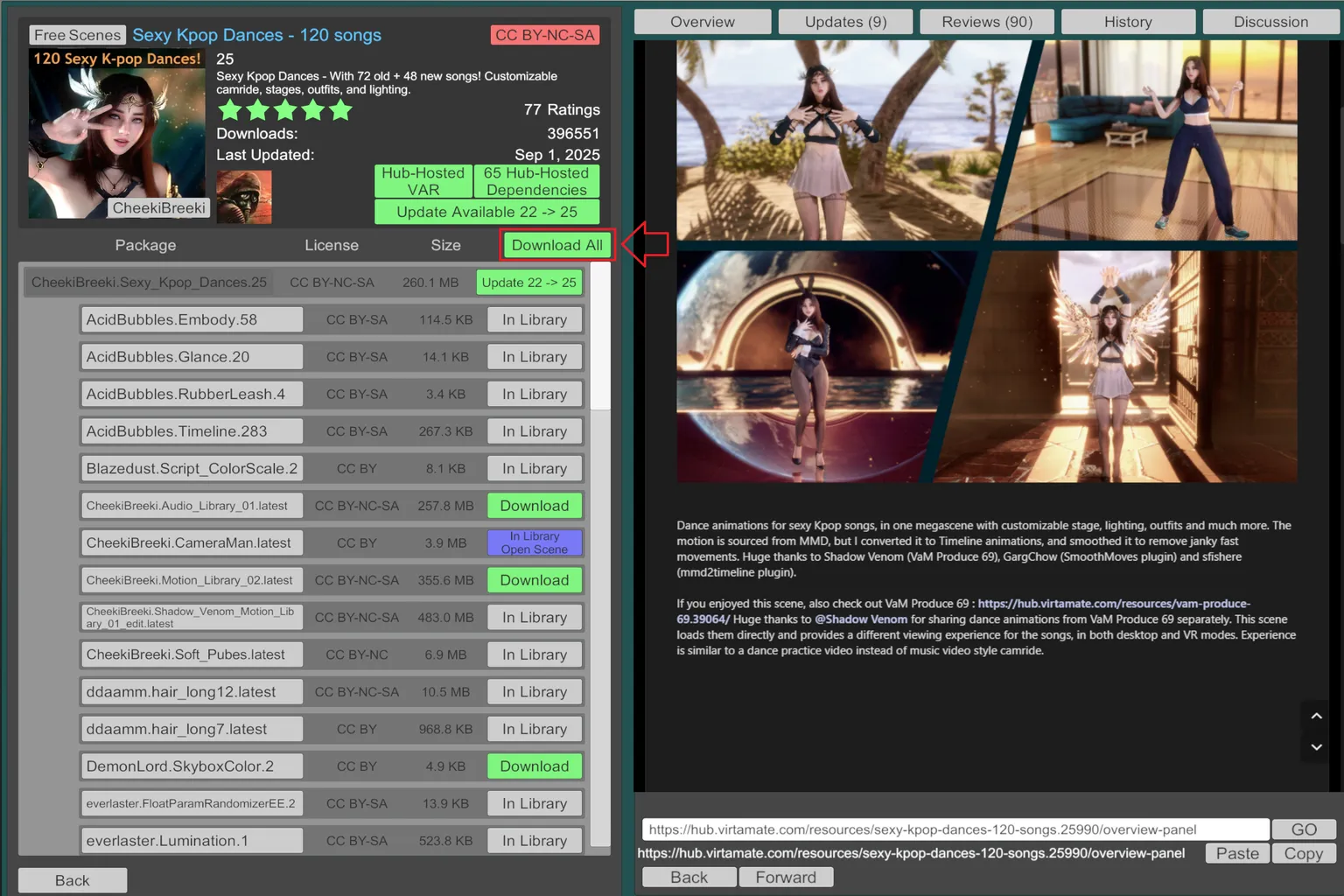
Once unlocked, you can read a detailed explanation of the scene and view video previews.
If you like what you see, click Download All in the left-side panel to start downloading.
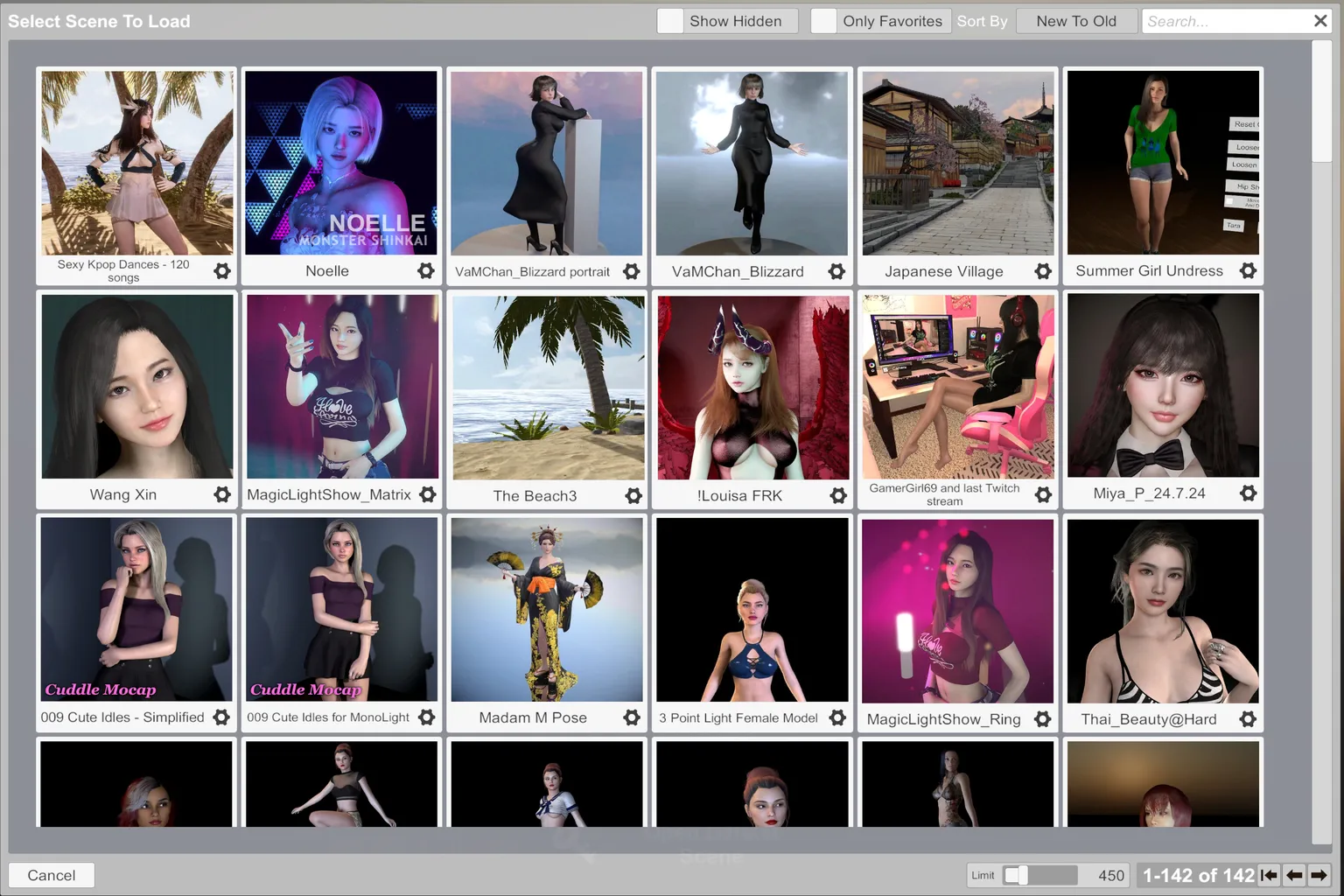
When the download finishes, the scene is saved to your personal content library.
Step 5: Launch the model
First, close VaM completely. Next, put on your headset and launch SteamVR.
With SteamVR running, go to your VaM folder on the PC and click VaM (OpenVR) to start VaM in VR mode.
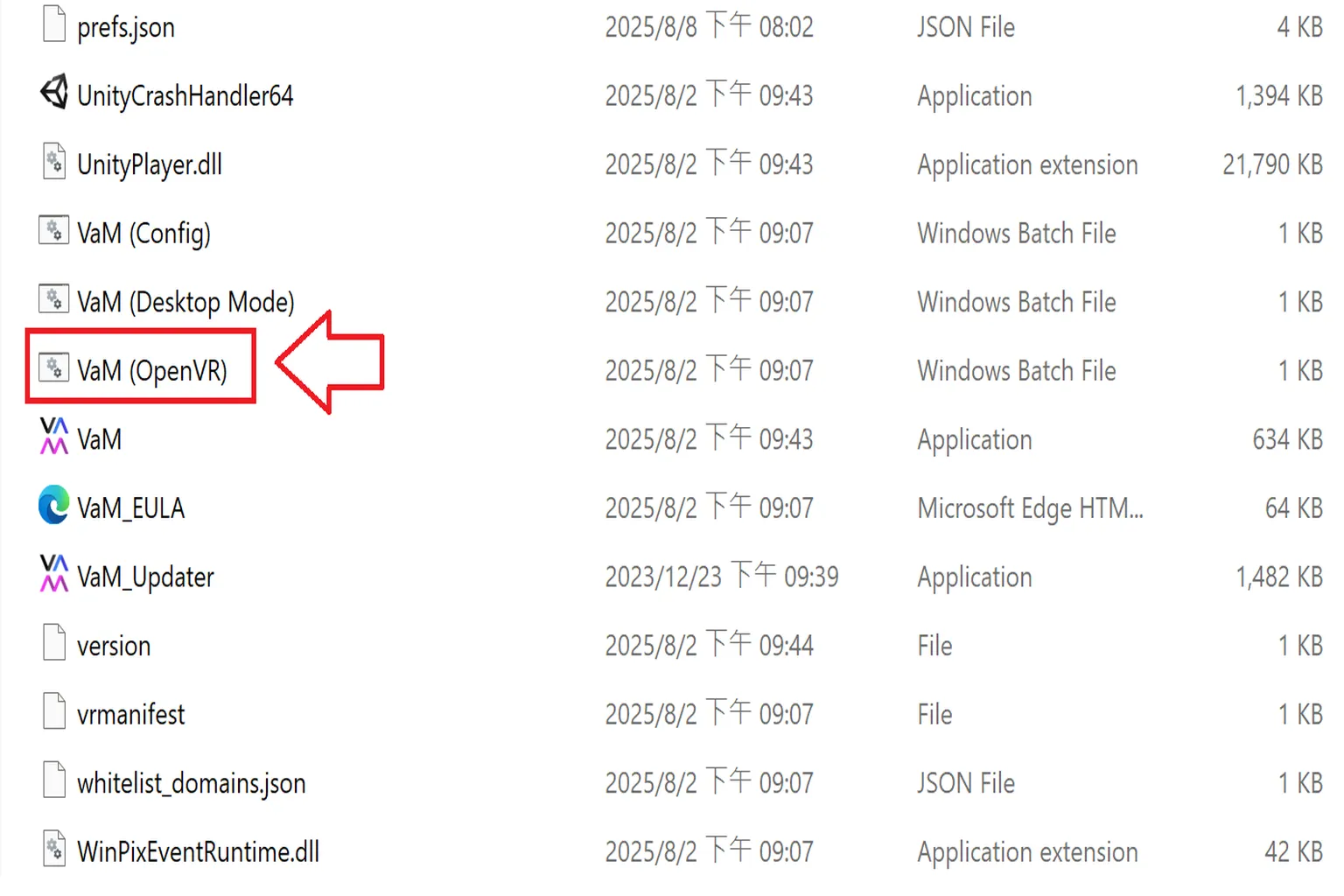
Once you put on the headset, VaM will launch inside it. Click Scene Browser shown in the center of the screen.
At this point, all downloaded modules will appear in your library. Pick the one you want, then press the A button on the controller to load it.
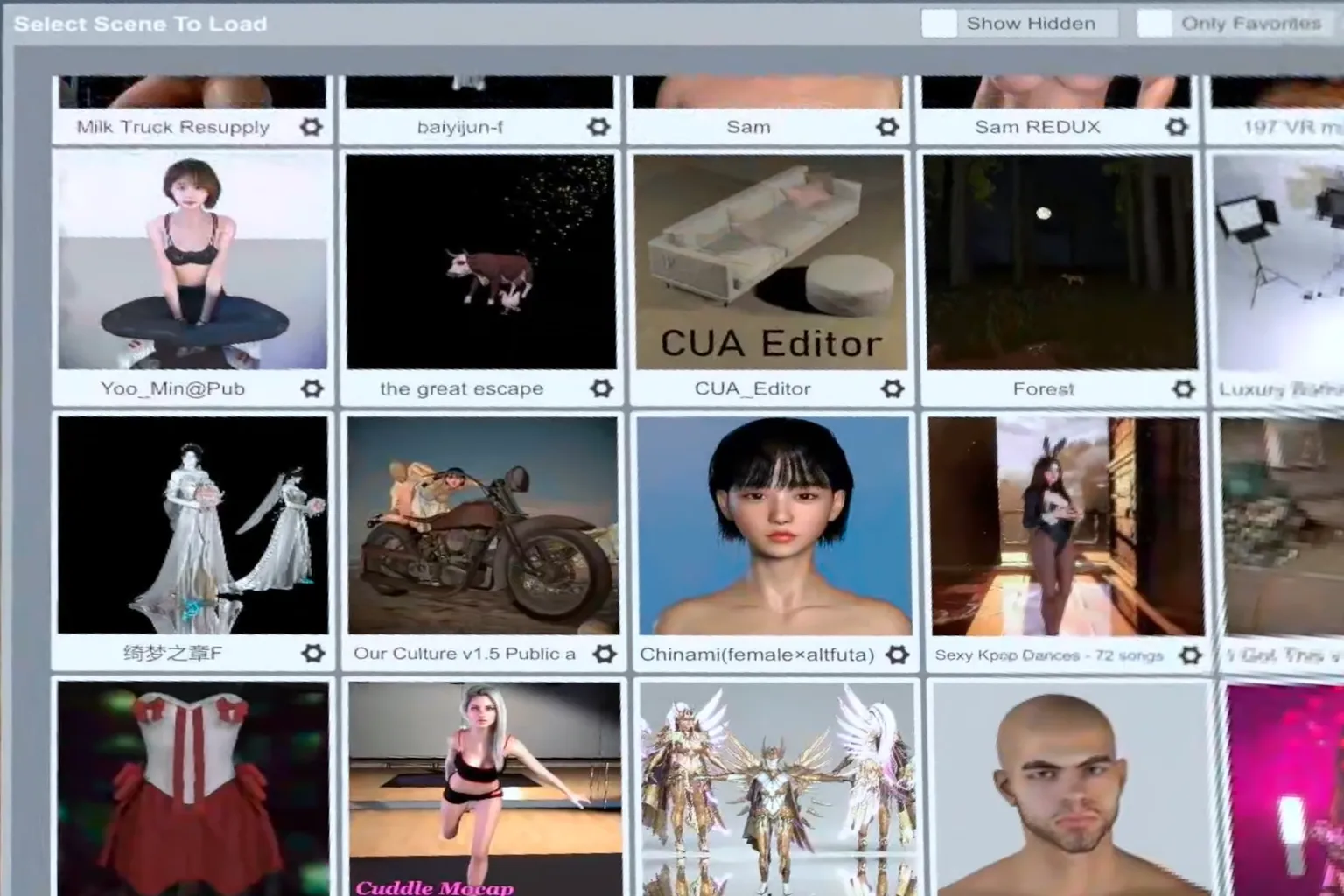
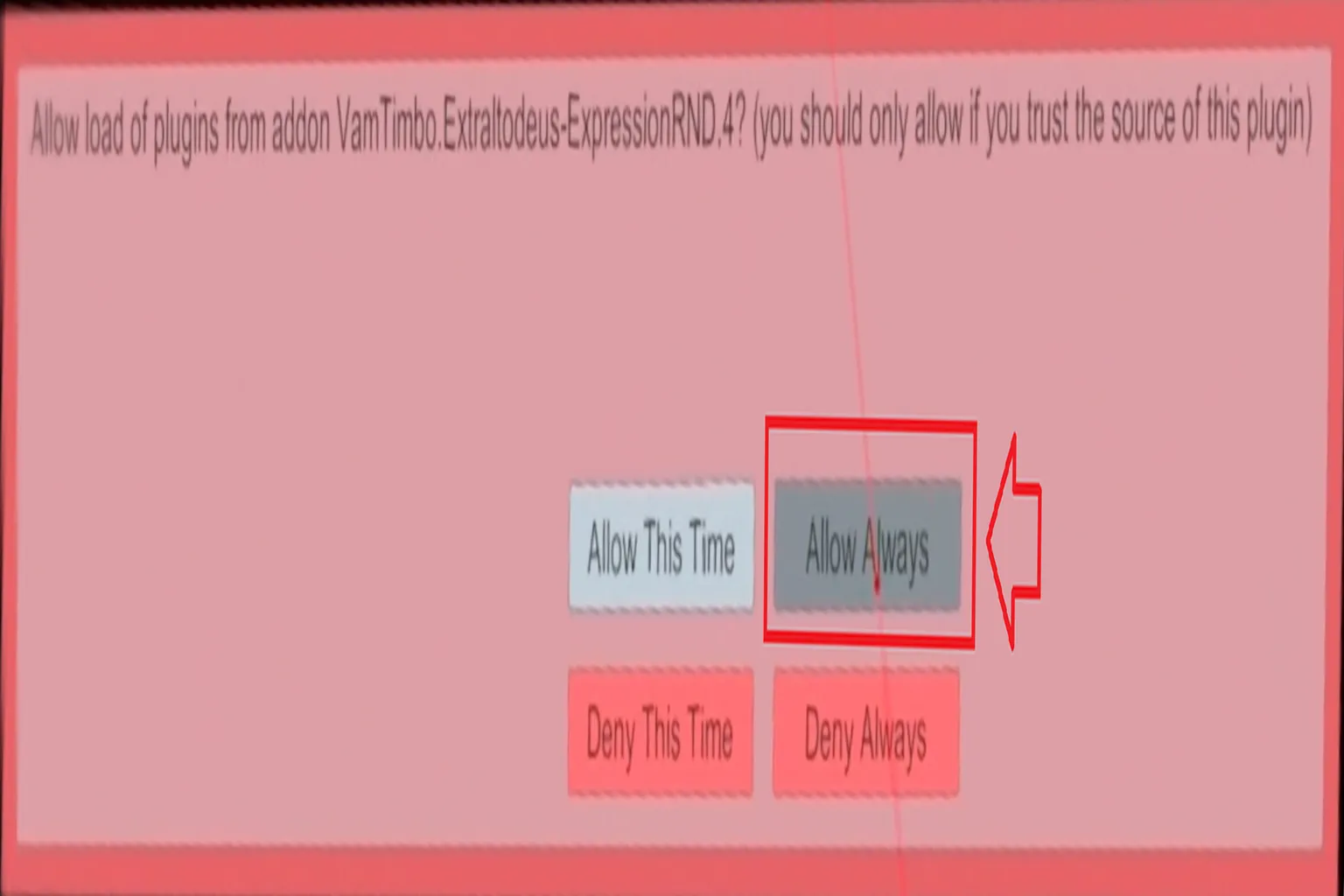
If you did not check Set Always Enable Plugins back in Step 6 of the installation process, VaM will ask for permission the first time you load a module, one plugin at a time.
When that happens, select Allow Always.
Depending on the scene, you may need to click it more than ten times before the module fully loads.
That’s it for the basic VaM workflow. If you’ve made it this far, you should already be able to meet her and enjoy your time together.
Virt-A-Mate Model Showcase
Out of the huge number of available models, here are a few I actually downloaded and really liked. All of these are beautifully made characters, and they can be enjoyed without mosaic censorship.
There are plenty of other great models out there too, but anything that requires mosaic isn’t covered here. Those are better discovered by downloading and trying them yourself.
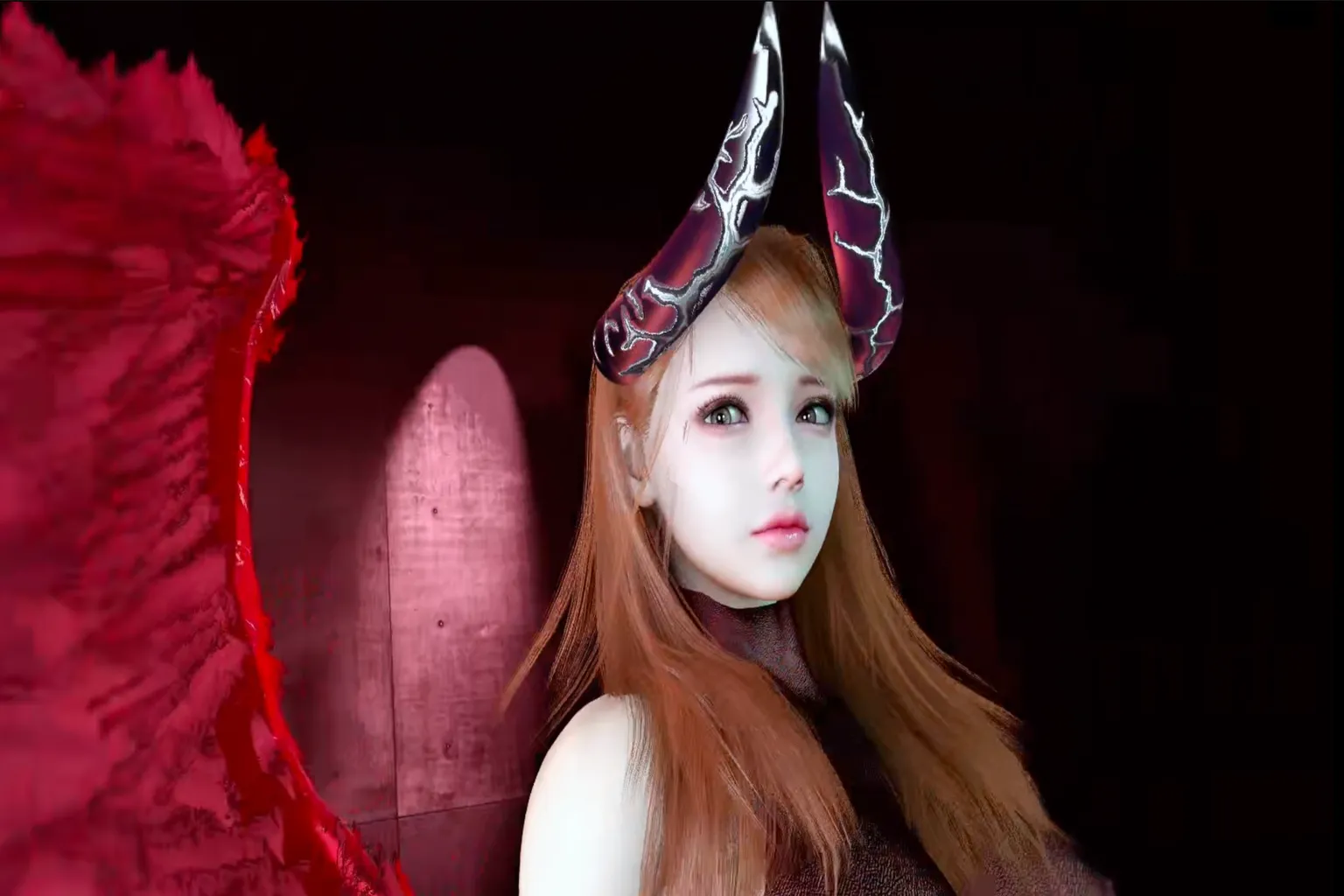
Louisa FRK: Japanese-style demon girl
She stands out with a perfectly balanced figure and delicate facial features. In VaM, you can use the trigger buttons to grab her hands, ankles, and other points, then freely adjust her pose.
The modeling quality is extremely high. No matter where you move, her eyes keep following you the entire time.
There’s a sweet, slightly fragile vibe to her, almost like she’s whispering, “Please… don’t tease me anymore.” That soft, emotional atmosphere is what makes her so memorable.
Noelle: Korean-style beauty
The moment you enter the scene, it feels like a top Korean drama actress is standing right in front of you. It’s hard not to stare. Her deep red lips look almost too vivid, pulling you in without even trying.
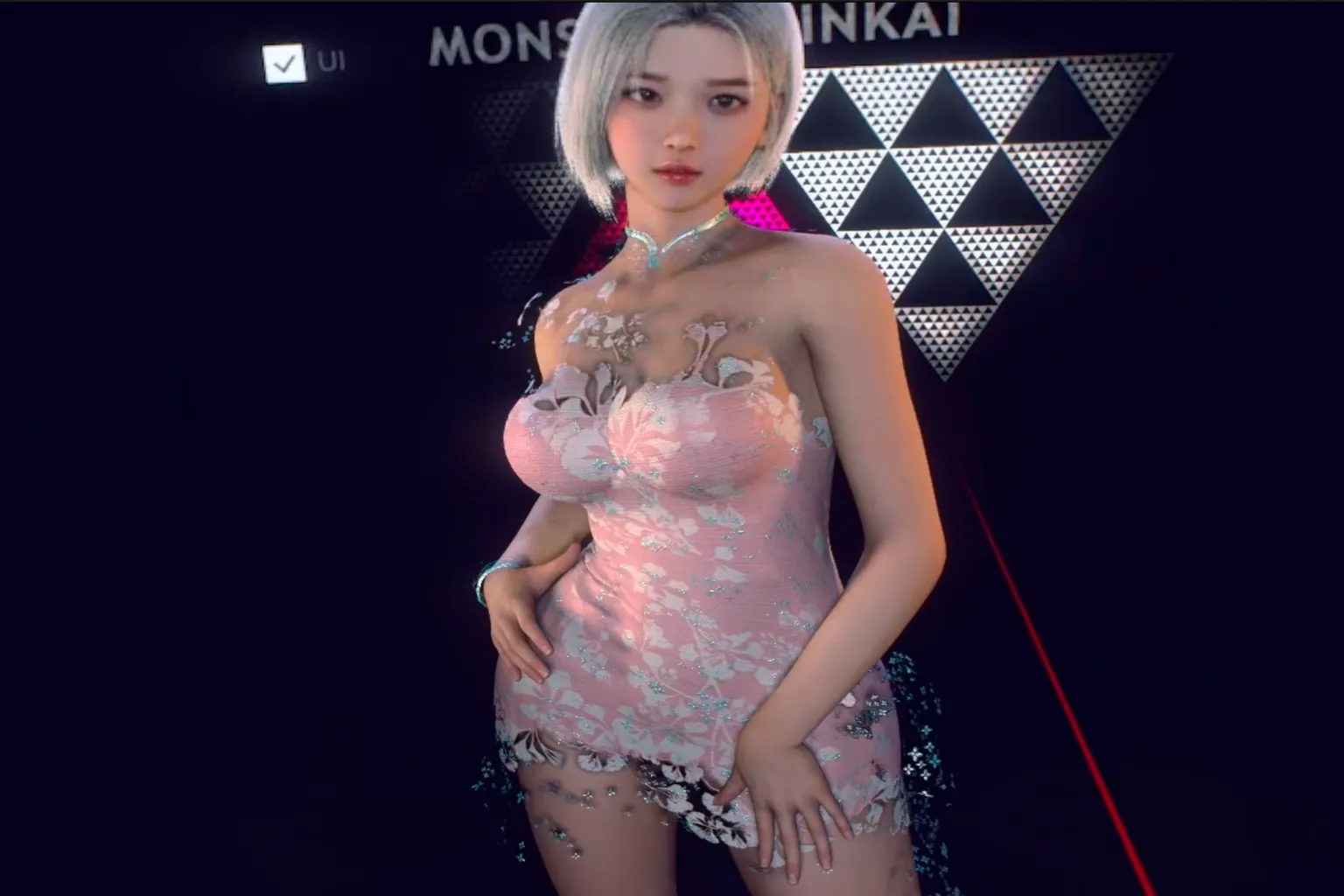
Those clear eyes and gentle makeup…
Just having her look at you is enough to make you feel shy.
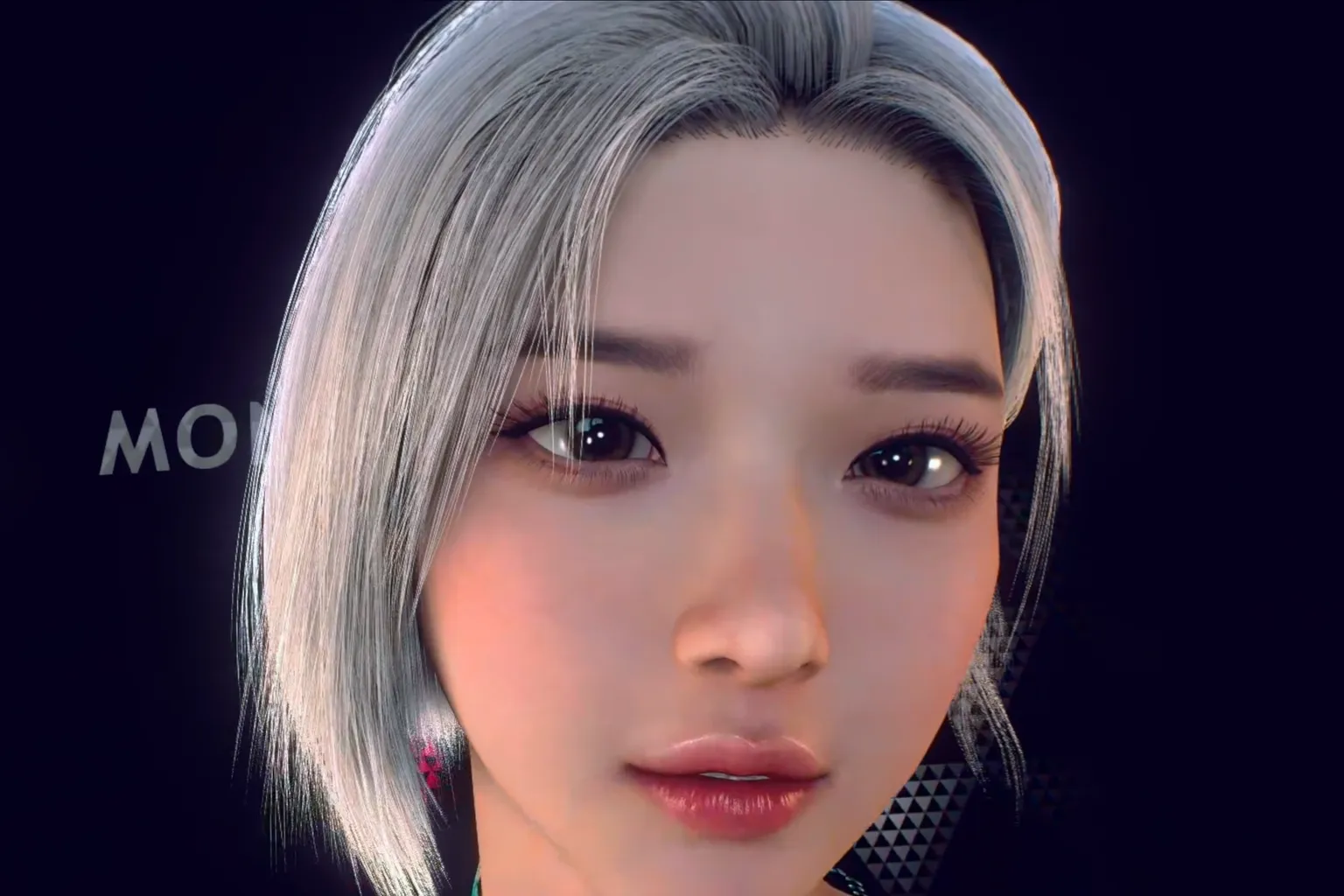
VaM Produce 69: Korean-style beauty
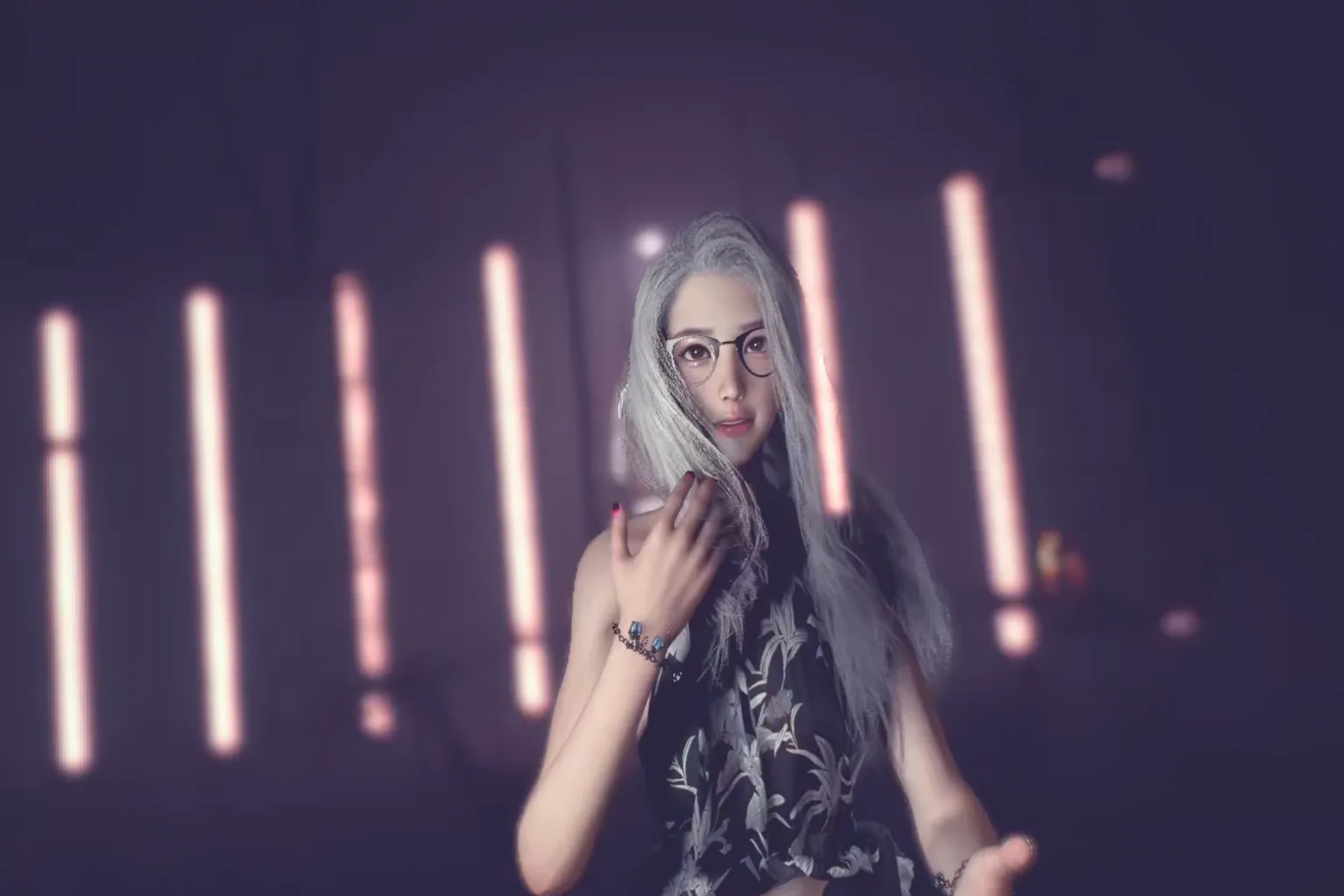
This is a massive free module, and it’s one you should absolutely download. She has flawless visuals and can pull off everything from modern outfits to traditional styles, and she’ll even dance right in front of you. Once you download it, you get a super-beauty who can cosplay into different characters every day.
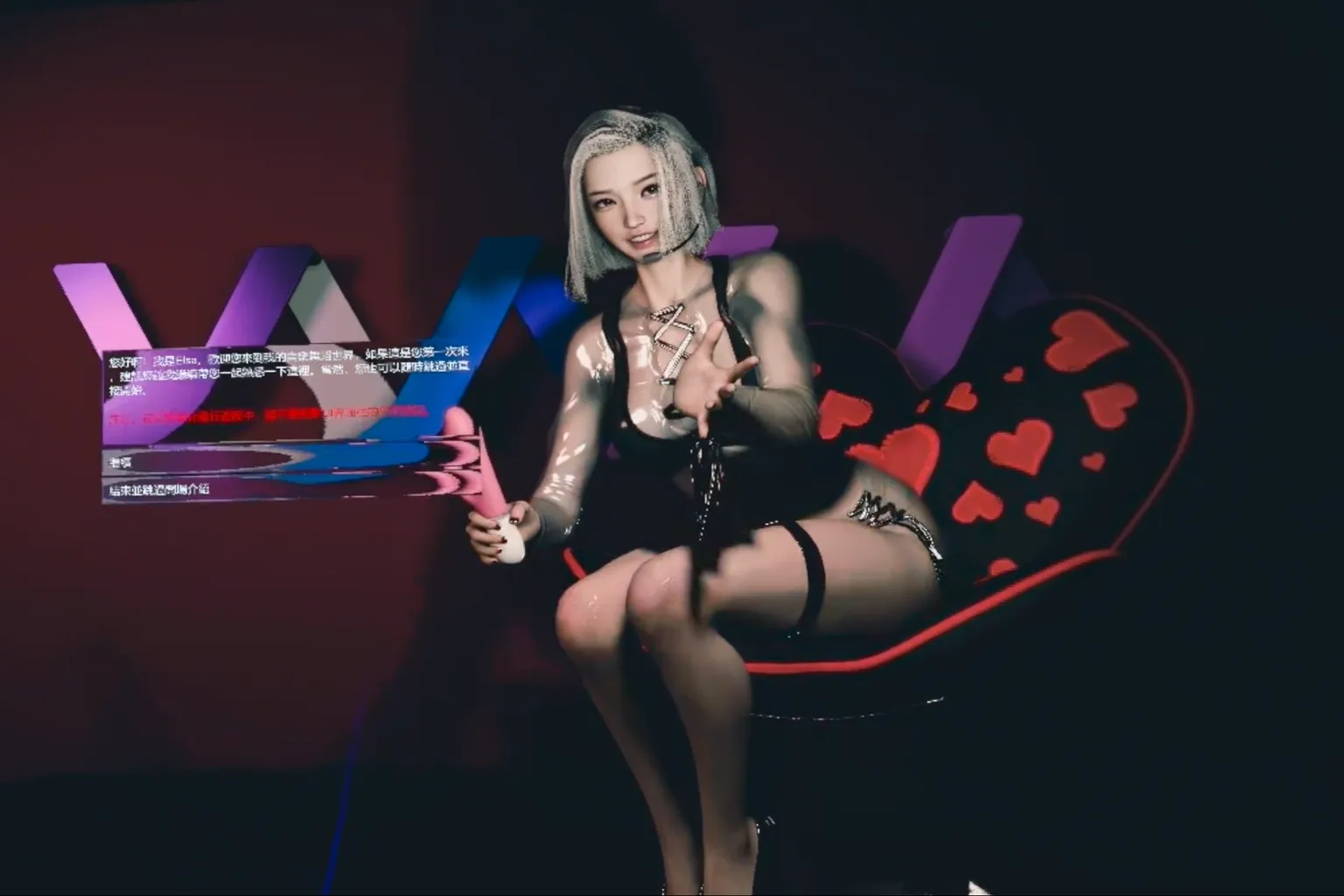
And since she dances right there in front of you, it’s something you’re very unlikely to get bored of.
Detailed Settings in Virt-A-Mate
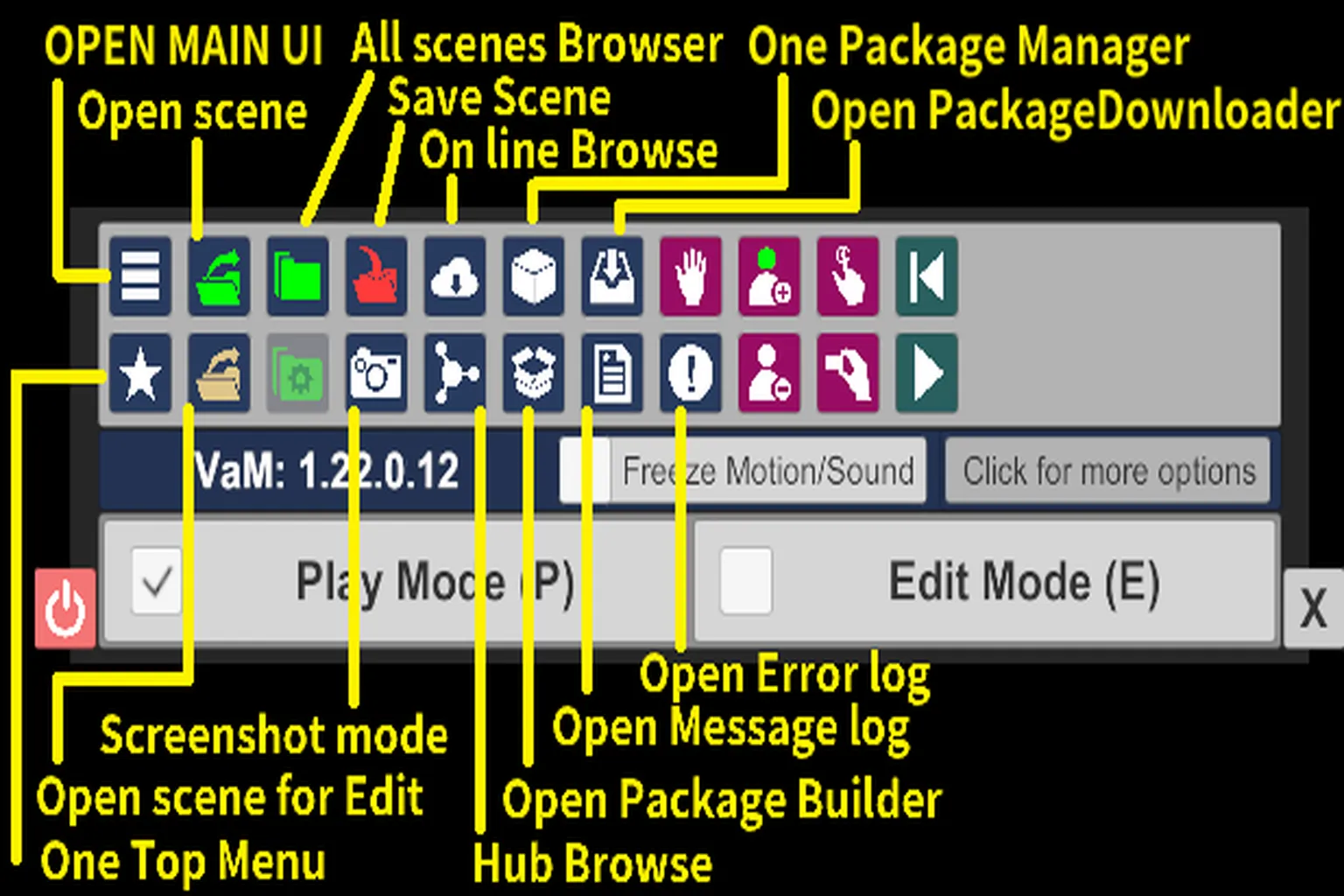
Aside from the basic controls, there’s a multifunction menu in the bottom-left corner of the screen. This is where you handle finer settings and operations.
The main options include:
⏻
Exit VaM
Play Mode / Edit Mode
Switch between playback mode and edit mode
Open Menu UI
Open the main menu to adjust detailed module settings
Open Scene
Load an existing scene, selectable by folder
All Scenes Browser
Show a list of all scenes saved locally
Save Scene
Save the current scene state. This is mainly used after making edits or adjustments, and not something you’ll use much if you’re just viewing content
Online Browse
Open the online VaM Hub inside the app. This is used for paid content, but in practice it’s usually easier to manage downloads on a PC browser
Open Package Manager
Manage installed resources and modules
Open Package Downloader
Enter a URL to download new modules from the online Hub
Open Top Menu
Open the main menu
Open Scene for Edit
Load a scene directly in edit mode
Screenshot Mode
Screenshot mode. Lets you set camera position and resolution
Hub Browse
Open the Hub module browser for downloading content
Open Package Builder
Create your own VAR packages
Open Message Log
View the message log
Open Error Log
View the error log for detailed troubleshooting
Freeze Motion/Sound
Pause visuals and audio
Click for more options
Access additional settings
- World Scale
Adjust the scale of the entire world. If the character feels too large or overwhelming, reduce this value - Player Height Adj
Adjust the player’s viewpoint height. Higher values raise your eye level - Time Scale
Adjust the flow of time. Higher values make movements faster - Navigate Lock Height
Lock the viewpoint height on the Y-axis. This keeps your height consistent during movement and camera changes, which helps reduce VR motion sickness
Out of all these, the ones you’ll use most often are All Scenes Browser and Hub Browse.
The rest are mainly for advanced editing or deeper management, and you usually won’t touch them during normal play.
It’s fun, but man, those scene transitions take a while!
That’s basically how you use VaM.
When you first try it, it probably feels pretty exciting. There are all kinds of characters, scenes, and outfits, and it feels like a world where you can project almost any kind of fantasy a guy might have.
You can make characters look incredibly good, and those characters can interact with you right in front of your eyes.
But after using it for a while, you start to understand what VaM really is.
At its core, VaM is basically a very detailed doll system. The characters feel close to highly realistic dolls, and the interactions move according to scripts.
Because every character looks good, you naturally want to keep trying one after another. But that is where the problem starts.
Every time you switch characters or scenes, the loading time can be pretty long.
My PC uses a Gen-4 SSD with a read speed of 7,400MB/s. Even then, larger scenes can sometimes take around 3 to 5 minutes to load.
If you want a more casual way to enjoy a virtual girlfriend, there are actually easier options.
For example, SLR has a lot of VaM-style character videos. The characters and animations are made with a lot of detail, and you can switch between them much faster.
I picked 15 studios and compared everything from VaM-style characters to Honey Select and Koikatsu-style characters.
If you are interested in SLR, you can also check the purchase and usage guide here. It is organized so you can experience, step by step, the fun of feeling like the male actor in VR mode.
SLR Virtual Character Guide
VAM vs Honey Select vs Koikatsu Reviewed
SexLikeReal Ultimate Guide
Lifetime Membership, Limited-Time 80% Off Sale
FAQ – Common Questions
Can I just view scenes and characters without doing any modeling myself?
Yes.
If you choose the Teaser plan at $2 per month, you can load and enjoy finished models and scenes created by other creators, with no modeling required.
Can I cancel after subscribing? Will I lose access immediately?
You can cancel at any time.
Even after cancellation, your membership stays active until the end of the current billing cycle, so access is not cut off immediately.
Refunds are not available, but you can use the service for the full paid period.
Should I choose a monthly or yearly plan?
It’s best to start with the monthly plan and try it out first.
If you like it, switching to the yearly plan gives you a 10 percent discount.
What should I do if a module’s content does not show up?
Modules that include adult content are hidden by default.
Click I Agree in the bottom-right corner of the screen to unlock and display the content.
I keep getting a lot of warnings and plugin permission prompts when loading modules. What should I do?
During the initial setup, make sure to check Set Always Enable Plugins.
This reduces the number of permission pop-ups when loading modules.
If you forgot to do this, you can enable the same option later from Open Menu UI.
Where do I download modules from?
From the main screen, enter VaM Hub and select the Scenes category.
Then set the sort option to Hot Picks to quickly find popular finished scenes.
Can I interact with these characters?
In most scenes, you can touch the characters, adjust poses, and watch dances or animations.
However, they are not AI-based, so real conversations or spontaneous interactions are not possible.